
 Mathan Kumar Varadharaja
TL;DR: Ever wondered how to translate an entire Word document with AI, without breaking formatting? This C# solution shows how to build a smart .docx translator using Syncfusion DocIO and OpenAI GPT‑4o‑mini.
Why translating Word documents is still hard
“If you talk to a man in a language he understands, that goes to his head. If you talk to him in his language, that goes to his heart.”
– Nelson Mandela
Manual translation tools weren’t designed for real-world Word documents. If you’ve ever worked with global teams, you already know the pain:
- Copy‑pasting content into Google Translate.
- Broken formatting when pasting back.
- Lost styles, tables, headers, and placeholders.
- Inconsistent terminology across documents.
To address these issues, teams actually need a way to:
- Translate content inside the document.
- Preserve layout, styles, tables, headers, and footers.
- Automate everything within a C# workflow.
That’s exactly what we’ll build!
We’ll learn to build an AI-powered Word Document Translator using C#, the Syncfusion® Word Library (DocIO), and the OpenAI GPT-4o-mini model. This solution enables you to translate entire Word documents into multiple languages while maintaining formatting, structure, and readability. It’s a practical and scalable way to streamline multilingual document management for global teams.

How does the AI-powered Word translator work?
Here’s the simple idea behind the solution:
- Load the Word document using the Syncfusion Word Library.
- Iterate through each paragraph in the document.
- Send the paragraph text to OpenAI GPT with a translation prompt.
- Replace the original paragraph text with the translated version.
- Save the translated document as a new file.
No copy‑paste. No layout damage.
Prerequisites
Before you start, make sure you have:
Building an AI-powered Word document translator in C#
Let’s follow these steps to create an AI-Powered Word document translator using Syncfusion .NET Word Library, OpenAI, and C#.
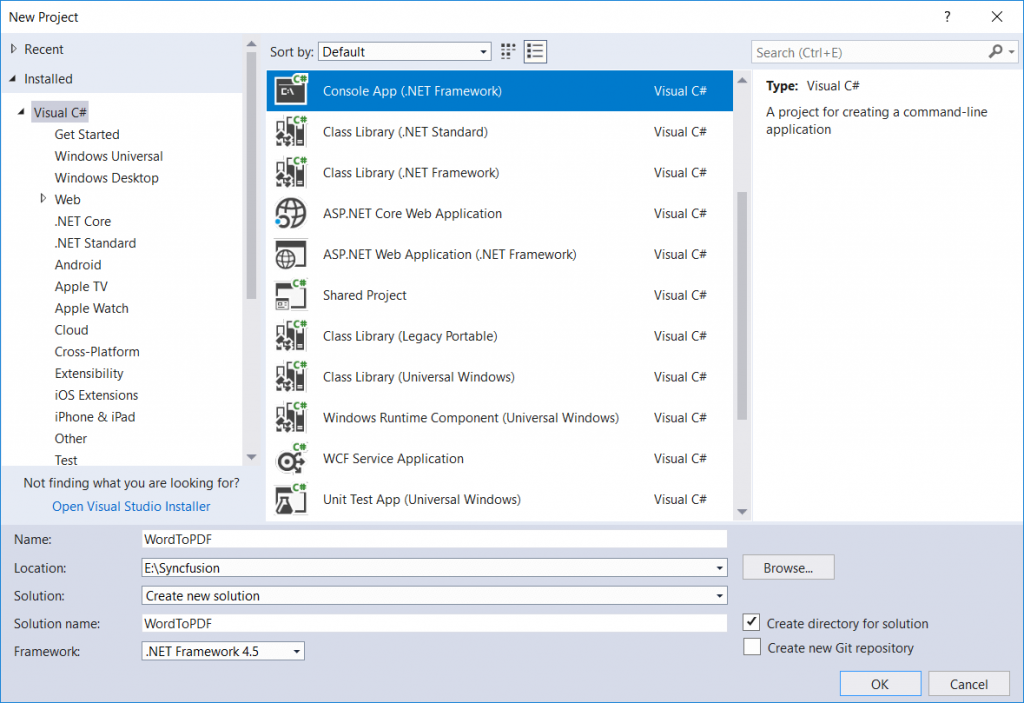
Step 1: Create the .NET app
First, create a new C# console application (.NET Framework) project.
Step 2: Install the NuGet packages
Now, install the latest Syncfusion.DocIO.NET.Core and OpenAI NuGet packages in your application from the NuGet Gallery.
Step 3: Add required namespaces
Include the following required namespace in the Program.cs file.
using System.ClientModel;
using OpenAI;
using OpenAI.Chat;
using Syncfusion.DocIO;
using Syncfusion.DocIO.DLS;
Step 4: Add a method for OpenAI responses
Then, add the OpenAI method to process the Word document content.
private static async Task AskOpenAIAsync(string apiKey, string model, string systemPrompt, string userContent)
{
    // Initialize OpenAI client.
    var openAIClient = new OpenAIClient(apiKey);

    // Create chat client for the specified model.
    var chatClient = openAIClient.GetChatClient(model);

    // Get AI response.
    ClientResult chatResult = await chatClient.CompleteChatAsync(
        new SystemChatMessage(systemPrompt),
        new UserChatMessage(userContent)
    );

    string response = chatResult.Value.Content[0].Text ?? string.Empty;

    return response;
}Step 5: Get the file path and the target language, and translate
Use the following code to get the file path and language for translation of a Word document.
private async static Task ExecuteTranslation(string openAIApiKey)
{
    Console.WriteLine("AI Powered Word Translator");

    Console.WriteLine("Enter full Word file path (e.g., C:\\Data\\Input.docx):");

    //Read user input for Word file path
    string? wordFilePath = Console.ReadLine()?.Trim().Trim('"');

    Console.WriteLine("Enter the language name (e.g., Chinese, Japanese)");

    //Read user input for required language
    string? language = Console.ReadLine()?.Trim().Trim('"');

    if (string.IsNullOrWhiteSpace(wordFilePath) || !File.Exists(wordFilePath))
    {
        Console.WriteLine("Invalid path. Exiting.");
        return;
    }

    if (string.IsNullOrWhiteSpace(language))
    {
        Console.WriteLine("Invalid language. Exiting.");
        return;
    }

    if (string.IsNullOrWhiteSpace(openAIApiKey))
    {
        Console.WriteLine("OPENAI_API_KEY not set. Exiting.");
        return;
    }

    try
    {
        // Translate Word content
        await TranslateWordContent(wordFilePath, language);
    }
    catch (Exception ex)
    {
        Console.WriteLine($"Failed to read Word document: {ex.StackTrace}");
        return;
    }
}
Step 6: Add a method to read and translate a Word document
Use the following code to extract information from the Word document using DocIO and translate it to the specified language.
private static async Task TranslateWordContent(string wordFilePath, string language)
{
    // Open the Existing Word document
    WordDocument wordDocument = new WordDocument(wordFilePath);

    // Define the system prompt that instructs OpenAI how to translate
    // Includes rules to preserve formatting, placeholders, and avoid paraphrasing
    string systemPrompt = @"You are a professional translator integrated into a DocIO automation tool.
                            Your job is to translate text from a word document into the" + language + @" language.
                            Rules:
                            - Preserve original structure as much as possible.
                            - Prefer literal translation over paraphrasing.
                            - Return ONLY the translated text, without quotes, labels, or explanations.
                            - Preserve placeholders (e.g., {0}, {name}) and keep numbers, currency, and dates intact.
                            - Do not change the meaning, tone, or formatting unnecessarily.
                            - Do not add extra commentary or code fences.
                            - If the text is already in the target language, return it unchanged.
                            - Be concise and accurate.";

    // Loop through each section in the Word document
    foreach (WSection section in wordDocument.Sections)
    {
        // Accesses the Body of the section where all the contents in the document are apart
        WTextBody sectionBody = section.Body;
        await TranslateTextBody(sectionBody, systemPrompt);

        WHeadersFooters headersFooters = section.HeadersFooters;
        // Consider that OddHeader and OddFooter are applied to this document
        // Iterates through the TextBody of OddHeader and OddFooter
        await TranslateTextBody(headersFooters.OddHeader, systemPrompt);
        await TranslateTextBody(headersFooters.OddFooter, systemPrompt);
    }

    // Save the Translate Word document.
    wordDocument.Save(wordFilePath.Replace(".docx", "_DocIOTranslate.docx"));
    wordDocument.Close();
}
Refer to the following code example for Helper methods.
private static async Task TranslateTextBody(WTextBody textBody, string systemPrompt)
{
    // Loop through each entity (paragraph, table, etc.) in the section body.
    foreach (Entity entity in textBody.ChildEntities)
    {
        // If the entity is a paragraph, call the paragraph translation method
        if (entity is WParagraph paragraph)
        {
            await TranslateParagraphs(paragraph, systemPrompt);
        }
        // If the entity is a table, call the table translation method
        else if (entity is WTable table)
        {
            await TranslateTable(table, systemPrompt);
        }
        else if (entity is BlockContentControl blockContentControl)
        {
            await TranslateTextBody(blockContentControl.TextBody, systemPrompt);
        }
    }
}private static async Task TranslateParagraphs(WParagraph paragraph, string systemPrompt)
{
string originalText = paragraph.Text;
if (string.IsNullOrEmpty(originalText)) return;
try
{
string translatedText = originalText;
// Call OpenAI to translate the text and store the translated result in the dictionary for reuse
translatedText = await AskOpenAIAsync(openAIApiKey, openAImodel, systemPrompt, originalText);
// Replace the original text with the translated version
paragraph.Text = translatedText;
}
catch (Exception ex)
{
// Log any errors that occur during translation
Console.WriteLine($"OpenAI error: {ex.Message}");
}
}private static async Task TranslateTable(WTable table, string systemPrompt)
{
// Loop through each row in the table
foreach (WTableRow row in table.Rows)
{
// Loop through each cell in the current row
foreach (WTableCell cell in row.Cells)
{
// Loop through each entity (paragraph or nested table) inside the cell
foreach (Entity entity in cell.ChildEntities)
{
// If the entity is a paragraph, call the paragraph translation method
if (entity is WParagraph paragraph)
{
await TranslateParagraphs(paragraph, systemPrompt);
}
// If the entity is a nested table, call the table translation method
else if (entity is WTable nestedTable)
{
await TranslateTable(nestedTable, systemPrompt);
}
}
}
}
}Refer to the following input document.
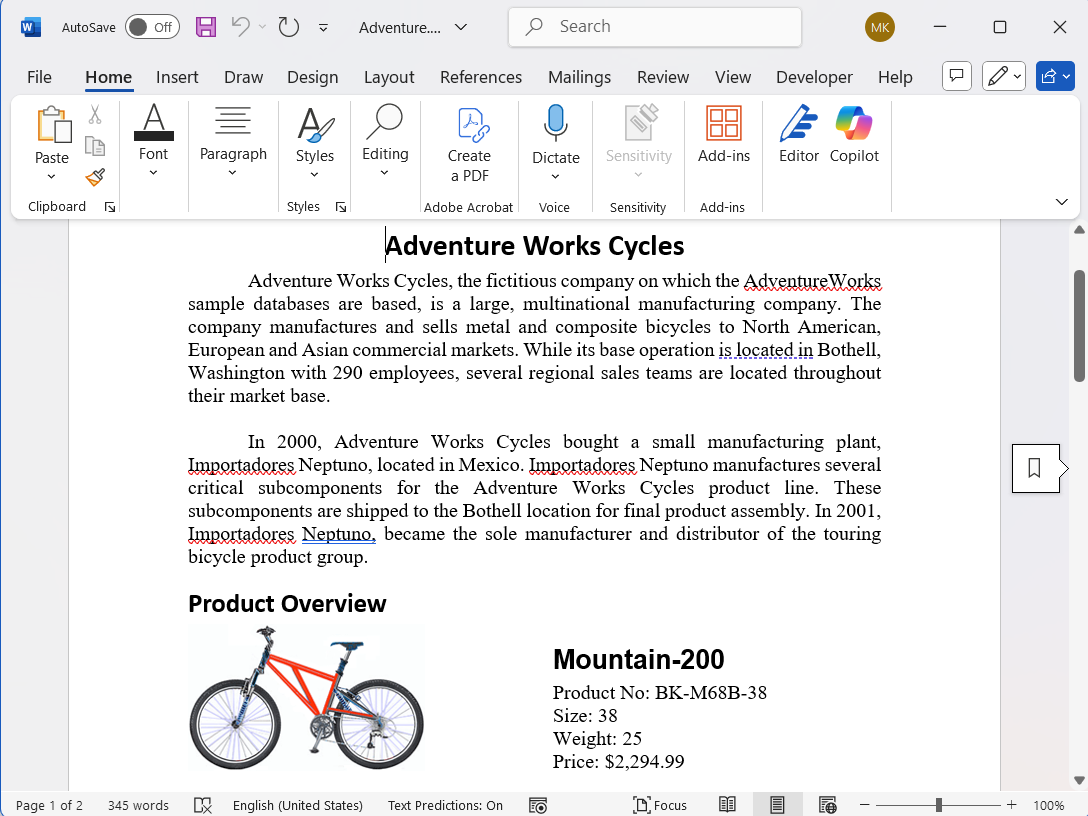
Using the Word document content translator powered by OpenAI, we translated the above content into German. The following image shows how the translated Word document retains the original layout, styles, and formatting while the content is accurately converted into German.

Real-world use cases
This approach works across industries:
- Human resources: Translate employee handbooks, offer letters, and policy documents for multilingual teams across regions.
- Legal & compliance: Convert contracts, agreements, and compliance documents into local languages to meet jurisdictional requirements.
- Marketing & communications: Localize brochures, newsletters, and press releases to reach global audiences effectively.
- Healthcare: Translate patient information sheets, consent forms, and medical guidelines for diverse populations.
- Education: Provide course materials, assignments, and parent communications in native languages to improve accessibility.
- Government & public services: Translate official notices, forms, and public service announcements for multilingual citizens.
- Customer support: Localize FAQs, user manuals, and troubleshooting guides to enhance user experience across regions.
- Technical documentation: Convert API guides, developer manuals, and product documentation for international developers and users.
GitHub reference
Also, refer to Building an AI-powered Word document translator in C# using Syncfusion .NET Word Library and OpenAI GitHub demo.
Frequently Asked Questions
How do I handle very large Word documents?
For large workbooks, implement batching and caching. Translate unique strings first, then apply translations to all matching paragraphs. This reduces API calls and speeds up processing.
Can I use a different OpenAI model?
Yes. The sample uses gpt-4o-mini for cost efficiency, but you can switch to gpt-4o or other models by changing the model parameter in AskOpenAIAsync.
Is my data secure when sent to OpenAI?
Data is transmitted over HTTPS to OpenAI’s API. For sensitive data, review OpenAI’s data usage policy and consider anonymizing personal identifiers before sending.
Does this work offline?
No. Translation requires calling OpenAI’s API, so an internet connection is mandatory.
How do I preserve formatting in a Word document?
The Syncfusion DocIO library automatically retains paragraph-level formatting, including styles and numbering. However, individual text-range formatting (such as bold, italics, or color within a sentence) may not be preserved due to variations in the translated text length and structure.
How are non-text elements handled?
If a paragraph contains only non-text elements (such as images or OLE objects), they remain unchanged. Additionally, if a paragraph includes a mix of text and non-text elements, only the text will be translated, and the non-text elements will be discarded.
Can I translate comments and notes?
Yes. Iterate through WordDocument.Comments and apply the same translation logic to the comment text body.
Build global Word documents that read locally
Thanks for reading! You’ve seen how translating Word documents doesn’t have to be manual, fragile, or formatting‑heavy anymore. With C#, Syncfusion DocIO, and OpenAI, you can turn multilingual document translation into a reliable, automated workflow, one that keeps layouts intact and scales effortlessly across teams and regions.
Whether you’re localizing HR policies, legal contracts, learning materials, or technical documentation, this approach helps you ship accurate translations faster, improve accessibility, and collaborate globally with confidence.
Ready to take it further?
- Create, read, and edit Word documents programmatically.
- Create complex reports by merging data into a Word template from various data sources through mail merge.
- Merge, split, and organize Word documents.
- Convert Word documents into HTML, RTF, PDF, images, and other formats.
Download the latest product installer and access your licensed products from the Licensing and Downloads page. If you’re not yet a Syncfusion user, you can download a 30-day free trial.
If you have questions, contact us through our support forum, support portal, or feedback portal. We are always happy to assist you!




 No spam, just valuable updates.