
 Mathan Kumar Varadharaja
TL;DR: Convert Markdown to HTML in C# with full control over output. Using Syncfusion DocIO, you can load .md files, export clean HTML, and customize how images (local, URL, or base64) are handled using the ImageNodeVisited event.
Markdown remains a go-to format for developers when drafting documentation, blog posts, and technical articles. However, when you need a web-ready rendition that preserves structure and styling, HTML is the format of choice for its compatibility and flexibility.
In this blog, you’ll learn how to convert Markdown to HTML in C# using the Syncfusion® .NET Word Library(DocIO), complete with practical code snippets, real-world scenarios, and tips for tailoring the HTML output to your needs.
Why convert Markdown to HTML?
Markdown is ideal for:
- Writing clean, readable documentation.
- Drafting technical blog posts quickly.
- Collaborating in version-controlled environments.
HTML is better for:
- Publishing content on websites and web applications.
- Applying responsive layouts and CSS styling.
- Building responsive layouts and templates.
When you combine both, you get a developer-friendly authoring format (Markdown) and a web-ready output format (HTML).
Step-by-step: Convert Markdown to HTML in C#
Prerequisites
- .NET project (console app, service, or web app).
- A Markdown file (for example: Input.md).
- Syncfusion DocIO package.
Step 1: Install Syncfusion NuGet package
Add the Syncfusion.DocIO.Net.Core package to your project, as shown below.
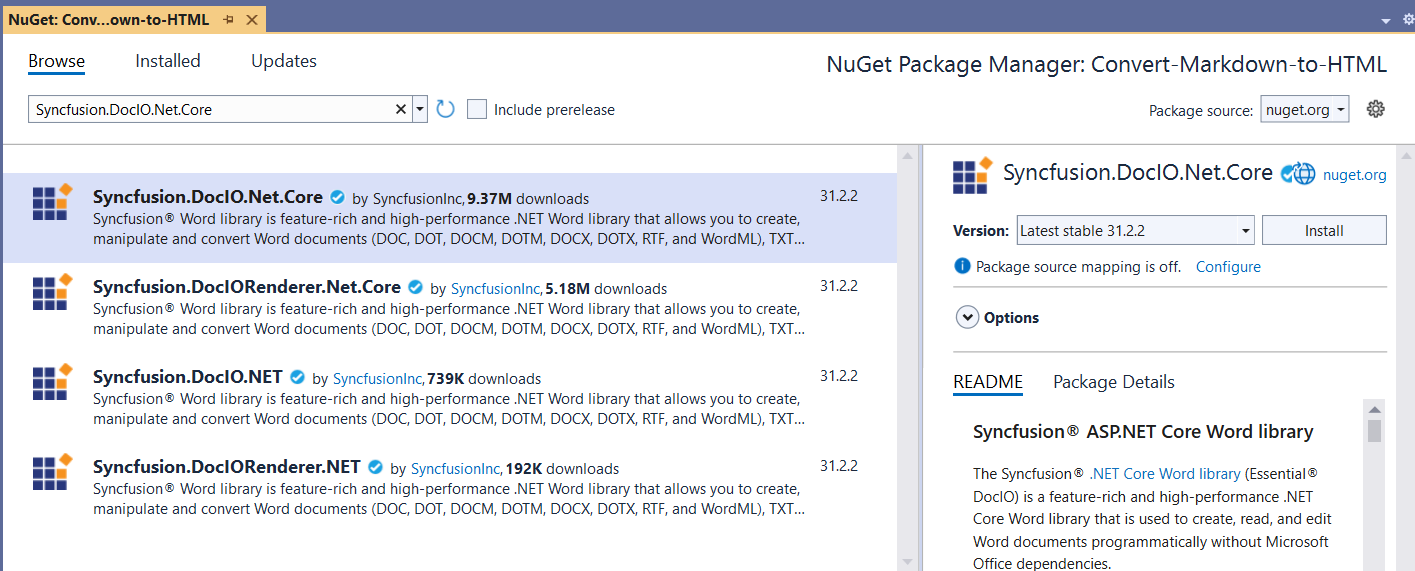
This package provides the WordDocument API that can import Markdown and export HTML.
Step 2: Add required namespaces
Add these at the top of your file:
using Syncfusion.DocIO;
using Syncfusion.DocIO.DLS;
Why this matters:
Syncfusion.DocIOincludes format types likeFormatType.MarkdownandFormatType.Html.Syncfusion.DocIO.DLSincludesWordDocument, the main document object you’ll load and save.
Step 3: Load the Markdown file and save it as HTML
Use WordDocument API to open the Markdown stream and then save it as HTML:
using (FileStream fileStreamPath = new FileStream(
    Path.GetFullPath(@"../../../Input.md"),
    FileMode.Open,
    FileAccess.Read,
    FileShare.ReadWrite))
{
    //Load an existing Markdown file.
    using (WordDocument document = new WordDocument(fileStreamPath, FormatType.Markdown))
    {
        //Create a file stream.
        using (FileStream outputFileStream = new FileStream(
            Path.GetFullPath(@"../../../MarkdownToHTML.html"),
            FileMode.Create,
            FileAccess.ReadWrite))
        {
            //Save the Word document in HTML Format.
            document.Save(outputFileStream, FormatType.Html);
        }
    }
}
What’s happening here:
- You open the .md file as a stream.
- DocIO imports it as a document (
FormatType.Markdown). - You save that document as HTML (
FormatType.Html).
Note: If you’re running this in a web app, you might write the HTML to a MemoryStream instead of a file, then return it in response.
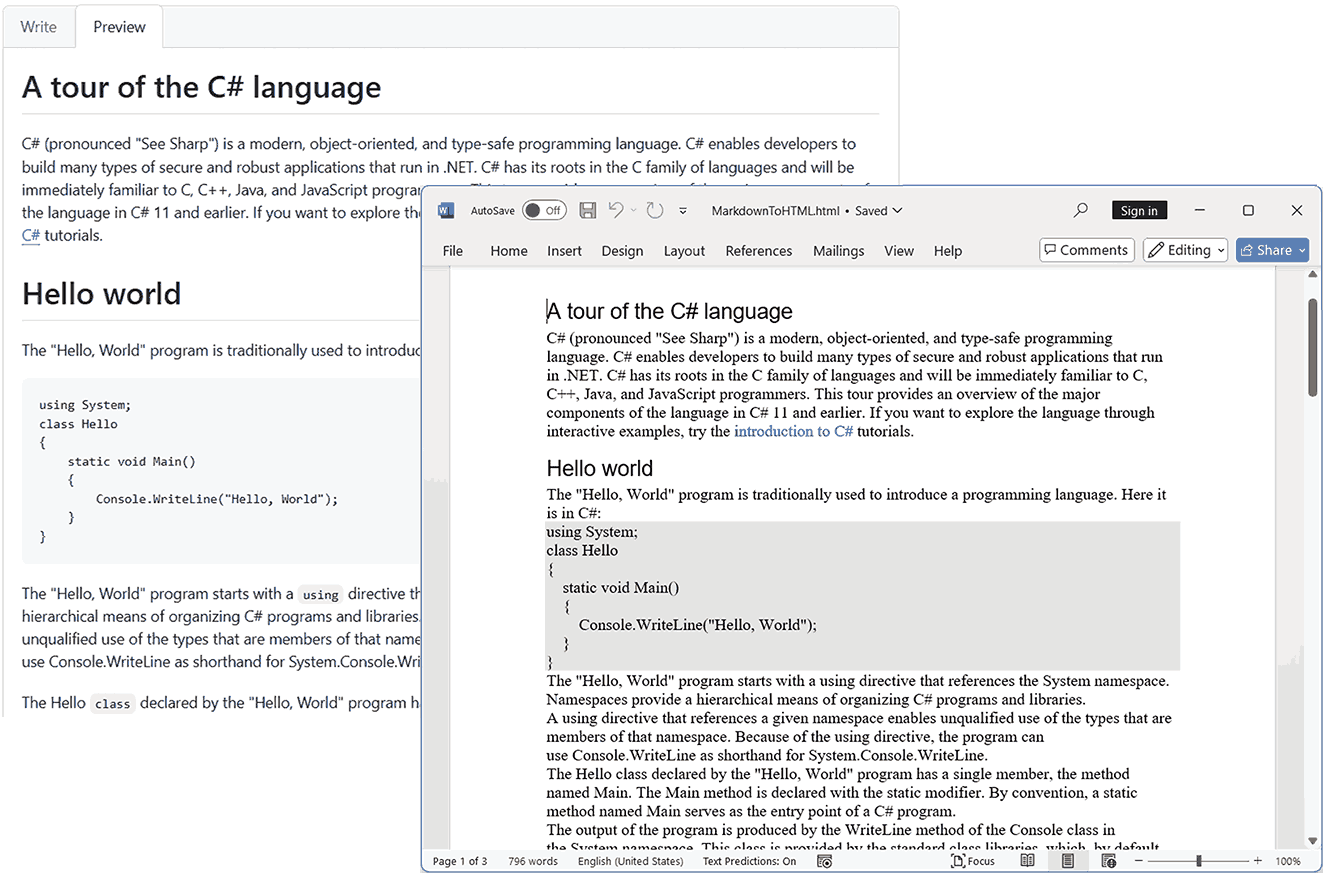
By executing this code example, you will get output similar to the screenshot below.
Advanced: Image customization options
When converting Markdown to HTML using the .NET Word Library, you have the flexibility to modify the images included in the Markdown file.
Hook the ImageNodeVisited event
You can also download images listed as URLs in the Markdown file and insert them into the resulting Word document.
You can:
- Replace placeholder images with client-specific branding.
- Embed diagrams from URLs or local folders.
- Handle base64-encoded images.
- Customize image streams using the
ImageNodeVisitedevent.
Here’s how you can do it in code:
//Open a file as a stream.
using (FileStream fileStreamPath = new FileStream(
    "Input.md",
    FileMode.Open,
    FileAccess.Read,
    FileShare.ReadWrite))
{
    //Create a Word document instance.
    using (WordDocument document = new WordDocument())
    {
        //Hook the event to customize the image while importing Markdown.
        document.MdImportSettings.ImageNodeVisited += MdImportSettings_ImageNodeVisited;
        //Open an existing Markdown file.
        document.Open(fileStreamPath, FormatType.Markdown);
        // Save the HTML file to the file system.
        using (FileStream outputStream = new FileStream(
            "Output.html",
            FileMode.Create,
            FileAccess.ReadWrite))
        {
            document.Save(outputStream);
        }
    }
}
What this changes:
Now, every time DocIO encounters an image in Markdown, it calls your handler and gives you a chance to provide the actual image stream.
Implement the image handler
The following C# code example illustrates the use of the event handler to customize the image based on the source path.
private static void MdImportSettings_ImageNodeVisited(
    object sender,
    Syncfusion.Office.Markdown.MdImageNodeVisitedEventArgs args)
{
    //Retrieve the image from the local machine file path and use it.
    if (args.Uri == "Road-550.png")
        args.ImageStream = new FileStream(args.Uri, FileMode.Open);
    //Retrieve the image from the website and use it.
    else if (args.Uri.StartsWith("https://"))
    {
        WebClient client = new WebClient();
        //Download the image as a stream.
        byte[] image = client.DownloadData(args.Uri);
        Stream stream = new MemoryStream(image);
        //Set the retrieved image from the input Markdown.
        args.ImageStream = stream;
    }
    //Retrieve the image from the Bbase64 string and use it.
    else if (args.Uri.StartsWith("data:image/"))
    {
        string src = args.Uri;
        int startIndex = src.IndexOf(",");
        src = src.Substring(startIndex + 1);
        byte[] image = System.Convert.FromBase64String(src);
        Stream stream = new MemoryStream(image);
        //Set the retrieved image from the input Markdown.
        args.ImageStream = stream;
    }
}
What this code does:
- Replace a specific filename with a different image (branding, placeholders, etc.).
- Download remote images and embed them during conversion.
- Convert
base64image strings into real image streams.
Why developers use this in production:
It prevents “works on my machine” image issues when Markdown moves between repos, build agents, and deployment environments.
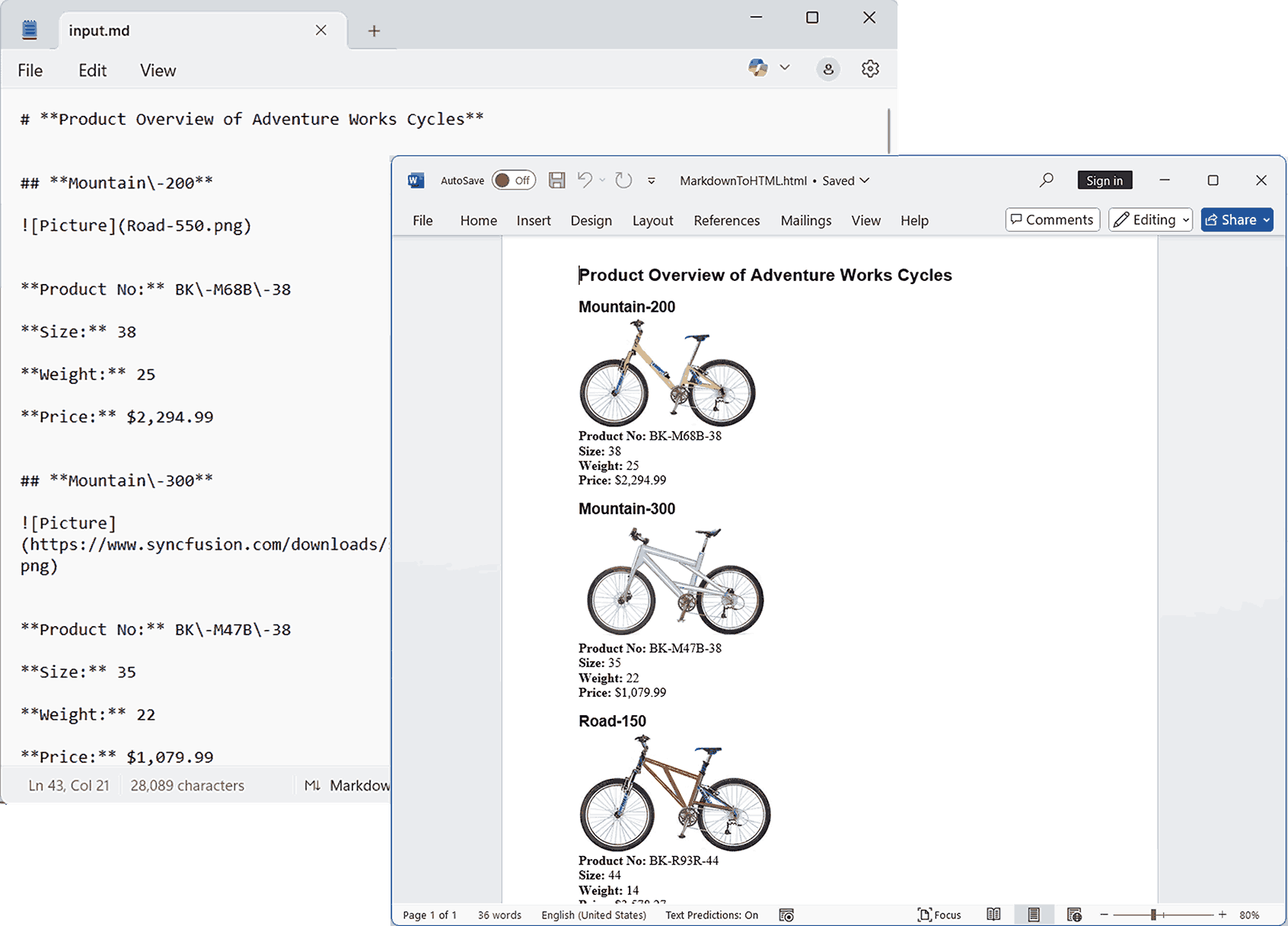
By executing these code examples, you will get output similar to the screenshot below.
Real-world use cases
Here are a few practical scenarios where Syncfusion Word Library can be used effectively:
- Web publishing: Transform Markdown-based articles, tutorials, or documentation into clean, styled HTML for websites and blogs.
- Developer portfolios: Convert Markdown resumes or project summaries into HTML pages for online portfolios.
- API and product documentation: Render
READMEfiles, SDK guides, and API references into navigable HTML docs hosted on developer portals. - Release notes: Publish version updates and changelogs directly to your product’s web portal.
- Research publishing: Convert Markdown-based papers or abstracts into HTML for online journals or lab websites.
GitHub reference
You can find complete, ready-to-run code samples for converting Markdown to HTML in C# with the Syncfusion Word Library in our GitHub repository.
Frequently Asked Questions
Which Markdown syntax elements are supported when importing a Markdown file into a Word document using Syncfusion Word library?
Syncfusion Word library mostly follows the CommonMark specification and GitHub-flavored syntax. For more details, refer to this documentation link.
Does Markdown-to-HTML conversion work on Linux or macOS with .NET Core?
Yes, Syncfusion Word library works in .NET Core applications on both Linux and macOS.
Is it possible to convert Markdown to PDF/images?
Yes, a markdown file can be converted to PDF/images using Syncfusion Word library. For more information, refer to the getting started documentation.
Can I save the resulting markdown document as both .docx and .doc after importing Markdown?
Yes. After import, you can save using FormatType.Docx or FormatType.Doc. However, .docx (OOXML) is recommended as it preserves all modern Word features.
Conclusion
Thank you for reading! In practice, the hardest part of Markdown-to-HTML isn’t calling a converter; it’s producing HTML that’s stable enough to publish repeatedly across environments. When you convert Markdown to HTML in C# using Syncfusion .NET Word Library, you get a conversion step that fits cleanly into build pipelines and backend services, and you can treat the output as a predictable artifact (for example, for docs portals, release-note publishing, or CMS ingestion). For more details, refer to our official guide.
Apart from this conversion functionality, our Syncfusion .NET Word Library has the following significant functionalities:
- Create, read, and edit Word documents programmatically.
- Create complex reports by merging data into a Word template from various data sources through mail merge.
- Merge, split, and organize Word documents.
- Convert Word documents into HTML, RTF, PDF, images, and other formats.
If you are new to our Word Library, following our Getting Started guide is highly recommended. You can find more Word Library examples at this GitHub location.
If you’re a Syncfusion user, you can download the setup from the license and downloads page. Otherwise, you can download a free 30-day trial.
You can also contact us through our support forum, support portal, or feedback portal for queries. We are always happy to assist you!




 No spam, just valuable updates.