
 Mathan Kumar Varadharaja
TL;DR: Convert Markdown to PDF in C# using .NET Word Library with just a few lines of code. Install the NuGet package, add namespaces, and run the conversion. Customize images with events, embed diagrams, or handle base64 streams. Ideal for documentation, eBooks, reports, and compliance workflows. Fast, accurate, and scalable for developer productivity.
Markdown is loved by developers, but PDFs are trusted by everyone else
Markdown is a popular choice for developers creating documentation and technical content. But when it comes to sharing or archiving, PDF is the preferred format for its consistency and professionalism.
In this blog, you’ll learn how to convert Markdown to PDF using C# and Syncfusion® .NET Word Library with practical code examples, real-world use cases, and advanced customization tips.

Why convert Markdown to PDF?
Markdown is ideal for:
- Writing clean, readable documentation.
- Creating lightweight technical content.
- Collaborating in version-controlled environments.
PDF is better for:
- Printing and sharing with non-technical users.
- Preserving formatting across devices.
- Archiving and compliance.
Bringing these formats together gives you both developer-friendly writing and professional-grade output. Next, let’s look at what you’ll need before starting the conversion process.
Prerequisites
- .NET project (console app, service, or web app).
- A Markdown file (for example: Input.md).
- Syncfusion DocIO package.
How to convert Markdown to PDF in C# using .NET Word Library
Follow these steps to convert a Markdown file to PDF in C# using Syncfusion .NET Word Library:
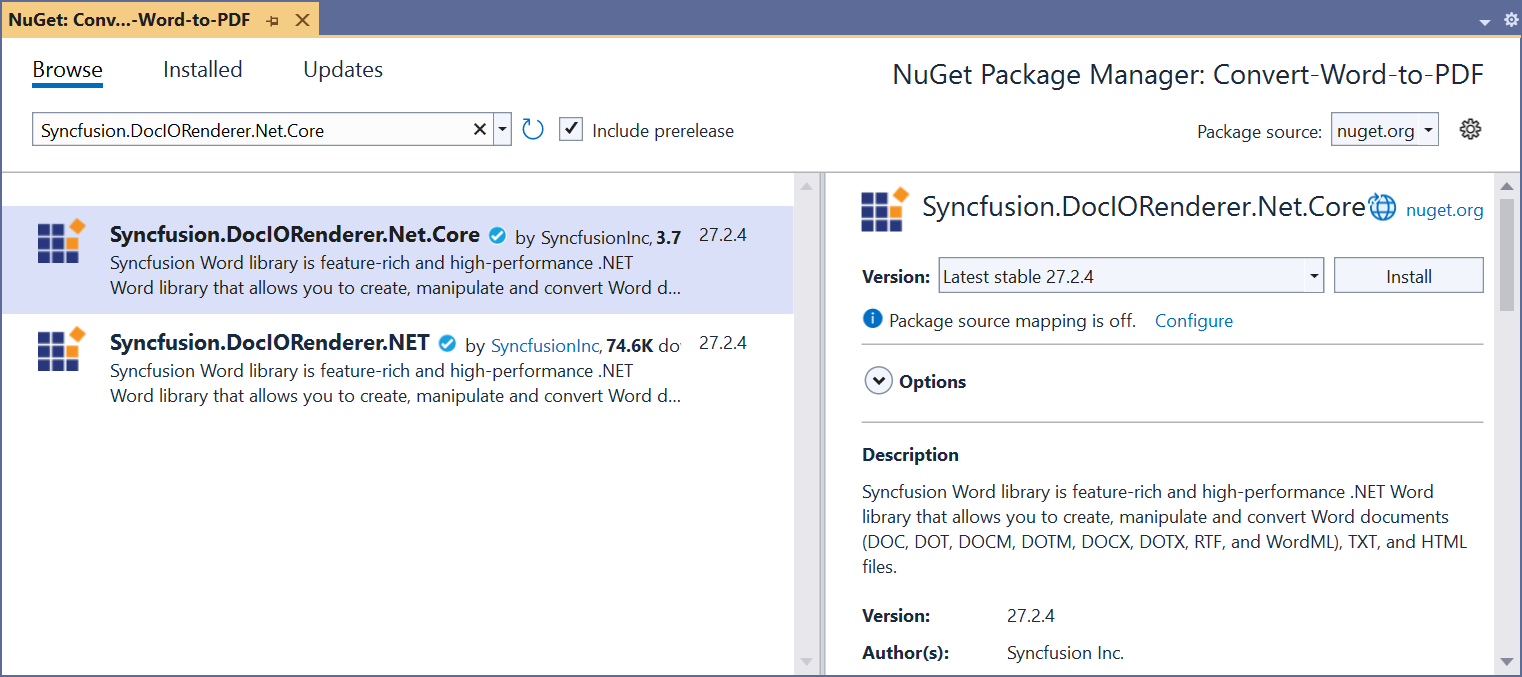
Step 1: Install the Syncfusion DocIO NuGet package
First, add the Syncfusion.DocIORenderer.Net.Core NuGet package to your project, as shown below.
Step 2: Add required namespaces
Next, add the following namespaces to your file:
using Syncfusion.DocIO;
using Syncfusion.DocIO.DLS;
using Syncfusion.DocIORenderer;
using Syncfusion.Pdf;
Step 3: Convert Markdown to PDF using C#
Open the Markdown stream in Word, then save it as a PDF.
Here’s the code you need:
// Open the Word document file stream.
using (FileStream inputStream = new FileStream("Template.md", FileMode.Open, FileAccess.ReadWrite))
{
    // Load an existing Word document.
    using (WordDocument wordDocument = new WordDocument(inputStream, FormatType.Markdown))
    {
        // Create an instance of DocIORenderer.
        using (DocIORenderer renderer = new DocIORenderer())
        {
            // Convert Word document into PDF document.
            using (PdfDocument pdfDocument = renderer.ConvertToPDF(wordDocument))
            {
                // Save the PDF file to the file system.
                using (FileStream outputStream = new FileStream("Output.pdf", FileMode.Create, FileAccess.ReadWrite))
                {
                    pdfDocument.Save(outputStream);
                }
            }
        }
    }
}
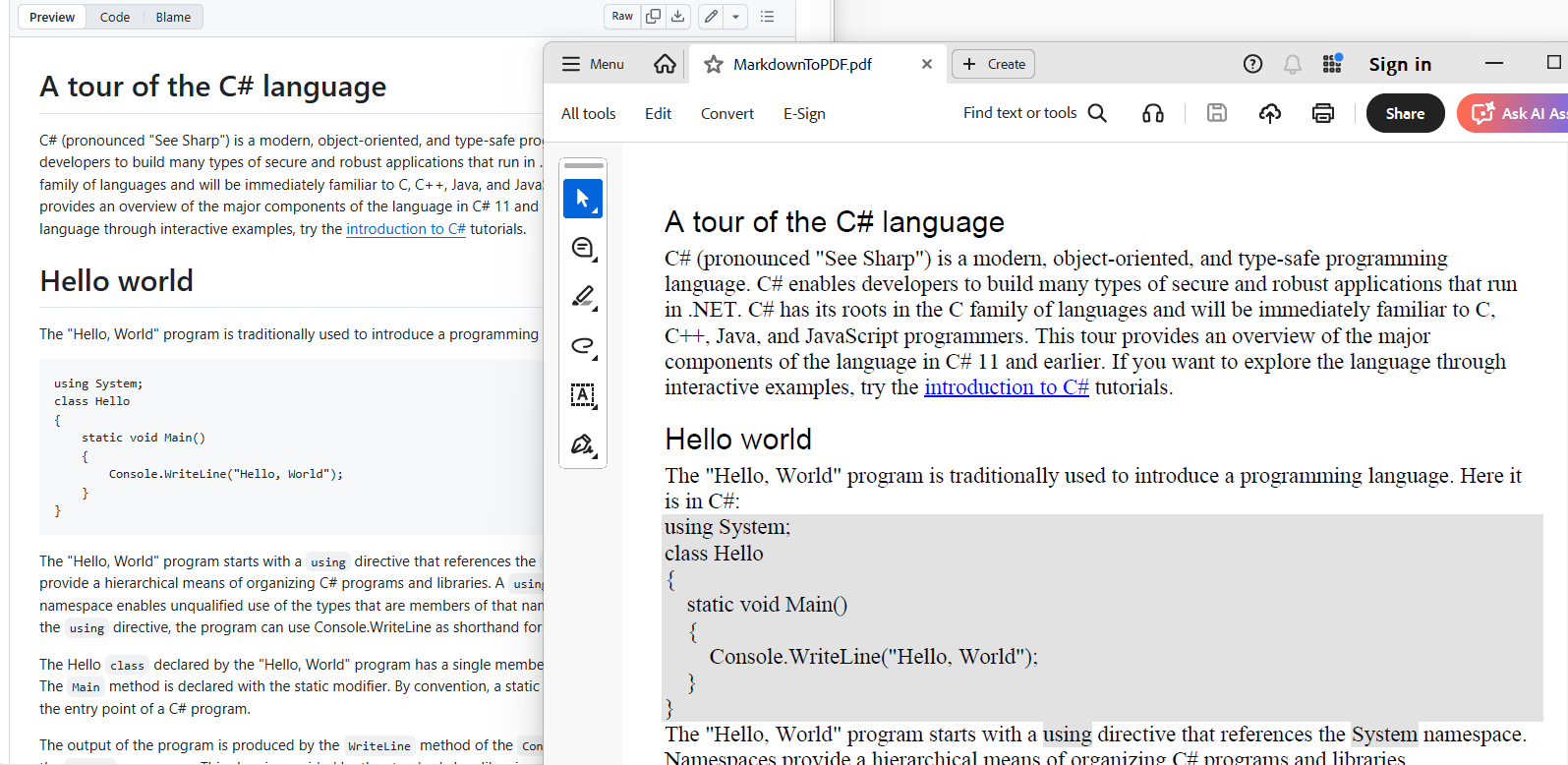
By executing this code example, we will get output like in the following image.
Advanced image customization options
When converting Markdown to a PDF using the .NET Word Library, we have the flexibility to modify the images included in the input Markdown file.
Hook the ImageNodeVisited event
We can download images listed as URLs in the Markdown file and insert them into the resulting Word document.
You can:
- Replace placeholder images with client-specific branding.
- Embed diagrams from URLs or local folders.
- Handle base64-encoded images.
- Customize image streams using the
ImageNodeVisitedevent.
Refer to the following code example to achieve this.
// Open a file as a stream.
using (FileStream fileStreamPath = new FileStream("Input.md", FileMode.Open, FileAccess.Read, FileShare.ReadWrite))
{
    // Create a Word document instance.
    using (WordDocument document = new WordDocument())
    {
        // Hook the event to customize the image while importing Markdown.
        document.MdImportSettings.ImageNodeVisited += MdImportSettings_ImageNodeVisited;

        // Open an existing Markdown file.
        document.Open(fileStreamPath, FormatType.Markdown);

        // Create an instance of DocIORenderer.
        using (DocIORenderer renderer = new DocIORenderer())
        {
            // Convert Word document into PDF document.
            using (PdfDocument pdfDocument = renderer.ConvertToPDF(document))
            {
                // Save the PDF file to the file system.
                using (FileStream outputStream = new FileStream("Output.pdf", FileMode.Create, FileAccess.ReadWrite))
                {
                    pdfDocument.Save(outputStream);
                }
            }
        }
    }
}
What this changes: Now, every time DocIO encounters an image in Markdown, it calls your handler and gives you a chance to provide the actual image stream.
Implement the image handler
The following C# code illustrates the use of the event handler to customize the image based on the source path.
private static void MdImportSettings_ImageNodeVisited(
    object sender,
    Syncfusion.Office.Markdown.MdImageNodeVisitedEventArgs args)
{
    // Retrieve the image from the local machine file path and use it.
    if (args.Uri == "Road-550.png")
    {
        args.ImageStream = new FileStream(args.Uri, FileMode.Open);
    }
    // Retrieve the image from the website and use it.
    else if (args.Uri.StartsWith("https://"))
    {
        using WebClient client = new WebClient();
        // Download the image as a stream.
        byte[] image = client.DownloadData(args.Uri);
        Stream stream = new MemoryStream(image);
        // Set the retrieved image from the input Markdown.
        args.ImageStream = stream;
    }
    // Retrieve the image from the Base64 string and use it.
    else if (args.Uri.StartsWith("data:image/"))
    {
        string src = args.Uri;
        int startIndex = src.IndexOf(",");
        src = src.Substring(startIndex + 1);

        byte[] image = Convert.FromBase64String(src);
        Stream stream = new MemoryStream(image);
        // Set the retrieved image from the input Markdown.
        args.ImageStream = stream;
    }
}
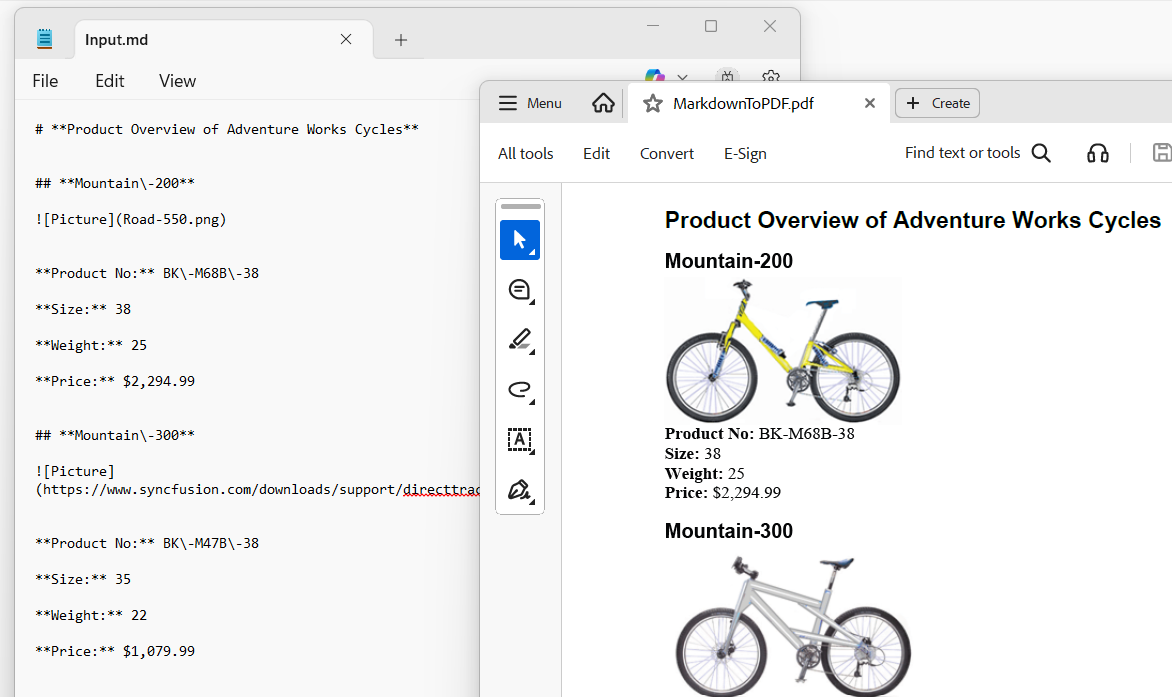
By executing these code examples, you will get output similar to the screenshot below.
Real-world use cases
This isn’t just a demo feature; it’s widely used in production:
- eBook publishing: Turn Markdown manuscripts into professionally formatted PDF eBooks.
- Scientific papers: Prepare Markdown-written research papers for journal submission or peer review.
- Blog to PDF: Create downloadable versions of blog posts for newsletters or offline reading.
- Technical documentation: Convert README files or API docs into shareable, printable PDFs.
- Enterprise reporting: Generate formal internal reports from Markdown guides for compliance or presentations.
- Legal and policy documents: Export Markdown-based contracts or policies into standardized PDF formats.
- Software release notes: Share version updates and changelogs in PDF format for internal or customer use.
GitHub reference
You can also find ready-to-run code examples for converting Markdown to PDF in C# using Syncfusion .NET Word Library in our GitHub repository.
Frequently Asked Questions
Which Markdown syntax elements are supported when importing a Markdown file into a Word document using Syncfusion word library?
Syncfusion Word library mostly follows the CommonMark specification and GitHub-flavored syntax. To know more about supported syntax, refer to this documentation.
Does Markdown-to-PDF conversion work on Linux or macOS with .NET Core?
Is it possible to convert Markdown to Word/HTML?
Yes, a markdown file can be converted to Word/HTML using the Syncfusion .NET Word library. To know more about conversion, refer to this documentation.
Start converting your Markdown to professional PDFs today
Thank you for reading! Converting Markdown to PDF in C# is straightforward with the right tools. Whether you’re building a documentation generator or a content publishing tool, this approach is efficient and scalable. By following the examples above, you can integrate C# Markdown-to-PDF conversion into your apps with ease and flexibility.
For more details, refer to our official guide.
Bonus: What else can the .NET Word Library do?
Apart from this conversion functionality, our Syncfusion .NET Word Library has the following significant functionalities:
- Create, read, and edit Word documents programmatically.
- Create complex reports by merging data into a Word template from various data sources through mail merge.
- Merge, split, and organize Word documents.
- Convert Word documents into PDF, HTML, RTF, images, and other formats.
You can find more Word Library examples at this GitHub location.
Are you already a Syncfusion user? You can download the product setup from our license and downloads page. If you’re not yet a Syncfusion user, you can download a 30-day trial.
If you have questions, contact us through our support forum, support portal, or feedback portal. We are always happy to assist you!



 No spam, just valuable updates.