
 Shriram Sankaran
Word documents often contain sensitive business, legal, and operational data. Without proper safeguards, these documents can be edited or shared without authorization. This webinar demonstrated how developers can implement robust document security entirely through .NET code using the Syncfusion® .NET Word Library.
If you missed the webinar or would like to review it, we have posted the recording to our YouTube channel and embedded it below.
Why Word document security matters
Unprotected Word documents allow unauthorized edits, accidental distribution, and loss of document integrity, which pose serious risks. In collaborative enterprise environments, controlling who can view, edit, or comment on documents is essential to maintaining professionalism and legal compliance.
The Syncfusion .NET Word Library
The Syncfusion .NET Word Library is a high-performance document processing solution that enables developers to create, read, edit, encrypt, and protect Word documents without relying on Microsoft Word. It supports advanced features such as document protection, encryption, mail merge, and structured document manipulation.
Encrypting and decrypting Word documents
During the live demo, viewers saw how to encrypt Word documents using strong passwords so that only authorized users can open them. The session also demonstrated how to decrypt protected documents programmatically, removing password restrictions when access is approved.
Applying document protection modes
The webinar covered multiple document-protection scenarios for real-world workflows. These included comments-only mode for reviews, form-fill-only mode for structured input, tracked revisions for controlled collaboration, and read-only mode for finalized documents.
Selective editing with editable ranges
Editable ranges allow specific sections of a protected document to remain editable while the rest stays locked. The session demonstrated how to add and remove editable ranges programmatically.
Advanced editable range scenarios
Beyond basic editable ranges, the webinar explored more advanced scenarios such as restricting editable regions to specific users or groups. It also demonstrated how to apply editable ranges inside tables, enabling granular control over structured document content.
Viewing and editing documents in the browser
The session showed how protected documents can be rendered directly in the browser using the Syncfusion Word Processor, improving the review experience. This approach eliminates the need for repeated downloads and enables interactive document review.
Time stamps
- [00:00] Introduction and session overview.
- [01:05] Why Word document security matters.
- [01:54] Overview of the Syncfusion .NET Word Library.
- [02:26] Demo overview and application setup.
- [05:00] Encrypting Word documents programmatically.
- [08:59] Viewing documents in the browser with a Word Processor.
- [09:38] Decrypting protected Word documents.
- [12:20] Applying protection: comments-only mode.
- [15:16] Applying protection: form-fill-only mode.
- [17:22] Applying protection: tracked revisions only.
- [19:46] Applying protection: read-only documents.
- [21:42] Removing document protection.
- [24:18] Adding editable ranges to protected documents.
- [27:45] Removing editable ranges.
- [30:50] Controlling editable ranges by the editor.
- [31:29] Editable ranges inside tables.
- [32:40] Key takeaways and session wrap-up.
Q&A
Q: How can we check whether a document is encrypted or not? For example, if a user uploads an encrypted document, I want to display a warning to them.
A: If an encrypted document is opened without a password using the Word Library, an exception will be thrown, as follows.
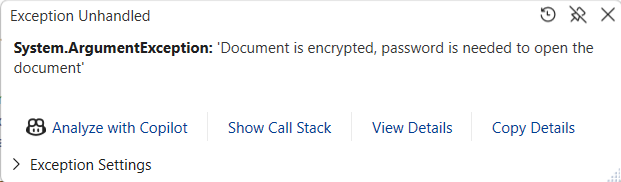
You can use this unique exception message to determine whether the document is encrypted.
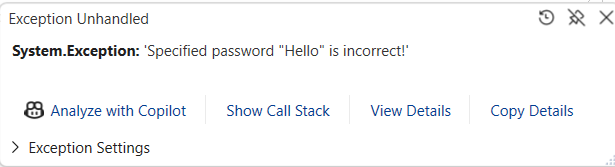
If you try to open the document with an incorrect password, the following exception will be thrown.
Q: Is it possible to hide the contents not in the editable range?
A: There is no direct API to hide the contents in a non-editable range. Instead, this can be achieved by iterating through the entire document and enabling the Hidden property for the text you want to hide.
Q: How do we know if the document has editable ranges? And what ID or index does a particular range have?
A: After opening the document, check whether the WordDocument.EditableRanges collection contains any items. If it does, the document has editable ranges. This collection stores all the editable ranges in the Word document. The ID is the unique value present for each editable range.
Q: Is there a way to implement this functionality through a ribbon extension directly in Word as a front-end viewer/editor?
A: The Syncfusion .NET Word Library (DocIO) does not act as a viewer or editor inside Microsoft Word and cannot replace the Word UI. However, you can expose DocIO functionality inside Microsoft Word by using a VSTO add‑in for Windows desktop Word. With a VSTO add‑in, you can create custom ribbon commands and, in response to user actions, invoke DocIO APIs in process to secure or modify Word documents programmatically.
Q: When applying the encryption, is it using the standard Word encryption or something specific to Syncfusion?
A: Syncfusion uses the standard Word encryption.
Takeaways
By the end of the session, viewers gained a practical understanding of how to secure Word documents using a fully programmatic approach in .NET. From encryption and protection to selective editing and browser-based viewing, the techniques shown help developers build secure, flexible, and collaborative document workflows.
 No spam, just valuable updates.