







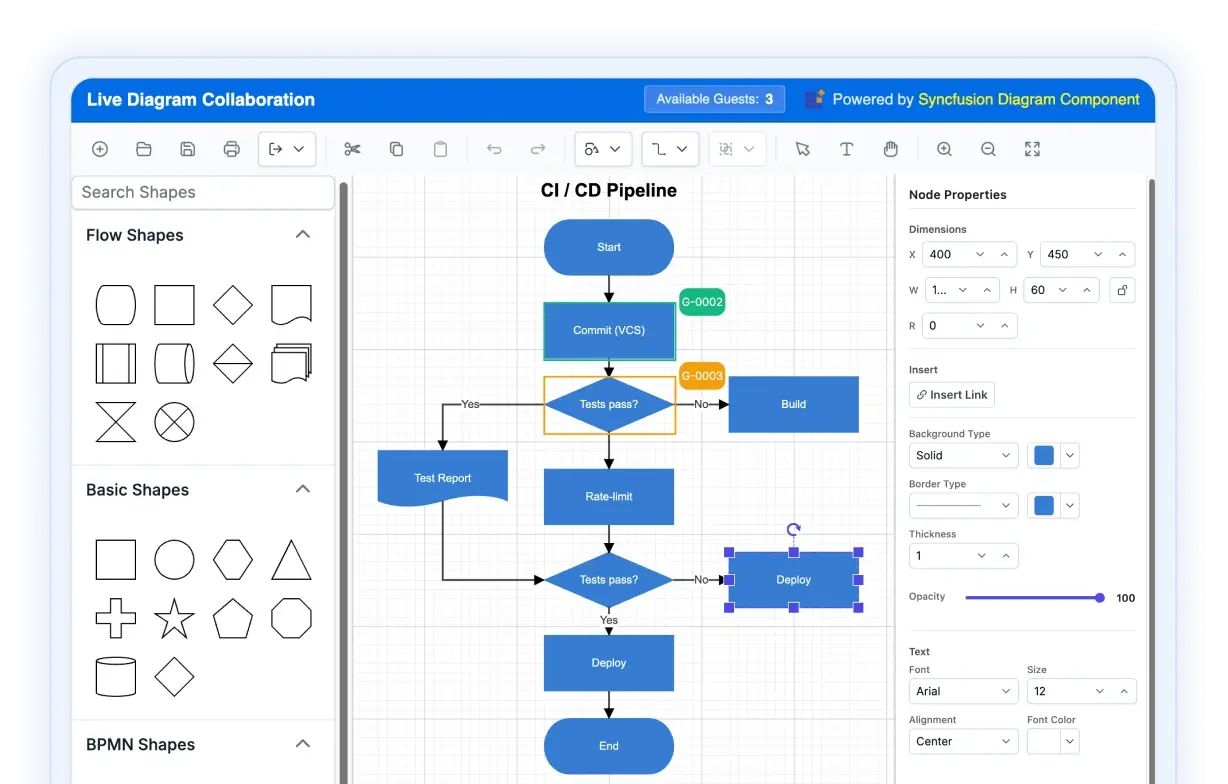




Transform your applications today by downloading our free evaluation version
Overview
The Syncfusion Angular Diagram component helps developers build interactive flowcharts, organizational charts, BPMN diagrams, UML diagrams, and mind maps in Angular applications. It provides drag-and-drop editing, automatic layouts, data binding, connector routing, zooming, printing, and export features for building enterprise diagramming applications.
Why choose the Syncfusion Angular Diagram component?
Automatic layout
Automatically arrange flowcharts, organizational charts, and hierarchical diagrams with built-in layout algorithms.
Seamless data binding
Generate Angular organizational charts and flowcharts directly from hierarchical or relational data sources using built-in data binding.
AI-assisted development
Build interactive diagramming experiences faster with the agentic UI builder and Syncfusion agent skills. Generate flowcharts, node layouts, connectors, and visual workflows with minimal manual effort.
Adapts to any resolution
The Diagram has a highly responsive layout and an optimized design for desktops, tablets, and phones. It works well on all mobile phones that use iOS, Android, or Windows OS.
Gallery of reusable symbols
The symbol palette displays a collection of palettes. A palette displays a set of nodes and connectors that you can drag and drop into a diagram.
Create your own template shapes
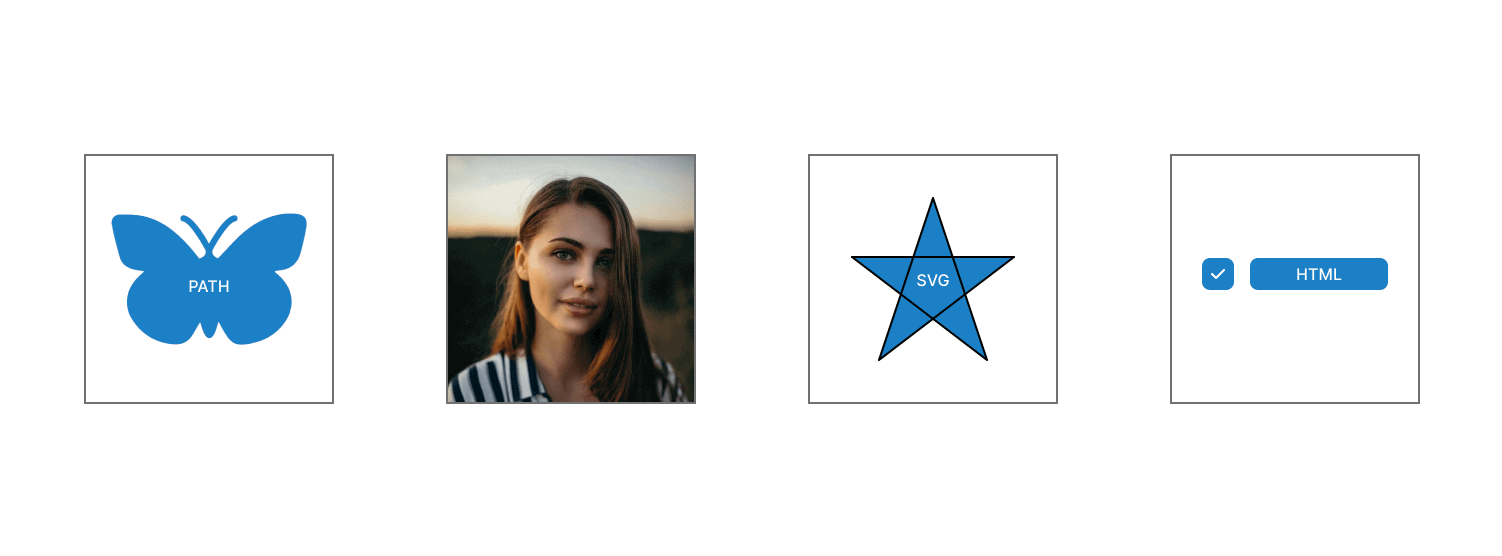
Visualize any graphical object using nodes that can be arranged and manipulated on a diagram page at the same time. Diagram allows you to add different kinds of nodes.
Attractive, customizable themes
Add cutting-edge design with several built-in themes, such as Fluent, Tailwind CSS, Bootstrap, Material, and Fabric. Utilize the online Theme Studio tool to customize diagram themes easily.
Globalization and localization
Enable users from different locales to use the component by formatting dates, currencies, and numbering to suit preferences.
AI-assisted development
Build feature-rich Angular Diagram experiences faster
Accelerate diagramming application development with Syncfusion AI tools that turn requirements into fully configured visual workflows and flowcharts with minimal manual setup.
Agentic UI builder
Turn prompts into ready-to-use UI screens, layouts, and workflows with Syncfusion Angular components.
Example prompt Create an organizational chart editor with draggable nodes and connectors.
Agent skills
Accelerate development with Syncfusion AI agent skills for faster implementation and integration.
Example prompt Generate a Angular flowchart with custom nodes, connectors, and automatic layout.
MCP Server
Accelerate development with AI that generates, configures, and troubleshoots component code directly in your IDE.
Example prompt Show how to create hierarchical layouts in the Syncfusion Angular Diagram.
AI-powered diagrams for instant visualization
Visualize ideas with ease using our AI-driven Diagram component. Generate diagrams instantly from natural language using text-to-diagram technology. Quickly build, edit, and interpret complex visuals with unmatched speed and clarity.
-
Try creating diagrams from text: Describe your idea and watch it turn into a flowchart, mind map, or sequence diagram.
- See how to create diagrams with text
Angular Diagram code example
Get started with the Angular Diagram using a few simple lines of HTML and TypeScript code, as demonstrated. Also explore this Angular Diagram example, which shows you how to render and configure one.
<div class="content-wrapper">
    <ejs-diagram #diagram id="diagram" width="100%" height="700px">
    </ejs-diagram>
</div>
import { Component, OnInit, ViewEncapsulation} from '@angular/core';
@Component({
// specifies the template string for the Diagram component
selector: 'ej2-diagram-container',
styleUrls: ['default.css'],
templateUrl: 'default.html',
})
export class AppComponent implements OnInit {
ngOnInit(): void {
}
}
export class AppComponent {}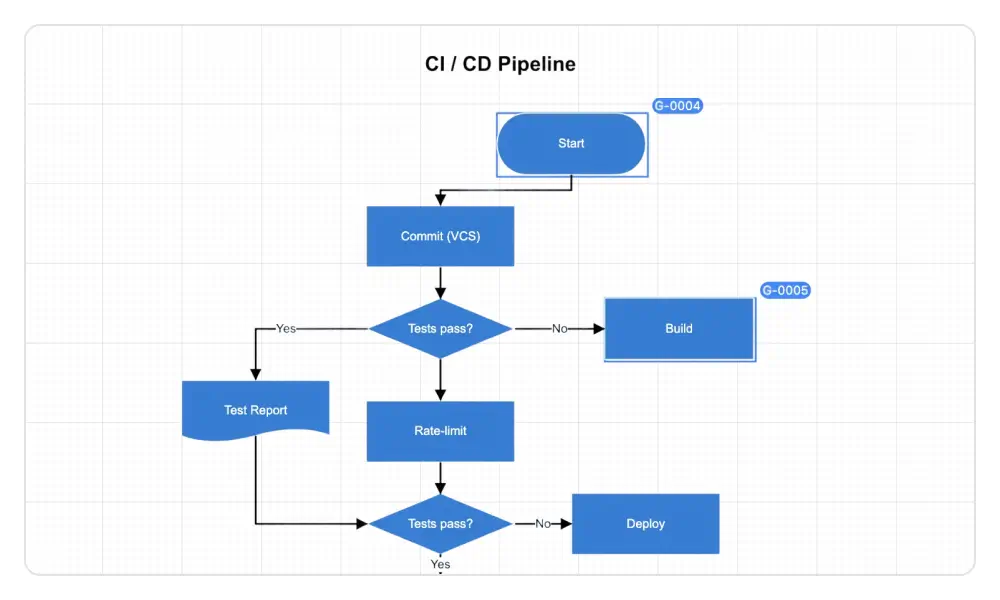
Real-time collaboration
Multiple users can edit the same diagram simultaneously and see live updates, improving teamwork and efficiency:
- User presence highlight: Each element shows who is currently interacting with it.
- Conflict handling: When multiple users edit the same element, the first user’s changes are applied, and others are notified of the conflict.
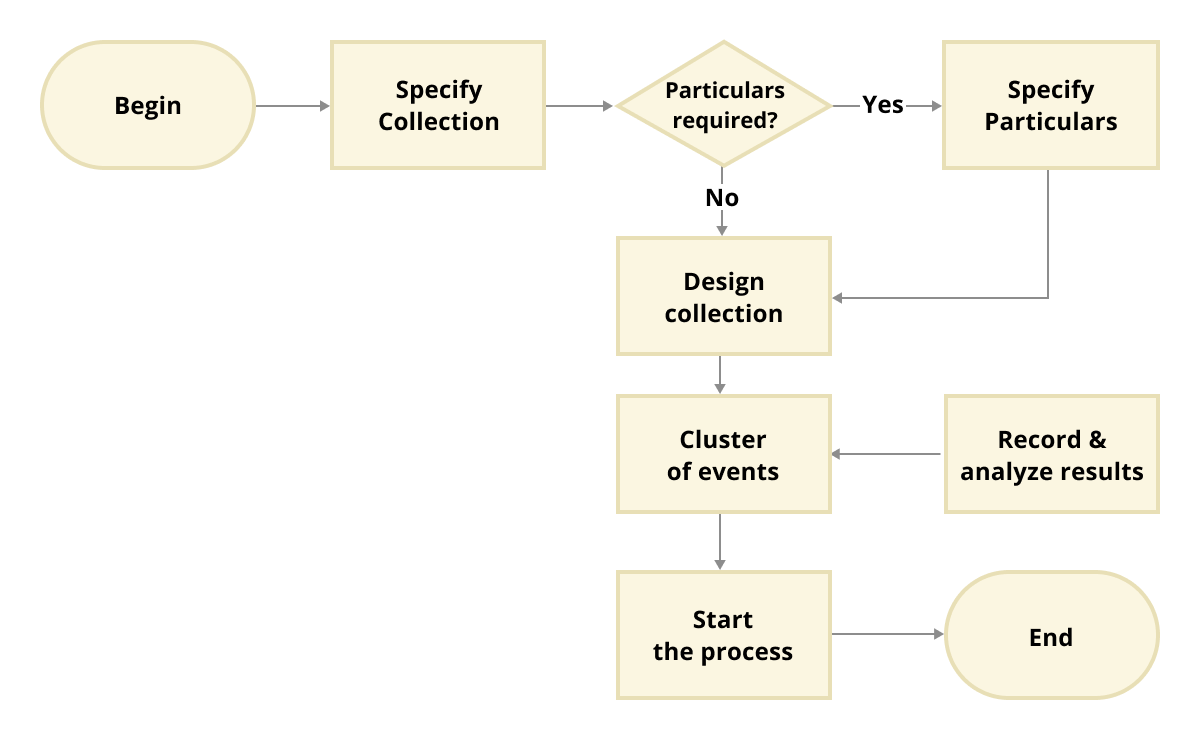
Flowcharts
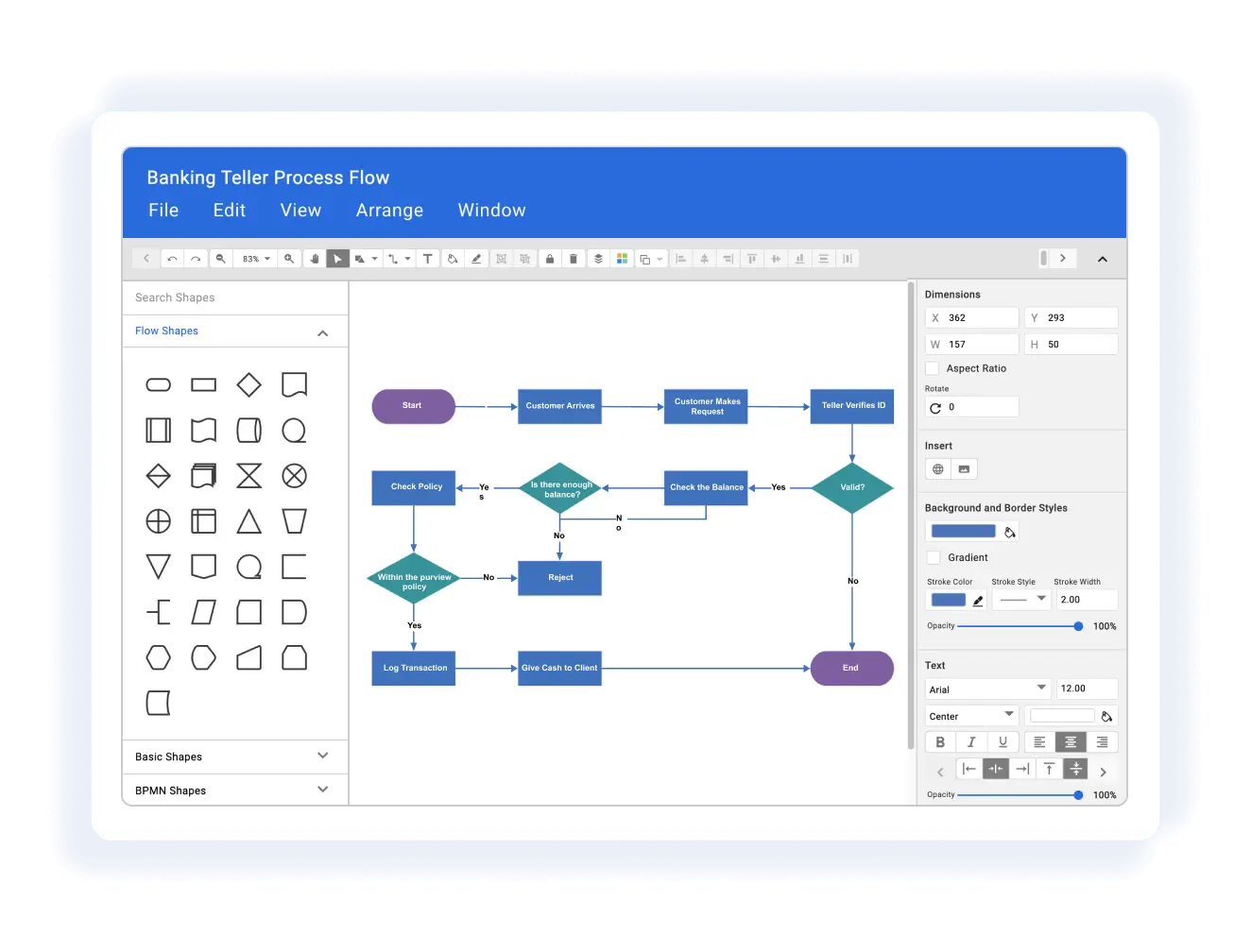
The Angular Diagram provides all the standard flowchart shapes as ready-made objects to build flowcharts, making it is easy to add them to a diagram surface in a single call.
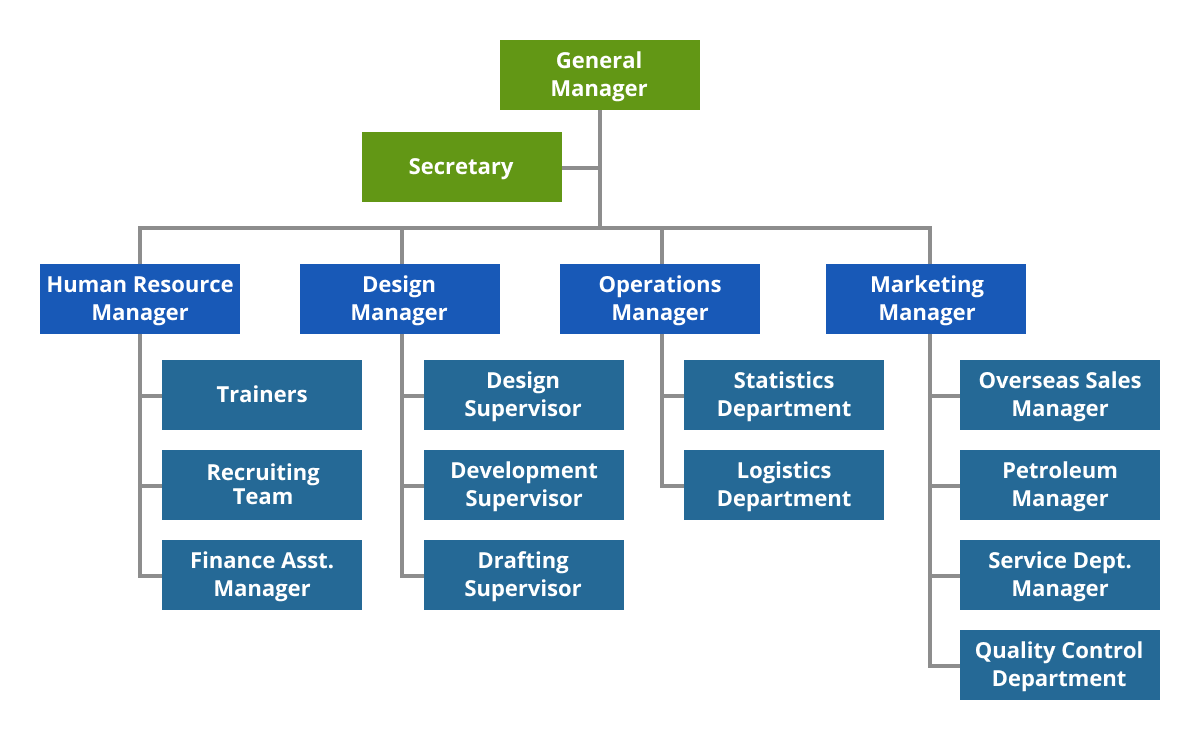
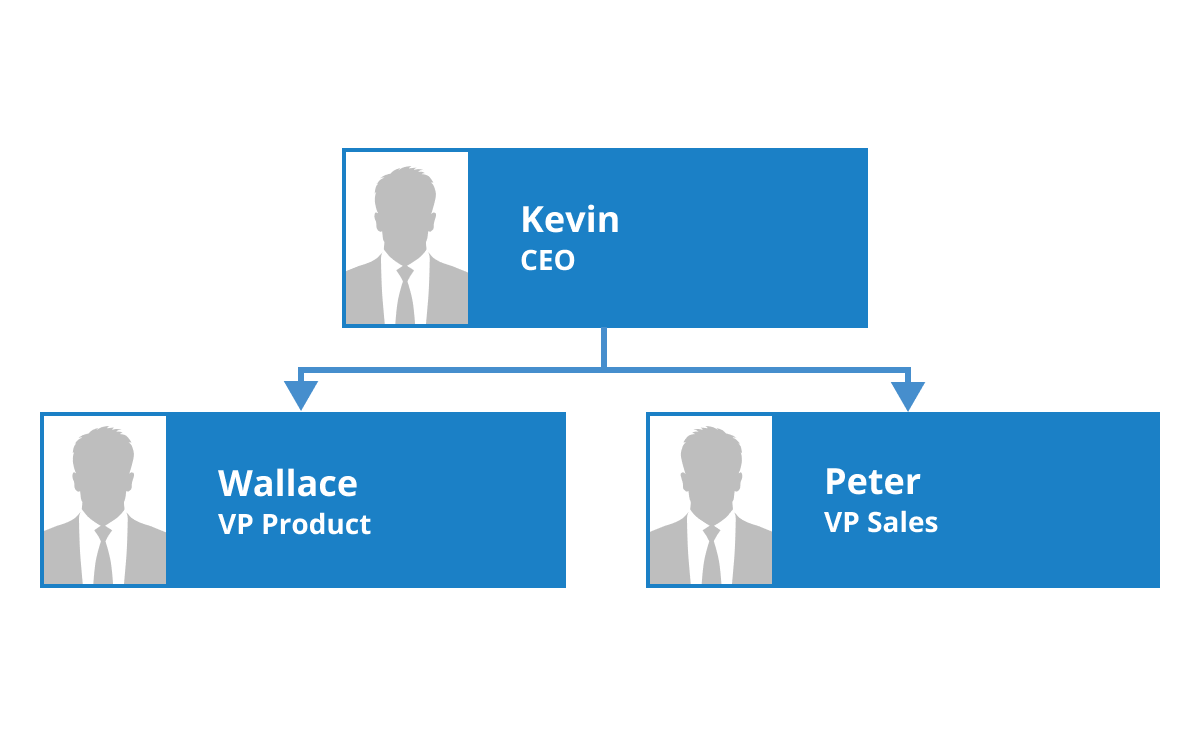
Organizational chart
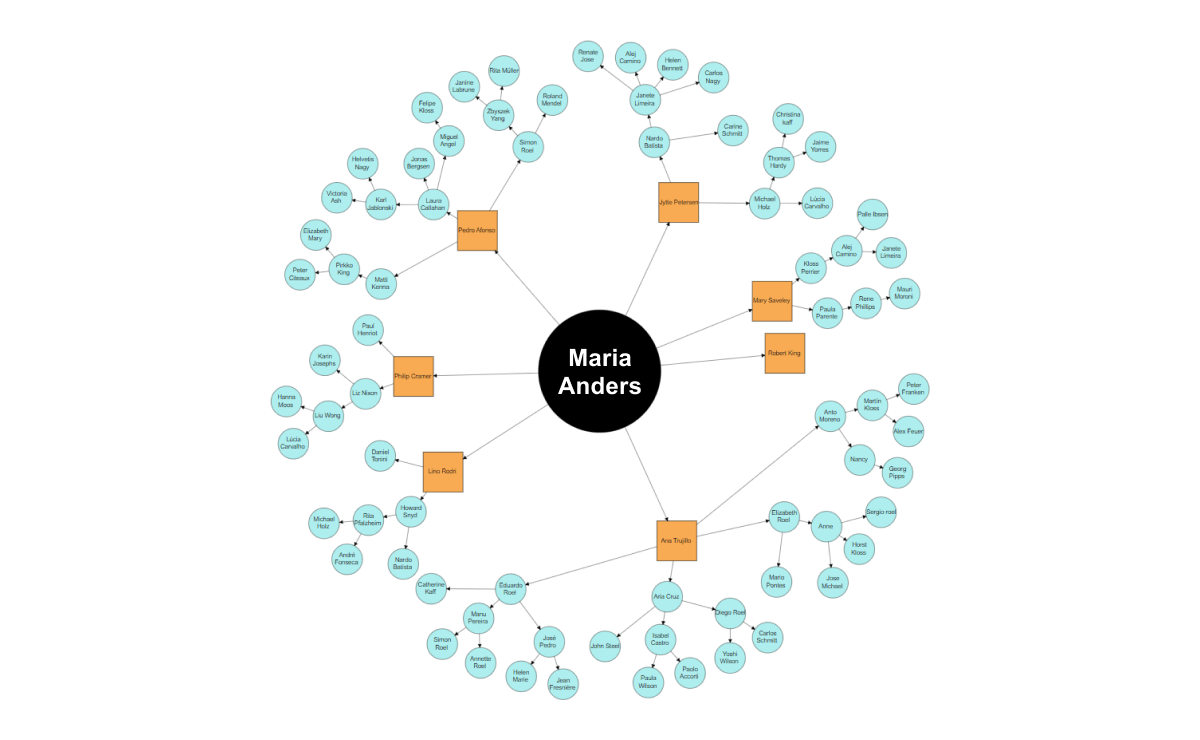
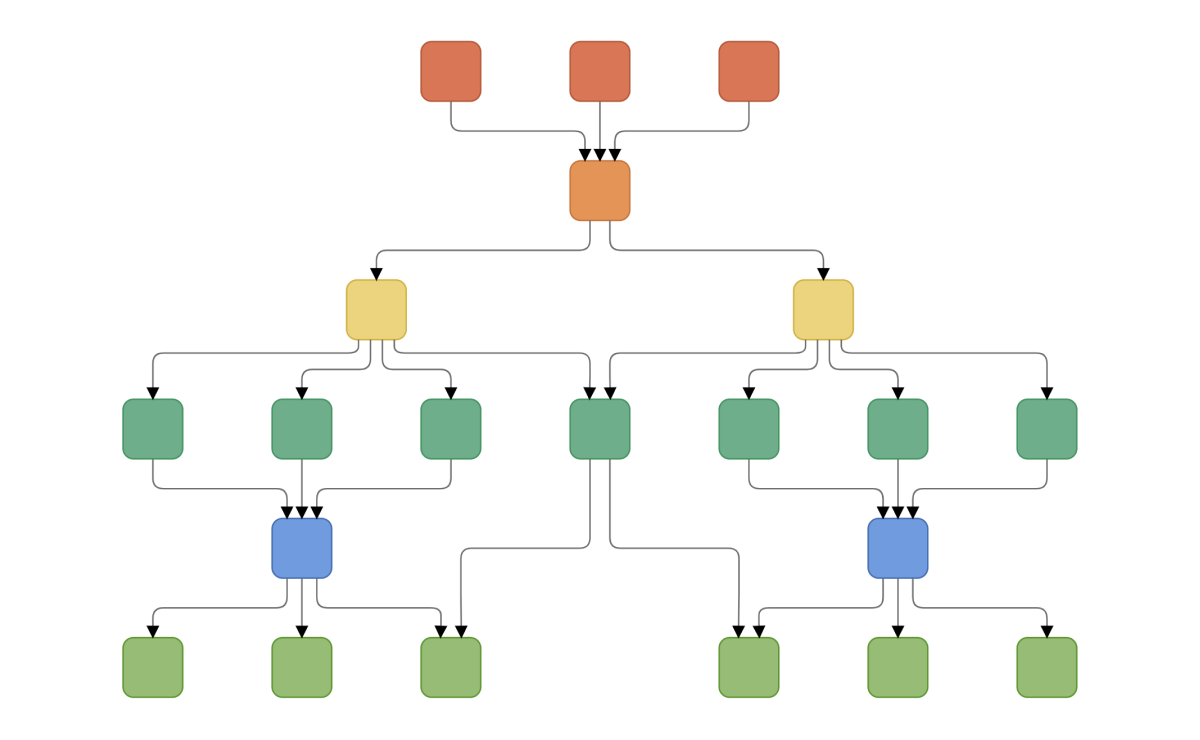
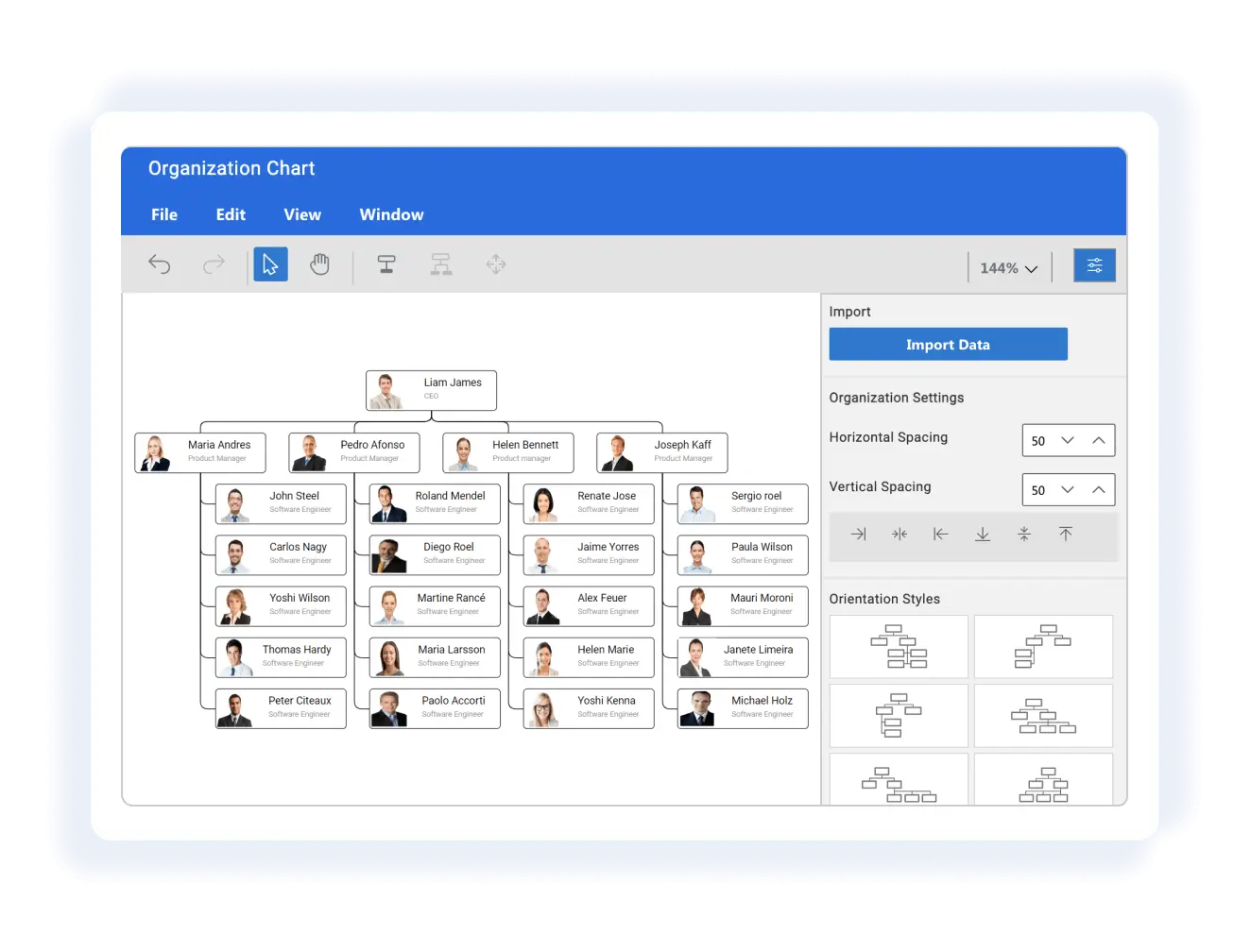
Arrange the parent and child node positions automatically with a built-in, automatic layout algorithm specifically made for organizational charts.
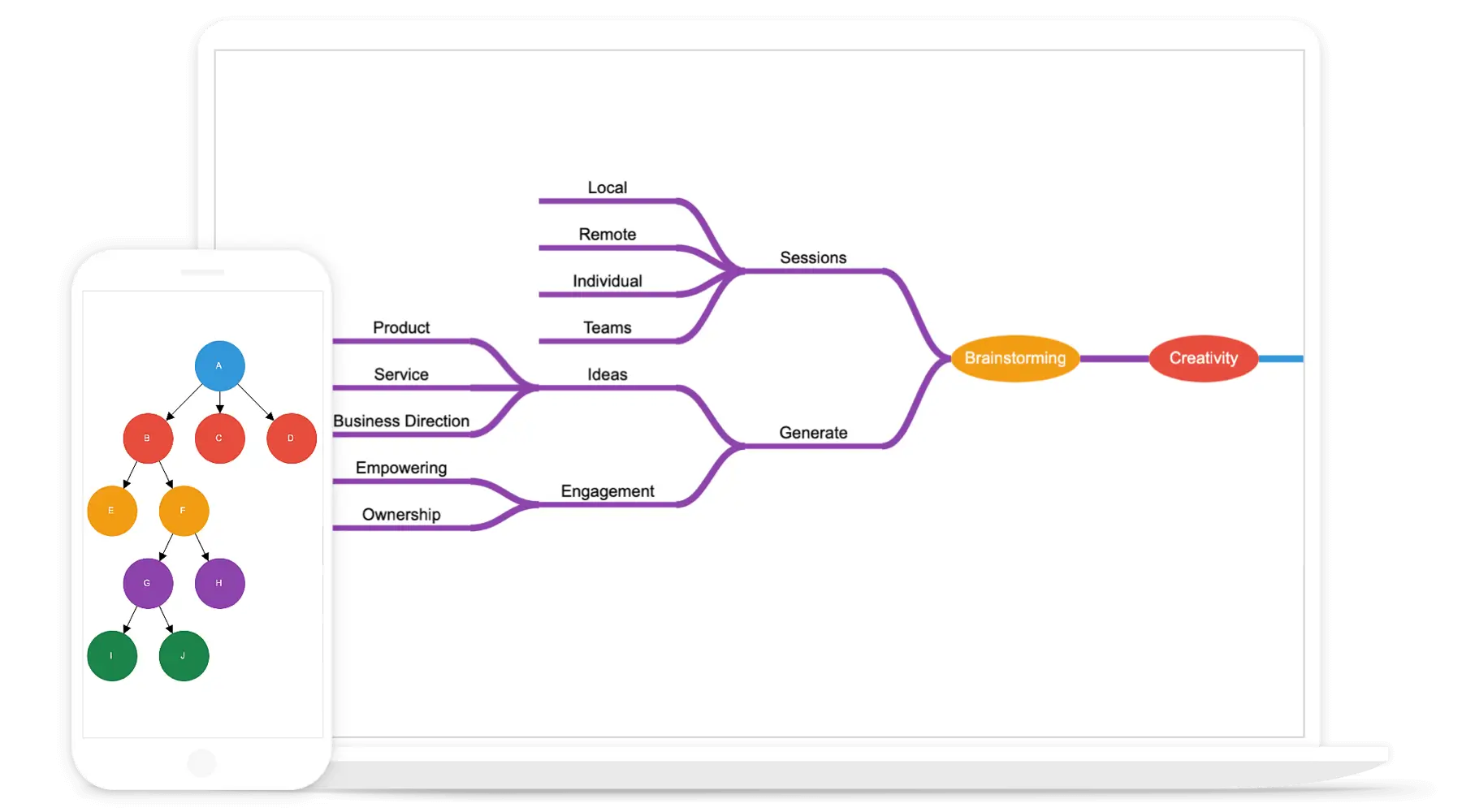
Mind map
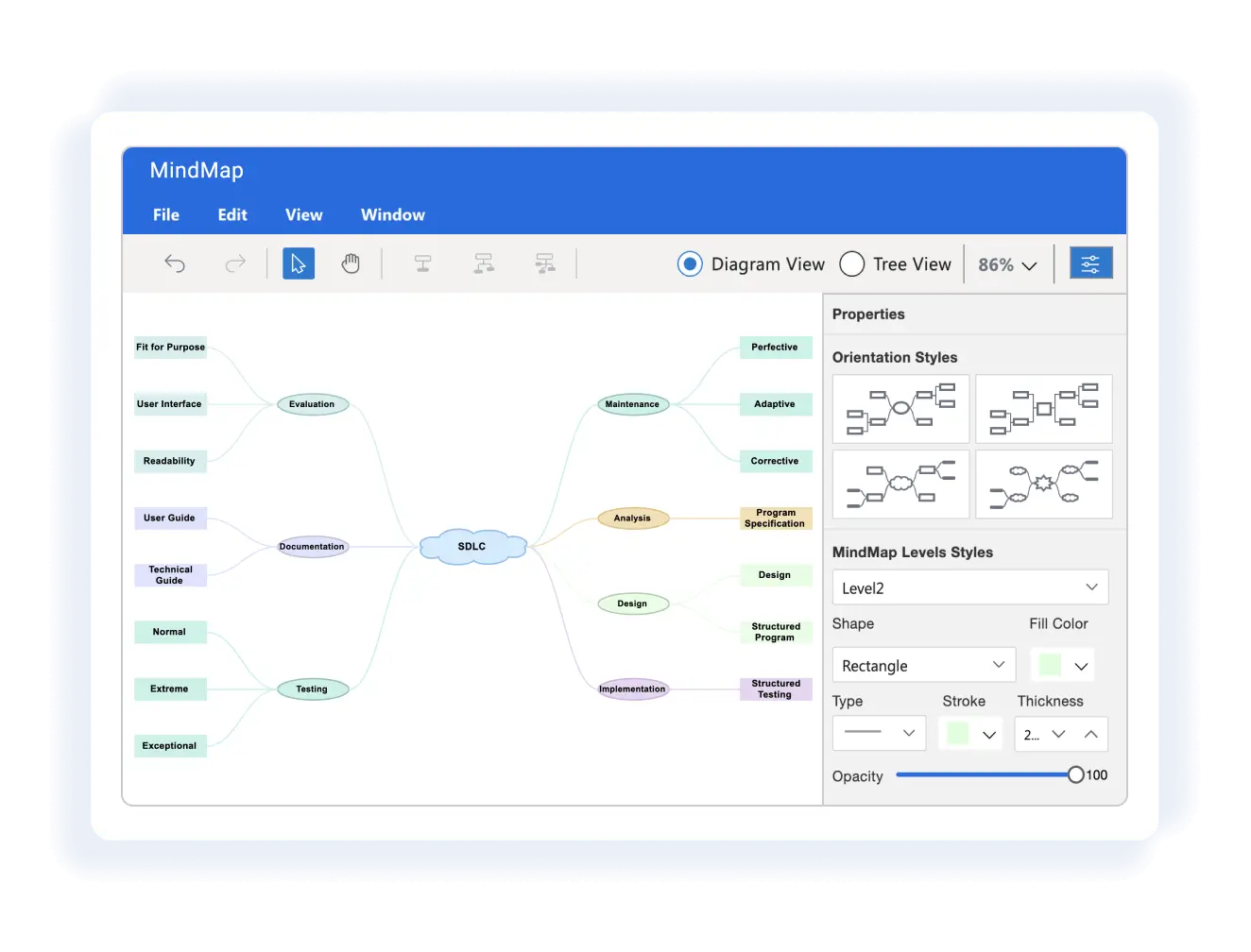
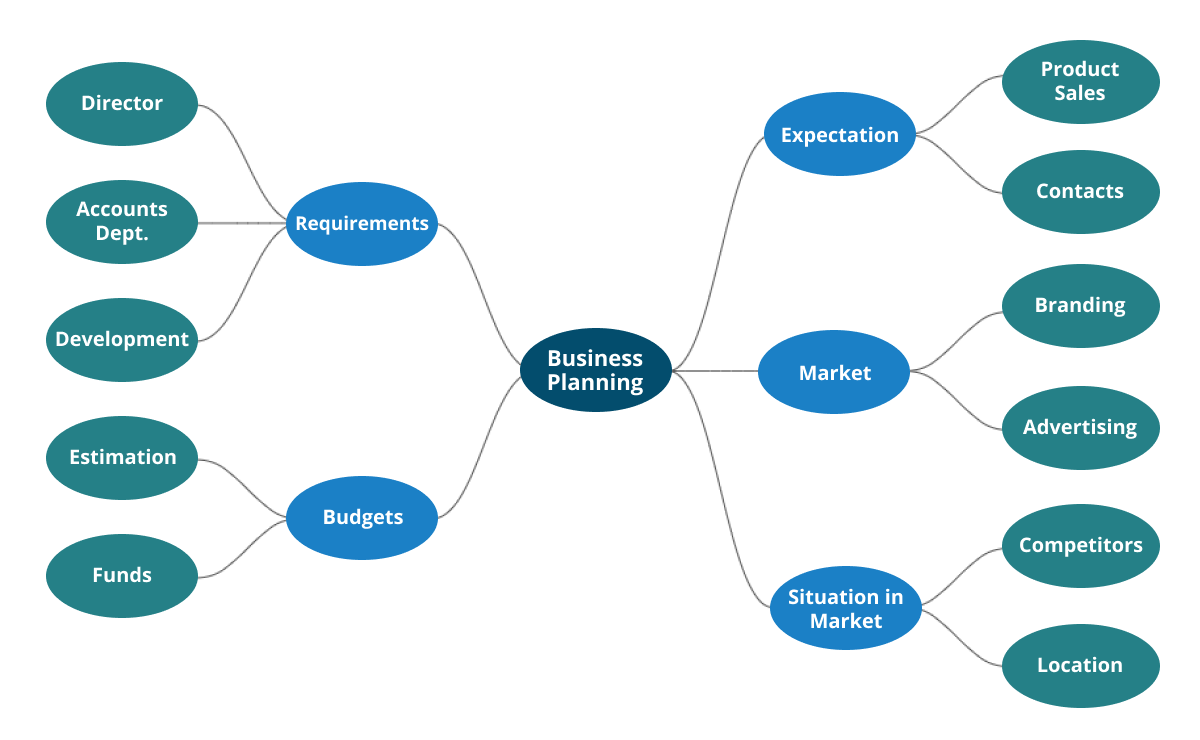
The automatic layout algorithm is also built for mind map diagrams. Users can define which node should be at the center and which nodes should be placed around it on the diagram surface.
Seamless Visio integration
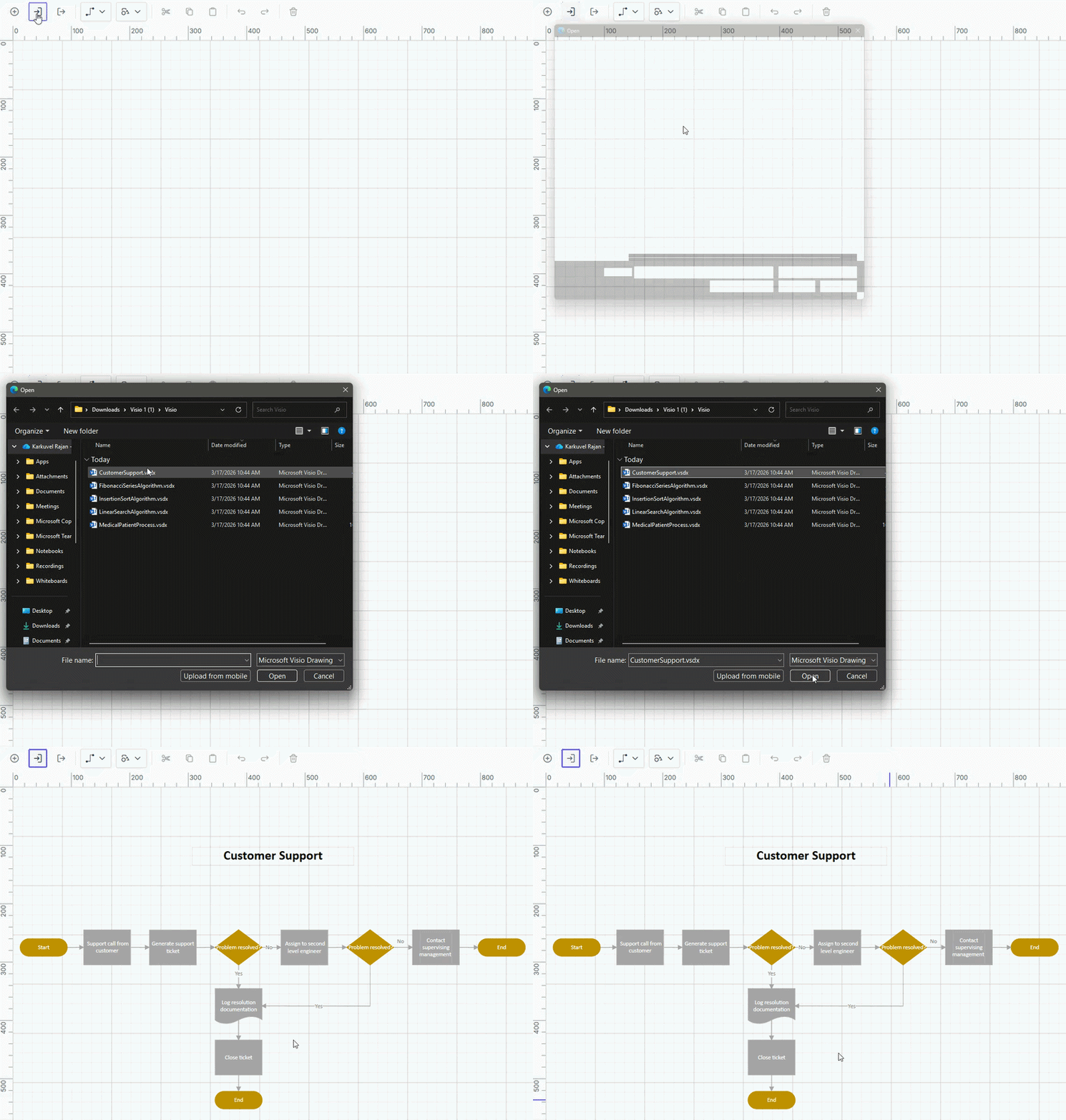
Import Microsoft Visio (.vsdx) files into the Angular Diagram and export Angular diagrams back to Visio format, with support for flow shapes, basic shapes, groups, connectors, ports, and annotations.
UML sequence diagram
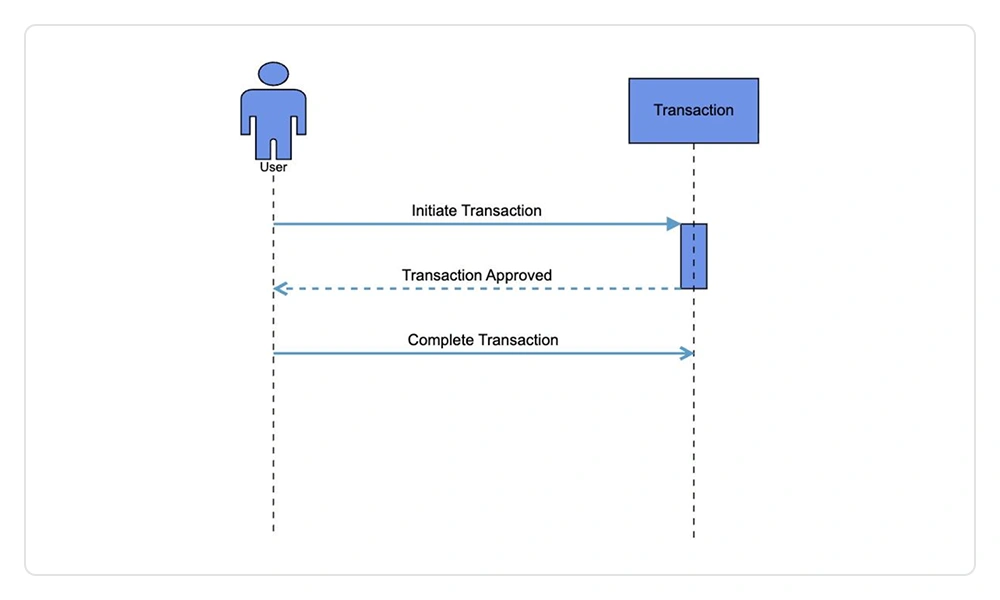
UML sequence diagrams visualize time‑ordered interactions between system participants by modeling lifelines and message exchanges, enabling precise analysis of execution flow, request‑response behavior, and component collaboration.
Entity relationship diagram
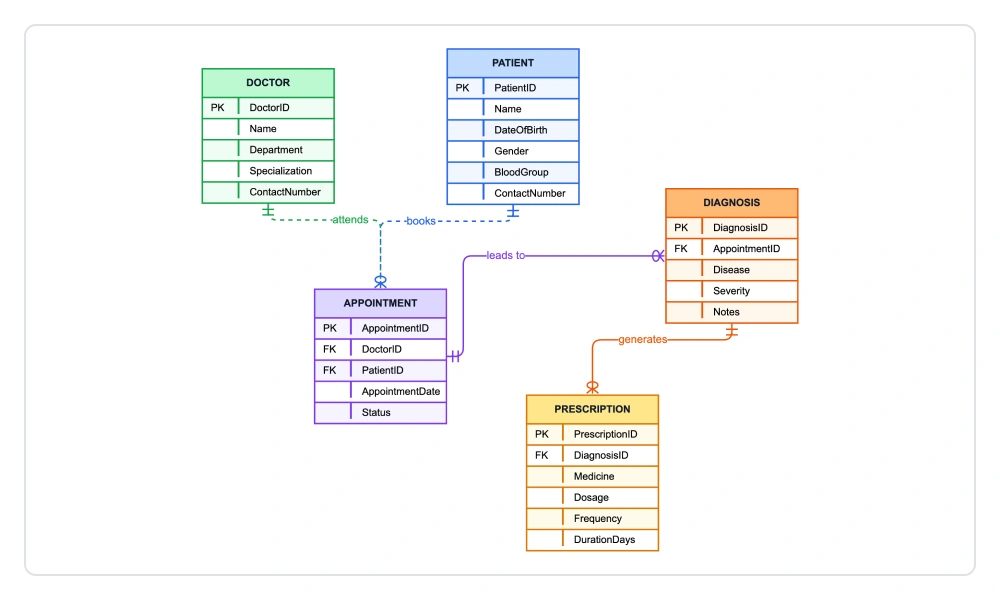
Design, visualize, and manage database schemas directly within the diagramming workspace. Create entity-relationship (ER) diagrams with built-in support for entities, attributes, and relationships. Define relationship cardinality, organize and manage fields efficiently, and dynamically add, remove, or rearrange schema elements.
Nodes
Visualize any graphical object using nodes that can be arranged and manipulated at the same time on diagram page. They allow users to:
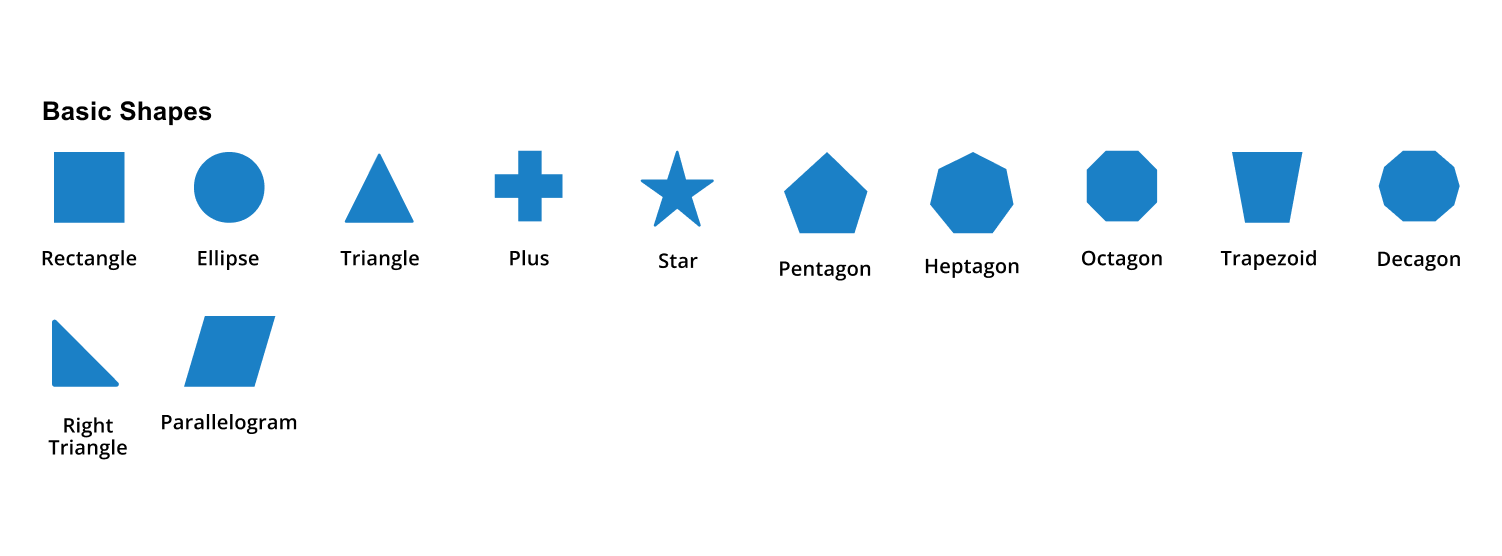
- Use many predefined standard shapes.
- Create and add custom shapes easily.
- Fully customize the appearance of a node.
- Design a node UI template and reuse it across multiple nodes.
Connectors
A connector represents a relationship between two nodes.
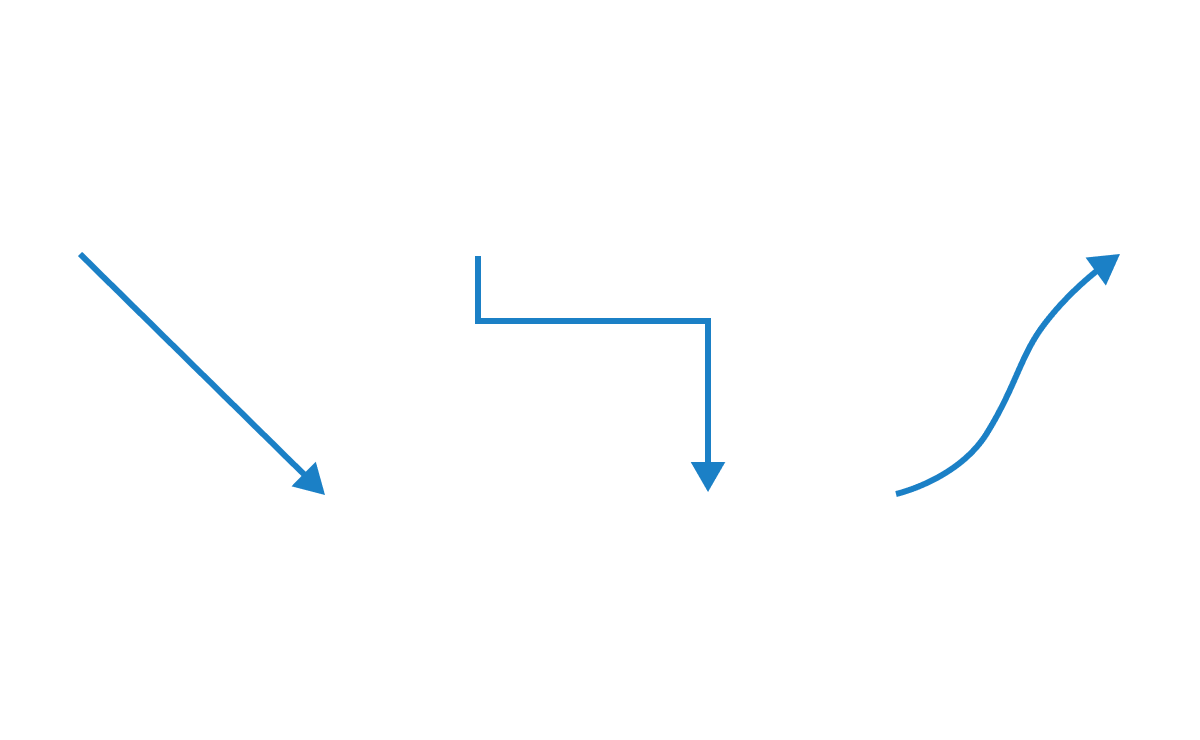
Types
The Angular Diagram provides straight, orthogonal, polyline, and curved connector types. Users can choose any of these based on the type of diagram or relationship between the connected nodes.
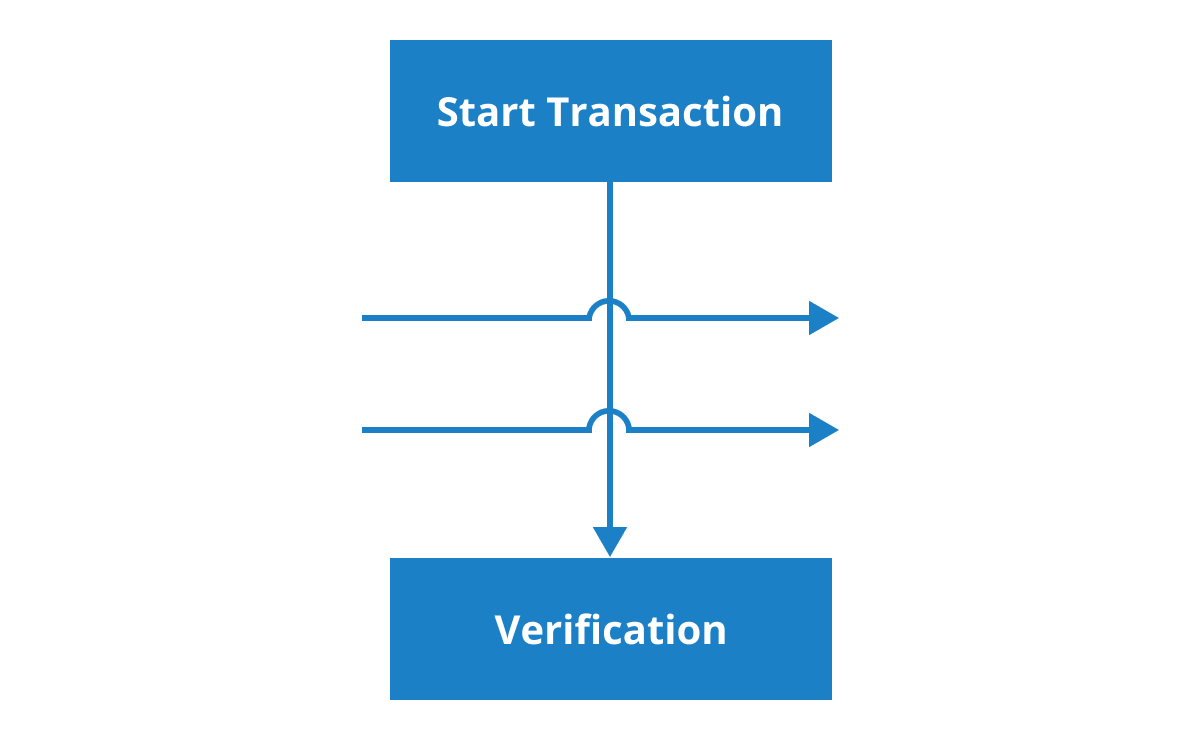
Bridging or line jumps
Use bridging (line jumps) to illustrate a connector’s route, making it easy to read where connectors overlap each other in a dense diagram.
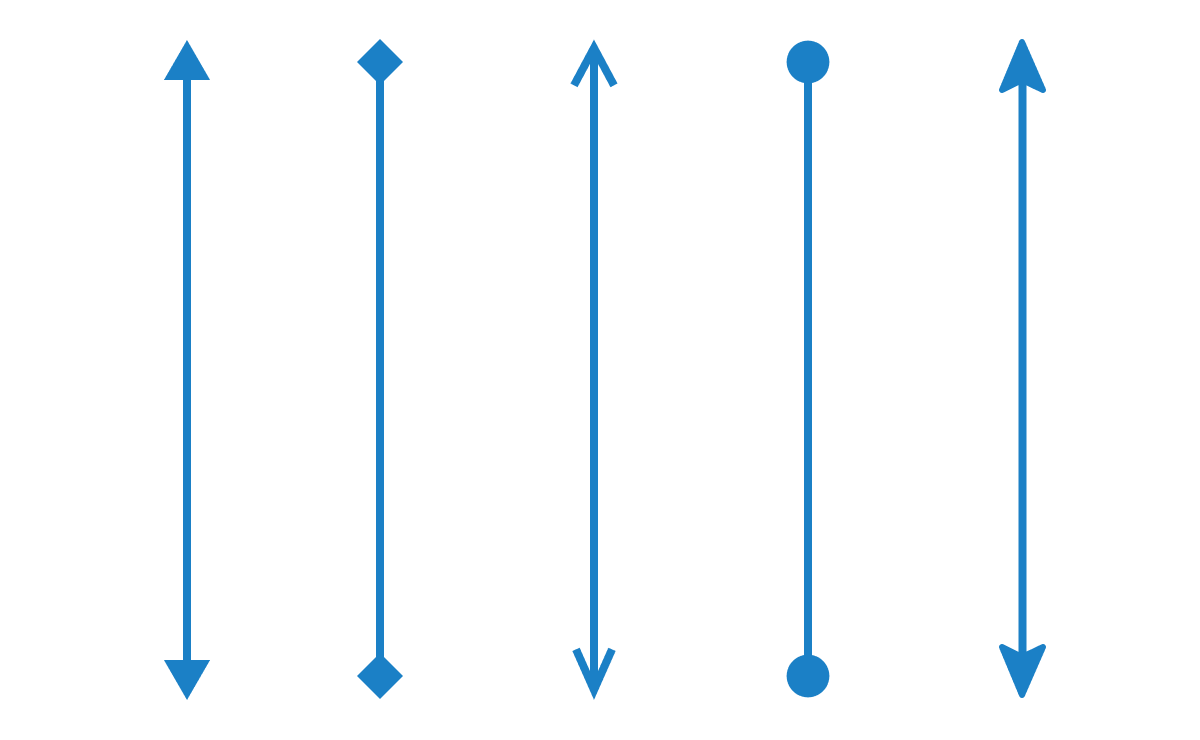
Arrowheads
Use different types of predefined arrowheads to illustrate flow direction in flowchart diagrams. You can also build your own custom arrowheads.
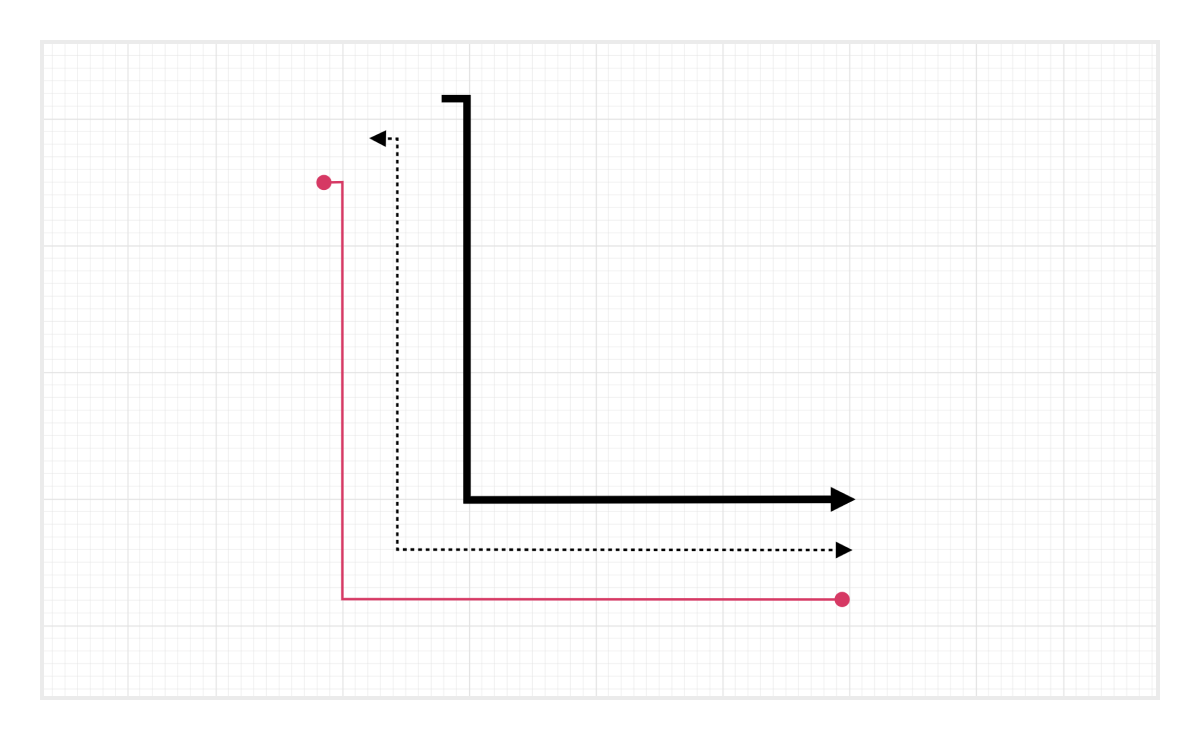
Appearance
Like nodes, the connector’s look and feel can also be customized in any way. The Angular Diagram control provides a rich set of properties to customize connector color, thickness, dash and dot appearance, corners, and even decorators.
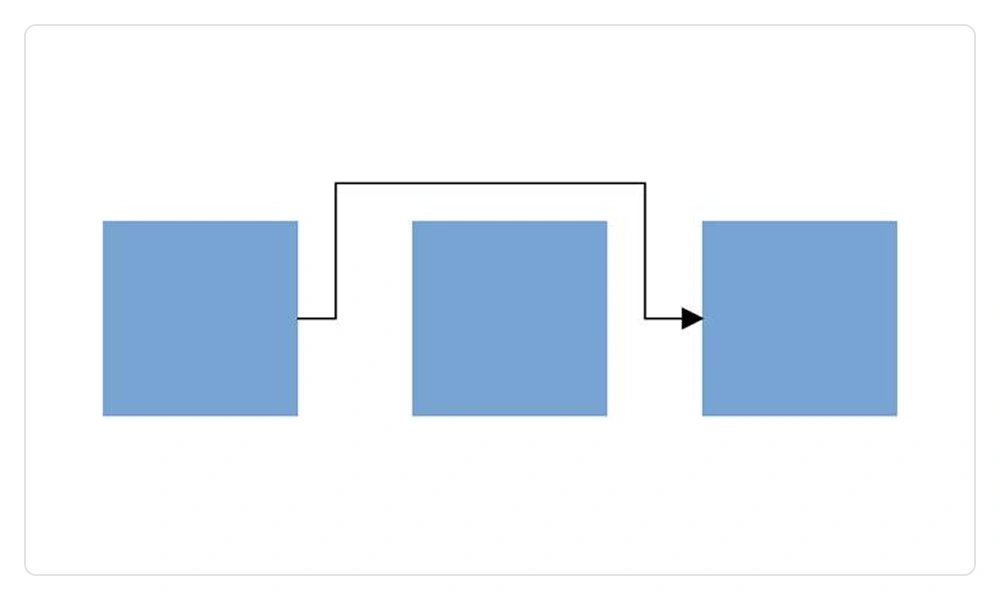
Line routing
Orthogonal connectors navigate the shortest and most efficient path to prevent overlapping with neighboring nodes.
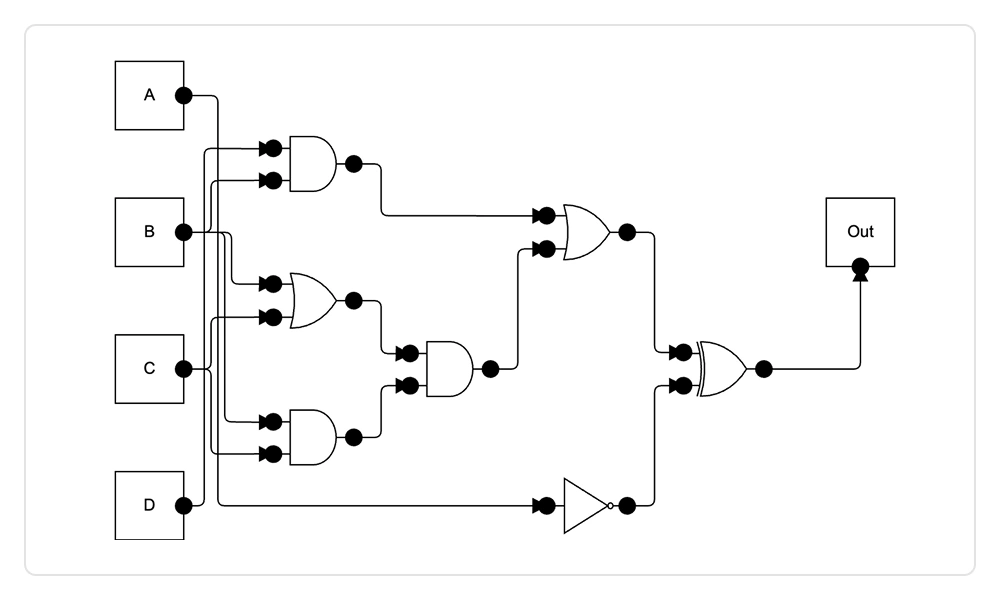
Avoid connector overlap
Automatically adjust connector paths to prevent visual overlap, ensuring clear, distinct routing in complex diagrams.
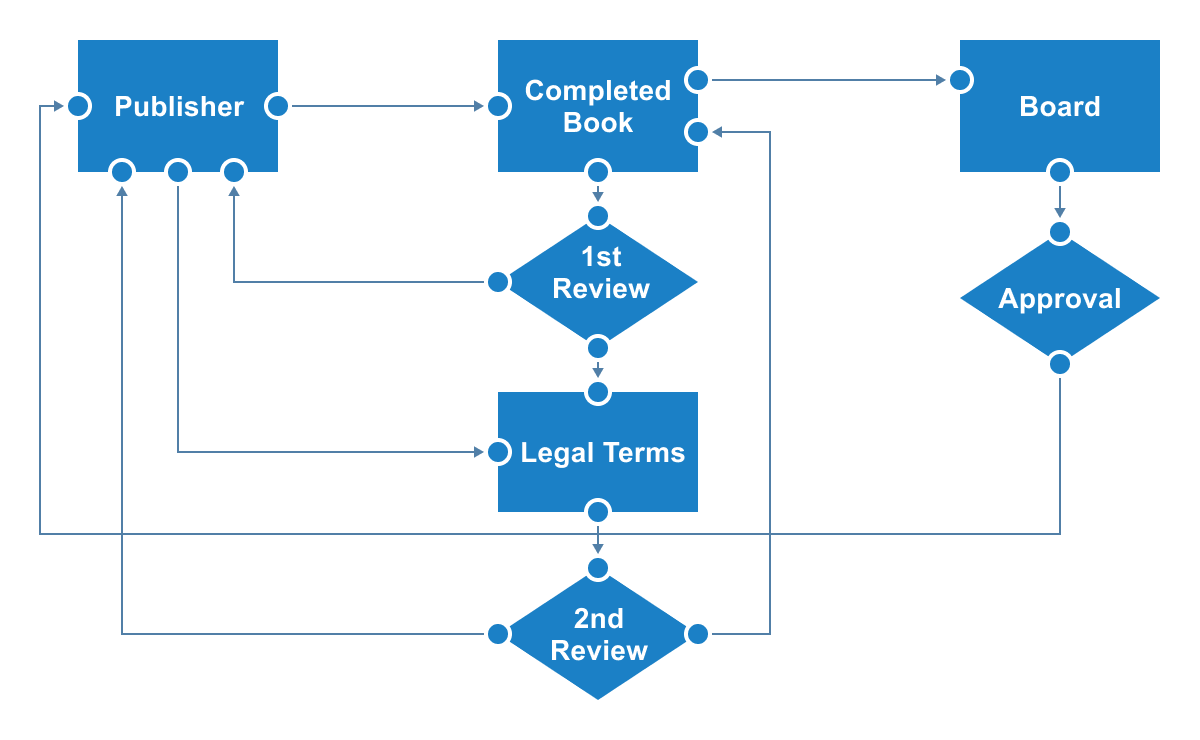
Ports (connection points)
Attach connectors to specific places on a node through different types of ports or connecting points.
Labels
Additional information can be shown by adding text or labels on nodes and connectors.
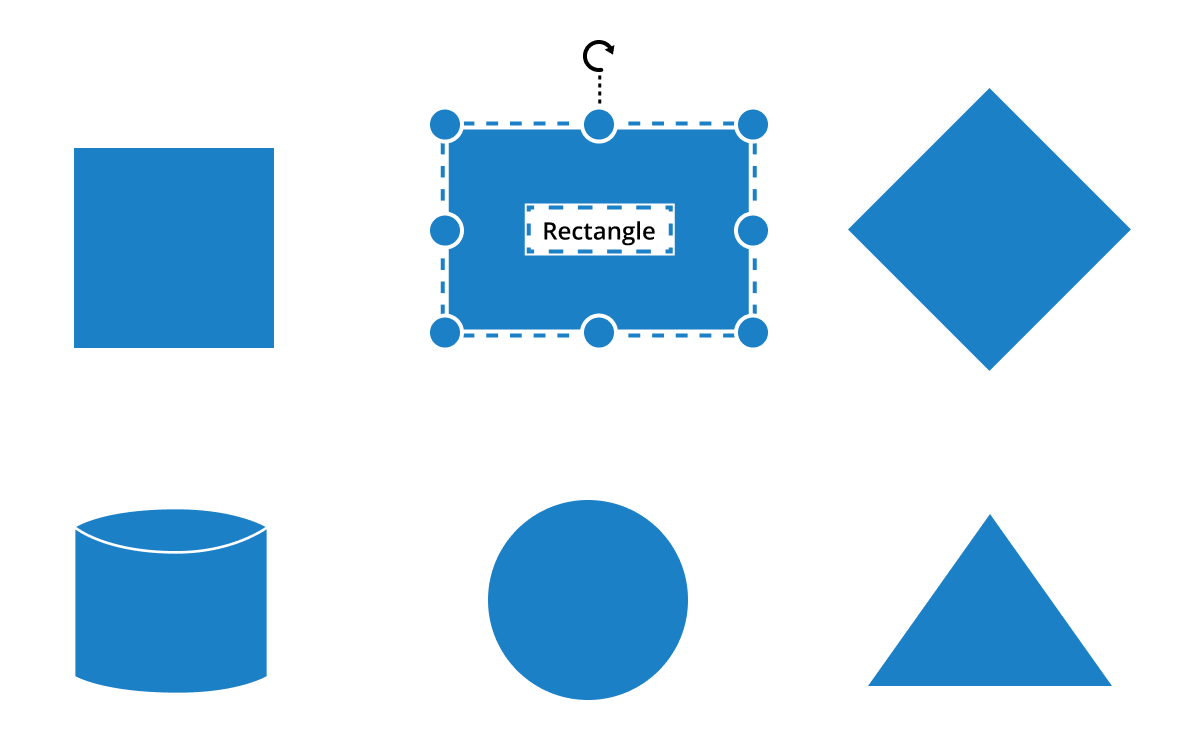
Edit
Users can add and edit text at runtime and mark it read-only if it should not be edited.
Multiple labels
Add any number of labels and align them individually.
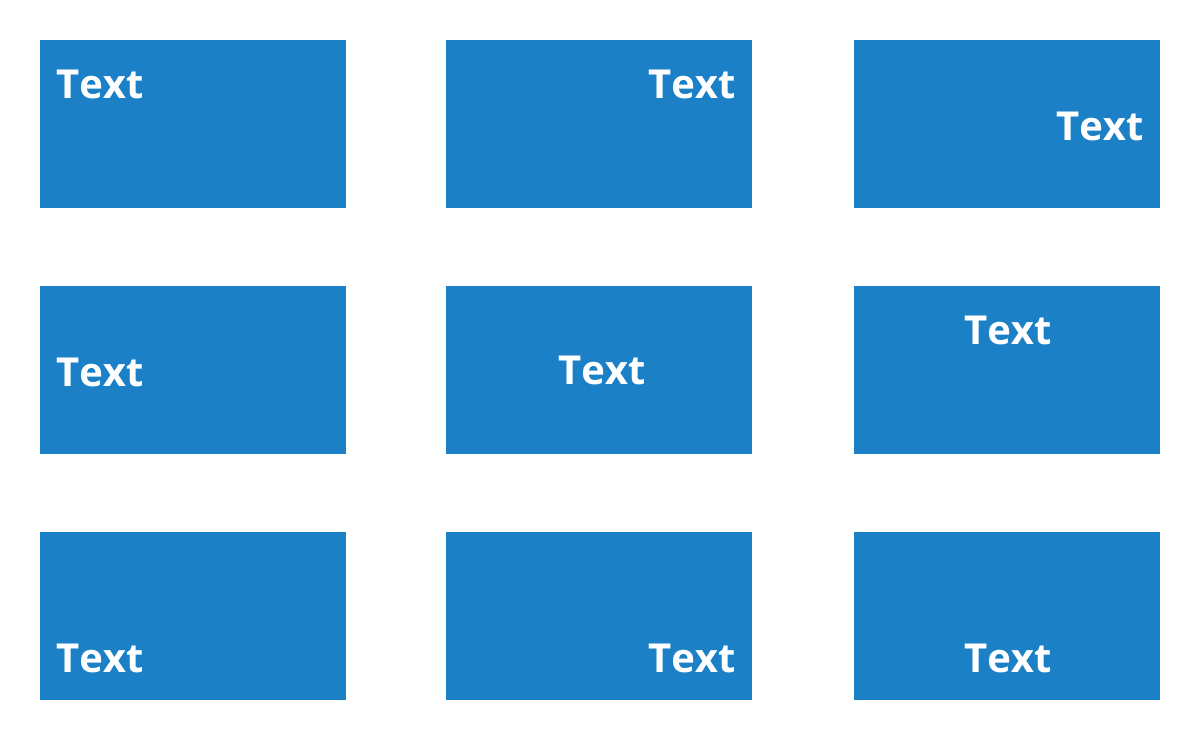
Alignment
Labels include sophisticated alignment options: place inside a node, outside a node, or at the source or target end of a connector. Automatically align when a node or connector moves.
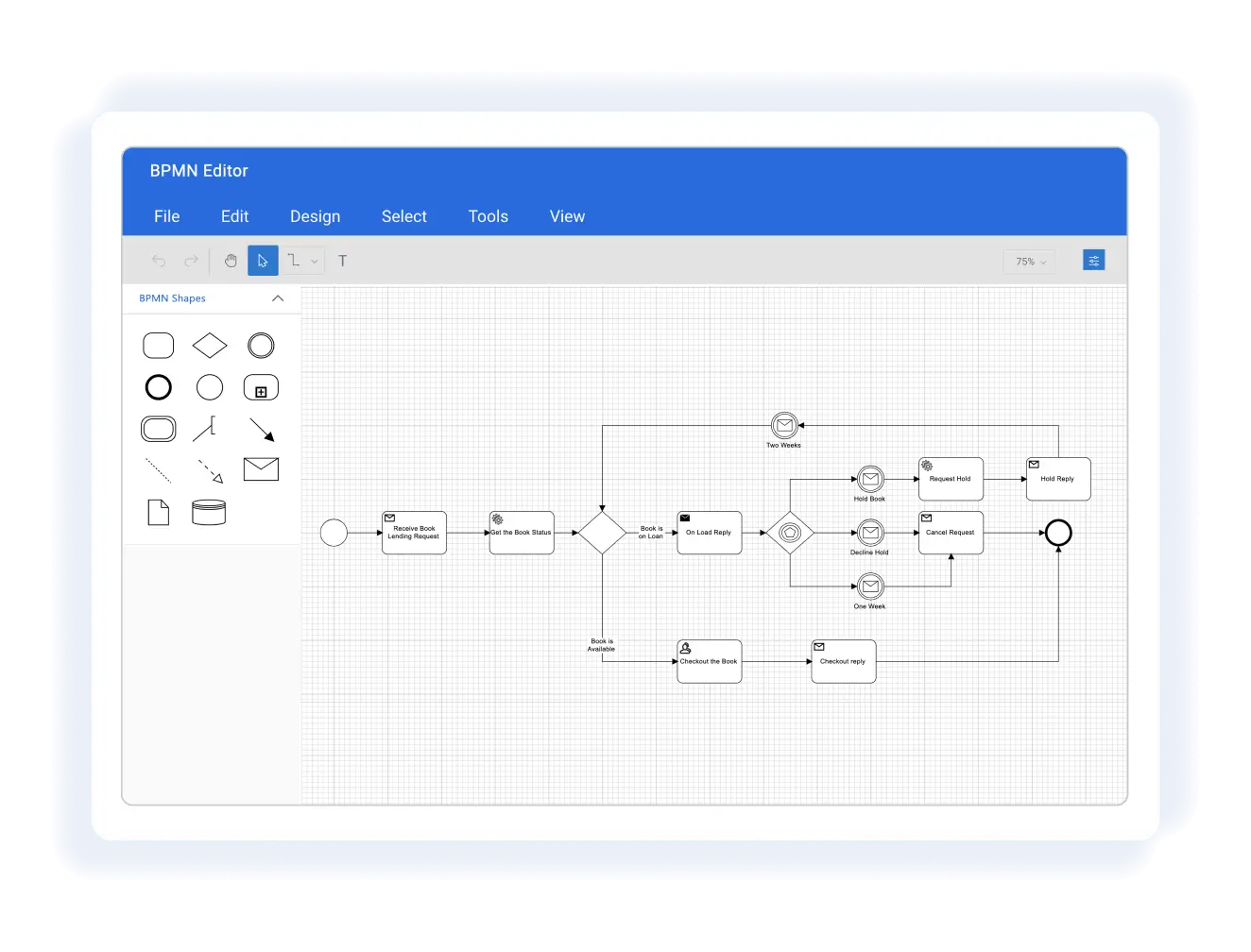
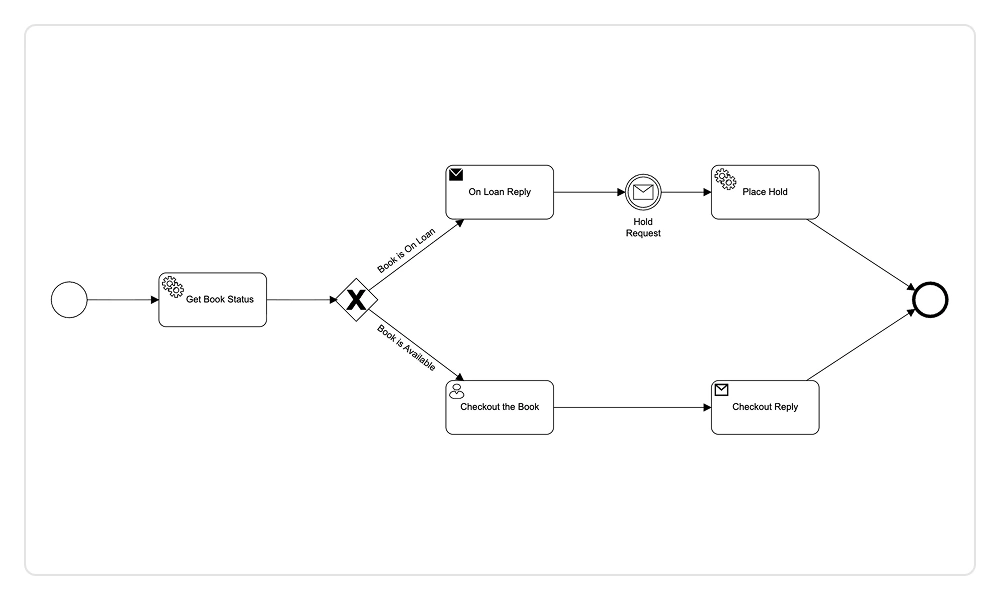
BPMN editor
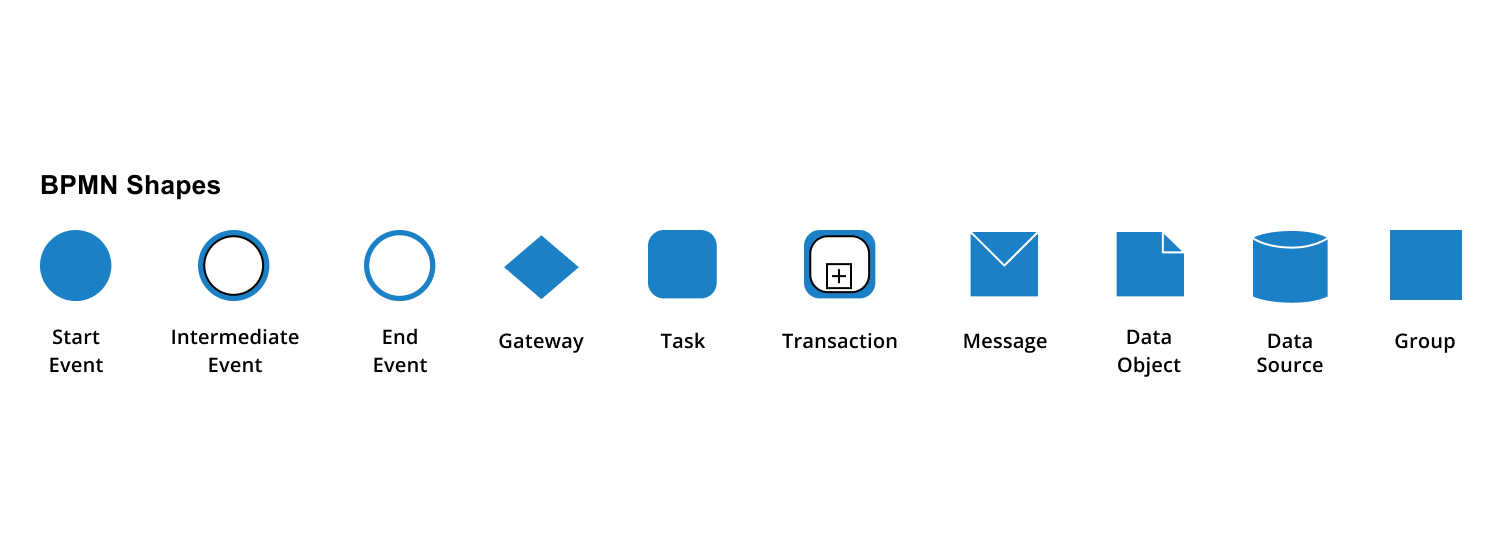
The Angular Diagram includes all standard BPMN (business process model and notation) shapes, which are essential graphical elements used to visualize business processes within a BPMN diagram.
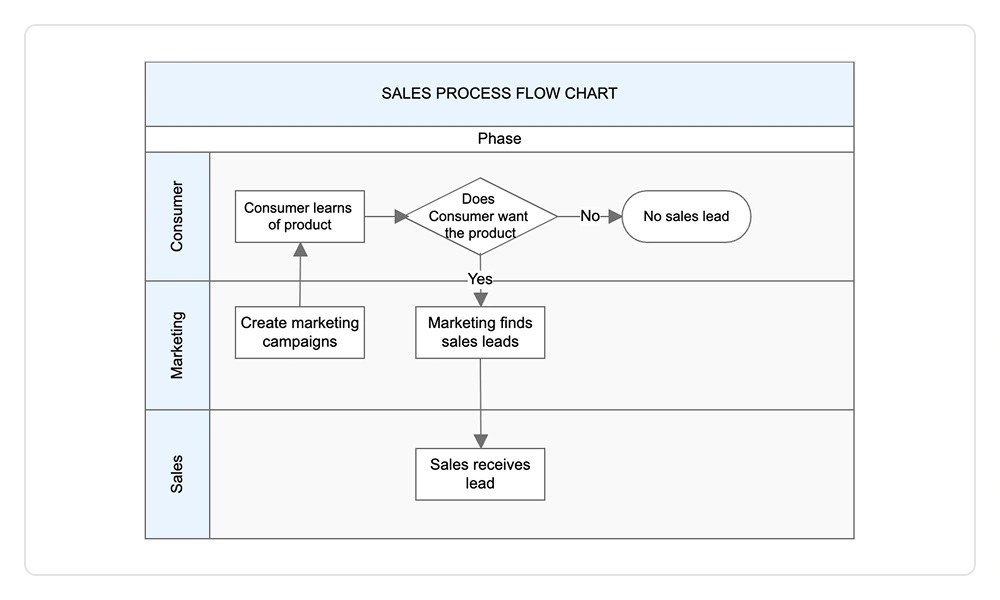
Swim lanes
The Angular Diagram supports swimlanes, which are visual elements in a swimlane diagram that represent various components, activities, and responsibilities within a business process.
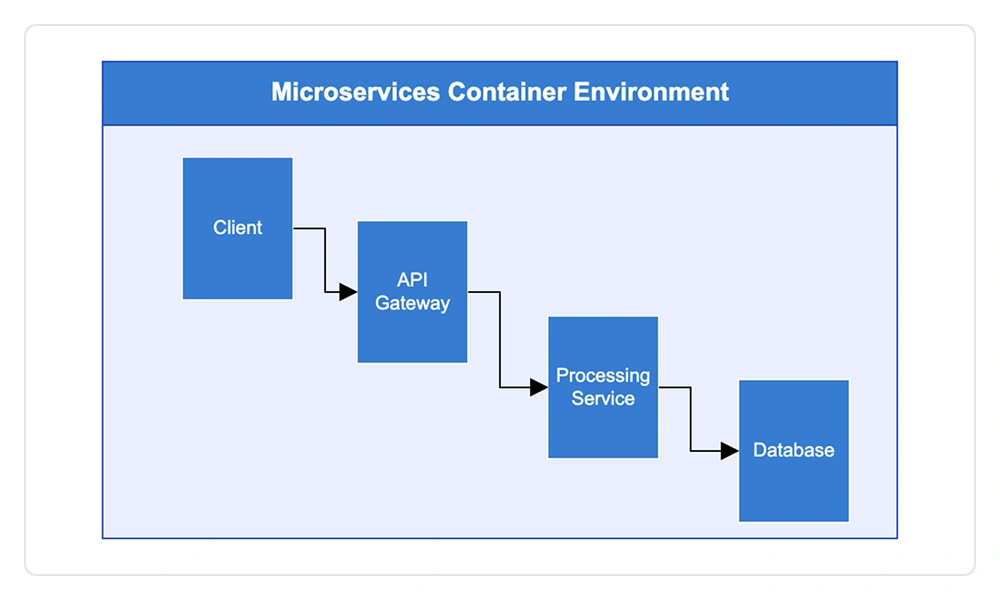
Containers
Containers organize related elements into clearly defined sections, supporting drag‑and‑drop interaction, flexible layouts, independent styling, and grouped event handling to improve UI clarity, consistency, and the overall user experience.
Interactive features
Use interactive features to improve the editing experience of a diagram at runtime. Easily edit a diagram using a mouse, touchscreen, or keyboard.

Select and drag
Select one or more nodes, connectors, or annotations and edit them using thumbs or handlers.

Resize
Users can resize a node in eight directions and lock a node’s aspect ratio to keep its shape. They can also resize multiple objects simultaneously.

Undo and redo
Undo and redo in diagramming tools allow users to reverse or reapply actions such as moving, resizing, creating, and deleting elements.

Clipboard
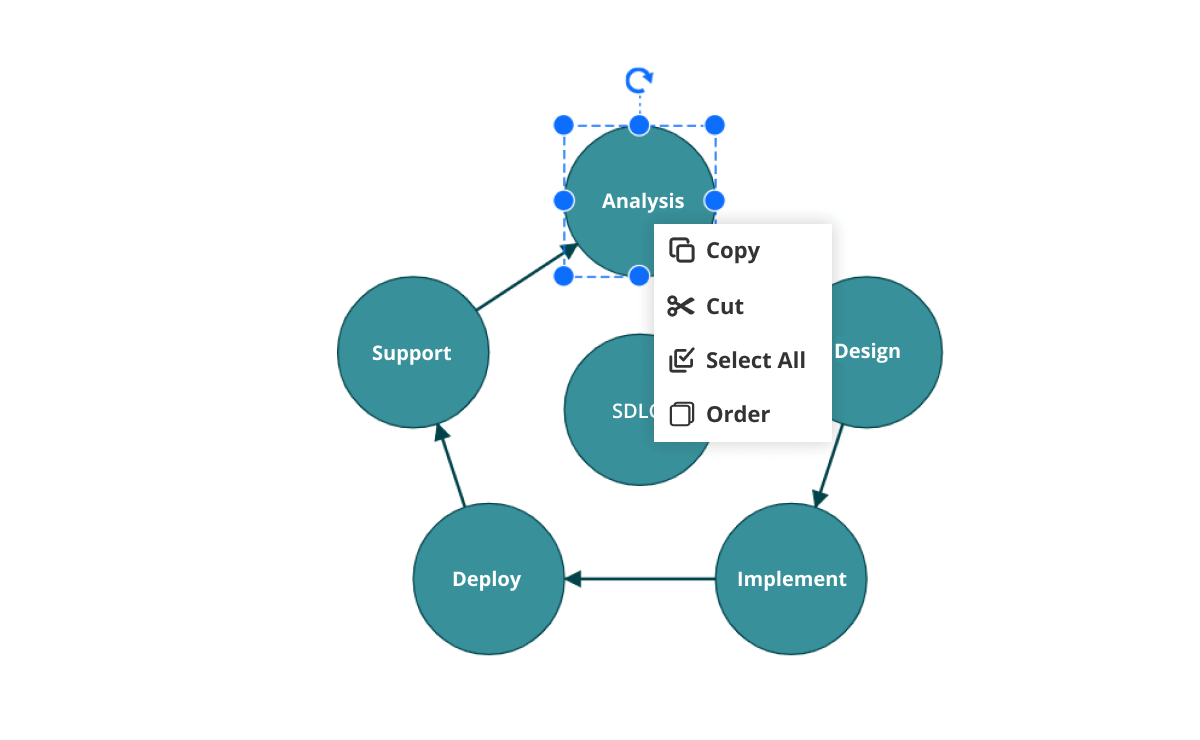
Cut, copy, paste, or duplicate selected objects within and across diagrams.

Z-order
When multiple objects overlap, the z-order controls which object is at the top and which is at the bottom.

Snap
Precisely align nodes, connectors, and annotations while dragging by snapping them to the nearest gridlines or objects.

Grouping
Combine multiple nodes into a group and then interact with them as a single object. Nested groups are also possible with our Angular Diagram component.

Quick commands
Frequently used commands like delete, connect, and duplicate can be shown as buttons near a selector. This makes it easy for users to perform those operations quickly instead of searching for the correct buttons in a toolbox.
Alignment
Our Angular Diagram has predefined alignment commands that enable users to align the selected objects’ nodes and connectors with respect to the selection boundary.
Spacing commands
Spacing commands let users place selected objects on a diagram at equal intervals.
Sizing commands
Use sizing commands to evenly size selected nodes relative to the first selected object.
Align commands
All the nodes or connectors in the selection list can be aligned at the left, right, or center horizontally, or aligned at the top, bottom, or middle vertically with respect to the selection boundary.
Automatic layout
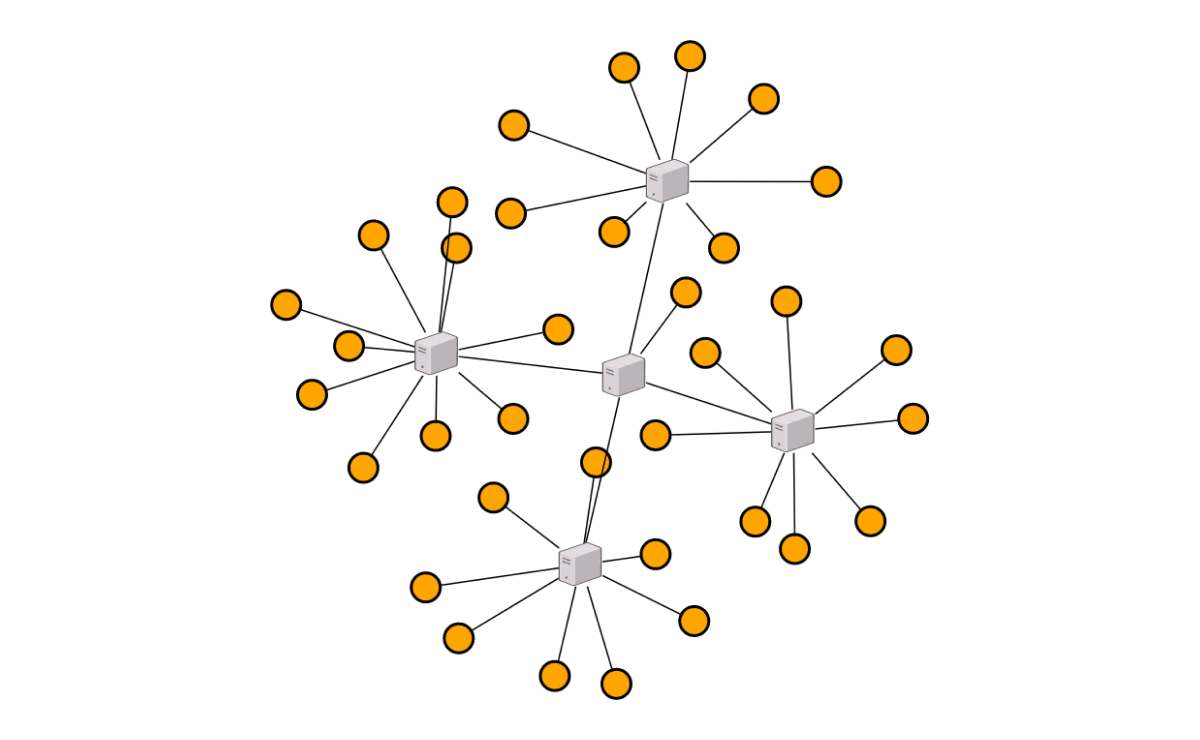
Automatically arrange nodes using a predefined layout algorithm. The component features built-in hierarchical and radial trees, as well as symmetric layouts.
Ruler
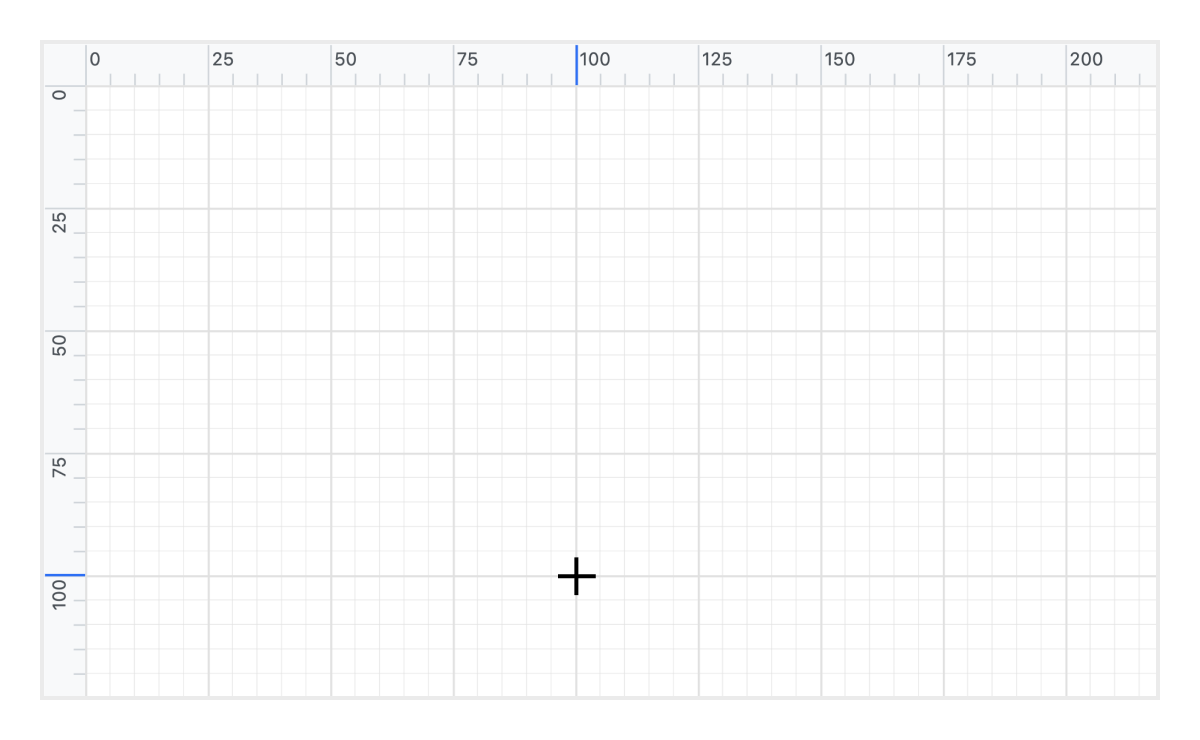
Rulers allow users to measure the distance from the origin of the page to nodes or connectors. This is especially useful in creating scale models.
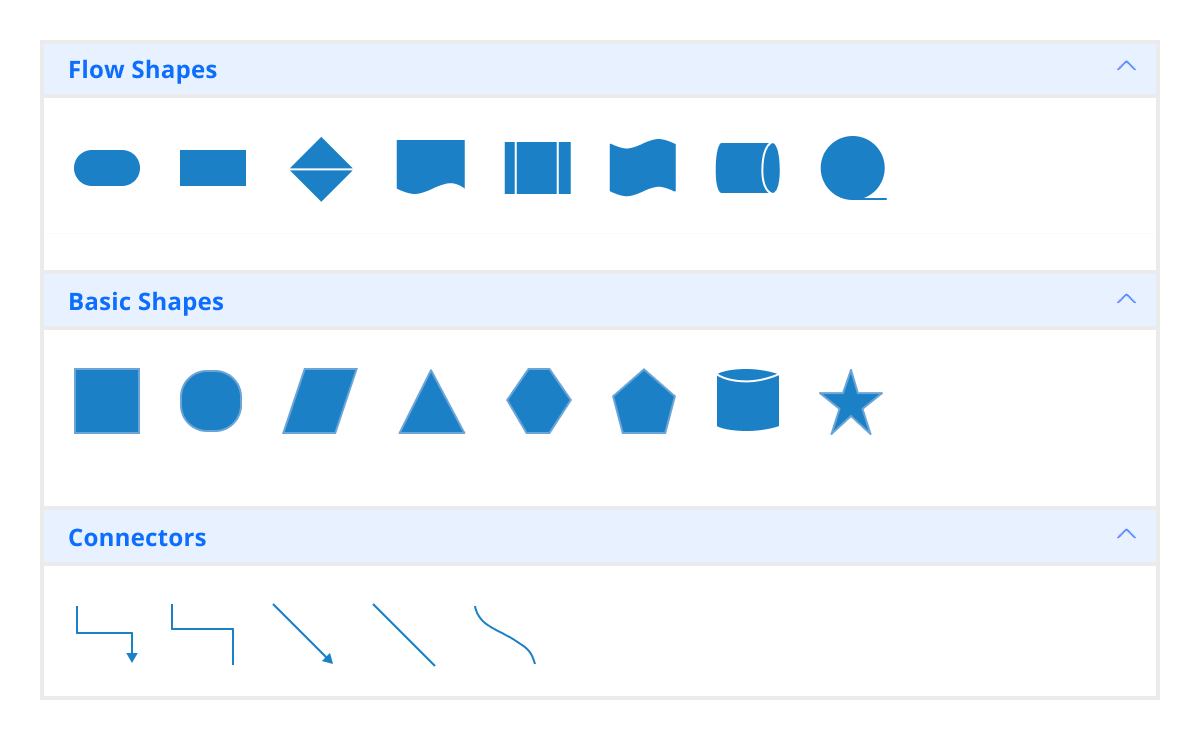
Symbol palette
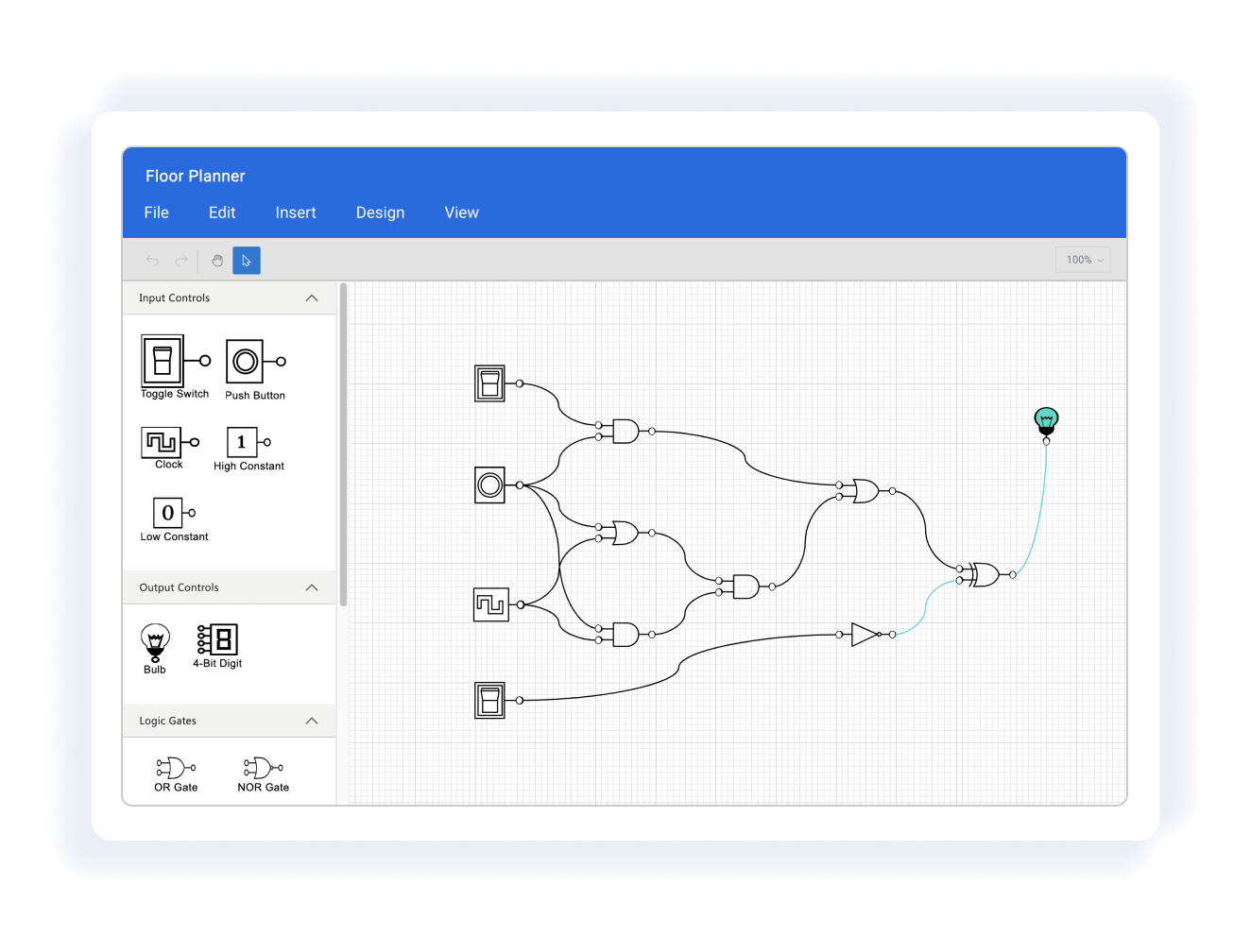
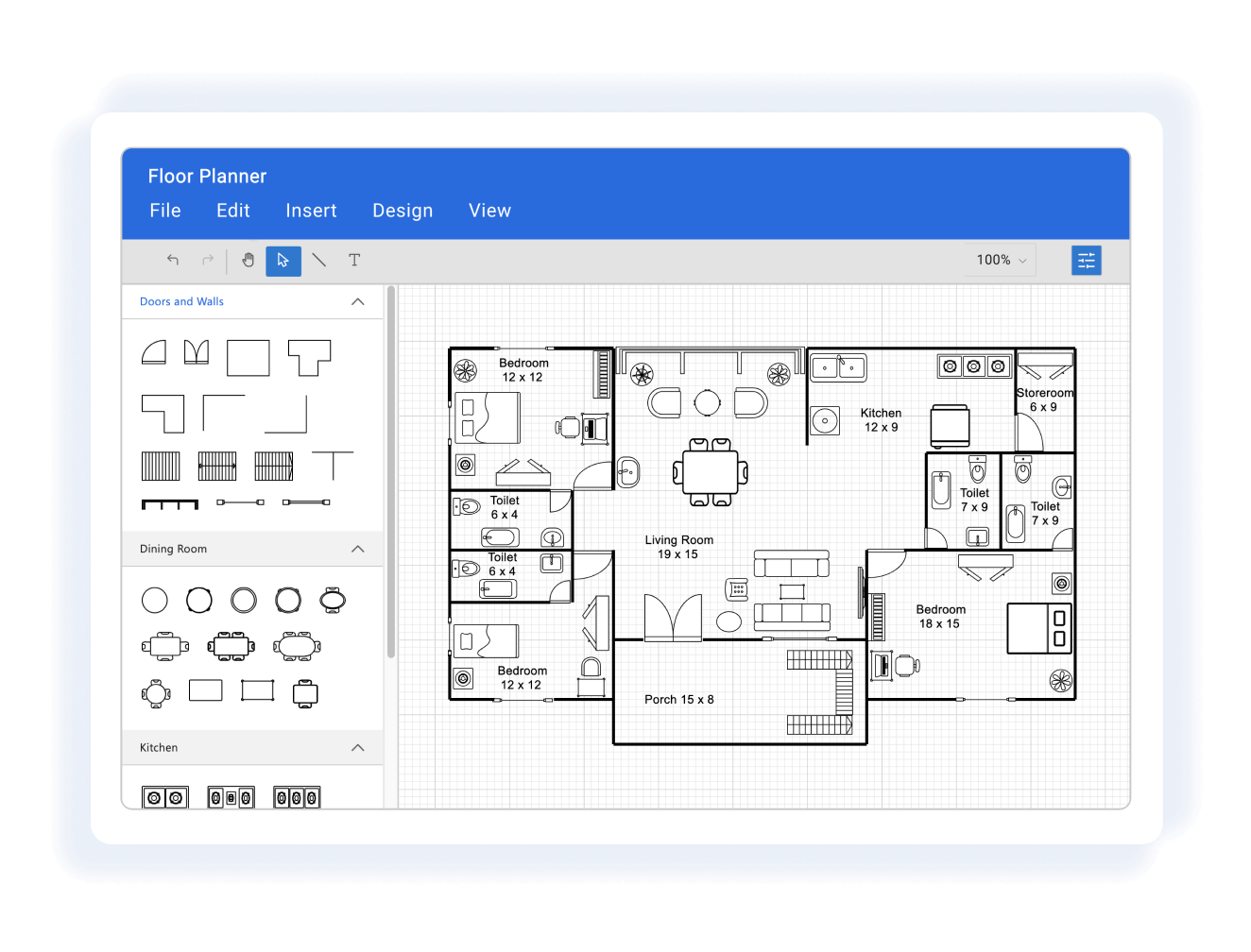
The control includes a gallery of stencils, reusable symbols, and nodes that can be dragged onto the surface of a diagram.
Overview panel
The overview panel helps users navigate large diagrams more effectively. It displays a small preview of the full diagram page that allows users to zoom and pan within it.
Drawing tools
Draw all built-in nodes and connect them with connectors by simply clicking and dragging in the drawing area.
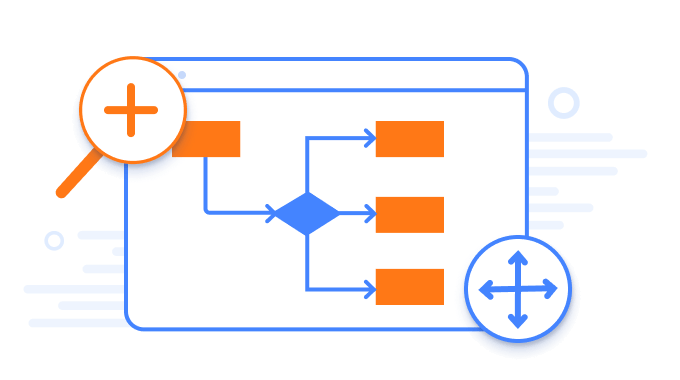
Zoom and pan tools
View a large diagram closely or assume a wider view by zooming in and out. Also, navigate from one region of a diagram to another by panning across it.
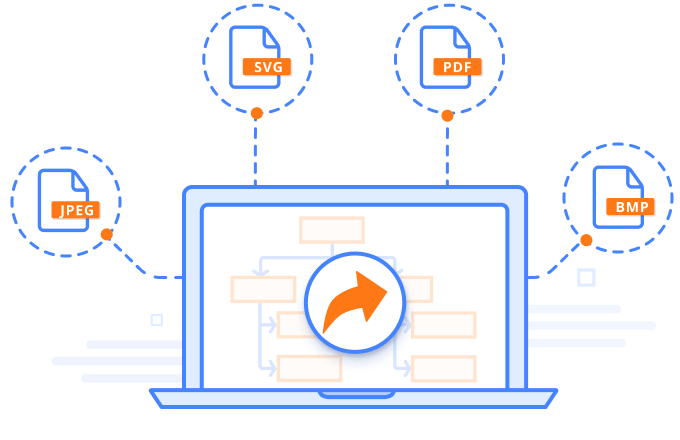
Exporting
Export Angular diagrams and flowcharts to PNG, JPEG, SVG, or JSON format for sharing and printing.
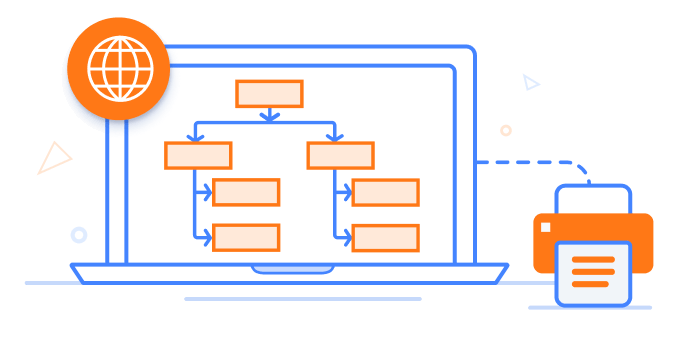
Printing
Print diagrams from the browser. Users can customize the page size, orientation, and page margin, and fit a diagram to a single page.
Serialization
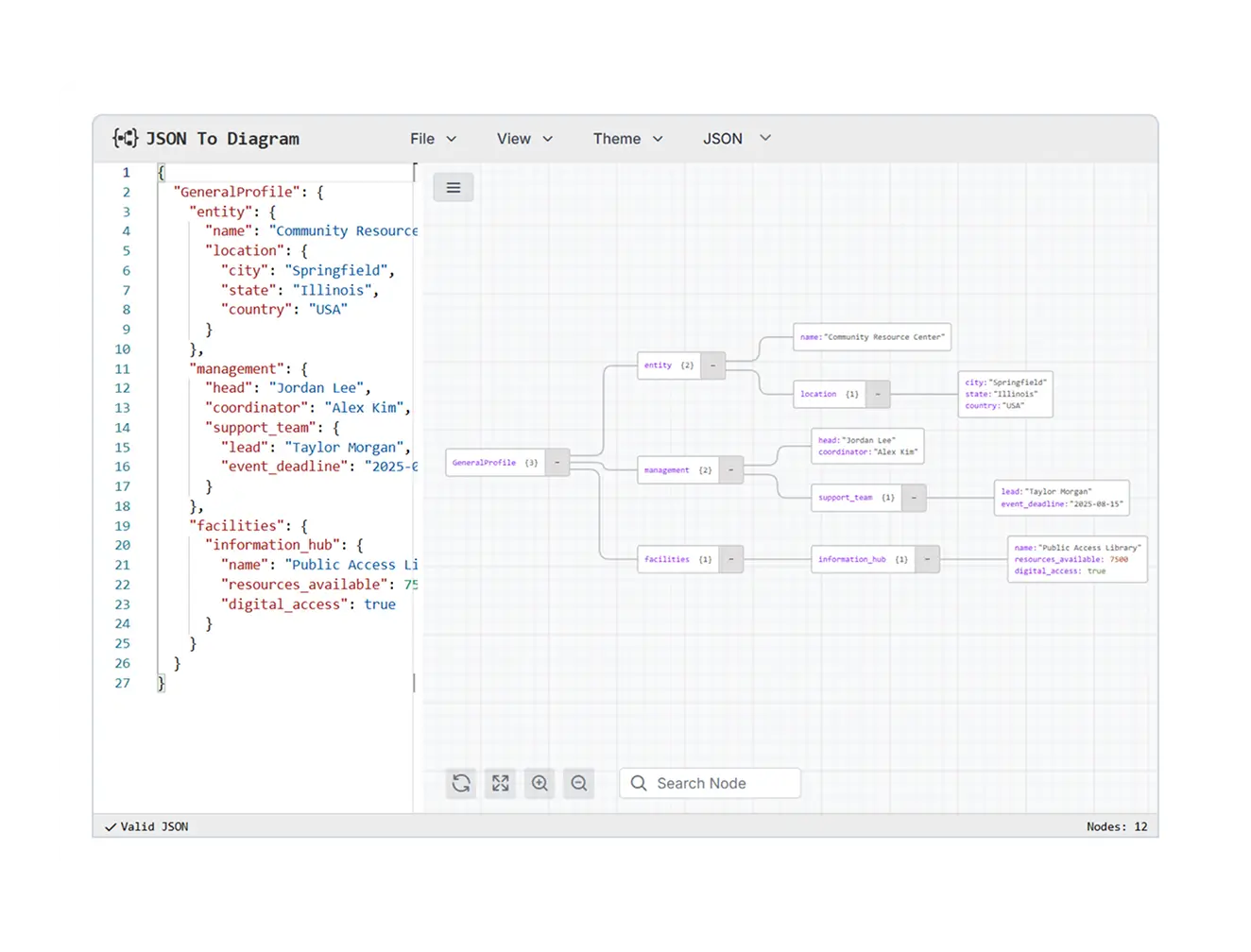
Save the diagram state in JSON format and load it back later for further editing using the serializer.
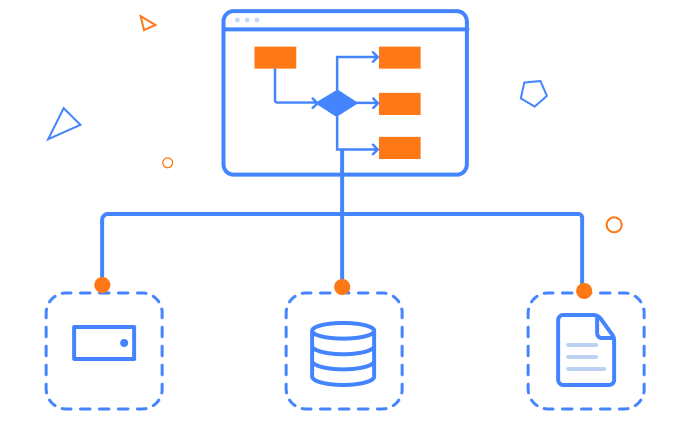
Virtualization
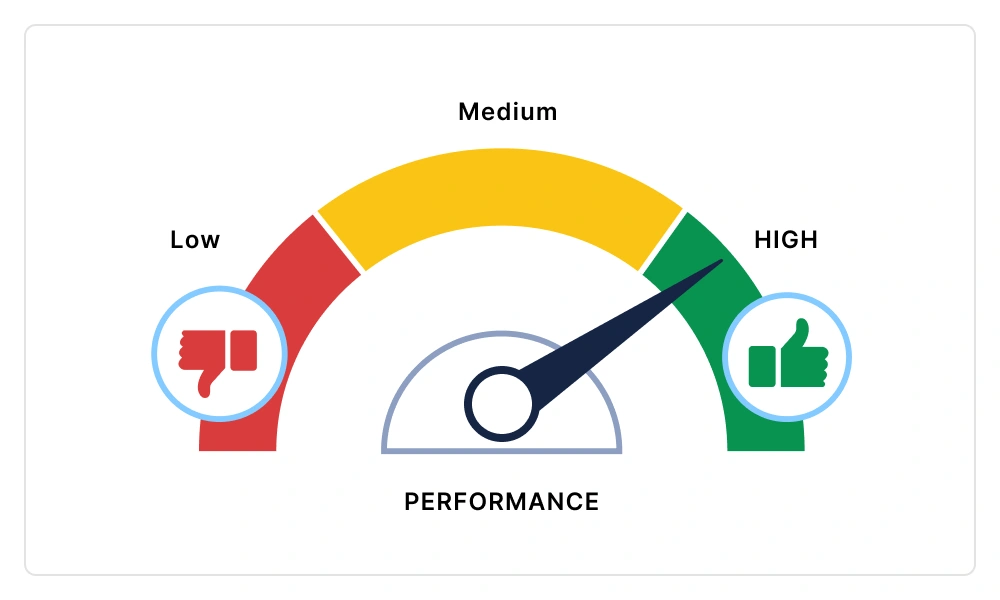
Quickly load large diagrams using UI-virtualization techniques, which selectively load the objects that lie within the viewport area. Smooth scrolling performance is achieved using a built-in spatial search algorithm that builds an index based on the element position.
Miscellaneous
In addition to all the features listed thus far, there are many more that enhance the diagramming experience.
Page layout
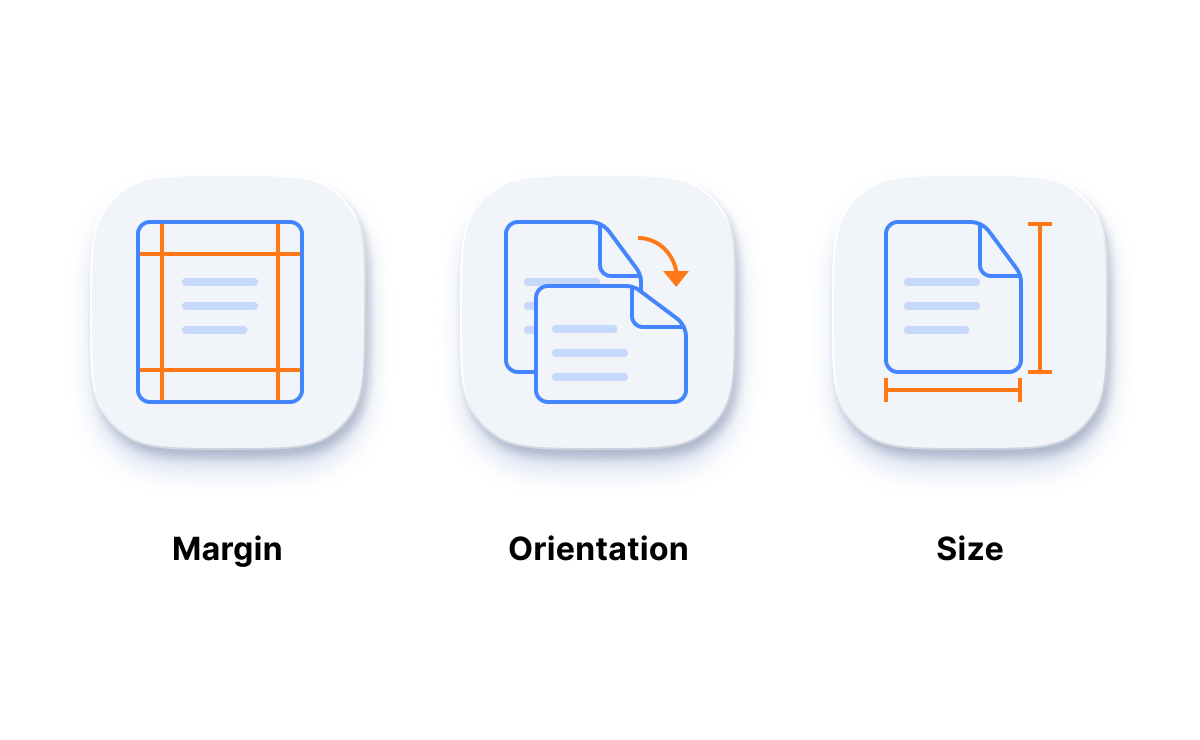
Give the drawing surface a page-like appearance using page size, orientation, and margins.
Tooltip
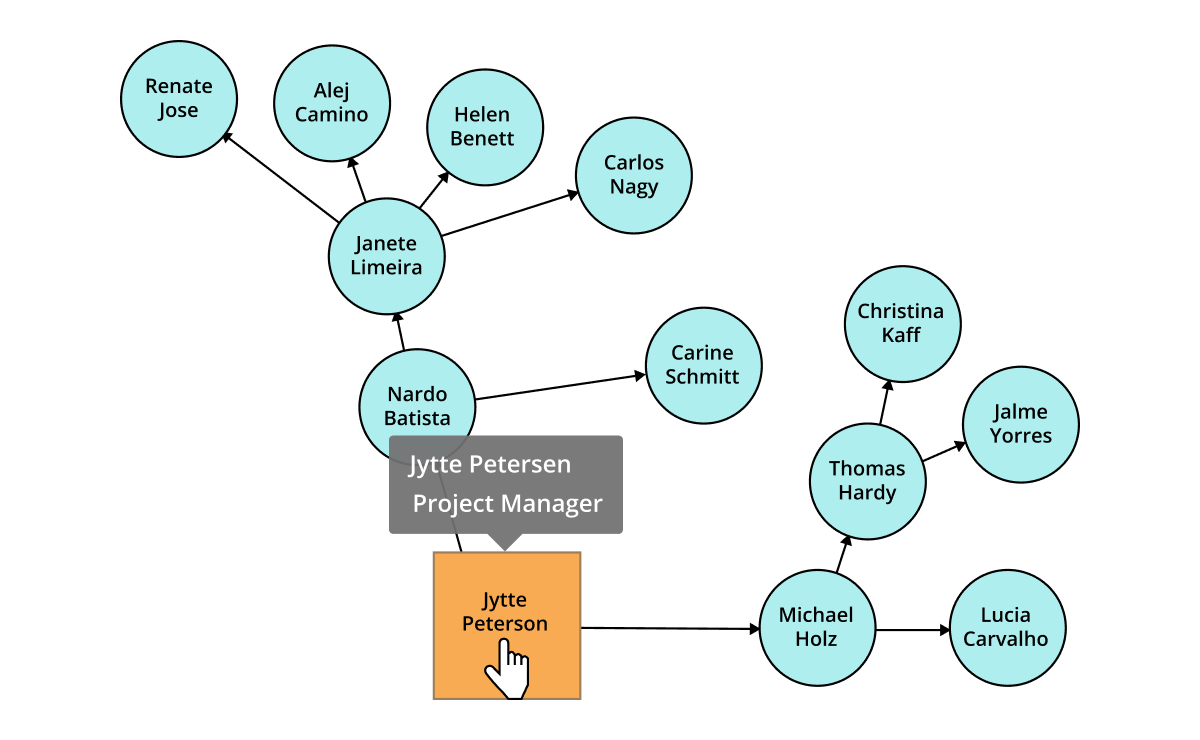
Use tooltips to provide additional information about a node.
Additional features

Keyboard navigation
The Angular Diagram control ensures that every cell is accessible using the keyboard. Major features like sort, select, and edit can be performed using keyboard commands alone; no mouse interaction is required. This helps create highly accessible applications with this control.

Developer-friendly APIs
Developers have full control over the UI and behavior of the Diagram through its built-in, developer-friendly APIs. It allows the customization of even complex Diagram functionalities.
Angular version compatibility
The Angular Diagram is kept up to date to make it compatible with the latest version of Angular.

 Automatic layout algorithms
40+ interactive demos
1.1M+ downloads
Automatic layout algorithms
40+ interactive demos
1.1M+ downloads

Other supported frameworks
The Diagram is available for the Blazor, React, JavaScript, and Vue frameworks. Explore its platform-specific options through the following links:
Supported browsers
The Angular Diagram works well with all modern web browsers, including Chrome, Firefox, Edge, Safari, and Opera.
See how our components can be transformed into beautiful and efficient apps
Not sure how to create your first Angular Diagram? Our tutorial videos and documentation can help.
I’d love to watch them now I’d love to read it nowFrequently Asked Questions
Why should you choose the Syncfusion Angular Diagram?
- Visualize, create, and edit interactive diagrams.
Blazing-fast load times, rich UI interactions and keyboard navigation.
Load a wide range of nodes with optimum performance.
Design flowchart diagrams, choose from a collection of many built-in shapes, and leverage flexible data binding.
Easily arrange diagram components with automatic layouts to create organization charts, mind maps, radial tree diagrams, and hierarchical tree diagrams.
Leverage seamless export and printing capabilities.
Enjoy simple configuration and APIs.
- Render on all modern browsers.
- Target the devices your users actually use with the components’ touch-friendly, responsive design.
Turn to expansive learning resources such as demos and documentation to get started quickly.
Where can I find the Syncfusion Angular Diagram demo?
You can find our Angular Diagram demo here.
Does Syncfusion have an Angular diagram library?
Yes. If you’re looking for an Angular diagram library, the Syncfusion Angular Diagram component provides everything you need to create interactive flowcharts, organizational charts, BPMN diagrams, UML diagrams, and mind maps with powerful APIs and built-in editing capabilities.
Can I download and utilize the Syncfusion Angular Diagram for free?
No, this is a commercial product and requires a paid license. However, a free community license is also available for companies and individuals whose organizations have less than $1 million USD in annual gross revenue, 5 or fewer developers, and 10 or fewer total employees.
How do I get started with the Syncfusion Angular Diagram?
A good place to start would be our comprehensive getting started documentation.
Our Customers Love Us
Having an excellent set of tools and a great support team, Syncfusion® reduces customers’ development time.Here are some of their experiences.

It has more tools and support than its competitors
Syncfusion Essential Studio samples are really helpfull. Docking Manager, Diagram, Undo-Redo, Mapping, Themes.

HALİT A,

Software Developer
Nice suite of components
A very complete set of components that has an edge on other major vendors which offer components. A lot less code required to use and code samples for more complete components. Integrates well with other 3rd party components.

John A.
C# Developer (Contract)
See Real Success Stories
Developers around the world trust Syncfusion’s Essential Studio to simplify complex projects and speed up delivery. With a vast library of UI controls, powerful SDKs, and reliable support, Essential Studio helps teams build enterprise-ready applications with confidence.
Read Our Customer StoriesIndustry
Software development
75% Cost reduction
50% Faster development
Industry
Utilities (oil and gas)

450+ hours saved
Streamlined processes and hours of development effort saved.

Advanced, flexible features
Empowered users through robust and versatile functionality.
Industry
Software and technology
1000+ of hours saved
Accelerated development with enterprise-ready UI components.

Efficient file management
Streamlined workflows with document libraries without building them from scratch.
Industry
Software and technology

2 Years of delay avoided
Two years of delays prevented with proactive planning.

On-time delivery
Projects delivered on schedule using trusted controls.
Industry
IT services and IT consulting

Improved performance
Large datasets handled with easy customization and quick debugging.

Highly customizable
Plug-and-play controls with quick template integration.
Industry
Professional services
Instant access
Quick availability of features and resources.
Reduced dependencies
Fewer dependencies for faster development.
Rated by users across the globe
Syncfusion Angular Diagram resources


UI Kits
 Figma download
Figma download
Awards
Greatness—it’s one thing to say you have it, but it means more when others recognize it. Syncfusion® is proud to hold the following industry awards.


Recent activities in Angular Diagram tutorials and blogs
The Angular Diagram tutorial videos and blog posts will guide you in building your first app with this Angular component. They provide problem-solving strategies, describe features and functionalities, announce new feature releases, explain best practices, and showcase example scenarios. Explore our latest posts on our blog and tutorial video channels for Angular Diagram updates.







