Try Our Live Demo
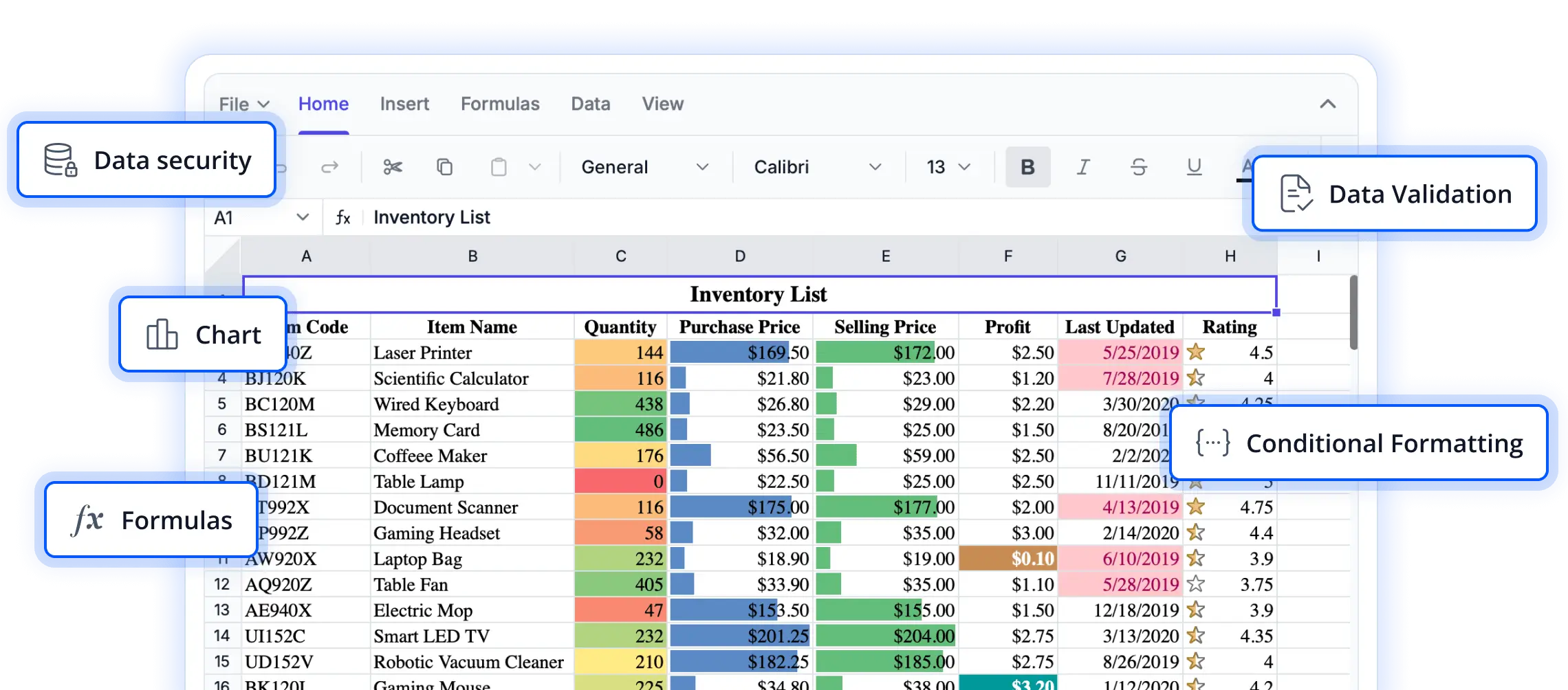
Efficient worksheet organization and control
Explore worksheet management capabilities that help users organize, structure, and navigate spreadsheet workbooks effectively. These features simplify handling multiple worksheets, improve productivity, and support streamlined data management in React applications.
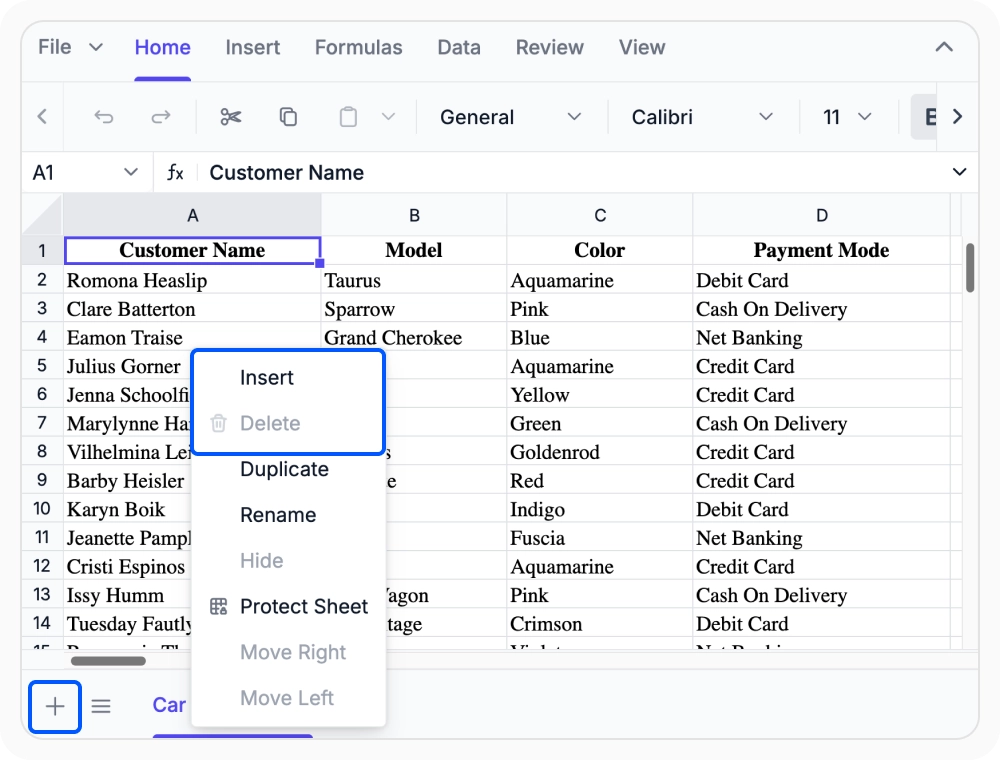
Add or remove worksheets
Add new worksheets or remove existing ones to maintain an organized workbook structure. Use this when reporting areas need to be expanded or information consolidated into a more streamlined workbook.
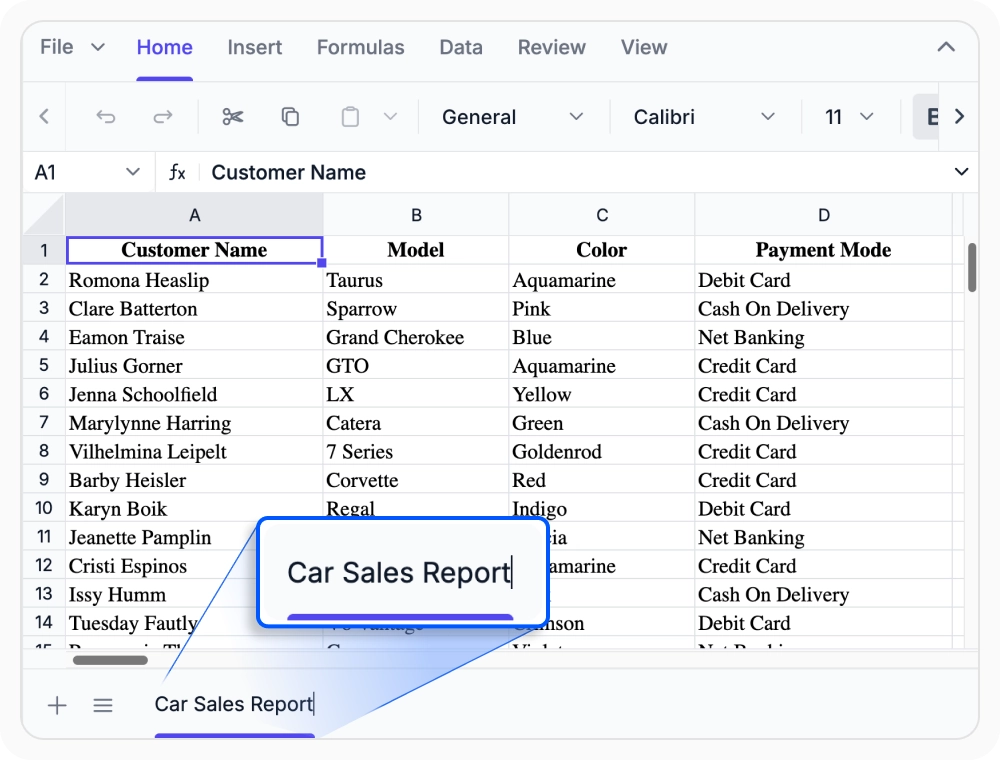
Rename worksheets for clarity
Rename worksheets to reflect their content or purpose for easier workbook organization. Use when working with multi-sheet workbooks that require clear and meaningful tab names.
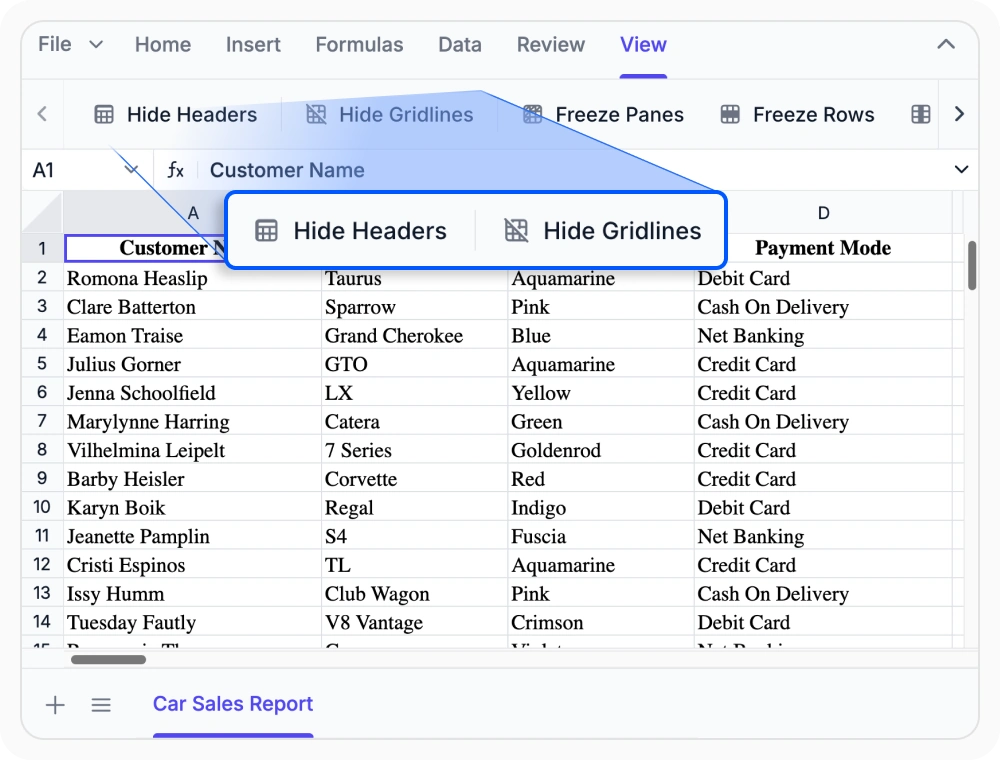
Control header and gridline visibility
Show or hide row headers, column headers, and gridlines to match your layout needs. Use when worksheet layouts must support specific user interactions and presentation standards.
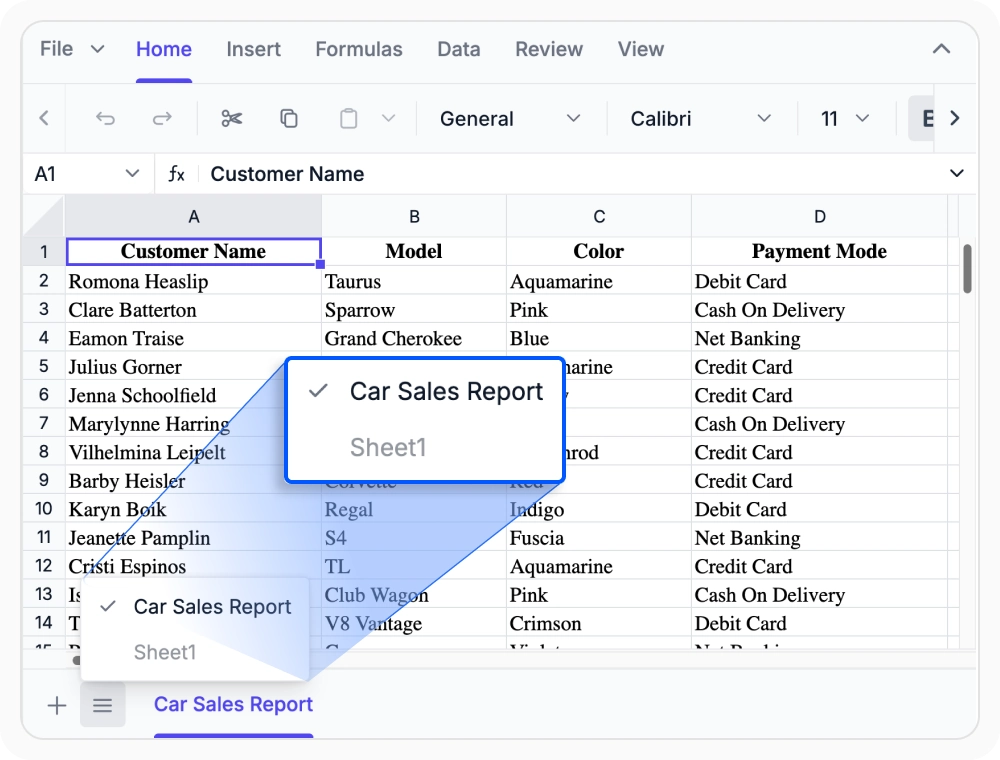
Manage worksheet visibility
Hide or show worksheets without affecting workbook content or structure. Use this when large workbooks require a cleaner, more organized view by displaying only relevant sheets.
See Why Developers Love Syncfusion
Our Customers Love Us
Having an excellent set of tools and a great support team, Syncfusion reduces customers’ development time. Here are some of their experiences.




Frequently Asked Questions
What worksheet management features are available in the React Spreadsheet Editor?
React Spreadsheet Editor supports adding, inserting, deleting, and renaming worksheets, controlling worksheet visibility, and customizing row and column headers and gridlines. These features help organize and navigate multi-sheet workbooks efficiently.
Can worksheets be added and removed dynamically in the React Spreadsheet Editor?
Yes. Worksheets can be added, inserted, and deleted dynamically in React Spreadsheet Editor. Built-in worksheet tabs and application controls make it easy to restructure workbooks as needed.
How does worksheet renaming affect formulas and references in the React Spreadsheet Editor?
When a worksheet is renamed, formulas and cross-sheet references update automatically to use the new name. This keeps workbook logic intact and avoids broken references.
Can specific worksheets be hidden in the React Spreadsheet Editor workbook?
Yes. Individual worksheets can be hidden to simplify navigation or restrict access. Hidden sheets keep their data and can be made visible again, supporting guided workflows and role-based workbook experiences.
Can the React Spreadsheet Editor efficiently manage large multi-sheet workbooks?
Yes. Worksheet management in React Spreadsheet Editor is designed for large workbooks. Renaming, visibility control, and sheet organization help maintain clarity and efficient navigation.
What header and gridline options are available in the React Spreadsheet Editor?
Row headers, column headers, and gridlines can be shown or hidden independently. These options help create cleaner worksheet views for embedded apps, presentations, or custom layouts.
Resources
Learn more about our React Spreadsheet Editor
Explore demos, KB articles, and documentation to get the most out of our React Spreadsheet Editor.
Explore guides, APIs, and quick-start tips
See live use cases in action
Ask, share, and connect with peers
Find solutions and best practices fast
Get expert help when you need it
Feature requests and bug reports
Track issues and suggest improvements
Awards
Greatness—it’s one thing to say you have it, but it means more when others recognize it. Syncfusion® is proud to hold the following industry awards.