Overview
The Syncfusion Blazor Markdown Editor is a powerful Markdown text editor for Blazor applications that supports both Markdown and HTML editing from a single component. It includes live Markdown preview, automatic Markdown syntax formatting, customizable toolbars, tables, images, links, and seamless switching between Markdown and HTML modes for building blogs, CMS platforms, documentation sites, and note-taking applications.
The component can also be configured as a lightweight Blazor MD editor for applications that require fast and flexible Markdown authoring.
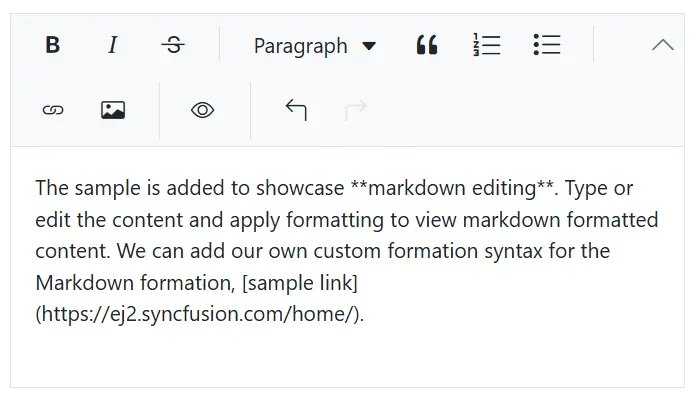
Markdown syntax
The Markdown editor mode supports customizable Markdown syntax (MD syntax), allowing users to tailor rules and extend functionality. Integrated with built-in commands, it ensures a flexible, customized editing experience while harmonizing with the editor’s formatting capabilities.
Toolbar with rich set of tools
The Markdown editor toolbar provides a variety of commands for editing and formatting content. The Blazor Markdown WYSIWYG Editor lets users format text, insert images, add headers, create hyperlinks, build lists, and preview results while seamlessly switching between Markdown editing and rich HTML editing using the same API. The commands are grouped based on related functionality.
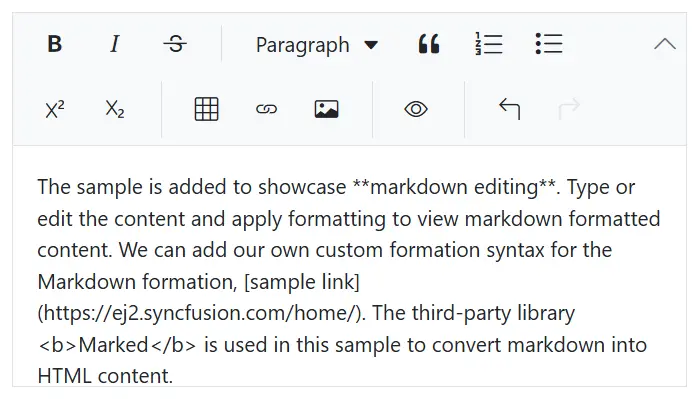
Multi-row toolbar
The excess toolbar commands are wrapped into the next rows in the Markdown text editor.
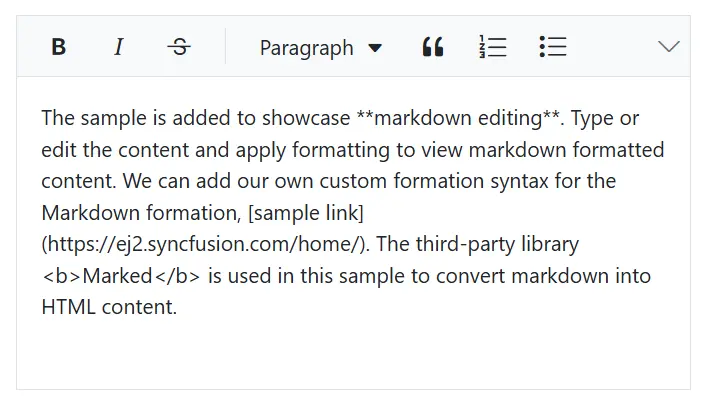
Expand toolbar
The overflow toolbar commands hidden in the next row become visible when the toolbar is expanded via the expand icon.
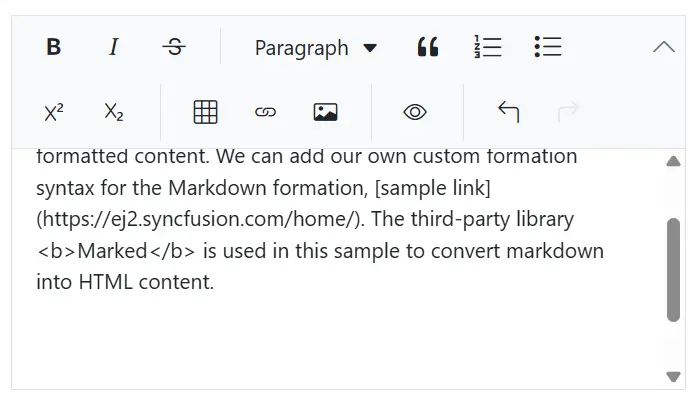
Floating the toolbar
The Markdown editor toolbar doesn’t stick to the top of the editor, but floats within the editor area while you scroll the editor page.
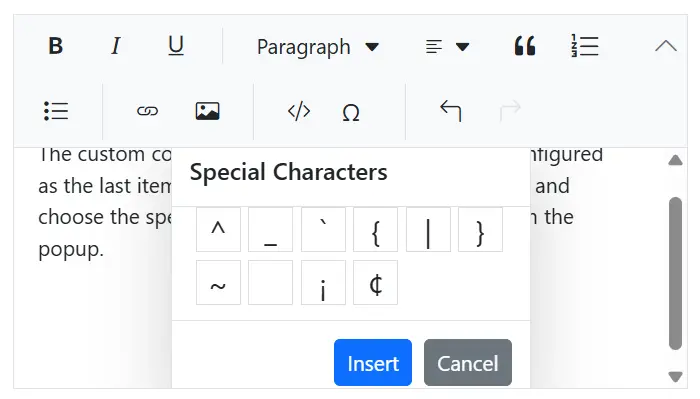
Custom tools
Users can also add their own commands (tools) with actions to the toolbar along with the built-in commands to enhance this Markdown text editor.
Editing experience
The Blazor Markdown Editor component offers a comprehensive set of tools and options to enhance the editing experience, enabling users to apply rich text formatting such as bold, italics, underline, and strikethrough. It also supports inserting images, tables, and links, ensuring a seamless and efficient content creation process with Markdown syntax. The component can also be configured as a lightweight Blazor MD editor for applications that require fast and flexible Markdown authoring.
Formatting commands
Users can apply formatting to selected content, whole paragraphs, or specific words or characters:
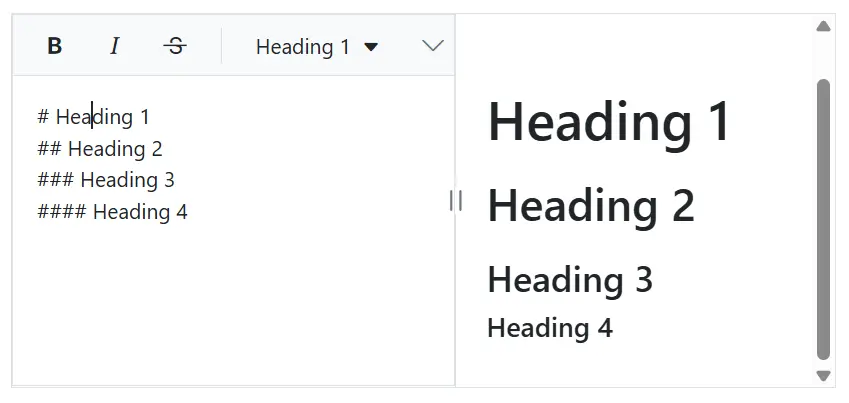
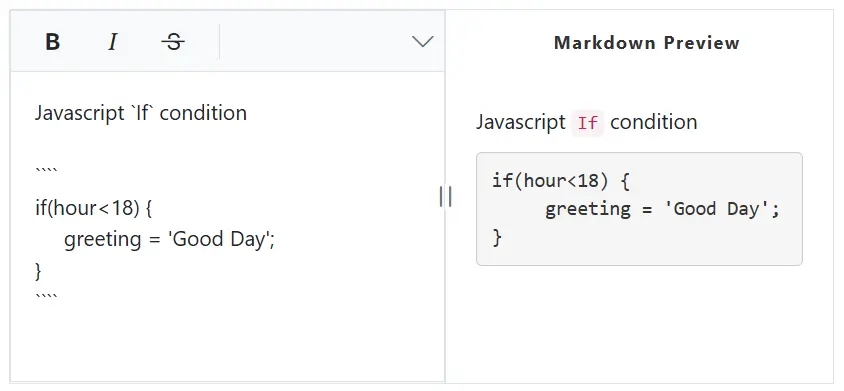
- Apply formatting to headings, quotations, code, paragraphs.
- Bold, italicize, underline, or strikethrough selected words.
Insert images
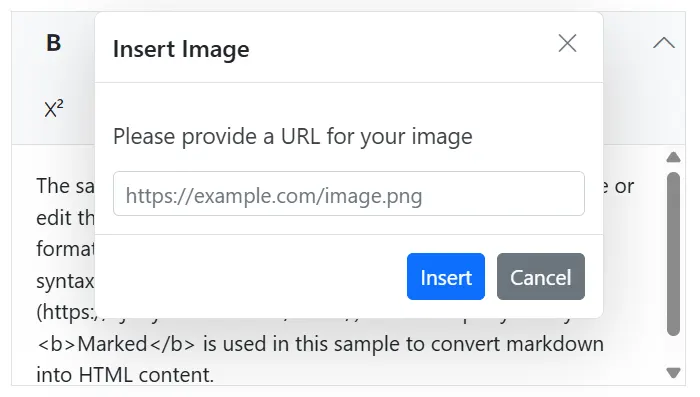
Users can insert images in the RTE’s Markdown editor mode from a local path or server path with image alt text and then link URLs to the images.
Markdown links
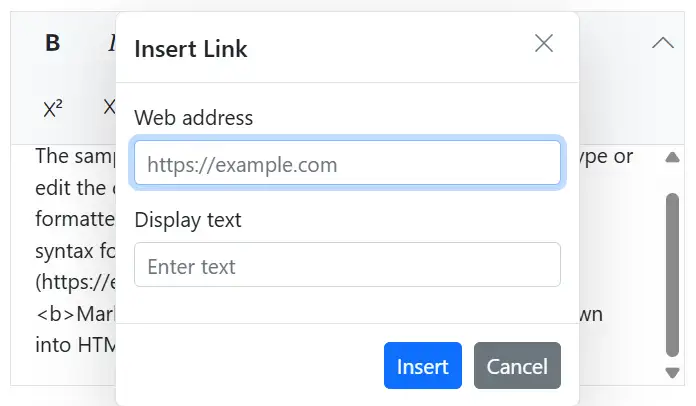
Insert or change the hyperlinks with display text in Markdown syntax.
Insert Markdown table
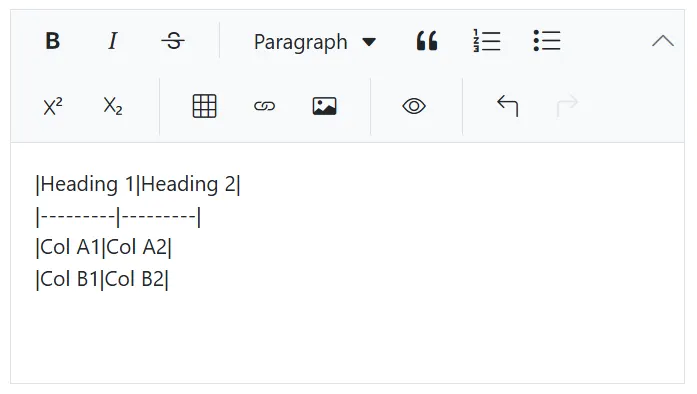
Users can insert tables with rows and columns in the Markdown editor mode to display grid-like tabular data.
Adding lists
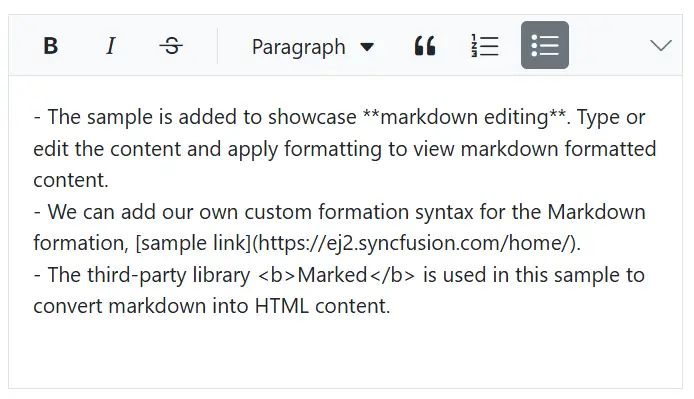
Create ordered (numbered) or unordered (bulleted) lists to organize content Markdown syntax.
Markdown to HTML
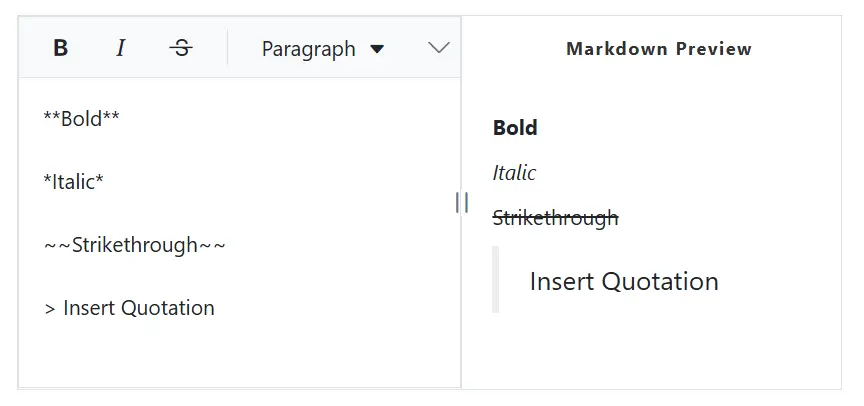
Integrating the third-party Markdown parsers like marked or remark allows users to preview Markdown content in an HTML view in the Rich Text Editor by converting Markdown syntax into formatted HTML in real time. This allows users to write Markdown on one side of the editor while instantly viewing the rendered output, improving readability and editing efficiency.
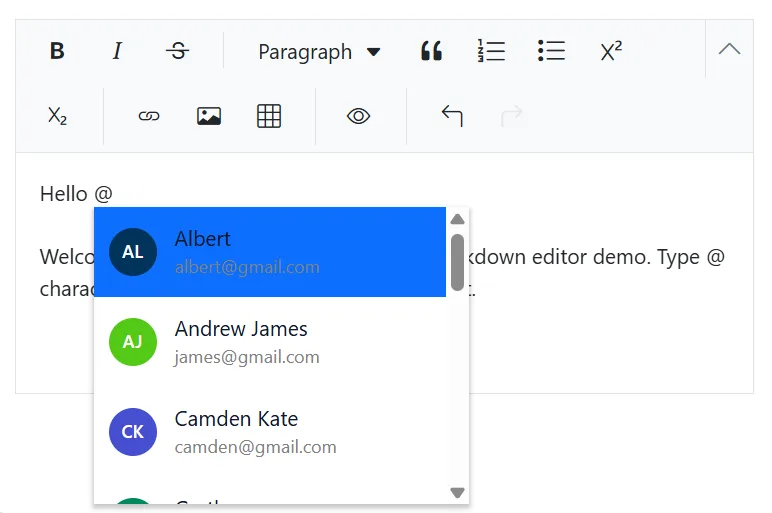
@Mention integration
Engage collaborators with built-in @mention support for seamless interaction within the editor.

Localization
Enabling localization in Markdown editor mode allows users from different locales to customize text direction, language, and numbering formats.
Adapts to any resolution
The Markdown editor mode has a highly responsive layout and an optimized design for desktops, tablets, and smartphones. It works well on all mobile phones that use iOS, Android, or Windows OS.

Built-in and customizable themes
The RTE Markdown editor mode is shipped with several built-in themes: Tailwind CSS, Bootstrap 5, Bootstrap 4, Bootstrap, Material, Fabric, Fluent, and high contrast.

Accessibility
The Markdown editor view has complete WAI-ARIA accessibility support. The Rich Text Editor UI includes high-contrast visual elements that help visually impaired people to have the best viewing experience. Also, valid UI descriptions are easily accessible through assistive technologies such as screen readers.
Frequently Asked Questions
What is the Syncfusion web Markdown editor?
The Markdown Editor is a mode of the Rich Text Editor component that enables users to write content in Markdown, a lightweight markup language. It provides a user-friendly interface with various formatting tools, facilitating easy content creation and editing.
Does the editor support live preview of Markdown content?
The Markdown editor mode supports live preview functionality. By integrating the third-party libraries like Marked.js, you can convert Markdown content into HTML and display it in real-time, providing an immediate visual representation of the formatted content.
How can I limit the maximum number of characters in the editor?
The Markdown editor mode allows you to restrict the content’s maximum number of characters. This can be useful for scenarios where content length needs to be controlled. You can set this limit using the appropriate configuration options in the editor’s settings.
Can I use the editor as a Blazor MD Editor?
Yes. The editor can be configured as a lightweight Blazor MD editor while still providing formatting tools, images, tables, links, and Markdown preview.
How do I enable Markdown mode in the Blazor Rich Text Editor?
To enable Markdown mode, set the editorMode property to ‘Markdown’ when initializing the Rich Text Editor. Here’s an example:
Can I customize the Markdown syntax in the editor?
Yes, the Markdown editor mode allows customization of the default Markdown syntax. You can override the default syntax by configuring the RichTextEditorMarkdownOptions properties.
Does the Blazor Markdown Editor support WYSIWYG editing?
Yes. The Syncfusion Blazor Markdown Editor supports both Markdown editing and WYSIWYG HTML editing. Developers can switch between Markdown mode and HTML mode while using the same API.
Is there a Blazor Markdown library for editing Markdown content?
If you’re looking for a Blazor Markdown library for creating and editing Markdown content, the Syncfusion Blazor Markdown Editor supports Markdown and HTML editing, live Markdown preview, automatic Markdown formatting, customizable toolbars, media insertion, tables, links, and seamless switching between Markdown and WYSIWYG editing within a reusable Blazor component.
Our Customers Love Us
Here are some of their experiences.




See Real Success Stories
Developers around the world trust Syncfusion’s Essential Studio to simplify complex projects and speed up delivery. With a vast library of UI controls, powerful SDKs, and reliable support, Essential Studio helps teams build enterprise-ready applications with confidence.
Read Our Customer StoriesIndustry
Software development
75% Cost reduction
50% Faster development

Industry
Utilities (oil and gas)

450+ hours saved
Streamlined processes and hours of development effort saved.

Advanced, flexible features
Empowered users through robust and versatile functionality.
Industry
Software and technology
1000+ of hours saved
Accelerated development with enterprise-ready UI components.

Efficient file management
Streamlined workflows with document libraries without building them from scratch.
Industry
Software and technology

2 Years of delay avoided
Two years of delays prevented with proactive planning.

On-time delivery
Projects delivered on schedule using trusted controls.
Industry
IT services and IT consulting

Improved performance
Large datasets handled with easy customization and quick debugging.

Highly customizable
Plug-and-play controls with quick template integration.
Industry
Professional services
Instant access
Quick availability of features and resources.
Reduced dependencies
Fewer dependencies for faster development.
 Edit HTML with WYSIWYG tools 25+ interactive demos 860K+ downloads