




Transform your applications today by downloading our free evaluation version
Overview
The Gantt control is a Microsoft Project-like viewer and editor control that is used to schedule and manage projects. Its intuitive user interface, comprising table and chart views, lets you visually manage tasks, task relationships, and resources.
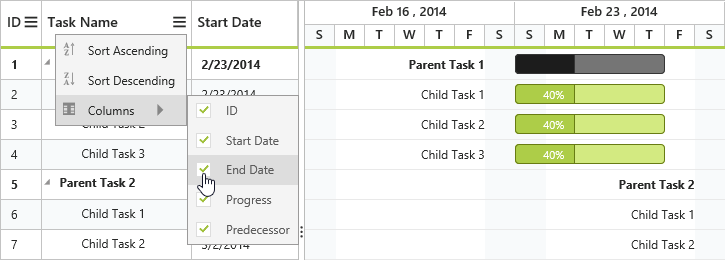
Column Chooser
Column chooser allows users to show/hide columns at run time.
Sorting
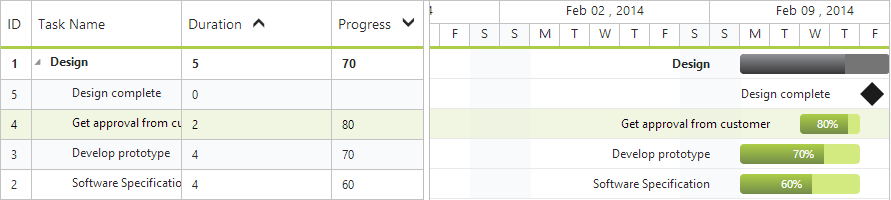
Tasks can be sorted based on any field. It is also possible to perform multicolumn sorting by selecting the desired column headers while holding the Ctrl key.
Task Relationship
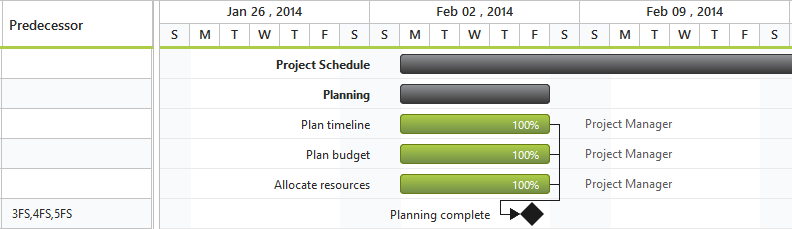
We can specify relationships between different tasks and this information is then used to determine the order in which the tasks need to be performed. This task relationship in Gantt control can be categorized into the following four types:
- Finish to start
- Start to finish
- Start to start
- Finish to finish
Strip Lines
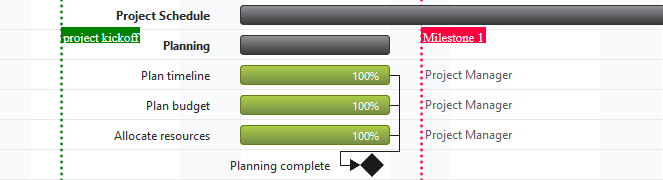
Strip lines can be used to highlight important days in a project.
Holidays
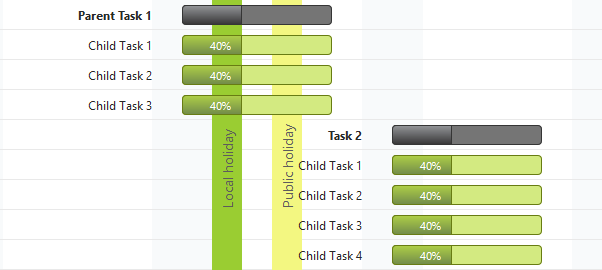
Holidays denote the nonworking days.
Baseline
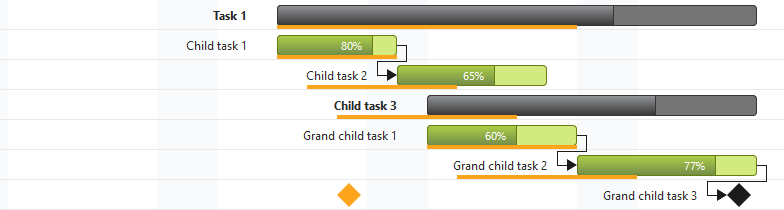
Baselines are used to compare the current progress of a task with the original planned progress.
Resources
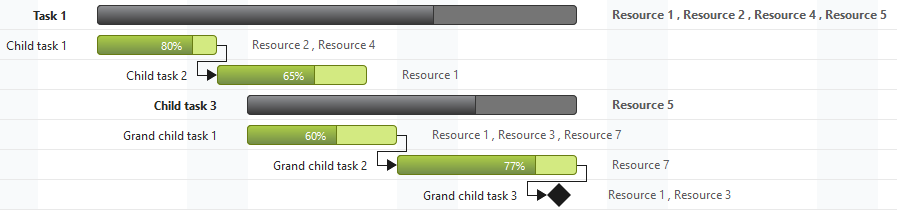
Resources are represented by staff, equipment, materials, etc. In the Gantt control, we can show/allocate the resources for each task.
Editing
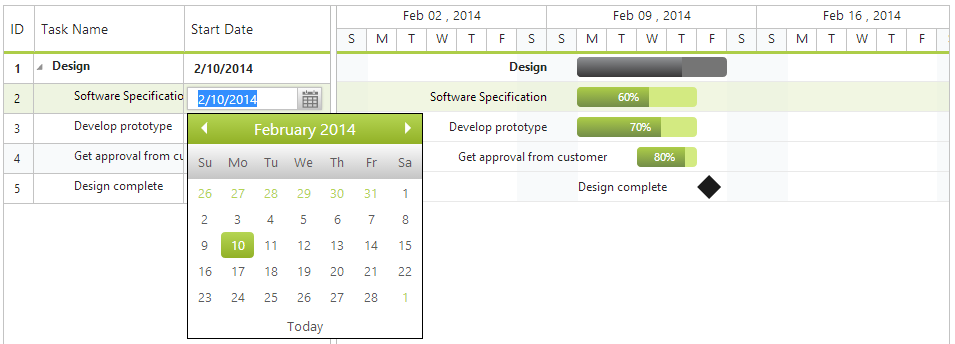
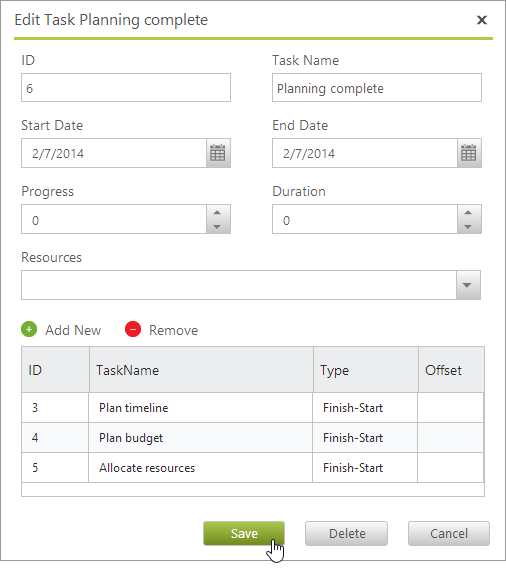
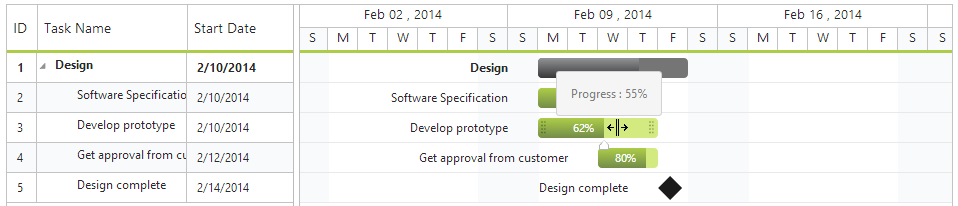
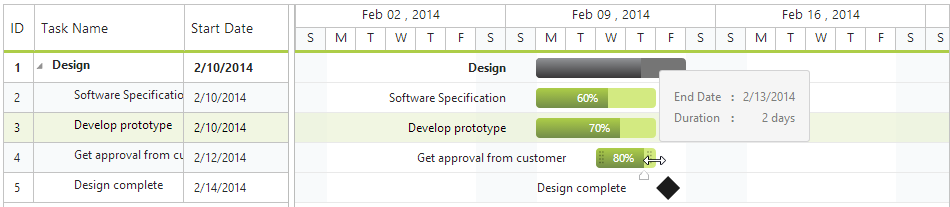
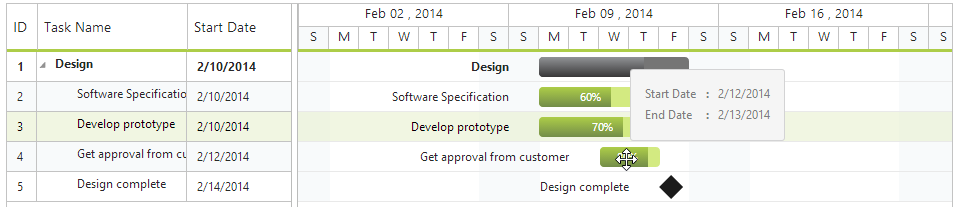
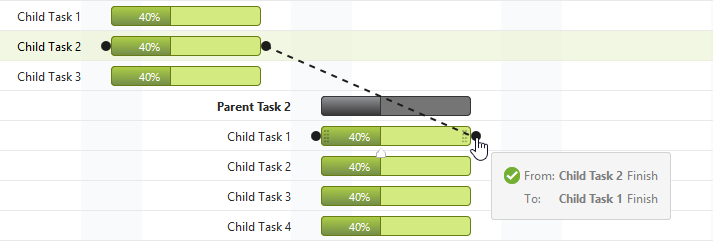
Tasks can be edited through the grid or chart views as well as through the editor dialogs. The following editing options are available:
- Cell Editing
- Dialog Editing
- Taskbar Editing
- Predecessor Editing
Toolbar
Toolbar contains options for editing, searching, expanding, collapsing, indenting, outdenting, and deleting the selected tasks. It also contains options for adding new tasks.

Context Menu
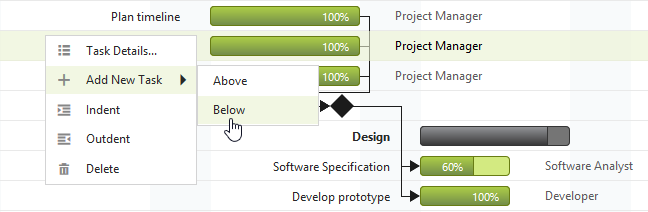
Using context menu, you can indent, outdent, delete, or edit the selected task. It is also possible to add new tasks through the context menu.
Localization
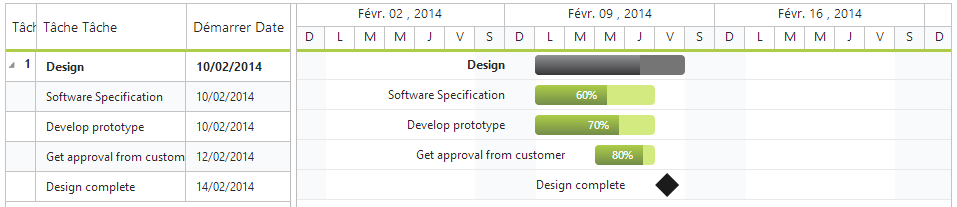
It is possible to completely localize the interface to a specific culture.
Virtualization
The user interface of the Gantt chart is virtualized to obtain the best possible scrolling performance even when dealing with large amounts of data.
Schedule Modes
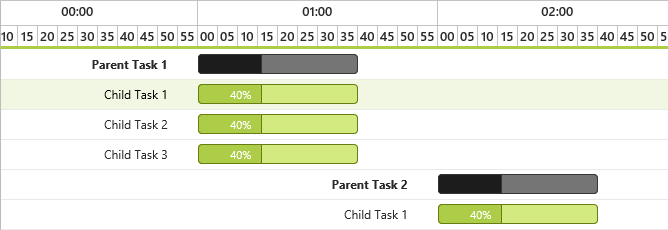
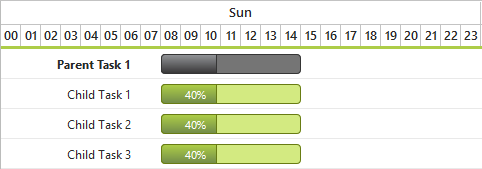
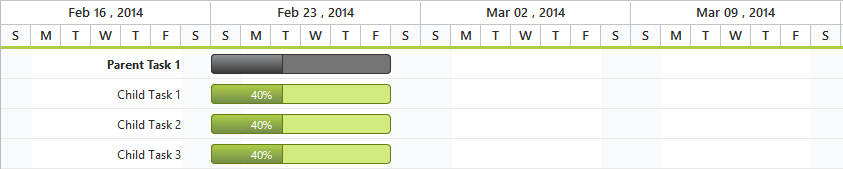
It is possible to display the Gantt with different timeline schedule modes. The following are the types of schedule modes:
- Hour
- Day
- Week
- Month
- Year


Time Options
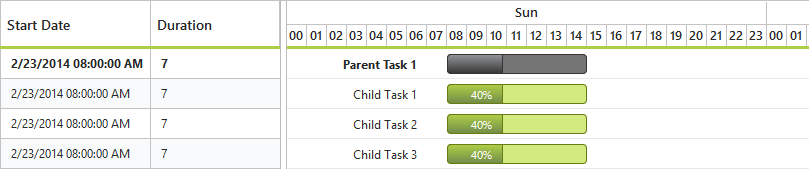
Time options are used to define the task’s start date and end date with time details, displaying the task at its exact starting point and finishing point in a specific hour of a day. The following are the types of working hour timescales:
- 8-hour timescale
- 24-hour timescale
Timeline Validation
Schedule dates are calculated automatically while loading. They are updated while editing and adding new tasks. Also, you can change the schedule dates dynamically.
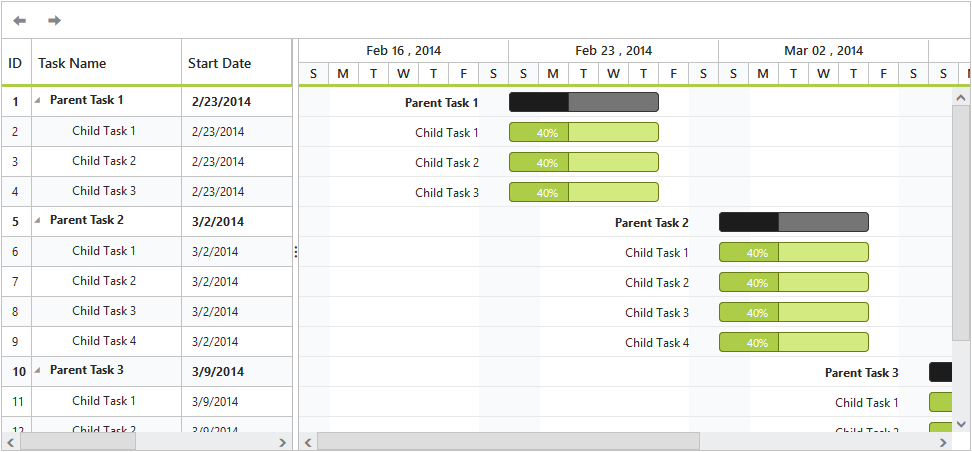
Splitter Position
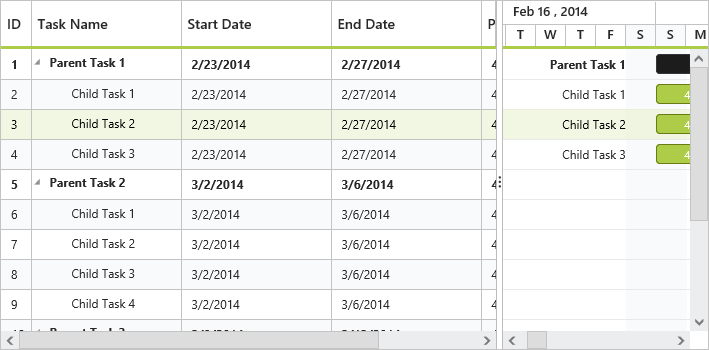
Chart and tree grid panes can be adjusted for width at run time.
60+ JSP CONTROLS
ALL CONTROLS
GRIDS
DATA VISUALIZATION
EDITORS
NAVIGATION
NOTIFICATION
BUSINESS INTELLIGENCE
REPORTING
Rated by users across the globe
Awards
Greatness—it’s one thing to say you have it, but it means more when others recognize it. Syncfusion® is proud to hold the following industry awards.









