Try Our Live Demo
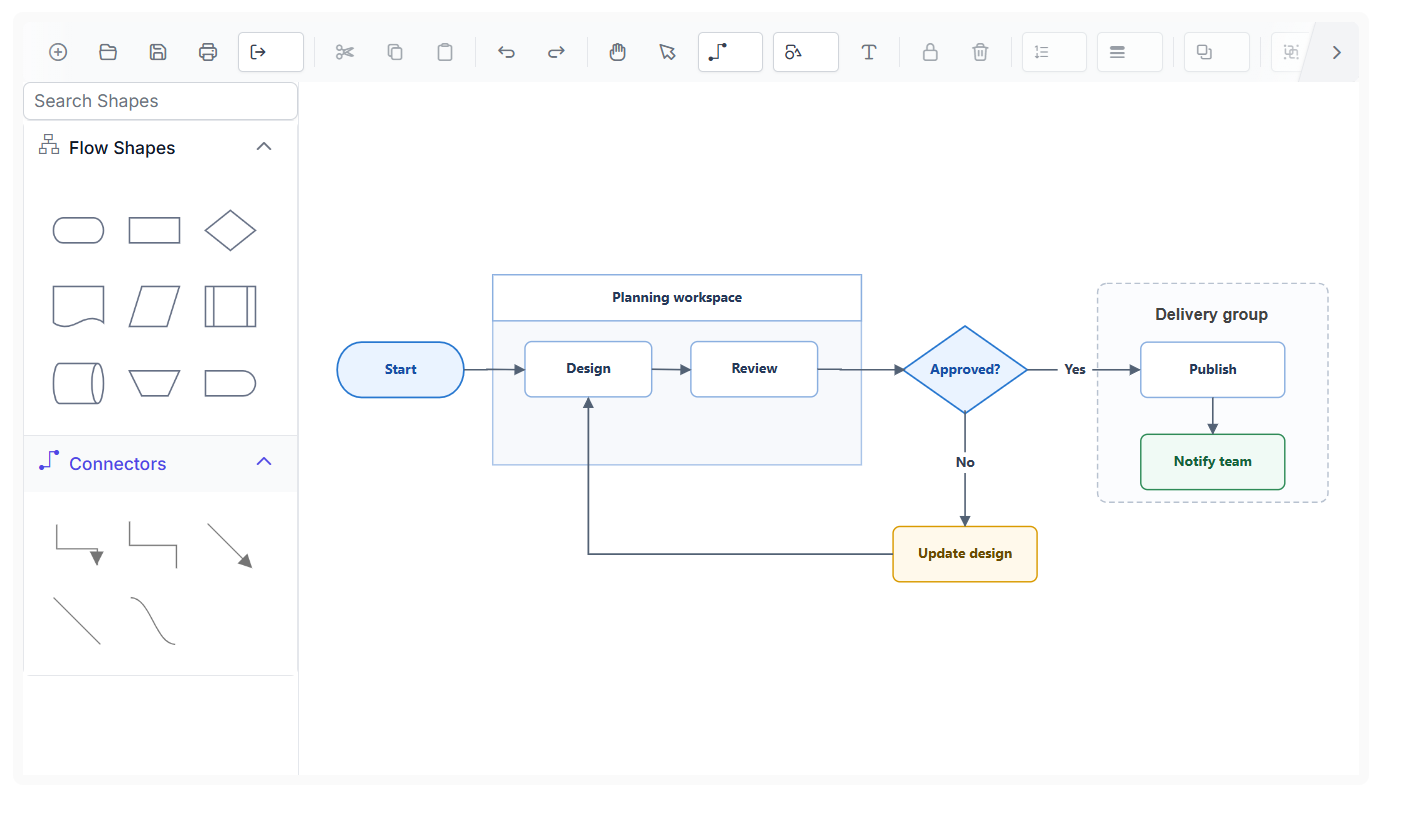
Why editing and interaction matter
A diagram that’s straightforward to build is one where every change happens directly on the canvas, without breaking the diagram’s structure or affecting elements that shouldn’t change.
Direct manipulation, no extra steps
Selecting, dragging, resizing, and rotating all happen right on the canvas, without opening a separate dialog.
Structure that holds together
Groups and containers let related nodes move, resize, and align as one unit while staying individually editable.
Control per single node
Interaction rules can be set per node, connector, or annotation, so only the elements that should change are changeable.
Select, drag, resize, and rotate
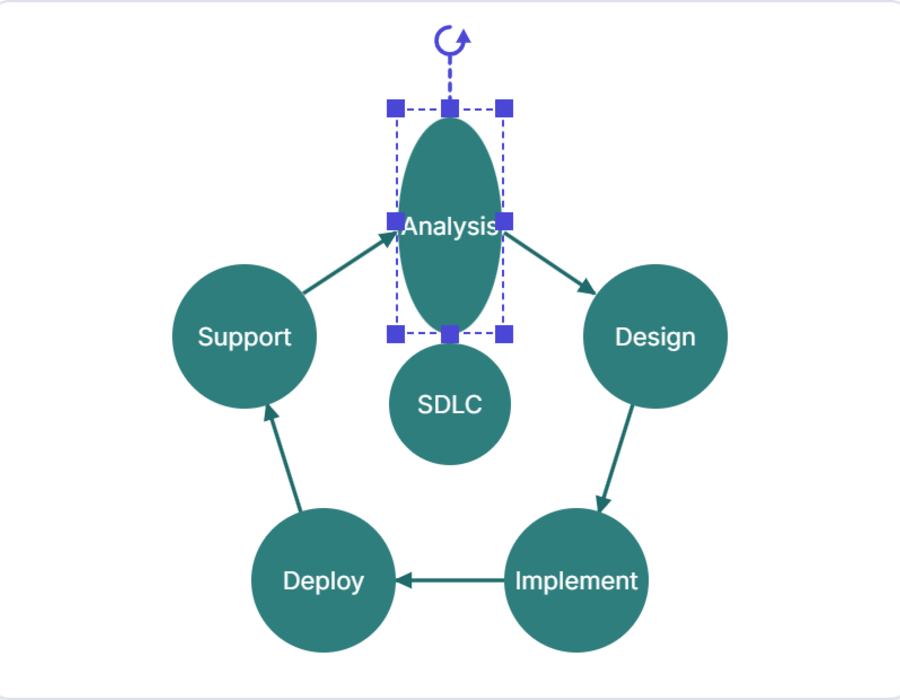
Selecting an element surrounds it with a selector that supports moving, resizing, and rotating it interactively. Use these interactions when a node or connector needs to be repositioned or resized directly on the canvas. The same selector handles a single element or several at once.
- Support selecting a node or connector by clicking, and selecting everything with Ctrl+A
- Enable dragging any selected element to move every selected element together
- Provide eight resize handles to adjust width and height, with the opposite corner staying fixed
- Deliver a rotate handle to turn a selected element around a fixed pivot point
Groups and containers
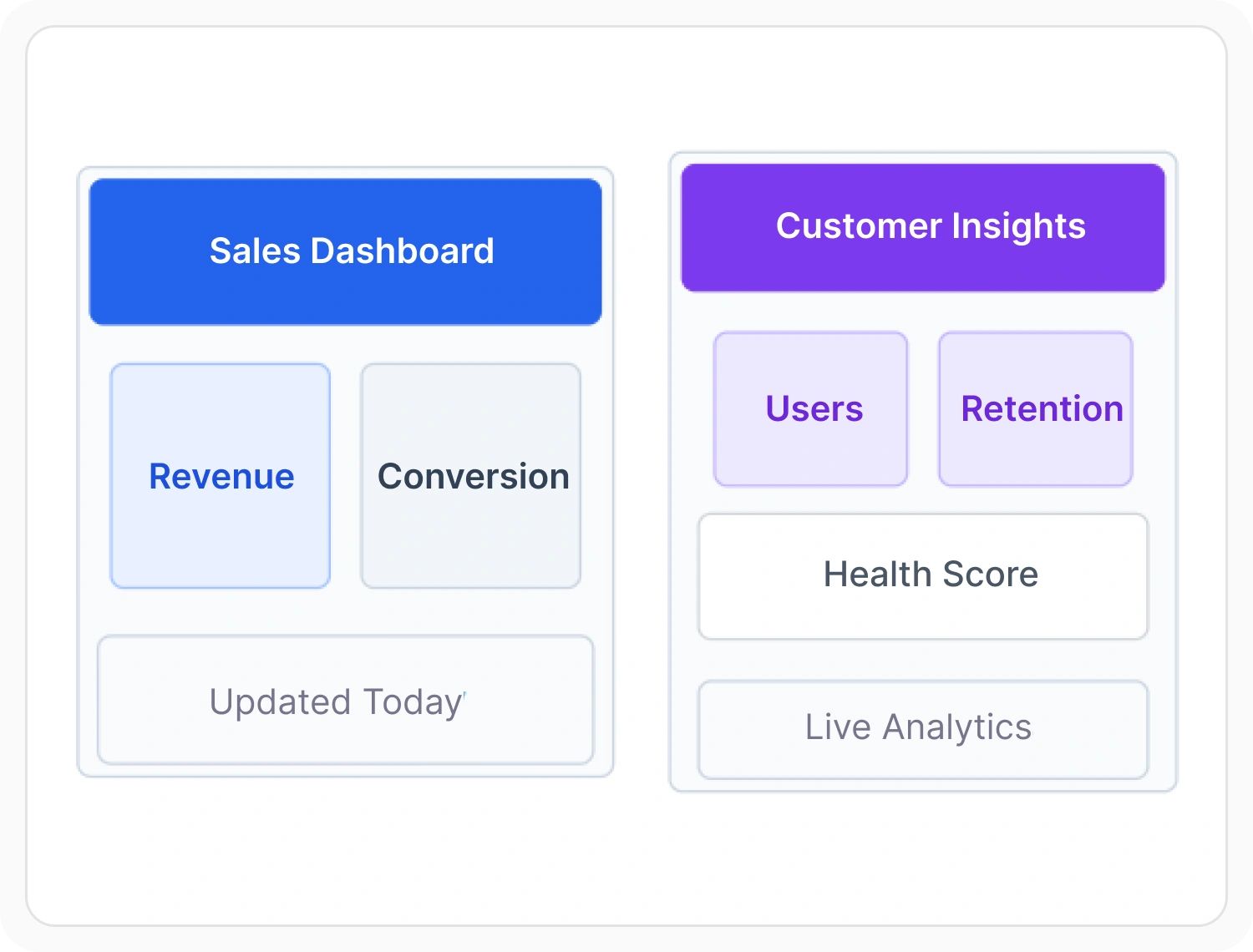
Multiple nodes and connectors can be combined into a group and interacted with as a single object, while each child can still be edited individually. Use groups and containers when related elements need to move or resize as one unit while remaining individually editable. Container layouts arrange a group’s children automatically.
- Support grouped elements that move, resize, or rotate together, while remaining individually editable
- Enable groups to be nested, and provide ungrouping to return children to individual objects
- Provide a stack container that arranges children in a line, with configurable spacing and alignment
- Deliver a canvas container that positions children freely within the group’s boundary
Editing labels in place
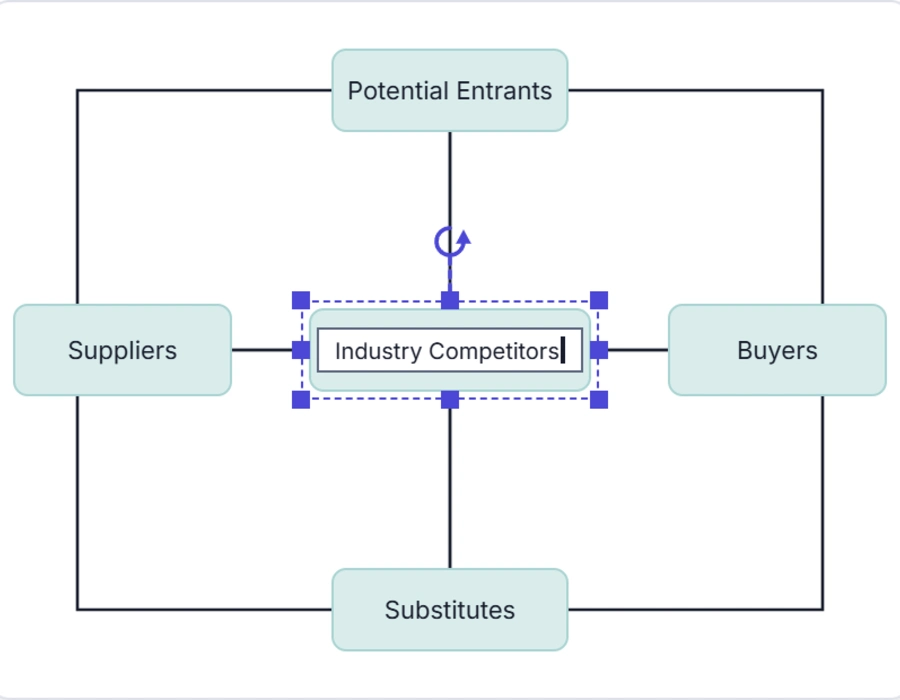
Text on a node or connector, called an annotation, can be edited directly on the diagram instead of through a separate form. Use in-place label editing when a node or connector’s text needs to be updated without leaving the diagram surface.
- Support starting label editing by double-clicking a label, or selecting it and pressing F2
- Enable double-clicking a node to start editing its first label
- Provide an option to mark an annotation as read-only to prevent editing
- Allow label editing to be started programmatically, driven by application logic
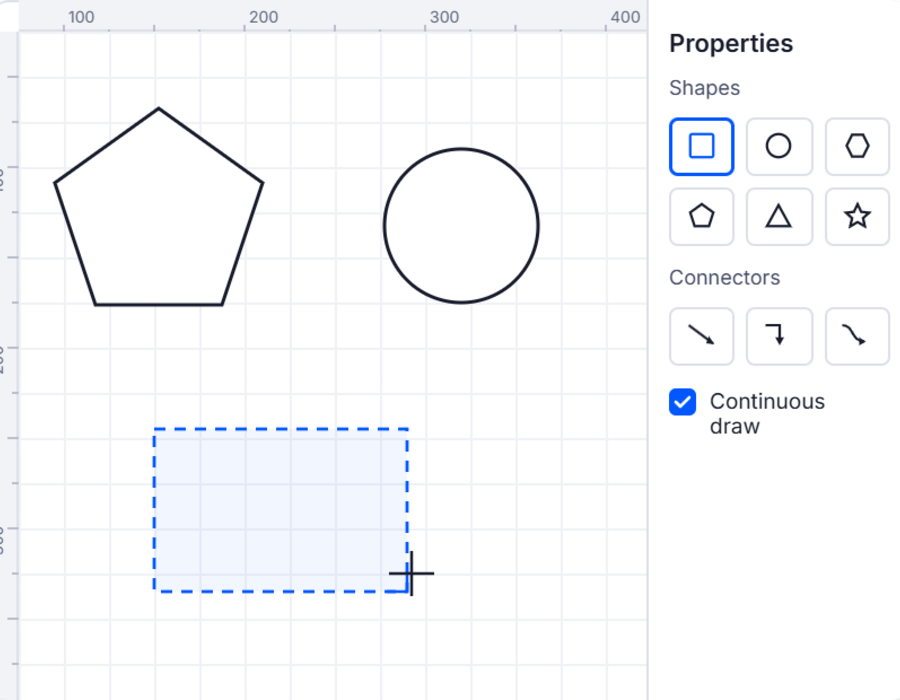
Drawing directly on the canvas
Instead of adding predefined nodes, a drawing tool lets a shape or connector be created by clicking and dragging directly on the diagram surface. Use drawing tools when a shape or connector needs to be sketched directly on the canvas rather than placed from a palette or configured in code.
- Support setting a specific shape or connector type as the active drawing tool
- Provide freehand drawing that creates a connector by tracing a path with the pointer
- Enable the drawing tool to stay active for one shape or continuously for several
- Allow text nodes and path shapes to be drawn the same way as other shapes
Reshaping connectors
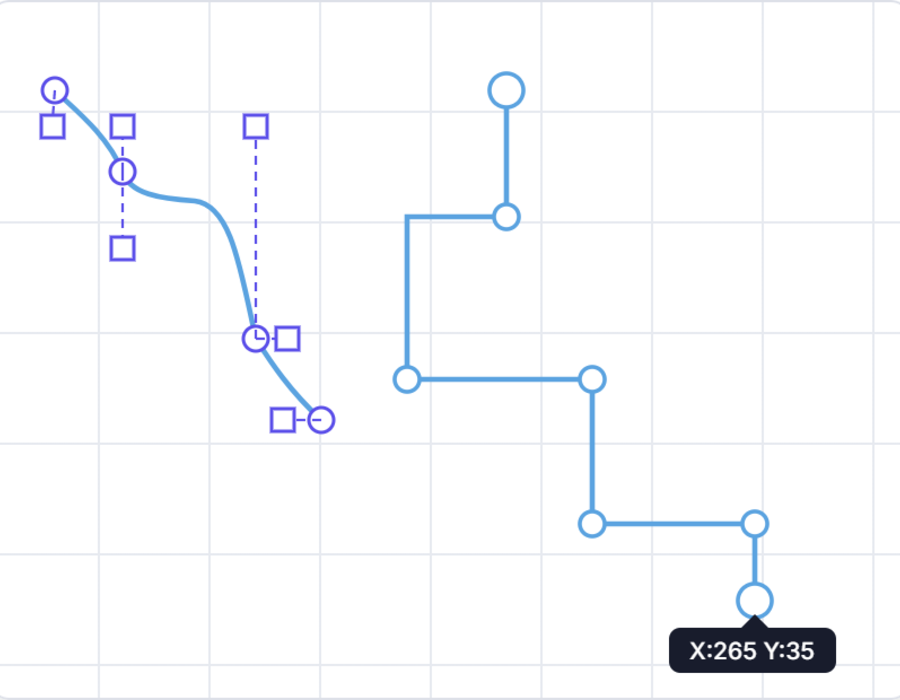
A connector’s path isn’t fixed once it’s drawn. Its endpoints and individual segments can be adjusted interactively after it’s created. Use connector reshaping when a connector’s route needs to be fine-tuned or reconnection to a different node or port is needed after initial placement.
- Support dragging a connector’s source or target handle to reconnect it to a different node or port
- Enable orthogonal segment thumbs to adjust the length of adjacent segments
- Provide straight segments with the ability to gain or lose points through a modifier-key click
- Allow Bezier curve segments to be reshaped by dragging their control points
Locking and interaction rules
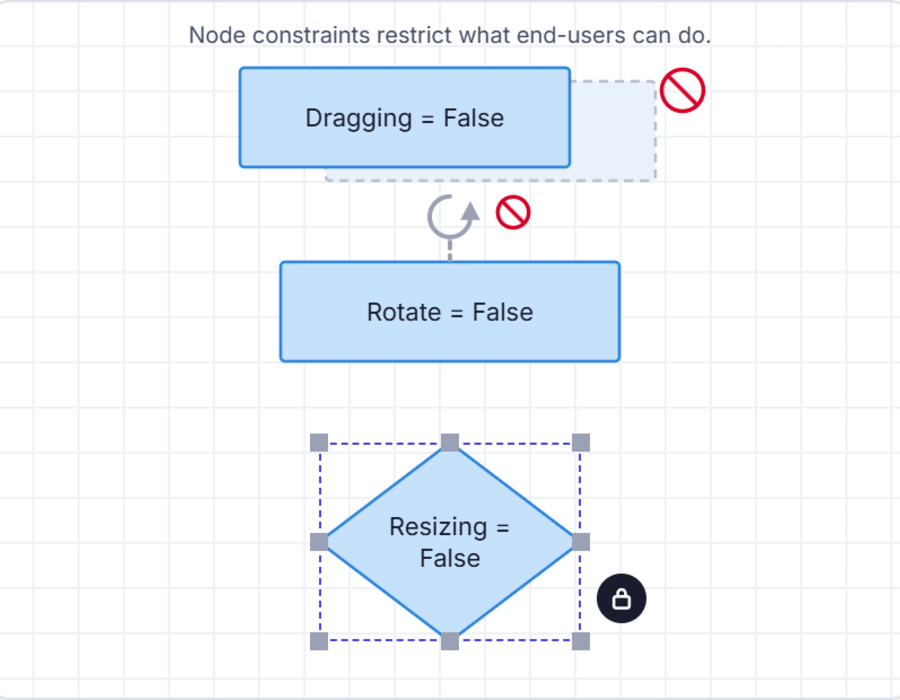
Individual nodes, connectors, and annotations can each have their own interaction rules, rather than applying one setting to the whole diagram. Use per-object locking when specific elements need to stay fixed while others remain fully editable.
- Support allowing or blocking selection, dragging, resizing, and rotation per element
- Enable an annotation to be locked as read-only independently of its node
- Provide per-object rules so one node can stay locked in place while others remain fully editable
- Ensure per-object interaction rules remain consistent across supported web and desktop platforms
PLATFORM SUPPORT
Editing and interaction support by platform
Every platform in the Diagram SDK supports interactive editing, but the underlying object model is not identical everywhere. JavaScript, Angular, React, Vue, ASP.NET Core, ASP.NET MVC, and Blazor share a common interaction and constraints system, while WPF, UWP, and Windows Forms expose similar behavior through their own node, connector, and constraint classes.
| Capability | JavaScript frameworks | ASP.NET Core and MVC | Blazor | WPF | UWP | Windows Forms |
|---|---|---|---|---|---|---|
| Select, drag, resize, and rotate | ||||||
| Groups, nesting, and container layouts | ||||||
| In-place label editing | ||||||
| Drawing tools (shape and freehand) | ||||||
| Connector segment and endpoint editing | ||||||
| Per-object interaction rules (locking) |
Frequently Asked Questions
Can several nodes be moved, resized, or rotated as a single unit?
Yes. Grouping combines multiple nodes and connectors into one object that can be selected, dragged, resized, or rotated together. Each child remains individually editable, and groups can be nested.
Can a new shape be created by drawing directly on the canvas?
Yes, on platforms with drawing tool support. A shape or connector type is set as the active drawing tool, and clicking or dragging on the canvas creates it, including freehand connectors traced with the pointer.
Can specific nodes be locked while others stay fully editable?
Yes. Interaction rules such as selection, dragging, resizing, and rotation are set per object, so one node can be locked in place while every other node in the same diagram remains fully editable.
How is a node’s text label edited?
By double-clicking the label, or by selecting it and pressing F2. Double-clicking the node itself starts editing its first label. An individual annotation can also be marked read-only to prevent this.
Can a connector be reconnected to a different node after it’s drawn?
Yes. Dragging a connector’s source or target handle reconnects it to a different node or port. Individual segments can also be reshaped, with the available handles depending on the connector type.
Is interaction support identical across every platform?
No. JavaScript, Angular, React, Vue, ASP.NET Core, ASP.NET MVC, and Blazor share a common interaction and constraints system, while WPF, UWP, and Windows Forms expose similar behavior through their own classes. Drawing tool support also varies, as shown in the table above.
Resources
Learn more about our Diagram SDK
Explore demos, documentation, and support resources to get the most out of the Syncfusion Diagram SDK.
Review shared concepts and supported platforms
See grouping and ordering in action
Ask, share, and connect with peers
Find solutions and best practices fast
Get expert help when needed
Feature requests and bug reports
Track issues and suggest improvements
Awards
Greatness—it’s one thing to say you have it, but it means more when others recognize it. Syncfusion® is proud to hold the following industry awards.