Overview
A Blazor flowchart diagram is a visual representation of a process, where each step is represented by a different shape and contains a short description. The Blazor Diagram library offers various features to build flowcharts with ease.
Flowchart shapes
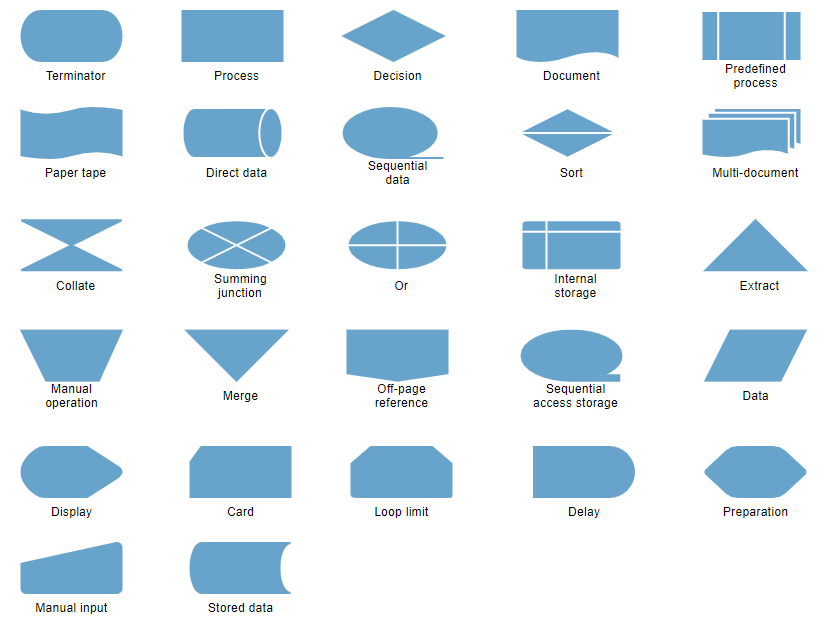
The Blazor Diagram library provides the shapes required to build a flowchart diagram as ready-made objects, making it easy to add them to a diagram surface in a single call.
Connector arrows
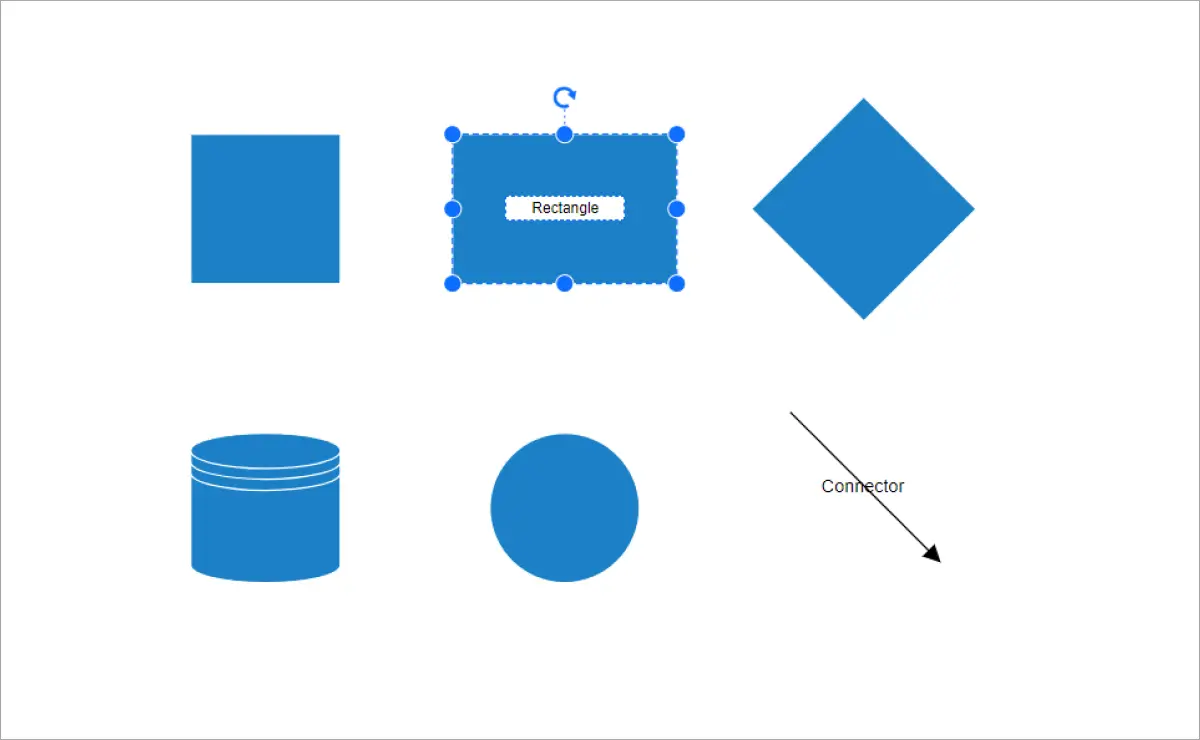
Arrows or connectors represent the relationships or directions of flow between two flowchart shapes.

Arrow types
Straight, orthogonal, and curved connector types are provided. You can choose any of these based on the relationship between the connected shapes.

Arrowheads
The Blazor Diagram library provides predefined arrowheads to illustrate flow direction in a flowchart diagram. You can also build your own custom arrowheads.
Annotations
You can add descriptions to the flowchart shapes and connectors using annotations and modify the descriptions by pressing F2 or double-clicking them.
Connection points (ports)
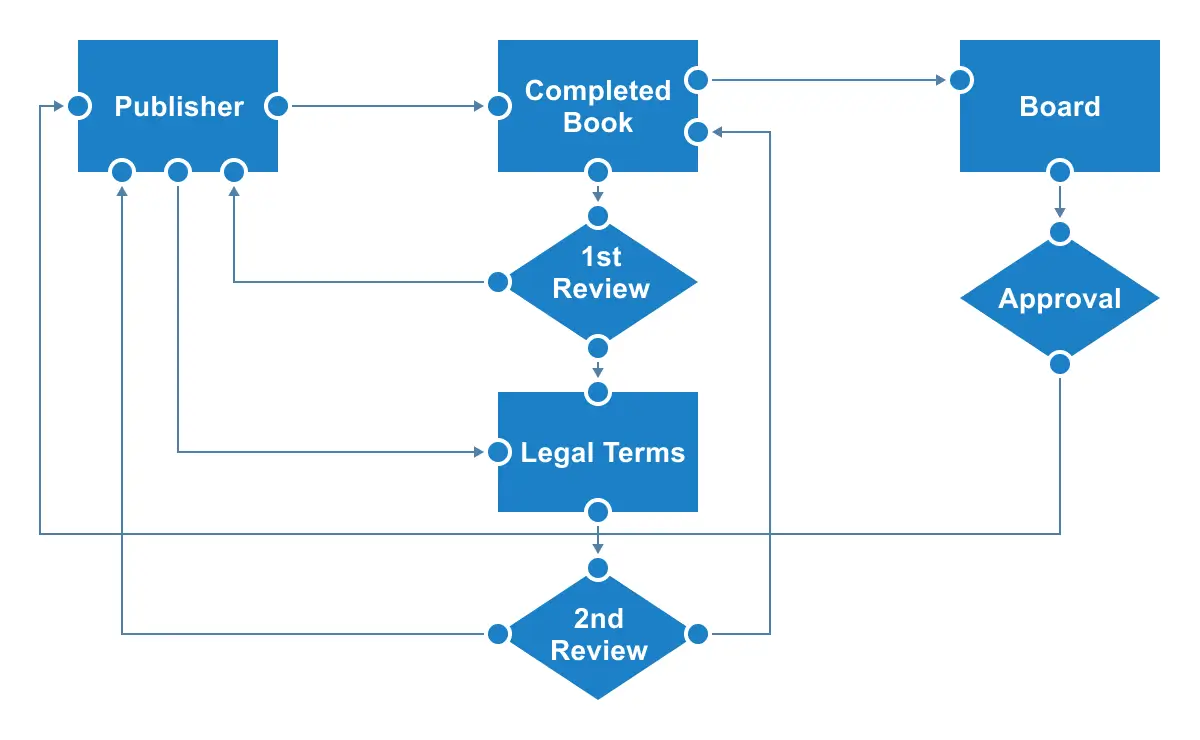
Connect to specific locations on a shape through various types of ports or connecting points.
Interactive features
Use interactive features to enhance the editing experience of a flowchart diagram in real time. You can easily edit the diagram using a mouse, touchscreen, or keyboard interfaces.
Select, drag, resize, rotate
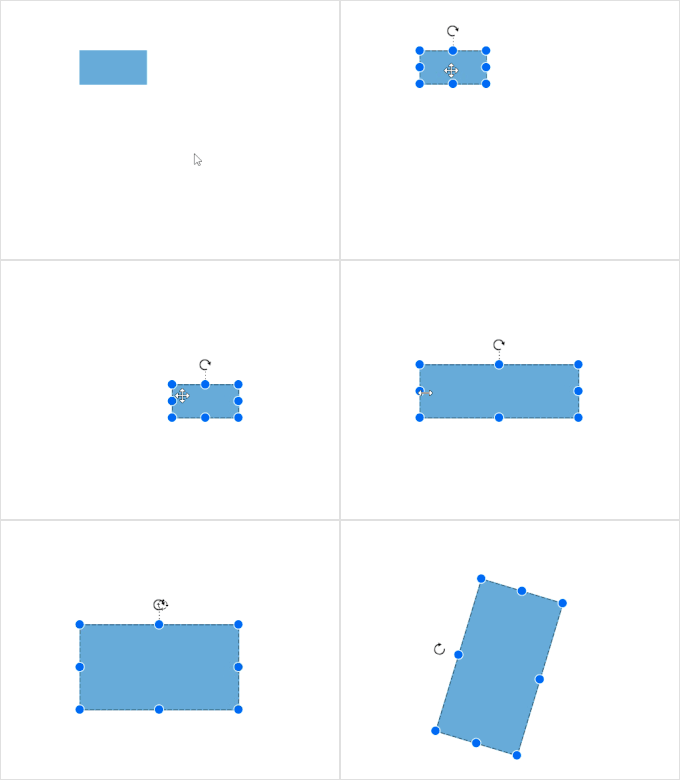
Objects can be selected, and then dragged, resized, or rotated.
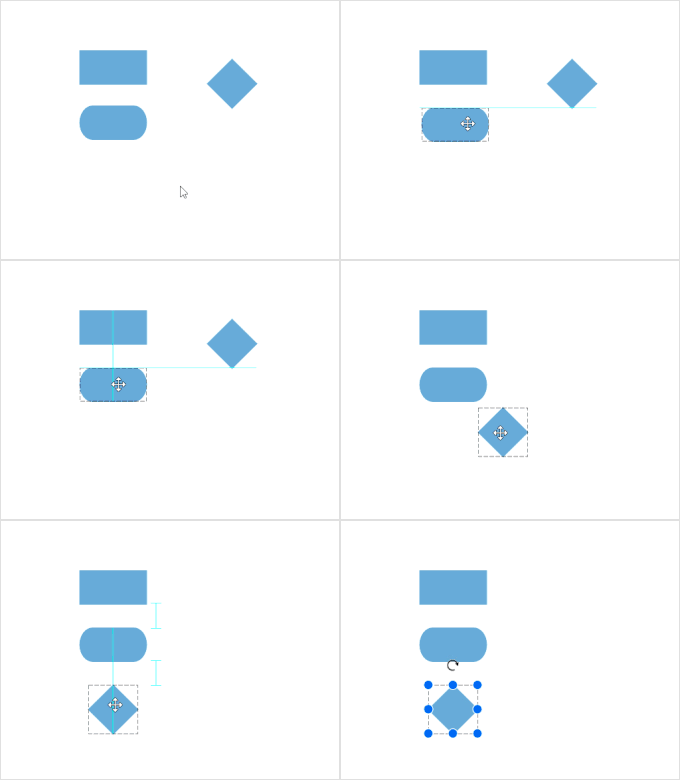
Snap
Precisely align shapes, connectors, and annotations easily by snapping to the nearest gridlines or objects while dragging.

Undo and redo
Don’t worry if you make a mistake while editing—undo and redo commands make it easy to correct recent changes.
Serialization
Save your diagram’s state in JSON format and load it back later for editing using the serializer.

Our Customers Love Us
Here are some of their experiences.




See Real Success Stories
Developers around the world trust Syncfusion’s Essential Studio to simplify complex projects and speed up delivery. With a vast library of UI controls, powerful SDKs, and reliable support, Essential Studio helps teams build enterprise-ready applications with confidence.
Read Our Customer StoriesIndustry
Software development
75% Cost reduction
50% Faster development

Industry
Utilities (oil and gas)

450+ hours saved
Streamlined processes and hours of development effort saved.

Advanced, flexible features
Empowered users through robust and versatile functionality.
Industry
Software and technology
1000+ of hours saved
Accelerated development with enterprise-ready UI components.

Efficient file management
Streamlined workflows with document libraries without building them from scratch.
Industry
Software and technology

2 Years of delay avoided
Two years of delays prevented with proactive planning.

On-time delivery
Projects delivered on schedule using trusted controls.
Industry
IT services and IT consulting

Improved performance
Large datasets handled with easy customization and quick debugging.

Highly customizable
Plug-and-play controls with quick template integration.
Industry
Professional services
Instant access
Quick availability of features and resources.
Reduced dependencies
Fewer dependencies for faster development.
 Built-in auto layout algorithm 45+ interactive demos 258K+ downloads