 Mohammed Nowfel
TL;DR: Want to make hierarchical data easier to explore and understand? Discover how the new Blazor Sunburst Chart in 2026 Volume 3 helps users navigate complex hierarchies, uncover insights faster, and explore data through intuitive drill-down interactions. This guide covers data modeling, validation, and production-ready implementation techniques.
Have you ever needed to visualize organizational structures, product catalogs, budget allocations, or geographical data and realized that traditional charts only tell part of the story?
Bar, pie, and doughnut charts can help compare values, but they often struggle to show how those values relate within a hierarchy. As data grows more complex, understanding both the structure and the contribution of each level becomes increasingly difficult.
To address this challenge, Syncfusion® introduced the Blazor Sunburst Chart in the 2026 Volume 3 release. This powerful visualization represents hierarchical relationships as concentric rings, enabling users to understand both hierarchy and proportion in a single view. Users can also drill into specific branches to explore deeper levels without losing context.
In this guide, you’ll learn how to build an interactive Sunburst chart in Blazor, structure hierarchical data correctly, enable drill-down interactions, validate hierarchy integrity, and prepare your implementation for production environments.
When should you use a sunburst chart?
Sunburst charts are most effective when understanding hierarchy is just as important as comparing values. They use concentric rings to visualize parent-child relationships, with the center representing top-level categories and outer rings showing deeper levels. Segment size reflects the associated value, making it easy to identify major contributors while exploring hierarchical structures.
This makes sunburst charts ideal for scenarios such as retail sales analysis (categories, subcategories, and products), organizational structures, geographical reporting, budget tracking, IT infrastructure monitoring, and website analytics.
For example, in a retail dashboard, a sunburst chart can simultaneously reveal which product categories generate the most revenue, which subcategories contribute the most within each category, and which regions perform best within a market, providing both hierarchical context and proportional insights in a single visualization.
Build your first Blazor Sunburst Chart
Once your Syncfusion Blazor package is installed, creating a basic Sunburst chart requires only a few configuration properties.
The chart uses a flat hierarchy model in which each data record references its parent through an identifier. This approach works particularly well because APIs, databases, and reporting services generally return data in this format already.
The result is a structure that is easy to validate, easy to debug, and easy to bind directly to the chart component.
Prerequisites and environment
This guide was validated using the following environment. Code and configuration patterns may vary if you are using different versions:
- .NET 10.
- Visual Studio 2026 or VS Code with C# DevKit.
- Blazor Web App (.NET 10) template.
- Syncfusion.Blazor.Charts NuGet package v35.1.37 or later.
- Modern browser (Chrome, Firefox, Edge).
Step 1: Install the package
First, open the command line and run the following command:
dotnet add package Syncfusion.Blazor.Charts
This installs the Syncfusion Charts library, which includes the SfSunburstChart component and all dependencies. The command automatically updates your project file with the correct version constraint.
Step 2: Register Syncfusion services
Open the Program.cs file and register the Syncfusion services:
using Syncfusion.Blazor;

// ...
builder.Services.AddSyncfusionBlazor();
This single line registers the Syncfusion Blazor services with the dependency injection container. For Blazor Web App projects, register Syncfusion services in the Program.cs file of every project that hosts interactive components. If your application uses both Server and Client projects, ensure AddSyncfusionBlazor() is registered in each applicable Program.cs file.
Step 3: Import required namespaces
In the _Imports.razor file, add the following namespaces:
@using Syncfusion.Blazor
@using Syncfusion.Blazor.Charts
These using statements expose the SfSunburstChart component and configuration types to all .razor files in your project.
Step 4: Add Syncfusion Script reference
For Blazor Server and Blazor Web App projects, include the Syncfusion JavaScript library in your layout file (e.g., App.razor or a shared layout component). Add this line before the closing </body> tag:
<script src="https://cdn.syncfusion.com/blazor/35.1.37/sf-sunburst-chart.min.js" type="text/javascript"></script>
For Blazor WebAssembly standalone projects, add this script reference to index.html instead. This script initializes JavaScript interop required for the component’s interactive features (drill-down, tooltips, etc.).
Step 5: Visualize hierarchical data with interactive drill-down
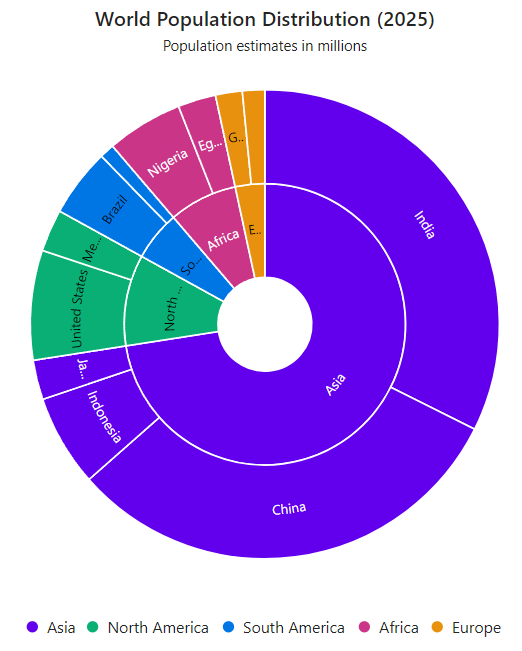
Create a new component (for example, SunburstChart.razor) inside the Components/Pages folder of your Blazor project and add the following code to the component. This example demonstrates interactive drill-down using hierarchical population data, allowing users to navigate seamlessly from continents to countries and explore population distribution at each level within a Sunburst chart.
@page "/sunburst-chart"
@using Syncfusion.Blazor
@using Syncfusion.Blazor.Charts
@rendermode InteractiveServer

<SfSunburstChart TItem="PopulationNode"
                 DataSource="@PopulationData"
                 IdMemberPath="Id"
                 ParentIdMemberPath="ParentId"
                 LabelMemberPath="Name"
                 ValueMemberPath="Population"
                 Title="World Population Distribution (2025)"
                 Subtitle="Population estimates in millions"
                 Width="100%" Height="600px" Theme="Theme.Fluent2">

    <SunburstTitleSettings Size="18px" FontWeight="600" />
    <SunburstSubtitleSettings Size="13px" />
    <SunburstDataLabelSettings Visible="true" RotationMode="SunburstLabelRotationMode.Angle" />
    <SunburstTooltipSettings Enable="true"
                             HeaderText="Population Details"
                             Format="<b>${point.label}</b><br/>Population: ${point.value} Million" />
    <SunburstLegendSettings Visible="true" Position="SunburstLegendPosition.Bottom" />
    <SunburstDrillSettings Enable="true" />
</SfSunburstChart>

@code {
    public class PopulationNode
    {
        public string Id { get; set; } = string.Empty;
        public string ParentId { get; set; } = string.Empty;
        public string Name { get; set; } = string.Empty;
        public double Population { get; set; }
    }

    private List<PopulationNode> PopulationData = new()
    {
        // Root level (continents)
        new() { Id = "asia", ParentId = "", Name = "Asia" },
        new() { Id = "northamerica", ParentId = "", Name = "North America" },
        new() { Id = "southamerica", ParentId = "", Name = "South America" },
        new() { Id = "africa", ParentId = "", Name = "Africa" },
        new() { Id = "europe", ParentId = "", Name = "Europe" },

        // Asia
        new() { Id = "india", ParentId = "asia", Name = "India", Population = 1463.9 },
        new() { Id = "china", ParentId = "asia", Name = "China", Population = 1406.6 },
        new() { Id = "indonesia", ParentId = "asia", Name = "Indonesia", Population = 285.7 },
        new() { Id = "japan", ParentId = "asia", Name = "Japan", Population = 123.4 },

        // North America
        new() { Id = "usa", ParentId = "northamerica", Name = "United States", Population = 341.8 },
        new() { Id = "mexico", ParentId = "northamerica", Name = "Mexico", Population = 131.9 },

        // South America
        new() { Id = "brazil", ParentId = "southamerica", Name = "Brazil", Population = 212.8 },
        new() { Id = "argentina", ParentId = "southamerica", Name = "Argentina", Population = 45.9 },

        // Africa
        new() { Id = "nigeria", ParentId = "africa", Name = "Nigeria", Population = 237.5 },
        new() { Id = "egypt", ParentId = "africa", Name = "Egypt", Population = 118.4 },

        // Europe
        new() { Id = "germany", ParentId = "europe", Name = "Germany", Population = 83.5 },
        new() { Id = "uk", ParentId = "europe", Name = "United Kingdom", Population = 69.5 },
    };
}
The sample uses approximate 2025 population estimates for a subset of countries. Values are set only on the country nodes, and the chart calculates continent totals.
The IdMemberPath and ParentIdMemberPath properties define the relationships between records. LabelMemberPath identifies the category label, while ValueMemberPath identifies the numeric field.
The data-label setting displays category labels on the chart. Once the component is configured, run the application and navigate to /sunburst-chart.
The following image demonstrates the chart after drilling into a continent-level segment and shows the corresponding breadcrumb navigation.
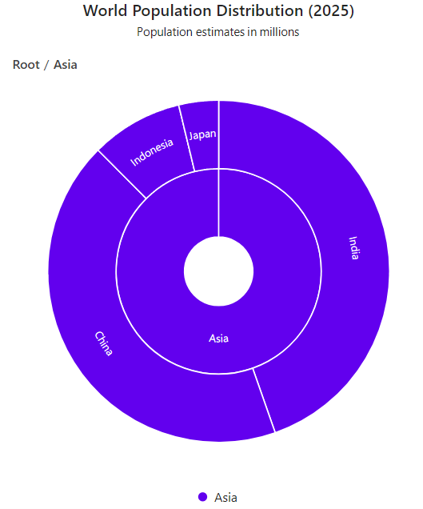
For additional breadcrumb appearance and customization options, refer to the documentation.
Note: Population values are assigned only to country nodes. The Sunburst chart automatically aggregates these values to calculate and display totals for their parent continent nodes.
Understanding hierarchical data structures
The Blazor Sunburst Chart uses a flat (denormalized) data structure to represent hierarchies. Unlike nested JSON trees, this flat model uses explicit parent-child references, which simplifies data validation and integration with APIs and databases.
The flat hierarchy model
Each node in a Sunburst hierarchy is represented as a single record (object) containing four required properties:
- Id (string): Unique identifier for the node. Must be unique across the entire dataset.
- ParentId (string): Identifier of this node’s parent. Empty string or null for root nodes.
- Name (string): Display name rendered as the segment label.
- Value (double): Numeric value used to calculate segment size. For hierarchical datasets, values are typically assigned to leaf nodes. Parent segment values are automatically aggregated from their child nodes by the Sunburst Chart.
For example:
new() { Id = "asia", ParentId = "world", Name = "Asia" },
new() { Id = "china", ParentId = "asia", Name = "China" },
new() { Id = "china_east", ParentId = "china", Name = "Eastern", Population = 385 } // Population represents the Value field
This creates the following hierarchy:
- World
- Asia
- China
- Eastern — 385
- China
- Asia
The china_east record references China, and China references Asia. These parent-child relationships determine how the nodes are organized in the chart.
Hierarchy levels and node types
Root nodes (level 1):
Root nodes represent the top of the hierarchy and have no parent. Set ParentId to an empty string ("") or null. The chart renders all root nodes as independent branches radiating from the center.
new PopulationNode { Id = "world", ParentId = "", Name = "World" }
Intermediate nodes (level 2+):
Intermediate nodes bridge roots and leaves. They must have a ParentId that matches the Id of an existing parent node. Parent nodes do not require explicit aggregate values. The Sunburst Chart automatically calculates and renders parent segment sizes by aggregating the values of their child nodes.
new PopulationNode { Id = "asia", ParentId = "world", Name = "Asia" }
Leaf nodes (lowest level):
Leaf nodes are at the bottom of the hierarchy and contain the actual numeric data. These values drive segment size calculations and visual prominence in the chart.
new PopulationNode { Id = "china", ParentId = "asia", Name = "China", Population = 1406.6 }
Avoid these common hierarchy mistakes
Before binding data to the chart, validate your hierarchy carefully.
1. Duplicate IDs
Every node must have a unique identifier.
Duplicate IDs can break parent-child mapping and may result in missing or incorrectly displayed segments. Always validate uniqueness before binding data.
2. Invalid parent references
Each ParentId must point to an existing node.
Missing parent references create orphaned nodes that are excluded from the visualization, often making the chart appear incomplete.
3. Circular relationships
A node should never eventually reference itself through a parent chain (A→B→A or longer cycles such as A→B→C→A).
Circular data indicates a data quality issue and should be fixed at the source.
4. Incorrect value assignment
A common best practice is to assign values only to leaf nodes.
The Sunburst Chart automatically aggregates parent segment sizes from child-node values, preventing double-counting and keeping the hierarchy easier to maintain.
Validate hierarchical data before it breaks your charts
In development environments, hierarchy issues are often easy to spot. However, in production, missing nodes or broken relationships can be difficult to diagnose.
Validating hierarchy data on the server helps catch problems before they reach the client and prevents rendering issues that can frustrate users.
The validation approach below checks for:
- Duplicate identifiers
- Missing parent references
- Circular dependencies
@code {
     // PopulationNode and PopulationData are defined in the Step 5 code above.
    protected override void OnInitialized()
    {
        // Validate PopulationData before binding it to the chart.
        HierarchyValidator.Validate(PopulationData);
    }

    public static class HierarchyValidator
    {
        public static void Validate(List<PopulationNode> nodes)
        {
            if (nodes == null)
            {
                throw new ArgumentNullException(nameof(nodes));
            }

            if (nodes.Count == 0)
            {
                return;
            }

            var lookup = new Dictionary<string, PopulationNode>(
                StringComparer.Ordinal);

            // Check identifiers and duplicate IDs.
            foreach (var node in nodes)
            {
                if (string.IsNullOrWhiteSpace(node.Id))
                {
                    throw new InvalidOperationException(
                        "Every node must have a non-empty ID.");
                }

                if (!lookup.TryAdd(node.Id, node))
                {
                    throw new InvalidOperationException(
                        $"Duplicate ID detected: '{node.Id}'.");
                }
            }

            // Check parent references.
            foreach (var node in nodes)
            {
                if (string.IsNullOrEmpty(node.ParentId))
                {
                    continue;
                }

                if (!lookup.ContainsKey(node.ParentId))
                {
                    throw new InvalidOperationException(
                        $"Parent ID '{node.ParentId}' was not found " +
                        $"for node '{node.Id}'.");
                }
            }

            // Detect cycles by following each node's parent chain.
            var completed = new HashSet<string>(
                StringComparer.Ordinal);

            foreach (var node in nodes)
            {
                if (completed.Contains(node.Id))
                {
                    continue;
                }

                var currentPath = new HashSet<string>(
                    StringComparer.Ordinal);

                var current = node;

                while (true)
                {
                    if (completed.Contains(current.Id))
                    {
                        break;
                    }

                    if (!currentPath.Add(current.Id))
                    {
                        throw new InvalidOperationException(
                            $"Circular relationship detected at " +
                            $"node '{current.Id}'.");
                    }

                    if (string.IsNullOrEmpty(current.ParentId))
                    {
                        break;
                    }

                    current = lookup[current.ParentId];
                }

                completed.UnionWith(currentPath);
            }
        }
    }
}
This validator checks IDs, parent references, and cycles. It does not enforce every business rule. Depending on your application, you may also need to validate numeric values, allowed root counts, and the consistency of aggregate totals.
For API-backed data, perform validation and authorization on the server as well as any client-side checks.
Prepare your sunburst charts for production
A chart that works locally isn’t automatically production-ready. As data volume increases, rendering complexity increases as well.
Consider the following practices:
Performance and readability
- Test with realistic data volumes and hierarchy depths.
- Review label visibility and overflow when the chart contains many categories.
- Consider filtering data before rendering when users need only a particular branch.
- Test the chart in the browsers and screen sizes your application supports.
Avoid relying on a fixed node count as a universal performance threshold. Rendering performance and label readability depend on the dataset and the environment.
Security and data quality
- Validate hierarchy data before rendering.
- Apply authorization and tenant filtering on the server.
- Avoid exposing internal identifiers unless the application needs them.
- Ensure that users can access only the data they are authorized to view.
Accessibility
- Use descriptive titles and labels.
- Choose colors with sufficient contrast.
- Provide a text summary or alternative representation of important information.
- Test keyboard interaction and screen-reader behavior against the component’s documented accessibility support.
Testing and deployment
- Verify package versions and script references in the deployed application.
- Test the actual Blazor render mode and hosting environment.
- Monitor browser console and server logs for errors.
- Provide loading and error states when fetching data from APIs.
- Handle component or data-loading failures gracefully.
Frequently Asked Questions
Can I bind data from a REST API?
Yes. Use HttpClient to fetch data, validate it with HierarchyValidator, then bind to the DataSource property. Add loading and error states during async operations.
How do I enable drill-down navigation?
Add <SunburstDrillSettings Enable="true"/> to your component. Users can double-click segments to drill into the hierarchy. After drilling in, breadcrumb navigation is displayed, allowing users to return to any previously visited level.
Can I have multiple root nodes?
Yes. Any node with an empty or null ParentId is a root. The chart renders all roots as independent branches radiating from the center.
When should I use Treemap instead of Sunburst?
Use Treemap when you have hundreds of categories, limited screen space, or when precise size comparison is more important than hierarchy relationships.
What is the maximum hierarchy depth supported?
The Sunburst chart supports multi-level hierarchies. For complex or deeply nested data, drill-down can help improve readability and navigation.
Does Syncfusion offer API reference documentation?
Yes. Visit the official Syncfusion Blazor Charts documentation site for complete API reference and demos.

From complex hierarchies to interactive insights
The Syncfusion Blazor Sunburst Chart provides an effective way to visualize hierarchical data while preserving both structure and proportional relationships. By combining a clean hierarchy model, drill-down interactivity, and proper validation techniques, developers can build dashboards that make complex data significantly easier to explore and understand.
Whether you’re visualizing organizational structures, product catalogs, financial breakdowns, or geographical data, the techniques covered in this guide provide a solid foundation for building production-ready hierarchical visualizations in Blazor.
To continue exploring advanced customization options, review the online demos and API documentation, and experiment with your own hierarchical datasets to see how Sunburst charts can improve data exploration experiences.
This feature is available in our 2026 Volume 3 release. You can also explore the Release Notes and What’s New pages for additional details.
If you’re a Syncfusion user, you can download the setup from the license and downloads page. Otherwise, you can download a free 30-day trial.
You can also contact us via our support forums, support portal, or feedback portal for queries. We are always happy to assist you!




Be the first to get updates