
 Thangavel E
TL;DR: Struggling with structured content in Angular? The Table Block in Angular Block Editor brings dynamic tables, quick actions, and keyboard shortcuts, making rich text editing smarter and faster.
We’re thrilled to announce a major new addition to the Syncfusion Angular Block Editor: The Table block! Now available in our 2025 Volume 4 release, this feature brings powerful, structured data handling directly into your block-based editing experience. Designed with inspiration from collaborative editing tools such as Microsoft Loop, the Table block balances structure and flexibility, allowing users to organize tabular content while preserving the simplicity of block-based authoring.
Well suited for project planning, data compilation, wikis, and documentation, the Table block functions as a dedicated block type that supports rich content and intuitive table management without breaking the editing flow.
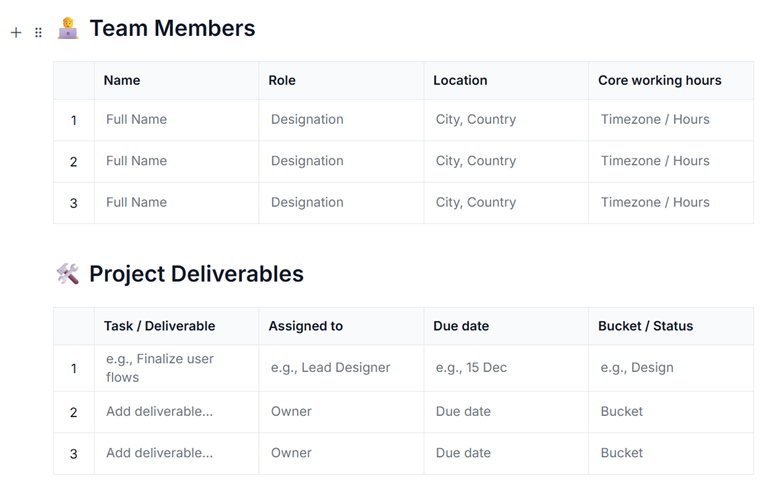
Here’s what the Table Block looks like.
Key features of the Table Block
Rich Text inside Table Cells
In the Table block, every cell behaves like a mini rich text editor. This means you’re not limited to plain text inside table cells; you can format the content just like you would in the main editor body.
Here’s what you can do inside a cell:
- Format text with bold, italic, underline, and other inline styles.
- Add hyperlinks to documentation, tickets, or external resources.
- Mention teammates using @username (for example, @john) to assign tasks or draw attention in shared documents.
This makes tables far more expressive and useful than traditional static grids.
Slash menu inside Cells
One of the most powerful features of the Table block is that it brings the slash menu directly into table cells.
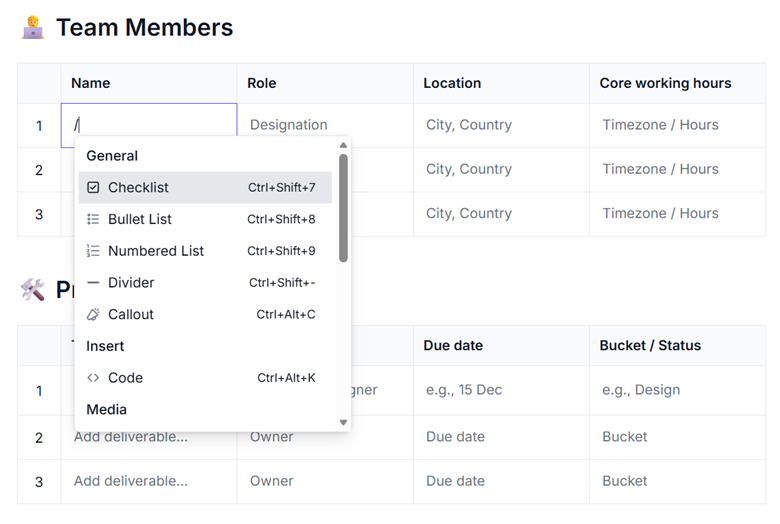
Simply type / inside any cell to open the familiar menu. From there, you can insert:
- Bulleted or numbered lists
- Headings and quotes
- Code blocks and images
- Other supported elements
All without leaving the table. This lets you build rich, structured content inside a single cell, keeping related information grouped exactly where it belongs.
The image below shows the slash menu in action inside a table cell.
Header support
Headers are handled automatically, so your tables are clear and accessible from the start.
When you create a new table, the first row is styled as a header by default. This gives it stronger visual emphasis and improves accessibility for screen readers. If you don’t need a header, you can toggle it off from the table settings and turn it back on later without losing any content.
Quick Actions for faster editing
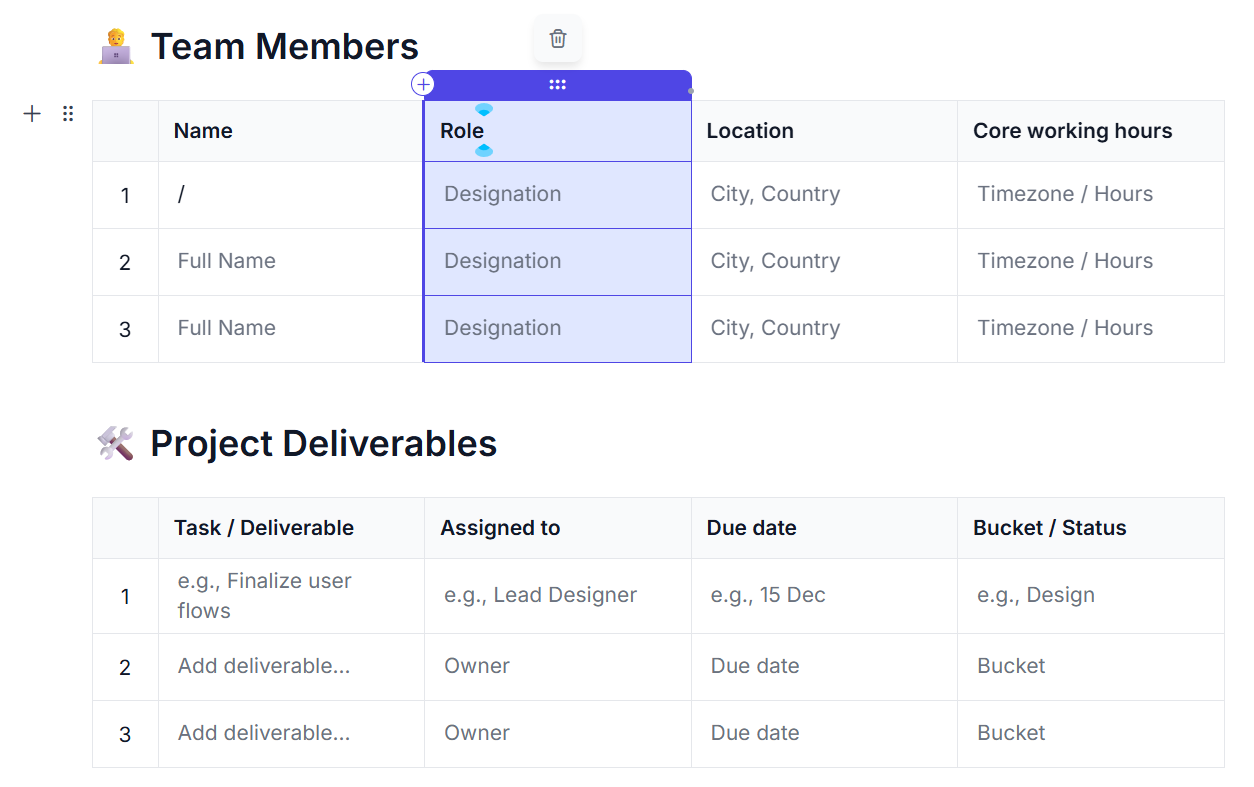
Quick Actions make everyday table editing feel effortless. When you hover over a row or column, small dot (•) and plus (+) icons appear:
- Click the plus (+) icon to add a new row or column exactly where you need it.
- Click the dot (•) icon to select an entire row or column.
- Hold Shift to select multiple rows or columns at once.
Once selected, a contextual menu appears automatically, letting you delete or modify selections in just a click or two.
Here’s a quick look at how easy it is to add a new column using Quick Actions.
Keyboard-friendly and accessible by design
If you prefer working with the keyboard or rely on assistive technologies, the Table block has you covered.
- Use arrow keys to move between cells.
- Hold Shift + arrow keys to select multiple cells.
- Press Tab or Shift + Tab to move through cells in reading order.
- Use Backspace or Delete to clear content in the current cell or across a selection.
These shortcuts make editing faster and ensure the Table block remains accessible for all users.
Upcoming Block Editor enhancements
Here’s a sneak peek at what’s coming next for the Angular Block Editor. These upcoming enhancements will focus on making tables more powerful, collaboration smoother, and content more expressive while keeping the editing experience intuitive and flexible.
What’s coming to the Table Block
- Drag-and-drop reordering
You’ll be able to reorder rows and columns using simple drag-and-drop gestures or keyboard shortcuts. This will make it easy to reorganize table data without relying on copy-and-paste or rebuilding content from scratch.
- Advanced Column types
To bring more structure and meaning to table data, the Table block will introduce specialized column types, including:
- Mentions: You’ll be able to tag teammates using @mentions to assign ownership or draw attention.
- Labels: Color-coded tags will help group and categorize information at a glance.
- Number and date: Numeric and date values will be automatically validated and formatted.
- Custom types: You’ll be able to define your own column types to support custom workflows.
These additions will make tables smarter and easier to manage as they grow.
- Aggregations and Footer Row
A dedicated footer row will enable you to display totals, averages, and other aggregations, making it easier to summarize and analyze table data directly within the editor.
- Sorting and filtering
Built-in sorting and filtering capabilities will allow you to organize columns alphabetically or numerically and create focused views, especially useful when working with large datasets. - Collaboration and content enhancements
In addition to table-focused updates, several upcoming features will enhance collaboration and rich content creation across the editor. - Real-time collaborative editing
You’ll be able to edit together in real time, with changes from collaborators appearing instantly. Support for low-latency updates and offline scenarios will help teams work smoothly on shared documents. - Comment support
Threaded comments will allow you to leave feedback on blocks or selected text ranges. You’ll be able to mention users, resolve discussions, and manage visibility using role-based permissions. - Video & audio support
Support for video and audio content will let you embed or upload media directly into the editor, ideal for tutorials, presentations, walkthroughs, and interactive documents.
Conclusion
Thank you for being part of our developer community! The 2025 Volume 4 update for the Syncfusion Angular Block Editor introduces the powerful new Table block, delivering advanced features and intuitive enhancements that elevate structured content creation.
From rich text support in cells and dynamic row and column management to slash menu integration, quick actions, and seamless keyboard navigation, this release is designed to help you build more flexible and user-friendly block-based editing solutions.
For a hands-on look, explore our online demo and documentation of the Angular Block Editor. You can check out our Release Notes and What’s New for the other updates in this release and provide your feedback in the comments below.
If you’re a Syncfusion user, you can download the setup from the license and downloads page. Otherwise, you can download a 30-day free trial.
You can also contact us through our support forum, support portal, or feedback portal for queries. We are always happy to assist you!



 No spam, just valuable updates.