
 Shalini Suresh
TL;DR: Skip complex filters, let users simply describe what they need. With our .NET MAUI DataGrid and Azure OpenAI, queries like “customers from New York” are instantly converted into accurate filters. The result is a faster, more intuitive, zero learning curve experience built on a clean, scalable architecture for modern cross-platform apps. Ready to see how this works in practice? Let’s dive in.
What if filtering thousands of rows in a grid felt as simple as typing a sentence?
Traditional filtering forces users into rigid patterns: dropdowns, exact field names, and predefined conditions. Most grids still expect users to think like developers, remember column names, pick operators, and navigate layered menus just to find what they need. It’s slow, unintuitive, and often frustrating.
Now imagine your users simply typing:
- Orders above $500,
- Show high-value customers, and
- Products under $100
…and instantly seeing exactly what they asked for.
No clicks. No confusion. Just results.
That’s the power of AI‑powered natural language filtering.
In this blog, we’ll show you how to bring this smart, natural-language filtering to life using Syncfusion® .NET MAUI DataGrid and Azure OpenAI, so your apps feel less like tools and more like intelligent assistants.
Why natural language filtering matters
Natural language filtering transforms rigid, technical filtering into a simple, conversational experience. It lets users interact with data the way they naturally think, not the way the UI demands.
Key benefits
- Faster data discovery.
Skip menus and get instant results by simply describing what you need. - Zero learning curve.
No need to remember column names, operators, or filter syntax. - Intuitive interaction.
Users express intent in plain English, and AI handles the complexity behind the scenes. - Greater confidence.
Explore data freely without worrying about making mistakes.
How it works
AI-powered filtering bridges the gap between human language and structured data by:
- Understanding intent,
- Translating it into precise filter logic, and
- Delivering accurate results instantly.
The result: Faster insights, happier users, and a dramatically simpler, more engaging data experience.
Note: Before proceeding, refer to the getting started with .NET MAUI DataGrid documentation.
Prerequisites
- Visual Studio.
- Create a .NET MAUI application.
- An Azure OpenAI resource and a valid API key.
How to embed AI-powered natural-language filtering in .NET MAUI DataGrid?
Adding AI-powered filtering to the .NET MAUI DataGrid isn’t just about calling an API, it requires a clean and scalable architecture. By using the MVVM pattern, you can neatly separate UI, business logic, and data handling, while dependency injection ensures your AI services are consistently available across the app.
Step 1: Create the AI filtering service
At the core of this implementation is the AIFilterService. Its role is to convert user-friendly, natural-language queries into a structured format your DataGrid can understand and apply.
For example, a query like:
“Female employees with rating ≥ 8 and salary > 5000”
is transformed into a compact JSON-based filter plan.
Here’s what happens behind the scenes:
- A schema-aware prompt is sent to Azure OpenAI to ensure responses align with your data structure.
- The AI returns a cleaned JSON filter definition (removing code fences and noise).
- The response is then validated and parsed into strongly typed models such as FilterPlan or Condition, with support for nested filter groups.
If anything goes wrong, such as a missing configuration or invalid JSON, the service safely returns null, ensuring your app remains stable.
Refer to the following code example for implementation details.
public class AIFilterService : IAIFilterService
{
    // Converts a natural language prompt into a JSON filter plan via Azure OpenAI.
    public async Task<FilterPlan?> CreateFilterPlanAsync(string naturalLanguagePrompt)
    {
        // Ensure Azure OpenAI settings are present
        if (string.IsNullOrWhiteSpace(AzureBaseService.Endpoint) ||
            string.IsNullOrWhiteSpace(AzureBaseService.DeploymentName) ||
            string.IsNullOrWhiteSpace(AzureBaseService.Key))
        {
            return null;
        }

        // Clear instructions: JSON filter plans only, aligned with your grid schema
        var system = "You convert plain English filters into strictly valid JSON filter plans for a data grid.";
        var user   = $"Grid schema:\n{SchemaText}\n\nUser query:\n{naturalLanguagePrompt}\n\nReturn JSON only.";

        try
        {
            // Call Azure OpenAI and get raw content
            var content = await CallAzureAsync(system, user);

            // Extract compact JSON (removes ```json fences, trims noise)
            var json = ExtractJsonObject(content);
            if (string.IsNullOrWhiteSpace(json))
                return null;

            // Parse JSON into a FilterPlan (parsing implemented elsewhere)
            return ParseFilterPlanFromJson(json);
        }
        catch
        {

            // Fail safe: return null on network/parse errors
            return null;
        }
    }
}
Step 2: Configuring AI services
Once your AI filtering service is ready, the next step is to make it available throughout your app. This is done during app startup by registering your services using dependency injection.
By configuring your AI service and ViewModel at this stage, you ensure they can be easily accessed wherever needed without manual instantiation or tight coupling.
public static class ServiceCollectionExtensions
{
    public static IServiceCollection AddAiServices(this IServiceCollection services)
    {
        services.AddSingleton<IAIFilterService, AIFilterService>();
        services.AddSingleton<EmployeesViewModel>();
        services.AddTransient<MainPage>();
        return services;
    }
}
Step 3: Integrating Azure OpenAI with your .NET MAUI app
To enable natural language filtering, your app needs to connect to Azure OpenAI, which powers the understanding and interpretation of user queries.
To do so:
- First, ensure you have access to Azure OpenAI and create a deployment in the Azure portal.
- If you do not have access, please refer to the create and deploy Azure OpenAI service guide to set up a new account.
- Note down the deployment name, endpoint URL, and API key.
- Make sure you’ve installed the Azure.AI.OpenAI NuGet package from the NuGet Gallery.
- In your base service class (
AzureBaseService), initialize theOpenAIClient. - Replace the
Endpoint,DeploymentName, andKeywith the actual values from your Azure OpenAI resource.
public abstract class AzureBaseService
{
    internal const string Endpoint = "YOUR_END_POINT";
    internal const string DeploymentName = "DEPLOYMENT_NAME";
    internal const string Key = "API_KEY";

    protected AzureBaseService() {}
}
Next, we’ll define the models that make this integration work seamlessly.
Step 4: Creating models for AI-ready filtering
Here, we’ll use a simple Employee model and a helper repository to seed data. This keeps our demo self-contained and repeatable.
The model class defines the structures for employees, filter plans, conditions, and nodes, and helps represent user queries in a structured way for dynamic data filtering.
public class Employee
{
    public int EmployeeId {get; set;}
    public string Name {get; set;} = "";
    public string Title {get; set;} = "";
    public int Rating {get; set;}
    public DateTime BirthDate {get; set;}
    public string Gender {get; set;} = "";
    public decimal Salary {get; set;}
}
Next, define a lightweight structure that represents the AI-generated filtering logic. Instead of applying filters directly, the AI returns a compact filter plan that can be evaluated against each row.
// Represents a complete filter plan generated by AI.
public class FilterPlan
{
    public string logic {get; set;} = "and";
    public List<FilterNode> conditions {get; set;} = new();
}

public class FilterNode
{
    public Condition? condition {get; set;}
    public FilterPlan? group {get; set;}
}
Step 5: Building the ViewModel for natural language filtering
The ViewModel acts as the brain of your AI-powered filtering experience, connecting user input, AI processing, and the DataGrid in a clean, responsive flow.
It is responsible for:
- Managing user input (typed prompts or suggested queries),
- Invoking the AI service to interpret natural language, and
- Updating the DataGrid dynamically based on AI-generated filters.
At its core, the ViewModel maintains the employee collection along with the user’s prompt. It also provides ready-to-use suggestions, making it easier for users to try common queries without having to type them from scratch.
When a user enters a query like:
“rating ≥ 8 and salary > 5000”
The ViewModel sends it to the AIFilterService. The AI then converts this into a structured FilterPlan. Once received, the ViewModel triggers a FilterChanged event, prompting the DataGrid to refresh and display filtered results instantly.
To apply the filter, the ViewModel exposes the BuildPredicate() method. This method converts the current filter plan into a predicate function, enabling the DataGrid to efficiently evaluate each row.
public class EmployeesViewModel : BindableObject
{
    // Helpful one-click suggestions
    public ObservableCollection<string> PromptSuggestions { get; } = new()
    {
        "Employees with rating >= 8 and salary > 5000",
        "Show only Female employees born before 1990",
        "Name contains 'Tom' or Title contains 'Supervisor'",
        "BirthDate between 01/01/1980 and 12/31/1989",
        "Salary between 3000 and 4000",
        "Gender in [Male, Female] and Rating > 5",
        "EmployeeId between 1005 and 1015"
    };

    public EmployeesViewModel(IAIFilterService ai)
    {
        _ai = ai;

        ExecutePromptCommand = new Command(async () => await ExecuteAsync());

        ResetCommand = new Command(() =>
        {
            CurrentPlan = null;
            SelectedSuggestion = null;
            Prompt = string.Empty;

            FilterChanged?.Invoke (this, EventArgs.Empty);
        });
    }

    private async Task ExecuteAsync()
    {
        var toRun = !string.IsNullOrWhiteSpace(Prompt) ? Prompt : (SelectedSuggestion ?? string.Empty);

        toRun = toRun.Trim();

        if (string.IsNullOrWhiteSpace(toRun))
        {
            CurrentPlan = null;
            FilterChanged?.Invoke(this, EventArgs.Empty);
            return;
        }

        // Ask AI to create a structured plan
        CurrentPlan = await _ai.CreateFilterPlanAsync(toRun);
        FilterChanged?.Invoke(this, EventArgs.Empty);
    }

    //DataGrid typically accepts a Predicate<object>. The ViewModel builds one from the current FilterPlan.
    public Predicate<object>? BuildPredicate()
    {
        if (CurrentPlan is null)
            return null;

        return rowObj => EvalPlan(CurrentPlan, (Employee)rowObj);
    }
}
Step 6: Designing the UI for AI-powered natural language filtering
Finally, bring everything together by creating a clean, intuitive UI that lets users interact with your DataGrid using natural language.
This layout is designed to be simple and focused, so users can type what they want and instantly see results without friction.
- Smart input at the top.
An editable Syncfusion .NET MAUI ComboBox allows users to either type a natural language query or quickly pick from suggested prompts. - Quick action controls.
Two buttons: Execute Prompt and Reset make it easy to apply filters or clear them with a single click. - Dynamic DataGrid display.
The Syncfusion .NET MAUI DataGrid displays employee data and updates instantly when a prompt is executed. ViewModel processes the query and applies a predicate, enabling real-time, intelligent filtering.
This simple yet powerful interface ensures users can ask, apply, and explore data effortlessly, turning your DataGrid into a responsive, AI-driven experience.
<Grid Grid.Row="0"
      ColumnDefinitions="*, Auto, Auto"
      ColumnSpacing="10"
      IsVisible="{OnPlatform Android=False, iOS=False, MacCatalyst=True, WinUI=True}">

    // Editable ComboBox for natural language prompts or quick suggestions
    <input:SfComboBox
        ItemsSource="{Binding PromptSuggestions}"
        SelectedItem="{Binding SelectedSuggestion}"
        Text="{Binding Prompt, Mode=TwoWay}"
        IsEditable="True"
        Placeholder="Ask AI to apply filter to DataGrid"
        HeightRequest="40" />

    // Button to run the current prompt via AI and apply the filter
    <Button Grid.Column="1"
               Text="Execute Prompt"
               Command="{Binding ExecutePromptCommand}" />

    // Button to clear the prompt, suggestion, and any active filters
    <Button Grid.Column="2"
               Text="Reset"
               Command="{Binding ResetCommand}" />

    // Binding DataGrid
    <sfgrid:SfDataGrid Grid.Row="1"
                          ItemsSource="{Binding Employees}"
                          ColumnWidthMode="Fill"
                          SortingMode="Multiple">
    </sfgrid:SfDataGrid>

</Grid>
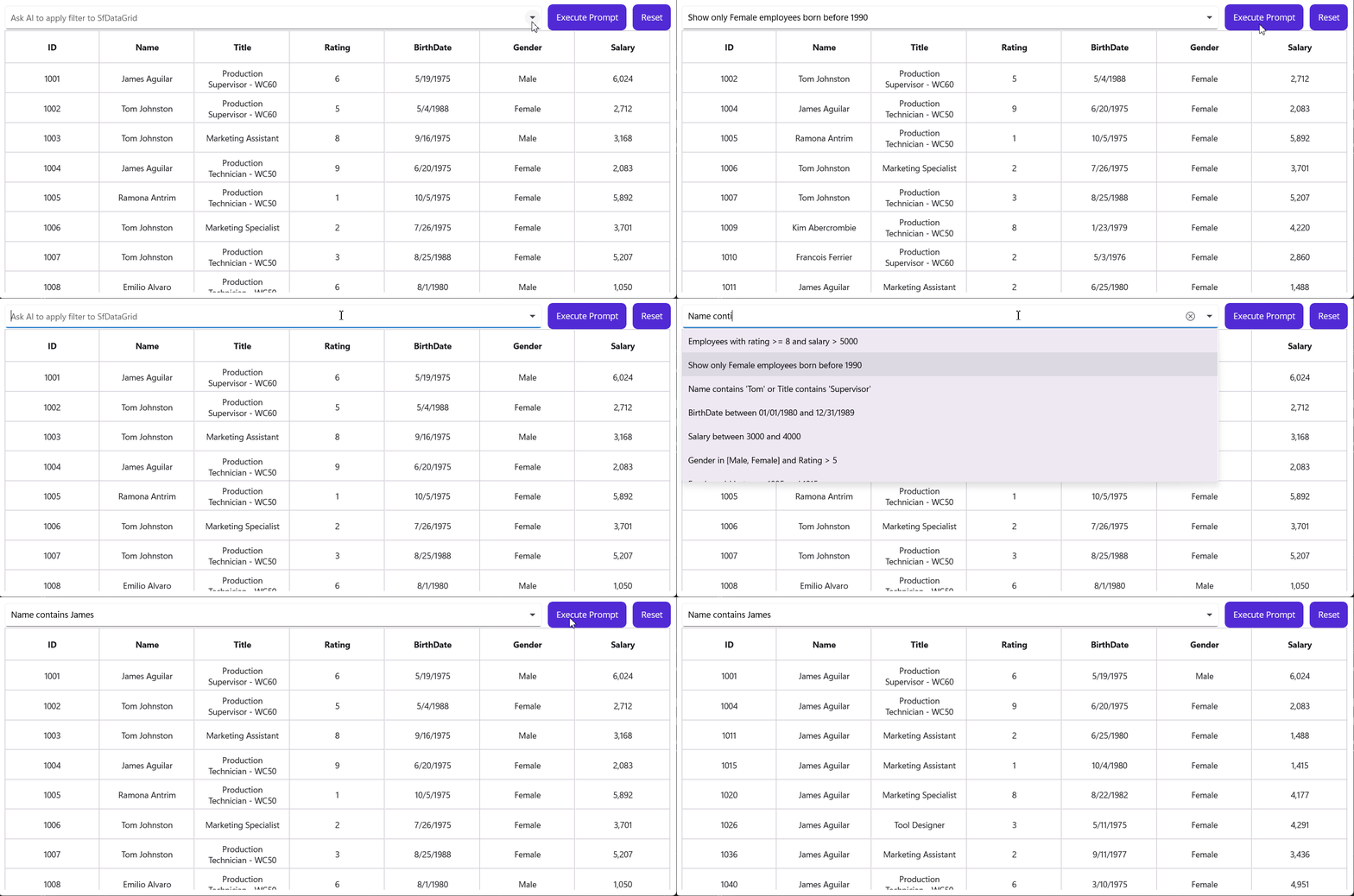
See the final output image for better understanding.
GitHub reference
For more details, refer to the AI-powered natural language filtering in the .NET MAUI DataGrid GitHub demo.
Frequently Asked Questions
What happens if AI returns invalid JSON for a conversational filter query?
In such scenarios, the AIFilterService safely returns null, and the grid resets to show all data. This ensures the app never crashes due to malformed AI responses.
Does AI-powered natural language filtering in the .NET MAUI DataGrid work without an internet connection?
No. Since the filtering relies on Azure OpenAI, an active internet connection is required to process user prompts. If offline, you can still rely on the built-in filtering feature in the Syncfusion .NET MAUI DataGrid, but AI-driven natural language queries won’t function.
Will natural language filtering replace the built-in filtering features of Syncfusion DataGrid?
No. In this solution, natural language filtering is designed to enhance, not to replace existing DataGrid capabilities. Users can continue using column filters, sorting, and advanced filtering alongside AI-powered queries for a more flexible experience.
How can I improve the accuracy and consistency of AI-generated filters in this setup?
You can increase reliability by using schema-aware prompts, strict JSON output instructions, and deterministic generation settings. Always validate and parse JSON defensively.
How do I define the data schema so Azure OpenAI understands my DataGrid structure?
Include a concise schema description (field names, types, sample values, constraints) in the AI prompt. This guides the AI to produce output that matches your data model.
How can I handle date and numeric filters in natural language queries across different locales?
Be explicit in your schema or prompt about date and number formats (e.g., ISO date format yyyy-MM-dd and decimal separators). You can also preprocess user input or normalize values before sending them to the AI to avoid ambiguity across regions.

Switch from rigid filters to conversational data filtering
You’ve seen how AI can completely transform the way users interact with data. By combining Syncfusion .NET MAUI DataGrid with Azure OpenAI, you can replace complex, manual filtering with simple, conversational inputs, making your app faster, smarter, and far more intuitive.
Instead of forcing users to learn filters, you empower them to just ask and get results, even for complex, multi-condition queries.
So, don’t settle for traditional filtering; upgrade your app experience today with AI-powered natural language filtering.
- Already a Syncfusion user? Download the latest Essential Studio from the license and downloads page.
- New to Syncfusion? Try the free 30-day trial and explore its full potential.
- Need help? Connect with us via the support forums, feedback portal, or support portal. We’re here to support you.
Start building smarter, more intuitive .NET MAUI apps today and give your users an experience they’ll love.







 No spam, just valuable updates.