
 Shalini Suresh
TL;DR: Learn how to use .NET MAUI native device features to access camera, file picker, geolocation, connectivity, device info, vibration, and sensors from shared C#. Request permissions when the user triggers the action, handle platform gaps with fallbacks, and start/stop sensors to protect the battery. Test on real hardware early to validate permissions, GPS, and camera behavior.
Modern apps aren’t “just UI” anymore. Real .NET MAUI applications need to use the device to capture photos, pick files, read location, detect connectivity, and use mobile sensors like the accelerometer or compass. These capabilities shape how users interact with the app and determine whether an enterprise workflow feels seamless or frustrating.
.NET MAUI provides a rich set of native‑device APIs (via Microsoft.Maui.Essentials) that let you access these platform features directly from shared C# code without maintaining separate Android, iOS, Windows, or macOS implementations. This reduces maintenance cost, simplifies architecture, and keeps your codebase clean.
In this guide, we’ll explore how to integrate common native features in .NET MAUI, understand best practices, and see practical scenarios where they shine.

Why native features matter in cross‑platform apps
Cross-platform doesn’t mean compromising on quality or capability. Most production MAUI apps still need:
- Permissions that behave correctly on Android vs iOS vs Windows/macOS.
- Consistent feature behavior across devices (and graceful fallbacks when a feature isn’t available).
- Offline-aware UX so the app remains useful with poor or no connectivity.
- Battery/performance discipline when using sensors.
- Reliable behavior on real devices (not just simulators).
.NET MAUI provides built‑in APIs (via Microsoft.Maui.Essentials) that abstract these differences while still allowing platform‑specific customization when needed.
What’s included (and when you still need platform code)
This isn’t about adding custom bindings to platform SDKs. It’s about using the native feature APIs already available in .NET MAUI (camera, file picker, geolocation, connectivity, device info, vibration, sensors, etc.) through a consistent C# surface area.
When you hit a feature MAUI doesn’t wrap, you can still drop into platform-specific code, but for many common requirements, you don’t need to.
How .NET MAUI native device features work
Most of these APIs follow the same pattern:
- You request permission at runtime (when needed).
- MAUI launches the platform-native UI or hardware integration.
- You handle success, cancel, and “not supported” cases cleanly.
That pattern is what keeps your app stable across platforms.
Building device-aware experiences in .NET MAUI
Now we can explore how these native features are enabled in .NET MAUI. With just a few lines of C#, MAUI lets your app deliver experiences that feel naturally embedded in every device.
1. Camera integration
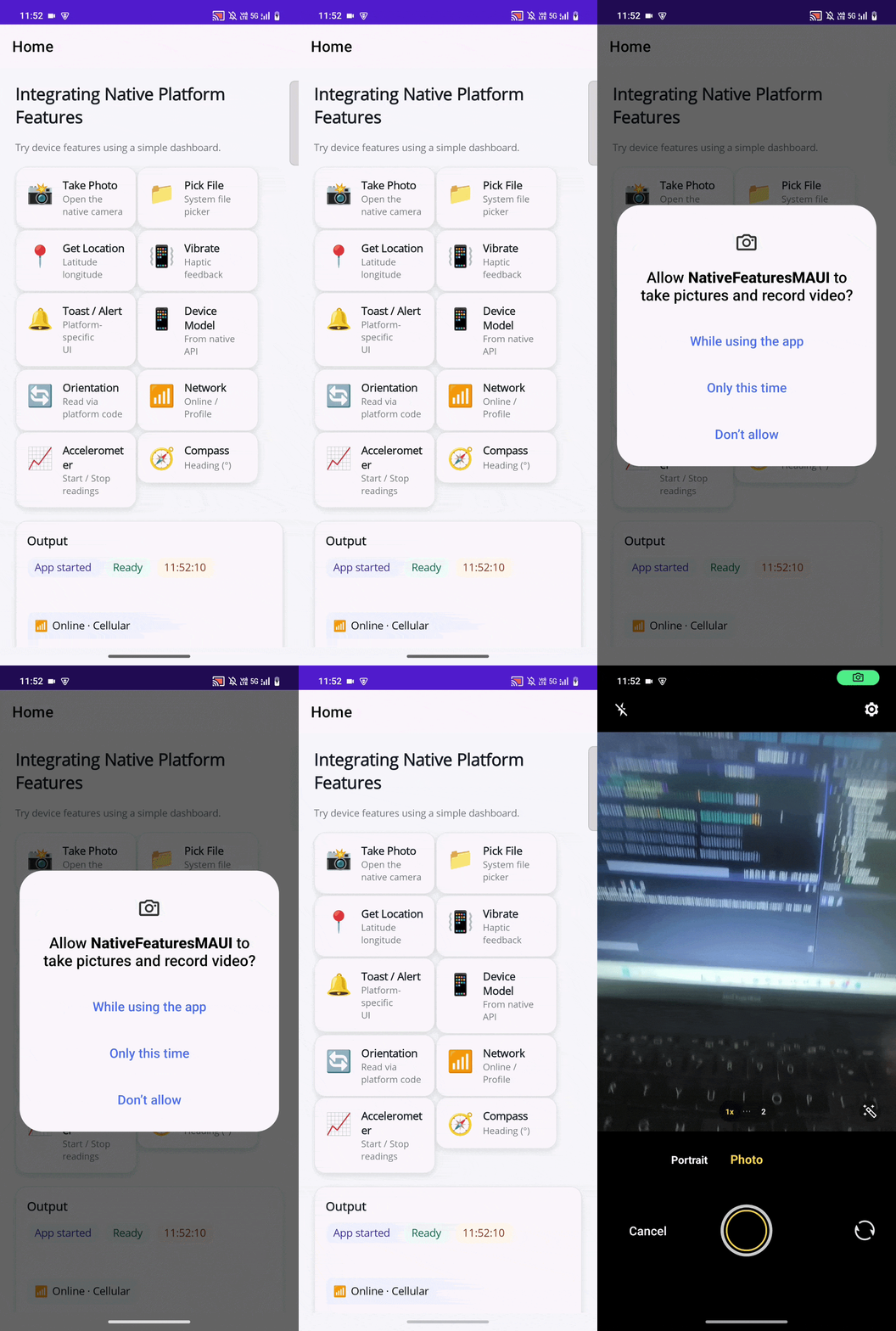
Do you want to capture a photo directly from your app? Here’s how to do it with MediaPicker.
Android/Windows:
<uses-permission android:name="android.permission.CAMERA" />Mac / iOS:
<key>NSCameraUsageDescription</key>
<string>App requires camera access to take photos.</string>
Note: Ask for camera permission when the user taps Capture, not on first launch.
Capture the photo
Now safely call MediaPicker.CapturePhotoAsync() only after permission is granted.
var photo = await MediaPicker.CapturePhotoAsync();
if (photo != null)
{
    Photo.Source = ImageSource.FromFile(photo.FullPath);
}
What happens: The OS opens the system camera UI. After capture, MAUI returns the file path (or null if the user cancels), which you can use to display or upload the image.
Real-time examples
- Delivery apps for proof-of-delivery photos
- Banking apps for KYC document capture
- Fitness apps for progress photos
2. File Picker
Do you need to pick a file from the device? Use FilePicker to open the native file browser:
var file = await FilePicker.PickAsync();
FileNameLabel.Text = file?.FileName;
What happens on each platform
Tapping Pick File opens the platform’s own file browser:
- iOS → Files
- Android → Document Picker
- Windows → File Explorer
- macOS → Finder
Once a file is selected, MAUI returns the result instantly.
What MAUI handles for you
- Launches the correct native picker UI
- Normalizes the result shape across platforms
- Supports cancellation gracefully
Real-time use cases
- Import PDFs in resume builders
- Import images/docs in note apps
- Select existing photos for OCR pipelines
3. Geolocation
Do you want to fetch the current location? Use Geolocation to read GPS coordinates.
Android/Windows:
<uses-permission android:name="android.permission.ACCESS_FINE_LOCATION" />Mac / iOS:
<key>NSLocationWhenInUseUsageDescription</key>
<string>App requires location access to show your current location.</string>
Note: Location always requires platform permissions, and you must request them at runtime exactly when the user tries to access location (not at app launch).
Read the location
Call Geolocation.GetLocationAsync(), after permission is granted.
var loc = await Geolocation.GetLocationAsync();
LocationLabel.Text = $"Lat {loc.Latitude:F5}, Lon {loc.Longitude:F5}";
What this enables: Location-aware workflows like near me search, pickup/drop-off detection, and region-based personalization.
Note: GPS accuracy and latency vary widely. Always test on real devices with real signal conditions.
Real-time examples
- Ride-sharing pickup/drop-off detection
- Travel apps showing nearby attractions
- Weather apps using current coordinates
4. Haptics and lightweight toast feedback
For subtle feedback, vibration and a lightweight toast can confirm actions without interrupting flow:
Vibration.Default.Vibrate(TimeSpan.FromSeconds(1));   // haptic tap
await _toast.ShowAsync("Saved!");   // lightweight toast via your DI service
The vibration gives tactile confirmation. Toast gives quick feedback without interrupting the flow.
Best practices
- Use haptics for confirmations/warnings, not for every tap.
- Keep toast short and dismissive.
- Avoid feedback that blocks user input.
Real-time examples
- “Saved!” confirmation after editing
- “Expense added” in budgeting apps
- “Goal completed” in health apps
5. Device info and orientation
Looking to adapt the UI to device orientation? Read the current display orientation:
var model = DeviceInfo.Model;
var orientation = DeviceDisplay.Current.MainDisplayInfo.Orientation; // Portrait / Landscape
What this enables
- Responsive layout changes
- Tablet vs phone UI optimization
- Orientation-aware experiences (readers, dashboards, video playback)
Real-time examples
- Tablets show expanded dashboards; phones show compact UI.
- Video player optimizes for landscape.
- Reading app adjusts layout on rotation.
6. Network connectivity
Checking online or offline status? Use Connectivity to read network access and connection type:
<uses-permission android:name="android.permission.INTERNET" />
<uses-permission android:name="android.permission.ACCESS_NETWORK_STATE" />
Note: Unlike cameras and location, Internet access does not require runtime permission in MAUI. However, Android requires manifest entries, and iOS requires no entries at all.
Read and react to connectivity
Now, safely use Connectivity.NetworkAccess and listen to Connectivity.ConnectivityChanged after configuring the required Internet permissions.
var access = Connectivity.NetworkAccess; // Internet / None / Local...
Connectivity.ConnectivityChanged += (_, e) => { /* react to changes */ };
Why this matters: Apps feel reliable when they handle offline mode intentionally (cached reads, queued writes, clear status).
Real-time examples
- News apps switch to offline mode
- E-commerce apps queue offline orders
- Chat apps show “Connecting…”
7. Motion tracking and shake detection
For real-time motion data, use the accelerometer to read X, Y, and Z acceleration:
// Start accelerometer
Accelerometer.Default.Start(SensorSpeed.UI);

// Live motion readings
Accelerometer.Default.ReadingChanged += (sender, args) =>
{
    var acceleration = args.Reading.Acceleration; // X, Y, Z
    // Use acceleration.X, acceleration.Y, acceleration.Z
}
// Shake detection
Accelerometer.Default.ShakeDetected += (sender, eventArgs) =>
{
    // Handle shake action here (e.g., refresh)
};
After the code: You can drive interactions from device movement (tilt, shake-to-refresh, gesture-like actions).
Note: Start sensors only when needed and stop them when the page disappears.
Real-time examples
- Games using tilt controls
- Fitness apps tracking movement intensity
- Productivity apps using shake to undo
8. Compass (heading for navigation/AR)
To read the current heading, start the compass and read the magnetic direction:
Compass.Default.Start(SensorSpeed.UI);
Compass.Default.ReadingChanged += (_, e) =>
{
    CompassLabel.Text = $"Heading: {e.Reading.HeadingMagneticNorth:F0}°";
};
What this enables: Directional UI hints, navigation overlays, and AR alignment scenarios.
Real-time examples
- Hiking apps showing facing direction
- AR apps aligning objects to the real world
- Map apps drawing a directional arrow
Best practices for native feature integration
- Request permissions in context
Ask only when the user taps Attach, or Use my location, not on the first launch. - Assume features vary by platform and device
Desktop platforms may not have motion sensors; simulators may not support camera capture. Always provide a fallback. - Start/stop sensors deliberately
Don’t leave the accelerometer/compass running. Stop them when the user leaves the screen. - Design for offline and flaky networks
Detect connectivity changes and handle API failures, retries, and queued operations. - Test on real hardware early
Permissions, camera, GPS accuracy, and sensor behavior must be verified on physical device.
GitHub reference
For more details, refer to the complete sample on GitHub.
Frequently Asked Questions
No. Some features vary by device and OS. For example, a compass, accelerometer, or vibration may not exist or behave differently on Windows or macOS. Only use features after checking platform support.Can I use all sensors and APIs on all platforms?
Most native features work across Android, iOS, MacCatalyst, and Windows. However, motion‑based sensors such as the accelerometer and compass are available only on Android and iOS because desktop platforms typically do not provide hardware support for these sensors.What platforms does this approach support?
Simulator and many MacCatalyst runs don’t support hardware capture. Test on a physical device to verify camera behavior.Why does the camera capture say, 'not supported'?
No, sensor APIs do not automatically continue running in the background; they remain active only if you leave them running. It’s best to stop them when the page is not visible to save battery.Do sensor APIs continue running in the background?
GPS accuracy depends on the device, signal strength, and Wi‑Fi or mobile data availability. Some devices can lock the location faster than others.Why does location sometimes take longer to fetch?
You can re‑enable Camera or Location on macOS by opening System Settings, navigating to Privacy & Security, selecting Camera or Location Services, finding your app in the list, and turning the permission back on.How do I enable Camera / Location on macOS if I click “Don’t Allow”?
Next steps
- Build a small “Device Features” sample page in your MAUI app with buttons for Camera, File Picker, Location, and toggles for Sensors.
- Add a single permissions helper (like the one above) and reuse it everywhere.
- If you share a GitHub sample, include: target MAUI version, supported platforms, and exact manifest/plist snippets so others can run it immediately.
Conclusion
Thanks for reading! Working with native features in .NET MAUI is straightforward. You can build powerful, device‑aware apps without writing separate code for Android, iOS, Windows, or macOS.
Whether you need the camera, file picker, location, sensors, network status, or device info, MAUI provides clean and consistent APIs across platforms.
These features help you:
- Make apps more engaging
- Improve performance
- React to the device in real time
- Build context‑aware workflows
- Deliver production-ready apps with confidence







 No spam, just valuable updates.