
 Naveenkumar Sanjeevirayan
TL;DR: Learn how to build flexible, multi-pane interfaces in .NET MAUI applications using the Syncfusion Grid Splitter. Explore how to configure pane sizes, horizontal and vertical splitters, and collapsible sections to create adaptable multi-pane layouts.
Applications often need to display multiple views on the same screen, so efficient space management is key to the user experience. Navigation panels, data grids, and document previews may each require different amounts of space depending on the task. Fixed layouts can limit this flexibility, and implementing interactive resizing can require additional code.
The Syncfusion .NET MAUI Grid Splitter, introduced in Essential Studio 2026 Volume 3, provides built-in support for resizing, collapsing, and expanding panes.
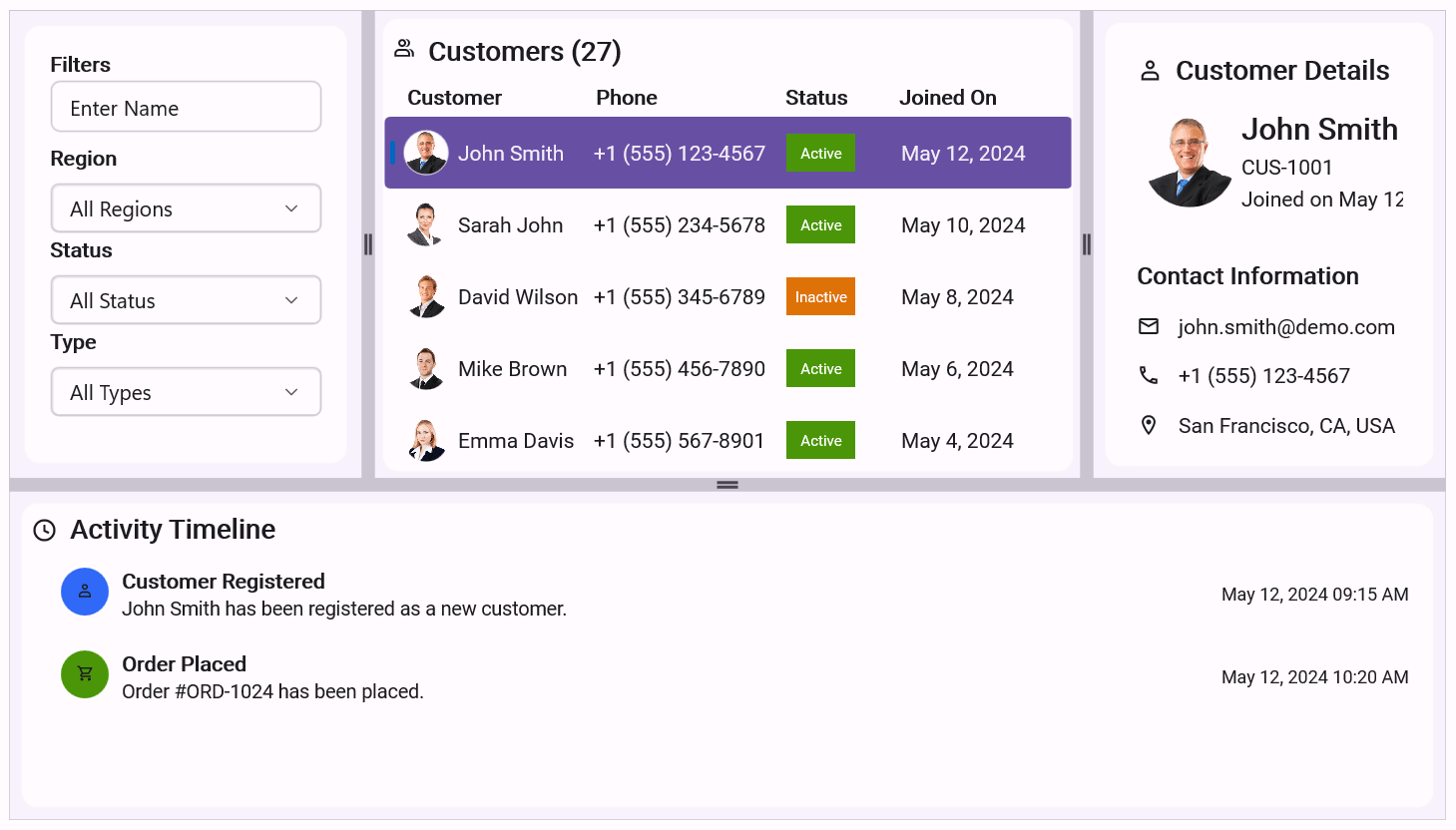
Let’s explore its features and build a sample employee profile layout.
Key features of the .NET MAUI Grid Splitter
The Syncfusion .NET MAUI Grid Splitter provides several capabilities for building multi-pane interfaces:
- Resizable panes: Let users adjust the space allocated to different content areas.
- Collapsible panes: Allow users to hide and restore panels when needed.
- Horizontal and vertical orientations: Arrange panes side by side or vertically.
- Flexible pane sizing: Set initial sizes and define resizing limits.
- Customizable separators: Adjust the separator’s appearance.
- Nested splitters: Create layouts with multiple independently resizable sections.
Let’s look at how to use these features in an application.
Resize and collapse panes
Some applications need users to control how much space different content areas occupy. For example, users might want to widen a navigation panel to read longer item names or expand a document preview to inspect its contents.
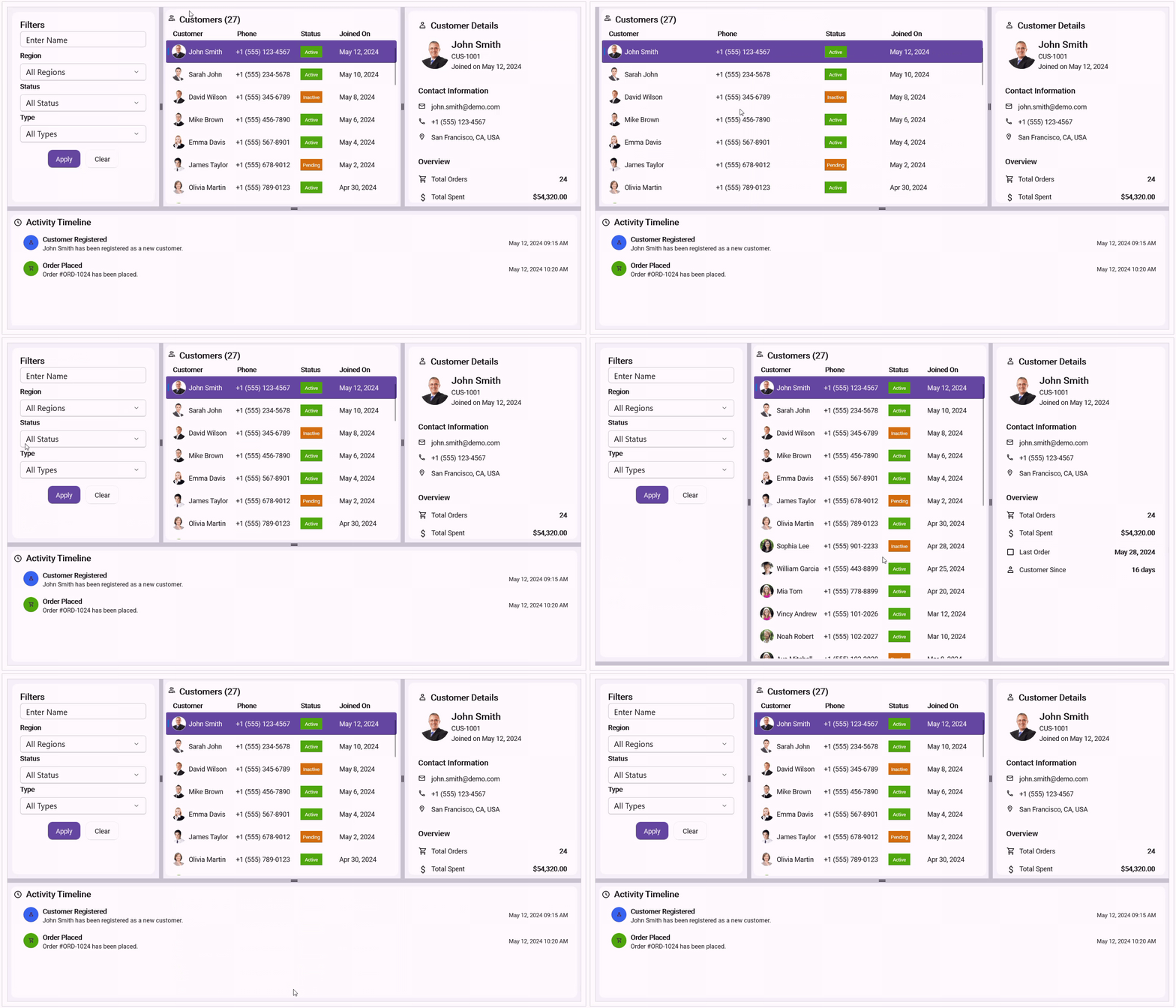
The .NET MAUI Grid Splitter lets users drag a separator to resize adjacent panes at runtime. It handles the resizing logic automatically, reducing development effort and simplifying layout management.
You can also set the MinimumSize and MaximumSize properties of SplitterPane to define resizing limits. These limits keep each pane usable while still allowing users to adjust the layout.
Sometimes, resizing isn’t enough. Users may want to hide a panel completely to focus on their primary task. The Grid Splitter supports collapsible panes, allowing users to quickly hide or restore content and focus on the information that matters most.
This is useful for navigation panels, property windows, report filters, and contextual tool panels.
Customize the splitter separator
The separator shows users where they can resize panels. You can customize its appearance to match your application’s design.
The Grid Splitter provides properties such as:
- SeparatorSize: Sets the separator’s thickness.
- SeparatorBackground: Sets the separator’s background color.
For example, the following XAML configures a horizontal splitter with a customized separator:
<gridSplitter:SfGridSplitter
    Orientation="Horizontal"
    SeparatorSize="8"
    SeparatorBackground="#E0E0E0">

    <gridSplitter:SplitterPane Size="1*">
        <Label Text="Navigation"
               HorizontalTextAlignment="Center"
               VerticalTextAlignment="Center" />
    </gridSplitter:SplitterPane>

    <gridSplitter:SplitterPane Size="2*">
        <Label Text="Main Content"
               HorizontalTextAlignment="Center"
               VerticalTextAlignment="Center" />
    </gridSplitter:SplitterPane>

</gridSplitter:SfGridSplitter>
Here, the separator is 8 units thick and uses a light-gray background. Adjust these values to suit your application’s visual style.
Configure pane sizes
Different application regions often need different amounts of space. A navigation panel may need less room than a document editor, while a details panel needs enough space to display its content.
The Size property of SplitterPane defines its initial size and how space is distributed among panes.
| Value | Purpose |
| Size=”200″ | Specifies an initial size of 200 device-independent units. |
| Size=”1*” | Allocates one proportional share of the available space. |
| Size=”2*” | Allocates twice the proportional share of a 1* pane. |
For example, panes with sizes 1*, 2*, and 1* start with a proportional size ratio of 1:2:1.
You can combine Size with MinimumSize and MaximumSize to control how far users can resize each pane:
<gridSplitter:SfGridSplitter Orientation="Horizontal">

    <gridSplitter:SplitterPane
        Size="1*"
        MinimumSize="120"
        MaximumSize="250">

        <Label Text="Navigation Pane"
               HorizontalTextAlignment="Center"
               VerticalTextAlignment="Center" />
    </gridSplitter:SplitterPane>

    <gridSplitter:SplitterPane
        Size="2*"
        MinimumSize="250">

        <Label Text="Main Content"
               HorizontalTextAlignment="Center"
               VerticalTextAlignment="Center" />
    </gridSplitter:SplitterPane>

    <gridSplitter:SplitterPane
        Size="1*"
        MinimumSize="150"
        MaximumSize="350">

        <Label Text="Details Pane"
               HorizontalTextAlignment="Center"
               VerticalTextAlignment="Center" />
    </gridSplitter:SplitterPane>

</gridSplitter:SfGridSplitter>
In this example, the navigation pane has a minimum size of 120 units and a maximum of 250 units. The details pane can range from 150 to 350 units.
These limits help prevent panels from becoming too small or taking up too much space. The final pane size depends on available space, pane constraints, and the sizes of neighboring panes.
Choose horizontal or vertical layouts
The Orientation property determines how panes are arranged and which dimension changes during resizing.
- Horizontal: Arranges panes side by side. Dragging the separator adjusts their width.
- Vertical: Arranges panes from top to bottom. Dragging the separator adjusts their height.
You can combine both orientations to create layouts suited to your application. For example, a horizontal splitter can separate a navigation panel from an editor, while a vertical splitter can divide the editor from an output panel.
Build nested layouts in .NET MAUI
A simple two-pane layout may be enough for some applications. However, enterprise applications often need several independently resizable regions.
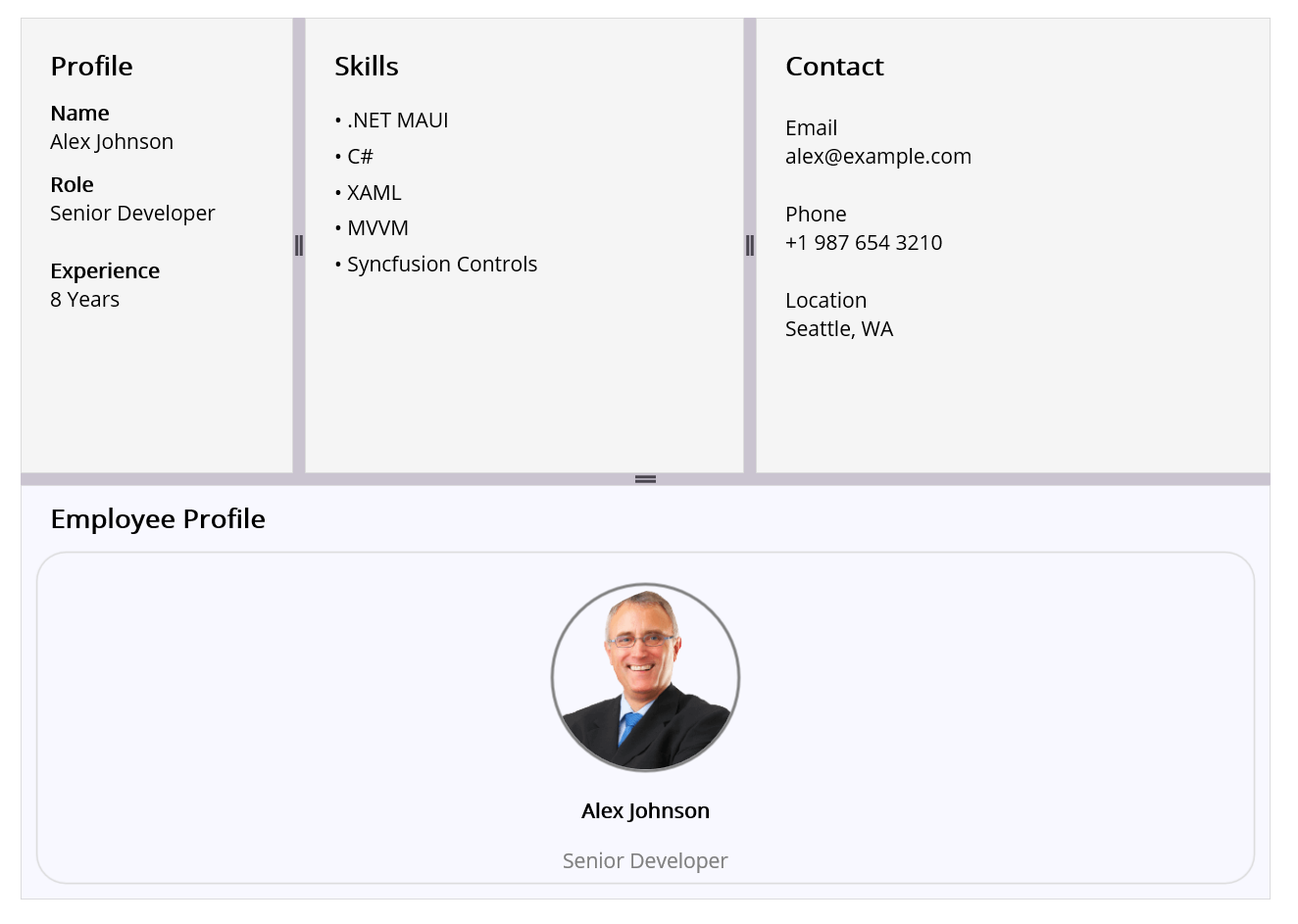
Consider an employee management application with profile details, skills, contact information, and an employee summary. Nested Grid Splitters help organize multiple content regions while keeping the layout modular, maintainable, and easy to resize.
Let’s build this interface with XAML.
Quick example: Building an employee profile layout
This example creates three panes at the top of the screen and an employee summary at the bottom. Users can resize the top and bottom sections, as well as the panes within the top section.
Step 1: Create a project and install the package
Create a .NET MAUI application in Visual Studio. Install the Syncfusion.Maui.GridSplitter NuGet package using the NuGet Package Manager or the .NET CLI:
dotnet add package Syncfusion.Maui.GridSplitterUse a package version compatible with your .NET MAUI project.
Step 2: Register Syncfusion core
In MauiProgram.cs, register the Syncfusion Core handler:
using Syncfusion.Maui.Core.Hosting;

public static class MauiProgram
{
    public static MauiApp CreateMauiApp()
    {
        var builder = MauiApp.CreateBuilder();

        builder.ConfigureSyncfusionCore();

        return builder.Build();
    }
}
Keep any existing application configuration and service registrations in this method.
Step 3: Add the Grid Splitter to your XAML page
Declare the Grid Splitter namespace in your page:
xmlns:gridSplitter="clr-namespace:Syncfusion.Maui.GridSplitter;assembly=Syncfusion.Maui.GridSplitter"Add the following layout inside the page’s content:
<gridSplitter:SfGridSplitter
    Orientation="Vertical"
    HeightRequest="600">

    <!-- Top section -->
    <gridSplitter:SplitterPane Size="2*">

        <gridSplitter:SfGridSplitter
            Orientation="Horizontal">

            <!-- Profile pane -->
            <gridSplitter:SplitterPane
                Size="1*"
                MinimumSize="180"
                IsCollapsible="True">

                <VerticalStackLayout Padding="15" Spacing="8">
                    <Label Text="Profile"
                           FontSize="18"
                           FontAttributes="Bold" />

                    <Label Text="Name" FontAttributes="Bold" />
                    <Label Text="Alex Johnson" />

                    <Label Text="Role" FontAttributes="Bold" />
                    <Label Text="Senior Developer" />

                    <Label Text="Experience" FontAttributes="Bold" />
                    <Label Text="8 years" />
                </VerticalStackLayout>

            </gridSplitter:SplitterPane>

            <!-- Skills pane -->
            <gridSplitter:SplitterPane
                Size="2*"
                MinimumSize="180"
                IsCollapsible="True">

                <VerticalStackLayout Padding="15" Spacing="8">
                    <Label Text="Skills"
                           FontSize="18"
                           FontAttributes="Bold" />

                    <Label Text=".NET MAUI" />
                    <Label Text="C#" />
                    <Label Text="XAML" />
                    <Label Text="MVVM" />
                    <Label Text="Syncfusion Controls" />
                </VerticalStackLayout>

            </gridSplitter:SplitterPane>

            <!-- Contact pane -->
            <gridSplitter:SplitterPane
                Size="1.5*"
                MinimumSize="180"
                IsCollapsible="True">

                <VerticalStackLayout Padding="15" Spacing="8">
                    <Label Text="Contact"
                           FontSize="18"
                           FontAttributes="Bold" />

                    <Label Text="Email" FontAttributes="Bold" />
                    <Label Text="[email protected]" />

                    <Label Text="Phone" FontAttributes="Bold" />
                    <Label Text="+1 987 654 3210" />

                    <Label Text="Location" FontAttributes="Bold" />
                    <Label Text="Seattle, WA" />
                </VerticalStackLayout>

            </gridSplitter:SplitterPane>

        </gridSplitter:SfGridSplitter>

    </gridSplitter:SplitterPane>

    <!-- Bottom section -->
    <gridSplitter:SplitterPane Size="1.5*">

        <VerticalStackLayout Padding="20" Spacing="10">
            <Label Text="Employee Summary"
                   FontSize="18"
                   FontAttributes="Bold" />

            <Label Text="Alex Johnson" FontAttributes="Bold" />
            <Label Text="Senior Developer" />
            <Label Text="Skills: .NET MAUI, C#, XAML, MVVM" />
        </VerticalStackLayout>

    </gridSplitter:SplitterPane>

</gridSplitter:SfGridSplitter>
How the example works
The outer SfGridSplitter uses vertical orientation to divide the layout into top and bottom sections. The top section contains a nested SfGridSplitter that arranges the Profile, Skills, and Contact panes side by side.
The following properties control the layout:
- Orientation: Determines how panes are arranged.
- Size: Defines the initial size and proportional distribution of panes.
- MinimumSize: Sets the minimum size of a pane.
- IsCollapsible: Allows users to hide and restore a pane.
Users can resize the sections and collapse individual panes to make more room for other content. You can also add data grids, charts, document previews, or other .NET MAUI views to these panes.
Common use cases
The .NET MAUI Grid Splitter is useful for applications that display multiple content areas at once.
| Application type | Example |
| Dashboards | Resize charts, reports, and filter panels. |
| Developer tools | Arrange navigation, editor, and output panels. |
| Document management | Adjust document lists, previews, and metadata panels. |
| Business applications | Organize navigation, forms, and summary views. |
| Image editing tools | Allocate more space to image previews and editing controls. |
Frequently Asked Questions
What is the .NET MAUI GridSplitter control?
The .NET MAUI Grid Splitter is a layout control that lets users interactively resize rows and columns within a Grid at runtime. By simply dragging the splitter, users can adjust the space allocated to different sections of the interface, creating more flexible, customizable, and productivity-focused application layouts.
Can the GridSplitter resize both columns and rows?
Yes. The Grid Splitter supports resizing both rows and columns. Set the Orientation property to Horizontal to resize columns or Vertical to resize rows, allowing you to tailor the behavior to your application’s layout.
Does the .NET MAUI Grid Splitter support collapsible panes?
Yes. Using the IsCollapsible property, the Grid Splitter can collapse and expand adjacent rows or columns. This allows users to hide secondary content and focus on their primary workspace quickly. Collapsible panes are particularly useful in scenarios such as navigation menus, property panels, tool windows, and master-detail interfaces.
How can I customize the appearance of the Grid Splitter?
The Grid Splitter provides several styling options to match your application’s design. You can customize properties such as Background, SeparatorBackground, Size, and SeparatorSize, along with other visual settings, to create a splitter that seamlessly integrates with your app’s theme and user experience.
Which platforms are supported by the Syncfusion .NET MAUI Grid Splitter?
The Syncfusion .NET MAUI GridSplitter is supported across all major .NET MAUI platforms, including Android, iOS, macOS (Mac Catalyst), and Windows. This ensures a consistent, responsive resizing experience across mobile, desktop, and tablet devices.

Conclusion
The Syncfusion .NET MAUI Grid Splitter makes it easier to build layouts with resizable and collapsible panes. With support for different orientations, configurable pane sizes, customizable separators, and nested splitters, you can organize complex interfaces without implementing the core resizing behavior yourself.
Explore the Grid Splitter in Essential Studio 2026 Volume 3 and try the available GitHub samples. Existing customers can download the latest version from the License and Downloads page, while new users can start with a 30-day free trial.
For questions or assistance, visit the Syncfusion support forums, support portal, or feedback portal.







 No spam, just valuable updates.