
 Anandh Ganesan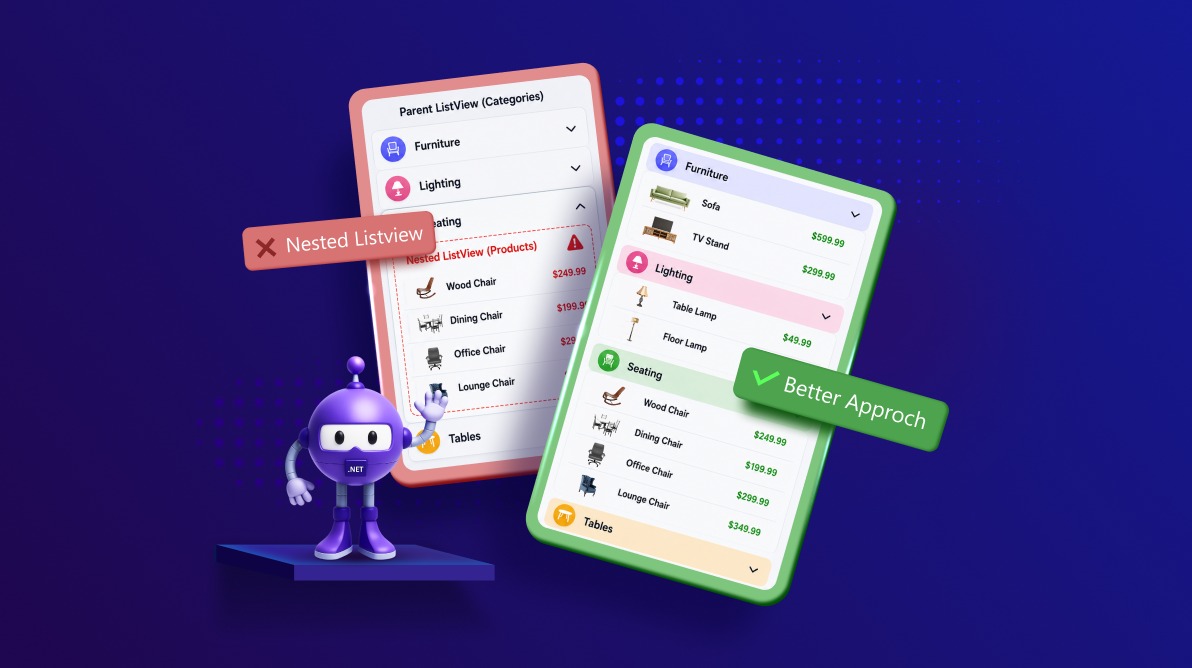
TL;DR: Nested ListView in .NET MAUI is often introduced as layouts grow more complex. This article explores where that pattern creates challenges and examines the alternative list structuring approaches commonly used instead.
Using .NET MAUI ListView to build complex, data-heavy layouts often starts smoothly, especially when the UI structure closely mirrors the data model. The friction shows up later, usually when lists grow, layouts become interactive, and scrolling needs to stay fluid across devices.
This guide walks through what actually happens inside Syncfusion® .NET MAUI ListView when lists are nested, why those internal behaviors lead to gesture conflicts and layout thrashing, and how common replacement patterns, such as grouping, expand/collapse rows, and composite templates, change the performance profile of a page.
Along the way, it also looks at where nesting sometimes cannot be avoided, what trade-offs it introduces, and how tuning options like sizing strategy and incremental loading affect real-world scrolling behavior in Syncfusion ListView.
Why you should avoid nested ListView
1. Competing virtualization pipelines
Each List View maintains its own recycling, measurement, and layout lifecycle. When one ListView is nested inside another, both attempt to virtualize independently.
Any change in the inner list can force the outer list to remeasure, triggering cascading layout passes. As item counts grow, this directly impacts scroll smoothness.
2. Re-entrant layout and memory pressure
Expandable inner lists, dynamic item heights, or late data loading trigger repeated layout invalidations. On mobile hardware, that translates into extra CPU work and short-lived allocations, issues that surface as stutter or frame drops.
3. Gesture and scroll ownership conflicts
When both parent and child List View controls believe they own vertical scrolling, gesture arbitration becomes unpredictable. Users experience sticky scrolling, missed swipes, or inconsistent touch handling.
4. Accessibility and focus side effects
Keyboard navigation and accessibility tools struggle with nested scroll regions. Managing focus across multiple ListView instances often requires additional customization that offsets the original layout simplicity.
Designing hierarchy without Nesting Syncfusion ListView
The key architectural shift is this: hierarchy does not require nested ListView controls.
With Syncfusion’s ListView features, you can preserve structure while keeping a single, predictable virtualization and scrolling pipeline.
Grouping
Grouping is the most scalable alternative to nested lists. It is an organizational pattern that buckets items into labelled sections based on a shared key.
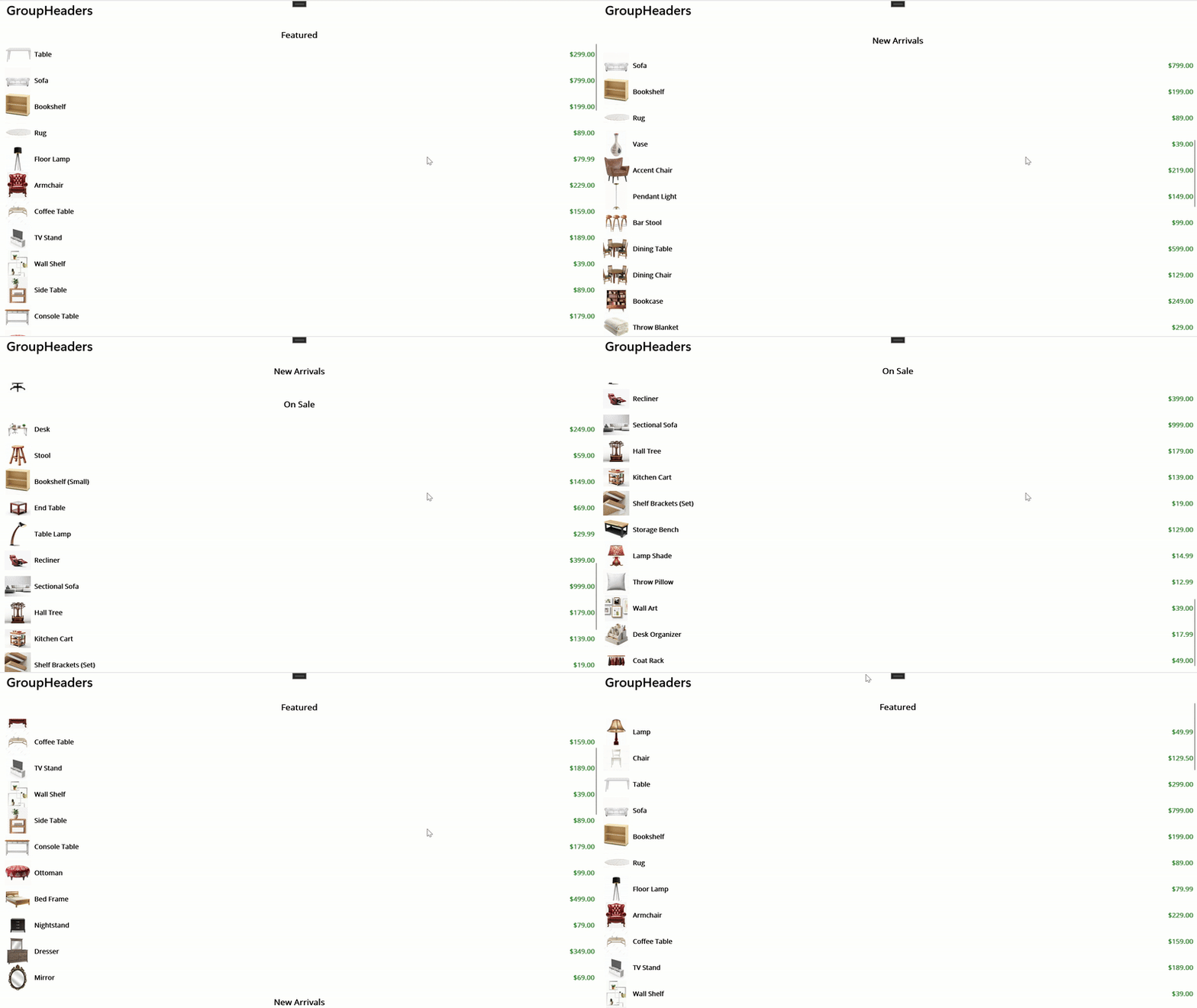
Instead of embedding ListViews, bind a single SfListView to a flat collection and group items using a shared key (for example, CategoryName). Group headers render inline, optionally as sticky headers, while all items scroll within a single virtualized surface.
Why grouping works well in Syncfusion ListView:
- One virtualization pipeline.
- Predictable measurement behavior.
- Clear visual hierarchy without layout recursion.
- Stable performance with large datasets.
This pattern fits catalogs, settings pages, and any screen where sectioning matters more than strict parent-child interaction.
Let’s implement the grouping feature in Syncfusion .NET MAUI ListView.
Step 1: Creating a data model
Start by creating a data model to bind to the ListView. Define a Product class with Name, Price, and CategoryName (used as the grouping key) in a Product.cs file, as shown in the code example below.
public sealed class Product
{
    public string Name { get; set; } = string.Empty;
    public decimal Price { get; set; }
    public string CategoryName { get; set; } = string.Empty;
    public bool IsHeader { get; set; }
}

public sealed partial class Category : BindableObject
{
    public string Name { get; set; } = string.Empty;

    private bool isExpanded;
    public bool IsExpanded
    {
        get => isExpanded;
        set
        {
            if (isExpanded == value) return;
            isExpanded = value;
            OnPropertyChanged();
        }
    }

    public ObservableCollection<Product> Products { get; } = new();
}
Step 2: Populate the model collection in the ViewModel
Next, create a view model to supply grouped data. Build Categories and flatten the data into GroupedProducts (ObservableCollection) in CatalogViewModel.cs, assigning CategoryName to each item so grouping can be resolved at the list level, as shown in the code example below.
public class CatalogViewModel
{
    public ObservableCollection<Category> Categories { get; }
    public ObservableCollection<Product> GroupedProducts { get; }

    public CatalogViewModel()
    {
        Categories = new ObservableCollection<Category>
        {
            new Category
            {
                Name = "Featured",
                Products =
                { // Add products here
                }
            }
        };

        var flat = new List<Product>();
        foreach (var cat in Categories)
        {
            flat.Add(new Product
            {
                CategoryName = cat.Name,
                IsHeader = true
            });
            foreach (var p in cat.Products)
            {
                flat.Add(new Product
                {
                    Name = p.Name,
                    Price = p.Price,
                    CategoryName = cat.Name
                });
            }
        }

        GroupedProducts = new ObservableCollection<Product>(flat);
    }
}
Step 3: Binding the ViewModel and defining the item template
Define the XAML that renders a single, grouped list. Bind Syncfusion .NET MAUI ListView to GroupedProducts, configure grouping using CategoryName through a GroupDescriptor, and provide templates for group headers and list items, including optional sticky headers, as shown in the code example below.
<!-- Grouped List View with sticky headers (details in GitHub demo) -->
<sfListView:SfListView ItemsSource="{Binding GroupedProducts}"
                       IsStickyGroupHeader="True"
                       SelectionMode="None">
    <!-- sfListView:SfListView.DataSource with sfData:GroupDescriptor -->
    <!-- GroupHeaderTemplate: shows {Binding Key} -->
    <!-- ItemTemplate: shows product fields -->
</sfListView:SfListView>
Here’s a quick demo of the feature in action:
Expand/Collapse items using a single SfListView
Expand and collapse is a disclosure pattern that works particularly well with Syncfusion .NET MAUI ListView.
Instead of pushing users into nested lists or secondary views, parent rows reveal or hide related content inline. The ListView remains continuous, and users never lose scroll context.
To implement this feature, bind Syncfusion .NET MAUI List View to the Categories collection through the page’s BindingContext. Then define an ItemTemplate that renders a tappable category header and conditionally displays its child items when IsExpanded is true, as shown in the code example below.
<!-- reuse the Model and ViewModel from the Grouping section. -->
<!-- Expandable rows (details in GitHub demo) -->
<sfListView:SfListView ItemsSource="{Binding Categories}"
                       SelectionMode="None">
    <!-- ItemTemplate:
        - Header row with tap gesture or command
        - Divider line
        - Child items in a BindableLayout shown when IsExpanded -->
</sfListView:SfListView>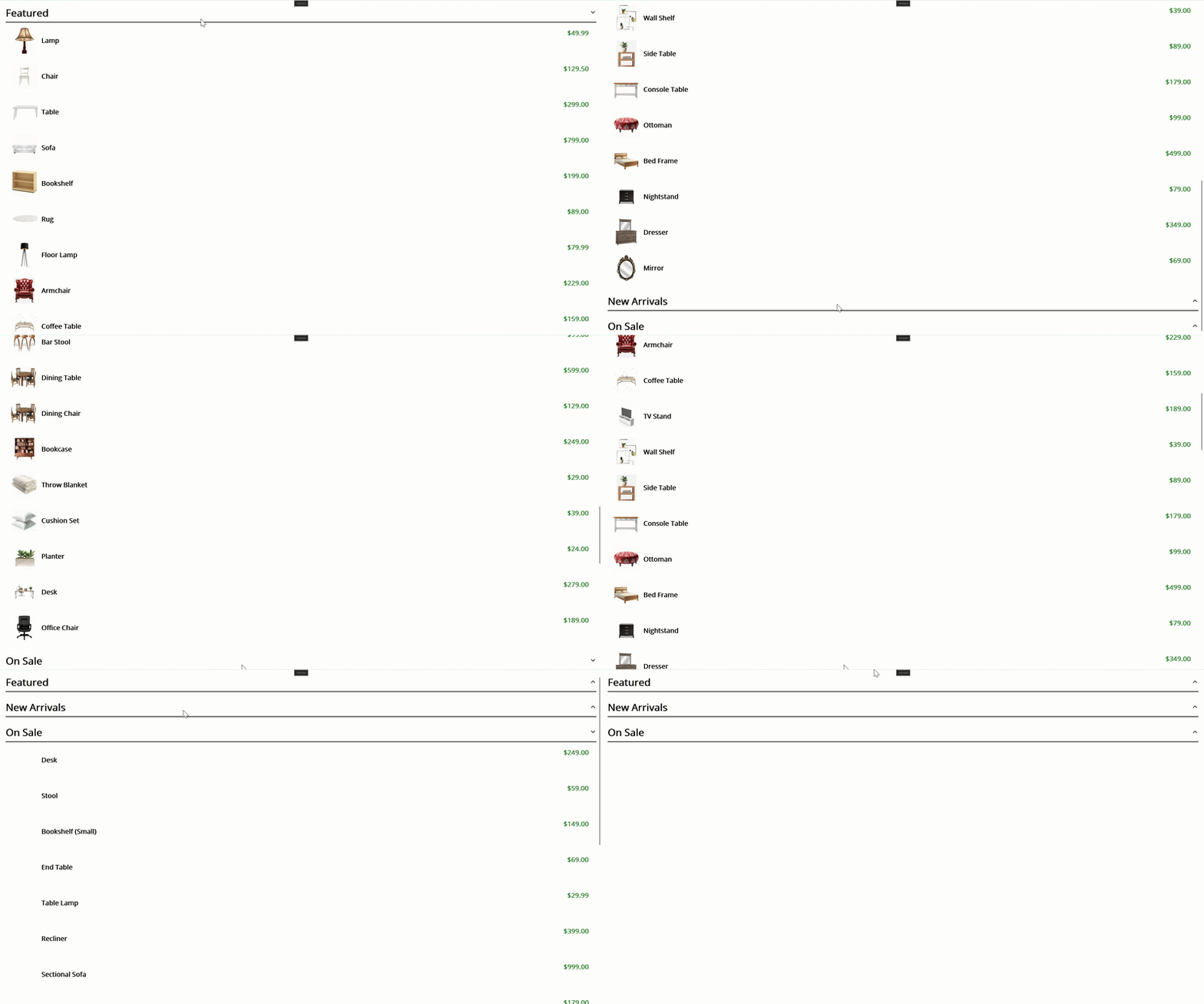
Composite item template
Some screens are heterogeneous rather than hierarchical.
Using a DataTemplateSelector with Syncfusion ListView allows you to render different row types: headers, items, and dividers inside a single ListView instance. The control still maintains one recycling and measurement path.
This pattern is ideal for:
- Feed-style layouts.
- Mixed content lists.
- Scenarios where row structure varies by item state.
You gain flexibility without fragmenting virtualization across multiple controls.
Step 1: Defining the template selector
Create a template selector to render header and item rows differently within a single ListView. Define ProductTemplateSelector (e.g., ProductTemplateSelector.cs) that switches between HeaderTemplate and ItemTemplate based on the IsHeaderproperty, as shown in the code example below.
public sealed class ProductTemplateSelector : DataTemplateSelector
{
    public DataTemplate? HeaderTemplate { get; set; }
    public DataTemplate? ItemTemplate { get; set; }

    protected override DataTemplate OnSelectTemplate(object? item, BindableObject container)
    {
        if (item is Product product && product.IsHeader)
        {
            return HeaderTemplate ?? ItemTemplate ?? new DataTemplate(() => new ContentView());
        }

        return ItemTemplate ?? HeaderTemplate ?? new DataTemplate(() => new ContentView());
    }
}
Step 2: Binding ViewModel and apply template selector
Next, declare HeaderTemplate and ItemTemplate in the page’s resources, register ProductTemplateSelector, and apply it to a Syncfusion .NET MAUI List View bound to Rows, as shown in the code example below.
<!-- Reuse the Model and ViewModel from the Grouping section -->
<ContentPage.Resources>
    <!-- ParentTemplate and ChildTemplate -->
    <!-- TemplateSelector with HeaderTemplate/ItemTemplate -->
</ContentPage.Resources>

<sfListView:SfListView ItemsSource="{Binding Categories}"
                       ItemTemplate="{StaticResource ProductTemplateSelector}"
                       SelectionMode="None" />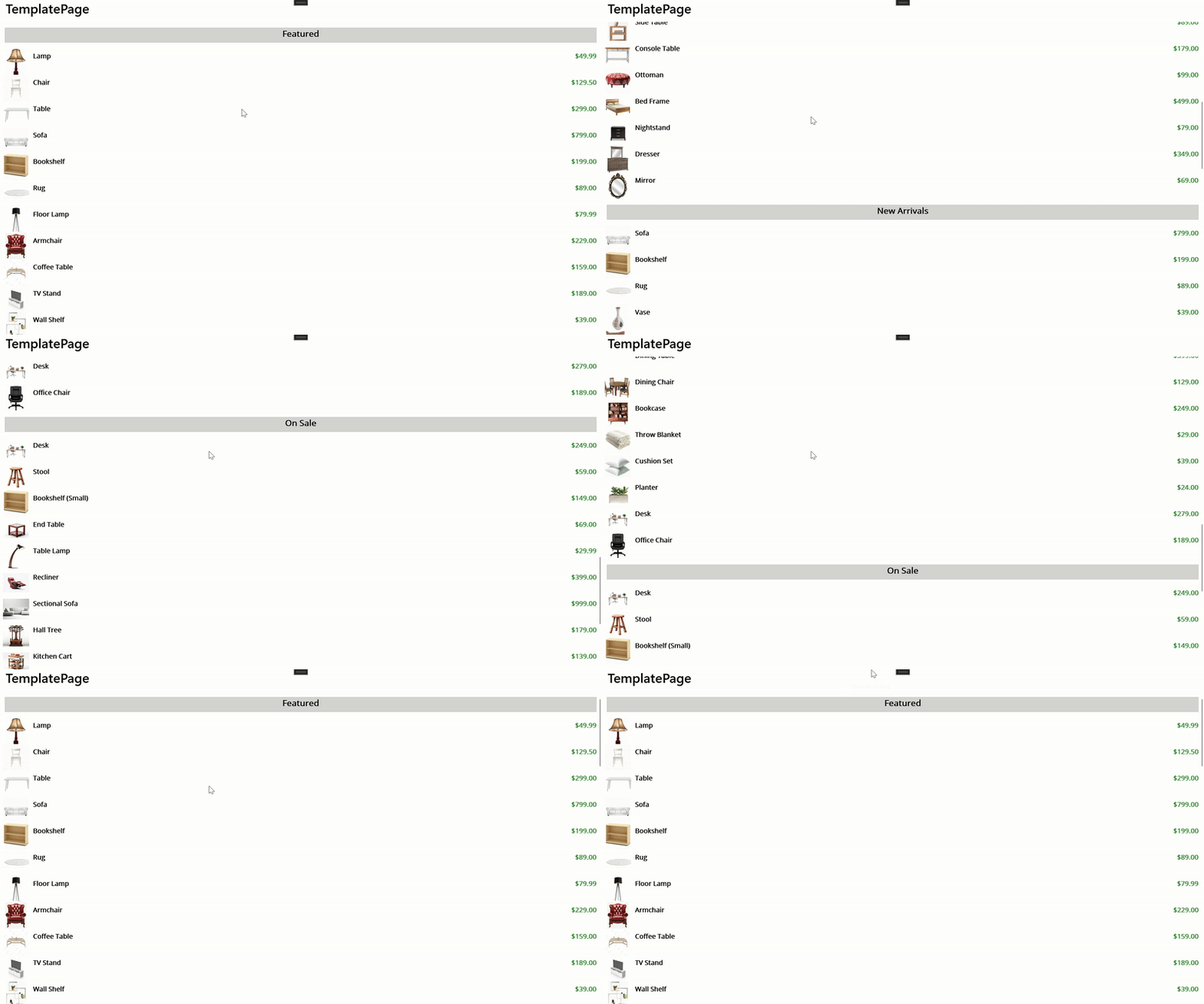
When a nested ListView is unavoidable
There are edge cases where nesting cannot be removed entirely. In those cases, the goal is containment, not elegance.
Horizontal ListView inside a vertical feed
A horizontal SfListView embedded in a vertical one can be acceptable when:
- The inner list has a fixed height.
- Item templates are lightweight.
- The outer ListView remains the sole vertical scroll owner.
Because scroll direction differs, gesture ownership stays clear.
Try this in your code:
<!-- Vertical List View with a compact horizontal strip per section -->
<sfListView:SfListView ItemsSource="{Binding Categories}">
    <sfListView:SfListView.ItemTemplate>
        <DataTemplate>
            <VerticalStackLayout>
                <Label Text="{Binding Name}"
                       FontAttributes="Bold" />
                <!-- Inner horizontal strip: fixed HeightRequest, simple item template -->
                <sfListView:SfListView ItemsSource="{Binding Products}"
                                       Orientation="Horizontal"
                                       HeightRequest="120">
                    <!-- Simple item template -->
                </sfListView:SfListView>
            </VerticalStackLayout>
        </DataTemplate>
    </sfListView:SfListView.ItemTemplate>
</sfListView:SfListView>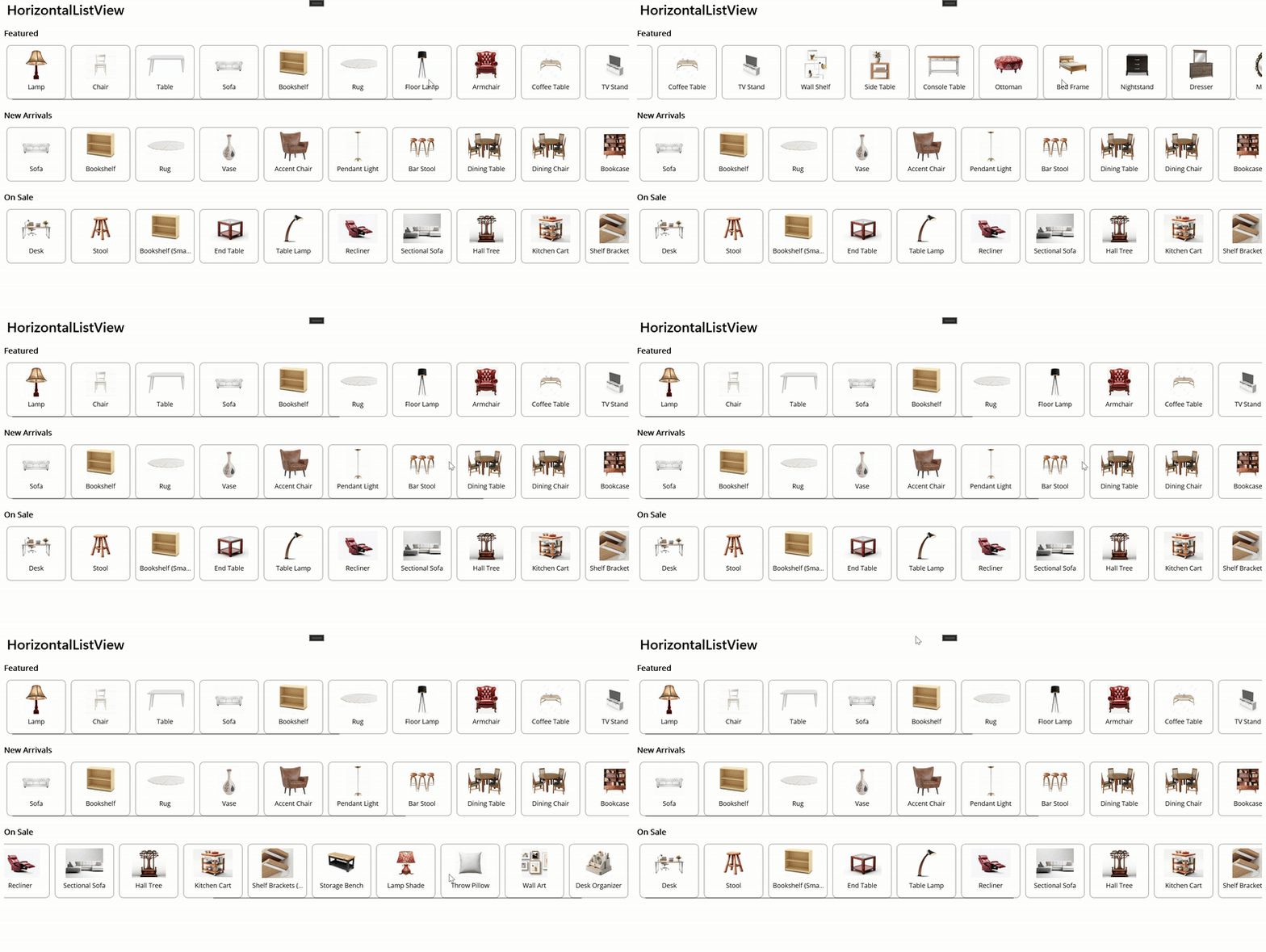
Vertical List inside another vertical feed
If you must nest vertically:
- Disable scrolling on the inner SfListView.
- Assign an explicit height.
- Keep item counts tightly bounded.
At this point, you are deliberately opting out of inner virtualization so that the outer ListView controls scrolling and layout.
Here’s how you can do it in code:
<!-- Vertical inside vertical: fix inner height; outer list owns scrolling -->
<sfListView:SfListView ItemsSource="{Binding Categories}">
    <sfListView:SfListView.ItemTemplate>
        <DataTemplate>
            <VerticalStackLayout>
                <Label Text="{Binding Name}"
                       FontAttributes="Bold" />
                <sfListView:SfListView ItemsSource="{Binding Products}"
                                       IsScrollingEnabled="False"
                                       HeightRequest="{Binding Products.Count,
                                                      Converter={StaticResource MultiplyConverter},
                                                      ConverterParameter=72}">
                    <!-- Lightweight item template -->
                </sfListView:SfListView>
            </VerticalStackLayout>
        </DataTemplate>
    </sfListView:SfListView.ItemTemplate>
</sfListView:SfListView>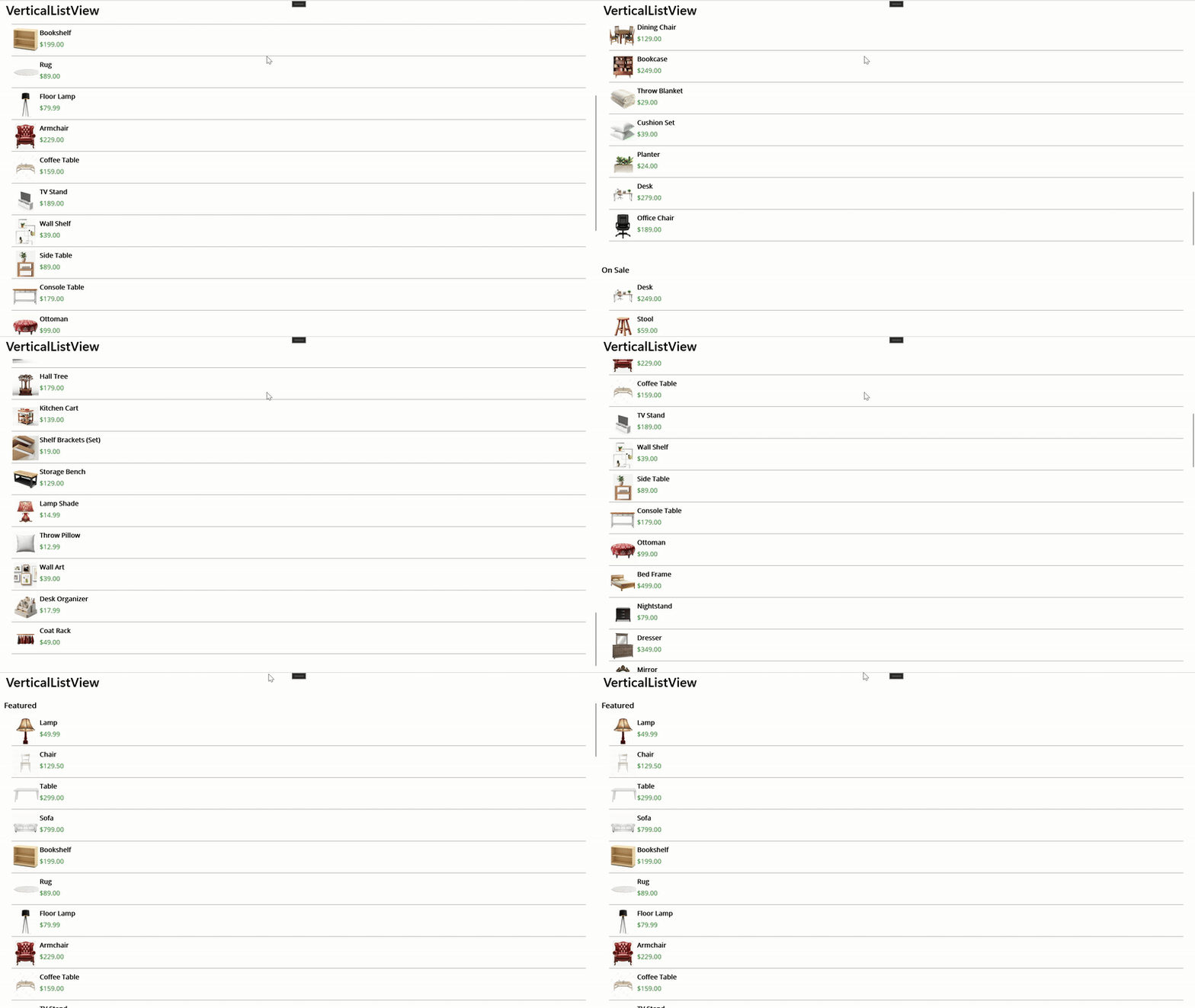
Syncfusion .NET MAUI ListView performance tuning that matters
Regardless of layout strategy, performance depends on a few non-negotiables when using SfListView:
- ItemSize for uniform rows to skip per-item measurement.
- QueryItemSize when item heights genuinely vary.
- Incremental loading to control memory usage.
- Template discipline: minimal nesting, explicit image sizing, and predictable bindings.
Well-structured layouts can still stutter if templates are heavy or sizing is left ambiguous.
Key takeaways for Syncfusion MAUI ListView layouts
- Avoid nesting vertical SfListView controls whenever possible.
- Keep a single scroll surface to stabilize virtualization and gestures.
- Use grouping, expand/collapse, and template selection to express hierarchy.
- Tune Syncfusion .NET MAUI List View for speed: set ItemSize (or use
QueryItemSize), enable incremental loading, and keep images sized/cached. - If you need a horizontal strip inside a vertical feed, fix its height and skip inner virtualization so only the outer list does the heavy lifting.
GitHub reference
For a complete working example of nested ListView alternatives in .NET MAUI, see the GitHub demo.
Frequently Asked Questions
It buckets items by a key (e.g., CategoryName), shows labelled headers (optionally sticky), keeps a single scroller, and reduces measure/memory overhead.How does grouping improve performance and UX?
Yes, as a lightweight, fixed-height horizontal strip (non-virtualized) so the outer vertical ListView remains the sole scroll owner.Is a horizontal ListView inside a vertical ListView ever acceptable?
Disable inner scrolling and give the inner list an exact height (e.g., via a converter on Products.Count). Keep item counts bounded and templates light.What if I must place a vertical ListView inside another vertical ListView?
Avoid vertical-in-vertical scrollers, flatten data, use grouping/expand-collapse/template selectors, tune ItemSize/QueryItemSize, enable incremental loading, and fix heights for any inner horizontal strips.What are the key takeaways to maintain smooth scrolling?
Use grouping when items share a clear key (e.g., CategoryName) and need labelled sections. Use DataTemplateSelector for mixed row types in one feed.When should grouping be used instead of a DataTemplateSelector?
Yes. Group by CategoryName and enable expand/collapse per group to show/hide items inline.Can grouping and expand/collapse be combined?
Sticky headers work independently. Collapsing a group reduces items; the header remains sticky while its section is in view.How do sticky group headers interact with expand/collapse?

Conclusion
Thank you for reading! Designing list layouts with a single scrolling surface helps keep interaction and measurement predictable as UI complexity grows. Patterns such as grouping, composite templates with DataTemplateSelector, and inline expand/collapse align well with how Syncfusion .NET MAUI ListView handles virtualization.
Applying sizing strategies like ItemSize or QueryItemSize, along with incremental loading, further supports consistent scrolling behavior as data volume increases. Together, these approaches help maintain smooth interaction and scalable performance in data‑rich MAUI applications.
If you’re a Syncfusion user, you can download the setup from the license and downloads page. Otherwise, you can download a free 30-day trial.
You can also contact us through our support forum, support portal, or feedback portal for queries. We are always happy to assist you!







 No spam, just valuable updates.