
 RajaVignesh BalaSankar
TL;DR: Build reliable PDF annotations in JavaScript with full feature support, consistent rendering, and seamless import/export. Eliminate missing highlights, broken comments, and workflow disruptions. Fully customize annotation behavior and styling with flexible, developer‑friendly APIs. Deliver fast, scalable, and user‑friendly PDF experiences with a powerful JavaScript PDF Viewer.
PDF annotations are essential, so why do they still break?
You can already view PDFs in your web app.
But the moment you rely on annotations, things start falling apart.
Sound familiar?
- You highlight content, only to find it missing later.
- You add a comment, but it shows up differently the next time.
- You share a file, yet others can’t see the same annotations.
These aren’t small issues; they disrupt real work.
Today, annotations are how teams review, collaborate, and make decisions directly on documents. When they don’t work reliably, everything slows down, and users lose trust.
So, what’s causing this?
Why do so many JavaScript PDF viewers struggle with consistency and persistence?
In this blog, we’ll break down what’s going wrong behind the scenes and show how Syncfusion® JavaScript PDF Viewer solves it with reliable, production-ready annotation tools that just work.
Why most JavaScript PDF Viewers fail at annotations
Many PDF annotation issues stem from architectural limitations, incomplete feature sets, and inconsistent support for PDF standards. These annotation issues often lead to frustration, especially when PDF annotations are not shown in a JavaScript PDF viewer or fail during export/import workflows.
Let’s explore the issues and their root causes in detail.
Feature deficiencies
1. Limited annotation types
Issue: Some viewers support only basic tools (e.g., highlight, underline). No advanced types like stamps, ink/freehand, or shape annotations.
Cause: Incomplete feature set and partial support for PDF annotation standards.
2. Crashes during annotation rendering
Issue: The viewer throws errors or crashes when rendering annotations.
Cause: Poor error handling, unhandled exceptions, or missing support for specific annotation subtypes.
3. The annotation layer is hard to use
Issue: Enabling or customizing the annotation layer is confusing and slow to implement.
Cause: Poor or unclear documentation, non‑obvious flags, and fragmented architecture.
Real-world examples:
“PDF Annotation layer is rendered incorrectly.”
— User on Github, Issue #17936
“How to use the annotation layer in PDF.js?”
— User on StackOverflow, Issue
Limitations and technical issues
1. Annotation export/import limitations
Issue: Difficulty in exporting annotations to standard formats (like XFDF or FDF) or importing them back correctly can disturb review workflows.
Cause: Lost comments, incorrect states, and rendering issues after roundtrips.
Real-world example:
“export and import serialized annotations. Is this possible?”
— User on GitHub, Issue #19845
2. Accessibility limitation and interactivity gaps
Issue: Annotations aren’t keyboard-navigable or readable by assistive technologies, blocking tab focus, screen-reader announcements, and access to comment context and controls.
Cause: Canvas‑based rendering of annotations instead of semantic HTML creates no DOM/ARIA hooks.
Real-world example:
“Section 508 accessibility issue with the underlying Canvas element with no name.”
— User on GitHub, Issue #14437
Configuration and usability challenges
1. Unwanted watermark appearance
Issue: Overlay text may appear unexpectedly over PDFs, especially in demo or misconfigured environments.
Cause: Default or demo templates, or misconfigured settings enabled by default and not clearly documented and indicated.
2. Editor buttons can’t be disabled
Issue: Users can’t disable individual annotation tools or entire tool groups in the JavaScript PDF viewer toolbar or using APIs.
Cause: The SDK exposes a limited toolbar API with no granular configuration or runtime events to enable/disable controls.
3. Highlighting fails and sticks
Issue: Text highlighting doesn’t work without a proper text layer, or the last highlight color carries over between sessions.
Cause: The JavaScript PDF viewer lacks or disables the text layer, which is common in lightweight or some React-based setups, and the state isn’t reset properly due to incomplete state management.
Real-world example:
“Highlight annotation color inconsistency with the last rectangle on PDF pages.”
— User on GitHub, Issue #4366
These issues don’t just affect developers, they directly impact end users trying to review, collaborate, and make decisions.
Find the trusted all‑in‑one solution your PDF annotations deserve
Syncfusion JavaScript PDF Viewer offers a robust and developer-friendly annotation support that directly addresses the common issues found in other PDF viewers. Issues may be persistent highlight settings, limited customization, or annotation crashes, our JavaScript PDF Viewer provides a stable, modular, and highly configurable solution to ensure perfect annotation rendering, customization, and more.
Let’s see how it solves the above annotation-related problems.
PDF annotations with import/export capabilities
1. Wide range of annotation types
The JavaScript PDF Viewer supports a wide range of annotation types, including:
- Text Markup,
- Stamps,
- Free text,
- Freehand drawing,
- Shapes,
- Signatures,
- StickyNotes,
- Link annotations and more.
Refer to the following image.
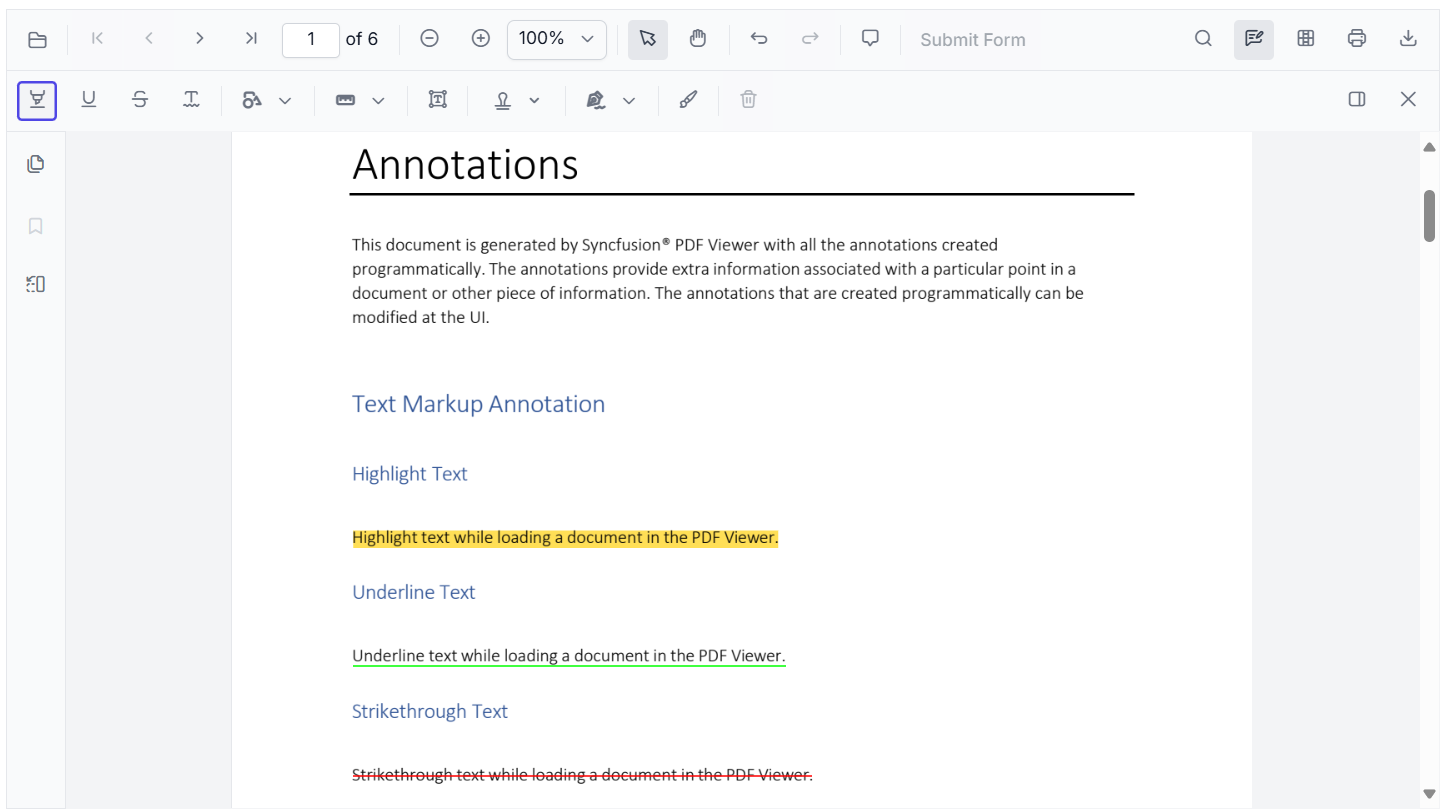
Users can add annotations directly from the built‑in annotation toolbar.
To do so, first open the annotation toolbar by clicking the Annotation icon on the primary toolbar. Then, choose the tool you need and place it on the PDF page by clicking or tapping to draw.
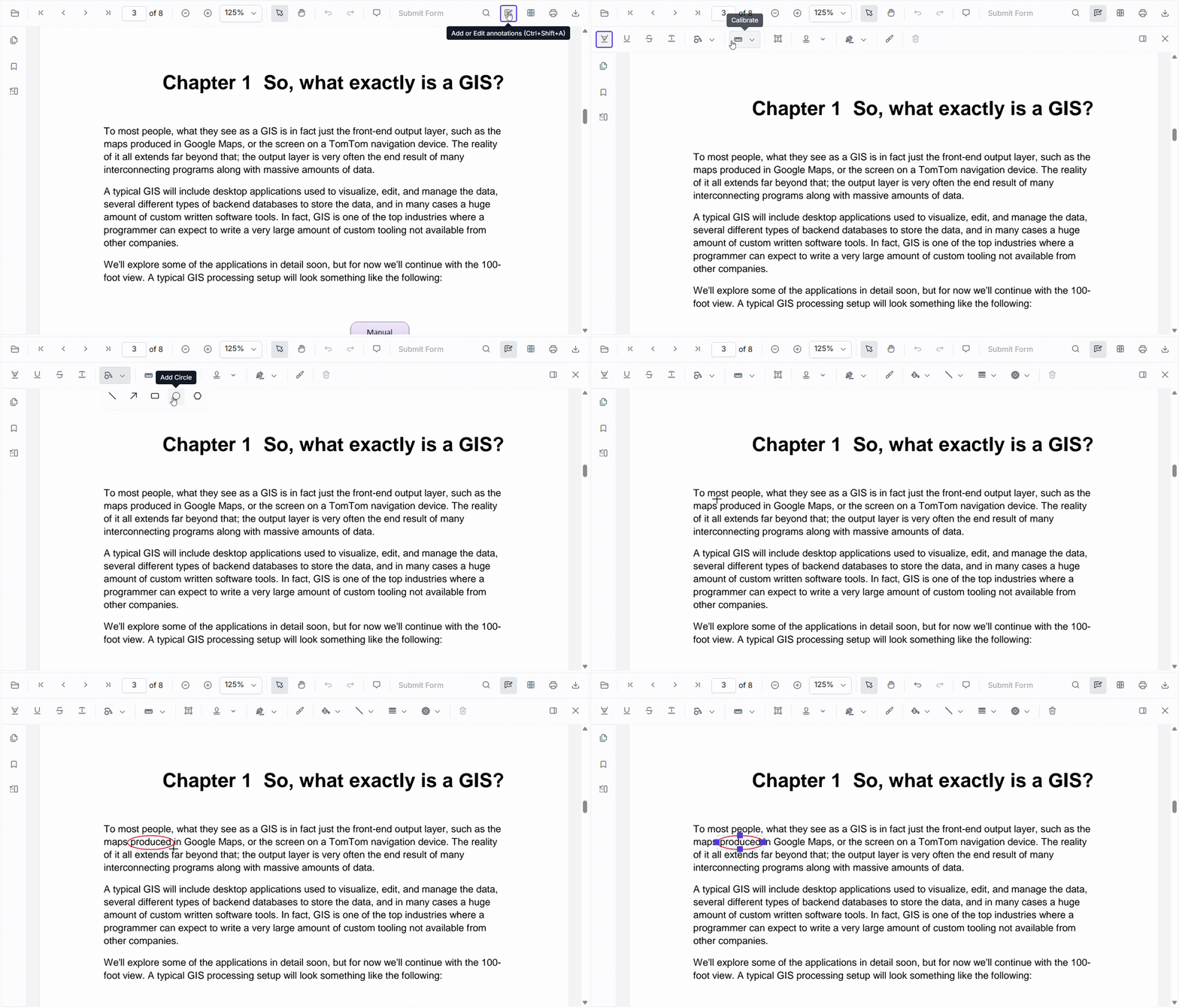
You can also add annotations programmatically using the addAnnotation API.
2. Client-side annotation layer
You can add, modify, and remove annotations entirely on the client-side, reducing server load and improving responsiveness.
3. Export/import in different formats
Annotations can be imported from or exported to external sources in formats such as fdf, xfdf, json, and JavaScript objects.
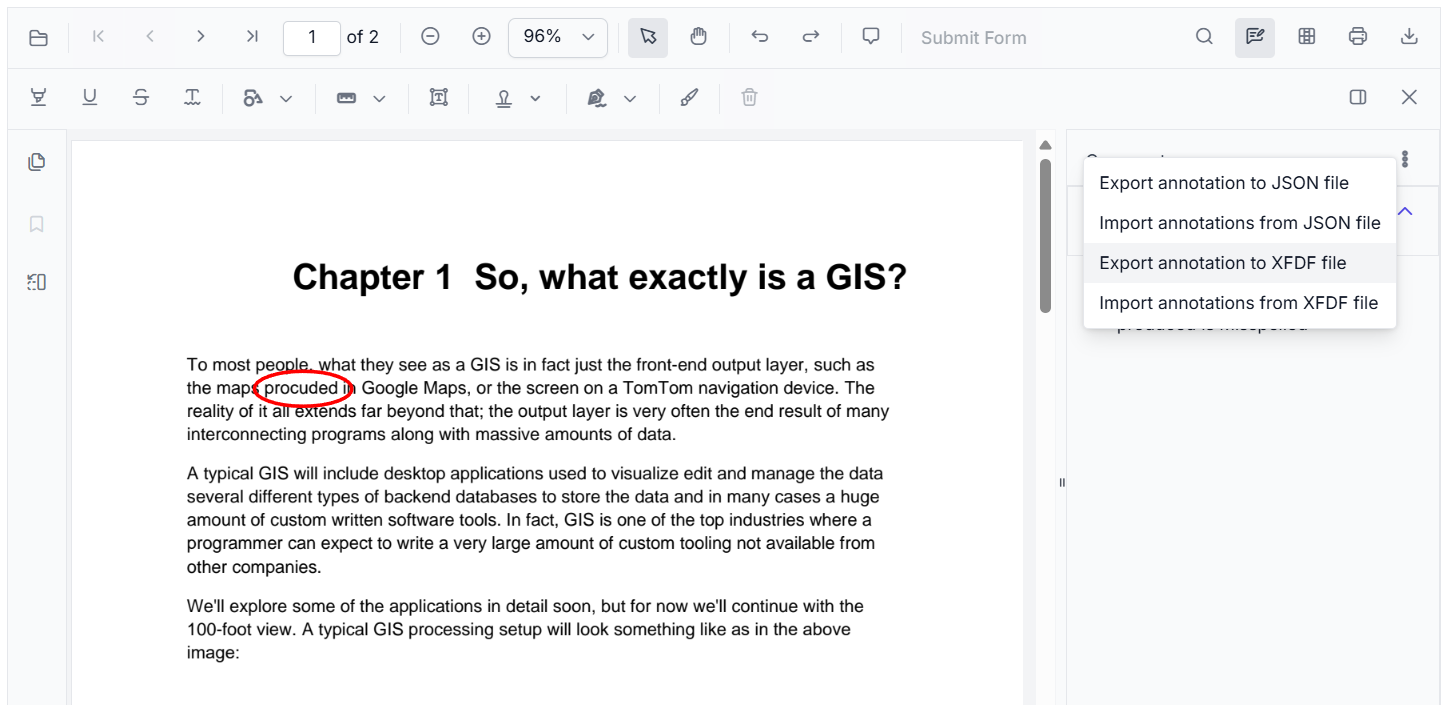
You can also programmatically export annotations as:
- XFDF or JSON format using the
exportAnnotationmethod and - JavaScript object type using the
exportAnnotationsAsObjectmethod.
Customizable annotation behavior with enhanced state and visibility control
1. Annotation reset and state handling
The JavaScript PDF Viewer ensures that annotation tools such as highlight colors, shapes, and stamps reset predictably when reopening documents. This avoids confusion and maintains a clean user experience.
2. Style and appearance customization
The built‑in annotation toolbar enables us to select the relevant properties of an existing annotation or annotate type. So, the user can customize its properties (e.g., color, opacity, border, thickness, size) as needed to match branding or user preferences. This is especially useful in enterprise apps.
Refer to the following GIF image.
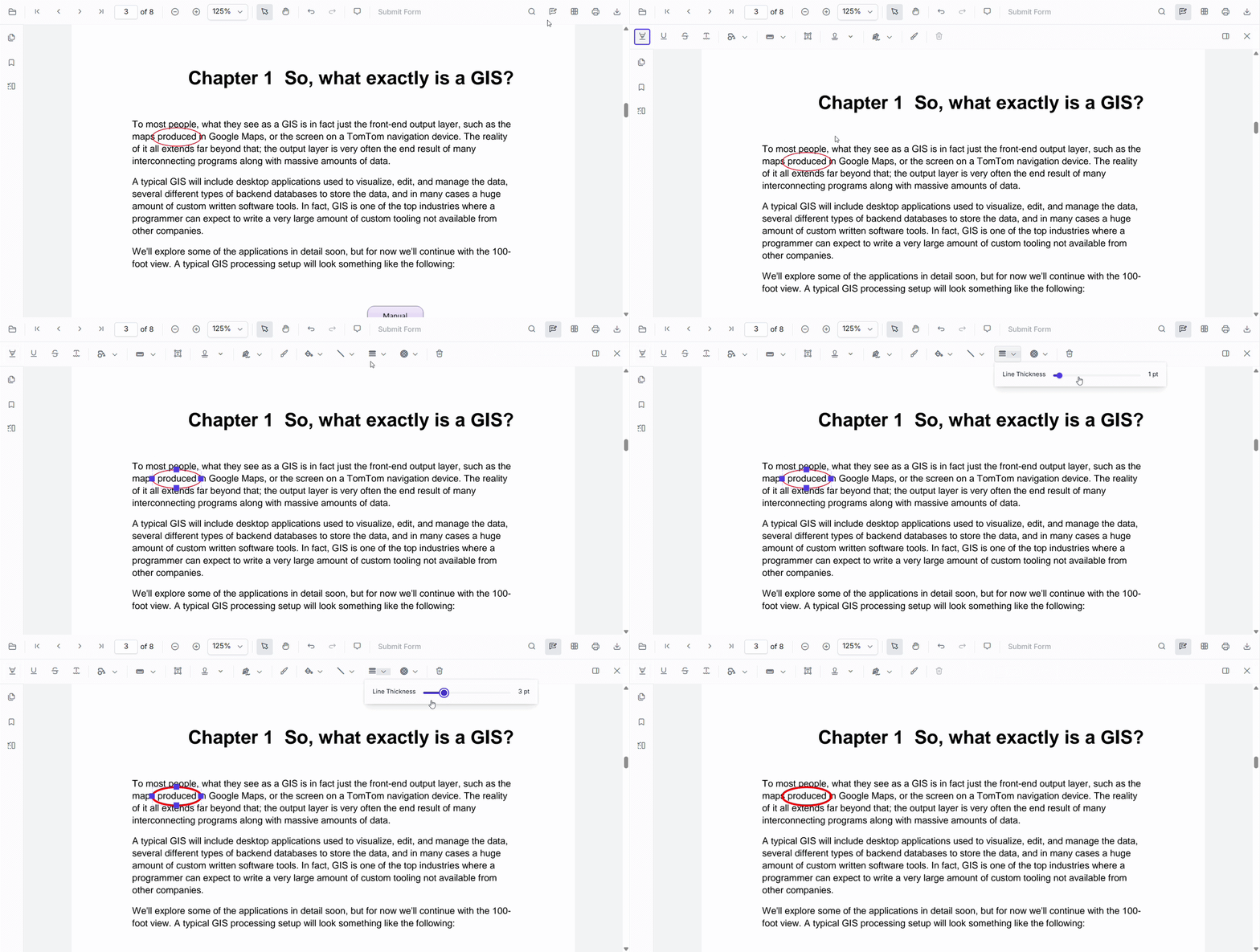
Also, you can programmatically customize the annotations in a PDF using the editAnnotation API.
3. Annotation visibility control
Our JavaScript PDF Viewer allows us to dynamically show, hide, or delete annotations to toggle between clean reading and review modes.
To delete an annotation, click or tap it to select, then choose the Delete icon from the built‑in annotation toolbar. The Delete icon becomes active once the annotation is selected.
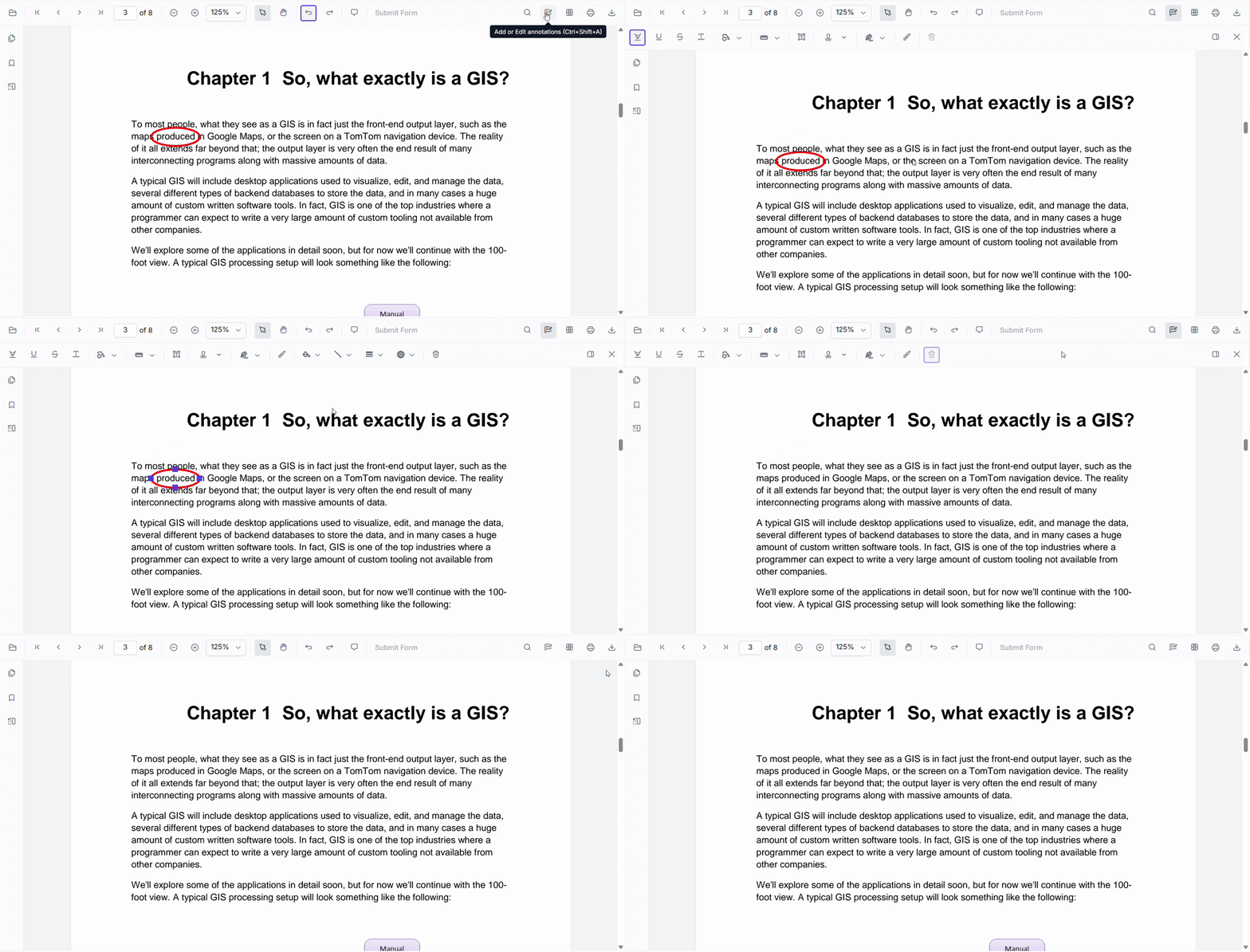
You can also delete an annotation by right‑clicking on it and choosing the Cut or Delete option from the context menu.
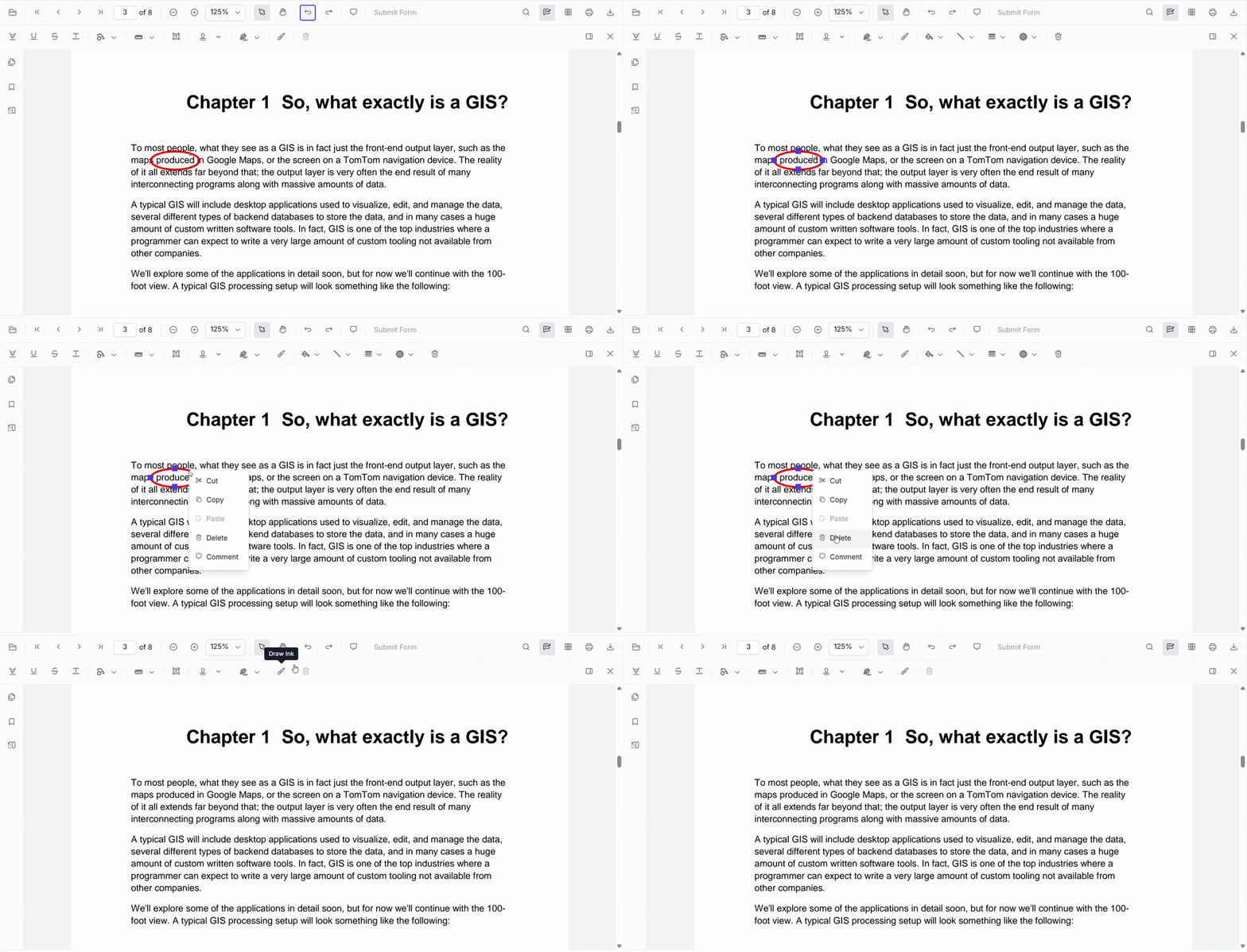
Also, we can delete any specific annotation programmatically by its ID using the deleteAnnotationById method. To delete all annotations in the PDF with a single action, use the deleteAnnotations method.
Support for measuring tools and annotation comments
1. Measuring annotation tools
The PDF Viewer even supports measure annotation tools, enabling precise engineering and design reviews.
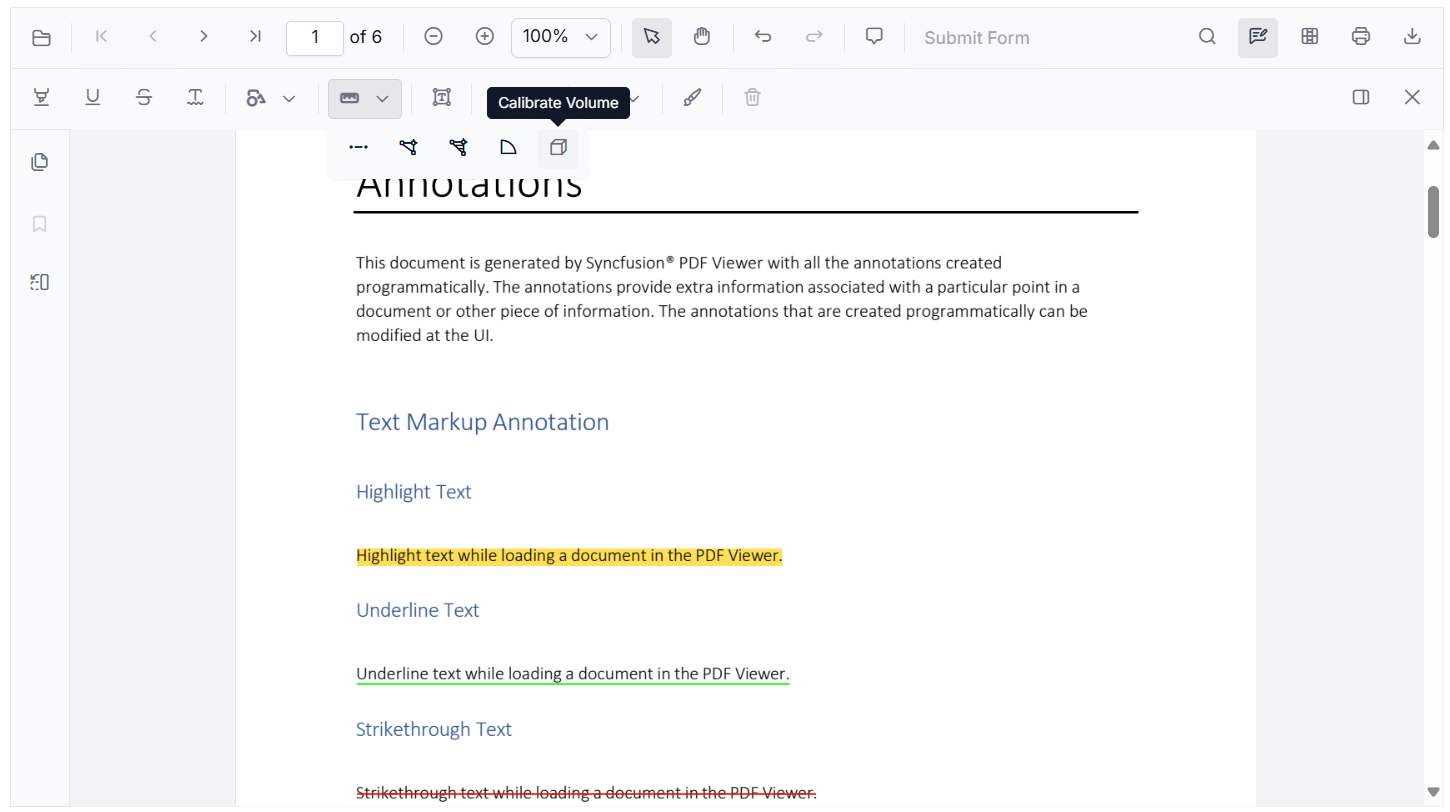
2. Annotation comments
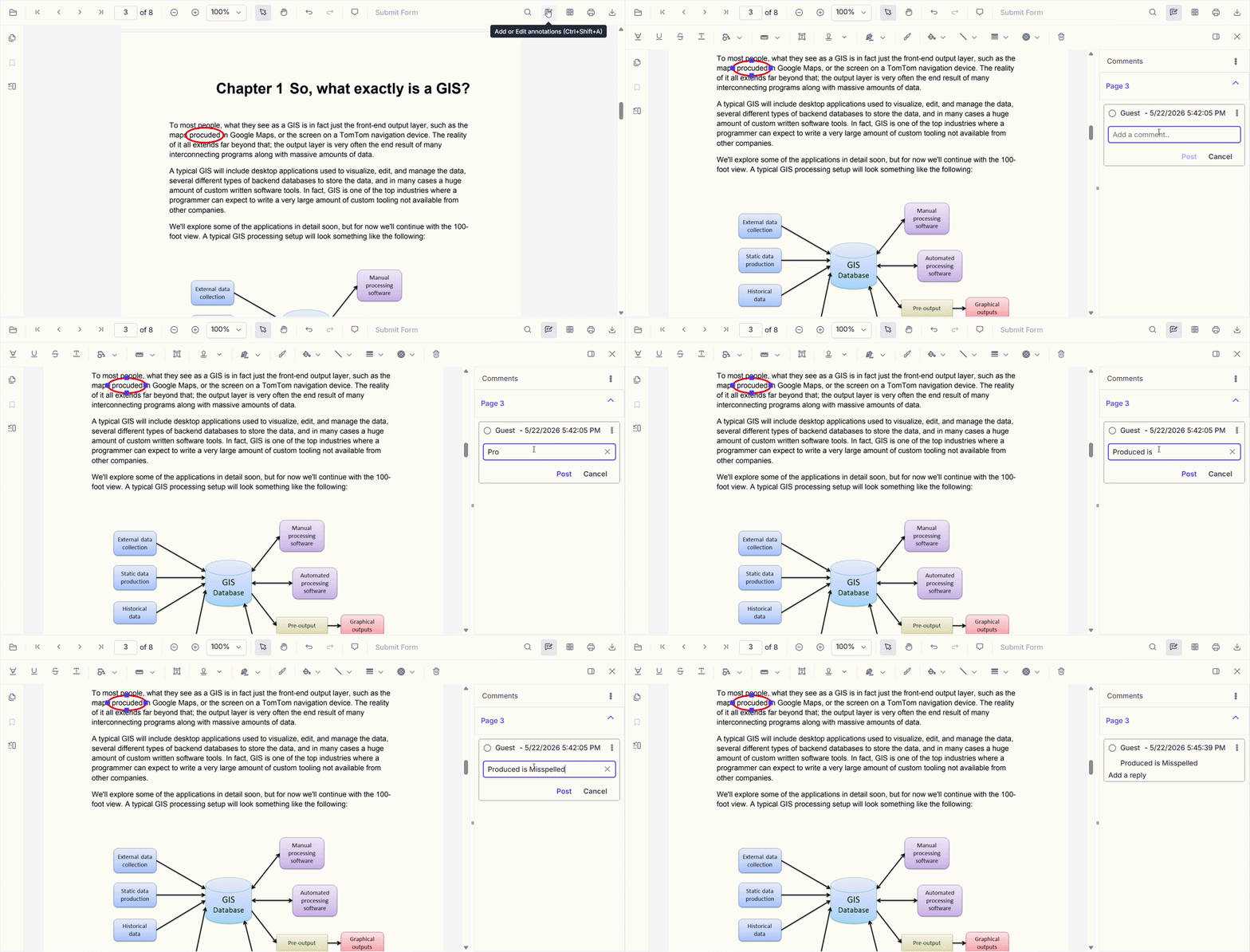
Users can add comments to any annotation using the Comments panel in the built‑in annotation toolbar. They can also add comments by right‑clicking an annotation and choosing the Comment option from the context menu.
Flexible and modular annotation configuration
1. Modular feature loading
Using feature modules, only the required annotation features can be loaded, improving performance and reducing bundle size.
2. Rich annotation API configuration
Developers have full control over annotation behavior and appearance through a flexible, well-documented, and comprehensive API list that allows users to easily customize or disable UI elements dynamically.
3. Comprehensive documentation availability
The JavaScript PDF Viewer provides detailed guides and examples to learn how to enable or configure annotations properly.
Why developers choose our JavaScript PDF Viewer
- Highly configurable: Every annotation tool and behavior can be tailored to the app’s needs.
- Save, download, and print annotations: Annotations are preserved when saving or printing.
- Rich built-in toolbar for annotation drawing: The PDF Viewer includes a ready-to-use toolbar with tools for drawing shapes, text markup, stamps, and more.
- Comments support for annotation: Annotations can include comments, enabling collaborative feedback and discussion directly within the document.
- Context menu support: Right-clicking action opens the context menu with quick access to custom annotation actions.
- Delete annotations: Users or developers can remove all annotations from a document with a single action, useful for resetting or cleaning up.
- Undo/redo support: Users can easily reverse or reapply annotation actions and get error recovery during document markup.
- Reliable and crash-free: Built with stability in mind, even large or complex PDFs render annotations smoothly.
- Cross-platform support: Works completely across JavaScript, Angular, React, Vue, and Blazor.
- Enterprise-ready: Supports form filling, digital signatures, localization, and accessibility, making it ideal for business-critical apps.
Explore the guide and API to see annotations in action, or jump into the live demo for a hands‑on experience.
Frequently Asked Questions
Can I programmatically filter annotations by type in the PDF Viewer?
Yes. The annotation APIs allow developers to access and manage annotation collections programmatically. Using these APIs, you can filter annotations by type, such as highlights, shapes, or stamps, using custom logic within your app.
Can I customize the annotation toolbar in the PDF Viewer?
Yes. Syncfusion offers flexible toolbar customization options for the PDF Viewer. Developers can enable, disable, or reorder specific annotation tools based on app requirements, providing a tailored experience for different user roles or workflows.
Does the PDF Viewer support interactive form fields alongside annotations?
Yes. The JavaScript PDF Viewer supports interactive form fields, such as text boxes, checkboxes, and dropdowns. These work alongside annotations, allowing users to fill out forms and add comments within the same document.
Can I import multiple annotation formats into a single PDF file without issues?
Yes. The PDF Viewer supports importing annotations from XFDF, FDF, and JSON formats into a single document. This ensures cross-tool compatibility and allows smooth annotation data exchange without loss or rendering conflicts.
Finally, it’s time to say goodbye to PDF annotation issues
Thanks for reading! If unreliable annotations have been disrupting your workflow, it’s time to switch to a solution built for consistency, flexibility, and real‑world performance.
Syncfusion JavaScript PDF Viewer brings together powerful annotation capabilities, from text markup and shapes to measurements and form interactions, into a seamless, fully customizable experience that simply works.
With its modular architecture, rich styling options, and comprehensive documentation, you have complete control to build, customize, and scale annotation workflows without the usual friction.
Ready to experience hassle‑free PDF annotations?
Download the latest version if you’re an existing user or start your free 30-day trial to explore everything in action.
Have questions or feedback?
Reach out via our support forum, support portal, or feedback portal. We’re always here to help you!



 No spam, just valuable updates.