
 RajaVignesh BalaSankar
TL;DR: Struggling with broken layouts, missing annotations, or distorted images when printing PDFs in JavaScript? Discover how Syncfusion’s PDF Viewer delivers flawless print quality, preview support, and flexible options for developers and users.
Why printing PDFs in JavaScript is so hard
Printing PDFs in JavaScript is often more complicated than it seems. While the goal sounds simple, render a document and send it to the browser’s print engine, the reality is far more complex.
When printing directly from a web app, developers frequently encounter issues, such as:
- Distorted formatting
- Missing annotations
- Incomplete content
That is where a reliable PDF viewer makes all the difference. A good viewer doesn’t just render documents accurately on screen; it also ensures the printed output matches the original. This is especially crucial for professional documents such as invoices, contracts, and reports.
In this guide, we will explore why JavaScript PDF printing often fails, examine browser-specific rendering limitations, and show how Syncfusion® JavaScript PDF Viewer delivers a reliable, optimized solution for seamless PDF printing.

The real-world pain points: Common print failures in JavaScript PDF Viewers
Developers often struggle with PDF printing blank pages, layout distortions, and missing content when working with JavaScript. Browser inconsistencies, canvas rendering limitations, and a lack of error feedback make troubleshooting difficult. These issues disrupt user experience and complicate development in document-heavy apps.
1. Printing output challenges
- Broken or misaligned layouts: Printed documents can lose their original structure, causing elements to shift or overlap, especially in multi-column or grid-based layouts. This directly impacts readability and professional presentation.
- Images distorted or cropped: Improper scaling and resolution handling during printing can stretch images or crop important visual details. The result is incomplete visuals and a poor first impression.
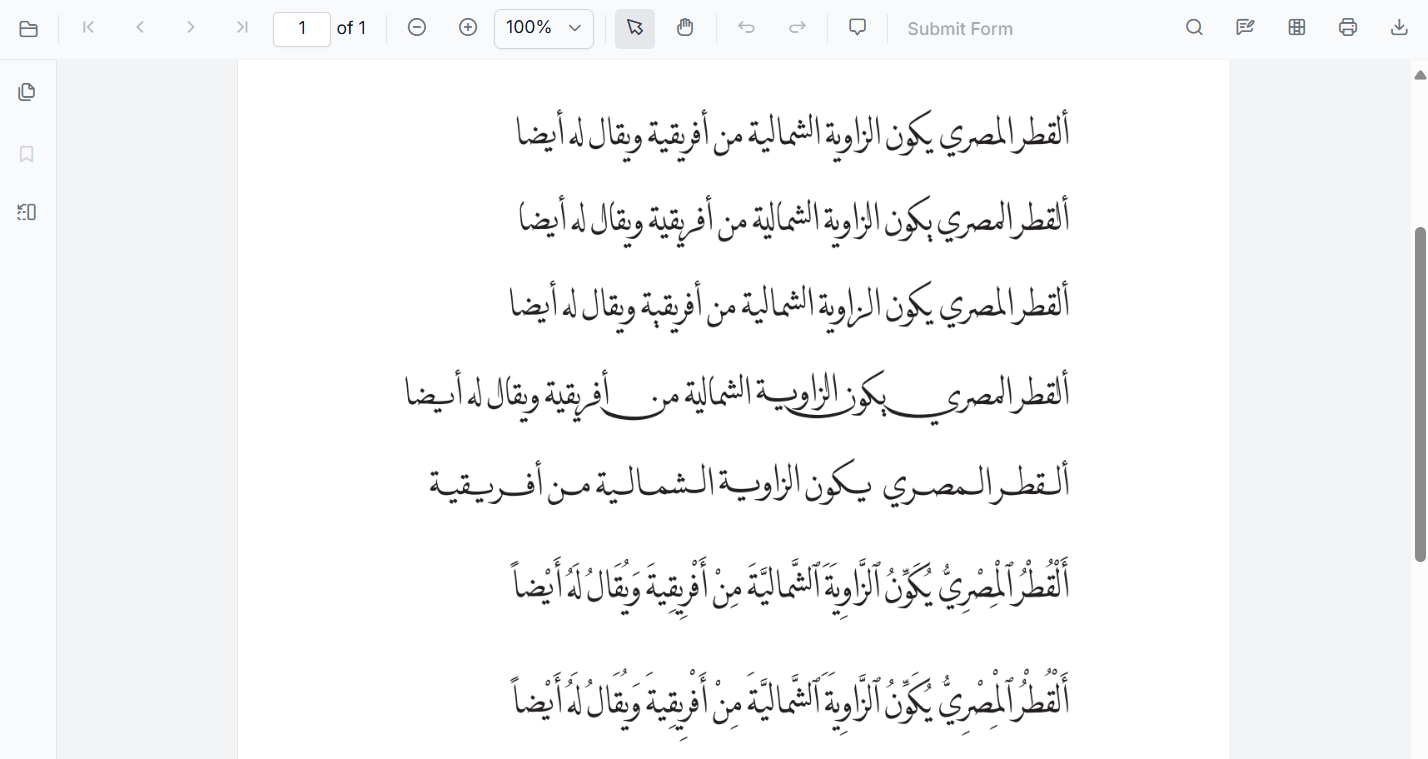
- Non-English characters rendering incorrectly: Languages such as Chinese, Arabic, or Tamil may not print correctly due to missing fonts, encoding mismatches, or limited Unicode support in browser print engines. This creates challenges for global accessibility and localization.
- Missing QR codes and barcodes: Dynamically generated elements such as QR codes and barcodes, often rendered using canvas or SVG, may be skipped or rendered incorrectly during printing. This breaks workflows in logistics, authentication, and tracking systems.
- Annotations missing: Highlights, comments, and form fields frequently fail to appear in printed output, reducing clarity and undermining collaborative review processes.
2. Lack of print preview options
One of the most overlooked, but critical, features in web-based PDF viewing is print preview. Without it, users are left printing documents blindly, with no way to confirm what the final output will look like. This often leads to:
- Misaligned layouts that break the document’s structure.
- Missing annotations or form fields that break collaboration.
- Font rendering issues, especially custom or embedded fonts.
These issues aren’t just inconvenient; they can cause serious problems in professional or compliance-driven environments where precision matters.
Unfortunately, many open-source PDF viewers, such as PDF.js, offer only basic print functionality and lack dedicated print preview support. As a result, users do not get the confidence or control they need before clicking Print.
3. Browser-specific printing failures
Browsers like Chrome frequently struggle when printing canvas-based PDFs. Users may encounter blank pages or distorted output, particularly with large or complex documents. These failures are often unpredictable and difficult to resolve, adding frustration for both developers and end users.
Syncfusion’s solution: Seamless, reliable PDF printing
Syncfusion JavaScript PDF Viewer addresses these challenges with a reliable, optimized printing engine. Instead of relying on window.print() or canvas snapshots, it uses a dedicated rendering pipeline that converts PDF pages into high-resolution images. This approach ensures consistent print quality, preserves layout and annotations, and avoids common browser-related issues.
1. High-quality print output
Syncfusion ensures exceptional clarity and accuracy by converting PDF pages into high-resolution images before printing. This method preserves original layouts, fonts, and embedded elements, while eliminating common browser-induced distortions.
Key elements retained in the printed output include:
- QR codes and barcodes: Printed with precision to maintain scan accuracy for logistics, ticketing, and form-based workflows.
- Annotations and highlights: User-added notes and emphasis are preserved, supporting collaborative review and documentation.
- Images and logos: Visual branding and graphics are printed clearly without distortion or cropping.
- Special characters and multilingual text: Unicode and font embedding ensure accurate rendering of global languages and symbols.
Refer to the following images for more visual clarity.
Before print After print
 |  |
This high-fidelity output makes Syncfusion JavaScript PDF Viewer ideal for industries where print quality is critical, such as business, education, and government.
2. Support for print preview
Syncfusion JavaScript PDF Viewer includes a built-in print preview feature. It helps users see exactly how the document will appear before printing. This removes guesswork and reduces the risk of layout errors, missing elements, or formatting issues.
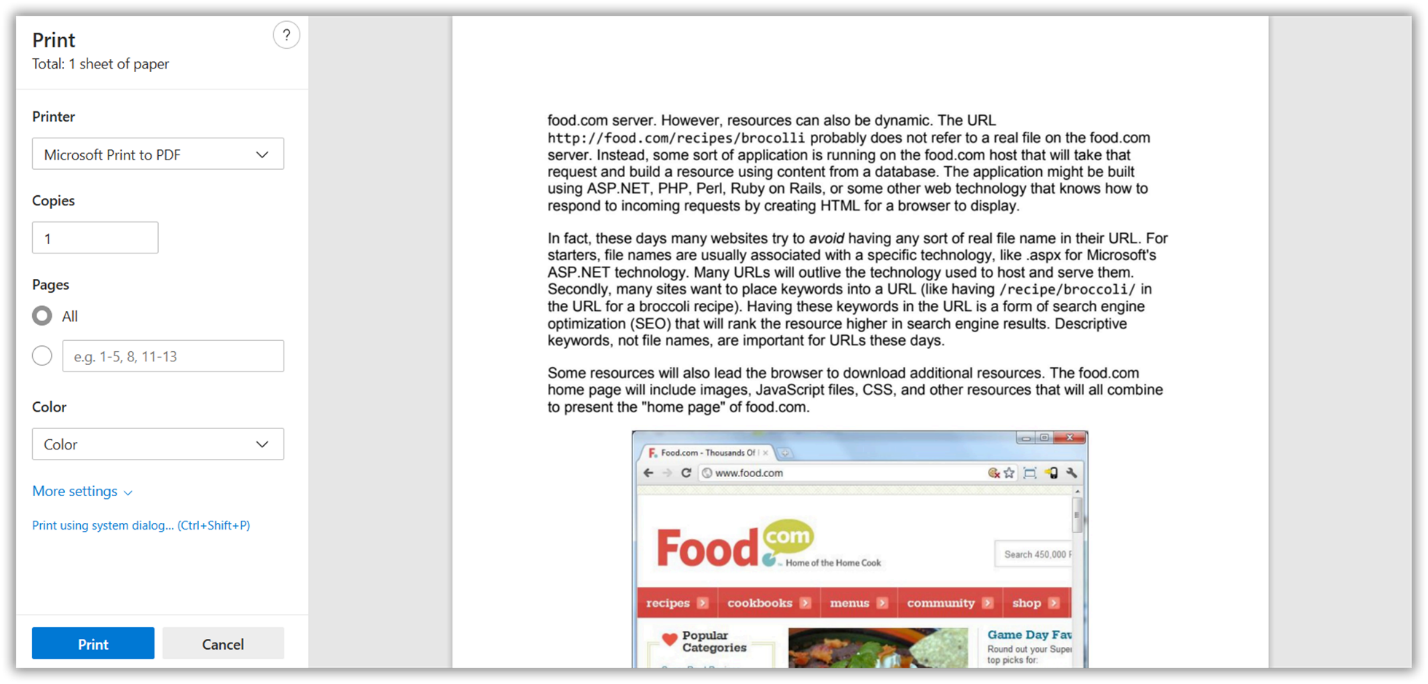
By offering a visual confirmation step, it enhances user confidence and ensures that the final printed output meets expectations, especially important in professional and compliance-driven environments.
3. Flexible printing options
Developers can customize the print experience with a wide range of options:
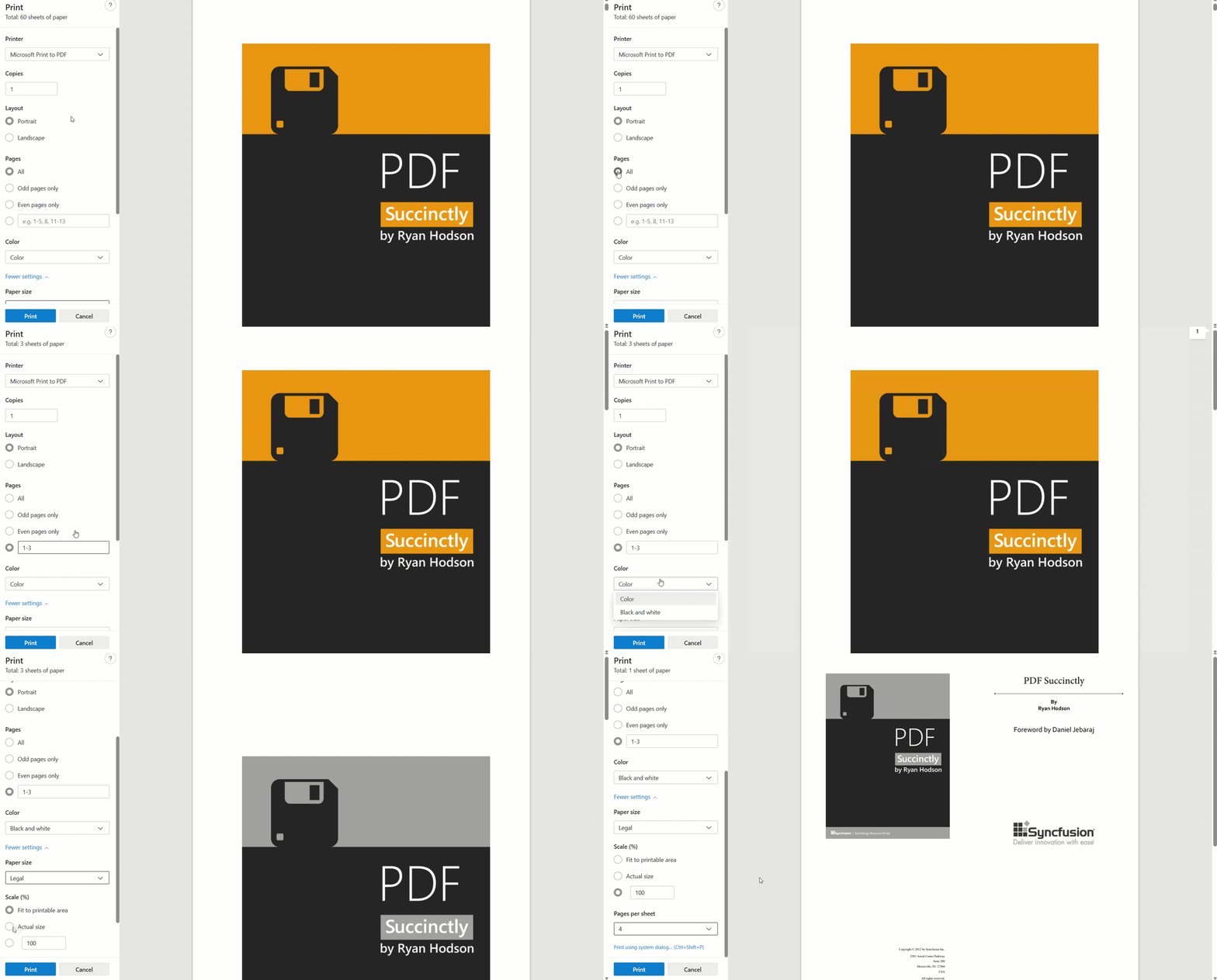
- Page range selection: Instead of printing the entire document, users can choose specific pages to print. This feature is particularly useful for lengthy PDFs, allowing users to focus on relevant sections and conserve resources.
- Content scaling: Developers can enable scaling options that adjust the content size to fit the selected paper dimensions. Whether zooming in for clarity or shrinking to fit, this feature helps maintain visual integrity across different print formats.
- Paper size customization: The viewer supports a variety of standard and custom paper sizes, allowing documents to be printed according to specific requirements. This is ideal for use cases involving legal forms, certificates, or specialized templates.
- Color vs. black & white printing: Users can toggle between color and grayscale printing, helping conserve ink or match specific document standards.
- Pages per sheet: Allows printing multiple pages on a single sheet (e.g., 2-up, 4-up), which is useful for saving paper or creating compact handouts.
- Built-in headers and footers: It includes basic headers and footers, such as page numbers and timestamps, improving document clarity without requiring custom formatting.
Please see the image below for more information.
4. Fixing PDF print issues in browsers
While many browsers struggle with printing canvas-based PDFs, often showing blank or distorted pages, Syncfusion JavaScript PDF Viewer avoids these issues by using a reliable print module that renders each page accurately. The result is consistent printing across all major browsers.
5. Fine-tuning print quality
Syncfusion provides the PrintScaleFactor API to fine-tune print output quality. You can set the printScaleFactor between 0.5 and 5, where higher values improve print clarity but may increase rendering time. The default value is 1.
Here’s the code snippet to implement this feature.
var pdfviewer = new ej.pdfviewer.PdfViewer({
    enablePrint: true,
    documentPath: "https://cdn.syncfusion.com/content/pdf/pdf-succinctly.pdf",
    printScaleFactor: 0.5,
});
ej.pdfviewer.PdfViewer.Inject(
    ej.pdfviewer.Toolbar,
    ej.pdfviewer.Magnification,
    ej.pdfviewer.LinkAnnotation,
    ej.pdfviewer.ThumbnailView,
    ej.pdfviewer.BookmarkView,
    ej.pdfviewer.TextSelection,
    ej.pdfviewer.TextSearch,
    ej.pdfviewer.Navigation,
    ej.pdfviewer.Print
);
//By changing values, you can change the quality of the PDF.
pdfviewer.appendTo('#PdfViewer');
Note: For more detailed implementation steps, customization options, and troubleshooting tips, refer to the Syncfusion JavaScript PDF Viewer documentation.
Frequently Asked Questions
What does the printScaleFactor property do, and what value should I use?
The 'printScaleFactor' property controls the resolution at which each PDF page is rendered before being sent to the print engine. The default value is 1; increasing it up to 5 produces sharper output but takes longer to render. In Syncfusion PDF Viewer, this gives developers direct control over the trade-off between print quality and performance based on their use case.
How do I trigger PDF printing programmatically in Syncfusion PDF Viewer?
You can call the print() method directly on the viewer instance to initiate printing from code, no user interaction required. This is useful for workflows that auto-print on document load or after a specific action completes. Syncfusion PDF Viewer exposes a clean API for printing programmatically, making it easy to integrate into any JavaScript or framework-based application.
Can I restrict users from printing a PDF in Syncfusion PDF Viewer?
Yes. Setting enablePrint: false in the viewer configuration disables both the print toolbar button and programmatic print calls. Syncfusion PDF Viewer also respects PDF-level print permissions, so if a document was secured with print restrictions, those are honored automatically.
Does Syncfusion PDF Viewer deliver consistent print output across Chrome, Firefox, Edge, and Safari?
Yes. Syncfusion PDF Viewer uses a dedicated rendering pipeline that converts each page into a high-resolution image before passing it to the browser’s print engine. This approach sidesteps the canvas-rendering inconsistencies that cause blank or distorted pages with raw window.print() implementations, ensuring reliable results across all major browsers.
How can I listen to print lifecycle events in Syncfusion PDF Viewer?
Syncfusion PDF Viewer exposes printStart and printEnd events that fire before and after the print process respectively. You can use these to display loading indicators, capture analytics, or run cleanup logic. This level of control isn’t possible with a basic window.print() call.
Can I print a PDF from a new browser tab instead of the current window in Syncfusion PDF Viewer?
Yes. Syncfusion PDF Viewer supports two print modes, printing from the current window or from a newly opened tab. Using a separate window keeps the current page’s UI uninterrupted during the print process, which is helpful in single-page applications. Just note that the browser’s pop-up blocker must allow new tabs for this to work correctly.

Reliable PDF printing in JavaScript: Simplified with Syncfusion
Thanks for reading! Printing PDFs in JavaScript isn’t always straightforward. Browser quirks, layout inconsistencies, and silent printing failures are common, especially when working with complex documents. Syncfusion JavaScript PDF Viewer simplifies this process by delivering a reliable, cross-browser PDF printing experience you can trust.
With built-in print preview, flexible print settings, and a robust rendering engine, it consistently produces accurate output. Annotations, form fields, QR codes, and multilingual content are preserved as expected, while developers gain fine-grained control through APIs such as printScaleFactor and print lifecycle events.
If you’re a Syncfusion user, download the latest setup from the license and downloads page. New to Syncfusion? Start with a 30-day free trial and explore the full capabilities of the JavaScript PDF Viewer.
You can also contact us through our support forums, support portal, or feedback portal. We are always happy to assist you!
 No spam, just valuable updates.