
 RajaVignesh BalaSankar
TL;DR: Zoom problems in JavaScript PDF viewers can cause blurry text, broken shortcuts, and sluggish navigation. This guide explores the common causes behind these issues and shows how optimized rendering, accurate zoom handling, and built-in shortcut support improve the PDF viewing experience.
Smooth PDF zooming without frustration
For professionals who demand precision, whether it’s legal experts reviewing contracts, educators analyzing lesson plans, or developers inspecting documentation, the ability to zoom in and out of PDFs seamlessly is non‑negotiable.
But here’s the problem:
- Blurry text that kills readability.
- Sluggish performance that slows down workflows.
- Erratic zoom behavior that breaks focus.
These common JavaScript PDF zoom issues can quickly turn productivity into frustration. When clarity is critical, even small rendering glitches become major obstacles.
That’s why this post dives into PDF zoom rendering problems and shows how Syncfusion® JavaScript PDF Viewer delivers:
- Precision zooming without distortion.
- Consistent performance across browsers.
- Crystal‑clear rendering for complex documents.
With built-in speed, accuracy, and reliability, you get the clarity you need without compromise.
Common zooming issues in JavaScript PDF Viewer
Zooming problems in JavaScript PDF Viewers can significantly affect readability, user experience, and overall productivity. These PDF zoom problems usually arise from rendering limitations and broken shortcut controls.
Here are the most common challenges:
1. Incorrect zoom calculations
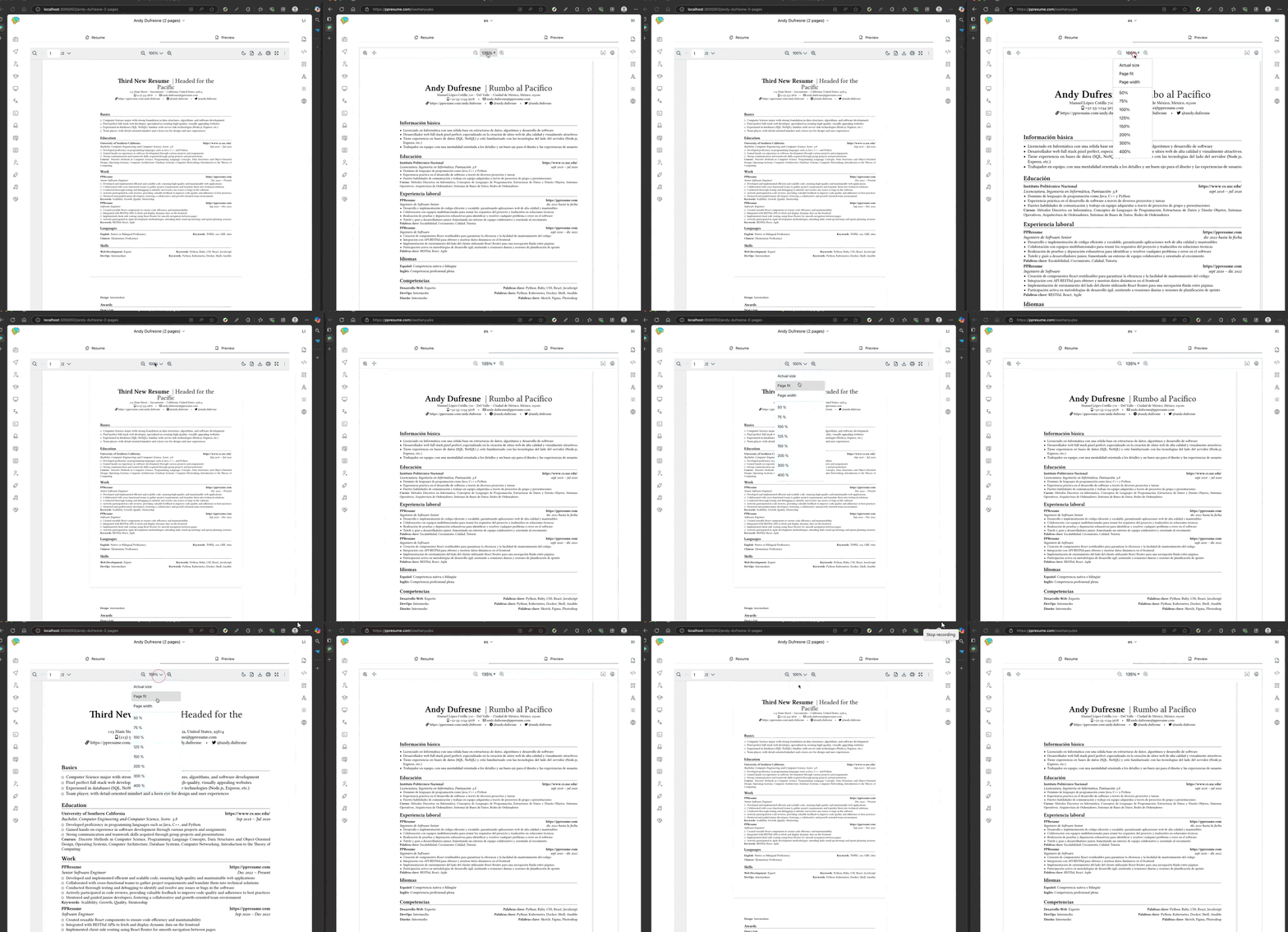
Features like “Page Fit” or “Actual Size” often behave unpredictably across devices and screen sizes. Inconsistent zoom calculations can lead to cropped content or excessive white space, making navigation difficult. These zoom issues affect layout consistency and require careful handling.
Real-world issue
- react pdf: Users have flagged bugs in page-fit zoom calculations, causing layout inconsistencies.
2. Text rendering problems
One of the most common frustrations with JavaScript PDF viewers is poor text clarity during zoom operations. Instead of crisp, readable content, users often face:
- Blurry text that strains the eyes.
- Misaligned characters that distort meaning.
- Disappearing text in canvas‑based viewers.
These issues don’t just hurt readability; they erode trust in critical workflows. For legal professionals reviewing contracts or educators analyzing lesson plans, clarity is non‑negotiable.
Real-world issues
- pdfjs users have reported that the text layer becomes invisible at higher zoom levels.
- Zen Browser users have noted text distortion when zooming too much.
If you’re trying to fix blurry PDF text without sacrificing quality, it’s essential to understand these rendering challenges. Developers often search for ways to enlarge PDF quality during zoom operations, but quick fixes rarely solve the root problem.
That’s why tackling text rendering at its core is key to delivering a smooth, reliable PDF experience.
3. Image quality loss during zoom
Another common issue in PDF viewers is image degradation when zooming in. Many rely on basic scaling algorithms that fail to preserve clarity in scanned documents, charts, or graphics. Instead of revealing more detail, zooming often makes content harder to interpret, frustrating users who need precision. These PDF zoom issues can lead to poor user experience and require troubleshooting.
Real-world issues
- pdfjs: Stack Overflow discussions highlight how zooming can cause layout and clarity problems.
Many developers look for an alternative to PDF.js when these issues persist.
4. Issues with Zoom shortcuts
Users expect intuitive controls, such as CTRL + Mouse Wheel or simple keyboard shortcuts, to work flawlessly when navigating PDFs. But many JavaScript PDF viewers fall short, leaving professionals frustrated.
Common pain points include:
- Shortcut keys are failing in certain browsers.
- Inconsistent support across platforms.
- Slowed navigation that disrupts workflow.
When the PDF zoom shortcut key doesn’t respond, productivity takes a hit. For developers, ensuring browser support for zoom shortcuts is essential to deliver smooth, intuitive usability.
Real-world issue
- ngx-extended-pdf-viewer: Users have reported unstable behavior when zooming with the CTRL + wheel shortcut key, disrupting smooth interaction.
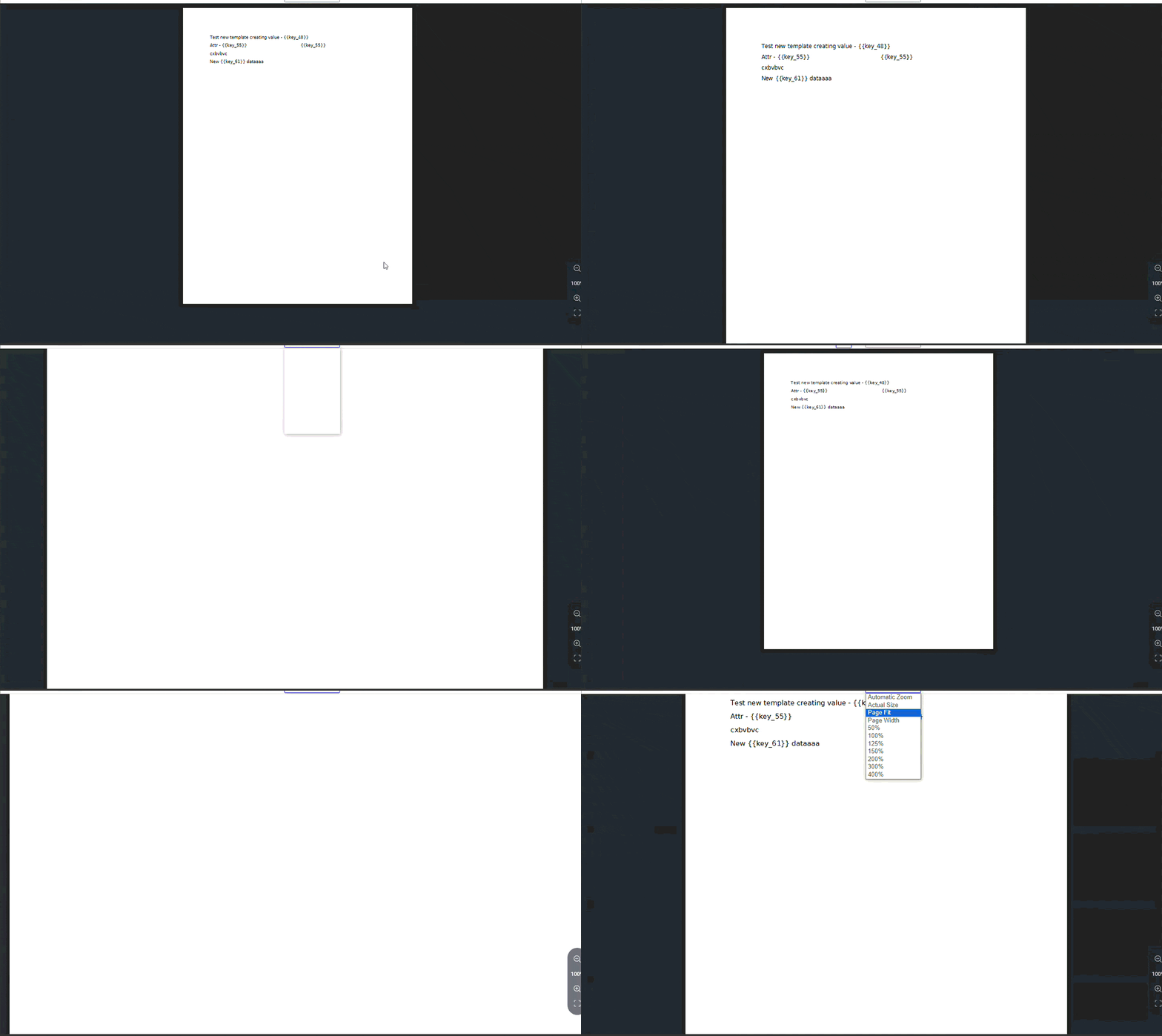
Unstable zooming behavior when using CTRL + mouse wheel shortcut
Fixing these gaps isn’t just about convenience; it’s about creating a reliable, professional‑grade PDF experience that users can trust.
5. Performance bottlenecks
Zooming large or complex PDFs should feel smooth, but in reality, many JavaScript PDF viewers struggle under the load. The result?
- Lag and stuttering that interrupt focus.
- Freezing screens that stall productivity.
- Memory spikes that overwhelm lower‑end devices.
- In extreme cases, app crashes derail workflows.
Real-world issues
- react pdf: Users have reported flickering when scaling entire PDFs.
- pdfvuer: Users have raised concerns about slow or unresponsive zoom behavior.
These issues prevent PDF Zoom from working, a recurring complaint among developers. When performance bottlenecks hit, clarity and usability vanish.
Optimized rendering ensures smoother zooming, stable memory usage, and a reliable user experience even with complex documents.
Syncfusion’s smart solutions for JavaScript PDF Viewer zoom issues
Let’s break down how Syncfusion addresses each of the common zooming problems:
1. Accurate page fit and zoom level calculations
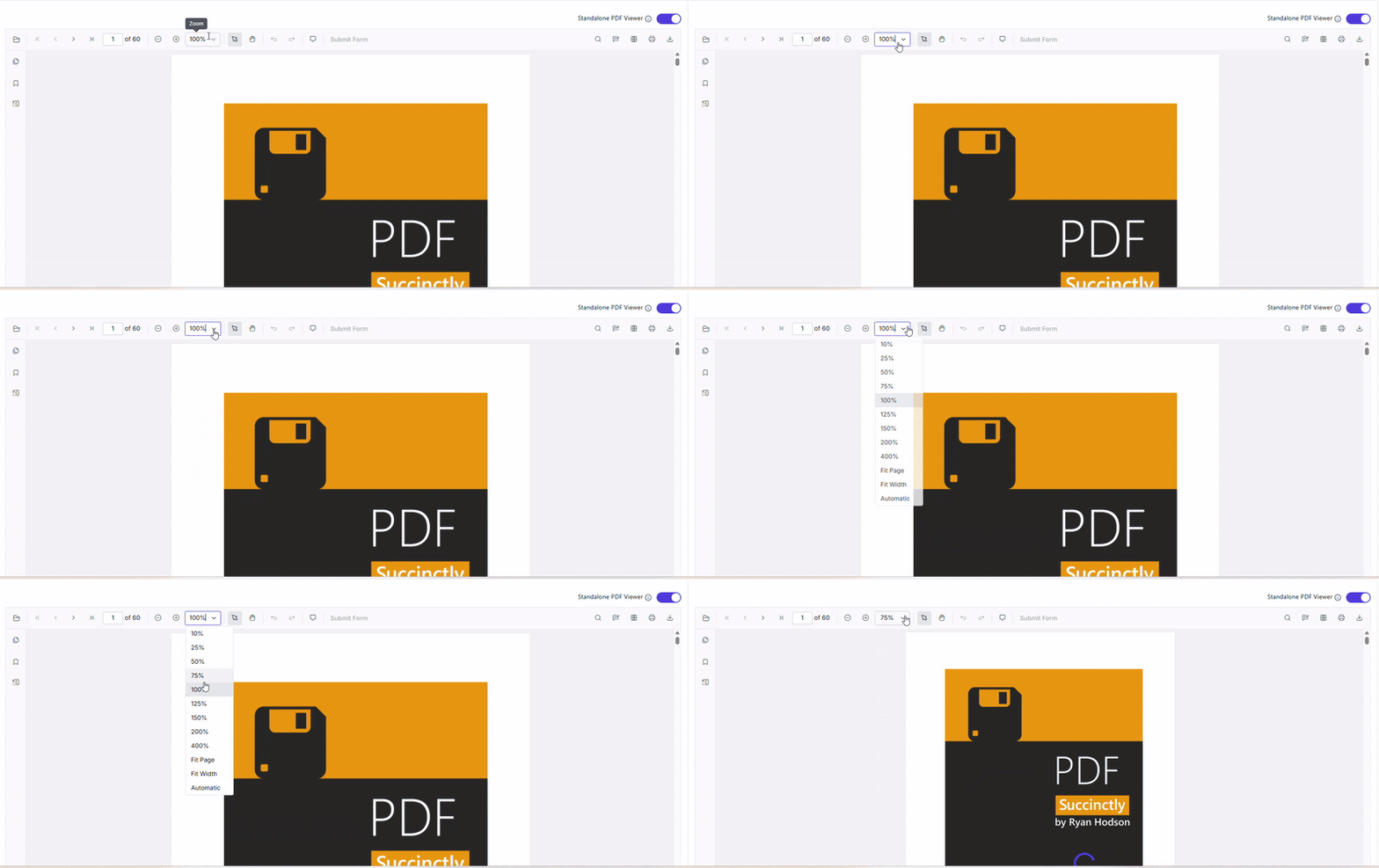
Syncfusion JavaScript PDF Viewer’s zooming logic is built to handle varied screen resolutions and device types, ensuring that “Fit to Page” and “Actual Size” modes work consistently. It intelligently calculates zoom levels to avoid content clipping or excessive margins.
Refer to the following image.
2. Optimized zooming algorithms
Syncfusion uses vector-based rendering for text and scalable image processing, ensuring that content remains crisp and clear at any zoom level. This eliminates the blurry text and pixelation issues seen in other viewers.
3. Smooth zoom transitions and responsive UI
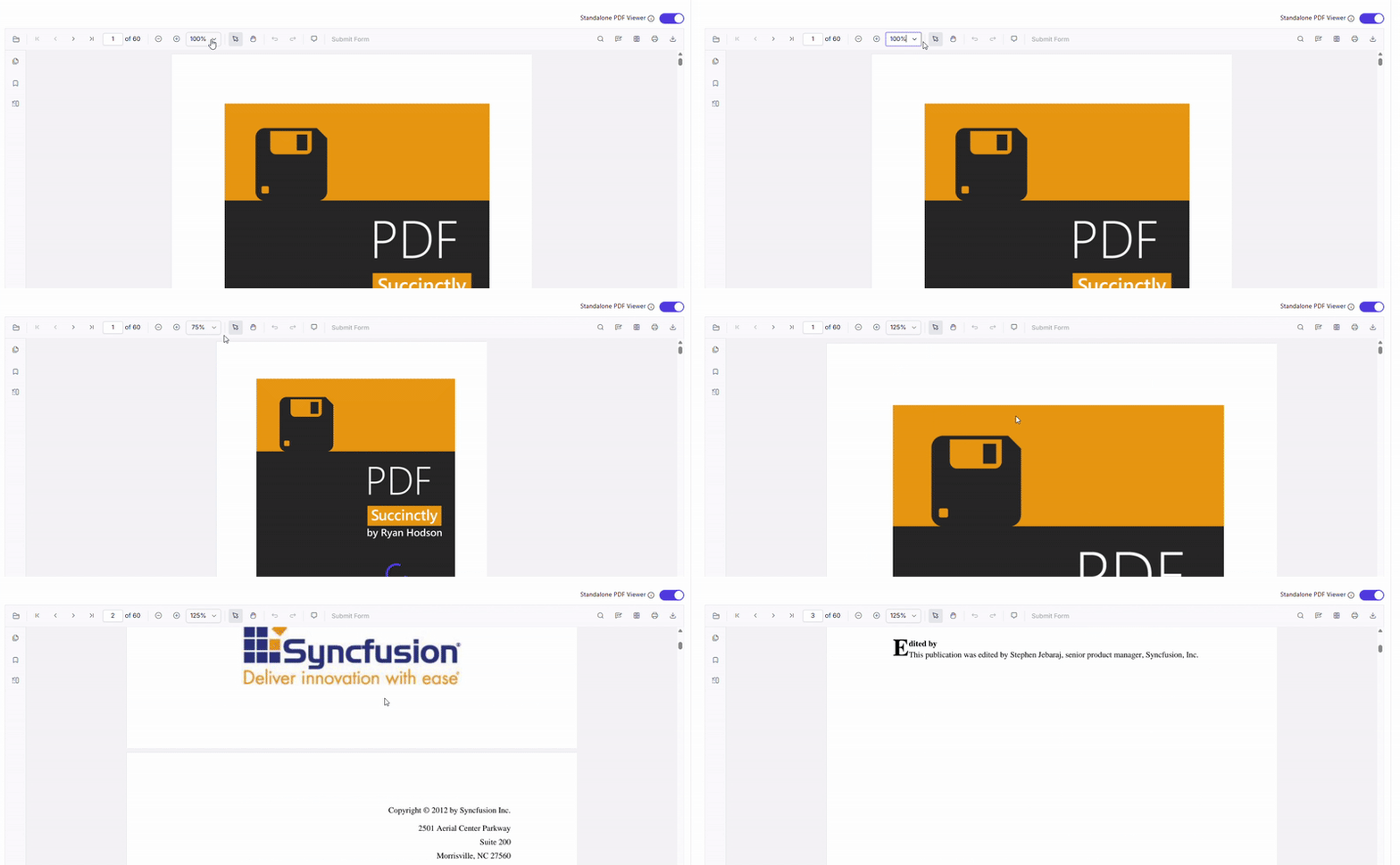
Syncfusion JavaScript PDF Viewer supports animated zoom transitions and maintains a responsive layout, even during rapid zoom changes. This creates a fluid user experience that feels natural and intuitive.
See the following GIF image for more information.
4. Built-in support for keyboard and mouse shortcuts
Out of the box, Syncfusion JavaScript PDF Viewer makes zooming and navigation fast, intuitive, and user‑friendly. No extra setup required, just smooth controls that work the way users expect:
- CTRL + Mouse Wheel for instant zoom control.
- Zoom In/Out buttons for precise adjustments.
- Keyboard shortcuts for quick navigation.
Even better, these shortcuts are customizable, giving developers the flexibility to tailor the experience to their audience. These built‑in supports ensure productivity stays high and frustration stays low.
5. Performance optimization for large documents
Thanks to lazy loading and virtual rendering, Syncfusion JavaScript PDF Viewer can handle large PDFs without lag. Memory usage is optimized, and zoom operations remain smooth even with hundreds of pages.
How to customize zoom levels in Syncfusion JavaScript PDF Viewer
Syncfusion JavaScript PDF Viewer uses a virtual rendering mechanism, which processes only the visible portion of the document during zoom operations. This ensures smooth navigation and eliminates common PDF zoom problems.
Custom zoom levels allow users to adjust PDF viewing to their preferred scale, offering greater flexibility than fixed options like “Fit to Page” or “Actual Size.” This enhances readability and improves the user’s experience, especially when working with detailed documents such as legal contracts, design files, or technical diagrams.
Syncfusion makes this easy with a simple API:
var viewer = new ej.pdfviewer.PdfViewer({
    documentPath: 'sample.pdf',
    zoomValue: 150
});

viewer.appendTo('#PdfViewer');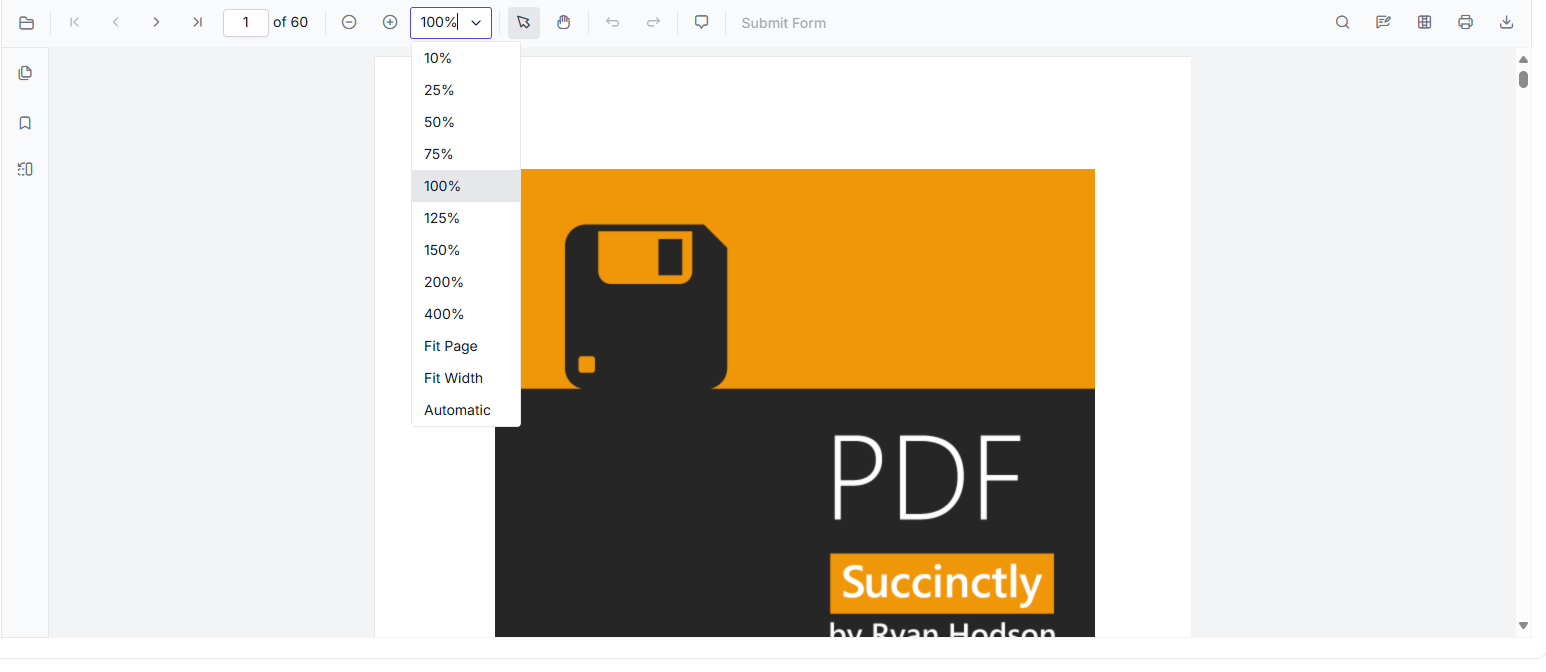
Frequently Asked Questions
How do I enable reliable pinch-to-zoom functionality for mobile users?
Pinch-to-zoom support for mobile devices can be enabled by using the enablePinchZoom API of Syncfusion. This ensures a smooth and intuitive zooming experience for touch-based interactions.
How can I optimize performance during repeated zoom operations on low-end devices?
To optimize performance during frequent zoom changes, enable the enableZoomOptimaization API. This helps reduce memory spikes, particularly on resource-constrained devices.
How can I prevent users from over-zooming or under-zooming in legal or sensitive documents?
You can control zoom boundaries by configuring the minZoom and maxZoom properties in the PDF Viewer. Additionally, enabling the restrictZoomRequest property prevents zoom changes from external or third-party scripts, ensuring secure and controlled document viewing.
What causes text to appear blurry when zooming in a JavaScript PDF viewer?
Blurry text at high zoom levels is almost always a canvas rasterization problem. Canvas-based viewers scale a fixed-resolution bitmap rather than redrawing text at the new zoom level, so quality degrades. Syncfusion’s JavaScript PDF Viewer uses vector-based text rendering, which draws characters at the target resolution, keeping text sharp at any zoom percentage.
Can I set a default zoom level when a PDF loads in Syncfusion's viewer?
How do I reset the PDF viewer to its default zoom level?
The Syncfusion JavaScript PDF Viewer provides “Automatic” option in the zoom toolbar. Selecting this option clears all user-applied zoom changes and resets the viewer to 100% zoom level.
Upgrade your PDF zoom experience today
Thanks for reading! Zooming is at the heart of every PDF viewing workflow, but poor implementation often leads to frustration, loss of productivity, and broken trust. Common pain points like blurry text, zoom glitches, shortcut failures, and performance lags plague many JavaScript PDF viewers.
That’s where Syncfusion JavaScript PDF Viewer stands out. With:
- Optimized rendering for crystal‑clear text.
- Smooth transitions that keep navigation effortless.
- Accurate zoom calculations for precision control.
- Robust shortcut support for faster workflows.
…it delivers a flawless zooming experience professionals can rely on.
👉 Ready to elevate your PDF viewer? Try Syncfusion JavaScript PDF Viewer today and give your users a polished, professional experience they’ll love.
The latest version is available for current customers on the License and Downloads page. New to Syncfusion? Explore the 30-day free trial and unlock the newest features.
Need help? Reach out via our support forum, support portal, or feedback portal. We’re always happy to assist you!



 No spam, just valuable updates.