Exporting Font & Style Customization
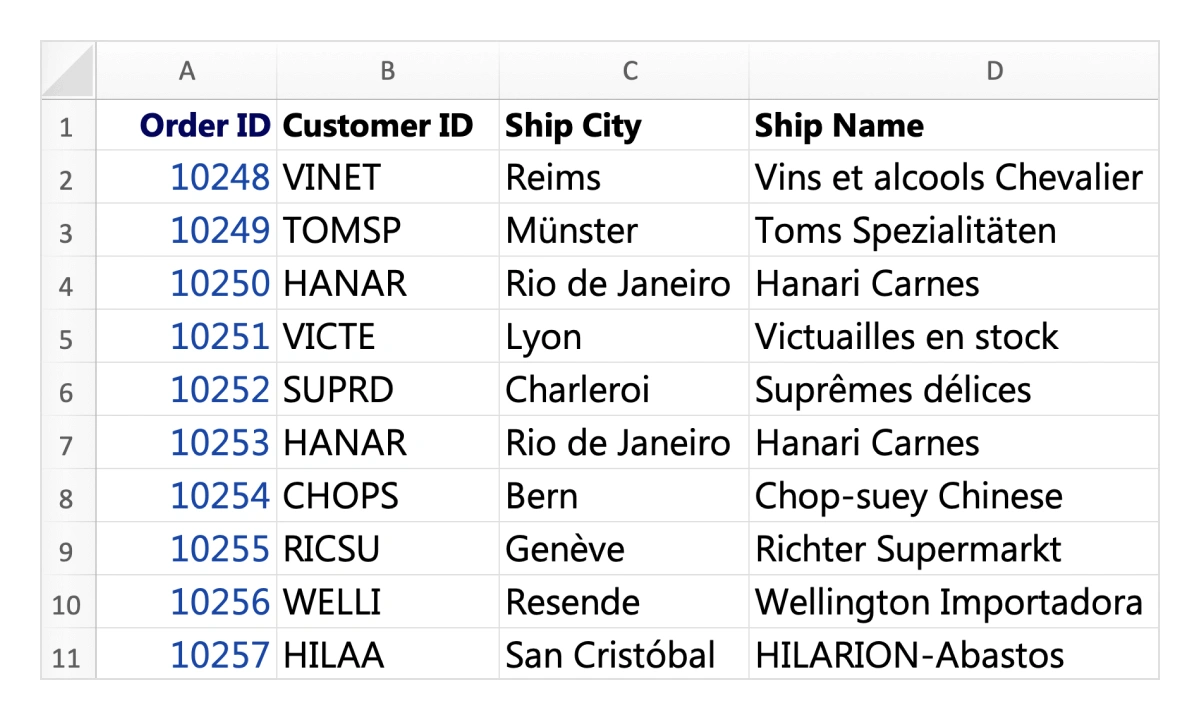
Users can customize each cell’s font style, size, colors, and more when exporting the Data Grid to Excel. This helps create visually appealing and tailored Excel documents.
Exporting Conditional Formatting
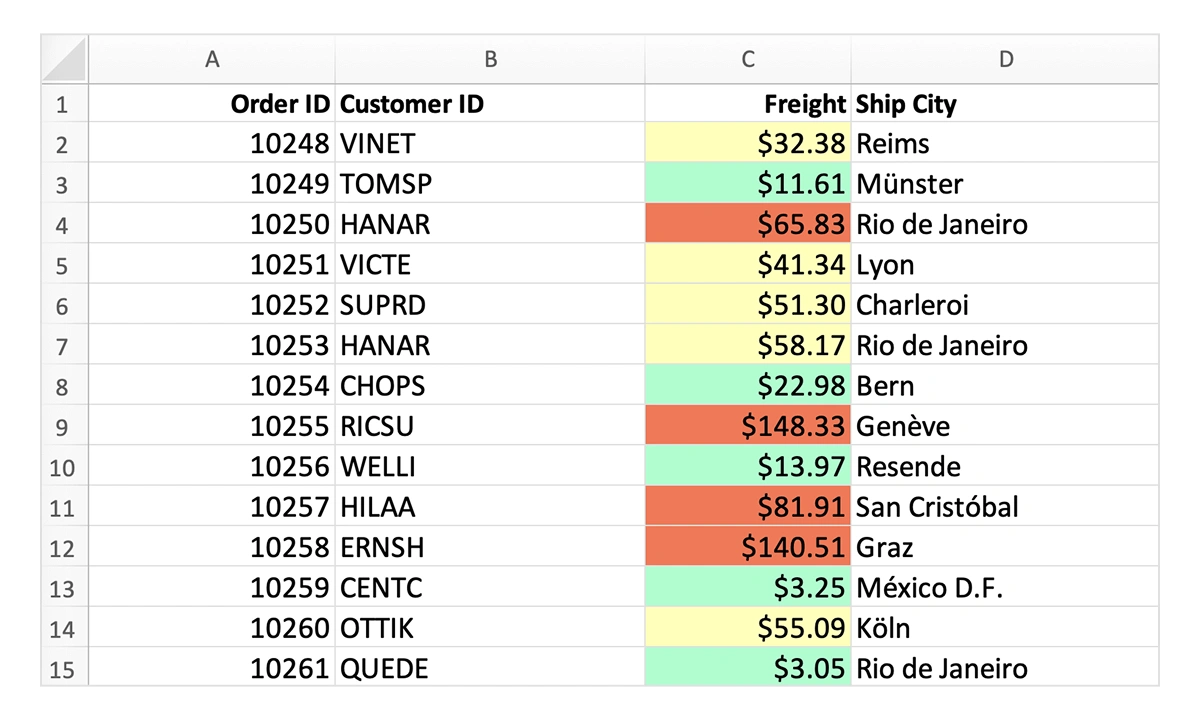
Conditionally format Data Grid cells based on their values or other criteria by accessing each cell and applying styles such as background color during export to Excel format.
Exporting Custom Header & Footer
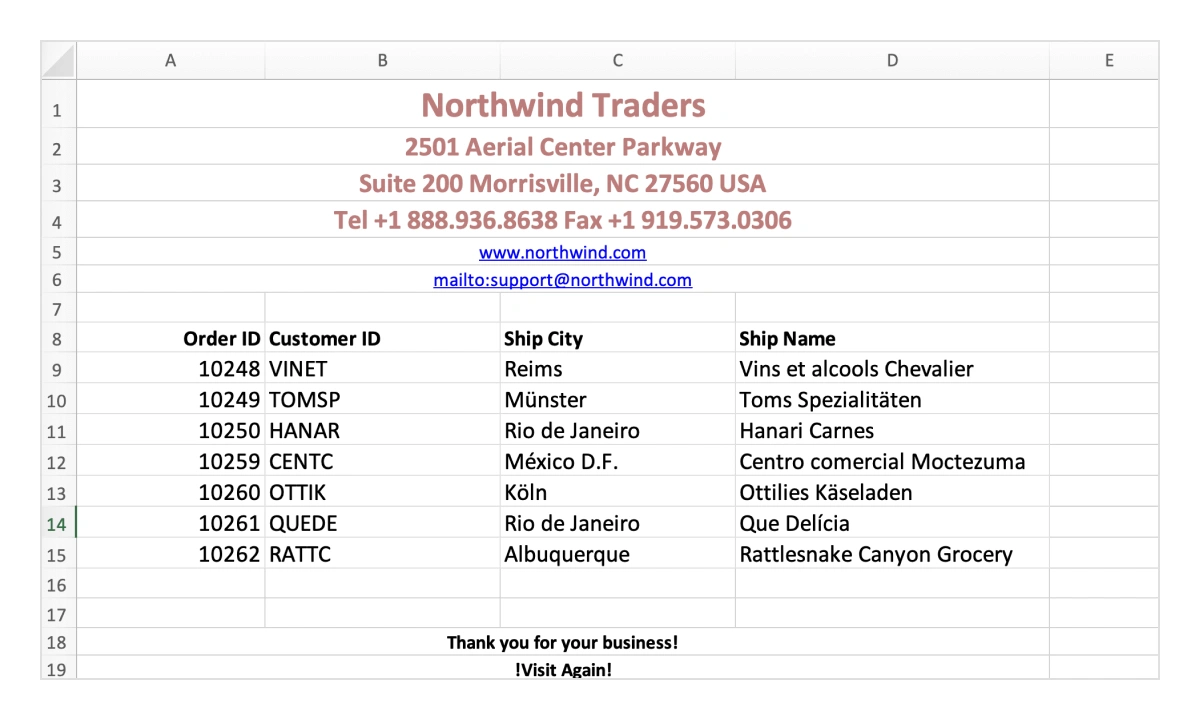
Users can enhance the exported Excel document by adding custom header and footer content. This is useful for including extra information, such as company branding, summaries, or report metadata.
Exporting images
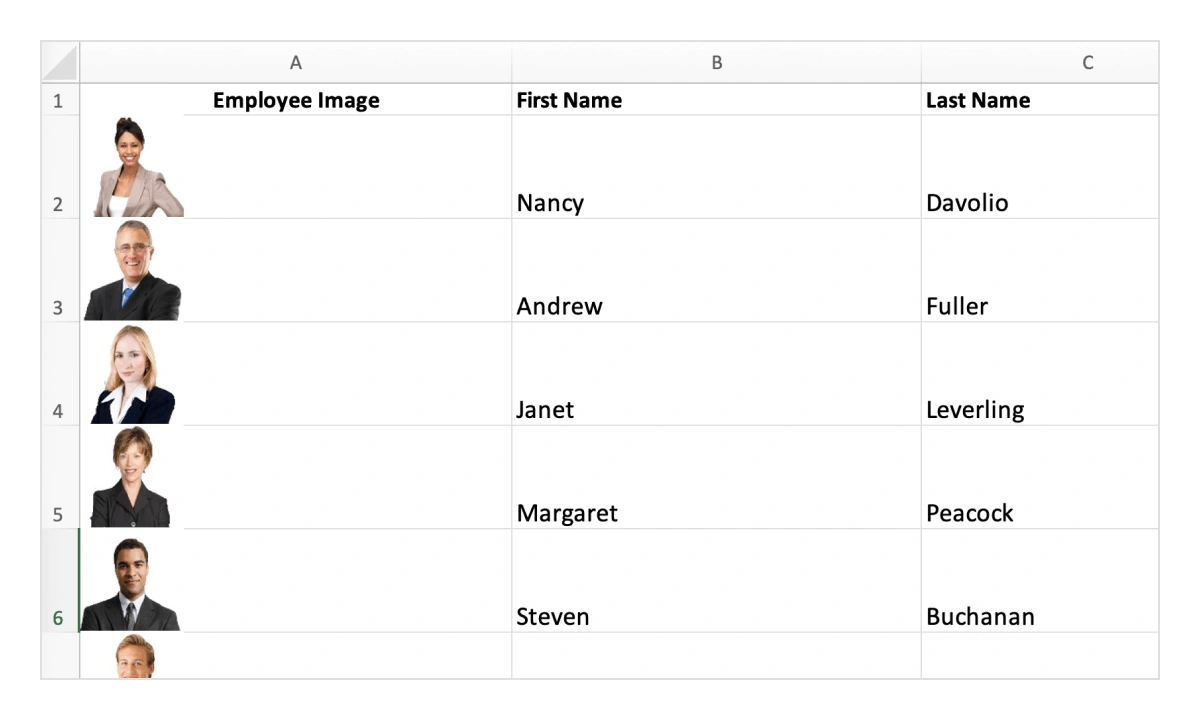
Users can export images embedded in Data Grid columns to an Excel document. This allows visual elements to be preserved alongside data, resulting in a more informative and visually enriched file.
Exporting hyperlinks
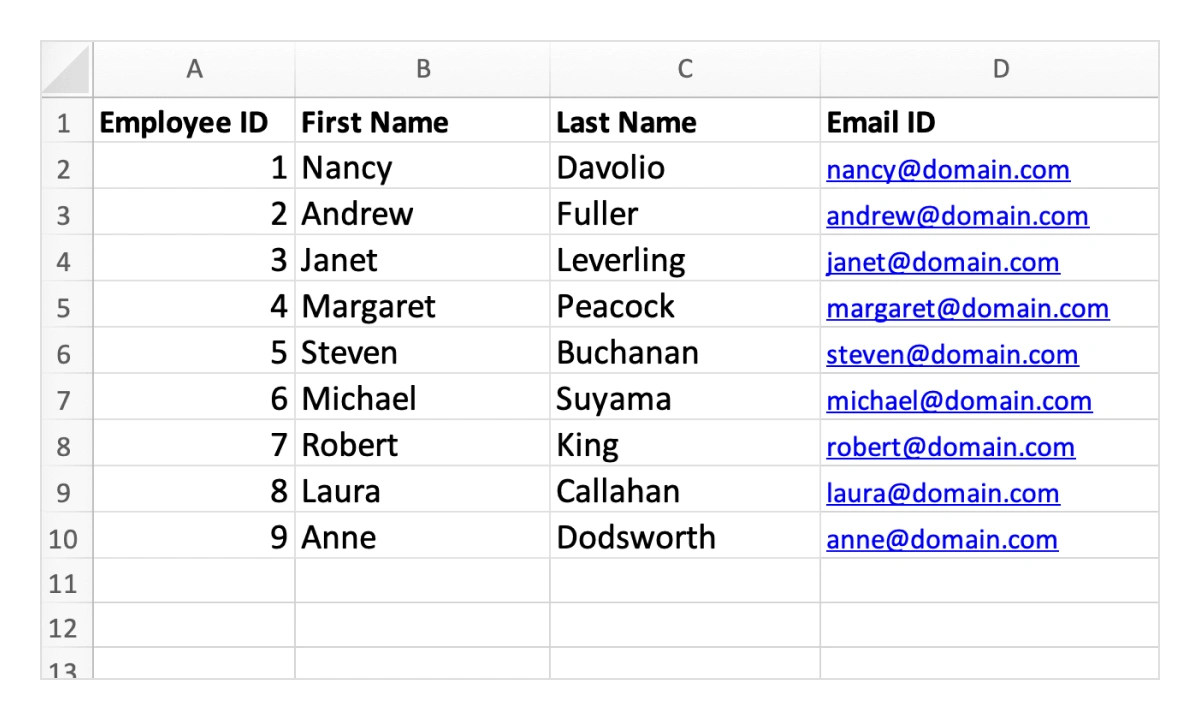
Users can export hyperlinks included in Data Grid columns to an Excel document. This feature helps preserve clickable links alongside the data, enhancing navigation and providing direct access to related resources.
Exporting Formulas
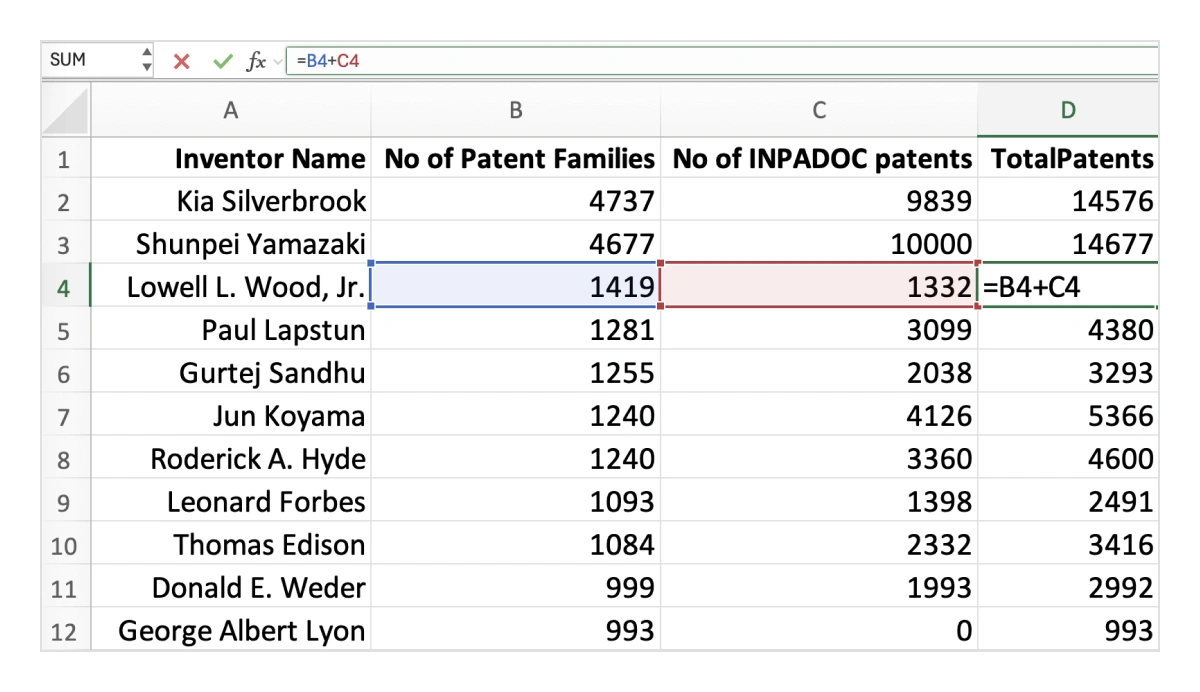
The Data Grid enables the seamless integration of formulas during Excel export, allowing users to perform calculations and embed computed values directly into the exported file. This capability is particularly beneficial for generating reports that demand dynamic or advanced data analysis.
Exporting selected records
Users can export only selected records from the Data Grid to generate a focused Excel file. This feature offers flexibility by allowing exports that include just the relevant data, making documents more precise and purposeful.
Show or hide columns while exporting
The Data Grid allows users to show or hide columns dynamically during export. This flexibility helps tailor the Excel file to specific data needs, ensuring only the required information is included in the output.
Exporting with stacked headers
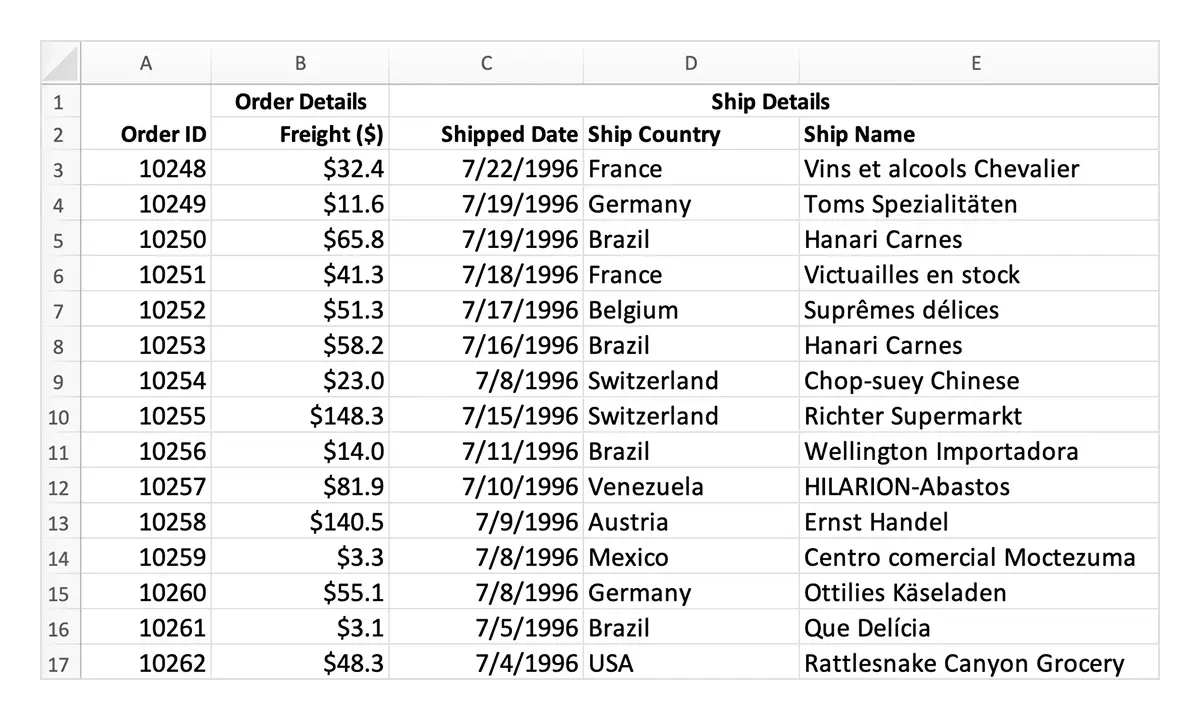
Users can export stacked headers from the Data Grid, allowing multiple levels of column grouping to appear in the Excel file. It helps preserve complex header structures and ensures the exported document clearly reflects the original data hierarchy.
Enable filtering in exported excel file
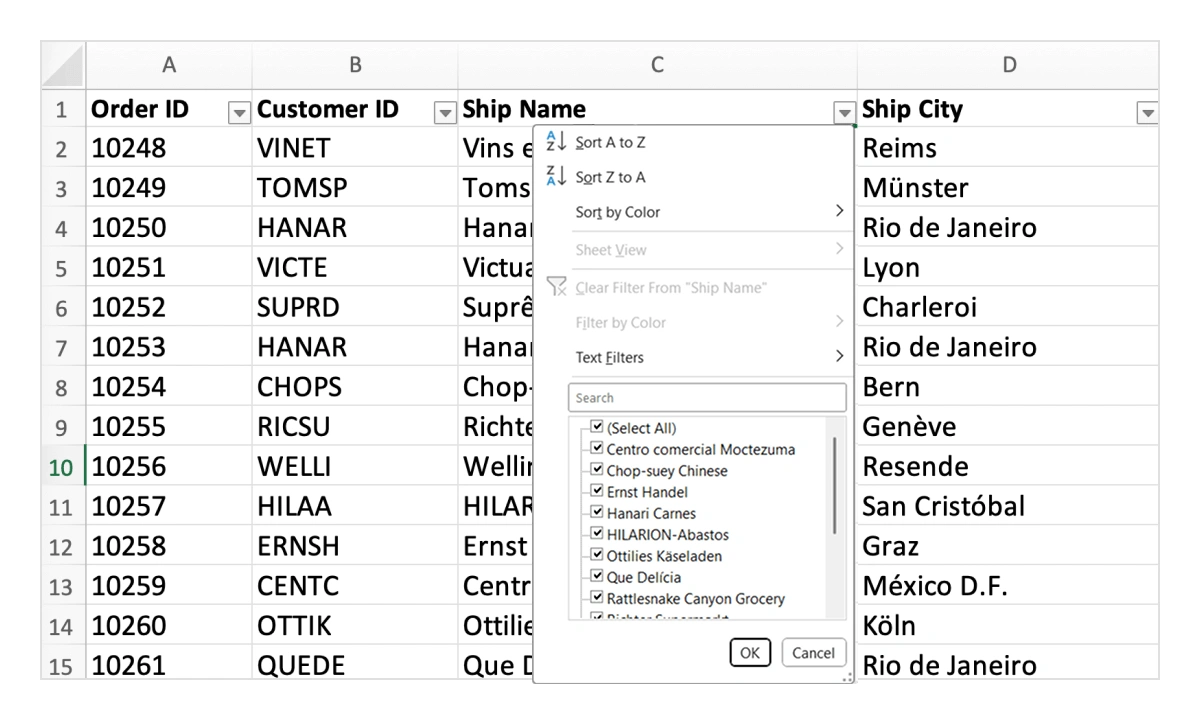
Users can export the Data Grid to Excel with filtering options included. This allows others to analyze and focus on specific data points after the export, making the document more insightful and easier to work with.
Multiple sheet excel export
Users can export multiple grids into a single Excel file, placing each grid on its own sheet. This approach keeps the data organized and easy to navigate across different sections of the report.
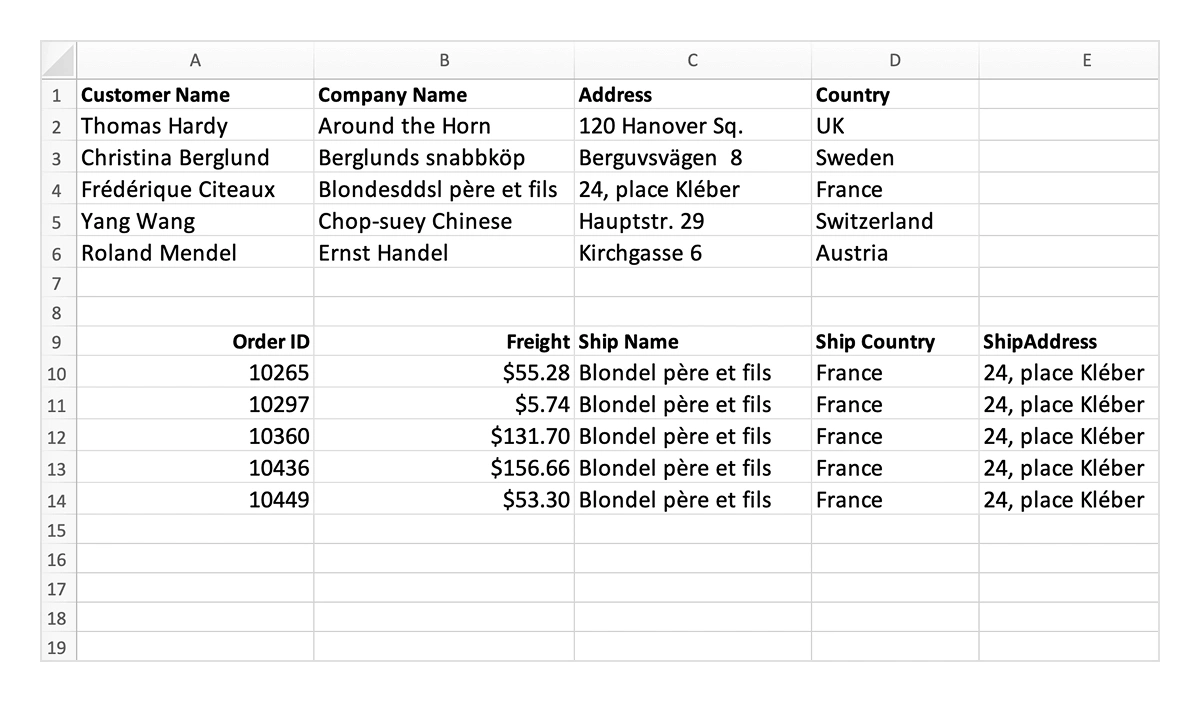
Exporting master-detail grids
Users can export both master and detail grids onto a single Excel sheet. This is especially useful for managing hierarchical data, ensuring the relationship among records is preserved for easier analysis and review.
Exporting template in excel files
Users can export Data Grid templates, like column, detail, and caption templates to an Excel file. These templates can carry rich content like images, hyperlinks, and styled text, creating a more engaging and informative document.
Our Customers Love Us




See Real Success Stories
Developers around the world trust Syncfusion’s Essential Studio to simplify complex projects and speed up delivery. With a vast library of UI controls, powerful SDKs, and reliable support, Essential Studio helps teams build enterprise-ready applications with confidence.
Read Our Customer StoriesIndustry
Software development
75% Cost reduction
50% Faster development

Industry
Utilities (oil and gas)

450+ hours saved
Streamlined processes and hours of development effort saved.

Advanced, flexible features
Empowered users through robust and versatile functionality.
Industry
Software and technology
1000+ of hours saved
Accelerated development with enterprise-ready UI components.

Efficient file management
Streamlined workflows with document libraries without building them from scratch.
Industry
Software and technology

2 Years of delay avoided
Two years of delays prevented with proactive planning.

On-time delivery
Projects delivered on schedule using trusted controls.
Industry
IT services and IT consulting

Improved performance
Large datasets handled with easy customization and quick debugging.

Highly customizable
Plug-and-play controls with quick template integration.
Industry
Professional services
Instant access
Quick availability of features and resources.
Reduced dependencies
Fewer dependencies for faster development.
Recent activities in Angular Data Grid blogs
The Angular Data Grid blog posts will guide you in building your first app with Angular components. They provide problem-solving strategies, describe features and functionalities, announce new feature releases, explain best practices, and showcase example scenarios. Explore our latest posts on our blog and tutorial video channels for Angular Data Grid updates.
140+ ANGULAR UI COMPONENTS







