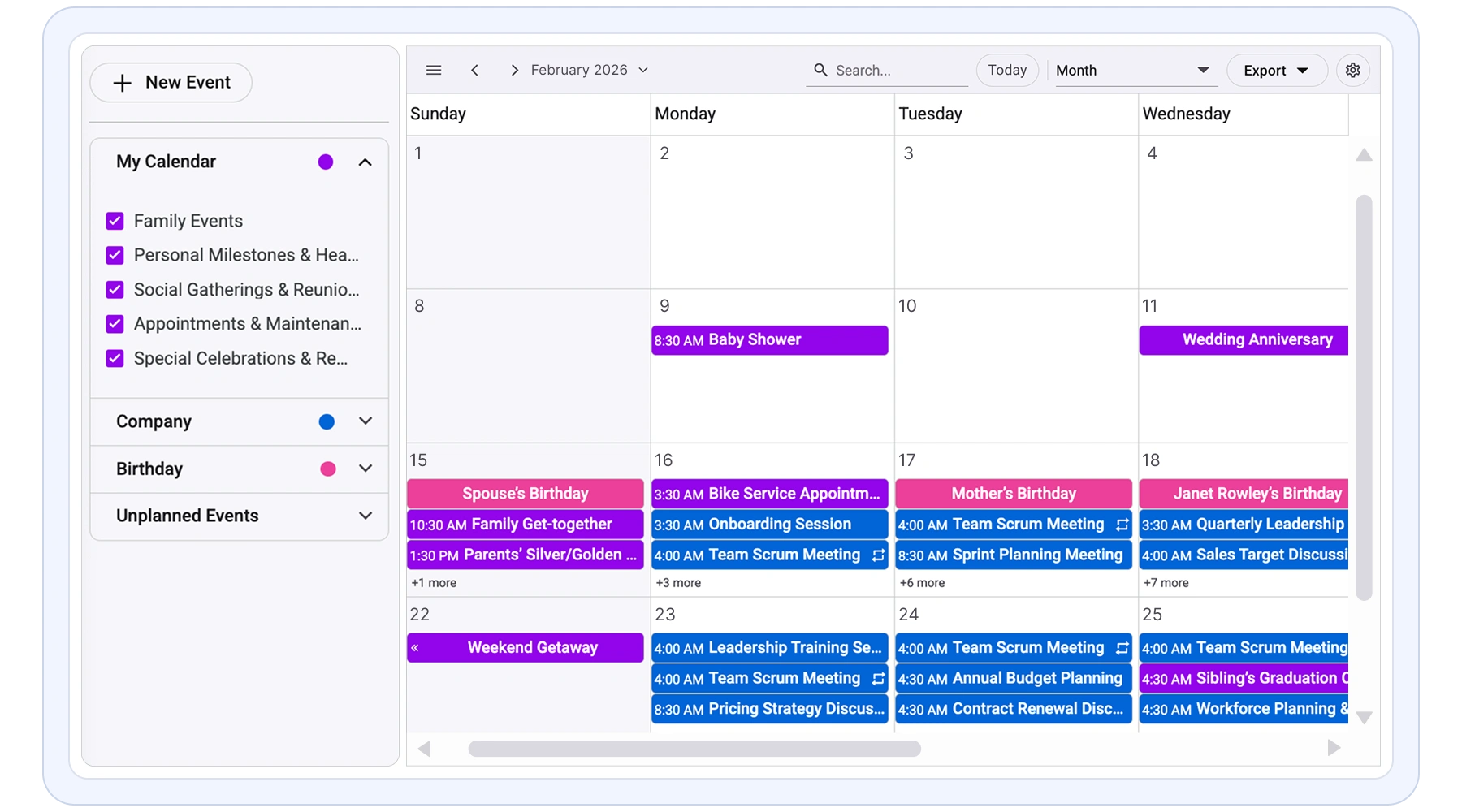
JavaScript Scheduler for Booking and Resource Scheduling
The Syncfusion JavaScript Scheduler is a flexible, high-performance event calendar control for managing appointments, events, and resources. It supports booking systems, appointment scheduling, and resource scheduling applications with flexible calendar views and scheduling interactions. Designed for complex scheduling scenarios, it helps developers build user-friendly calendar experiences without extensive custom UI development.
Installation & Quick Start
Follow these three steps to integrate the Scheduler into your JavaScript application.
1
Install the Scheduler package
Install the Syncfusion Schedule package and Tailwind3 theme package using npm.
npm install @syncfusion/ej2-schedule
npm install @syncfusion/ej2-tailwind3-theme
2
Add the required CSS references
Import the required Syncfusion styles into the src/styles/styles.css file.
@import "../../node_modules/@syncfusion/ej2-tailwind3-theme/styles/schedule/index.css";3
Add the Schedule component
Add the Schedule component in the src/app/app.ts file.
import { Schedule, Day, Week, WorkWeek, Month, Agenda } from '@syncfusion/ej2-schedule';

Schedule.Inject(Day, Week, WorkWeek, Month, Agenda);

const currentYear: number = new Date().getFullYear();
let data: Object[] = [
  {
    Id: 101,
    Subject: 'Scrum Meeting',
    StartTime: new Date(currentYear, 4, 28, 9, 0),
    EndTime: new Date(currentYear, 4, 28, 10, 0),
  },
  {
    Id: 102,
    Subject: 'Design Review',
    StartTime: new Date(currentYear, 4, 28, 11, 0),
    EndTime: new Date(currentYear, 4, 28, 12, 30),
  }
];
let scheduleObj: Schedule = new Schedule({
  height: '550px',
  selectedDate: new Date(currentYear, 4, 28),
  eventSettings: { dataSource: data }
});

scheduleObj.appendTo('#Schedule');
<!DOCTYPE html>
<html lang="en">
<head>
<title>Essential JS 2</title>
<meta charset="utf-8" />
<meta name="viewport" content="width=device-width, initial-scale=1.0, user-scalable=no" />
<meta name="description" content="Essential JS 2" />
<meta name="author" content="Syncfusion" />
<!-- Syncfusion styling reference -->
<link href="/styles/styles.css" rel="stylesheet" />
</head>
<body>
<div>
<!--An HTML Schedule element that renders a Schedule.-->
<div id="Schedule"></div>
</div>
</body>
</html>No credit card required.
Why choose Syncfusion JavaScript Scheduler?
High performance
Handle large numbers of resources and events with fast loading and smooth scrolling using virtual scrolling and on-demand data loading.
Flexible data binding
Connect easily to REST APIs, JSON, or cloud data sources. Supports real-time updates and seamless integration with modern application backends.
AI-Assisted Development
Build scheduling and calendar experiences faster with the Agentic UI Builder and Syncfusion Agent Skills. Generate appointment workflows, recurring events, resource scheduling, and timeline views with minimal manual effort.
Fully responsive
Adaptive layout delivers a consistent scheduling experience across desktops, tablets, and mobile devices without additional configuration.
Customizable themes
Personalize the scheduler’s appearance using built-in themes or custom styling to match your application’s design and branding. Utilize the online Theme Studio tool to customize themes of Scheduler easily.
Globalization support
Supports multiple languages, time zones, and regional formats, enabling developers to build scheduling applications for global users.
JavaScript Scheduler Use Cases
Build scheduling and booking applications for scenarios such as hospitality reservations and employee shift scheduling.
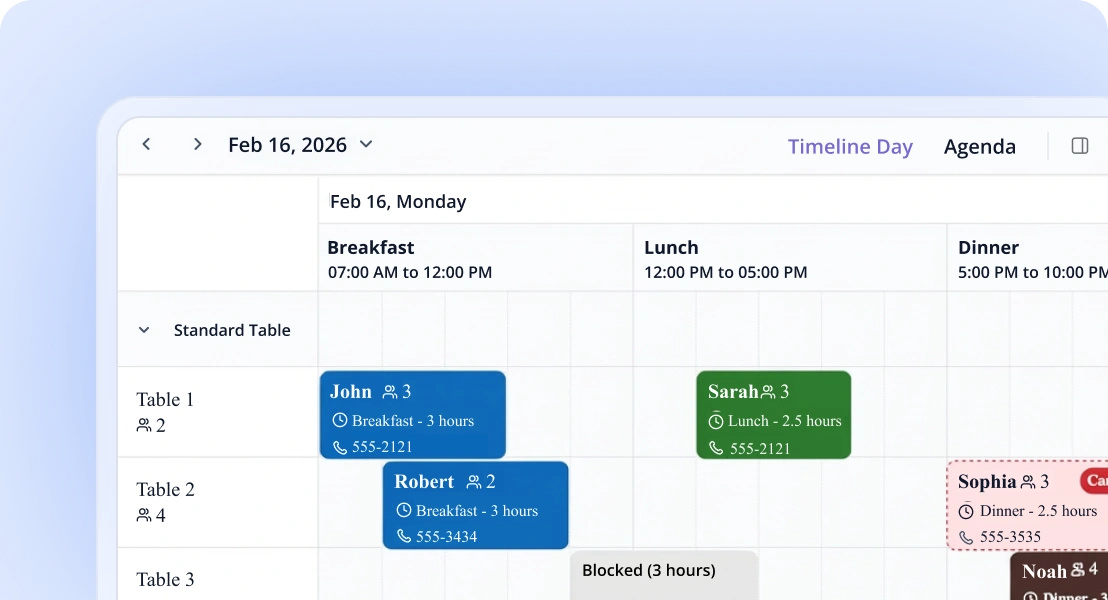
Hotel reservations
Handle room bookings and guest schedules efficiently. Easily update and reschedule reservations using intuitive scheduling interactions.
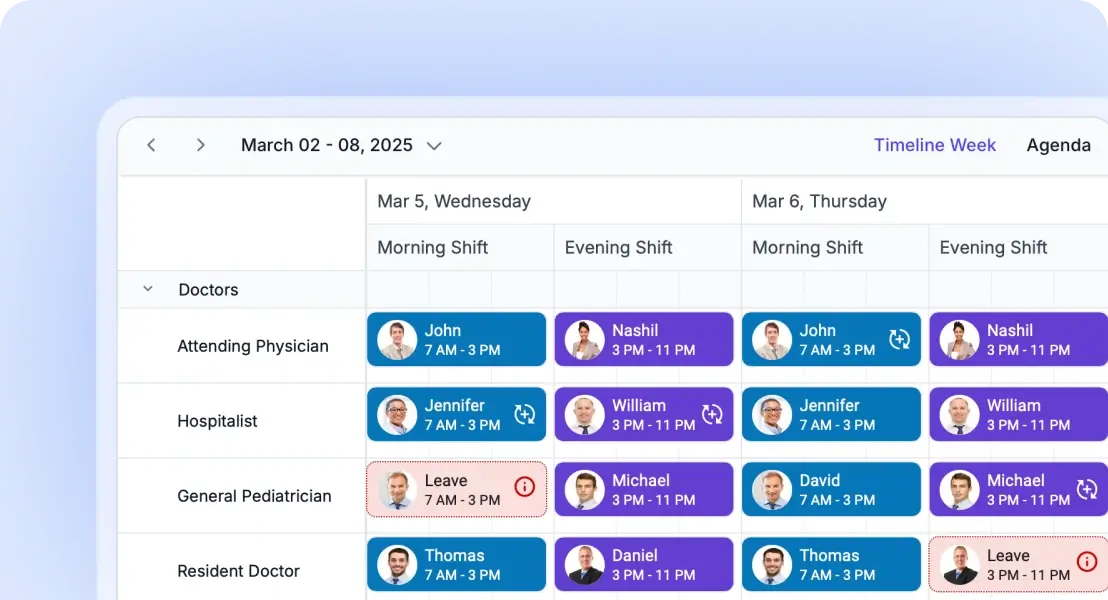
Employee shift scheduling
Plan employee shifts, assign roles, and manage workforce availability. Simplify staff coordination and scheduling operations.
AI Scheduler for Smarter Planning
The AI Scheduler organizes your calendar with ease. Just type instructions like, “Meet the team every Friday at 10 AM”, and it handles the rest. It checks for conflicts, suggests optimal times, and organizes your calendar visually.
JavaScript Scheduler views: day, week, month, year and timeline
A wide variety of built-in view modes are available: day, week, workweek, month, agenda, month-agenda, year, and timeline. Easily configure each individual view with different, view-specific options.
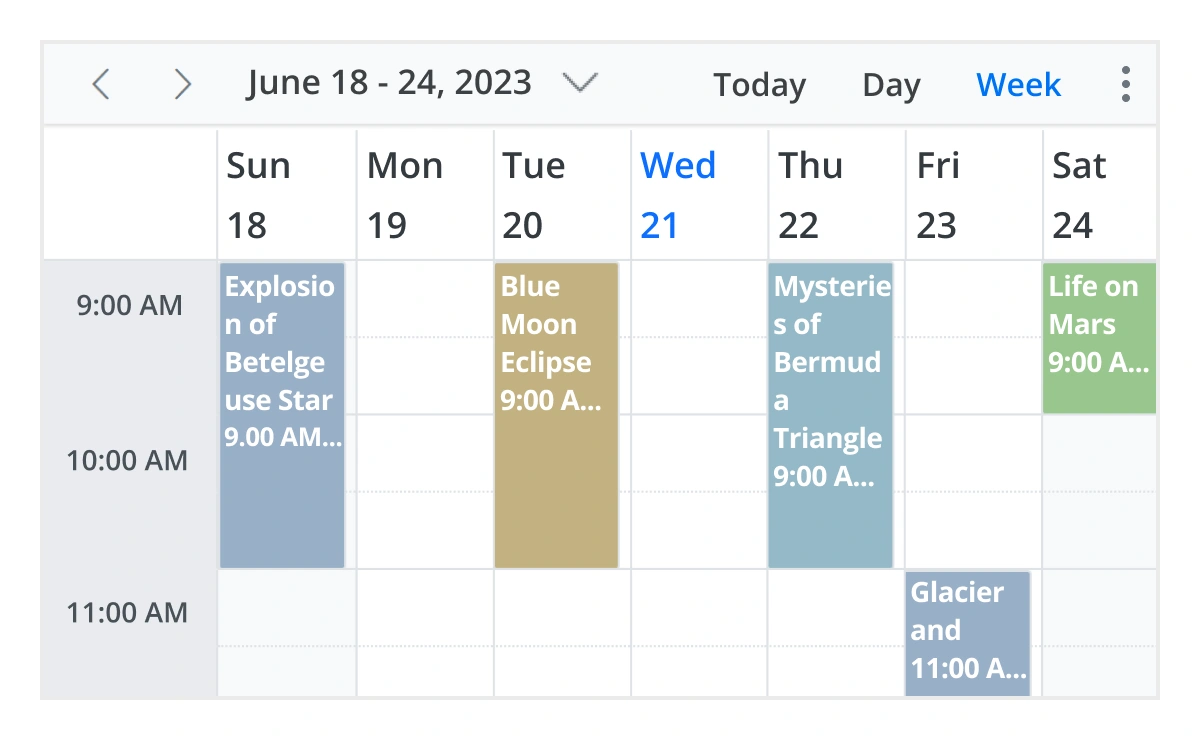
Day, week, and workweek views
Display appointments for a single day or across multiple days.
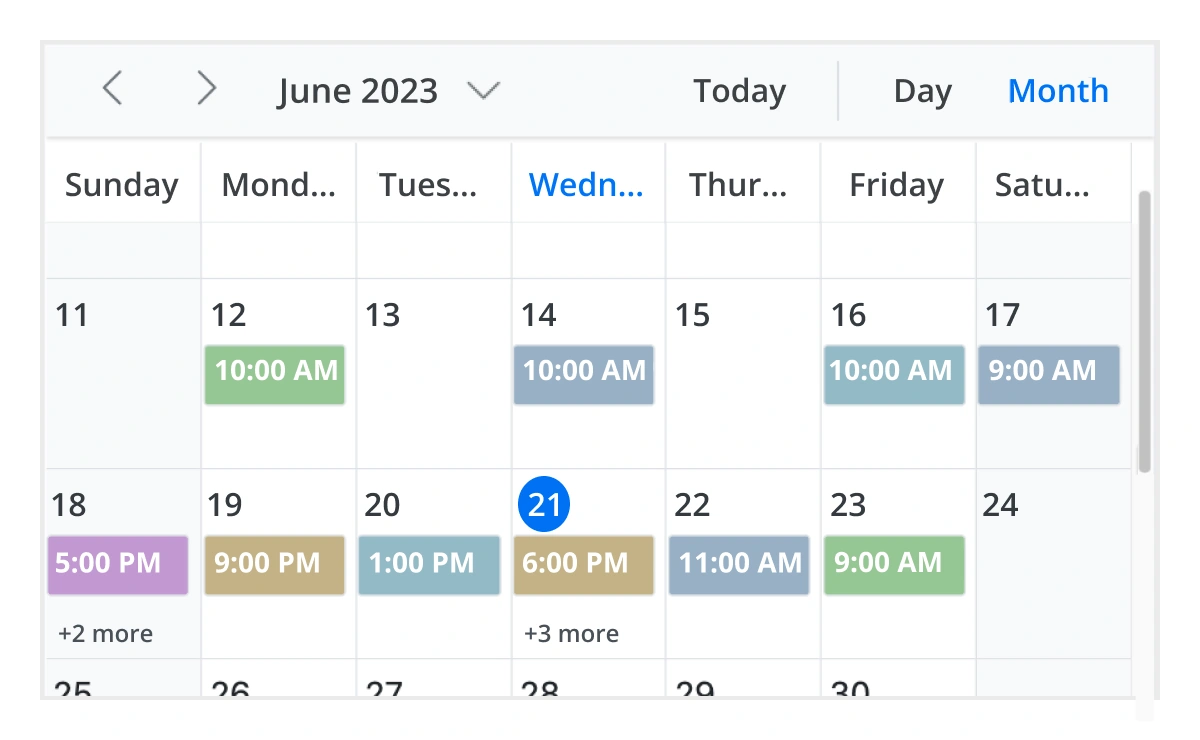
Month view
Display events and appointments on a single day or multiple days for an entire month.
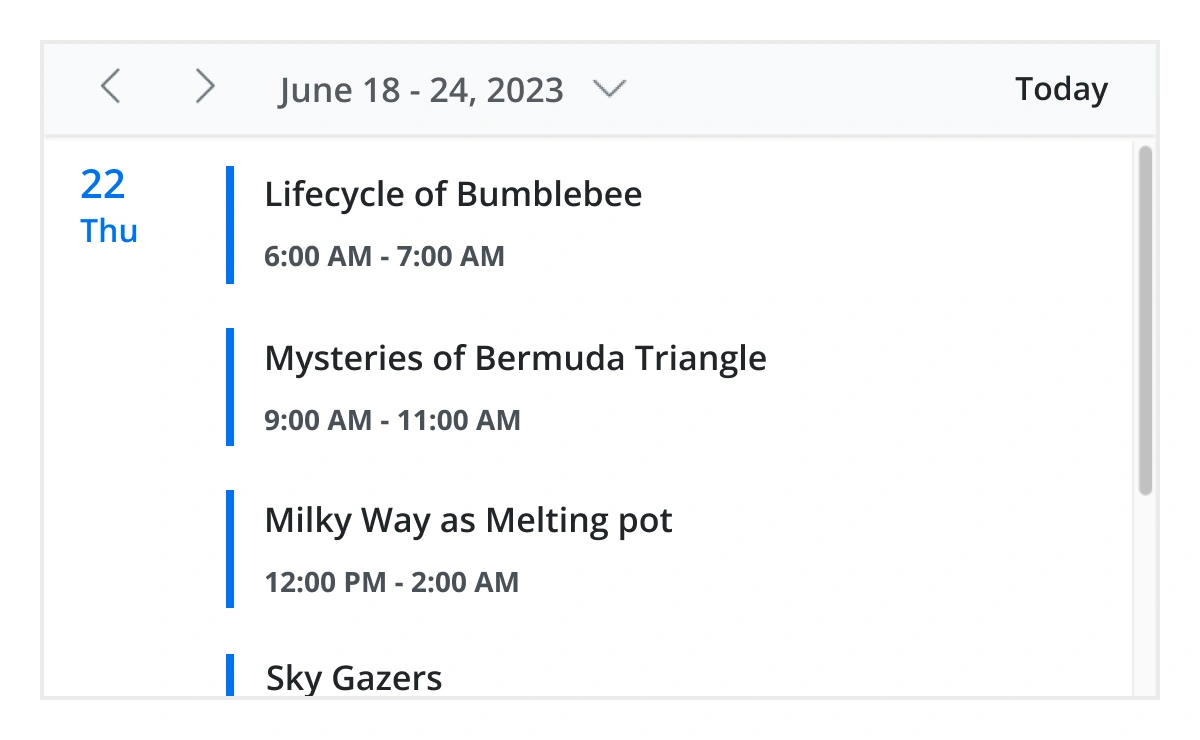
Agenda view
Load events virtually and display them as a list in a sequential order grouped by day. An option exists to specify the number of days to load initially in the agenda view.
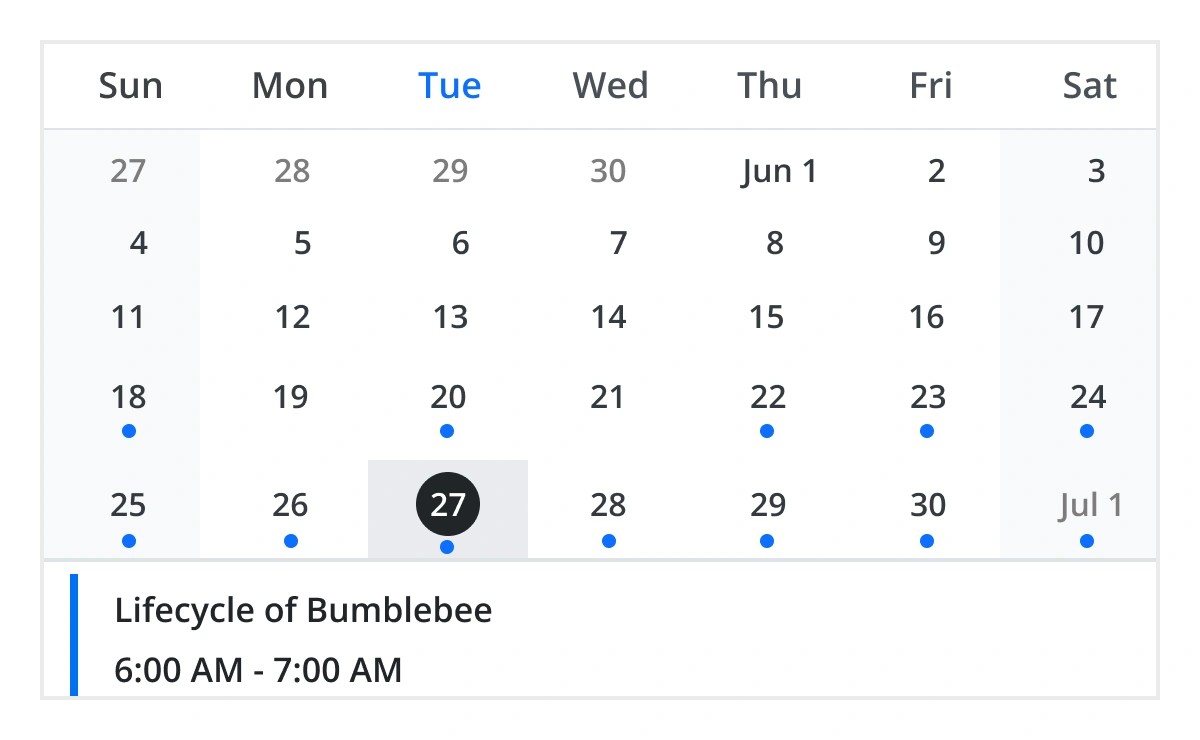
Month agenda view
Display the calendar layout and the events of the currently selected date. A round indicator at the bottom of a date shows the presence of one or more events on that day.
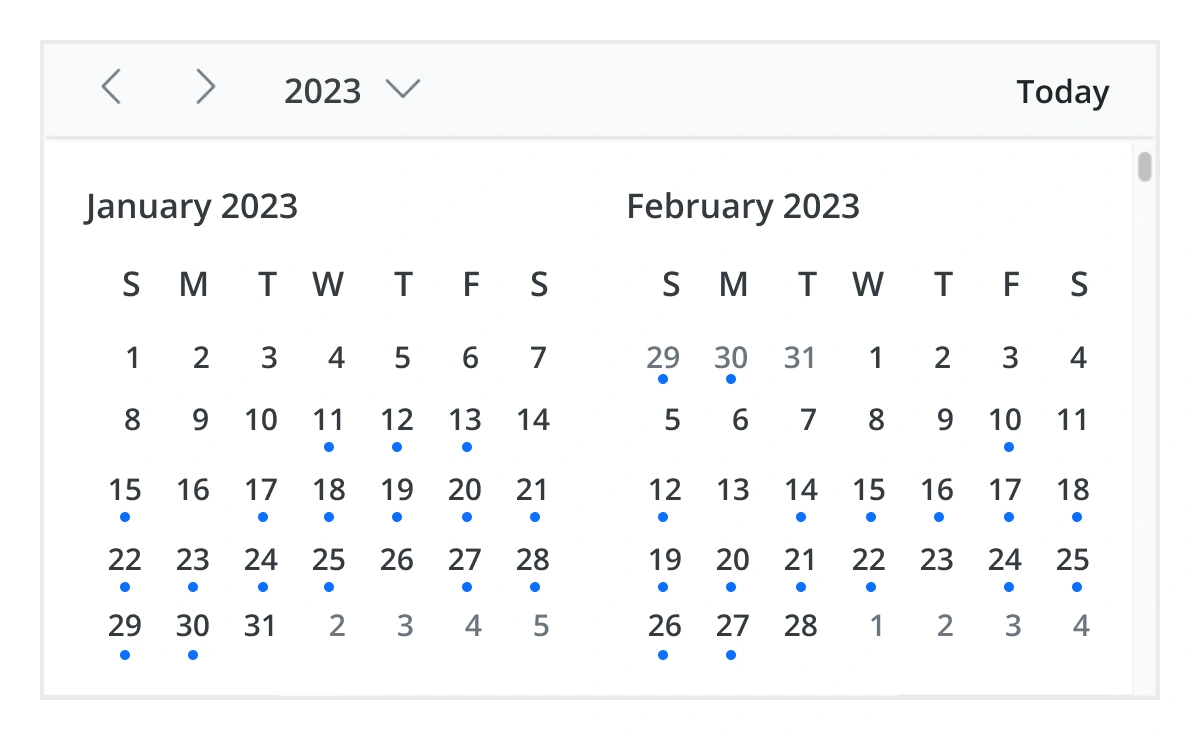
Year view
Year view displays all the months of a particular year in a calendar view format. In that calendar view, dates containing events and appointments are highlighted with dots placed under the individual date. When you click on the date, the event pop-up will be displayed and the events will be listed.
JavaScript Scheduler timeline views
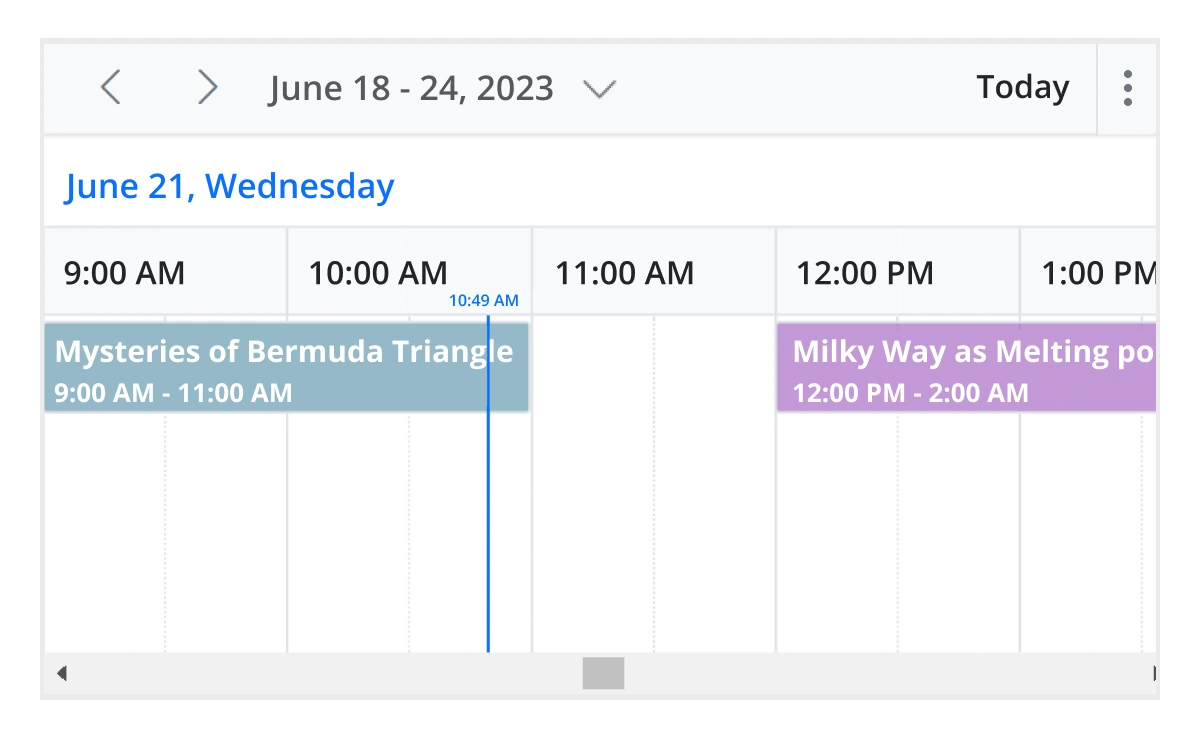
It provides five built-in timeline views: timeline day, timeline week, timeline workweek, timeline month, and timeline year. Each view displays events accurately across a horizontal time axis for a single day or multiple days. To provide better performance, timeline views load resources, events, and appointments virtually on every scroll action.
Recurring event scheduling
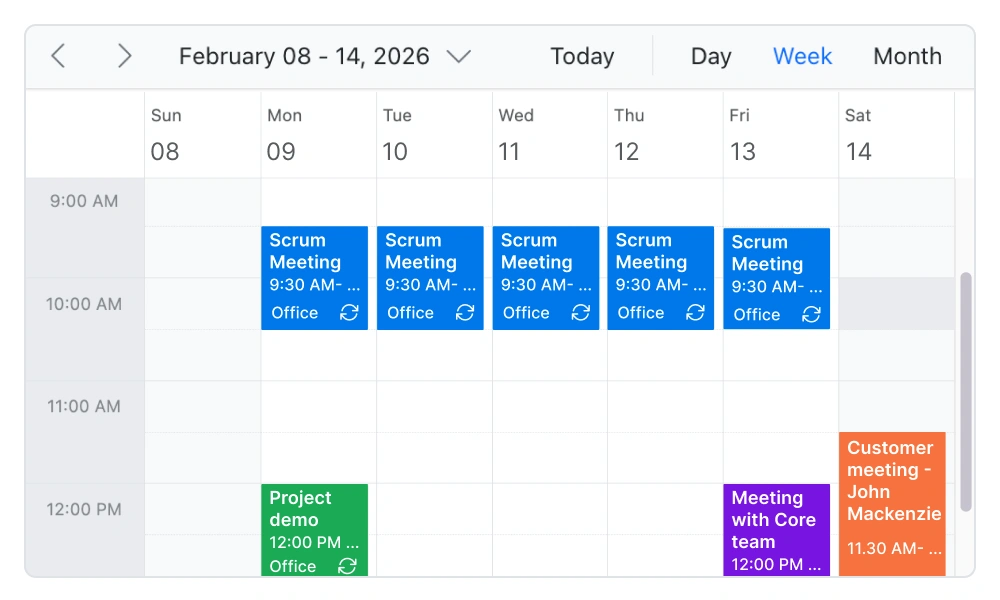
Easily create and manage recurring appointments with flexible recurrence rules. Schedule daily, weekly, monthly, or custom recurring events, and handle exceptions or modifications without affecting the entire series. This makes it ideal for applications such as appointment booking systems, healthcare scheduling, and workforce planning tools.
Resource scheduling
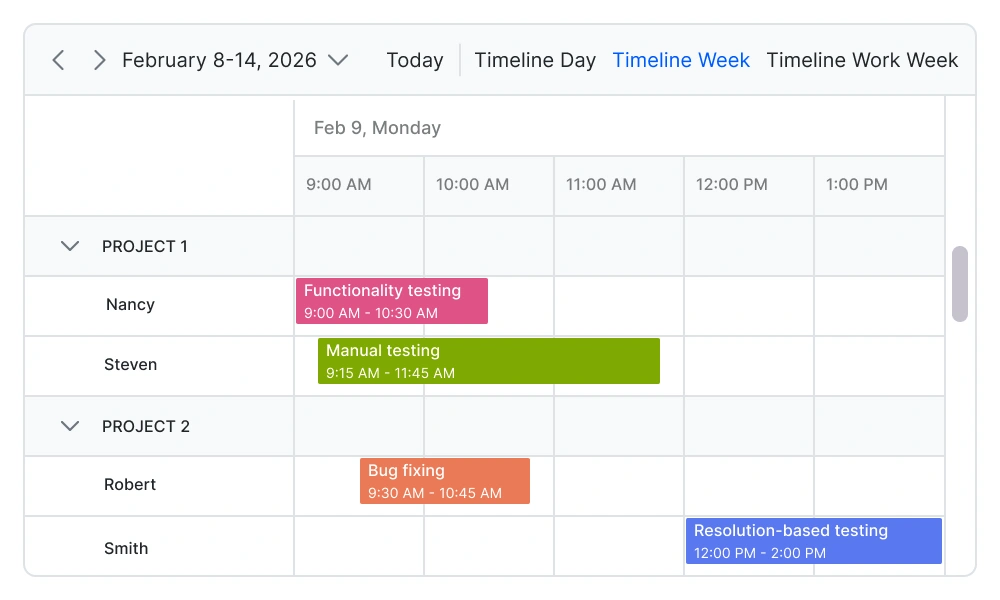
Efficiently manage and schedule multiple resources such as meeting rooms, employees, equipment, or service providers. Group events by resource, track availability, and prevent scheduling conflicts. This is essential for resource planning, workforce management, and reservation systems.
Drag-and-drop scheduling
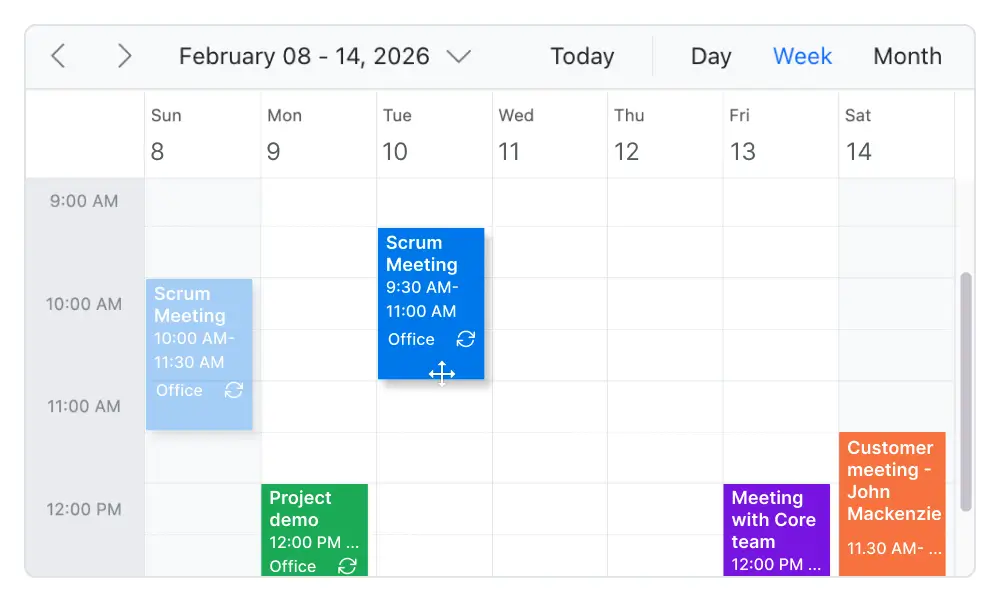
Enable intuitive scheduling with built-in drag-and-drop and resizing capabilities. Users can quickly move appointments, adjust durations, or update schedules directly from the interface. This improves scheduling efficiency and provides a seamless user experience in calendar and scheduling applications.
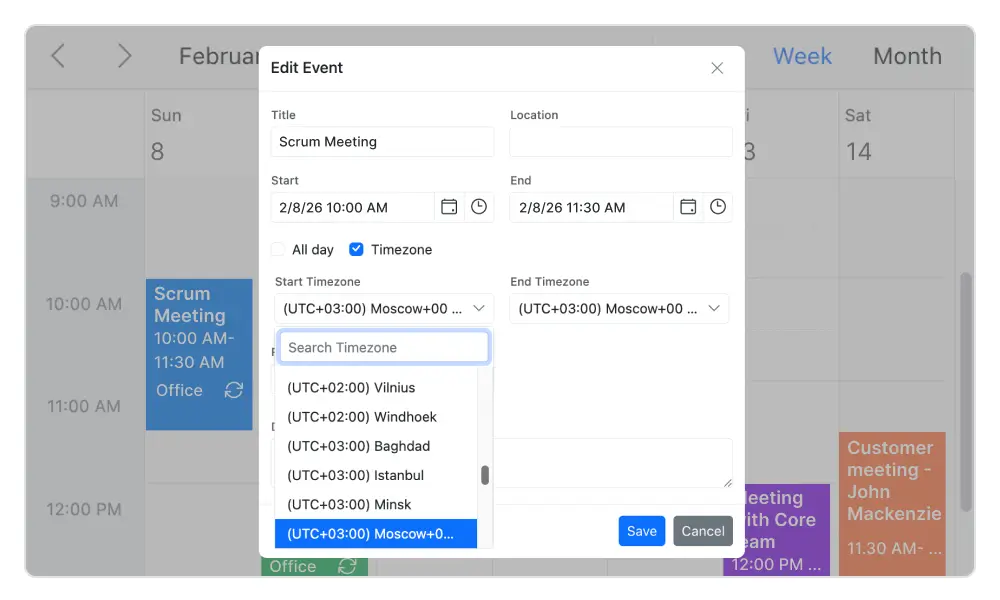
Time zone support
Regardless of the system time zone, the scheduler supports setting the required time zone for both the control and its events.
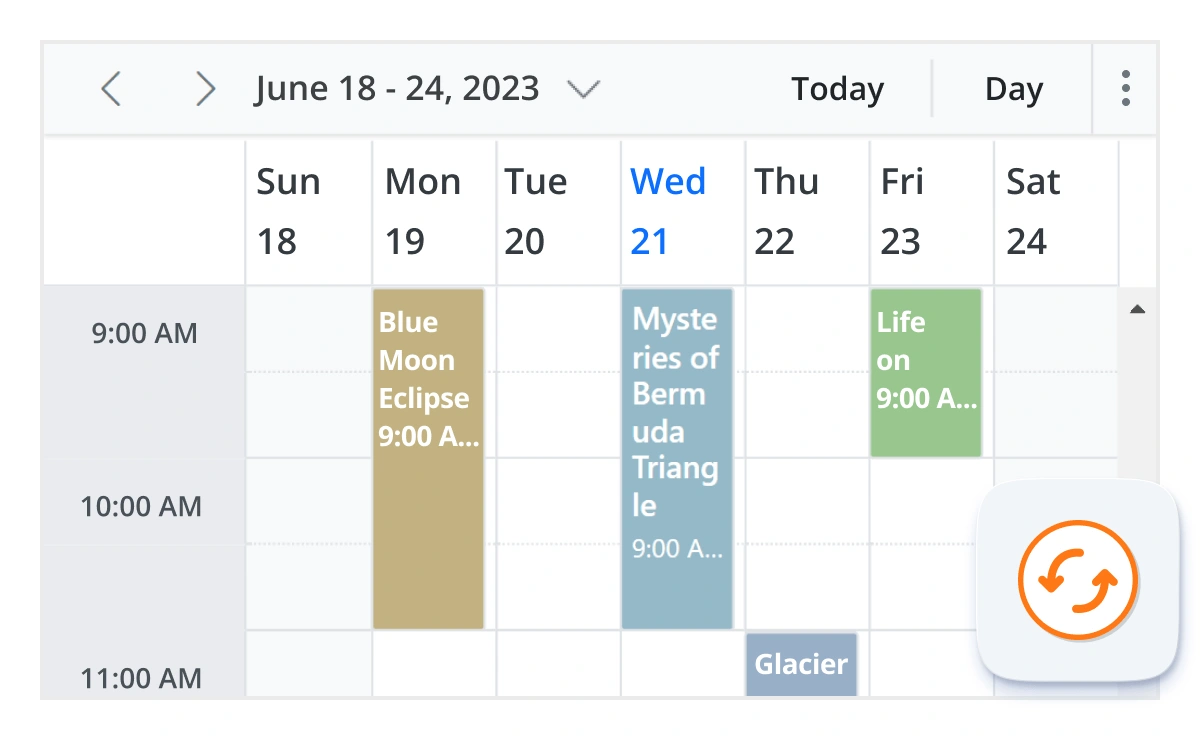
Real-time data synchronization
Real-time appointment data accurately synchronizes with our JavaScript Scheduler.
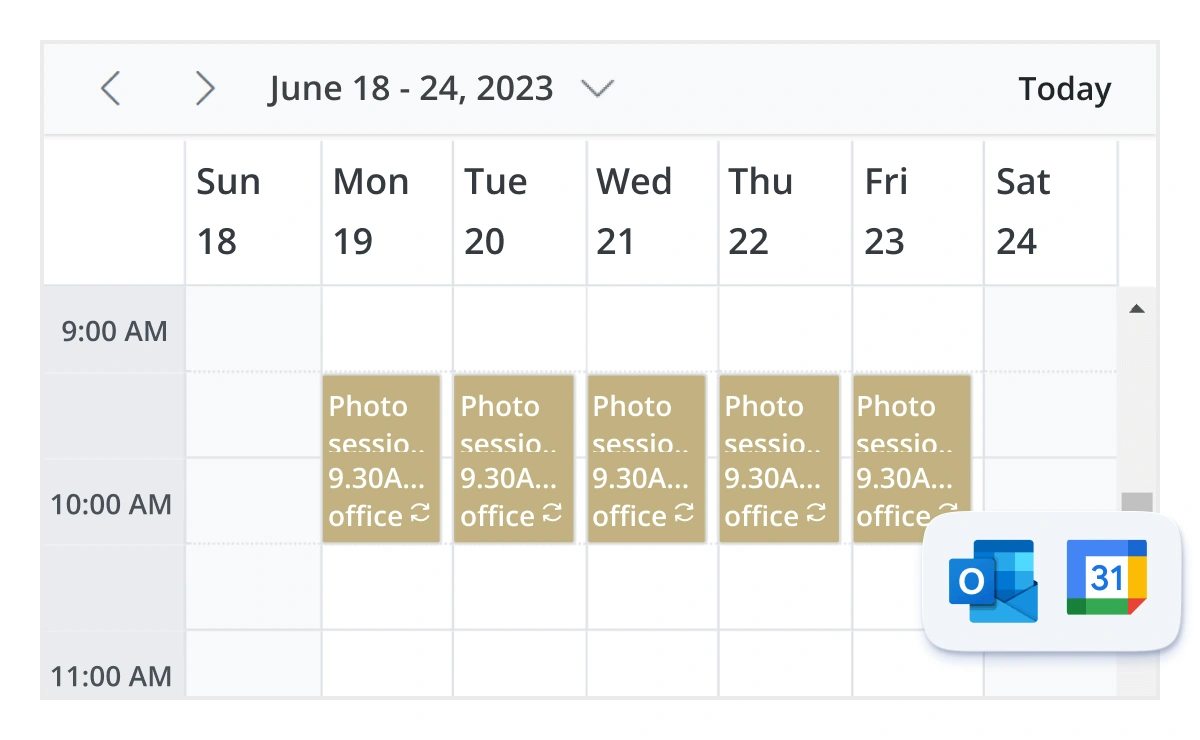
Outlook and Google Calendar integration
Integrate Scheduler events with external calendars such as Google Calendar and Outlook using calendar APIs or iCalendar data.
Real-time updates
Bidirectional data communication conveys the server-side appointment updates made on Scheduler to all the connected clients through SignalR.
Advanced event-handling options
The Scheduler provides clear, vibrant, exact representations of events and appointments across the timeline based on their assigned time duration.

Add and edit capabilities
There is built-in support for better event handling, such as easier appointment creation and editing using the default event editor or through intuitive drag-and-resize actions. In addition, you can also add custom data fields to both the events and resource data source.

Multi-event selection
Easily select multiple events at once by pressing and holding the Ctrl key while clicking on events. On mobile devices, do the same by tapping and holding an event, and continue selecting by single-tapping other events. After successfully selecting events, delete or reposition them simultaneously.

Tooltip
The customizable tooltip displays event information while the mouse pointer is hovering over the event. Do the same on mobile devices by tapping and holding an event.

Appearance customization
Change the look and feel of JavaScript Scheduler events and appointments by customizing their default appearance and style using any HTML or CSS.

Clipboard
The JavaScript Scheduler supports clipboard functionality, allowing users to manage events efficiently. Users can copy selected events using the Ctrl+C shortcut, cut events with Ctrl+X, and paste events into different time slots using Ctrl+V.

Inline appointment
With this feature enabled, users can create and edit appointments inline through a single click on the scheduler cells or on the existing appointment’s subject. Pressing Enter after the new subject text is typed in the inline text box will update and save the appointment appropriately.
Customizable scheduler views
Configure individual Scheduler views with different settings, intervals, grouping options, and templates to match specific scheduling requirements.
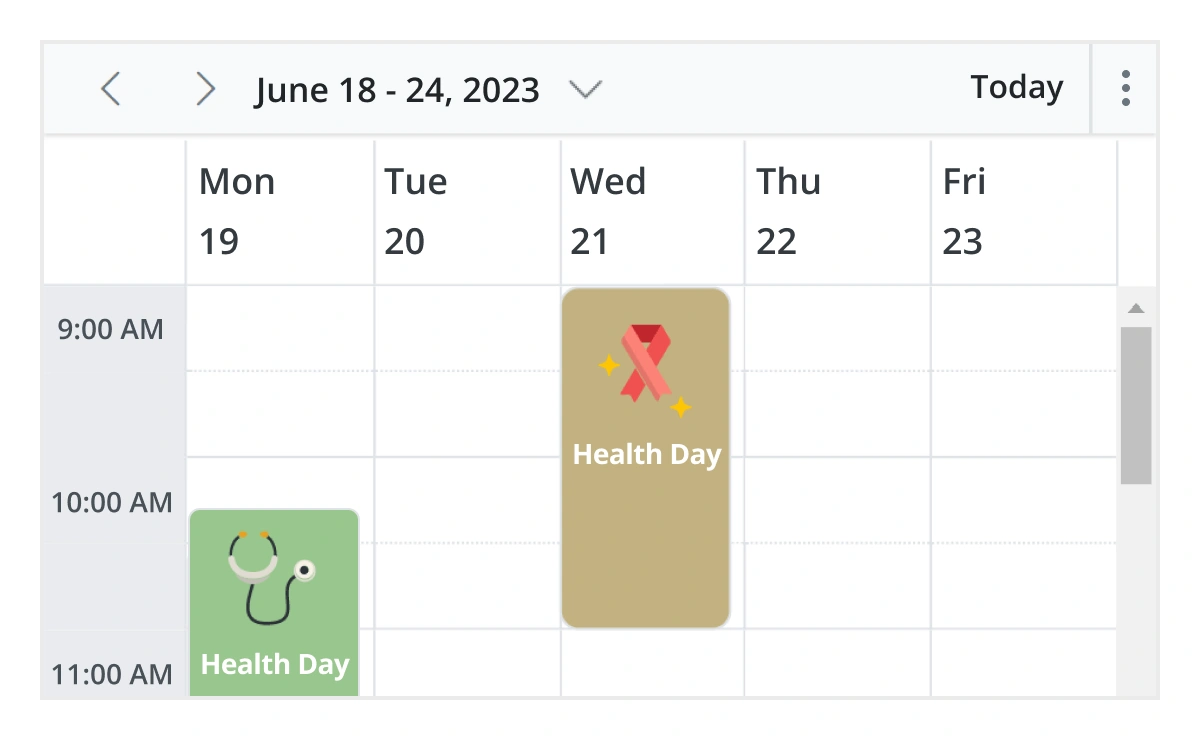
Unique view configurations
Easily configure each individual view mode with different calendar settings. For example, you can enable the grouping feature in month view and apply event templates in week view.
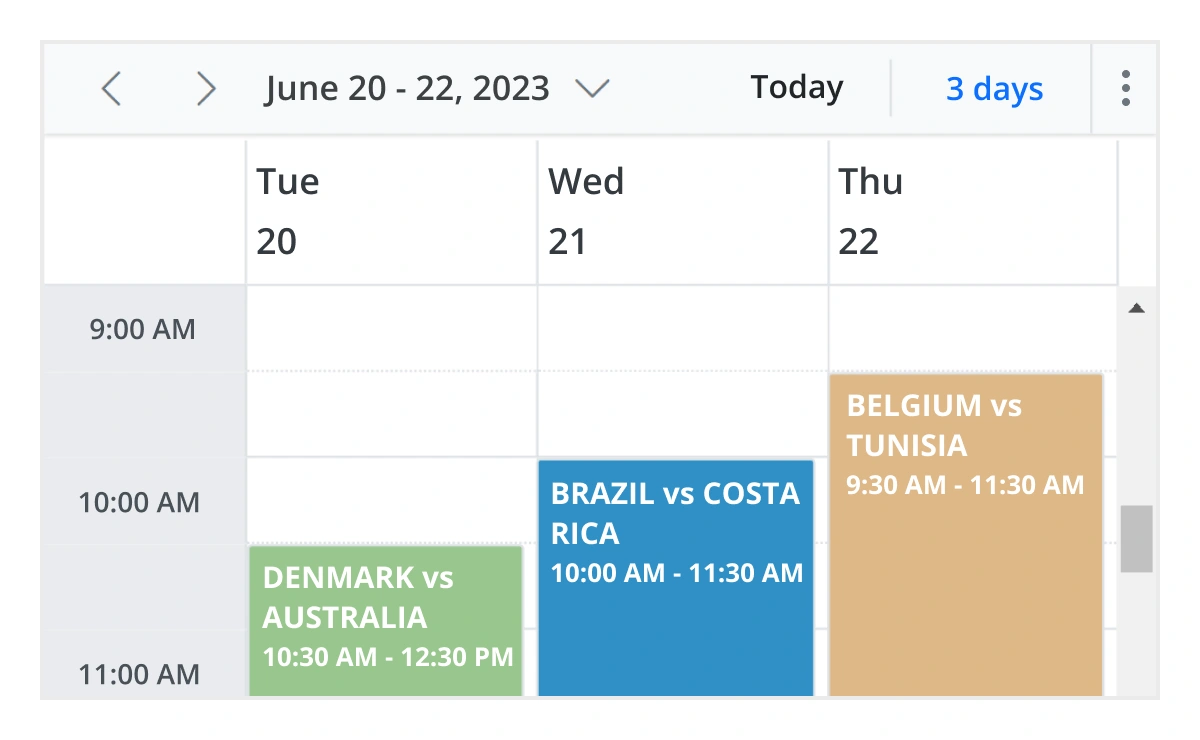
Extensible view intervals
Display multiple days, weeks, and months by extending each view mode based on the provided interval count.
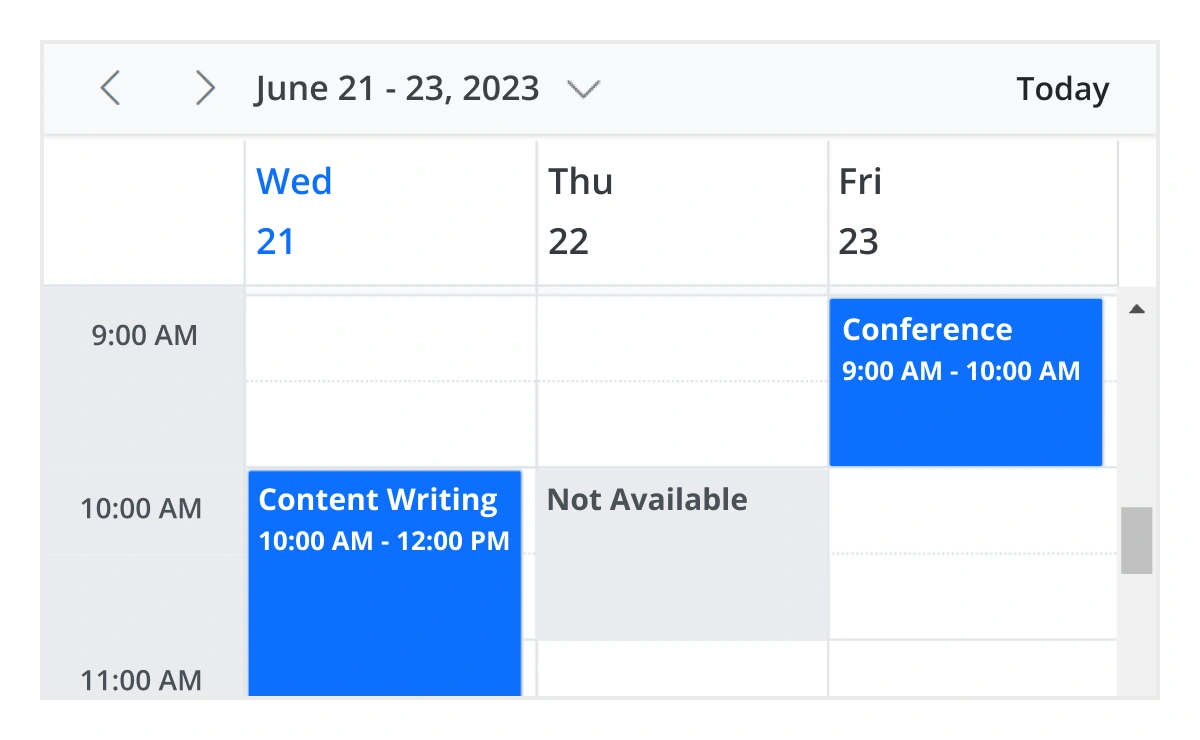
Block time interval
Block specific time ranges to prevent the creation of events and appointments during those time slots.
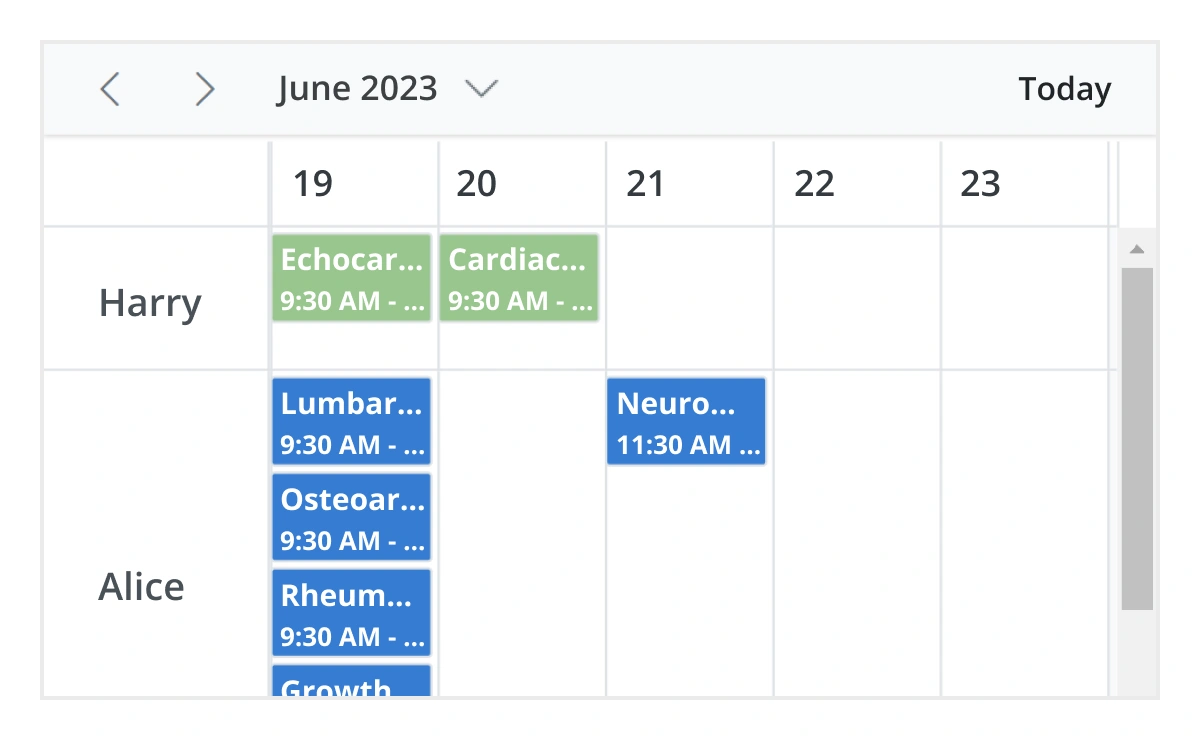
Adaptive rows
A built-in option has been added to the JavaScript Scheduler to automatically increase the height of the rows in month and timeline views when new concurrent events or appointments are added.
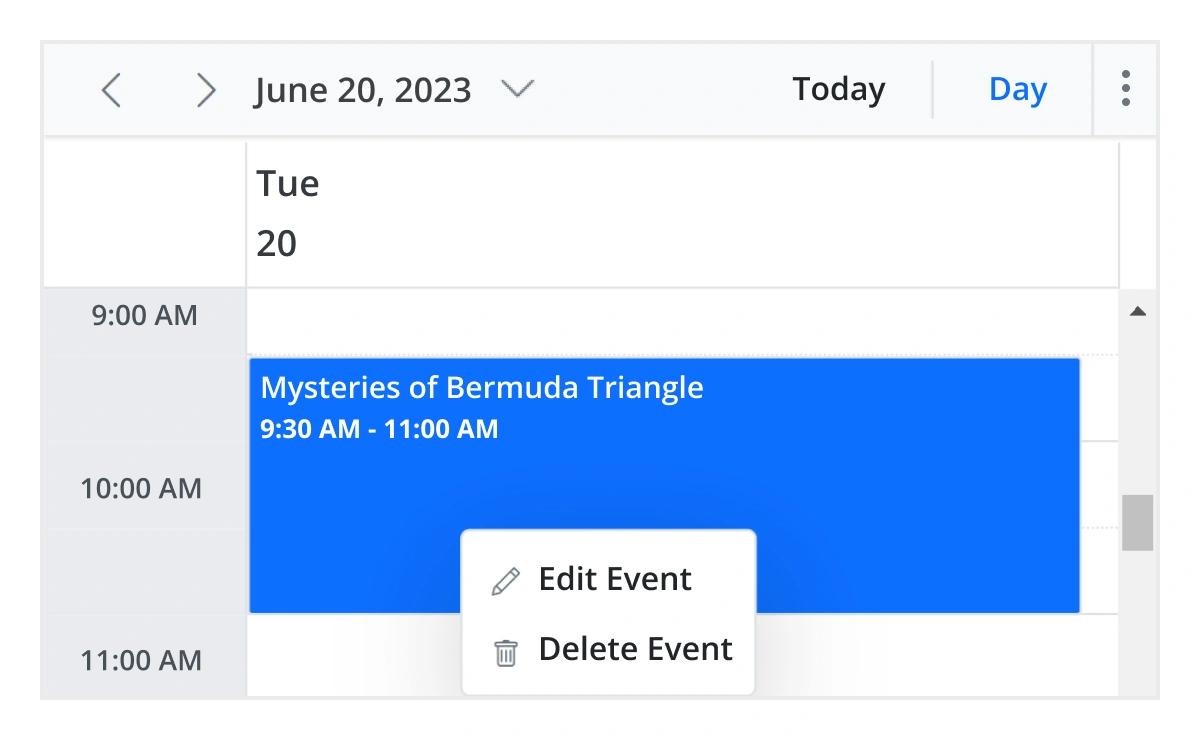
Context menu
Context menu integrated with JavaScript Scheduler opens when a cell or appointment is right-clicked.
Feature-rich calendar options
Configure working days, working hours, time intervals, week numbers, weekends, and time formats to match different scheduling requirements.
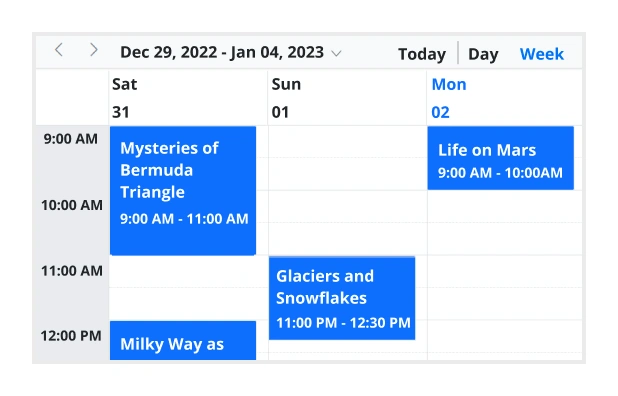
First day of the week
Customize the first day of the week, which defaults to Sunday, as per the default locale. You can utilize this option for individual views also.
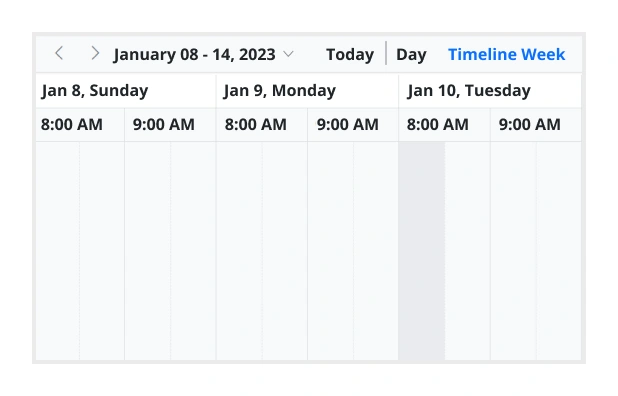
Custom start and end hours
Display the event scheduler layout with specific time durations by hiding the unwanted hours.
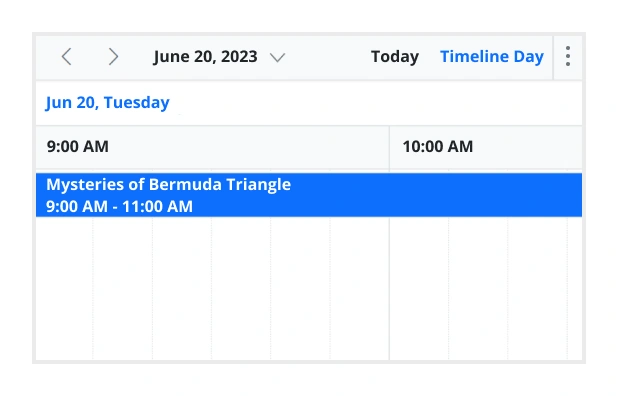
Flexible timescale
Use customizable timescale options to view a timeline of events clearly and set a different duration.
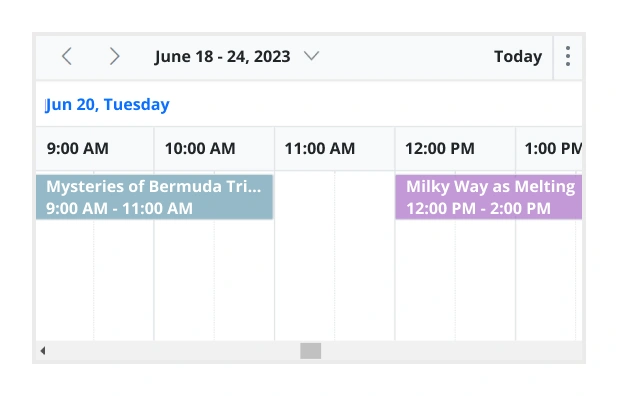
Working time
The active cells of the scheduler (displayed in white) visually represent the work days and working hours.
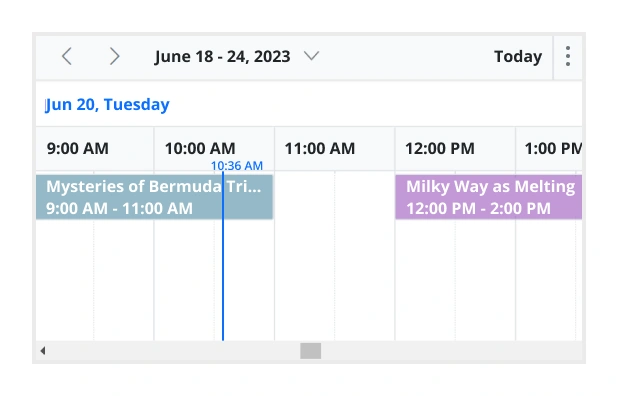
Highlighting current time
Indicate the current date with a highlighted date header. Mark accurately the current time on all views.
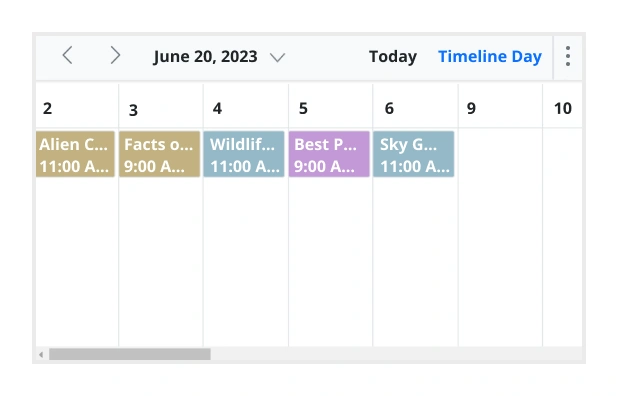
Hiding weekend days
Hiding weekend days from the Scheduler allows you to display only working days across all views.
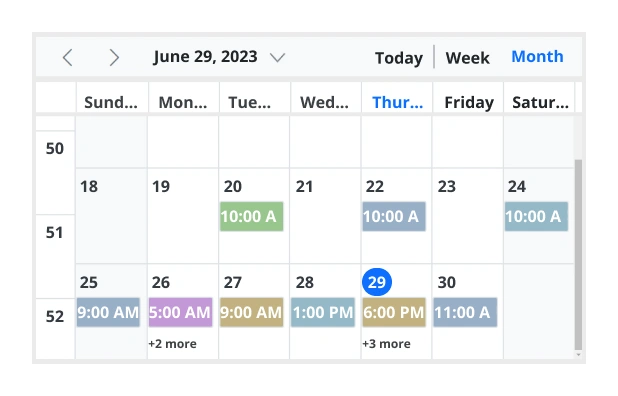
Week number display
Display the week number of the current date range beside the date header in day, week, and workweek views. Also, display the week number in the month view as the first column. The week number is determined by the first day of the week and week rules (first day or first full week, or first four-day week).
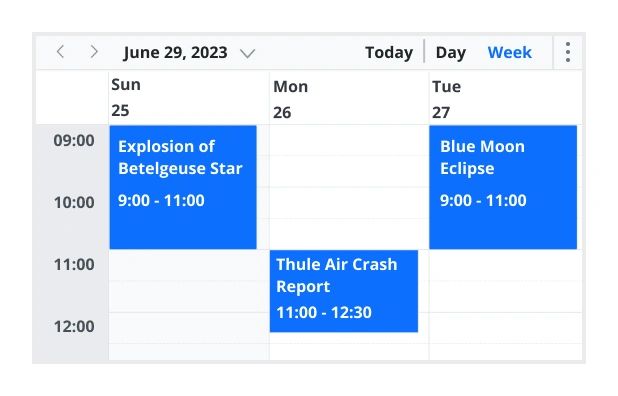
Time mode
The Scheduler control supports both 12-hour and 24-hour time formats.
Completely customizable UI
Customize the appearance of any part of the Scheduler interface using HTML and CSS styles.
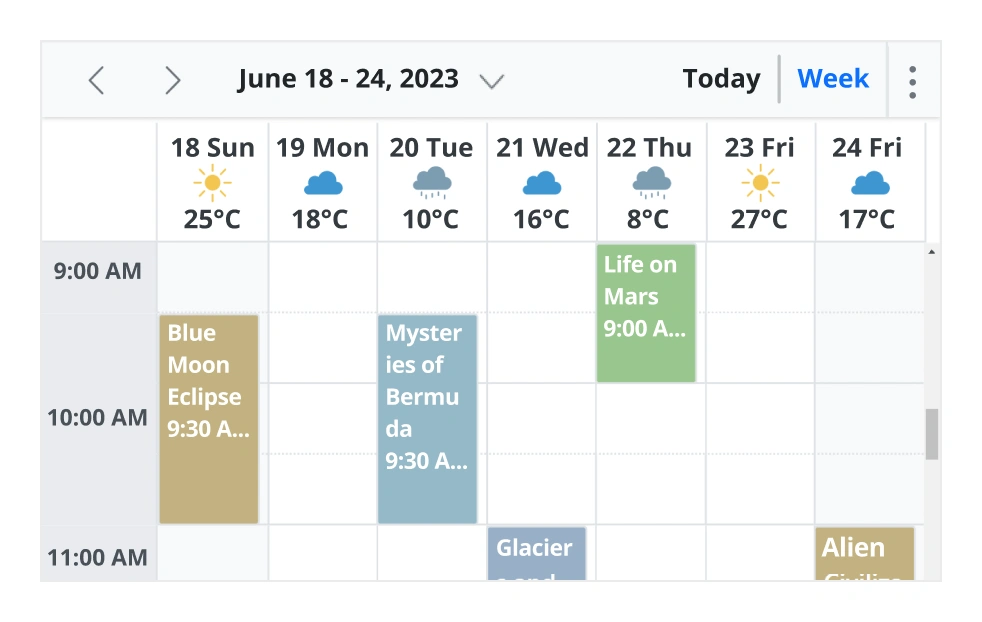
Date header
Change the default appearance of the header bar by adding any kind of CSS, custom text, or image.
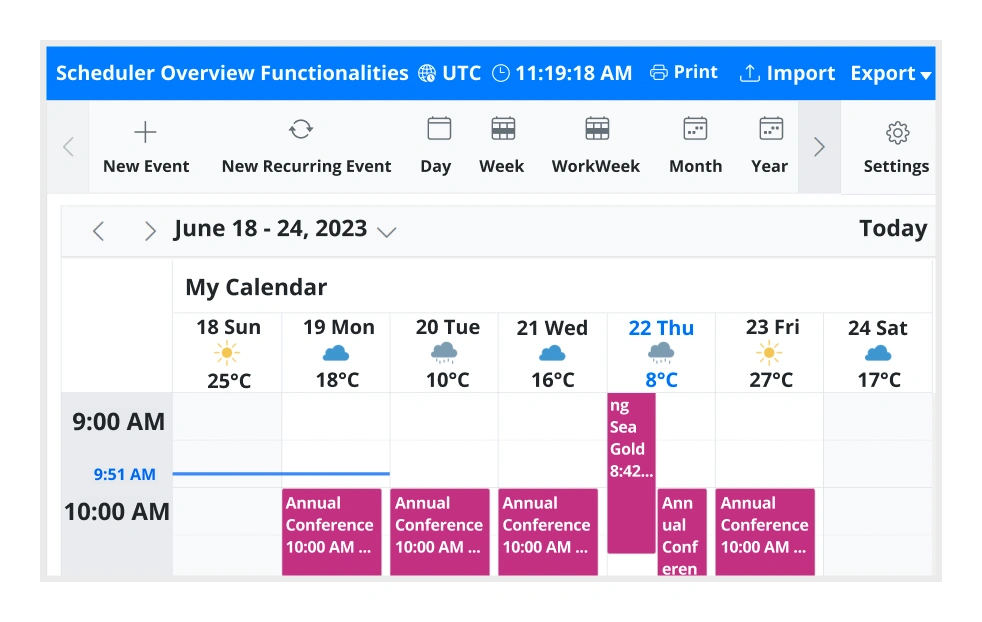
Complete Scheduler UI
A built-in client-side event allows the end users to customize any part of the Scheduler user interface.
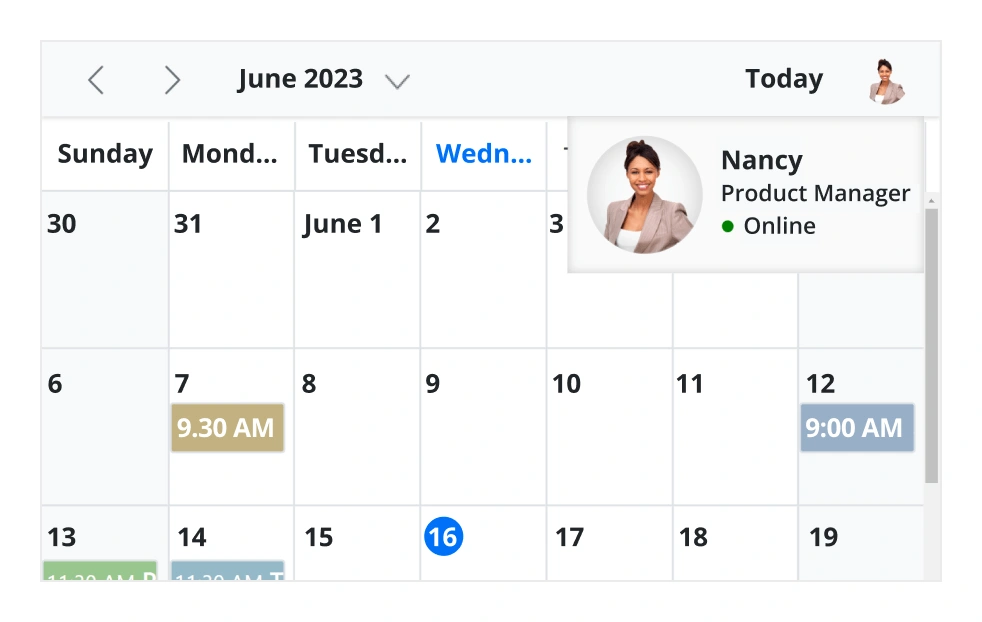
Header bar
Add custom items to the default header bar options. You can hide or show common header bar options.
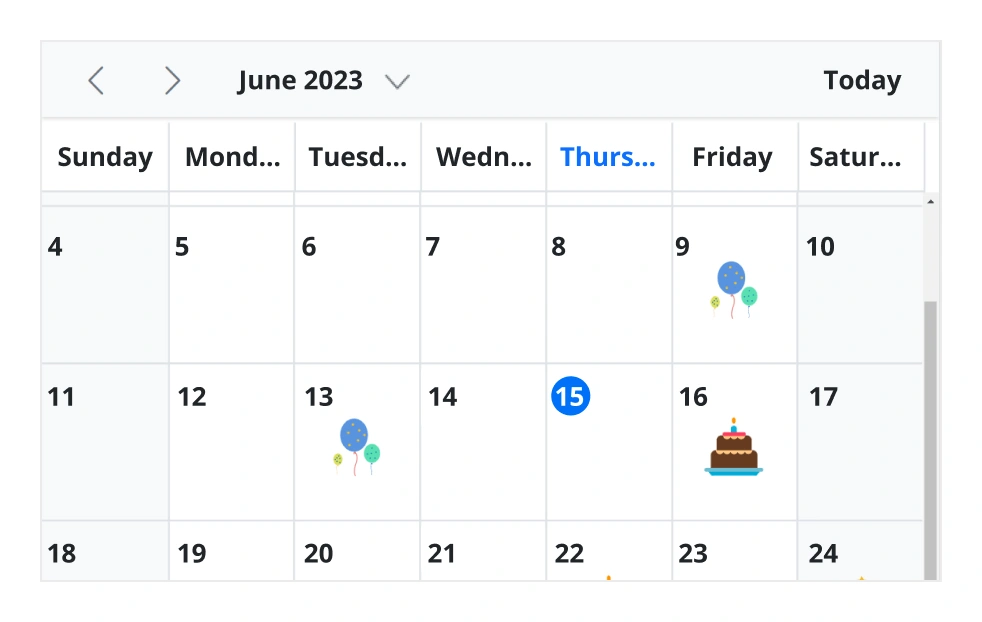
Scheduler cells
Out-of-the-box template options allow you to easily customize the cells by adding any kind of text, image, or CSS.
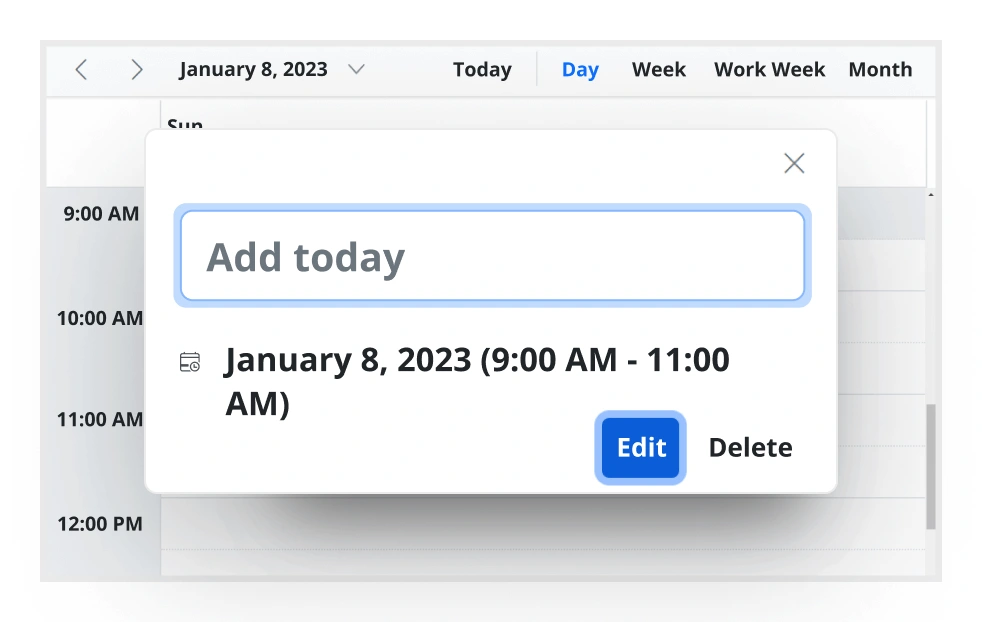
Quick pop-ups
Easily customize pop-ups that open when single-clicking on cells, events, or appointments with your own UI or template design.
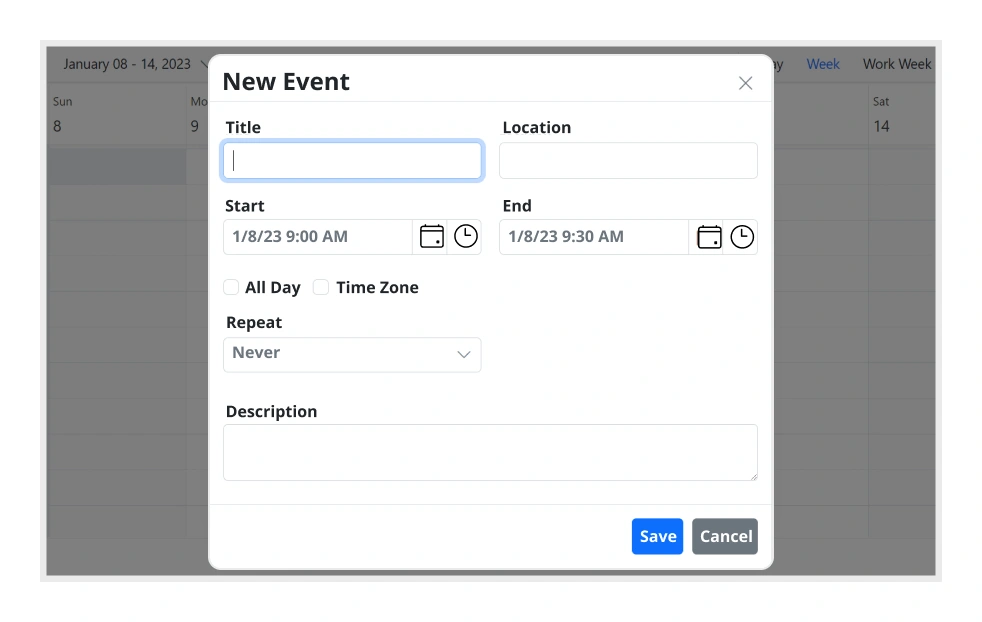
Open event editor externally
A built-in method is available to open the default event editor window programmatically.
User-friendly interactions
The modern and trendy UI design of the JavaScript Scheduler makes the user interactions simpler and more efficient.
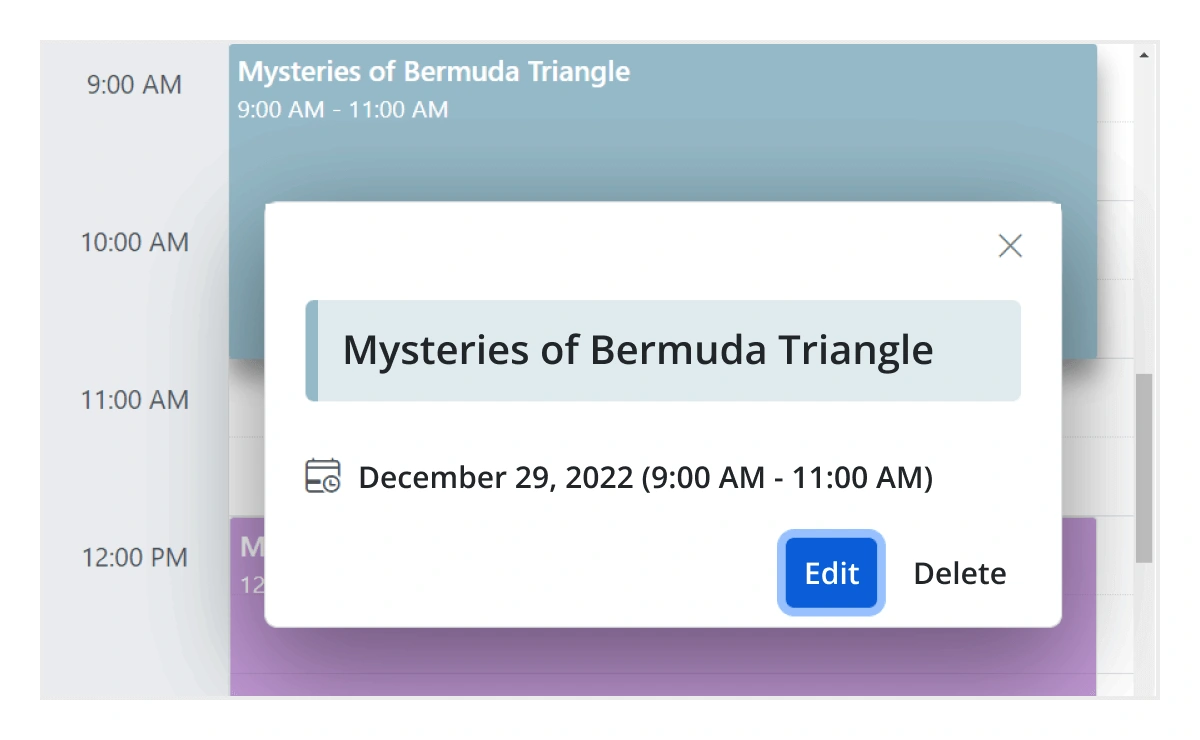
Quick event overview
Clicking or tapping on events displays their important details, such as subject and time, along with edit and delete options.
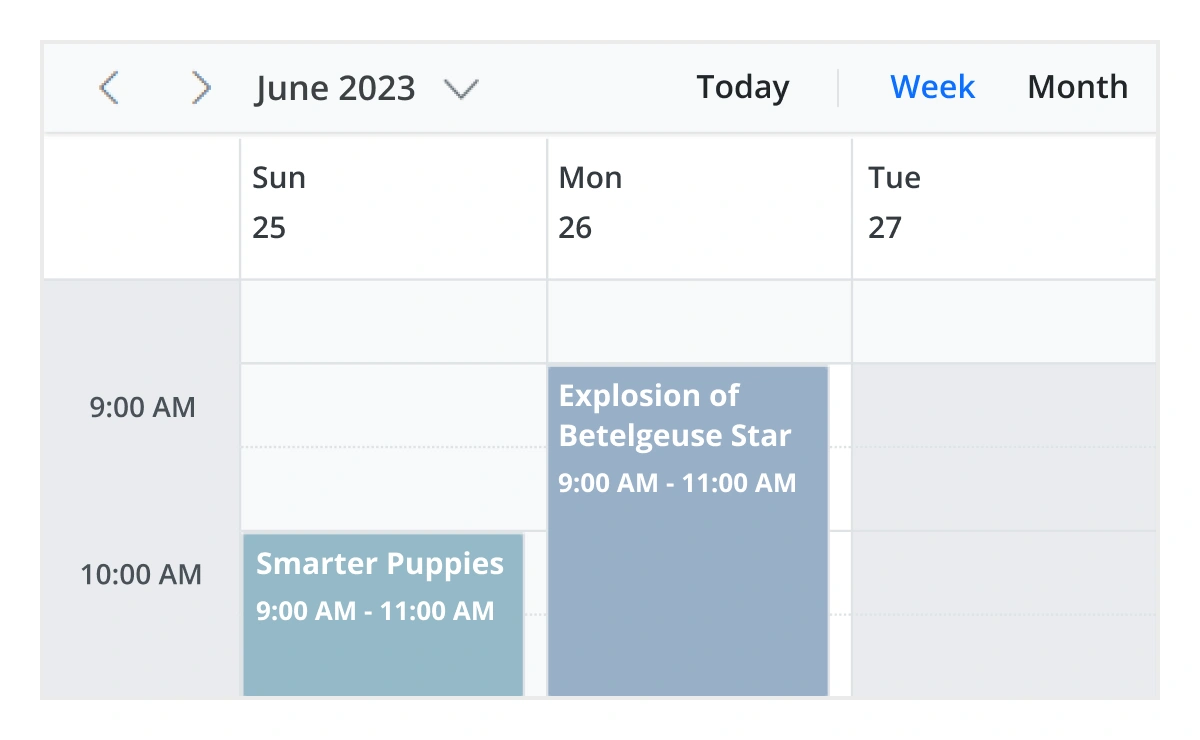
Cell selection
Click and drag the pointer over the Scheduler cells for multiple-cell selection. You can do the same with keyboard shortcuts.
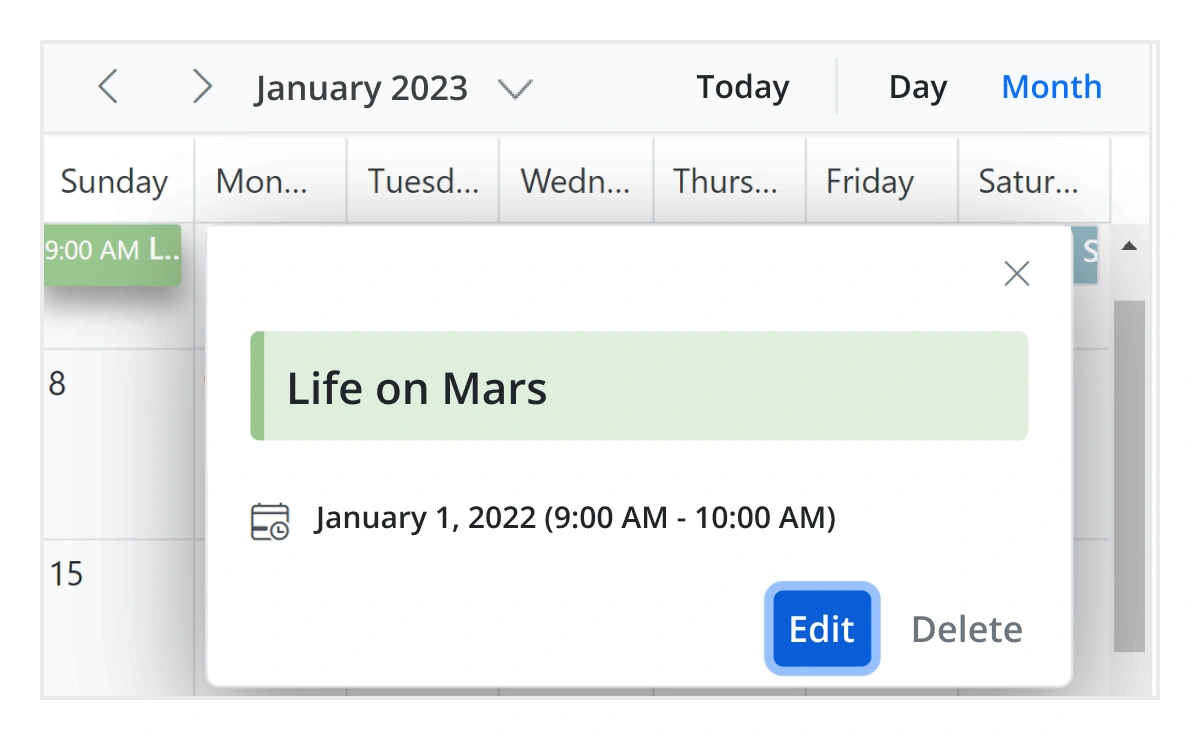
Event container
Clicking on the text indicator (+n more) in month and timeline views will open an event container listing all the hidden event and appointment details of a day.
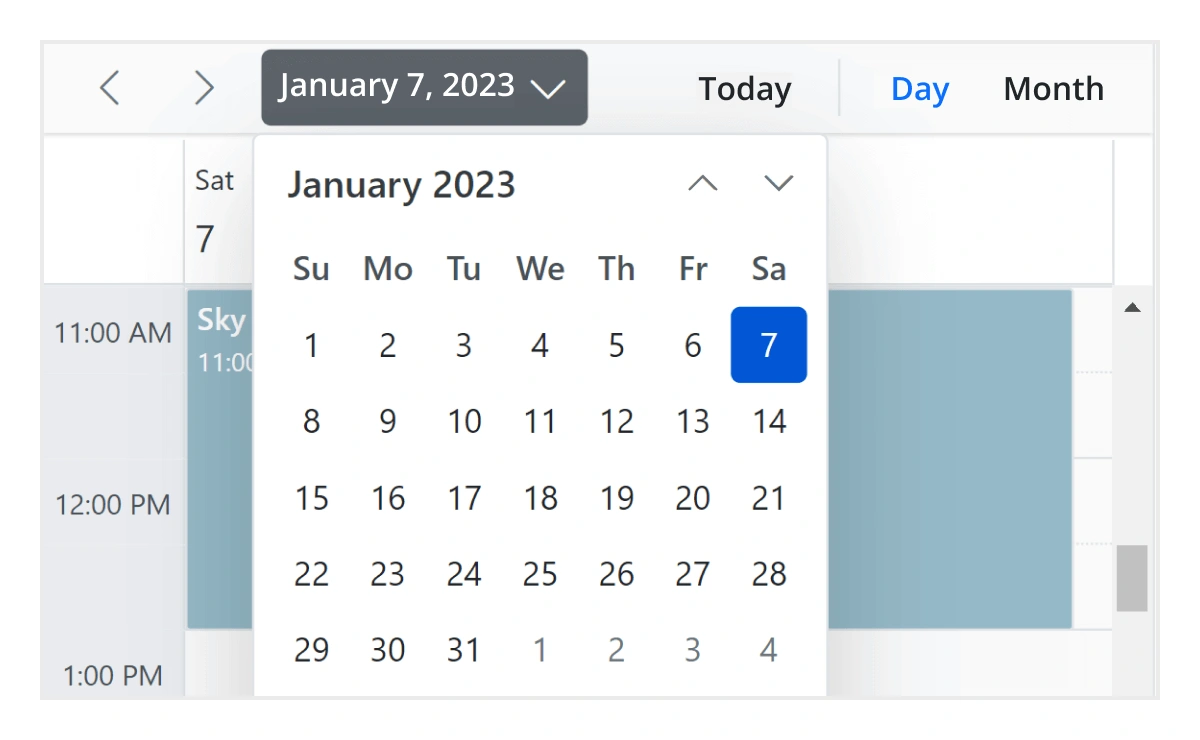
Quick navigation
The JavaScript Scheduler provides an intuitive way to navigate back and forth among the date ranges using an inline calendar, and also to navigate between different view modes.
Interactive features
The JavaScript Scheduler allows users to export its events in two ways: as an Excel file or as an ICS file.

Export to Excel
The JavaScript Scheduler allows you to export all its events to an Excel document by default. It also provides additional customization options to export custom event data collections.

Export and import ICS
The JavaScript Scheduler supports exporting all its event data to iCal format, and it supports importing events from an iCal file.

Developer-friendly APIs
Developers can have full control over the UI and behavior of the event calendar through its built-in, developer-friendly APIs. It allows you to customize even the complex Scheduler functionalities with ease.
Accessibility
The JavaScript Scheduler control is easily accessed by screen readers. Complete keyboard interaction support has also been provided.

Completely accessible
The JavaScript Scheduler control has complete WAI-ARIA accessibility support. The Scheduler UI includes high-contrast visual elements, giving visually impaired people the best viewing experience. Also, valid UI descriptions are easily accessible through assistive technologies such as screen readers.

Keyboard interactive
Various keyboard shortcuts are available to perform almost all the Scheduler actions, such as multiple cell or event selection and navigating to other views.

Right to left (RTL)
Render the event scheduler following the proper right-to-left conventions.
AI-assisted development
Build feature-rich JavaScript Scheduler experiences faster
Accelerate scheduling application development with Syncfusion AI tools that turn requirements into fully configured calendar and event management experiences with minimal manual setup.
Agent Skills
Accelerate development with Syncfusion AI Agent Skills for faster implementation and integration.
Example Prompt Generate a JavaScript scheduler with recurring appointments, resource grouping, and drag-and-drop editing.
MCP Server
Accelerate development with AI that generates, configures, and troubleshoots component code directly in your IDE.
Example Prompt Show how to bind remote appointments and enable timeline views in the Syncfusion JavaScript Scheduler.
Not sure how to create your first JavaScript Scheduler? Our documentation can help.
I’d love to read it nowFrequently Asked Questions
What is a JavaScript Scheduler control?
A JavaScript Scheduler control is a feature-rich JavaScript event calendar for displaying and managing events, appointments, meetings, bookings, and resources. The Syncfusion JavaScript Scheduler supports multiple calendar views, recurring events, drag-and-drop scheduling, resource grouping, time zones, and event editing.
What calendar views does the JavaScript Scheduler support?
The JavaScript Scheduler supports day, week, workweek, month, agenda, month agenda, and year views. It also provides timeline day, timeline week, timeline workweek, timeline month, and timeline year views for horizontal scheduling.
How do I create recurring events in the JavaScript Scheduler?
The JavaScript Scheduler supports daily, weekly, monthly, yearly, and custom recurring events. You can also modify individual occurrences and manage exceptions without affecting the entire recurring series.
For additional details, refer to our comprehensive documentation on recurring events in the JavaScript Scheduler.
How do I create a Scheduler in JavaScript?
Install or load the Syncfusion JavaScript Scheduler, add the required calendar views, initialize the Scheduler, and bind an event data source. You can then configure appointments, recurring events, resources, drag-and-drop scheduling, and time zones.
How does the JavaScript Scheduler handle large numbers of resources and events?
The JavaScript Scheduler uses virtual scrolling to efficiently handle large numbers of resources and events. It loads and renders the required scheduling data as users scroll, helping reduce initial rendering time and memory usage for large schedules.
For more information, refer to our detailed documentation available on Virtual scrolling in JavaScript Scheduler.
Is the Syncfusion JavaScript Scheduler free?
The Syncfusion JavaScript Scheduler is a commercial control. However, eligible individuals and organizations can use it for free through the Syncfusion Community License. Refer to the Community License page for the current eligibility requirements.
Does the JavaScript Scheduler support drag-and-drop and event resizing?
Yes. The JavaScript Scheduler supports drag-and-drop scheduling to move appointments between time slots and event resizing to adjust their duration. These interactions let you reschedule and update appointments directly in the Scheduler.
Can I build a JavaScript appointment scheduler with Syncfusion?
Yes. The Syncfusion JavaScript appointment scheduler lets you create and manage appointments, recurring bookings, resources, and time zones. Users can also add, edit, move, and resize appointments directly within the Scheduler.
Does the JavaScript Scheduler support resource grouping?
Yes. The JavaScript Scheduler supports resource grouping for rooms, employees, equipment, service providers, and other resources. Resources can be organized in calendar and timeline views, including multilevel grouping for complex scheduling scenarios.
For additional details, refer to the comprehensive documentation on resources and grouping in the JavaScript Scheduler.
Trusted by the world’s leading companies

Our Customers Love Us





Syncfusion JavaScript Scheduler Resources


 Figma Download







