
Overview
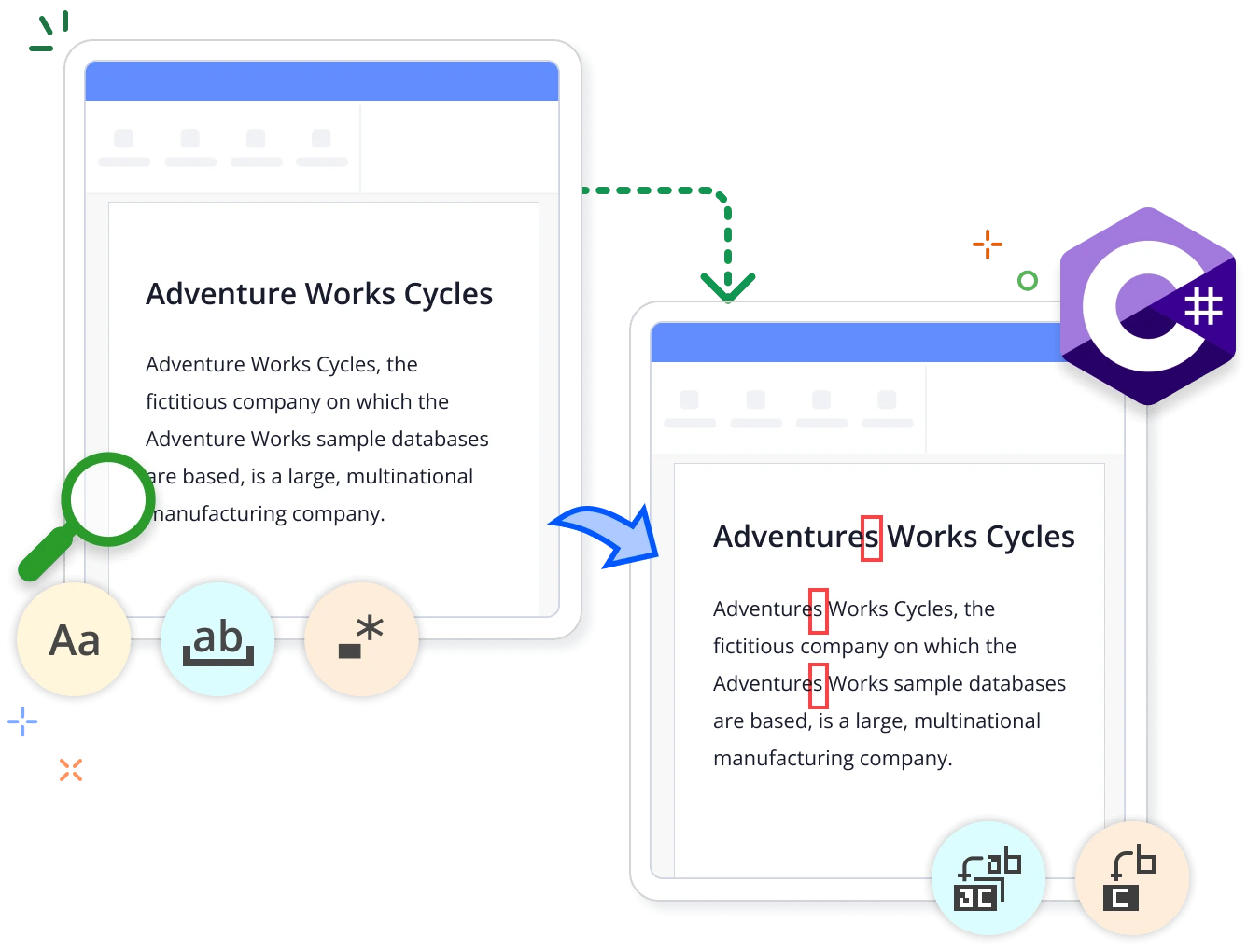
Streamline your Word document editing with the Syncfusion .NET Word Library. By using C#, you can find and replace text with dynamic elements, including images, hyperlinks, paragraphs, tables, or even an entire document. This functionality operates without Microsoft Word or interop dependencies. Refine your searches by using options for case-sensitivity and whole-word matches.
Find and replace in Word document using C#
This example code shows how to find and replace text in a Word document using the Syncfusion .NET Word Library with just a few lines of C# code.
Key features of the Find functionality
Find text
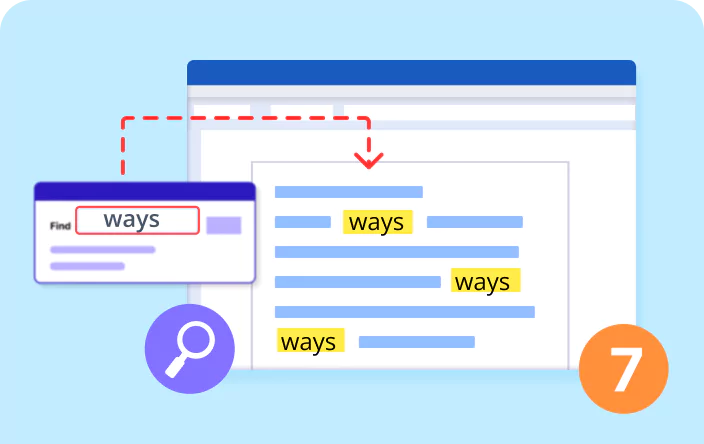
Find text in a Word document based on a specific pattern using a regular expression (regex) or a normal string. You can search the entire document or within a specific paragraph.
Casing and whole words
Refine the find operation by matching the casing or whole word for precise results.
Find first
Find only the first occurrence of a piece of text in a Word document.
Find all
Find all the occurrences of a text length in all parts of a Word document, including the body, header, footer, shapes, comments, footnotes, and endnotes.
Find next
Find the next occurrence of a specified text in a Word document.
Find multiline text
Find the first or next occurrence of a text that extends across several paragraphs.
Features of the Replace functionality
Replace text
Perform a find and replace operation for the text in a Word document and track the total number of replacements made. You can find a static text or specific pattern using a regular expression (regex).
Replace first
Replace only the first occurrence of the specified text in a Word document.
Replace with document
Replace the searched text with document elements such as paragraphs, tables, and content controls while maintaining the source formatting.
Replace with document elements
Replace the searched text with document elements such as paragraphs, tables, and content controls while maintaining the source formatting.
Replace with selection
Find and retrieve text with formatting (bold, highlight) for replacement in occurrences of other placeholders in a Word document, maintaining that formatting.
Replace multiline text
Replace all text occurrences spanning multiple paragraphs with the replacement text or document elements.
Features of Find elements
Find the element by properties
Locate the first Word document element that matches a specified property or a collection of properties. For example, find a picture by its alternative text or a chart by its title and type.
Find all elements by properties
Find all elements that match a specified property or a collection of properties. For example, find all fields of a specific type or all content controls with a specific title and tag.
Explore find and replace references
Check our blog and knowledge base articles to improve your efficiency with find and replace functionalities in Word documents.

Knowledge base
How to find and replace text with a hyperlink in Word documents using C#


Knowledge base
How to find and replace text with a Table of Contents (TOC) in a Word document

Syncfusion .NET Word Library Resources
Explore these resources for comprehensive guides, knowledge base articles, insightful blogs, and ebooks.


Product Updates


Technical Support


Frequently Asked Questions
Does the .NET Word Library support searching for text based on case sensitivity or whole word matching criteria?
Yes, you can customize the find functionality in the .NET Word library to search the text based on criteria such as case sensitivity and whole-word matching.
Does this .NET Word library offer options for formatting the found text occurrences like highlighting and more?
Yes. Besides finding and highlighting, you can format the found text with options such as bold, underline, font size, and more.
Is finding document elements like images, charts, tables, and more similar to finding text?
Yes, like finding text in a Word document, the .NET Word Library offers options to find Word document elements based on their properties.
Can I replace text with other elements like images, hyperlinks, or tables?
Yes, you can replace text with Word document elements such as images, hyperlinks, tables, and more.
Can I find and replace text in a specific paragraph alone?
Yes, using the .NET Word Library, you can find and replace text in a specific paragraph.
How can I integrate find and replace functionalities into my application?
You can access it through the Syncfusion.DocIO.Net.Core NuGet package. The documentation provides detailed code samples, facilitating seamless integration.
Trusted by the world’s leading companies
Our Customers Love Us




Want to create, View, and edit Word documents in C# or VB.NET?
No credit card required.