
Overview
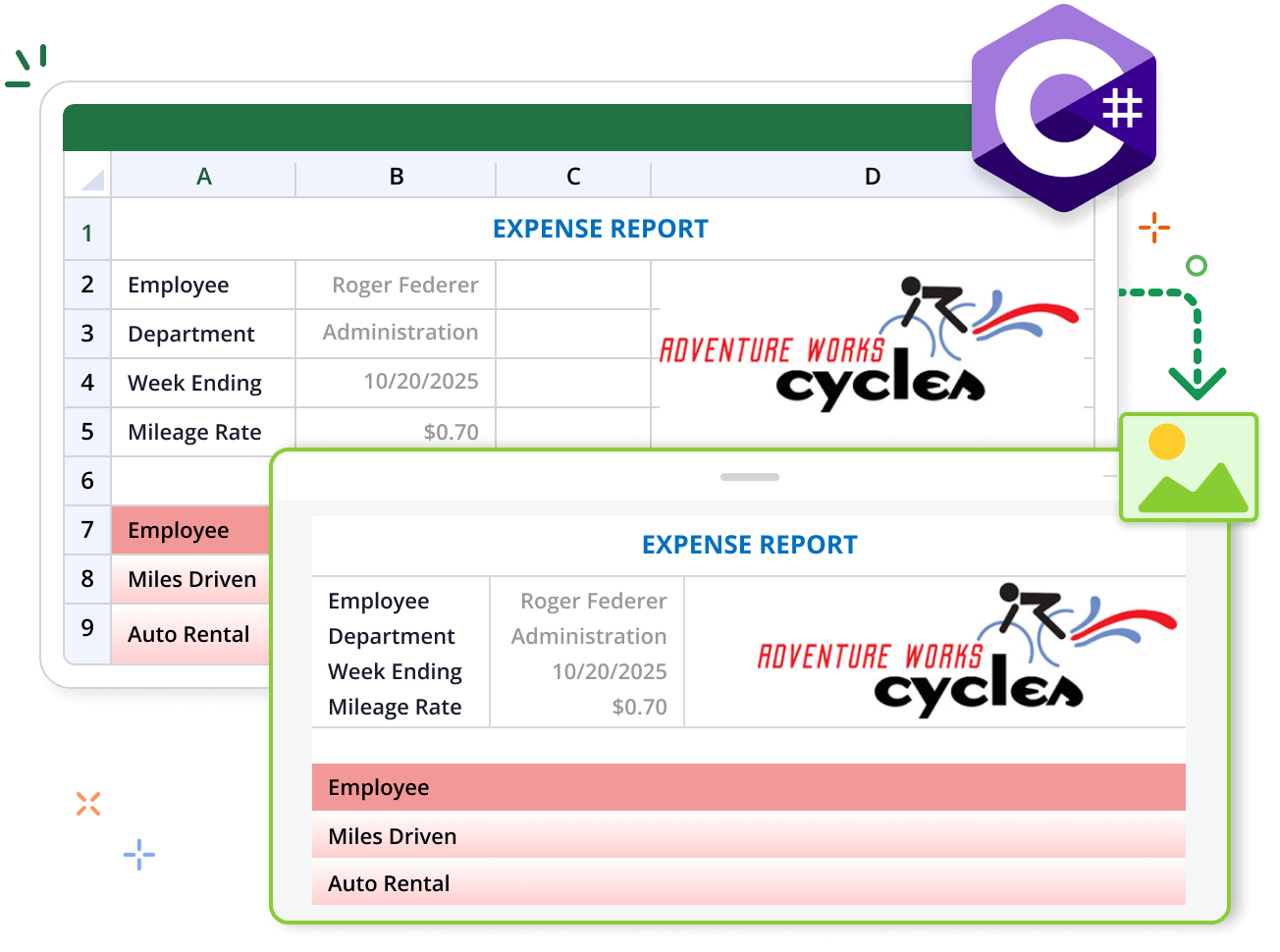
The Syncfusion .NET Excel (XlsIO) library makes it easy to convert Excel files to images in C#. With this library, you can effortlessly export and save worksheet content in PNG, JPG, and BMP image formats. This feature proves valuable in various scenarios where you need to share or display the worksheet content beyond Microsoft Excel, such as in presentations, websites, and documents.
Convert Excel to Image Code Example
This example code shows how to convert an Excel document to an image using the Syncfusion .NET Excel library with just a few lines of C# code.
Key features of Excel to Image conversion
Discover how Excel-to-image conversion in the Syncfusion Excel library allows users to efficiently export worksheet content as images for seamless sharing and use in presentations or reports.
Convert an entire worksheet to an image
Render the full content of a worksheet as an image, making it easy to share or use in reports.
Convert a specific range from the worksheet to an image
Export a designated range of cells from a worksheet as an image, focusing on specific content.
Convert a worksheet with conditional formatting to an image
Ensure that all conditional formatting rules are preserved when converting a worksheet to an image.
Convert a worksheet with a pivot table to an image
Accurately export a worksheet containing a pivot table as an image, retaining data summaries.
Convert a worksheet with rich text, text boxes, and Unicode characters to an image
Preserve rich text, text boxes, and Unicode characters when rendering a worksheet as an image.
Explore Excel to Image References
Discover valuable resources from our documentation and knowledge base articles to enhance your efficiency in converting Excel to images.




Documentation
How to convert an Excel worksheet to an image in Azure App Service (Windows)

Documentation
How to convert an Excel worksheet to an image in Azure App Service (Linux)


Syncfusion .NET Excel Library Resources
Explore these resources for comprehensive guides, knowledge base articles, insightful blogs, and ebooks.


Product Updates


Technical Support


Frequently Asked Questions
Is it possible to set the image quality for the Excel to image conversion using the Syncfusion Excel library?
You can set the image quality to normal mode or best mode while converting the Excel document to images.
How do you convert shapes to images using the Syncfusion Excel library?
You can select the cell range which includes shapes to perform the Excel to Image conversion. It will convert shapes to images using the Syncfusion Excel library.
Is rich text formatting supported in the Syncfusion Excel library?
Yes. The Syncfusion Excel library supports cell rich text formatting and will be included in the converted images.
How many rows and columns are supported in the Syncfusion Excel library?
The Syncfusion Excel library supports 1048576 rows and 16384 columns.
Can the entire worksheet be converted to an image using the Syncfusion Excel library?
Yes. You can provide the conversion range to the maximum number of rows and columns to convert the entire worksheet to an image using the Syncfusion Excel library.
Are table and pivot table styles supported in the Syncfusion Excel library?
Yes. The Syncfusion Excel library supports table and pivot table styles in Excel to Image conversion.
Trusted by the world’s leading companies
Our Customers Love Us




Want to create, View, and edit Excel files in C# or VB.NET?
No credit card required.