Secure PDF Documents with Advanced Password Protection
- Secure confidential documents with password-based protection.
- Control how users interact with PDF content after distribution.
No credit card required.
VIEW DEMONo credit card required.
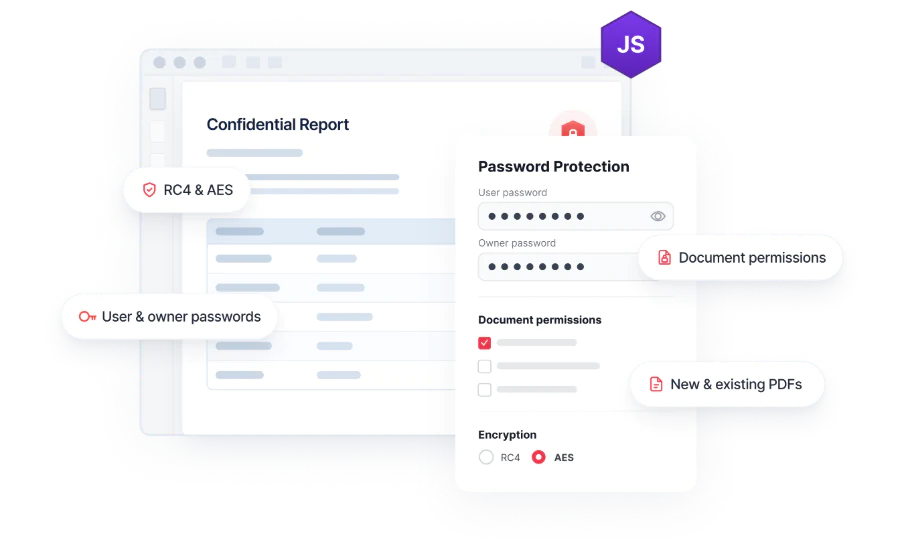
Protect PDF documents throughout their lifecycle
Secure and distribute PDF documents with confidence, ensuring the right users have the right level of access throughout the document lifecycle.
Secure PDFs
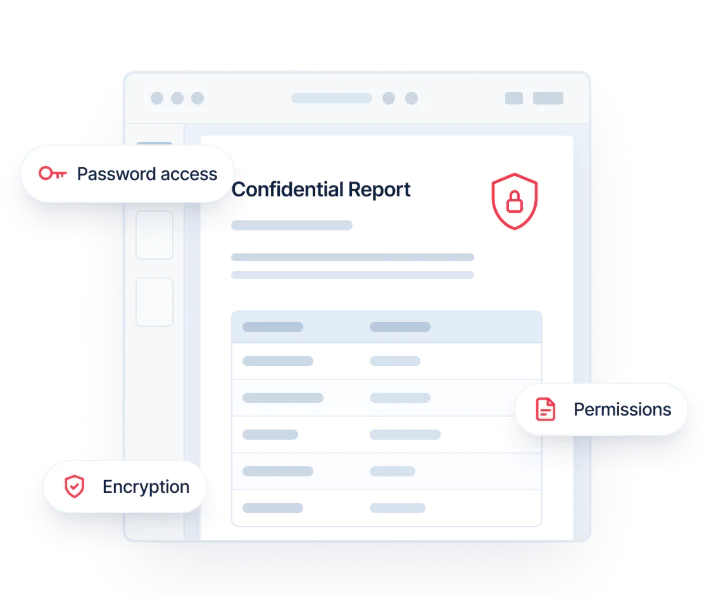
Control access to PDF documents using user and owner passwords. Restrict unauthorized access to sensitive information and confidential files. Protect contracts, financial records, reports, and other sensitive business documents.
Restrict document permissions
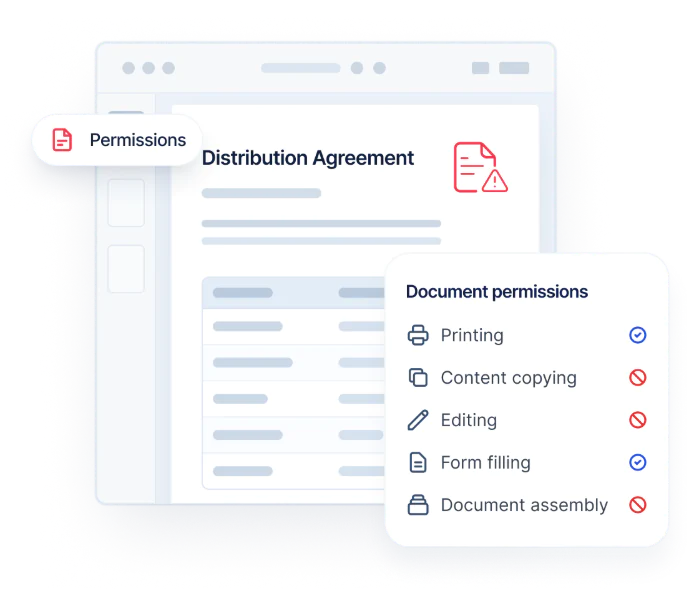
Manage how users interact with PDF documents after they are shared. Restrict actions such as printing, content copying, editing, form filling, and document assembly. Help maintain document integrity and controlled access to information.
Manage PDF security
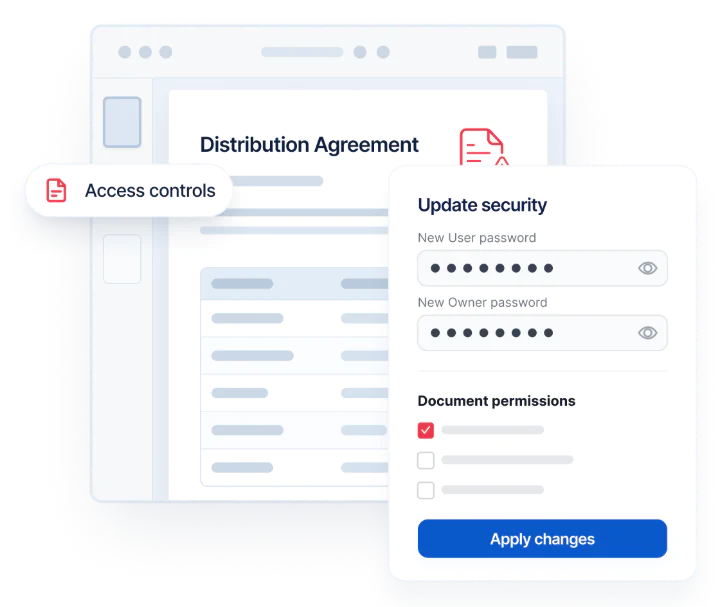
Modify passwords, permissions, and protection settings for existing PDFs. Keep document security aligned with changing business needs.
Encrypt PDF documents
Protect new and existing PDF documents using user and owner passwords. Choose RC4 encryption for legacy compatibility or AES encryption for modern security. Apply protection before saving to control document access from the moment it is shared.
- Secure PDF documents with user passwords to restrict access and owner passwords to control permissions.
- Choose RC4 40-bit/128-bit or AES 128-bit/256-bit encryption based on security requirements.
- Configure encryption, passwords, and permissions through a single security API.
- Update passwords, permissions, and encryption settings on existing PDF documents as requirements evolve.
Restrict document permissions
Define what recipients can do with a PDF document after it is distributed. Apply permission flags to enforce access policies and ensure documents are used only in the ways your workflow allows.
- Control printing permissions using dedicated permission flags.
- Restrict content copying and prevent unauthorized document editing.
- Allow or restrict form filling based on document requirements.
- Control page insertion, deletion, and rearrangement using document assembly permissions.
Manage passwords and permissions
Update passwords and permission settings on protected PDF documents without changing document content or encryption settings. Maintain access controls and security requirements as users, workflows, and business policies evolve.
- Change passwords on encrypted PDF documents.
- Update permission settings without recreating files.
- Modify security settings without affecting document content.
- Keep document access controls aligned with changing requirements.
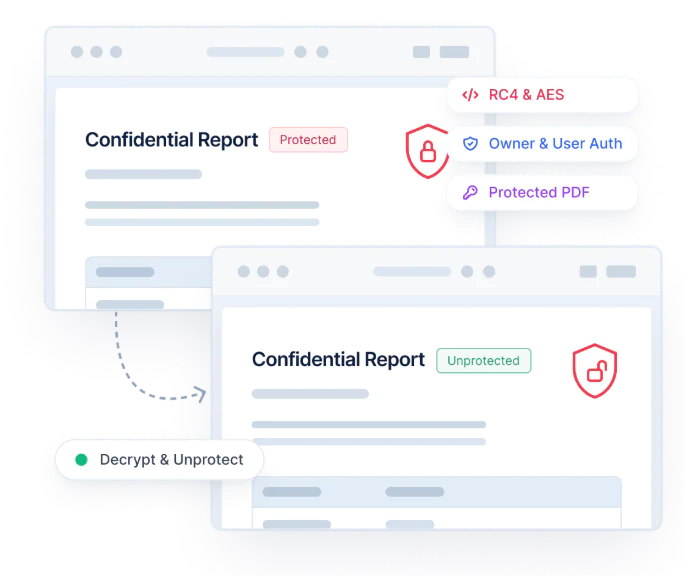
Remove PDF security
Remove passwords and encryption from authorized PDF documents when protection is no longer required. Restore document access, update security settings, and distribute PDFs without restrictions.
- Decrypt protected PDF documents with authorized access.
- Remove user and owner passwords from secured PDF documents.
- Restore permissions for printing, editing, copying, form filling, and other document actions.
- Save unprotected PDF documents for internal workflows or distribution.
See Why Developers Love Syncfusion
Our Customers Love Us
Having an excellent set of tools and a great support team, Syncfusion reduces customers’ development time. Here are some of their experiences.




Frequently Asked Questions
What is the difference between a user password and an owner password?
A user password controls whether a user can open a PDF document. An owner password controls permissions and security settings such as printing, editing,content copying and more. Use different values when applying both passwords.
Can a PDF file be encrypted during document creation?
Yes. The Syncfusion JavaScript PDF Library lets you apply user and owner passwords, select an encryption type, and configure security permissions before saving a newly created PDF document.
What encryption algorithms are supported by the Syncfusion JavaScript PDF Library?
The library supports RC4 40-bit and 128-bit encryption for legacy compatibility, along with AES 128-bit, AES 256-bit Revision 5, and AES 256-bit Revision 6 encryption for enhanced PDF security.
Can existing PDF documents be protected with passwords?
Yes. The Syncfusion JavaScript PDF Library allows you to load an existing PDF document, apply user and owner passwords, select an encryption type, configure security permissions, and save the document as a protected PDF.
Can passwords be changed on protected documents?
Yes. The Syncfusion JavaScript PDF Library allows you to open a protected PDF document using its current password and update the user or owner password before saving it.
Can PDF document permissions be added or updated later?
Yes. You can add permissions when encrypting a PDF or update permissions on protected PDFs. Supported permissions include printing, editing, copying, form filling, and document assembly.
Documentation
Apply RC4 encryption
Protect PDFs with RC4 encryption for legacy compatibility and older PDF readers.
Apply AES encryption
Secure PDF documents with AES 128-bit and 256-bit encryption for modern applications.
PDF password protection
Apply user and owner passwords to control document access and permissions.
Restrict PDF permissions
Control printing, editing, copying, form filling, and document assembly actions.
Resources
Learn more about our PDF document protection
Explore demos, KB articles, and documentation to get the most out of the PDF document protection.
Explore guides, setup details, and quick-start tips
See live use cases in action
Ask, share, and connect with peers
Find solutions and best practices fast.
Get expert help when needed.
Feature requests and bug reports
Track issues and suggest improvements
Awards
Greatness—it’s one thing to say you have it, but it means more when others recognize it. Syncfusion® is proud to hold the following industry awards.