 Deepa Thiruppathy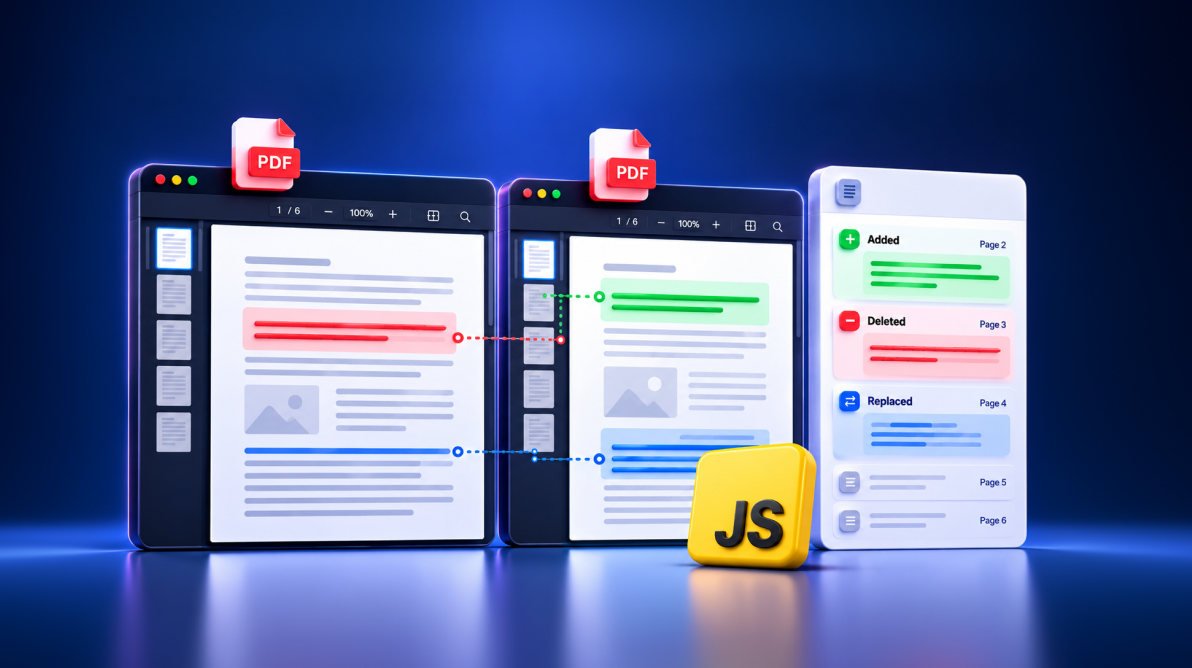
TL;DR: Manually comparing PDF versions can be slow and error-prone. This blog shows how to use the JavaScript PDF Viewer to automatically detect content added, deleted, or modified between PDF revisions. Learn how to implement side-by-side comparison with the built-in PDF Comparer and build custom comparison experiences using semantic comparison APIs. These capabilities help reduce review effort, improve accuracy, and simplify document review processes.
When a PDF document is updated, how do you quickly find what has changed from the previous version?
Reviewing both versions page by page can be time-consuming, especially when working with lengthy documents. Important changes can easily go unnoticed, making the review process more difficult.
The Syncfusion JavaScript PDF Viewer in the 2026 Volume 3 release simplifies PDF document comparison. Developers can use the built-in PdfComparer component to compare documents side by side or use the semanticTextCompare() API to build custom comparison experiences within their applications.
Let’s explore both approaches and see how to implement them.
What does PDF document comparison do?
PDF document comparison identifies text differences between two versions of a document. It helps reviewers find:
- Added text: Content introduced in the modified document.
- Deleted text: Content present in the original document but removed from the updated version.
- Modified text: Existing content that has changed.
For example, a contract review application can compare two revisions and direct reviewers to updated clauses instead of asking them to reread the entire document.
Semantic comparison focuses on text changes rather than every visual difference in a PDF’s layout, images, or formatting.
Compare PDF versions using the built-in PDF Comparer
If your application needs a ready-made comparison interface, use the PdfComparer component. It displays the original and modified documents side by side, with a differences panel for navigating detected changes.
The interface includes three areas:
| Area | Purpose |
|---|---|
| Original document | Displays the baseline PDF. |
| Modified document | Displays the updated PDF. |
| Differences panel | Lists detected differences and helps users navigate to them. |
Users can select a difference in the panel to jump to the corresponding content in both documents. This makes the built-in comparer a practical choice when you want to add PDF comparison without building the entire interface yourself.
Get started with PDF comparison
The following example initializes the PDF Comparer with two sample documents.
Step 1: Add the Syncfusion resources
Create an HTML file and include the Syncfusion Essential JS 2 stylesheet and JavaScript bundle.
Step 2: Initialize the comparer
Create a container for the comparer, provide the paths to the original and modified PDFs, and specify the PDF Viewer resource URL.
<!DOCTYPE html>
<html lang="en">
<head>
  <meta charset="utf-8" />
  <title>PDF Document Comparison</title>

  <link
    href="https://cdn.syncfusion.com/ej2/34.2.4/fluent2.css"
    rel="stylesheet" />

  <script
    src="https://cdn.syncfusion.com/ej2/34.2.4/dist/ej2.min.js"
    type="text/javascript"></script>

  <style>
    html, body {
      margin: 0;
      padding: 0;
      height: 100%;
      width: 100%;
    }

    #comparer-container {
      height: 100%;
      width: 100%;
    }
  </style>
</head>
<body>
  <div id="comparer-container"></div>

  <script>
    const comparer = new ej.pdfviewer.PdfComparer({
      originalDocumentPath:
        "https://cdn.syncfusion.com/content/pdf/original-document.pdf",
      modifiedDocumentPath:
        "https://cdn.syncfusion.com/content/pdf/modified-document.pdf",
      resourceUrl:
        "https://cdn.syncfusion.com/ej2/34.2.4/dist/ej2-pdfviewer-lib"
    });

    comparer.appendTo("#comparer-container");
  </script>
</body>
</html>
Replace the sample PDF URLs with the documents your application needs to compare. Make sure the documents are accessible to the browser and that the resource URL matches the Syncfusion version used by your project.
Once the documents load, the comparer analyzes their text and displays the detected differences.

Customize the comparison highlights
Different applications may need different visual indicators for document changes. For example, a contract review tool might use one color for deleted text and another for added text.
Use the comparisonOptions property to configure highlight colors, opacity, and visibility.
const comparisonOptions = {
  beforeColor: "#F17720",
  afterColor: "#0474BA",
  beforeColorOpacity: 0.4,
  afterColorOpacity: 0.4,
  enableHighlights: true
};

const comparer = new ej.pdfviewer.PdfComparer({
  originalDocumentPath:
    "https://cdn.syncfusion.com/content/pdf/original-document.pdf",
  modifiedDocumentPath:
    "https://cdn.syncfusion.com/content/pdf/modified-document.pdf",
  resourceUrl:
    "https://cdn.syncfusion.com/ej2/34.2.4/dist/ej2-pdfviewer-lib",
  comparisonOptions: comparisonOptions
});

comparer.appendTo("#comparer-container");
In this example, deleted content in the original document is highlighted in orange, while added content in the modified document is highlighted in blue. The opacity settings control how strongly the highlights appear.

You can also hide the differences panel when users need more space to read the documents. Set enableDifferencePanel to false:
const comparer = new ej.pdfviewer.PdfComparer({
  originalDocumentPath:
    "https://cdn.syncfusion.com/content/pdf/original-document.pdf",
  modifiedDocumentPath:
    "https://cdn.syncfusion.com/content/pdf/modified-document.pdf",
  resourceUrl:
    "https://cdn.syncfusion.com/ej2/34.2.4/dist/ej2-pdfviewer-lib",
  comparisonOptions: comparisonOptions,
  enableDifferencePanel: false
});

comparer.appendTo("#comparer-container");
The inline highlights remain available, while the side panel is hidden.

Keep both documents synchronized
When reviewers scroll through one document, they often need to find the same section in the other. Synchronized navigation reduces this extra work by keeping scrolling and zooming aligned.
Enable it with the enableSyncScrolling property:
const comparer = new ej.pdfviewer.PdfComparer({
  originalDocumentPath:
    "https://cdn.syncfusion.com/content/pdf/original-document.pdf",
  modifiedDocumentPath:
    "https://cdn.syncfusion.com/content/pdf/modified-document.pdf",
  resourceUrl:
    "https://cdn.syncfusion.com/ej2/34.2.4/dist/ej2-pdfviewer-lib",
  comparisonOptions: comparisonOptions,
  enableSyncScrolling: true
});

comparer.appendTo("#comparer-container");
This setting is useful when reviewers need to move between corresponding sections in long documents.
For additional configuration options, see the PDF Comparer documentation and explore the live demo.
Build a custom PDF comparison interface
The built-in comparer is a good fit for applications that need a ready-made review experience. However, some applications require a different layout or need to integrate comparison results into an existing workflow.
For example, you might want to:
- Display the documents inside a custom dashboard or modal.
- Keep the PDF Viewer’s existing tools and custom toolbar.
- Build your own differences panel or change log.
- Use detected differences in an approval workflow.
In these cases, initialize two PdfViewer instances and compare them using the semanticTextCompare() API.
How custom comparison works
The implementation follows four steps:
- Load the original PDF into the first viewer.
- Load the modified PDF into the second viewer.
- Call
semanticTextCompare()to compare their text. - Use the returned results to display differences in your own interface.
This approach gives you more control over the layout and how comparison results are presented. In return, your application must manage the viewer layout, loading state, navigation, and comparison controls.
Implement semantic comparison
The following example creates two PDF Viewer instances, synchronizes their navigation, and adds controls to compare documents and clear comparison results.
<!DOCTYPE html>
<html lang="en">
<head>
  <meta charset="utf-8" />
  <title>Custom PDF Comparison</title>

  <link
    href="https://cdn.syncfusion.com/ej2/34.2.4/fluent2.css"
    rel="stylesheet" />

  <script
    src="https://cdn.syncfusion.com/ej2/34.2.4/dist/ej2.min.js"
    type="text/javascript"></script>

  <style>
    html, body {
      margin: 0;
      height: 100%;
    }

    #controls {
      display: flex;
      gap: 8px;
      padding: 8px;
    }

    #container {
      display: flex;
      height: calc(100vh - 50px);
    }

    #pdfViewer1, #pdfViewer2 {
      width: 50%;
      height: 100%;
    }
  </style>
</head>
<body>
  <div id="controls">
    <button id="compareButton" type="button" disabled>
      Compare documents
    </button>
    <button id="syncButton" type="button">
      Disable sync
    </button>
    <button id="clearButton" type="button" disabled>
      Clear comparison
    </button>
  </div>

  <div id="container">
    <div id="pdfViewer1"></div>
    <div id="pdfViewer2"></div>
  </div>

  <script>
    const resourceUrl =
      "https://cdn.syncfusion.com/ej2/34.2.4/dist/ej2-pdfviewer-lib";

    const pdfViewer1 = new ej.pdfviewer.PdfViewer({
      documentPath:
        "https://cdn.syncfusion.com/content/pdf/original-document.pdf",
      resourceUrl: resourceUrl
    });

    const pdfViewer2 = new ej.pdfviewer.PdfViewer({
      documentPath:
        "https://cdn.syncfusion.com/content/pdf/modified-document.pdf",
      resourceUrl: resourceUrl
    });

    let loadedCount = 0;
    let synchronizationEnabled = true;
    let comparisonCreated = false;

    function onDocumentLoaded() {
      loadedCount++;

      if (loadedCount === 2) {
        pdfViewer1.syncViewers(
          pdfViewer2,
          synchronizationEnabled
        );

        document.getElementById("compareButton").disabled = false;
      }
    }

    pdfViewer1.documentLoad = onDocumentLoaded;
    pdfViewer2.documentLoad = onDocumentLoaded;

    document.getElementById("compareButton")
      .addEventListener("click", async function () {
        if (loadedCount !== 2) {
          return;
        }

        const options = {
          beforeColor: "#F17720",
          afterColor: "#0474BA",
          beforeColorOpacity: 0.4,
          afterColorOpacity: 0.4,
          enableHighlights: true
        };

        const result = await pdfViewer1.semanticTextCompare(
          pdfViewer2,
          options
        );

        console.log("Comparison results:", result);
        comparisonCreated = true;
        document.getElementById("clearButton").disabled = false;
      });

    document.getElementById("syncButton")
      .addEventListener("click", function () {
        synchronizationEnabled = !synchronizationEnabled;

        pdfViewer1.syncViewers(
          pdfViewer2,
          synchronizationEnabled
        );

        this.textContent = synchronizationEnabled
          ? "Disable sync"
          : "Enable sync";
      });

    document.getElementById("clearButton")
      .addEventListener("click", function () {
        if (!comparisonCreated) {
          return;
        }

        pdfViewer1.removeSemanticTextCompare(pdfViewer2);
        comparisonCreated = false;
        this.disabled = true;
      });

    pdfViewer1.appendTo("#pdfViewer1");
    pdfViewer2.appendTo("#pdfViewer2");
  </script>
</body>
</html>
The example uses the same sample documents as the built-in comparer. Replace them with your own document URLs when integrating the code into an application.
The Compare button calls semanticTextCompare() and logs the returned result to the browser console. The result contains structured information about detected differences, organized by document and page. You can use this data to build a custom differences panel, change log, or approval interface.
The synchronization button enables or disables synchronized navigation. The Clear comparison button calls removeSemanticTextCompare() to remove the comparison results while preserving user-created annotations.

Use the comparison results in your application
The semanticTextCompare() method returns a structured result that includes:
originalDocumentAnnotations: detected differences associated with the original document.modifiedDocumentAnnotations: detected differences associated with the modified document.totalTextDiffCount: the total number of unique text differences detected.
These results allow you to build a custom experience instead of relying on the built-in differences panel. For example, you could list changes by page, display a summary of the differences, or connect the results to an approval process.
Note that annotation text may also appear as added content in comparison results. If your workflow needs to clear the comparison results while keeping user-created annotations, use removeSemanticTextCompare().
For a complete working reference, see the GitHub example for custom semantic PDF comparison.
Which comparison approach should you use?
Choose the built-in comparer when you want a ready-made side-by-side interface with a differences panel. Choose the custom approach when your application needs a different layout, custom navigation, or direct access to comparison results.
| Requirement | Recommended approach |
|---|---|
| Display two PDFs with a built-in differences panel | PdfComparer |
| Customize highlight colors and opacity | Either approach |
| Synchronize document navigation | Either approach |
| Build a custom differences panel | semanticTextCompare() |
| Integrate comparison results into an existing workflow | semanticTextCompare() |
| Control the complete viewer layout | Two PdfViewer instances |
Frequently Asked Questions
When should I use the built-in PDF Comparer instead of a custom implementation?
Use PdfComparer when you need a ready-made side-by-side interface with a differences panel. Choose the custom approach when you need full control over the layout, navigation, or presentation of comparison results.
Can I create my own differences panel?
Yes. The semanticTextCompare() API returns structured comparison results that you can use to create a custom panel, change log, or review workflow.
Can I customize comparison highlight colors?
Yes. Configure beforeColor, afterColor, beforeColorOpacity, and afterColorOpacity through the comparison options.
Will clearing comparison results remove user-created annotations?
The removeSemanticTextCompare() API is intended to remove semantic comparison results while preserving other user-created annotations. Test this behavior with your target Syncfusion version and annotation workflow.
Does PDF comparison detect every visual change?
No. Semantic comparison focuses on text differences. Changes to layout, images, or other visual elements may not be represented as text differences.

Conclusion
Comparing PDF versions does not have to mean checking every page manually. Syncfusion JavaScript PDF Viewer provides two ways to build a better review experience: use PdfComparer for a ready-made interface or use semanticTextCompare() to create a custom workflow around the results.
Explore the documentation and live demos to see the feature in action. Existing Syncfusion customers can download the latest release from the License & Downloads page, while new users can get started with a 30-day free trial.
For questions or feedback, visit the Syncfusion support forums, support portal, or feedback portal.


Be the first to get updates