
 Sri Radhesh Nag Subash Sankar
TL;DR: Browser freezes with large Excel files are usually caused by inefficient rendering, not data size. This blog explores how modern spreadsheet architectures handle large datasets using virtualization and optimized processing to deliver smooth performance in web applications.
Your browser freezes.
Scrolling lags.
Even editing a single cell feels slow.
If you’ve ever tried opening a large Excel file, say 50K, 100K, or more rows, in a web app, you’ve probably hit this wall. And it’s frustrating, because the data itself isn’t the real problem.
The truth is, most spreadsheet performance issues in the browser come down to how the data is handled, not how much of it exists.
Let’s break that down and look at how the Syncfusion® JavaScript Spreadsheet component handles this at scale.
It’s not the data. It’s the way it’s rendered.
It’s easy to assume that your dataset is just “too big.” But modern browsers can handle large datasets just fine as long as you don’t try to do everything at once.
What usually goes wrong?
When a spreadsheet loads a large dataset in the naive way, it tries to:
- Render every cell into the DOM
- Keep all rows active in memory
- Recalculate formulas immediately
- Repaint the layout on every interaction
Individually, these are fine. Together, they overwhelm the browser’s single thread.
And that’s when things start to freeze.
Where the slowdown really comes from
If you zoom into what’s happening behind the scenes, a few patterns show up consistently.
- Too many DOM elements: Rendering thousands of rows means creating thousands (or hundreds of thousands) of DOM nodes. That’s expensive, not just to create, but also to maintain as the UI updates.
- Layout recalculations: Scrolling or editing forces the browser to constantly reflow and repaint the UI. With a large grid, even small changes cascade into noticeable lag.
- Blocking operations: Large file parsing or synchronous calculations can block the main thread. While that work is happening, your UI has no chance to respond.
- Memory pressure: Keeping everything loaded values, styles, formulas adds up quickly. As memory usage climbs, responsiveness drops.
None of this is unusual. It’s just what happens when the browser is asked to do too much, all at once.
A smarter way to handle large spreadsheets
The key shift is simple:
Don’t render everything; only render what the user can see.
This is where virtual rendering (often called virtual scrolling) changes everything.
Instead of loading an entire dataset into the DOM, you render just a small window of it, the visible rows and columns. As the user scrolls, the UI updates dynamically, swapping in the next set of data.
In practice, that means:
- The DOM stays small and manageable
- Scrolling remains smooth
- The browser isn’t overwhelmed
A simple idea, but it has a huge impact.
Virtual scrolling is the most impactful technique for handling large spreadsheets in the browser, and it only works if the spreadsheet engine is built to support it at the architecture level.
From theory to practice: How Syncfusion handles it
This is exactly where a solution like Syncfusion JavaScript Spreadsheet makes a difference.
Instead of requiring you to build complex performance optimizations from scratch, it handles them internally, keeping your application responsive even with large datasets.
It’s designed to:
- Render only what’s necessary at any given moment
- Process large files progressively instead of all at once
- Recalculate formulas efficiently without blocking interactions
- Manage memory in a way that scales with your data
The result is a spreadsheet experience that remains smooth, even when working with tens of thousands of rows.
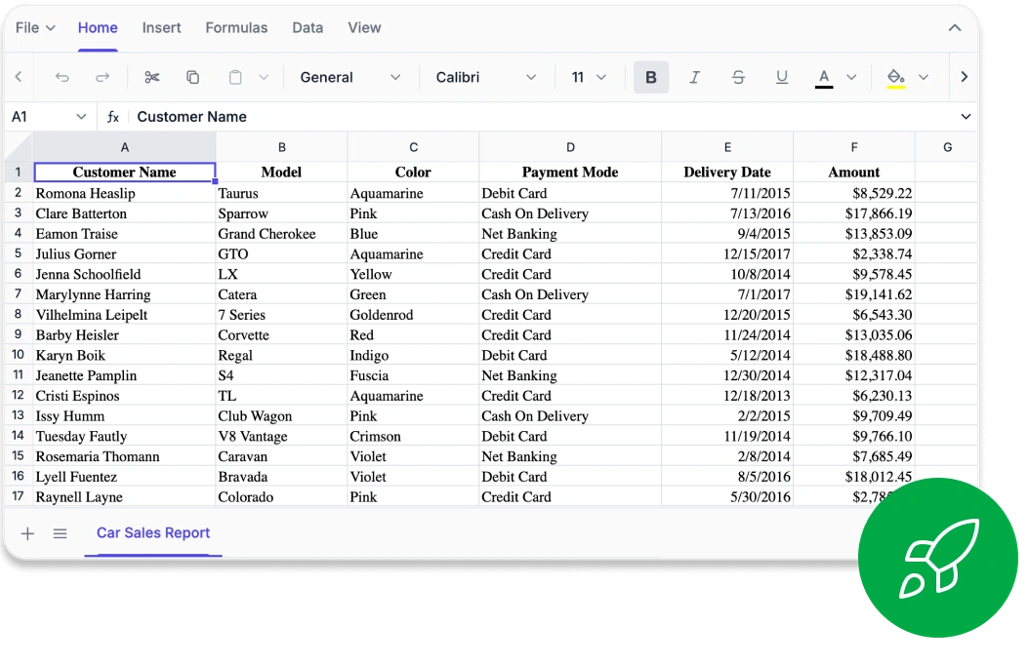
Performance techniques in Syncfusion JavaScript Spreadsheet
Syncfusion applies several built-in optimizations across rendering, data processing, formula calculation, and memory management.
Here’s how each one contributes:
- Rendering optimizations
- Virtual scrolling renders only the visible cells, reducing DOM size and preventing scroll lag or Excel freeze.
- A lightweight DOM structure with optimized re‑render cycles helps maintain smooth spreadsheet performance during editing and navigation.
- Data processing
- Chunk response processing loads large Excel files in smaller parts instead of a single heavy response, keeping the UI responsive and avoiding “large spreadsheet not responding” errors.
- Optimized JSON serialization excludes unnecessary styles and objects to reduce payload size and improve file open speed.
- Threshold limits prevent very large files from causing timeouts by capping the maximum data and file size.
- Parsing options like
IgnoreStyleandIgnoreFormatskip unnecessary styles to speed up large Excel imports.
- Formula engine
- An efficient formula engine recalculates only affected cells instead of the entire worksheet.
- Manual calculation mode allows developers to delay formula updates during bulk operations, preventing UI freezes.
- Save performance:
isFullPost= falseoption optimizes save operations for large files, bypassing heavy form submission, preventing save timeouts and delays.
- Memory management
- Efficient internal storage keeps memory usage low even with large datasets.
- Disabling aggregate calculations improves selection performance on large ranges.
Explore how these performance techniques work in real scenarios.
- View the live demo and documentation.
- Read the performance guide.
Performance benchmarks and results
Recent benchmark testing on the Syncfusion Spreadsheet shows consistent, predictable results across common operations with large datasets.
| Operation | Dataset Size | Result |
| Rendering | 5,000 rows | 142ms |
| Formatting | 5,000 rows | 34ms |
| Sorting | 5,000 rows | 144ms |
| Filtering | 5,000 rows | 2–40ms |
| Excel import | 10,000 rows | 644ms |
Most everyday operations finish in just a few milliseconds. These results come from real usage, not artificial test cases. Syncfusion’s virtual scrolling and chunk‑based loading help keep the spreadsheet fast and responsive even when the data grows large.
Where this matters most
If you’re building applications where users actively work with data, not just view it, performance becomes critical.
Think about:
- Financial dashboards with large reports
- Analytics tools processing high-volume datasets
- Internal business apps with complex spreadsheet workflows
In these cases, users expect fast interactions. Delays, even small ones, impact productivity and user experience.
A responsive spreadsheet isn’t just a nice-to-have. It’s essential.
Frequently Asked Questions
Manual calculation mode lets you delay formula recalculations until you trigger them explicitly. This is especially useful during bulk edits or large updates, where continuous recalculation would otherwise slow down the UI.What is manual calculation mode, and when should I use it?
These options help speed up large file imports by skipping unnecessary styling and formatting. If visual fidelity isn’t critical, disabling styles can significantly improve loading performance.When should I use IgnoreStyle or IgnoreFormat while importing Excel files?
Threshold limits act as a safeguard by restricting file size or cell count. This prevents extremely large files from causing timeouts or performance degradation in your application.How do threshold limits help with very large Excel files?
Disabling aggregate calculations, such as sum, average, etc., during selection can reduce lag when working with large data ranges.How can I improve selection performance in large spreadsheets?
Key takeaways
If your spreadsheet freezes with large datasets, the problem isn’t the data size itself.
It’s usually:
- Rendering too much at once
- Blocking the main thread
- Not prioritizing what the user actually sees
Modern spreadsheet solutions solve this by changing how data is processed and displayed, focusing on efficiency instead of brute force.
With tools like Syncfusion’s JavaScript Spreadsheet, those optimizations are already built in. That means you can handle large datasets smoothly, without having to design the underlying architecture yourself.
If you’re a Syncfusion user, you can download the setup from the license and downloads page. Otherwise, you can download a free 30-day trial.
You can also contact us via our support forums, support portal, or feedback portal for queries. We are always happy to assist you!




 No spam, just valuable updates.