 Arun Kumar Chandrakesan
TL;DR: Automating PPTX generation in C# lets you create data-driven PowerPoint presentations using APIs, Excel, and databases without manual edits. By programmatically generating slides, tables, charts, and layouts, you can build scalable reporting workflows that remain consistent, reduce errors, and automatically update with live data, making them ideal for recurring business reports, dashboards, and client-ready presentations.
Every team that deals with recurring reports eventually hits the same wall.
You build a PowerPoint deck once. Then again next month. And again the month after that.
Tables need updates. Charts need new data. Slides need formatting fixes because something shifted. What starts as a simple task slowly turns into hours of repetitive work.
At some point, the question changes from “How do I update this?” to “Why am I still doing this manually?”
That’s where automation comes in.
Instead of treating PowerPoint like a document, you treat it like output from something your code generates. Tools like the Syncfusion® PowerPoint Library make this approach practical by letting you create and manipulate presentations directly from your application code, without relying on Microsoft Office.
Once you set things up, your presentations can be built automatically using live data from Excel files, databases, or APIs.

Let’s walk through what that actually looks like in practice.
Start with a simple foundation
Before getting into advanced scenarios, it helps to know how lightweight this actually is.
Creating a presentation programmatically isn’t as complex as it sounds. You define a slide, add text or shapes, and save it. That’s it.
If you’re new to this approach, it’s useful to quickly skim the Syncfusion PowerPoint Library documentation to understand how presentations, slides, and shapes are structured in code. You don’t need to go deep right away, just enough to get familiar with the core objects and how they fit together.
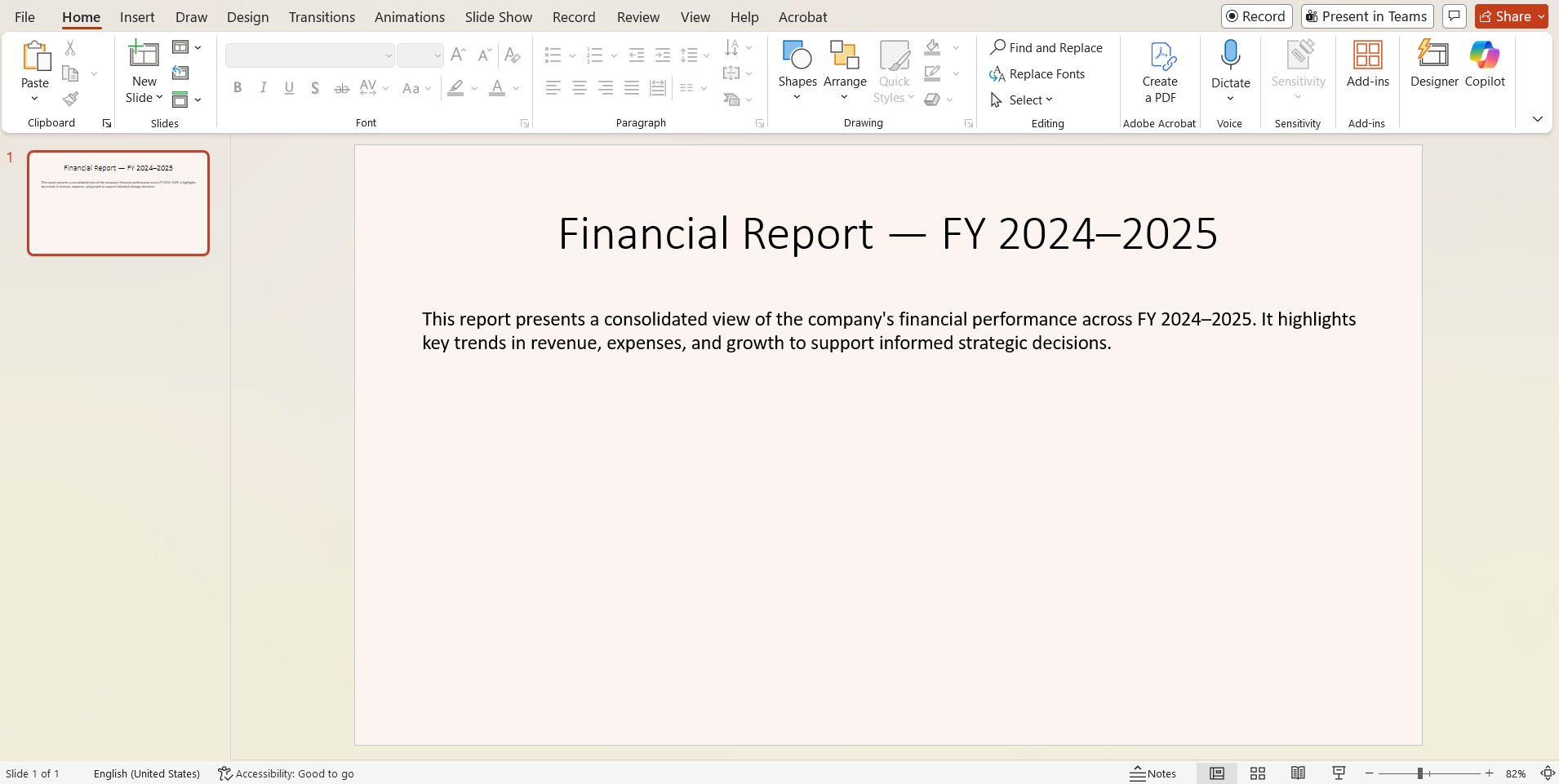
Once you’ve done that once, everything else becomes an extension of the same idea: define structure → inject data → generate output
From there, things get interesting.
Want to try it instantly? Visit our live demo to generate PPTX files in seconds.
1. Master slide template automation
One of the biggest hidden time drains in PowerPoint is formatting.
Fonts shift. Colors don’t match. Logos end up slightly misaligned across slides.
When you define a master layout in code, all of that disappears.
Instead of styling each slide individually, you define:
- Background
- Typography
- Branding elements
- Layout structure
With the Syncfusion PowerPoint Library, you can create a custom layout from one of nine predefined slide types, apply your brand colors and shapes directly to the layout, and generate multiple slides that all follow the same standard with zero repetition.
// Create a new PowerPoint presentation
Using (IPresentation presentation = Presentation.Create())
{

    // Add a TitleOnly custom layout to the first master slide
    ILayoutSlide layoutSlide = presentation.Masters[0].LayoutSlides.Add(SlideLayoutType.TitleOnly, "CustomLayout");

    // Set layout background (pale cream) so all slides using this layout inherit it
    layoutSlide.Background.Fill.SolidFill.Color = ColorObject.FromArgb(252, 244, 240);

    // Add a thin terracotta rule under the title area
    layoutSlide.Shapes.AddShape(AutoShapeType.Rectangle, 48, 120, 864, 6).Fill.SolidFill.Color = ColorObject.FromArgb(215, 100, 67);

    // Add one slide using the custom layout
    ISlide slide1 = presentation.Slides.Add(layoutSlide);

    // Populate the title placeholder and apply basic formatting
    IShape? titleShape = slide1.Shapes[0] as IShape;
    var titleParagraph = titleShape.TextBody.AddParagraph("Financial Report \u2014 FY 2024\u20132025");
    titleParagraph.HorizontalAlignment = HorizontalAlignmentType.Center;
    titleParagraph.TextParts[0].Font.FontName = "Calibri";
    titleParagraph.TextParts[0].Font.FontSize = 48;
    titleParagraph.TextParts[0].Font.Color = ColorObject.FromArgb(16, 66, 96);

    // Add a descriptive text box below the title
    IShape descriptionShape = slide1.AddTextBox(50, 140, 874, 120);
    descriptionShape.TextBody.Text = "This report presents a consolidated view of the company's financial performance across FY 2024–2025. It highlights key trends in revenue, expenses, and growth to support informed strategic decisions.";

    //Add image into the slides
    FileStream pictureStream = new FileStream("data/Image.png", FileMode.Open);
    slide1.Shapes.AddPicture(pictureStream, 450, 210, 420, 300);

    //Add second slide using the same custom layout - it automatically inherits the background from the layout slide
    ISlide slide2 = presentation.Slides.Add(layoutSlide);
    ISlide slide3 = presentation.Slides.Add(layoutSlide);
    ISlide slide4 = presentation.Slides.Add(layoutSlide);

    // Save the PowerPoint Presentation
    FileStream outputStream = new FileStream(Path.GetFullPath(@"Output.pptx"), FileMode.Create);
    presentation.Save(outputStream);
    //Release the stream
    outputStream.Dispose();
    presentation.Close();
}
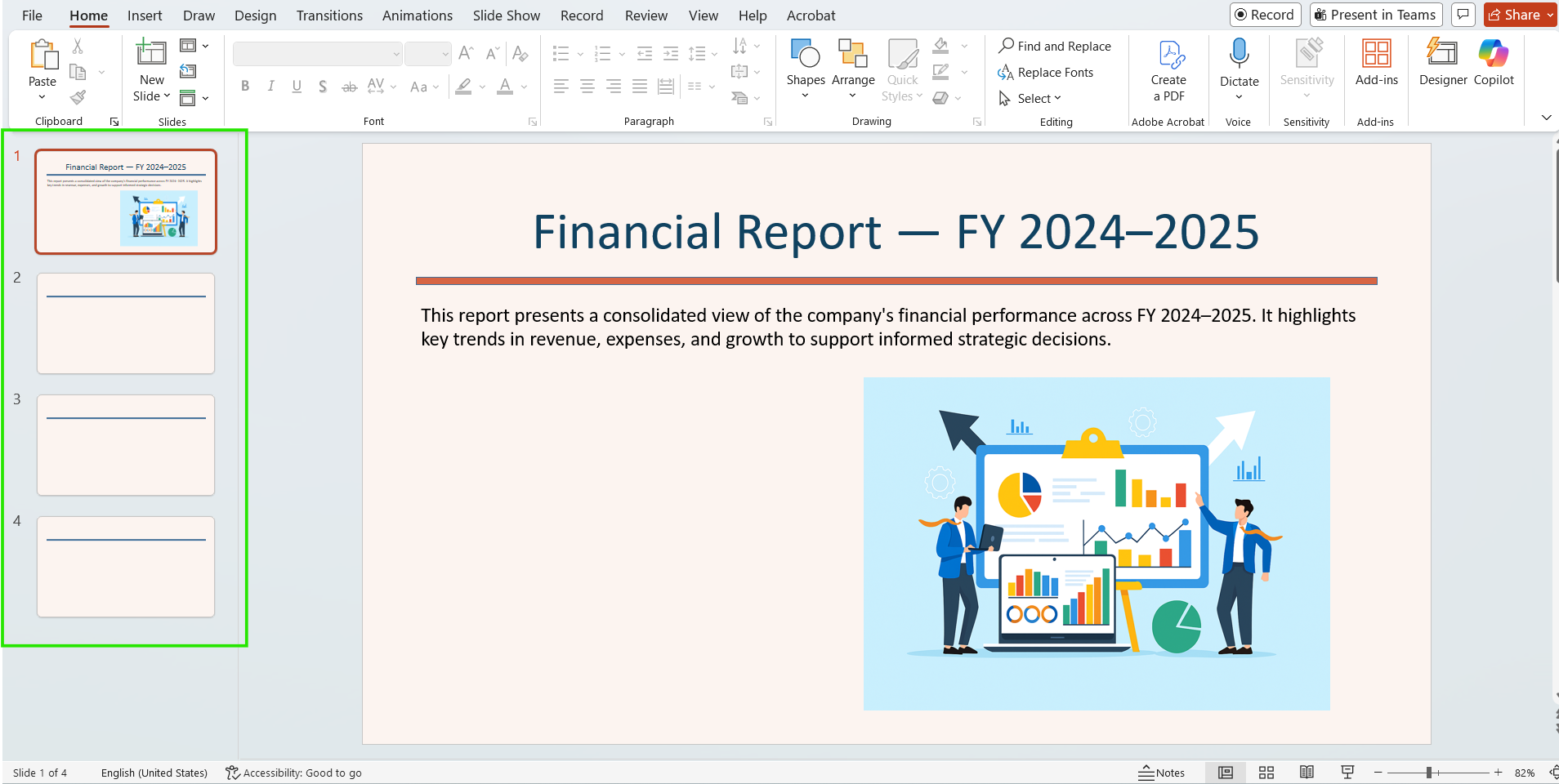
For more details on master slides, predefined slides, and slide‑level access, check out our Master slides documentation.
2. Generate tables directly from data sources
Tables are the backbone of most business reports. But rebuilding them in each cycle, copying rows, adjusting column widths, and reformatting cells wastes hours and invites data errors.
The Syncfusion PowerPoint Library lets you generate tables programmatically by loading your data source from CSV, Excel, or a database and injecting the values directly into each cell. The structure stays consistent, and the data stays current, automatically.
//Load the existing PowerPoint presentation from the Data folder
FileStream inputStream = new FileStream(
    Path.GetFullPath(@"Data/Input.pptx"),
    FileMode.Open,
    FileAccess.Read
);

IPresentation presentation = Presentation.Open(inputStream);

// ExcelToPresentationHelper is a custom helper class included in this sample project.
// Include this class in your project to load your Excel data into your presentation slide.
ExcelToPresentationHelper helper = new ExcelToPresentationHelper();

//The helper method will render the external Data and inject the updated table in the presentation
helper.AddFinancialDataToPresentation(presentation);

// Save the PowerPoint Presentation
FileStream outputStream = new FileStream(
    Path.GetFullPath(@"Output.pptx"),
    FileMode.Create
);

presentation.Save(outputStream);

//Release the stream
outputStream.Dispose();
presentation.Close();
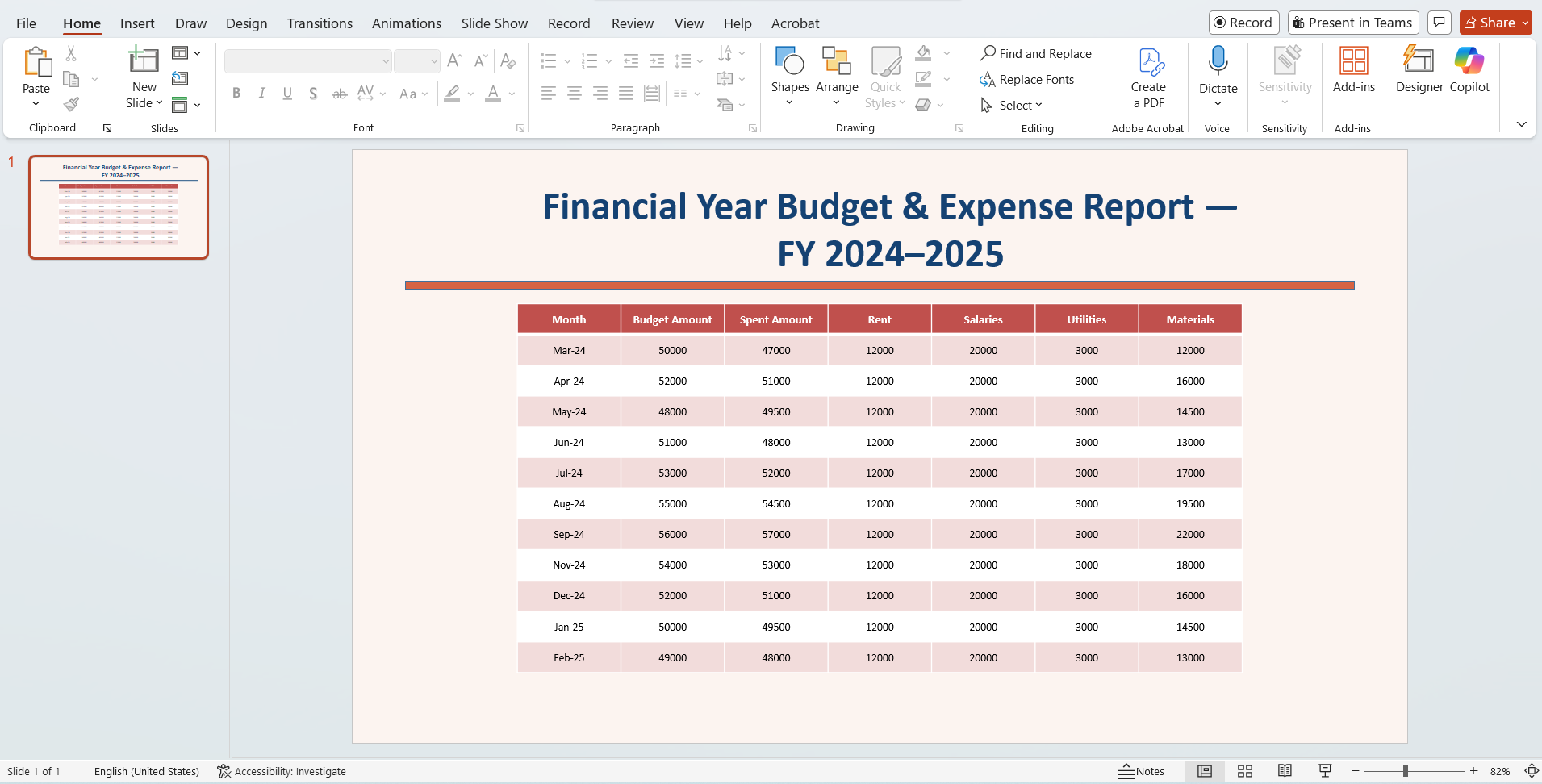
The ExcelToPresentationHelper class uses XlsIO’s ExportDataTable API to read Excel data and Presentation’s ITable and ICells APIs to generate a PowerPoint table from it, making it easy to create data-driven slides programmatically.
Want to explore more ways to style tables or inject data automatically? Our table documentation and KB article has everything you need.
3. Turn data into charts automatically
Numbers make sense in tables, but trends and comparisons are far easier to communicate in charts. The challenge is that updating charts for every reporting cycle, connecting data ranges, adjusting axes, and fixing labels is slow and repetitive.
Our PowerPoint Library lets you generate charts directly from Excel data with a single API call. You define the data range, chart type, and axis labels in code, and the library handles the entire visualization automatically, creating bar, line, or pie charts based on the type you specify. This ensures your slides always present the latest business values.
//To create a new presentation or load an existing one, add a slide title, and save the presentation, reuse the code demonstrated in the previous section.

// Add chart from Excel (A1:B13 = Month, Profit in Lakhs)
FileStream excelStream = new FileStream(
    Path.GetFullPath(@"Data/Book1.xlsx"),
    FileMode.Open
);

IPresentationChart chart = presentation.Slides[0].Charts.AddChart(excelStream, 1, "A1:B13", new RectangleF(90, 150, 800, 380));

chart.ChartTitle = "Financial Year Profit Visuals";
chart.PrimaryCategoryAxis.Title = "Month";
chart.PrimaryValueAxis.Title = "Profit (Lakhs)";
chart.HasLegend = false;

excelStream.Dispose();
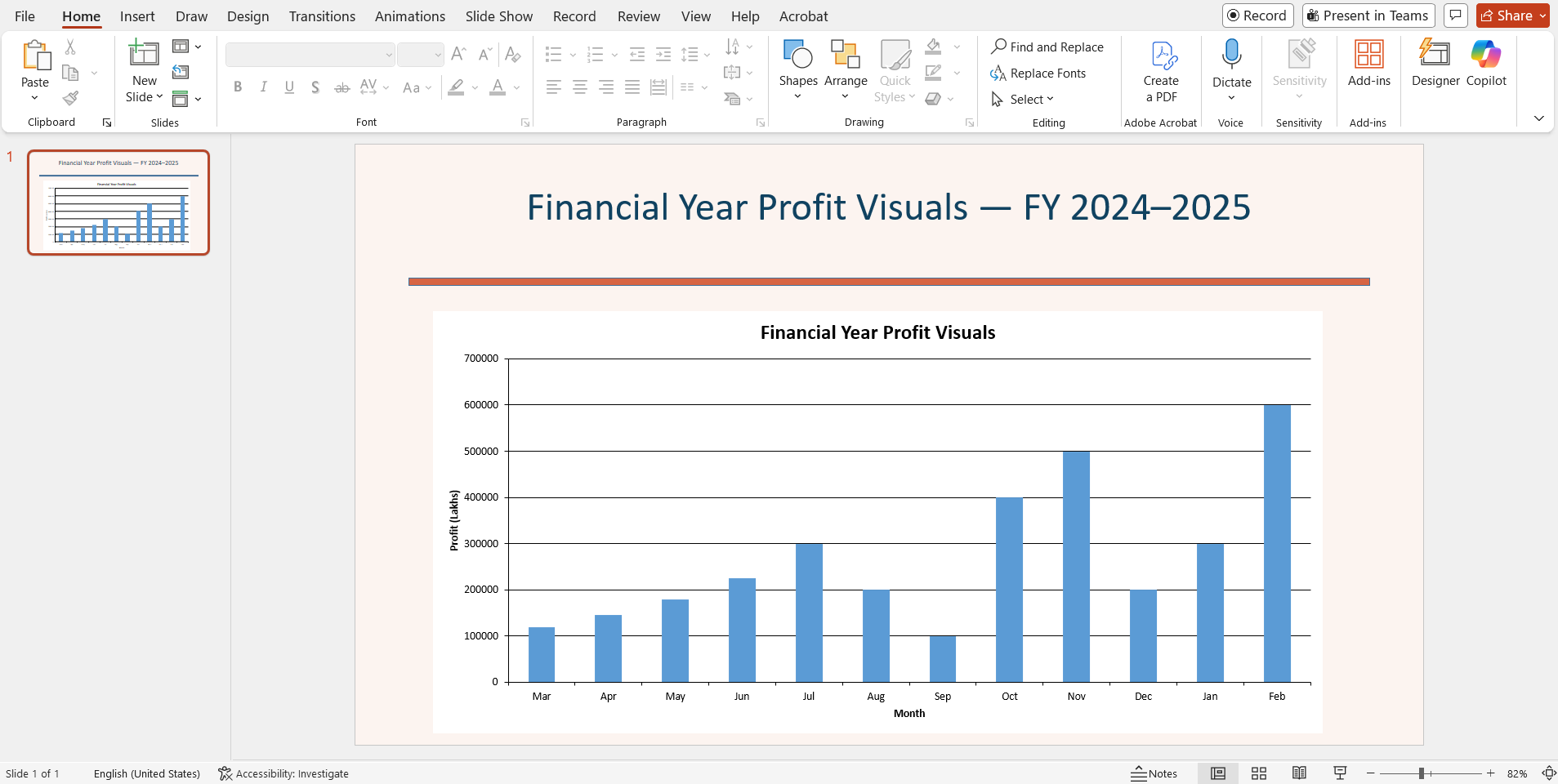
Looking for advanced chart types, styling controls, and formatting? Explore the full chart customization guide.
4. Build SmartArt without recreating diagrams
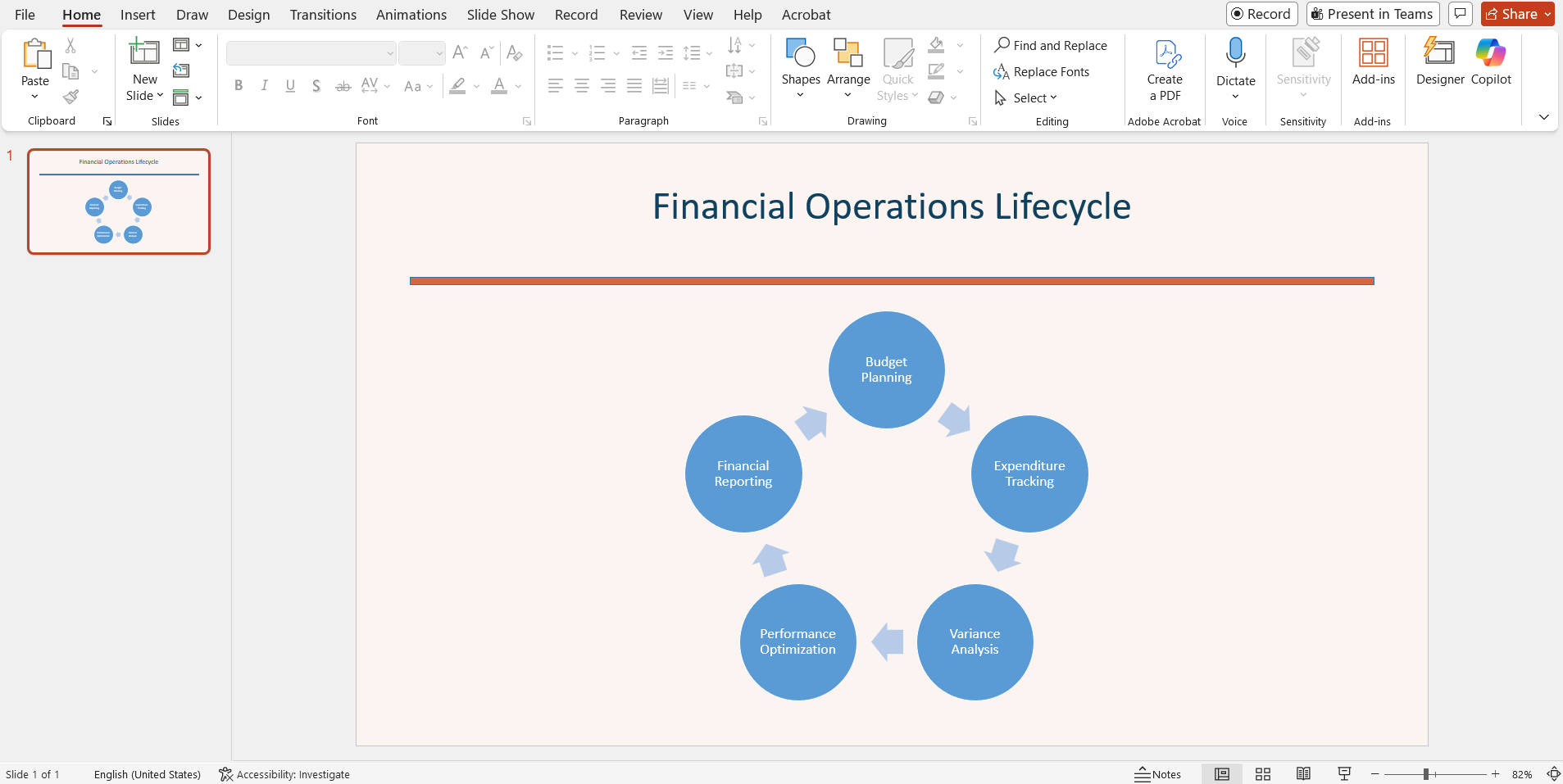
Process flows, approval chains, and org structures are clear when presented visually. Updating SmartArt nodes every time a process changes is surprisingly tedious, but automating SmartArt creation keeps diagrams synchronized with your business model.
The Syncfusion PowerPoint Library lets you create and populate SmartArt programmatically. Load your data from an Excel, CSV, database, or any Data source, insert the SmartArt shape, and fill each node dynamically. No manual editing is needed.
Workflow.txt

Budget Planning
Expenditure Tracking
Variance Analysis
Performance Optimization
Financial Reporting
//To create a new presentation or load an existing one, add a slide title, and save the presentation, reuse the code demonstrated in the previous section.

// Read workflow stages from workflow.txt — each line becomes a SmartArt node
var workflowItems = File.ReadAllLines(Path.GetFullPath(@"Data/workflow.txt"))
    .Select(line => line.Trim())
    .Where(line => !string.IsNullOrEmpty(line))
    .ToList();

// Add SmartArt with workflow data
ISmartArt smartArt = presentation.Slides[0].Shapes.AddSmartArt(SmartArtType.BasicCycle, 100, 150, 750, 350);

for (int i = 0; i < Math.Min(smartArt.Nodes.Count, workflowItems.Count); i++)
    smartArt.Nodes[i].TextBody.AddParagraph(workflowItems[i]);
}
Curious to explore more SmartArt operations and node configuration? Check our PowerPoint SmartArt documentation for more details.
5. Insert and update images programmatically
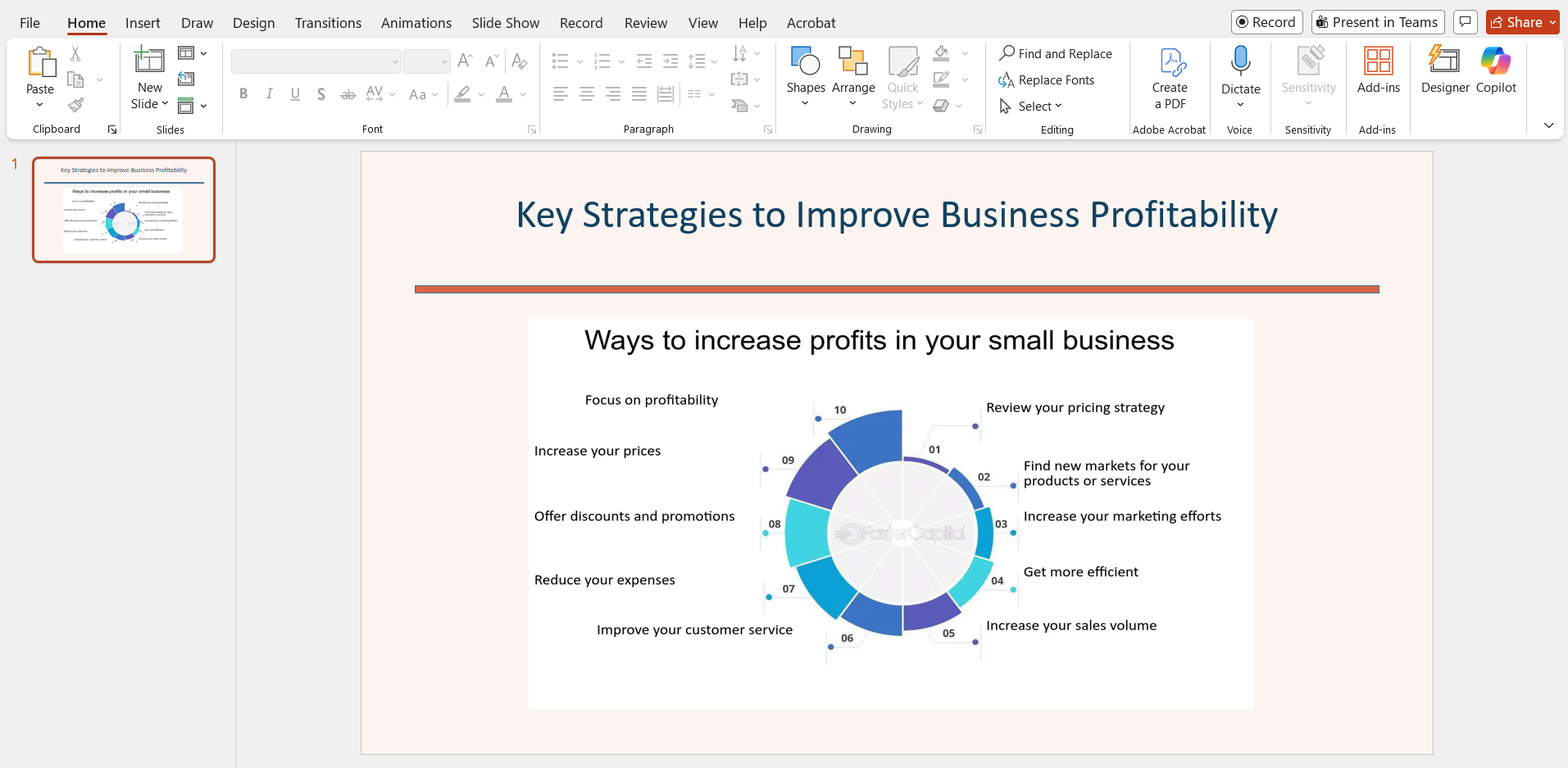
Reports that include logos, product images, or team-specific visuals always look more polished and professional. But changing images slide by slide is time-consuming. Automating image placement solves this by ensuring every slide uses the correct assets with consistent positioning and formatting.
The Syncfusion PowerPoint Library lets you insert or replace images programmatically from any source. Load the presentation, point to the correct image file, and place it precisely on the slide, all in just a few lines of code, with no manual effort.
//To create a new presentation or load an existing one, add a slide title, and save the presentation, reuse the code demonstrated in the previous section.

// Add picture to slide
FileStream pictureStream = new FileStream(Path.GetFullPath(@"Data/Image.png"),
FileMode.Open);
IPicture picture = presentation.Slides[0].Pictures.AddPicture(pictureStream, 150, 150, 650, 350);
For cropping, replacing existing images, and other image operations, explore the Syncfusion PowerPoint Image documentation.
6. Add animations to highlight key points
Static slides can struggle to hold attention in live presentations. Well-placed animations help keep the audience’s focus on the right data at the right moment.
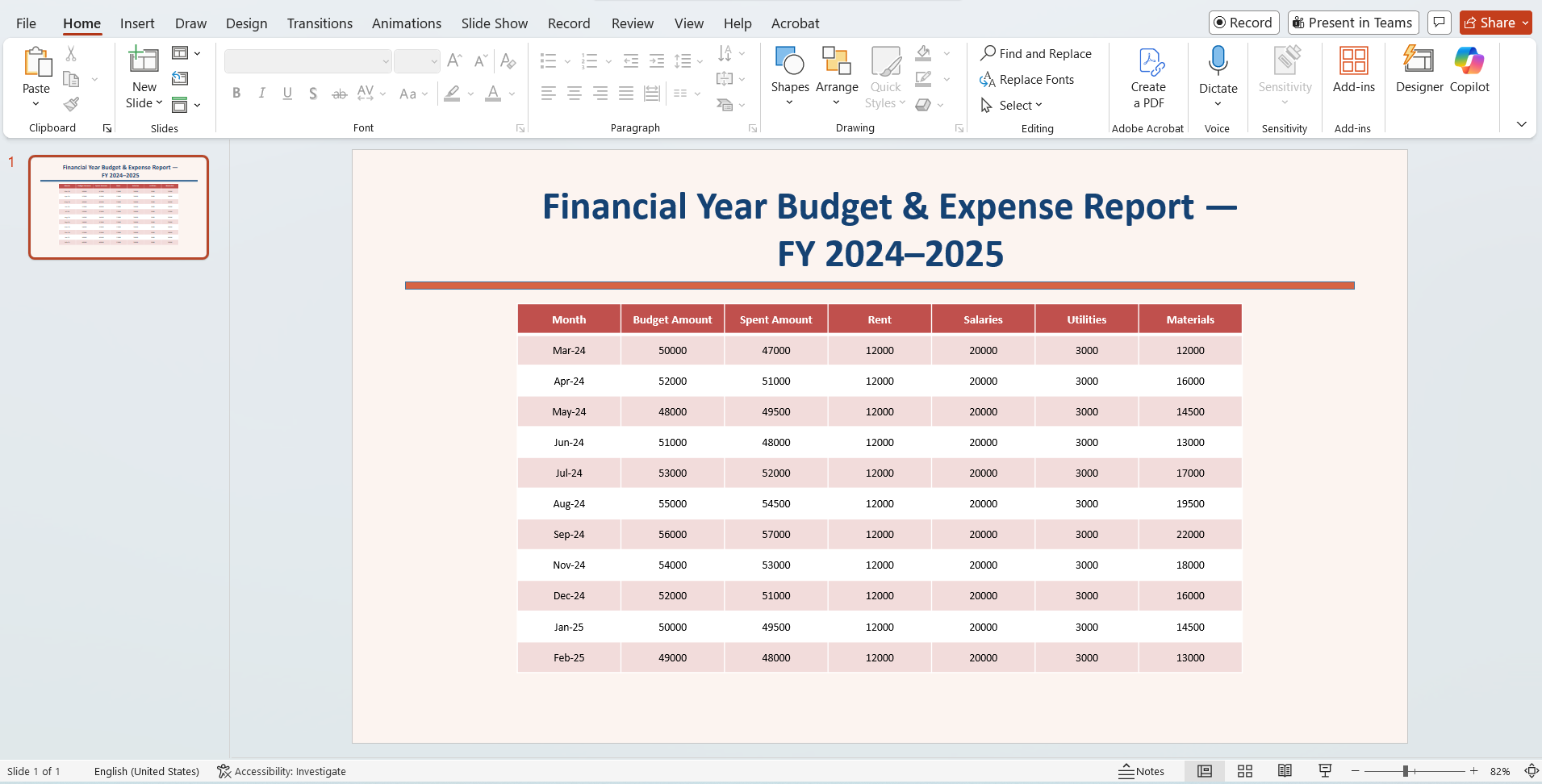
The Syncfusion PowerPoint Library supports 140+ animation effects, including entrance, emphasis, exit, and motion path types. You can apply them programmatically with full control over timing, triggers, and sequencing, no PowerPoint menus required.
//To create a new presentation or load an existing one, add a slide title, and save the presentation, reuse the code demonstrated in the previous section.

// Get the first slide
ISlide slide = presentation.Slides[0];

// Find the title shape from the slide
IShape? titleShape = null;
foreach (IShape shape in slide.Shapes)
{
    if (shape.TextBody != null && shape.TextBody.Text.Length > 0)
    {
        titleShape = shape;
        break;
    }
}

// Add fly animation to the title (from left to center)
if (titleShape != null)
{
    ISequence sequence = slide.Timeline.MainSequence;
    IEffect effectLeft = sequence.AddEffect(titleShape, EffectType.Fly, EffectSubtype.Left, EffectTriggerType.OnClick);
}
Need a deeper exploration of animation options? Dive into our PowerPoint Animation documentation.
7. Clone and merge slides to build full reports
Many reports repeat the same slide across regions, quarters, or product lines. Recreating these blocks manually is time‑consuming and risky. Automated slide cloning ensures perfect consistency, while merging lets you collect content from different presentations into a unified deck.
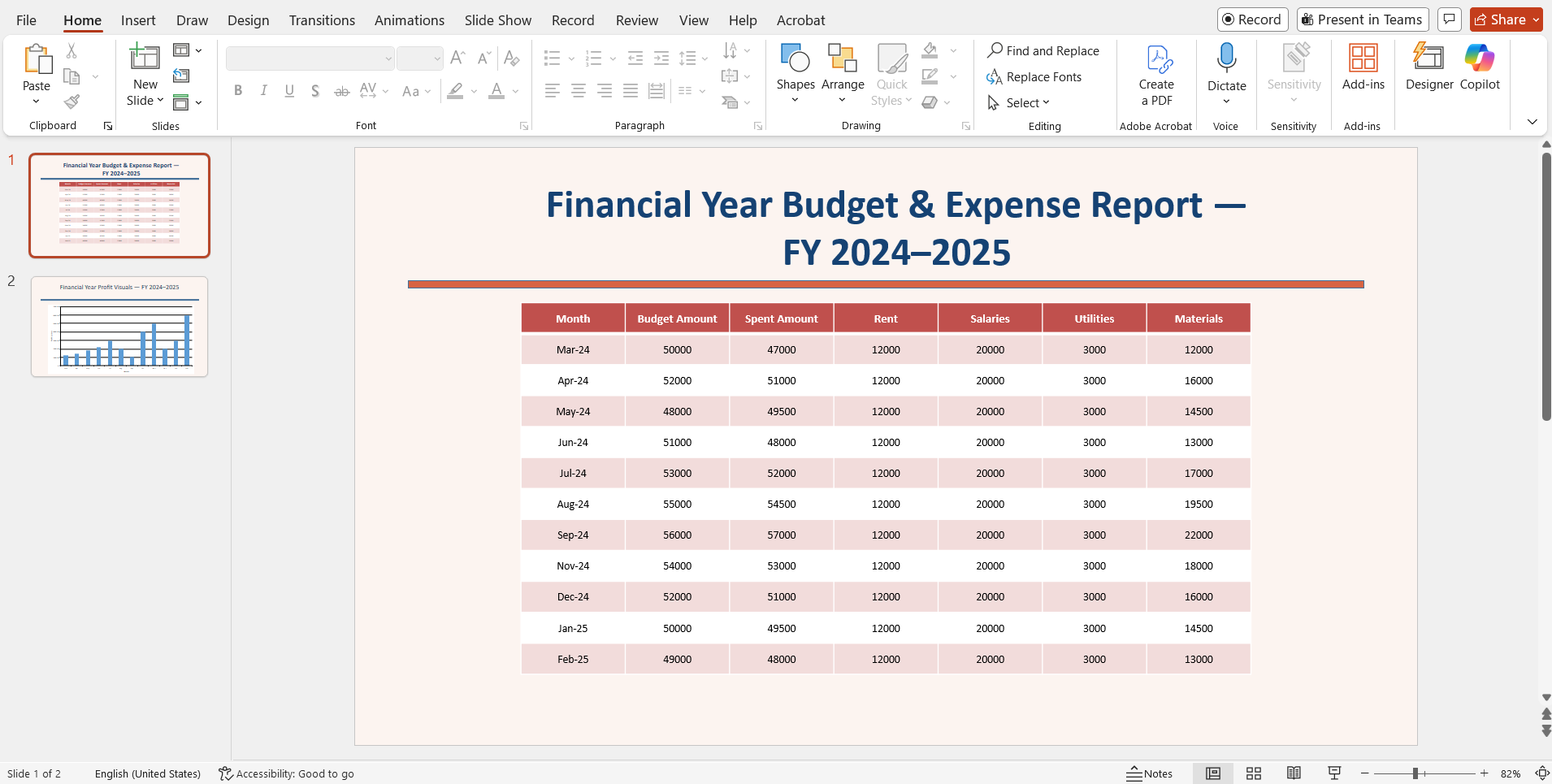
Our PowerPoint Library lets you clone slides programmatically, producing exact copies complete with layout, shapes, charts, images, and text. You can also merge slides from separate presentations into a single deck, automatically assembling multi-section reports. Together, these two capabilities turn a repetitive manual task into a fast, reliable automated pipeline.
// Open the destination presentation (table.pptx) as the base
IPresentation destinationPresentation = Presentation.Open(
    new FileStream(
        Path.GetFullPath(@"Data/table.pptx"),
        FileMode.Open,
        FileAccess.Read
    )
);

// Open the source presentation (chart.pptx)
IPresentation sourcePresentation = Presentation.Open(
    new FileStream(
        Path.GetFullPath(@"Data/chart.pptx"),
        FileMode.Open,
        FileAccess.Read
    )
);

// Clone and merge all slides from the chart presentation to the table presentation
for (int i = 0; i < sourcePresentation.Slides.Count; i++)
{

    // Clone the slide from the source presentation
    ISlide clonedSlide = sourcePresentation.Slides[i].Clone();

    // Add the cloned slide to the destination presentation with the destination theme
    destinationPresentation.Slides.Add(clonedSlide, PasteOptions.UseDestinationTheme);
}
For a complete guide to advanced clone‑and‑merge operations, you can refer to our cloning and merging documentation.
GitHub reference
You can find all the PowerPoint Automation samples in the GitHub repository.
Frequently Asked Questions
Can I protect generated slides from editing?
Yes. Write protection or password protection can be applied at the presentation level via the API.
Does Syncfusion support hyperlinks inside slides?
Yes. Hyperlinks can be inserted into text, shapes, or images with simple API calls.
Can I convert PowerPoint to PDF after inserting charts and animations?
Yes. Animations export as static frames, and charts render cleanly in the generated PDF.
Can I use Syncfusion PowerPoint on Linux or Docker?
Yes. Because it targets .NET Core, the library runs on Linux, Docker containers, and cloud servers.
Can I embed OLE objects like Excel or Word files inside a slide?
Yes. OLE objects, such as embedded Excel sheets or Word documents, can be inserted programmatically.
Does Syncfusion support exporting slides to images?
Yes. Individual slides or entire presentations can be exported to PNG, JPEG, or other image formats.
Can I add or edit comments on slides programmatically?
Yes. The API supports inserting, editing, and removing comments on any slide.
Does Syncfusion support VBA macros in PowerPoint files?
Yes. Syncfusion preserves existing VBA macros in a presentation, though creating new macros programmatically is not supported.
Conclusion
Automating PPTX generation changes how you think about presentations.
They stop being something you manually assemble and become something your system produces.
You define the structure once. After that, your code takes care of:
- Updating data
- Maintaining layout consistency
- Generating complete presentations
Once this pipeline is in place, the same approach can scale from a single report to hundreds without adding extra effort.
Libraries like the Syncfusion PowerPoint Library make this transition easier by giving you direct control over slides, layouts, and content through code so you can focus less on editing and more on delivering meaningful insights.
Still updating slides manually every reporting cycle? Making this shift can save time, reduce errors, and make your reporting workflow far more reliable.
If you’re a Syncfusion user, you can download the setup from the license and downloads page. Otherwise, you can download a free 30-day trial.
You can also contact us via our support forums, support portal, or feedback portal for queries. We are always happy to assist you




Be the first to get updates