 Kavitha Muralitharan

TL;DR: Still signing Word documents manually? With the Syncfusion .NET Word Library, you can automate the entire signing process using C#. Learn how to add invisible digital signatures, create visible signature lines, validate signed documents, and manage document revisions without Microsoft Word or Office Interop.
Have you automated Word document generation but still need someone to sign each document manually? This extra step can slow down approvals, create multiple document versions, and make it harder to track signed files.
What if you could handle the entire process directly in your application?
The Syncfusion® .NET Word Library introduces digital signature support in Essential Studio 2026 Volume 3. You can now sign, validate, and manage digital signatures in Word documents using C#, without depending on Microsoft Word or Office Interop.
With digital signatures built into your document process, you can handle document generation, signing, validation, and delivery in one automated process.
In this blog, you’ll learn how to:
- Add invisible digital signatures to Word documents.
- Create and sign visible signature lines.
- Validate signed DOCX files.
- Remove signatures before making document changes.
- Apply supported XML digital signature standards.
- Manage multiple signature lines in a document.
Why automate digital signatures in Word documents?
Signing a few documents manually may not be a problem. But what happens when your application generates hundreds of offer letters, contracts, or approval documents every day? Managing all those signatures manually can quickly become difficult.
Automating digital signatures helps applications:
- Reduce manual approval steps.
- Avoid unnecessary document copies.
- Maintain document integrity.
- Validate signatures before sharing documents.
- Improve document tracking and auditability.
- Simplify approval processes.
Consider an HR application that automatically generates offer letters. Without automation, HR teams need to download each document, sign it, upload the signed copy, and keep track of different versions.
With digital signature automation, the application can sign documents, validate them, and store the approved versions directly within the approval process.
Here’s how the manual and automated approaches compare:
| Scenario | Manual process | Automated digital signature process |
|---|---|---|
| Document signing | Open and sign documents manually in Word. | Sign DOCX files automatically using code. |
| Multi-party approvals | Exchange files between reviewers. | Add separate signature lines for different signers. |
| Validation | Verify signatures manually. | Validate signatures automatically before delivery. |
| Document updates | Track multiple document versions. | Remove signatures, update documents, and sign them again. |
| Server-side processing | Requires manual interaction. | Runs in web applications, cloud services, and background processes. |
How to automate digital signatures in Word documents using C#
Let’s see how to add digital signatures to Word documents using the Syncfusion .NET Word Library (DocIO).
We’ll walk through loading a document and signing certificate, creating invisible and visible signatures, validating signed documents, and managing document revisions.
Note: The examples in this blog focus on DOCX documents. Digital signature support in DocIO is currently available for DOCX files, not legacy DOC formats.
Step 1: Install the required NuGet package
First, install the Syncfusion.DocIO.Net.Core NuGet package in your .NET application.
Run the following command in the Package Manager Console:
Install-Package Syncfusion.DocIO.Net.Core
Next, import the required namespaces:
using Syncfusion.DocIO;
using Syncfusion.DocIO.DLS;
using Syncfusion.Office;
using System;
using System.IO;
These namespaces provide the classes required to load Word documents, configure digital signatures, work with certificates, and save signed files.
Step 2: Load the document and signing certificate
Before adding a digital signature, you need two things:
- The Word document you want to sign.
- A digital certificate containing the signer’s private key.
The certificate is typically provided as a password-protected .pfx or .p12 file.
You can load the DOCX document using the WordDocument class and the signing certificate using OfficeDigitalSignatureCertificate.
using WordDocument document = new WordDocument(
    "input.docx", FormatType.Docx);

OfficeDigitalSignatureCertificate certificate =
    new OfficeDigitalSignatureCertificate(
        "PrivateKey.pfx", "certificate-password");
Production tip: Avoid hardcoding certificate passwords in your application. Store certificates and secrets securely using solutions such as Azure Key Vault, enterprise secret management systems, or secure certificate stores.
Also, make sure the certificate is valid, contains the required private key, and has not expired.
Step 3: Add an invisible digital signature to a Word document
Not every document needs a visible signature block. Sometimes, you simply want to confirm who signed the document and whether its content has changed since signing.
That’s where invisible digital signatures help. They protect the document without adding a visible signature area to the page.
With DocIO, you can use the AddDigitalSignature() method to sign a Word document using the loaded certificate.
You can configure the SignatureSettings class to specify details such as the signing time and comments.
SignatureSettings settings = new SignatureSettings
{
    SignTime = DateTime.Now,
    Comments = "Approved"
};

document.AddDigitalSignature(certificate, settings);
document.Save("DigitallySigned.docx", FormatType.Docx);
Here, SignTime specifies the signing time, while Comments stores additional information associated with the signature.
Once the signature is added, save the document in DOCX format.
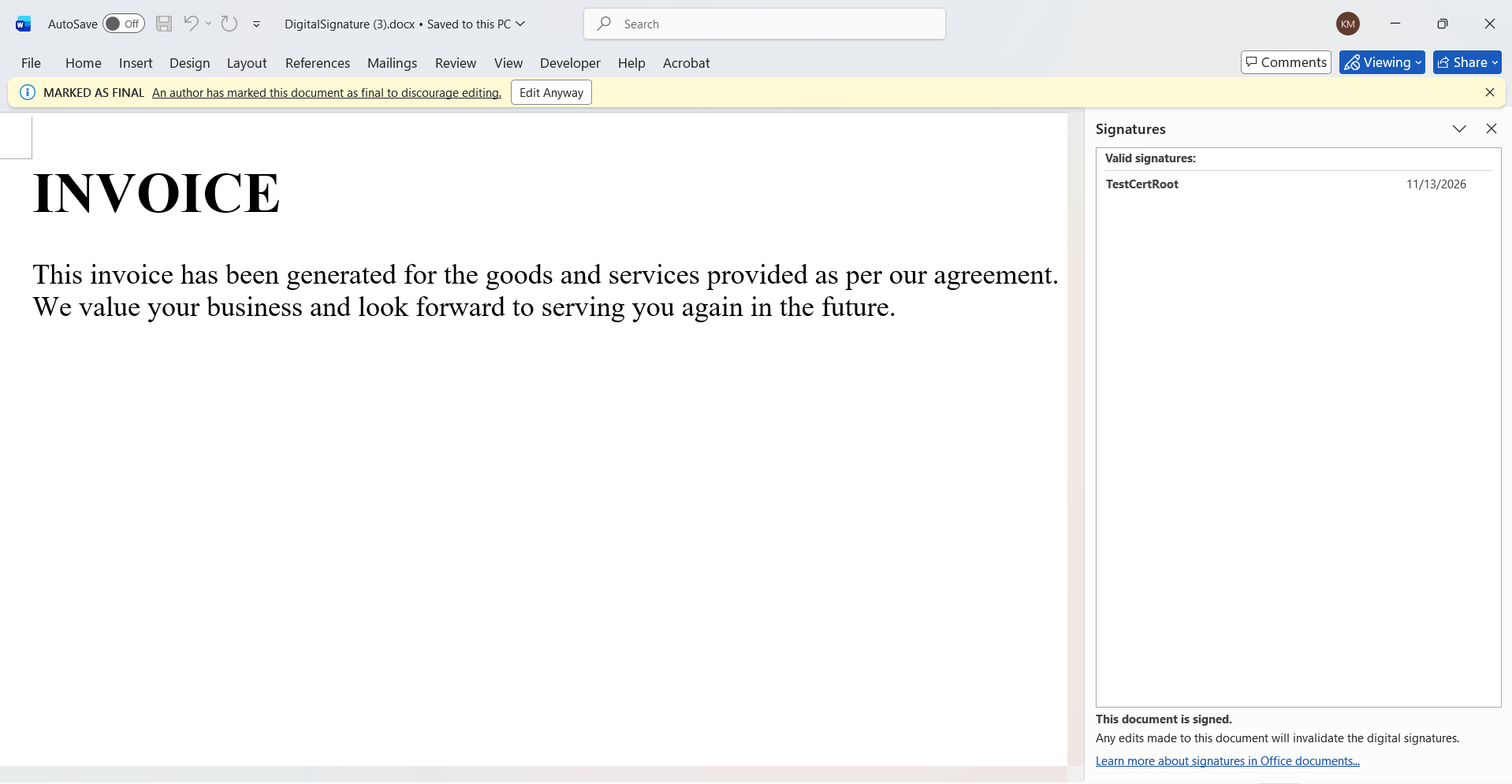
The resulting document contains an invisible digital signature that can be validated later.
Important: Avoid modifying a signed document. Changes to its content can invalidate the existing digital signature.
Step 4: Add a visible digital signature to a Word document
Some business documents need a visible approval area so readers can easily identify where a document was signed.
You may see these signature lines in:
- Contracts and legal agreements.
- Employees offer letters.
- Procurement approvals.
- Financial authorization documents.
- Business agreements.
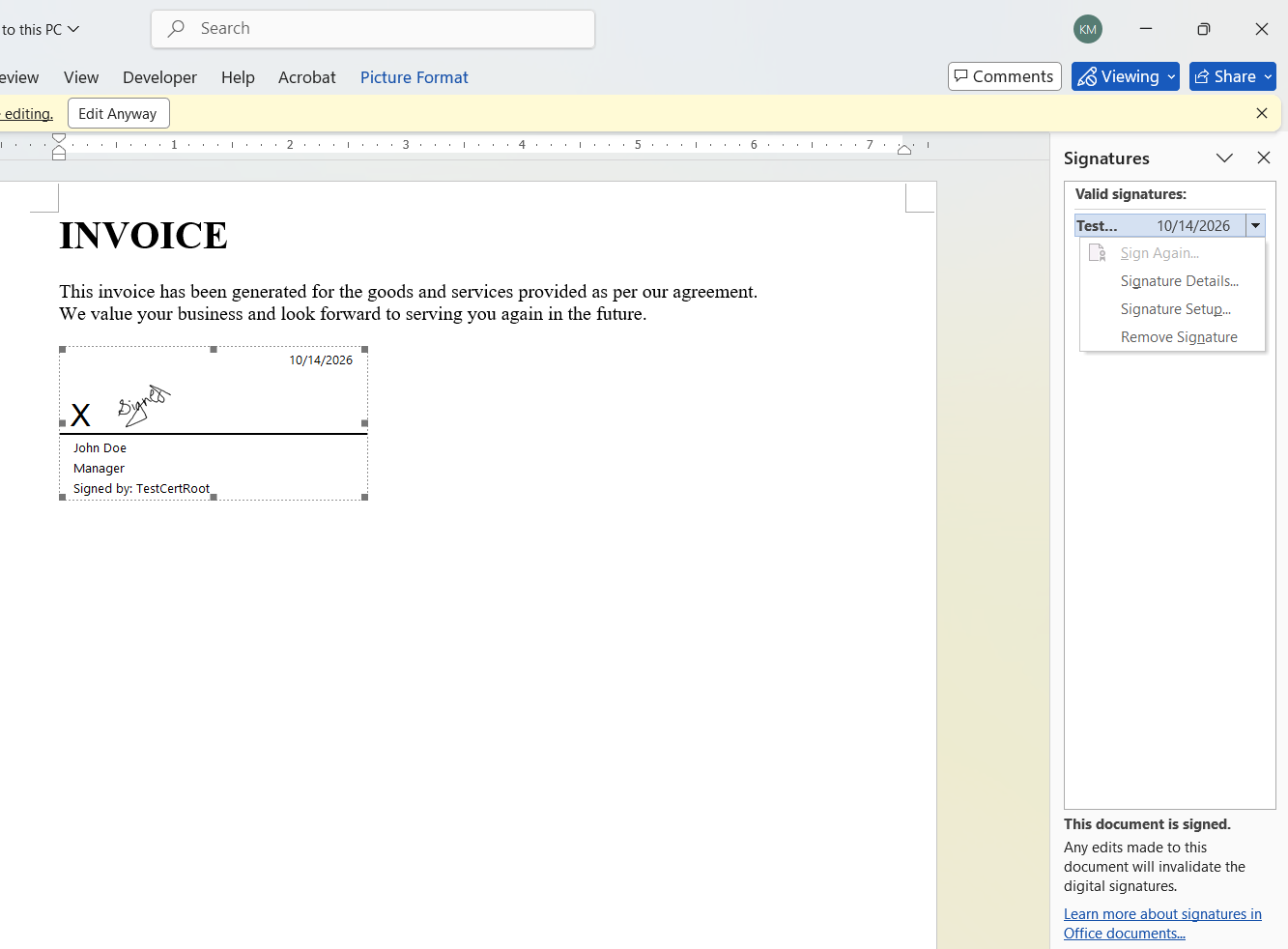
DocIO allows you to create a signature line with signer details and a unique identifier. You can then use this identifier when applying the digital signature through SignatureSettings.
First, create a signature line in the Word document and retrieve its unique ID. The signatureLineId in the following example represents that ID.
You can also provide a signature image to give the signature line a familiar handwritten-signature appearance.
byte[] SignatureLineImage = File.ReadAllBytes("signature.png");

SignatureSettings visibleSettings = new SignatureSettings
{
    SignatureLineId = signatureLineId,
    SignatureLineImage = SignatureLineImage,
    SignTime = DateTime.Now,
    Comments = "Reviewed and approved"
};

document.AddDigitalSignature(certificate, visibleSettings);

document.Save(
    "VisibleDigitalSignature.docx", FormatType.Docx);
Here:
- SignatureLineId identifies the signature line to be signed.
- SignatureLineImage specifies the image displayed in the signature area.
- SignTime records the signing time.
- Comments adds information associated with the signature.
The signatureLineId must match the unique ID of a signature line already created in the document.
A quick clarification: The signature image provides the visual appearance of a handwritten signature. The certificate-based digital signature provides cryptographic verification and document integrity protection. Adding an image alone does not create a digital signature.
Step 5: Validate digital signatures before sharing documents
Adding a digital signature is only one part of the process. You should also check whether the signature is still valid before sharing, distributing, or archiving the document.
For example, an enterprise document management system can validate a signed DOCX file before moving it into permanent storage.
DocIO provides the DigitalSignatures collection to access the signatures in a Word document.
You can check whether a document contains signatures and whether those signatures are valid using the following properties:
- DigitalSignatures.Count: Gets the number of signatures in the document.
- DigitalSignatures.IsValid: Checks whether all signatures in the collection are valid.
- signature.IsValid: Checks an individual signature.
You can also retrieve details such as signing time and signature comments.
Here’s how to check the signatures in a document:
using WordDocument signedDocument = new WordDocument(
    "DigitallySigned.docx", FormatType.Docx);

bool hasSignatures = signedDocument.DigitalSignatures.Count > 0;

bool allSignaturesValid =
    signedDocument.DigitalSignatures.IsValid;

foreach (var signature in signedDocument.DigitalSignatures)
{
    bool isValid = signature.IsValid;
    string comments = signature.Comments;
    DateTime signingTime = signature.SigningTime;
}
This example checks whether the document contains signatures and whether they are valid. It also retrieves the validation status, comments, and signing time of each signature.
For example, before sending an approved contract to a customer, your application can validate its signatures and proceed based on the validation result.
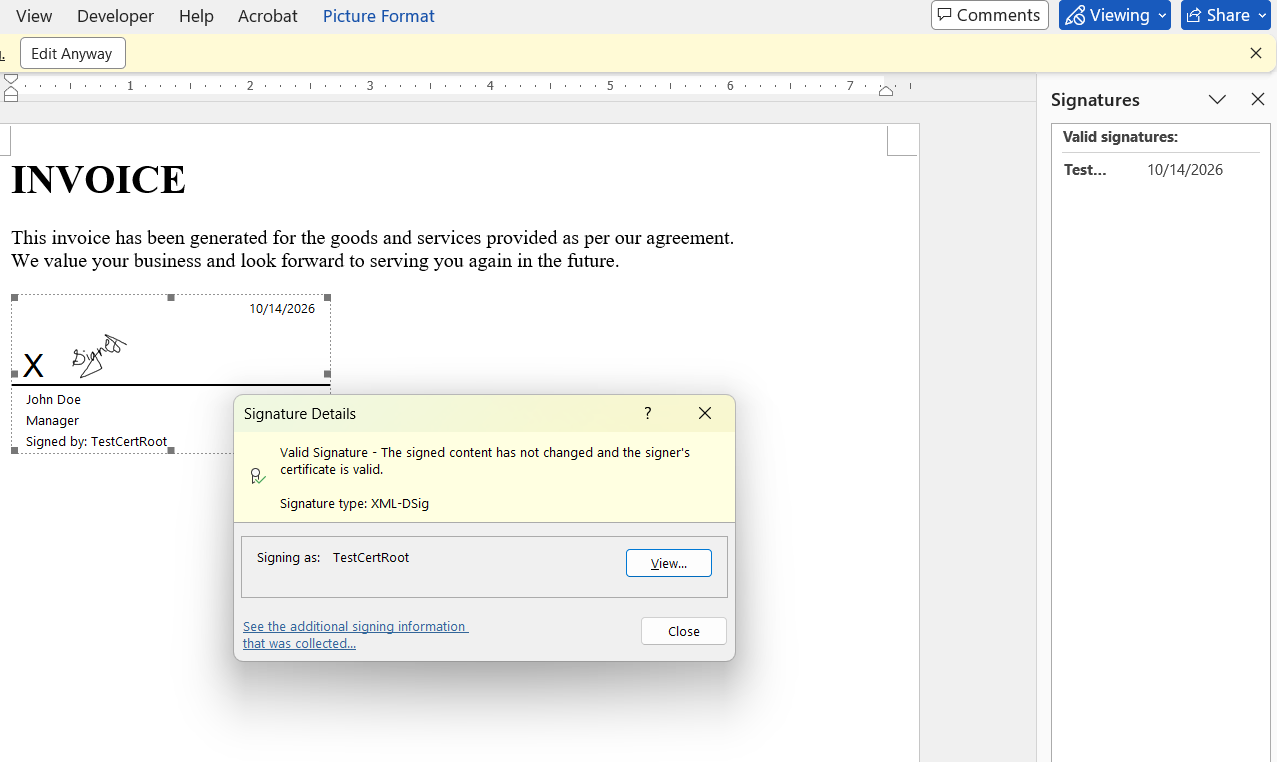
Try the validation demo to verify signed documents and explore additional validation scenarios.
Step 6: Choose the right digital signature standard
Different applications may have different digital signature requirements. Some may need standard XML digital signatures, while others may require additional signature policy information.
DocIO allows you to specify the required signature standard using the XmlDsigLevel property in SignatureSettings.
It supports the following standards:
XmlDSig
XML Digital Signature (XMLDSig) is the standard W3C format for digitally signing XML content. It is suitable for standard document-signing scenarios.
XAdES-EPES
XAdES-EPES extends XML digital signatures with explicit signature policy information. This allows applications to associate a signature with a defined signing policy.
Things to consider when choosing a standard:
- Check your organization’s digital signature requirements.
- Select a standard that aligns with the applicable signing policy.
- Make sure the systems that receive and validate your documents support the selected standard.
- Verify any additional compliance requirements separately.
You can configure the required standard using the XmlDsigLevel enumeration. Here’s an example of configuring both standards:
SignatureSettings xmlSettings = new SignatureSettings
{
    XmlDsigLevel = XmlDsigLevel.XmlDSig,
    SignTime = DateTime.Now
};

document.AddDigitalSignature(certificate, xmlSettings);

SignatureSettings xadesSettings = new SignatureSettings
{
    XmlDsigLevel = XmlDsigLevel.XAdEsEpes,
    SignTime = DateTime.Now
};

document.AddDigitalSignature(certificate, xadesSettings);
Choose the appropriate standard based on your application’s requirements. Selecting a signature standard alone does not guarantee regulatory compliance; your complete signing process must meet the applicable certificate and policy requirements.
Step 7: Remove digital signatures before updating a document
Need to update a document after it has been signed? You should remove the existing signatures before making changes. Otherwise, the signatures may no longer be valid.
Consider a contract amendment. Once a contract has been signed, the business may need to update a clause or change an agreement date. The previous signature no longer represents the updated document.
With DocIO, you can use the RemoveAllDigitalSignatures() method to remove all digital signatures from a document.
Here’s how to do it:
using WordDocument signedDocument = new WordDocument(
    "DigitallySigned.docx", FormatType.Docx);

signedDocument.RemoveAllDigitalSignatures();

signedDocument.Save(
    "UnsignedForRevision.docx", FormatType.Docx);
A good approach is to follow these steps:
- Preserve the original signed document.
- Create a separate working copy.
- Remove signatures from the working copy.
- Make the required document changes.
- Apply new digital signatures after the changes are complete.
Keeping separate signed and unsigned copies helps maintain a clear document history and makes it easier to track revisions.
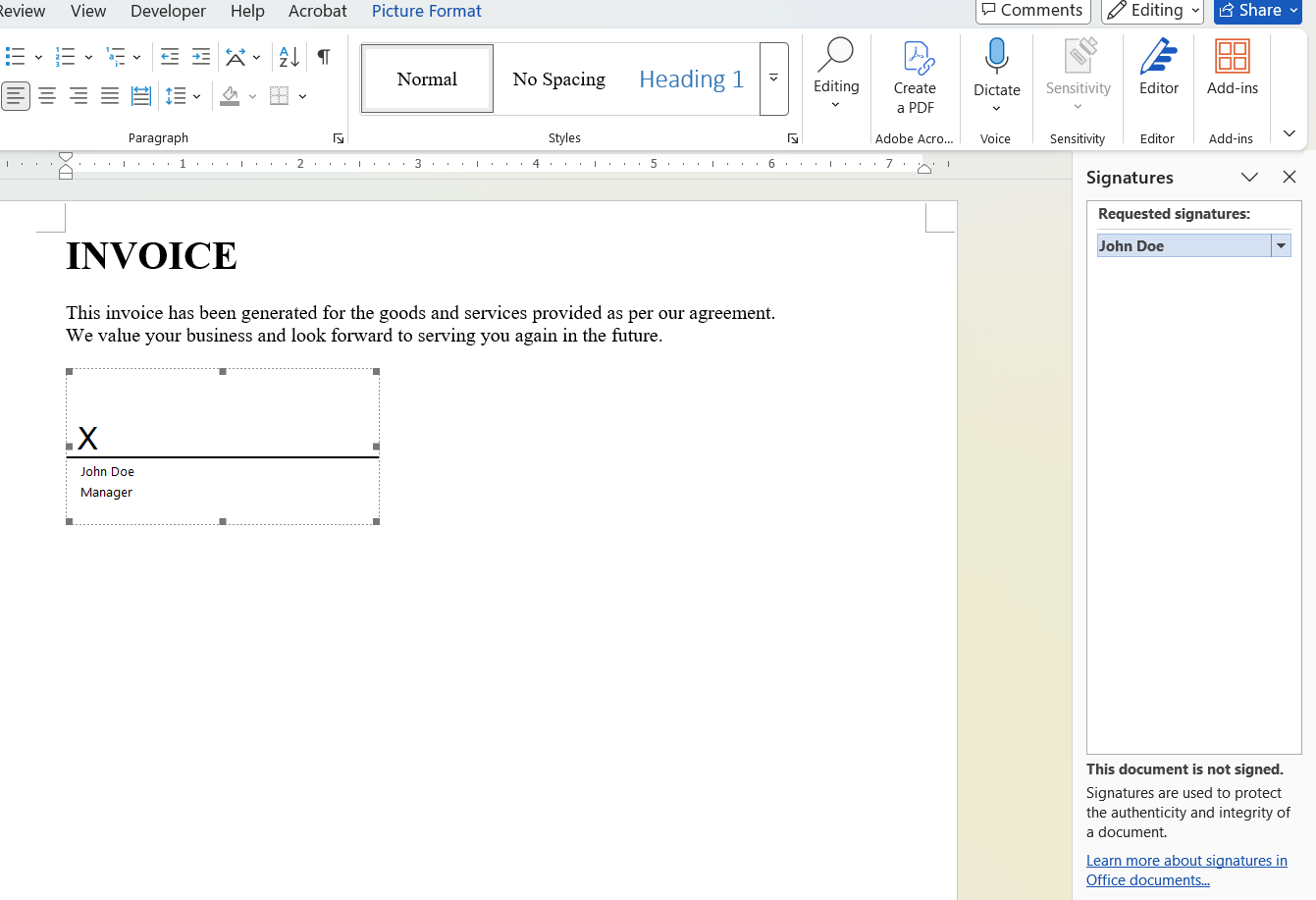
Learn more about removing signatures before revising document content.
Step 8: Manage multiple signature lines in a document
What if a document needs approval from more than one person?
For example, a procurement agreement may need signatures from a department manager, finance manager, and authorized approver.
DocIO allows you to insert multiple signature lines into a Word document and sign each line individually.
You can create separate signature lines using the AppendSignatureLine() method. Each line has its own unique identifier, which you can retrieve and associate with the corresponding signer.
When signing, pass the appropriate identifier through the SignatureSettings.SignatureLineId property.
You can then apply the digital signature to each signature line and save the signed document.
This is useful for applications that need multiple approval sections in the same document.
Note: DocIO provides the document-level signature capabilities. Your application is responsible for managing the approval process, such as assigning signers, sending notifications, controlling signing order, and tracking approval status.
Common scenarios for digital signature automation
Digital signature automation can be useful in several types of applications.
Here are a few examples:
- HR applications: Automatically sign employees offer letters, appointment letters, and other employment documents.
- Contract management systems: Sign agreements and validate them before sharing with customers or partners.
- Procurement applications: Manage purchase agreements and approval documents.
- Financial applications: Sign financial reports and authorization documents.
- Document management systems: Validate signed documents before storing or archiving them.
In each scenario, automating digital signatures helps reduce manual work while keeping document signing and validation within the application.
Frequently Asked Questions
What is the difference between an invisible digital signature and a visible signature line?
An invisible digital signature protects a document without displaying a signature area on the page.
A visible signature line provides a designated area for signing. It can display signer information and an optional signature image. The signature line must also be digitally signed using a certificate to provide cryptographic verification.
Can multiple people sign the same DOCX document?
Yes. DocIO supports multiple signature lines in a Word document. Each signature line has its own unique identifier and can be signed individually.
However, managing the approval sequence and signer interactions must be handled by your application.
When should digital signatures be removed?
Remove existing signatures whenever you need to modify the signed document. After making the required changes, apply new digital signatures to the updated document.
It’s good practice to preserve the original signed copy for document history and audit purposes.
Which Word document formats support digital signatures in DocIO?
DocIO currently supports digital signatures in DOCX format. Legacy DOC documents are not supported for this feature.
Which digital signature standards are supported in the .NET Word Library?
DocIO supports XMLDSig and XAdES-EPES through the SignatureSettings.XmlDsigLevel property. You can select the appropriate standard based on your application’s signing requirements.
Can I use a signature image without a digital certificate?
A signature image provides a visual representation of a handwritten signature. However, an image alone does not provide cryptographic verification or protect the document from undetected changes.
To create a digital signature, you need a valid signing certificate containing a private key.

Keep document signing within your application
Why handle document signing manually when you can automate it directly in your .NET application?
With the Syncfusion .NET Word Library, you can add invisible digital signatures, create visible signature lines, validate signed documents, and manage document revisions using C#.
Whether you’re building an HR application, contract management system, or enterprise document process, these capabilities help reduce manual steps while maintaining document integrity and auditability.
Ready to try it in your application? Explore the digital signature documentation and download the GitHub samples to see the complete implementation.
This feature is available in the Essential Studio 2026 Volume 3 release. You can also explore the Release Notes and What’s New pages for additional updates.
Existing customers can access the latest version through the License and Downloads page. New users can start a 30-day free trial and explore the capabilities of the Syncfusion .NET Word Library.
If you have questions or feedback, reach out through our support forums, support portal, or feedback portal. We’re happy to help!

Be the first to get updates