 Yuvaraj Mohan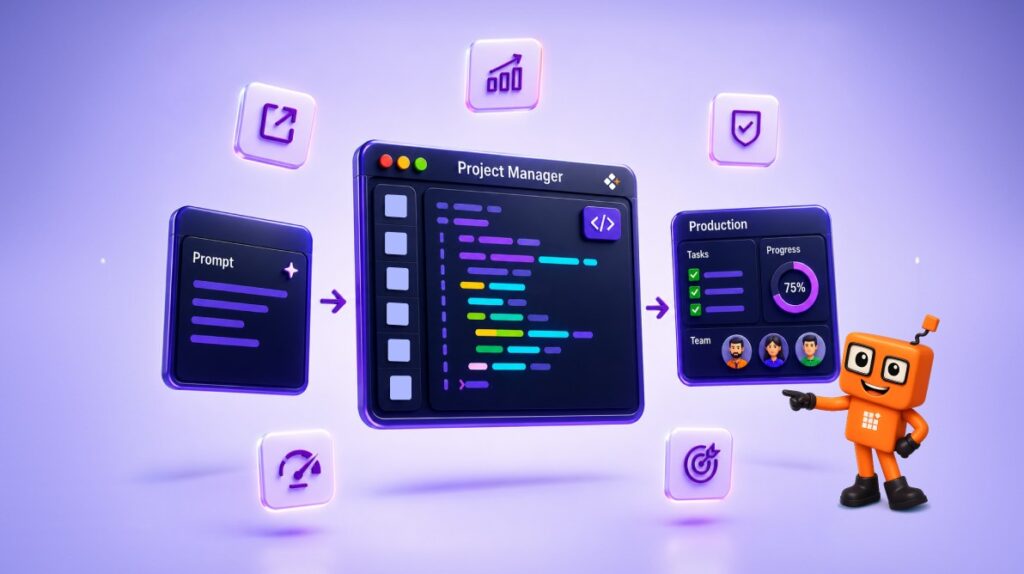
TL;DR: Have you ever looked back at AI-generated code and wondered why a particular decision was made? While AI can generate code quickly, specifications, reviews, and implementation context are often lost in the process. Project Manager in Syncfusion Code Studio brings structure to AI-assisted development with a Define → Plan → Build → Verify → Review process that keeps requirements, decisions, and validation steps connected to every task. The result is faster delivery, fewer missed steps, and software that’s easier to maintain long after it’s shipped.
Deadline pressure is familiar territory for most developers. You open an AI coding agent, describe a feature, and within minutes there’s code working on your screen. A quick review, a merge, and you’re on to the next task.
The trouble usually starts later.
A few weeks after deployment, a bug appears in production. Someone asks why an authentication flow changed or why a particular implementation decision was made. The code exists, but the context doesn’t. There is no specification, no review history, and no record of the reasoning behind the change.
The problem isn’t AI—it did exactly what it was asked to do.
The real issue is that many AI coding processes focus on generating code while overlooking the practices that help teams deliver reliable software—requirements, planning, verification, security reviews, and decision tracking.
That’s exactly why we’re introducing Project Manager in Syncfusion® Code Studio. Instead of treating AI-assisted development as a simple prompt-to-code experience, the newly introduced Project Manager brings a structured software delivery process directly into your coding session, helping teams maintain engineering discipline without adding manual overhead.
What teams lose when AI coding skips the process
Most developers using AI coding tools eventually run into the same challenges:
- No specification, no shared understanding: The feature works, but the reasoning behind it disappears. A week or a month later, developers are left reverse-engineering requirements from the code itself.
- Security reviews become “Something we’ll do later”: Authentication changes, API integrations, and user input handling often move forward without formal review, not because teams don’t care, but because nothing in the process requires it.
- Fast code doesn’t eliminate the need for review: AI can generate code quickly, but it cannot guarantee every architectural decision, edge case, or performance concern has been considered. Without review, technical debt accumulates quietly.
- Constant tool switching breaks focus: Specifications live in one tool, tasks in another, reviews elsewhere, and test results somewhere else entirely. Context gets fragmented, and important details get lost.
These aren’t edge cases. They’re common outcomes when AI-assisted development lacks structure.
Project Manager in Code Studio: Bringing SDLC structure into AI-assisted development
Most teams already understand the value of specifications, planning, testing, and reviews. The challenge is keeping those activities consistent when deadlines are tight.
Project Manager addresses this by making the development process part of the coding experience itself.
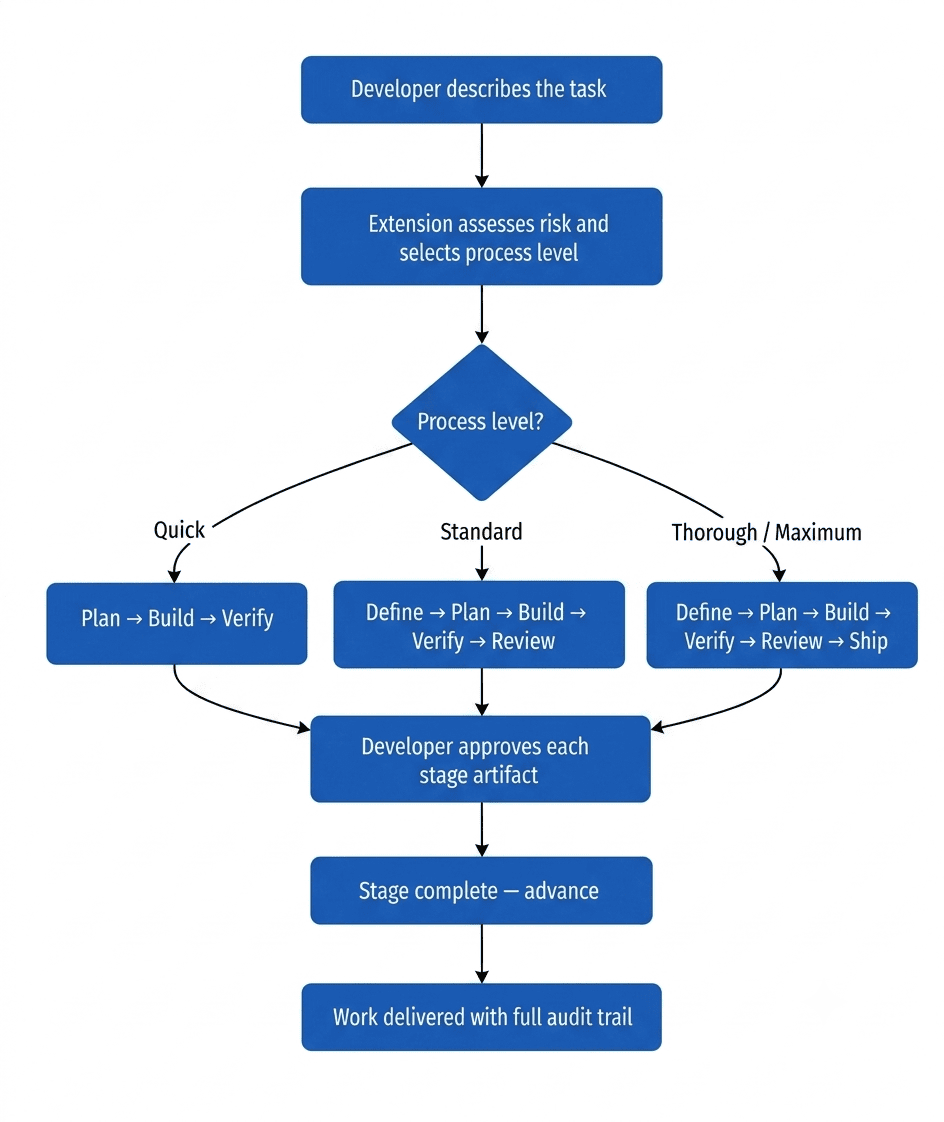
Instead of moving directly from prompt to code, work progresses through a structured sequence:
Define → Plan → Build → Verify → Review
Every stage creates a record of what was agreed upon, what was built, and how it was validated. The goal isn’t to introduce more processes; it’s to ensure critical steps are no longer easy to skip.
Why not just use any AI tool that generates plans or reviews?
Many AI coding tools can generate plans, specifications, or code reviews when asked. The challenge isn’t creating those artifacts; it’s preserving them after the conversation ends.
A month later, the code may still be there, but the reasoning, approvals, and validation history are often difficult to find.
Project Manager takes a different approach. Every artifact—the specification, implementation plan, verification report, and code review—is saved directly to the repository and linked to the task that produced it. That means the context stays with the project, making changes easier to understand, review, and maintain over time.
Traditional AI vs. Project Manager
Most AI coding tools take you from prompt to code in a single step. The speed is real but so is what can get lost along the way. Here’s how the two approaches compare:
| Area | Traditional AI | Project Manager |
|---|---|---|
| Process | Prompt → Code | Prompt → Define → Plan → Build → Verify → Review |
| Specification | None. Build starts immediately | Spec written and approved before any code starts |
| Task planning | Implied from the prompt | Explicit ordered task list reviewed before build begins |
| Decision tracking | Decisions lost in chat history | Every decision recorded as a versioned artifact in your repo |
| Code review | Optional, often skipped under pressure | Structured agent review at every stage before merge |
| Verification | Manual or skipped | Automated checks run after build: tests, quality, accessibility |
| Audit trail | Limited or none | Full artifact history: spec, plan, build summary, review, report |
| Context switching | Spec in one tool, tasks in another, reviews elsewhere | Everything in one panel, inside your editor |
The difference is not just process for process’s sake. Each row represents a category of mistake or gap that shows up in production when it is skipped.
Catching problems earlier
AI-generated code is only as good as the information provided to it. A vague prompt can produce code that works while still missing important requirements or edge cases.
The Project Manager introduces checkpoints before code reaches production. Specifications capture assumptions early, planning helps identify gaps, verification validates the implementation, and review provides another layer of quality checks.
This makes it easier to catch problems when they’re still inexpensive to fix rather than after deployment.
Why this matters
Imagine adding multi-factor authentication to a production application. Six months later, another developer needs to modify the login flow. Without any record, they are left guessing why decisions were made. With a spec, a task plan, and a code review saved alongside the code, they can understand what was built and why, without asking anyone.
That is the real value of Project Manager. It is not just about generating code faster. It is about keeping the context, the decisions, and the evidence of quality long after the code is merged. That record matters across situations teams encounter regularly:
- Production incidents: Trace what changed, why it changed, and what was checked before it shipped.
- Compliance audits: Show proof that security reviews happened, requirements were documented, and testing was completed.
- Onboarding new developers: New hires can read the reasoning behind decisions without pulling in a senior developer to explain.
- Regulated industries: Provide formal documentation of the design and review process before changes go to production.
- Security reviews: Demonstrate that authentication changes and input handling were reviewed and signed off before merging.
Project Manager produces this record automatically as a normal part of getting work done.
Walking through a real feature build: Adding CSV export to a bug tracker
To see how Project Manager works in practice, let’s use a realistic example.
Imagine you’re working on an internal bug tracker with three statuses:
- Open
- In Progress
- Fixed
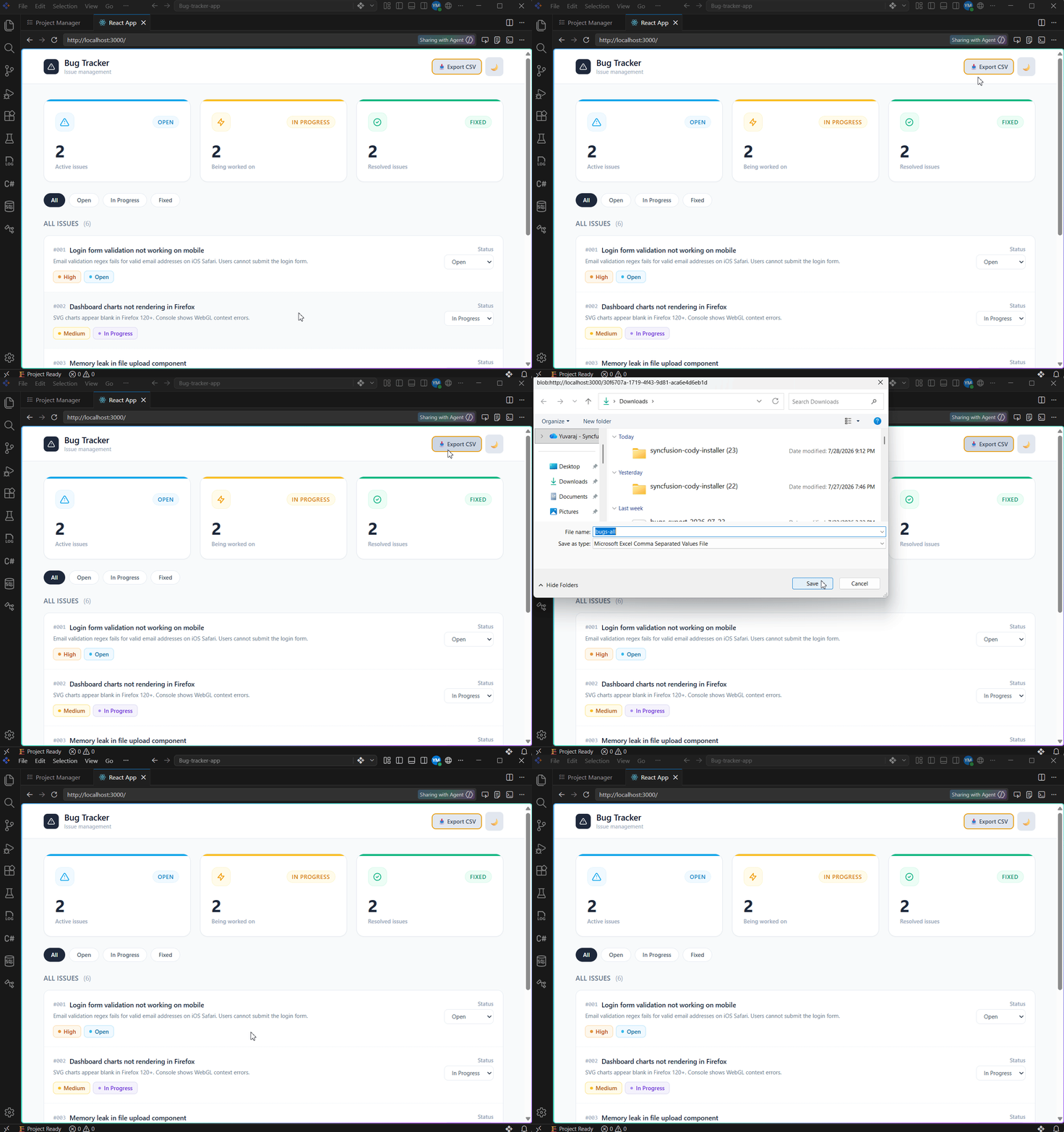
Users can filter issues by status, and the next request is straightforward: add a CSV Export button that downloads the currently filtered results so the team can analyze them in Excel.
Step 1: Opening the panel and setting up your project
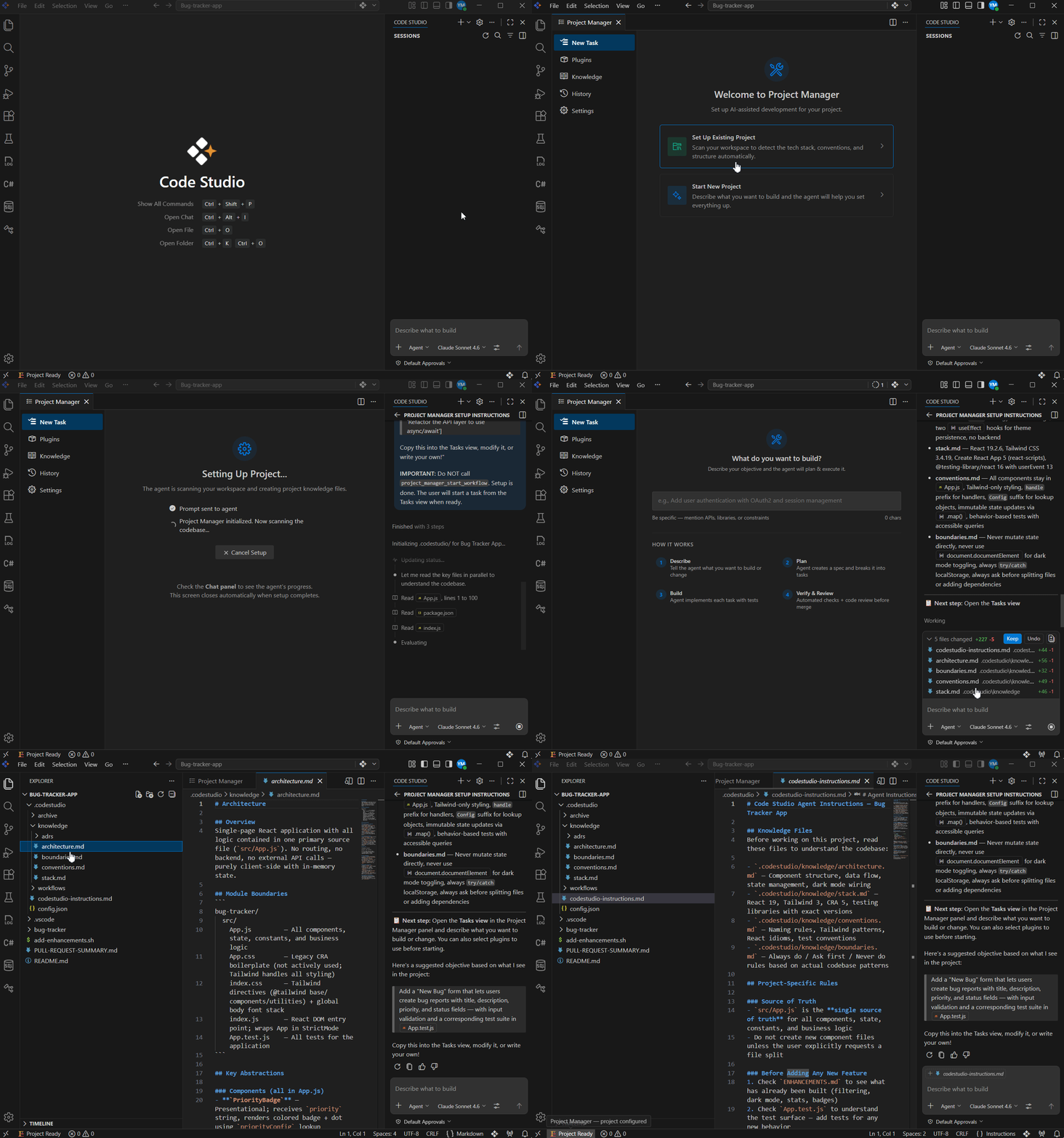
Open the Project Manager panel from the Code Studio settings. The first thing you see is a welcome screen with two options:
- Set up existing project: Scans your workspace and creates project knowledge files automatically.
- Start new project: For new projects where the agent helps you set everything up from scratch.
Since the bug tracker project already exists, we can choose the Set Up Existing Project option. The agent scans your workspace:
- Folder structure,
- Component names,
- Tech stack, and
- coding patterns.
Then, it creates a set of knowledge files inside your project with the required details:
architecture.md: Component structure and state management approach.stack.md: Frameworks, libraries, and tooling versions.conventions.md: Naming patterns, styling approach, and test patterns.boundaries.md: Rules like “never use class components” or “always wrap localStorage calls in try-catch”.codestudio-instructions.md: A combined context file the agent uses on every task going forward.
This setup only takes a minute, but it gives the AI agent something many coding assistants lack: a working understanding of your codebase before implementation begins.
Step 2: Describe the requirement
Next, you create a new task and enter:
“Add an Export CSV button for this bug tracker application. Clicking it downloads the issues currently visible based on the active filter — Open, In Progress, or Fixed.”
That’s the only instruction required.
From this point forward, the Project Manager guides the task through a structured development process.
Step 3: Define: Align on requirements before writing code
“Every successful implementation starts with a shared understanding of what is being built.”
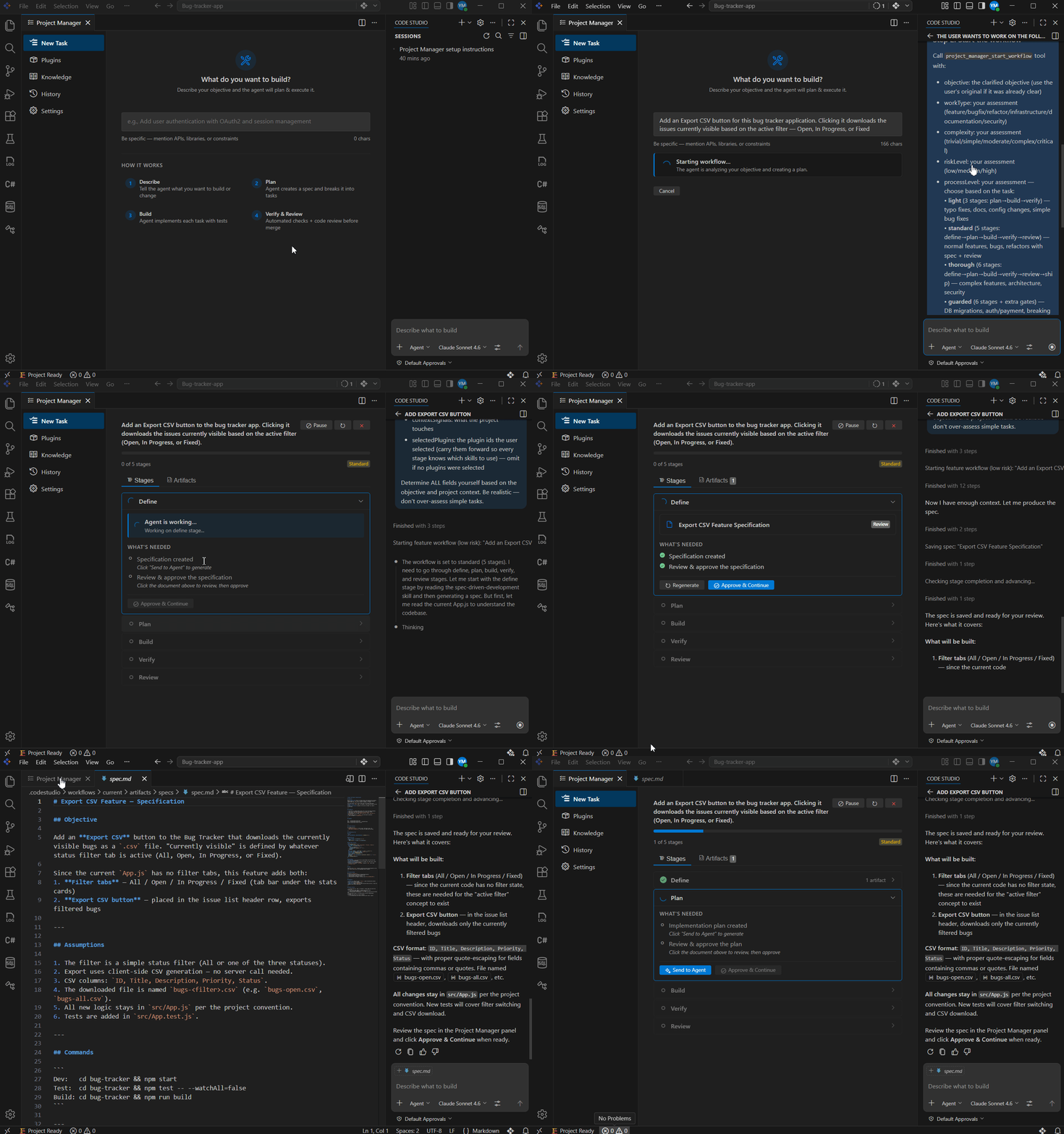
As soon as you submit the CSV export request, the Project Manager enters the Define stage. The remaining stages: Plan, Build, Verify, and Review stay locked until the requirements are approved.
The agent does three things in sequence:
- Scans your codebase: It reads your knowledge files, understands your component structure, and figures out where the export feature fits in your existing code.
- Creates a spec: Based on your prompt and its codebase scan, it writes a spec.md covering what is being built, the key design decisions, and a list of assumptions it has made.
- Asks for your approval: The spec appears as an artifact (“CSV Export Feature Specification”) with a Review badge. You click it, read through the document, and decide whether it matches what you actually want.
The spec covers the button placement, file contents, filter handling, and the key assumptions validated, before a single line of code is written. Read through it, confirm it matches what you want, and click Approve & Continue.
Note: This stage does not always run. The agent reads your task description and decides automatically. Adding a new feature? Define runs. Fixing a typo or a minor config value? It skips. If you want the Define stage to always run for every task, you can configure that in the Settings tab.
Step 4: Plan stage: The agent breaks the work into an ordered task list
“Planning transforms requirements into a sequence of executable steps.”
The agent reads the approved spec, scans your codebase to understand what exists and what needs to be created, and returns a plan.md broken into ordered phases, what to build first, what to test, and what to verify. Review the task breakdown and click Approve & Continue.
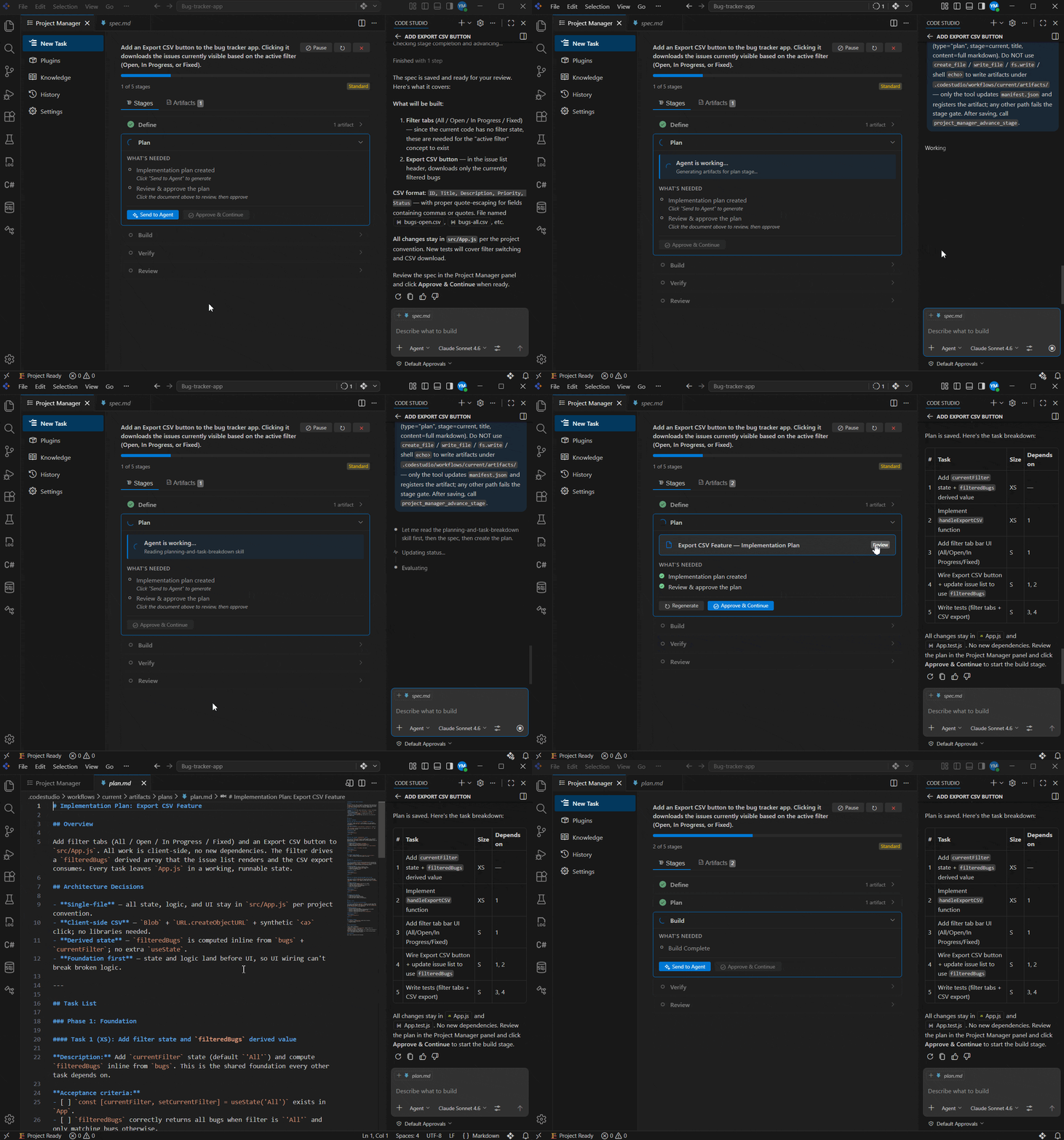
Step 5: Build stage: The agent implements the feature
“AI can generate code quickly. A plan ensures it generates the right code.”
The agent works through the plan task by task, building the logic, wiring up the UI, and writing tests as it goes. You can watch progress in the panel as each task checks off. When done, a build summary artifact shows what was built, which files changed, and what tests were added. Confirm it matches the spec and plan, then click Approve & Continue.
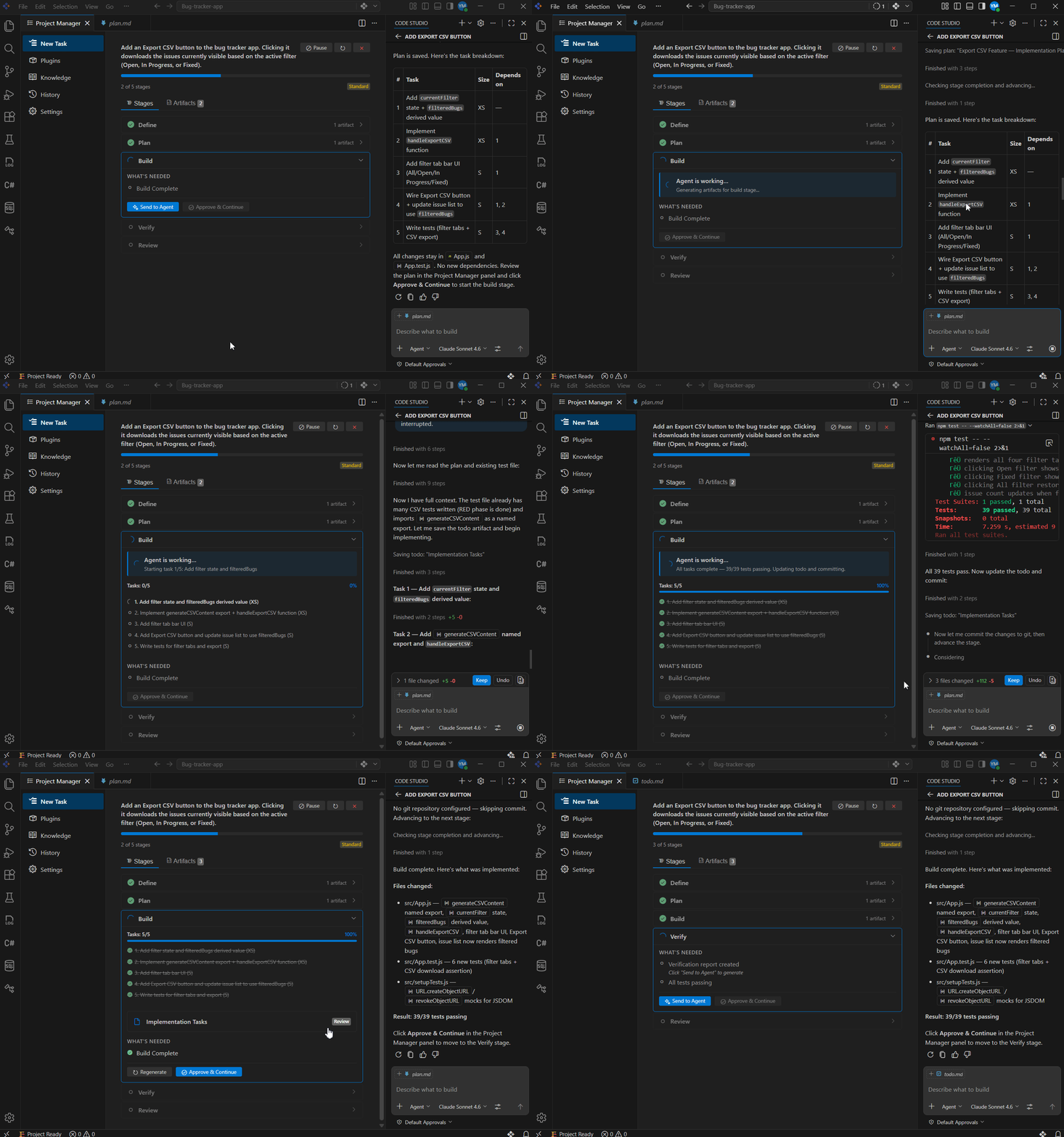
Step 6: Verify stage: The agent runs the checks so you don’t have to
“Code that works locally is not always code that’s ready for production.”
The agent runs tests, builds validations, code-quality checks, and accessibility checks. No manual configuration is needed because it already knows what to check from the specification. Every check comes back clean: tests passing, build successful, export button accessible by keyboard. Review the verification report and click Approve & Continue.
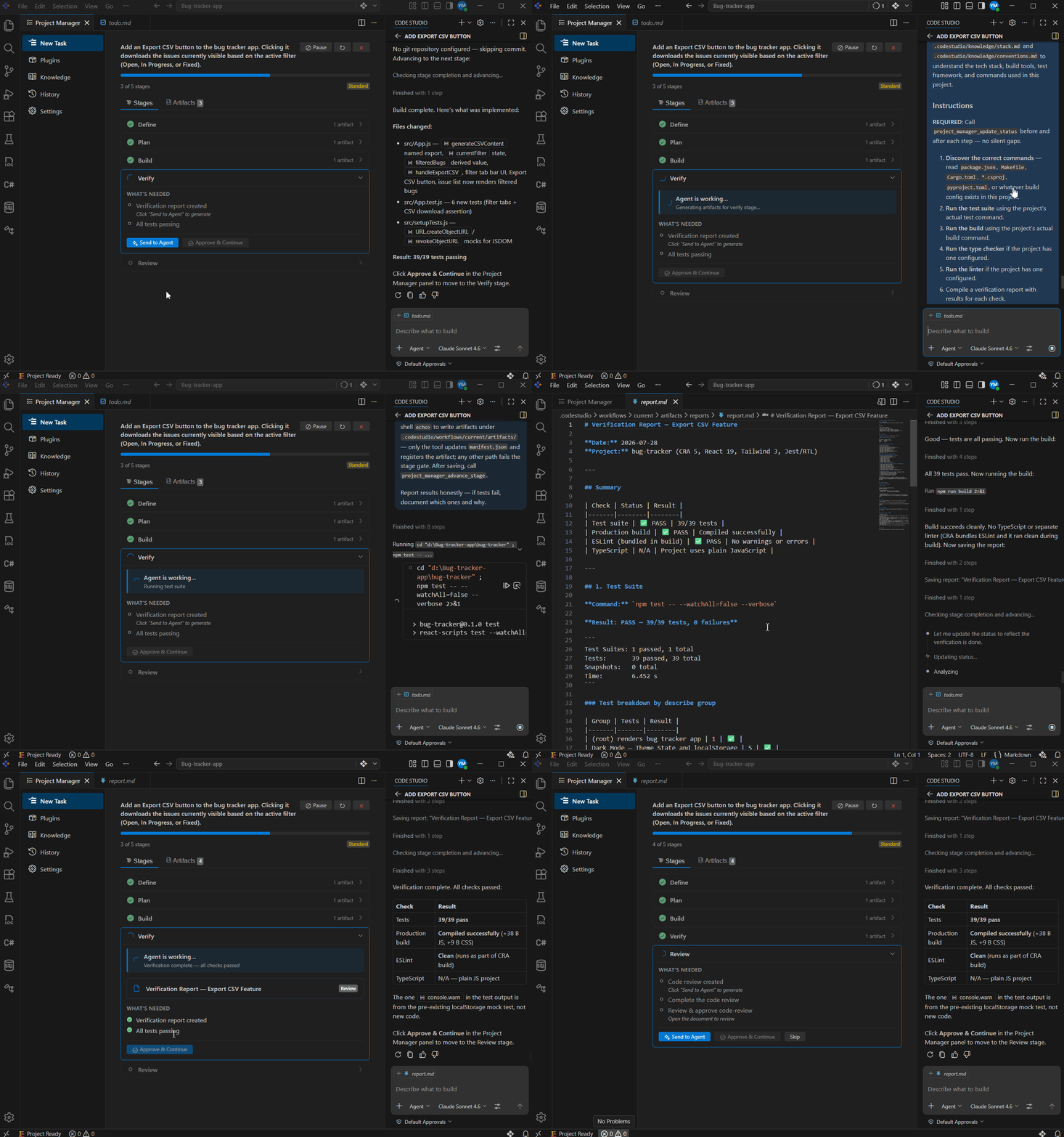
Step 7: Review stage: The agent reviews the code before it merges
“A review is where implementation quality becomes visible.”
The agent reads the code it just wrote and reviews it across correctness, readability, architecture, security, and performance—the same areas a senior engineer would evaluate. Issues surface here if there are any; if everything is clean, that is documented too. The review comes back clean. Verdict: Approved for Merge. Click Approve & Continue.
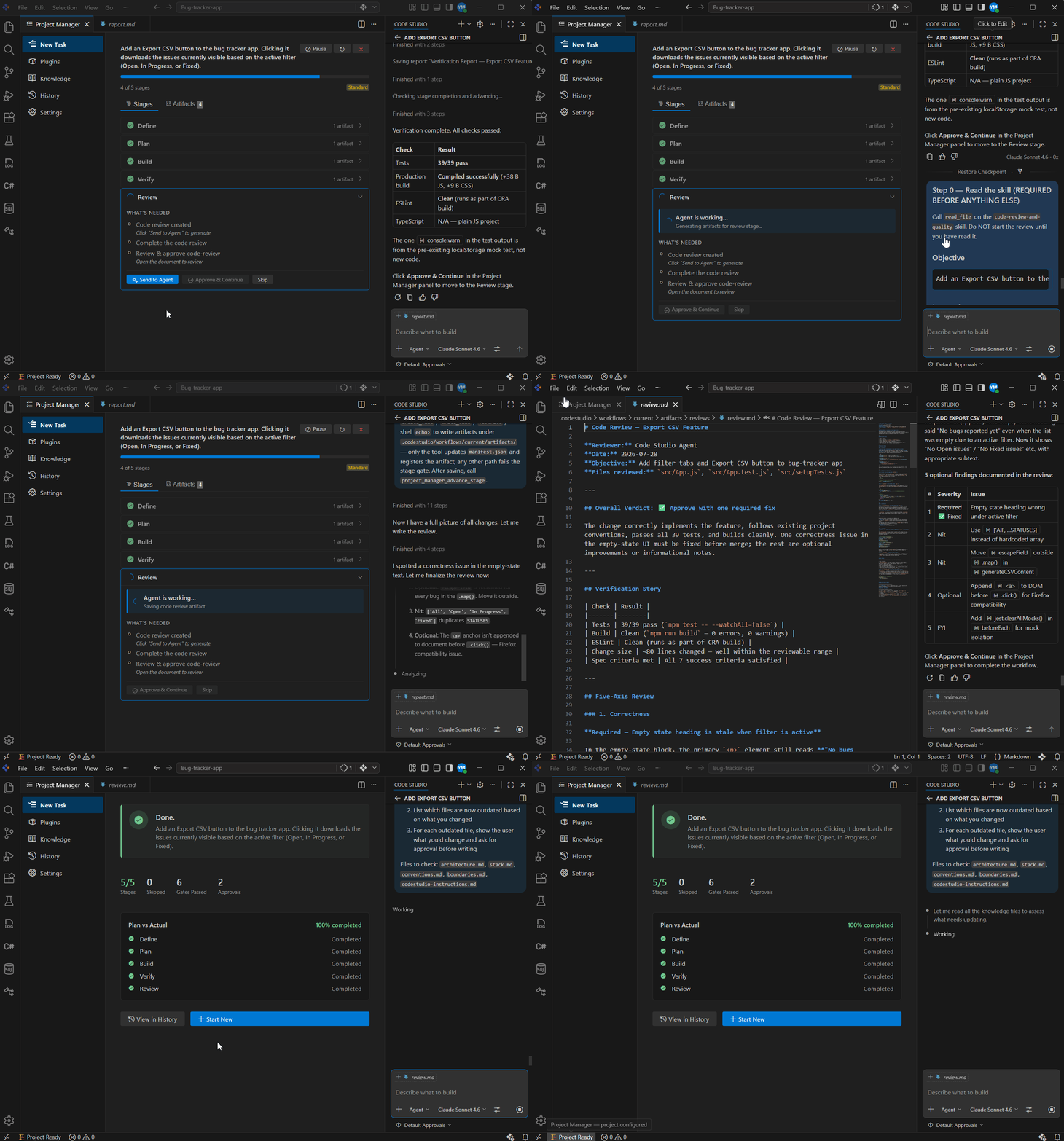
And that’s the full run, done.
All stages are complete. Every artifact: the specification, the implementation plan, the build summary, the verification report, and the code review is saved to your repository. Use View in History to see the full record or Start New to begin the next task.
You described what you needed. The process ran. Nothing was skipped.
Understanding the Project Manager panel
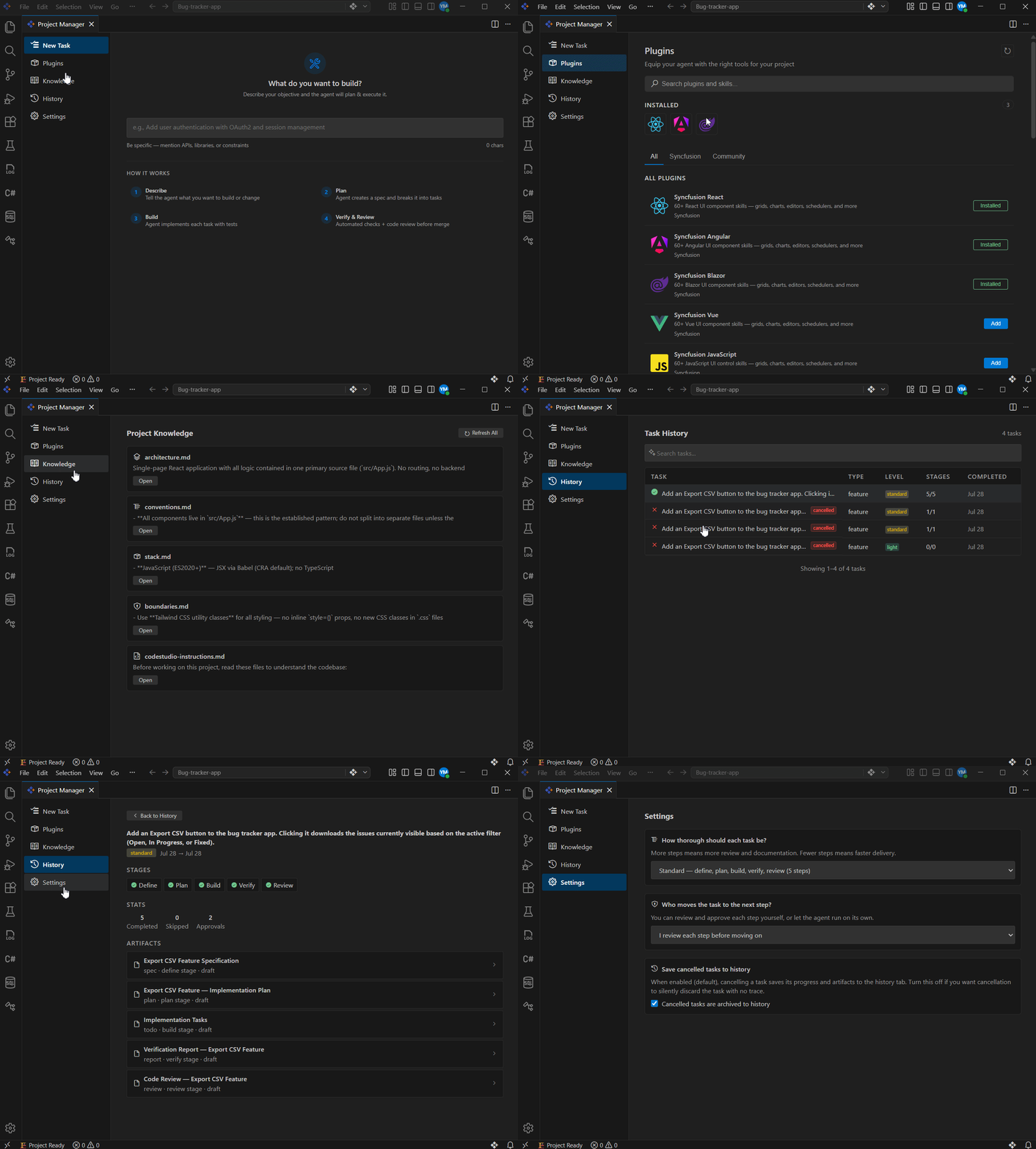
Project Manager is organized into five tabs, each designed to support a different part of the software delivery process.
1. New Task
Every task starts here. Simply describe what you want to build, and Project Manager takes it from there.
It uses your project’s context to understand the request, determine its scope, and automatically start the appropriate process. If you need to step away, you can Pause the task and resume later or Cancel it entirely.
2. Plugins
Plugins provide additional knowledge about specific frameworks, libraries, and tools. Instead of repeatedly explaining your technology stack, you can install a plugin once and make that expertise available whenever needed.
Plugins can be browsed and installed from:
- All
- Syncfusion
- Community
Once installed, they can be attached to tasks as additional context for the agent.
3. Knowledge
The Knowledge tab contains the project context files that help the agent understand your codebase, including:
architecture.mdstack.mdconventions.mdboundaries.mdcodestudio-instructions.md
These files can be viewed and edited directly. After significant codebase changes, selecting Refresh All updates them so the agent’s understanding stays aligned with the project.
4. History
Every task executed through Project Manager is recorded in History.
For each task, you can review:
- Task description
- Process level used
- Completed stages
- Timestamps
- Generated artifacts
This creates a searchable record of how a feature evolved from initial requirements through implementation, verification, and review.
5. Settings
The Settings tab allows you to control how much process is applied to a task and how involved you want to be along the way.
1. Process levels
Choose how thorough the process should be:
- Quick: Plan, Build, Verify. Ideal for small changes.
- Standard: Define, Plan, Build, Verify, Review. Recommended for most feature development.
- Thorough: Includes all stages plus additional release readiness checks.
- Maximum: Adds extra quality gates for high-risk changes such as authentication, payments, or data-sensitive features.
Quality gates are applied automatically based on the type of change. For example:
- Accessibility checks for UI updates.
- Security checks for authentication and user input handling.
- Performance checks for sensitive code paths.
2. Approval modes
You can also decide how much oversight you want during execution:
- Review each step: The agent pauses after every stage and waits for approval.
- Run automatically: The agent completes all stages before presenting the final results for review.
Who benefits most from Project Manager?
Project Manager is especially valuable for teams that use AI coding tools regularly but still need visibility, quality control, and traceability throughout development.
- Developers using AI daily: Get more than generated code. Every task includes documented requirements, implementation decisions, and review history, making future maintenance easier.
- Engineering managers: Gain a clear record that specifications, verification checks, and reviews were completed before changes moved forward.
- Teams onboarding new developers: New team members can understand not just what was built, but also the decisions and reasoning behind it.
- Projects where reliability matters: Whether you’re working on authentication, payments, APIs, data processing, or customer-facing applications, Project Manager helps ensure important review and validation steps don’t get overlooked.
In short, Project Manager is most valuable for teams that want the speed of AI-assisted development without sacrificing quality, accountability, or long-term maintainability.
Frequently Asked Questions
Can I skip stages in the Project Manager development process?
Light-level processes do not include the Define or Review stages by design. For Standard and higher process levels, stages cannot be skipped. If a stage feels unnecessary for your project, you can choose a lower default process level in Settings.
Can I run multiple Project Manager processes at the same time?
No. Only one Project Manager process can be active at a time. Starting a new process while another is in progress will archive the current one first.
Where does Project Manager store specifications, plans, and review artifacts?
All generated artifacts, including specifications, implementation plans, verification reports, and code reviews, are stored in your project’s version-controlled configuration directory and travel with your repository.
What happens to a Project Manager task when I switch Git branches?
Project Manager automatically detects branch changes. If the new branch already contains a saved process state, it loads that state. Otherwise, the current process remains preserved until you switch back.
Can I use Code Studio’s AI agent without following the full Project Manager process?
Yes. You can use the AI chat and coding agent independently. The structured Define → Plan → Build → Verify → Review process is optional and only starts when you create a task through Project Manager.
Does Project Manager work with any programming language or framework?
Yes. The Project Manager process is language-agnostic. While onboarding, it scans your workspace to understand your technology stack and adapts its guidance accordingly, making it suitable for virtually any project with a recognizable structure.
Use AI agents to create implementation plans, generate production-ready code, automate repetitive tasks, and improve code quality across your projects.
Discover Code StudioFrom faster code to better software delivery
AI can generate code in seconds. The harder challenge is making sure that code remains understandable, reviewable, and maintainable long after it ships.
That’s where Project Manager changes the experience. Instead of leaving specifications, implementation decisions, verification results, and code reviews scattered across multiple tools or missing altogether, it keeps them connected to the work itself.
The result is more than a complete feature. You get:
- Clear requirements before implementation begins,
- A documented plan before changes are made,
- Automated verification before deployment, and
- Reviewable decisions that remain available months later.
If you’ve ever traced a production issue back to missing context, skipped reviews, or undocumented decisions, try running your next feature through Project Manager in Syncfusion Code Studio.
Describe the task once and see how a structured development process can improve not just how quickly code gets written, but how confidently it gets delivered.
Need help getting started? Explore the Project Manager in Code Studio documentation, contact us via our Syncfusion support portal, join the community forums, or share feedback to help shape future releases.




Be the first to get updates