
Prompt Engineering for Developers Succinctly®

CHAPTER 4
Kick-Off: Database Design
Overview
With a solid understanding of prompt engineering fundamentals and advanced techniques, it’s time to apply this knowledge to building our document expiration tracker application. We won’t have time to make a full-blown app, but we’ll focus on its core features.
This chapter marks the project kick-off, focusing on the crucial first step: designing and implementing the database. We will use ChatGPT, our AI assistant, to guide us through understanding the application requirements and generating the SQLite database schema.
Understanding the application requirements
Before diving into code, it’s essential to define what our application needs to do clearly. This clarity will be paramount when crafting effective prompts for the AI. Our document expiration tracker needs to:
· Store document information: Each document (e.g., driver’s license, passport, contract) must have a name, type, expiration date, and optional notes.
· Identify documents uniquely: Each document needs a unique identifier.
· Track expiration dates: The primary function is to monitor and display documents based on their expiration dates.
· Basic management: Users should be able to add, view, edit, and delete document records.
This simple set of requirements forms the basis for our database design. We will use SQLite for its simplicity and file-based nature, which make it ideal for a small, self-contained application like this.
Database design principles
Before we ask the AI to generate our schema, let’s briefly review some fundamental database design principles that guide our requirements:
· Normalization: Aim to reduce data redundancy and improve data integrity. For our simple application, a single table is sufficient; for more complex systems, data would be split across multiple related tables.
· Primary keys: Every table should have a primary key, which is a column (or set of columns) that uniquely identifies each record. This is crucial for efficient data retrieval and relationships.
· Data types: Choosing appropriate data types for each column ensures data integrity and optimizes storage and performance. SQLite is flexible with data types, but it’s good practice to define them clearly.
· Constraints: These ensure that critical fields are never left empty, maintaining data quality.
Database design principles
SQLite uses a more dynamic type system than other relational databases. It has five primary storage classes:
· NULL: The value is a NULL value.
· INTEGER: The value is a signed integer, stored in 1, 2, 3, 4, 5, 6, or 8 bytes depending on the magnitude of the value.
· REAL: The value is a floating point value, stored as an 8-byte IEEE floating point number.
· TEXT: The value is a text string, stored using the database encoding (UTF-8, UTF-16BE, or UTF-16LE).
· BLOB: The value is a blob of data, stored exactly as it was input.
When you declare a type like VARCHAR(255) or DATETIME, SQLite uses a concept called type affinity to determine the storage class. For example, DATETIME columns typically have NUMERIC or TEXT affinity. For dates, storing them as TEXT in 'YYYY-MM-DD' format is often the most straightforward and compatible approach for sorting and comparison in SQLite without complex conversions.
Let’s use our AI assistant to help us design the SQLite database schema based on the requirements and these principles. We’ll employ the principles of clarity, specificity, and output format specification to get a precise statement.
Code Listing 4-a: DB Schema Prompt
Act as a database administrator specializing in SQLite. I am building a PHP application to track documents with expiration dates. Based on the following requirements, generate a `CREATE TABLE` statement for an SQLite database. The table should be named `documents`. Requirements: - Each document needs a unique identifier. - Store the document’s name (e.g., "Driver’s License"). This should be a required text field. - Store the document’s type (e.g., "License", "Passport", "Contract"). - This should also be a required text field. - Store the expiration date. This is a critical field and should be a required text field, storing dates in 'YYYY-MM-DD' format for easy comparison. - Allow for optional notes about the document. This can be a text field. Ensure the primary key is auto-incrementing. Provide only the SQL `CREATE TABLE` statement, enclosed in a SQL code block. |
After entering this prompt, we get the following result from ChatGPT.
Code Listing 4-b: DB Schema Prompt Result
CREATE TABLE documents ( id INTEGER PRIMARY KEY AUTOINCREMENT, name TEXT NOT NULL, type TEXT NOT NULL, expiration_date TEXT NOT NULL CHECK(length(expiration_date) = 10), notes TEXT ); |
The AI, acting as a SQLite database administrator, has provided a perfectly valid statement. Let’s break down its components:
· id INTEGER PRIMARY KEY AUTOINCREMENT: This defines a unique identifier for each document. INTEGER PRIMARY KEY in SQLite automatically makes the column auto-incrementing, ensuring each new record gets a unique ID.
· name TEXT NOT NULL: Stores the document’s name as text, and NOT NULL ensures that this field cannot be empty.
· type TEXT NOT NULL: Stores the document’s type as text, also a required field.
· expiration_date TEXT NOT NULL: Stores the expiration date as text. While SQLite supports various date and time functions, storing dates as 'YYYY-MM-DD' strings is a common and efficient approach for sorting and comparison without complex type conversions.
· notes TEXT: An optional text field for any additional information.
This schema directly addresses all our initial requirements, demonstrating that a well-crafted prompt can yield precise, usable database definitions.
Creating the database and tables
Now that we have our CREATE TABLE statement, the next step is to actually create the SQLite database file and the documents table within it.
We can use PHP’s PHP Data Objects (PDO) extension to interact with SQLite.
Code Listing 4-c: Creating Database and Tables Prompt
Act as a PHP developer. I need a PHP script that will create an SQLite database file named `documents.sqlite` in the same directory as the script, and then execute the following `CREATE TABLE` statement to create the `documents` table. The script should handle potential errors during database connection or table creation. If successful, it should print "Database and table created successfully!", and if not, it should print an error message. Provide the complete PHP script, enclosed in a PHP code block. ```sql CREATE TABLE documents ( id INTEGER PRIMARY KEY AUTOINCREMENT, name TEXT NOT NULL, type TEXT NOT NULL, expiration_date TEXT NOT NULL CHECK(length(expiration_date) = 10), notes TEXT ); |
After entering this prompt, we get the following result from ChatGPT.
Code Listing 4-d: Creating Database and Tables Prompt Result (create_documents_db.php)
<?php // Filename: create_documents_db.php $dbFile = __DIR__ . '/documents.sqlite'; try { // Create (or open) the SQLite database $db = new PDO('sqlite:' . $dbFile); $db->setAttribute(PDO::ATTR_ERRMODE, PDO::ERRMODE_EXCEPTION); // SQL statement to create the documents table $createTableSQL = " CREATE TABLE IF NOT EXISTS documents ( id INTEGER PRIMARY KEY AUTOINCREMENT, name TEXT NOT NULL, type TEXT NOT NULL, expiration_date TEXT NOT NULL CHECK(length(expiration_date) = 10), notes TEXT ); "; // Execute the SQL command $db->exec($createTableSQL); echo "Database and table created successfully!"; } catch (PDOException $e) { echo "Error creating database or table: " . htmlspecialchars($e->getMessage()); } |
This PHP script should handle the database creation. Let’s go over what it does:
· $dbFile = __DIR__ . '/documents.sqlite';: defines the path for our SQLite database file. __DIR__ ensures it’s created in the same directory as the script.
· new PDO('sqlite:' . $dbFile): This line attempts to connect to the SQLite database. If documents.sqlite doesn’t exist, PDO will create it.
· setAttribute(PDO::ATTR_ERRMODE, PDO::ERRMODE_EXCEPTION): This is a crucial setting that configures PDO to throw exceptions on errors, allowing us to catch them with a try-catch block.
· CREATE TABLE IF NOT EXISTS documents: The IF NOT EXISTS clause is a good practice, preventing an error if the table already exists.
· exec($createTableSQL): Executes the SQL command to create the table.
· try-catch (PDOException $e): This block gracefully handles database errors, printing a user-friendly message and logging a detailed error message.
To run this script, save it as create_db.php in your web server’s document root (e.g., htdocs for XAMPP) and access it via your browser (e.g., http://localhost/create_db.php). Note that in my case, the Apache web server is running on port 80.

Figure 4-a: XAMPP Control Panel (Apache Web Server—Port 80)
Then, open the browser to run the PHP script.
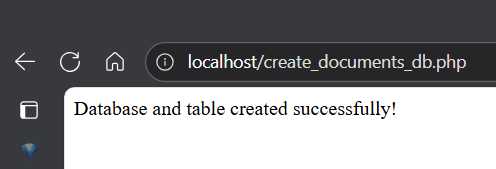
Figure 4-b: Successful Execution of the PHP Script
After execution, you should find the documents.sqlite file in the same directory.
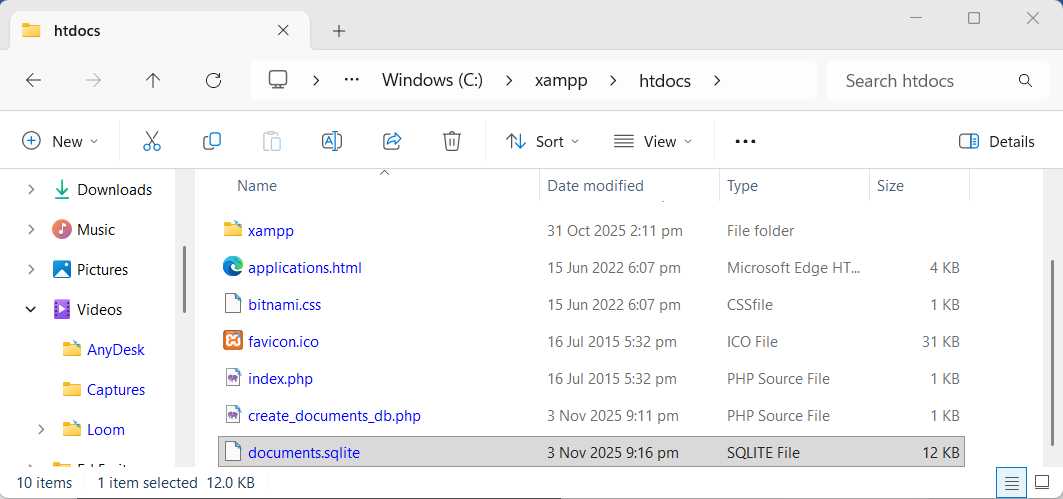
Figure 4-c: The documents.sqlite File Successfully Created
To view the content of the documents.sqlite file, install DB Browser for SQLite, and then run the app. Once the app is running, go to the File menu, click Open Database, and select the file.
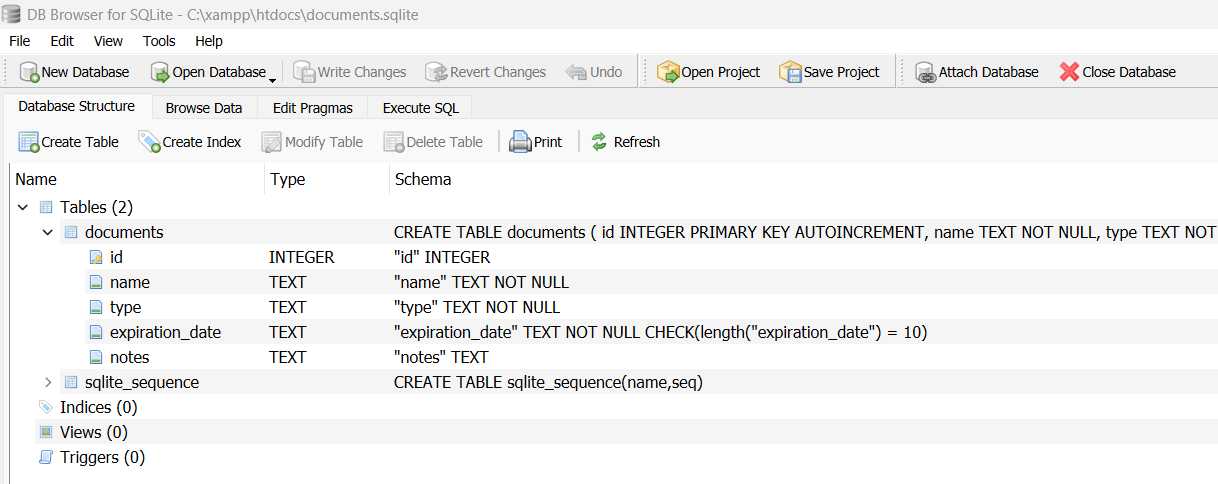
Figure 4-d: The documents.sqlite File—DB Browser for SQLite
With the DB Browser for SQLite app, you’ll be able to see and manipulate the file structure and data.
Initial data population prompts
To make our application functional and testable, it’s helpful to populate the database with some initial data. We can again use our AI assistant, ChatGPT, to generate statements.
Code Listing 4-e: Generate Data Prompt
Act as a data entry specialist. Generate 5 `INSERT` statements for the `documents` table, using the schema provided previously. Include a mix of document types and expiration dates, some in the near future, some further out, and at least one that is already expired (e.g., '2024-01-15'). Ensure the dates are in 'YYYY-MM-DD' format. Provide only the SQL `INSERT` statements, each on a new line, enclosed in a SQL code block. SQLite `documents` table schema: ```sql CREATE TABLE documents ( id INTEGER PRIMARY KEY AUTOINCREMENT, name TEXT NOT NULL, type TEXT NOT NULL, expiration_date TEXT NOT NULL CHECK(length(expiration_date) = 10), notes TEXT ); |
After executing this prompt, we get the following result from ChatGPT.
Code Listing 4-f: Generate Data Prompt Result
INSERT INTO documents (name, type, expiration_date, notes) VALUES ('Driver\’s License', 'License', '2024-01-15', 'Expired - needs renewal'); INSERT INTO documents (name, type, expiration_date, notes) VALUES ('Passport', 'Passport', '2027-06-30', 'Valid for international travel'); INSERT INTO documents (name, type, expiration_date, notes) VALUES ('Employment Contract', 'Contract', '2026-12-31', 'Signed with HR'); INSERT INTO documents (name, type, expiration_date, notes) VALUES ('Health Insurance Card', 'Insurance', '2025-05-20', 'Renew annually'); INSERT INTO documents (name, type, expiration_date, notes) VALUES ('Building Lease Agreement', 'Contract', '2025-11-01', 'Office space lease renewal due soon'); |
ChatGPT has generated a set of INSERT statements that populate our documents table with diverse data, including an expired document.
To execute these INSERT statements, we can create a new PHP script.
Code Listing 4-g: Prompt to Create PHP to Insert Data
Create a PHP script that inserts the following data into the recently created SQLite database. INSERT INTO documents (name, type, expiration_date, notes) VALUES ('Driver\’s License', 'License', '2024-01-15', 'Expired - needs renewal'); INSERT INTO documents (name, type, expiration_date, notes) VALUES ('Passport', 'Passport', '2027-06-30', 'Valid for international travel'); INSERT INTO documents (name, type, expiration_date, notes) VALUES ('Employment Contract', 'Contract', '2026-12-31', 'Signed with HR'); INSERT INTO documents (name, type, expiration_date, notes) VALUES ('Health Insurance Card', 'Insurance', '2025-05-20', 'Renew annually'); INSERT INTO documents (name, type, expiration_date, notes) VALUES ('Building Lease Agreement', 'Contract', '2025-11-01', 'Office space lease renewal due soon'); |
Notice that we are not even mentioning the database or table name, because ChatGPT already knows the context from our previous prompts.
Code Listing 4-h: Create PHP to Insert Data Result (insert_documents_db.php)
<?php // Filename: insert_documents.php $dbFile = __DIR__ . '/documents.sqlite'; try { // Connect to the SQLite database $db = new PDO('sqlite:' . $dbFile); $db->setAttribute(PDO::ATTR_ERRMODE, PDO::ERRMODE_EXCEPTION); // Array of INSERT statements $insertStatements = [ "INSERT INTO documents (name, type, expiration_date, notes) VALUES ('Driver''s License', 'License', '2024-01-15', 'Expired - needs renewal');", "INSERT INTO documents (name, type, expiration_date, notes) VALUES ('Passport', 'Passport', '2027-06-30', 'Valid for international travel');", "INSERT INTO documents (name, type, expiration_date, notes) VALUES ('Employment Contract', 'Contract', '2026-12-31', 'Signed with HR');", "INSERT INTO documents (name, type, expiration_date, notes) VALUES ('Health Insurance Card', 'Insurance', '2025-05-20', 'Renew annually');", "INSERT INTO documents (name, type, expiration_date, notes) VALUES ('Building Lease Agreement', 'Contract', '2025-11-01', 'Office space lease renewal due soon');" ]; // Begin transaction for efficiency and atomicity $db->beginTransaction(); foreach ($insertStatements as $sql) { $db->exec($sql); } $db->commit(); echo "Records inserted successfully!"; } catch (PDOException $e) { // Roll back on error if ($db->inTransaction()) { $db->rollBack(); } echo "Error inserting records: " . htmlspecialchars( $e->getMessage()); } |
We can save this file as insert_documents_db.php and then open the browser on the localhost to execute the script.
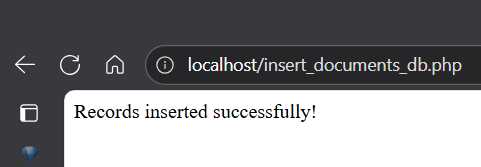
Figure 4-e: Successful Execution of the PHP Script (insert_documents_db.php)
If we open the documents.sqlite file, and then go to the Browse Data tab, we’ll see the inserted data.
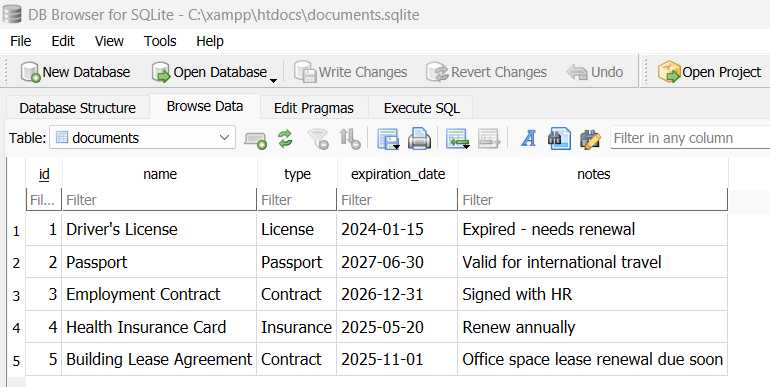
Figure 4-f: The Inserted Data—DB Browser for SQLite
We are now ready to start with the core application logic.


- 1800+ high-performance UI components.
- Includes popular controls such as Grid, Chart, Scheduler, and more.
- 24x5 unlimited support by developers.