
MonoGame Succinctly®

CHAPTER 2
Installation and Setup
This book will use the Visual Studio version of the software. If you don’t have Visual Studio, you can download the Community Edition for free here. Make sure to install Visual Studio before installing MonoGame.
You can find the download page for MonoGame on the MonoGame website. All of the public releases should be listed at the top of that page, with the newest at the top. The newest release at the time of this writing is 3.6.
Once you click a link for a release, you’ll see a page that lists the various versions that are available. You’ll typically find versions for Windows, Mac OS, and Linux, as well as the source code and pre-compiled assemblies.
After you launch the MonoGame setup, you’ll get to a screen that allows you to select the version of Visual Studio for which you would like to install the software.
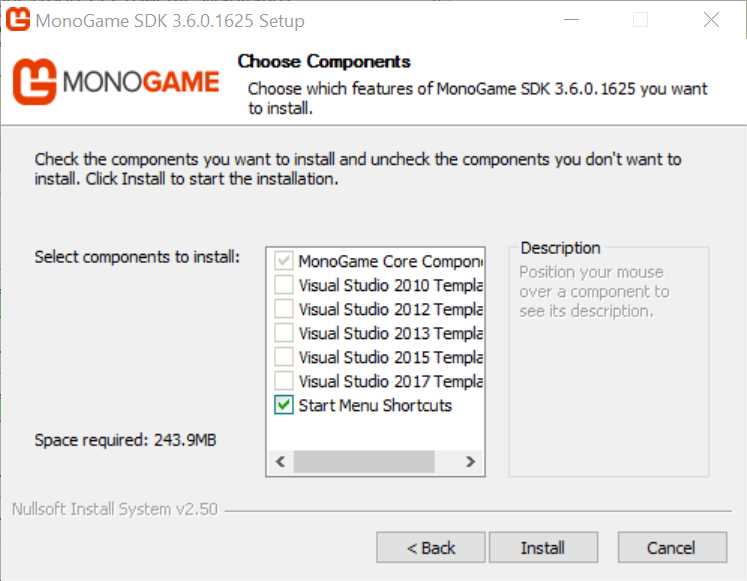
Figure 1 - MonoGame Setup
The install detects which versions of Visual Studio you have installed and disables the options you don’t have. You can select one or more of the versions of Visual Studio you have installed, and MonoGame will be made available for whichever ones you select. Since Visual Studio 2017 is the most recent version at the time of writing, that’s what we’ll use.


- 1800+ high-performance UI components.
- Includes popular controls such as Grid, Chart, Scheduler, and more.
- 24x5 unlimited support by developers.