
Mobile Web Wrappers with .NET MAUI Succinctly®

CHAPTER 13
Handling Network Connections
A critical aspect of delivering a robust mobile application experience is gracefully handling changes in network connectivity. Mobile devices frequently encounter situations where internet access is lost or restored, and an effective application must respond appropriately to these changes.
This chapter focuses on implementing a mechanism to detect network status, inform the user about the lack of connection, and provide a convenient way to access platform-specific network settings to restore connectivity. This enhances the user experience by preventing the application from appearing unresponsive or broken when offline, satisfying another requirement from Google Play and the Apple App Store. This is also the first time that you’ll implement a mobile feature without directly interacting with the content of the external website.
Handling network connections: Understanding the flow
Especially with mobile wrappers, which continuously display the content of an external website via the internet, it is important that you, as a developer, check for network status changes and handle them properly. In a .NET MAUI application wrapping an external website, the flow can include:
- Declaring a service interface that will be implemented by platform-specific objects and that defines a method that will open the device settings for network connections.
- Implementing the interface via native classes that open the device settings for network connections based on the current platform.
- Registering the service interface with the .NET MAUI startup objects.
- Subscribing for network status changes via the Connectivity cross-platform API in the app’s main page.
- Showing visual elements that allow for changing network settings if the internet connection is lost.
- Hiding these visual elements if the internet connection is restored.
In the next sections, you will implement all the aforementioned features so that your application will gracefully handle network status changes.
Defining and implementing a network service
To provide a cross-platform way to open device-specific network settings, a service interface and its platform-specific implementations are required. This service is registered with the dependency injection container in the MauiProgram class.
So, you first need a new project folder called Services with a new code file called INetworkService.cs inside that defines the following interface:
public interface INetworkSettingsService
{
void OpenNetworkSettings();
}
The OpenNetworkSettings method serves as a contract, ensuring that any class implementing this interface will provide a way to open the operating system's network settings, regardless of the underlying platform. Then, in the MauiProgram.cs file, you register this dependency inside the CreateMauiApp method, right after the invocation to the CreateBuilder method:
#if ANDROID
builder.Services.AddSingleton<INetworkSettingsService,
Platforms.Android.NetworkSettingsService>();
#elif IOS
builder.Services.AddSingleton<INetworkSettingsService,
Platforms.iOS.NetworkSettingsService>();
#endif
The conditional compilation directives are used to register the appropriate platform-specific implementation of INetworkSettingsService. Both the NetworkSettingsService classes will be defined shortly. The AddSingleton method registers the service as a singleton, meaning a single instance will be created and reused throughout the application's lifetime. For Android, the network service implementation is represented by a new class called NetworkSettingsService, declared inside a new NetworkSettingsService.cs file to be added to the Platforms\Android folder. Code Listing 22 shows the code for this class.
Code Listing 22
public class NetworkSettingsService : INetworkSettingsService { public void OpenNetworkSettings() { var intent = new Intent(global::Android.Provider. Settings.ActionWirelessSettings); intent.SetFlags(ActivityFlags.NewTask); global::Android.App.Application. Context.StartActivity(intent); } } |
The NetworkSettingsService class implements INetworkSettingsService, with its OpenNetworkSettings method that creates a new Android.Content.Intent. An intent generally represents a system action. The global::Android.Provider.Settings.ActionWirelessSettings constant specifies the system action to open the wireless settings screen.
The ActivityFlags.NewTask value is added to ensure that the system settings activity is opened as a stand-alone page. In this way, the settings page is not added to the application’s internal navigation stack. Finally, global::Android.App.Application.Context.StartActivity(intent) launches the device’s network settings activity.
For iOS, you add a new code file called NetworkSettingsService.cs to the Platforms\iOS folder. This declares the NetworkSettingsService class, as shown in Code Listing 23.
Code Listing 23
public class NetworkSettingsService : INetworkSettingsService { public void OpenNetworkSettings() { var wifiUrl = new NSUrl("prefs:root=WIFI"); var app = UIApplication.SharedApplication;
if (app.CanOpenUrl(wifiUrl)) { app.OpenUrl(wifiUrl); } else { var appPrefsUrl = new NSUrl("App-Prefs:root=WIFI"); app.OpenUrl(appPrefsUrl); } } } |
The OpenNetworkSettings method on iOS attempts to open the Wi-Fi settings using a URL scheme. Foundation.NSUrl is used to create a URL object from the string prefs:root=WIFI, which is a system URL scheme used to deep link into system settings. The UIKit.UIApplication.SharedApplication object provides access to the shared application object the app.CanOpenUrl(wifiUrl) method checks if the device can open the specified URL scheme. If successful, the next call to app.OpenUrl(wifiUrl) opens the Wi-Fi settings. If the direct scheme fails, an alternative scheme App-Prefs:root=WIFI is attempted, which typically opens the application's settings within the iOS Settings app, from where the user can then navigate to Wi-Fi settings.
Designing a user interface for network status change
To visually inform the user about a lack of internet connection, or more generally about a network status change, it is a good idea to implement a dedicated visual element in the application’s main page that overlays the page content. This overlay will appear when the network is unavailable, disabling the main content and providing an option to open network settings.
With this in mind, add the following XAML as a child of the root Grid of the page:
<Grid x:Name="NoNetworkGrid" IsVisible="False" InputTransparent="False">
<Grid.RowDefinitions>
<RowDefinition Height="4*" />
<RowDefinition Height="6*" />
</Grid.RowDefinitions>
<Grid HorizontalOptions="Fill" VerticalOptions="Fill"
InputTransparent="False" />
<Border BackgroundColor="White" Stroke="White" Grid.Row="1">
<Border.StrokeShape>
<RoundRectangle CornerRadius="40,40,0,0" />
</Border.StrokeShape>
<Grid>
<Grid.RowDefinitions>
<RowDefinition Height="Auto" />
<RowDefinition Height="Auto" />
<RowDefinition Height="Auto" />
</Grid.RowDefinitions>
<Label Text="No internet connection"
Margin="0,30,0,0" HorizontalTextAlignment="Center"
FontAttributes="Bold" FontSize="Title" />
<Label Grid.Row="1" Margin="15,30,15,0"
Text="Internet connection not available.
Select a network from system settings."
FontSize="Medium" TextColor="Black"
HorizontalTextAlignment="Center" />
<Button Grid.Row="2" Margin="40,30,40,0"
Text="Open Settings" CornerRadius="20"
BackgroundColor="Blue" TextColor="White"
x:Name="NetworkSettingsButton"
Clicked="NetworkSettingsButton_Clicked" />
</Grid>
</Border>
</Grid>
The NoNetworkGrid is added directly under the main Grid. This positioning allows it to overlay the entire application content when visible, and its visibility is set as False. Assigning InputTransparent="False" helps to ensure it can receive touch events when active. This new grid defines two rows—the first row provides a transparent space to dim the background content, and the second row contains a Border element with rounded top corners. This element contains a Grid with a child Label to display a "No internet connection" message, and a child Button labeled “Open Settings.” The click event handler for the button is called NetworkSettingsButton_Clicked, which will trigger the opening of OS network settings, to be defined in the next section.
Handling connection events
Now that you have defined the user interface to inform users about the network status change, including the lack of internet connection, it is time to handle connection events and display or hide these visual elements. You need to hold a list of services that can be defined in the App.xaml.cs file as follows:
public static IServiceProvider Services { get; set; }
public App(IServiceProvider serviceProvider)
{
InitializeComponent();
Services = serviceProvider;
}
You are overriding the constructor definition using the .NET MAUI’s dependency injection engine to receive the collection of services created in the MauiProgram class. The retrieved collection is assigned to a static property called Services, of type IServiceProvider. In the MainPage.xaml.cs file, you need to retrieve the platform-specific instance of the NetworkSettingsService class. To accomplish this, first add the following field to keep a service reference:
private readonly INetworkSettingsService? _networkSettingsService;
Then, extend the page’s constructor as follows:
public MainPage()
{
InitializeComponent();
ViewModel = new MainPageViewModel();
this.BindingContext = ViewModel;
ViewModel.Source =
new UrlWebViewSource()
{ Url = $"{baseUrl}Identity/Account/Login" };
_networkSettingsService =
App.Services.GetService<INetworkSettingsService>();
Connectivity.Current.
ConnectivityChanged += Current_ConnectivityChanged;
}
The App.Services.GetService method retrieves the INetworkSettingsService instance from the dependency injection container, whereas the next line subscribes to the ConnectivityChanged event from the Connectivity class to react to network status changes.
The event handler for the network status change looks like the following:
private void Current_ConnectivityChanged(object? sender,
ConnectivityChangedEventArgs e)
{
if (e.NetworkAccess != NetworkAccess.Internet)
DisableUIForNoInternet();
else
EnableUIForInternet();
}
The Current_ConnectivityChanged event handler receives an object of type ConnectivityChangedEventArgs, which exposes the NetworkAccess property. If its value is not NetworkAccess.Internet, it means there is no internet connection, and a method called DisableUIForNoInternet is called to disable the main content and show the appropriate user interface. Otherwise, the EnableUIForInternet is invoked to restore the previous status. Both methods are simply defined as follows:
// Internet is available: hide the "no network" popup
private void EnableUIForInternet()
{
Dispatcher.Dispatch(() =>
{
RootWebView.IsEnabled = true;
LayoutRoot.IsEnabled = true;
LayoutRoot.Opacity = 1;
NoNetworkGrid.IsVisible = false;
});
}
// Internet is not available: show the "no network" popup
private void DisableUIForNoInternet()
{
Dispatcher.Dispatch(() =>
{
RootWebView.IsEnabled = false;
LayoutRoot.IsEnabled = false;
LayoutRoot.Opacity = 0.3;
NoNetworkGrid.IsVisible = true;
});
}
The EnableUIForInternet method is responsible for restoring the main user interface when internet connectivity is available. It invokes Dispatcher.Dispatch to ensure that UI updates occur on the main thread. It enables the RootWebView and LayoutRoot for interaction, sets their opacity to 1 (fully visible), and hides the NoNetworkGrid visual element.
The DisableUIForNoInternet method is called when internet connectivity is lost. It also uses Dispatcher.Dispatch for the same reason. It disables the RootWebView and LayoutRoot to prevent user interaction with the underlying content, dims LayoutRoot by setting its Opacity property to 0.3, and makes the NoNetworkGrid visible, presenting the “no internet” message and the Open Settings button.
Finally, the NetworkSettingsButton_Clicked event handler in MainPage.xaml.cs uses the injected service to open the platform's network settings. The code for this event handler is the following:
private void NetworkSettingsButton_Clicked(object sender,
EventArgs e)
{
_networkSettingsService?.OpenNetworkSettings();
}
The NetworkSettingsButton_Clicked event handler is invoked when the Open Settings button on the NoNetworkGrid is tapped. It invokes the OpenNetworkSettings from the platform-specific implementation of the NetworkSettingsService class, which executes the platform-specific code to launch the device's network settings, allowing the user to troubleshoot and restore their internet connection.
Now you have completed all the work and you are ready to test the application and see how it reacts to network status changes.
Running the application
When you’re ready, press F5 to start debugging the application. Notice that the iOS simulator used for this book does not have an option to enable airplane mode or to disconnect the system from the network. You will need a physical device to do this. On Android, it’s possible inside the emulator, so this feature is demonstrated with an only figure from Android (see Figure 30).
When the external website is displayed, leave the application open in the background and turn off both your Wi-fi and data connections. At this point, you will see how the application will react to the network status change by displaying the appropriate user interface, as shown in Figure 30.
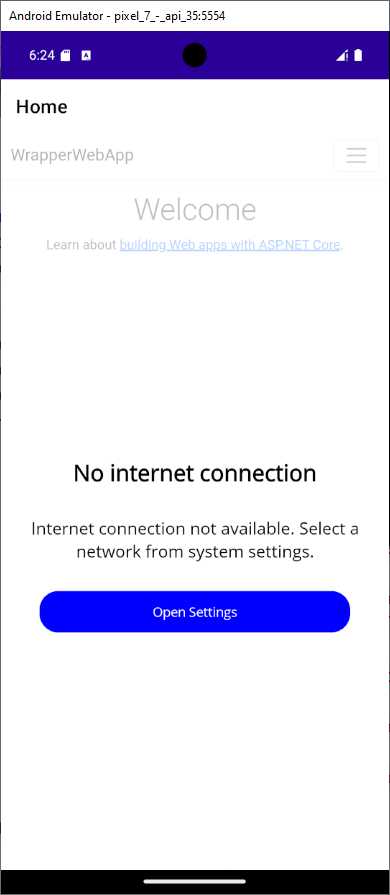
Figure 30: The application showing the “no network” user interface
You can click the button to open the device’s network settings and restore the Wi-Fi or mobile data connections. When done, you will see how the pop-up notification will disappear. It is best practice when developing mobile apps to use this feature, and it is even more important with mobile app wrappers that typically require an internet connection to work against an external website.
Future enhancements
You could consider extending the current sample app with additional features. For example, you could integrate more sensors, or you could implement a webpage that allows for uploading files to the page and integrate this with NET MAUI, using the File Picker API to retrieve a file on the mobile device and send it to the server. You could consider extending the sample app to use the camera if the target website accepts pictures. You really have plenty of options to improve the mobile experience of your applications.
Hints about submitting apps to Google Play and the Apple App Store
You will follow exactly the same steps you know to submit an app for review and approval to the two major app stores. There is really no change, and the only thing you will want to make sure to do is provide the appropriate description for each device feature that you use. If you are not familiar with this, the Microsoft documentation provides appropriate guidance for both Android and iOS.
Chapter summary
This chapter provided a comprehensive approach to improving the mobile experience by robustly handling internet connectivity changes. You learned how to implement a cross-platform INetworkSettingsService interface and its platform-specific Android and iOS implementations to programmatically open device network settings.
Furthermore, you integrated a dynamic UI overlay on the main page that visually communicates the absence of an internet connection and provides a direct pathway for users to resolve the issue. By leveraging the MAUI’s Connectivity API to detect real-time network status changes, the application now offers a user-friendly experience, ensuring that the user always has control over the app.


- An ever-growing .NET MAUI control suite with rich feature sets.
- DataGrid, Charts, ListView, Scheduler, and more.
- Active community and dedicated support.
- Phone, tablet, and desktop support.