
.NET 7 and C# 11 Succinctly®

CHAPTER 2
A Closer Look at C# 11
C# 11 is a solid release when considering the new features it introduces. Some of these changes include:
File-scoped types
Generic math support
UTF-8 literals
Raw string literals
Required members
Generic attributes
List patterns
Pattern matching on spans
Auto-default structs
Don’t let the standard term support status of .NET 7.0 fool you. The following sections show that .NET 7.0 offers exciting new features for developers.
Note: Throughout this book, I use Visual Studio 17.6.6.
Let’s have a look at some of these in more detail in the following sections.
File-scoped types
C# 11 introduces the file contextual keyword, which is a scope access modifier. This scopes the types to the file that they are in. This is very useful to source code generators because classes with the same name will not be an issue.
Consider the following class file called Student.cs. It contains the Student class as well as the Address class.
Code Listing 8: The Student Class and Address Class
internal class Student { public string GetStudentAddress() { new Address().ReturnAddressDetails(); } } public class Address { public string Address1 { get; set; } public string Address2 { get; set; } public string Address3 { get; set; } public string PostalCode { get; set; } public Address() { Address1 = "3012 William Nicol Drive"; Address2 = "Bryanston"; Address3 = "Johannesburg"; PostalCode = "2191"; } public string ReturnAddressDetails() { $"{Address1}\n{Address2}\n{Address3}\n{PostalCode}"; } } |
If I went ahead and added a class called Address to the solution, as seen in Figure 13, I would see an error.
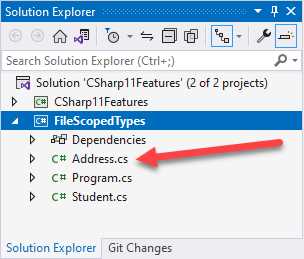
Figure 13: Adding a Class Called Address
Visual Studio correctly informs me that the newly added class is invalid because my project already contains a definition for the class Address.
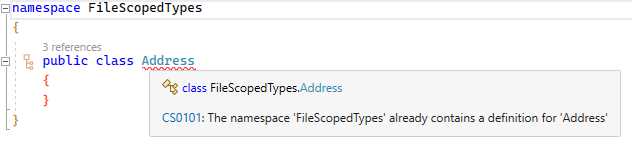
Figure 14: The Class Error
This is where file-scoped types shine. If I modify the code in Code Listing 8 and change the type modifier of the Address class from public to file, the Address class scope and visibility is restricted to the file it is created in.
Code Listing 9: Changing the Address Class from public to file
|
{ public string GetStudentAddress() { new Address().ReturnAddressDetails(); } } file class Address { public string Address1 { get; set; } public string Address2 { get; set; } public string Address3 { get; set; } public string PostalCode { get; set; } public Address() { Address1 = "3012 William Nicol Drive"; Address2 = "Bryanston"; Address3 = "Johannesburg"; PostalCode = "2191"; } public string ReturnAddressDetails() { $"{Address1}\n{Address2}\n{Address3}\n{PostalCode}"; } } |
Any types contained in the file-local type will also only be visible within the file in which it has been declared. And herein lies its usefulness.
Imagine that you wanted to create an extension method for your Address class. The functionality provided in the extension methods you write is specific to this class alone, and you do not want it to leak out to the rest of the project. Consider the code in Code Listing 10.
Code Listing 10: File-Scoped Extension Method Class
internal class Student { public string GetStudentAddress() { new Address().ReturnAddressDetails(); } } file class Address { public string Address1 { get; set; } public string Address2 { get; set; } public string Address3 { get; set; } public string PostalCode { get; set; } public Address() { Address1 = "3012 William Nicol Drive"; Address2 = "Bryanston"; Address3 = "Johannesburg"; PostalCode = "2191"; } public string ReturnAddressDetails() { PostalCode.StringIsInt() ? $"{Address1}\n{Address2}\n{Address3}\n{PostalCode}" : throw new Exception("Invalid address"); } } file static class ClassExtensions { public static bool StringIsInt(this string value) { int.TryParse(value, out _); } } |
The ClassExtensions class is created as file static so that it becomes scoped to the Student.cs file only.
I believe that most developers will not use this feature too often. The main benefit here is when writing code generators. This is notoriously difficult to do without generating code that clashes with code already in the assembly. File-scoped types are, therefore, game-changing if you are writing source-code generators.
What the compiler sees
Why does this work? What does the compiler see when you create a file-scoped class? To illustrate this, I am using SharpLab, which allows you to see the code as the compiler sees it.
Note: SharpLab is a .NET code playground available at https://sharplab.io.
If we paste the code class Address { } into SharpLab, you see the compiled code it generates (Figure 15).
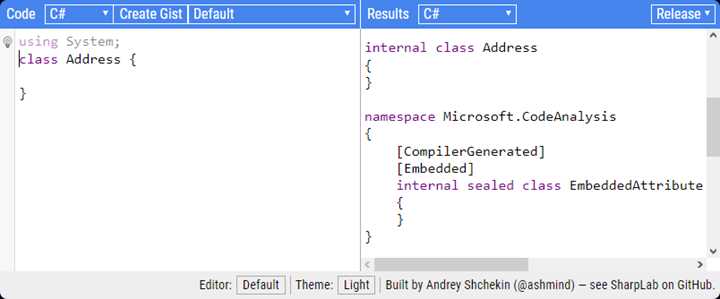
Figure 15: SharpLab Compiled Code for Class Address
A class is internal by default, as illustrated in the compiled code. If we change class Address to file class Address, the compiled code changes.
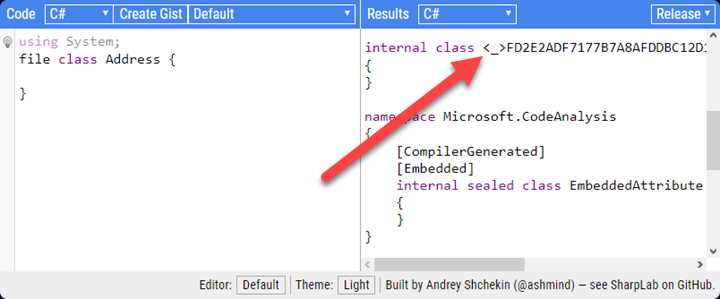
Figure 16: Compiled Code for File-Scoped Address Class
The screenshot in Figure 16 does not display the entire code, so I have included the code in Code Listing 11. Notice that the Address class is still an internal class but is compiled into a class with a name that is virtually impossible to replicate.
Code Listing 11: The Compiled Code
System; System.Diagnostics; System.Reflection; System.Runtime.CompilerServices; System.Security; System.Security.Permissions; Microsoft.CodeAnalysis; [: CompilationRelaxations(8)] [: RuntimeCompatibility(WrapNonExceptionThrows = true)] [: Debuggable(DebuggableAttribute.DebuggingModes.IgnoreSymbolStoreSequencePoints)] [: SecurityPermission(SecurityAction.RequestMinimum, SkipVerification = true)] [: AssemblyVersion("0.0.0.0")] [: UnverifiableCode] [: System.Runtime.CompilerServices.RefSafetyRules(11)] >FD2E2ADF7177B7A8AFDDBC12D1634CF23EA1A71020F6A1308070A16400FB68FDE__Address { } Microsoft.CodeAnalysis { [CompilerGenerated] [Embedded] : Attribute { } } System.Runtime.CompilerServices { [CompilerGenerated] [Microsoft.CodeAnalysis.Embedded] [AttributeUsage(AttributeTargets.Module, AllowMultiple = )] : Attribute { Version; P_0) { Version = P_0; } } } |
The compiled code internal class Address has changed to internal class <_>FD2E2ADF7177B7A8AFDDBC12D1634CF23EA1A71020F6A1308070A16400FB68FDE__Address
As a developer writing a source code generator, this allows me to use the class names that I want without passing assemblies around to check for conflicts first, resulting in faster source generation and simpler code.
Generic math support
New, math-related generic interfaces introduced to the base class library in .NET 7.0 means that you can constrain the type parameter of a generic method to be “number-like.” You can, therefore, perform mathematical operations generically.
To illustrate this concept, I am creating a Mathinator class that adds the values of an array together to produce a result.
Code Listing 12: The Mathinator Class
internal class Mathinator { public int SumArray(int[] _values) { int result = 0; foreach (int i in _values) { result += i; } result; } } |
In the consuming code, I create an instance of the Mathinator class and call the SumArray method.
Code Listing 13: Calling the SumArray Method
internal class Program { static void Main(string[] args) { var arnold = new Mathinator(); var sum = arnold.SumArray(new[] { 1, 2, 3, 4, 5, 6, 7, 8, 9 }); } } |
Notice that the code expects an array of integers, and as long as the SumArray method receives an array of integers, the code works as expected.
Code Listing 14: Change the Array
internal class Program { static void Main(string[] args) { var arnold = new Mathinator(); var sum = arnold.SumArray(new[] { 1, 2, 3, 4.5, 5, 6.2, 7, 8.3, 9 }); } } |
If, however, we change the array to contain doubles, as illustrated in Code Listing 14, the code does not compile.
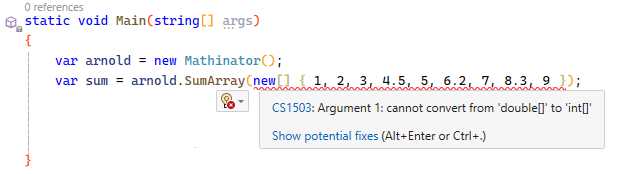
Figure 17: The Argument Error
We can quickly fix this issue (Code Listing 15) by extending the Mathinator class to contain an overloaded method that handles arrays of doubles.
Code Listing 15: The Extended Mathinator Class
|
{ public int SumArray(int[] _values) { int result = 0; foreach (int i in _values) { result += i; } result; } [] _values) { result = 0.0; foreach ( i in _values) { result += i; } result; } } |
However, an alternative way to cater for this is by using generic math support. Consider the code illustrated in Code Listing 16. Notice that we now have a generic method with a constraint that specifies that T must be an INumber of T. Because INumber has the static member Zero, I can use T.Zero to provide a default value for the returned result.
Generic math support allows developers to be flexible when writing code dealing with numbers.
Code Listing 16: The Modified Mathinator Class
internal class Mathinator { public T SumArray<T>(T[] _values) where T : INumber<T> { T result = T.Zero; foreach (T i in _values) { result += i; } result; } } |
Looking closely at INumber, you notice that Zero is not the only property exposed.
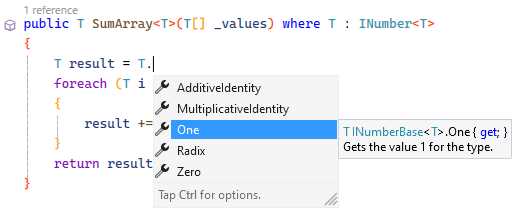
Figure 18: Properties of INumber
There are also several methods available for use. But why did this work? What has changed in C# 11 and .NET 7.0, and how does this generic math support open up more possibilities for developers? The answer is that C# 11 lets you define static virtual interface members. This new feature allows us to use generic algorithms to specify “number-like” behavior.
The Microsoft documentation defines static abstract and virtual members as follows:
“Beginning with C# 11, an interface may declare static abstract and static virtual members for all member types except fields. Interfaces can declare that implementing types must define operators or other static members. This feature enables generic algorithms to specify number-like behavior. You can see examples in the numeric types in the .NET runtime, such as System.Numerics.INumber<TSelf>.”
You might be wondering how this would apply to you in a real-world situation. I demonstrate this when I discuss minimal APIs in the next chapter. So, stick around; things are getting better from here on out.
UTF-8 literals
UTF-8 is considered the encoding of the web. It's also used in significant parts of the .NET stack. The network stack still makes use of constants in code. Think of HTTP/1.0\r\n, or AUTH, or even Contant-Length:, which we see so often.
Unfortunately, there is no efficient syntax for dealing with these constants, and C# represents all strings as UTF-16 encoding.
With C# 11, you can mark strings as UTF-8 using the u8 suffix, as seen in Code Listing 17.
Code Listing 17: Using the u8 Suffix on String Literals
Compare the size difference of UTF-16 versus UTF-8.
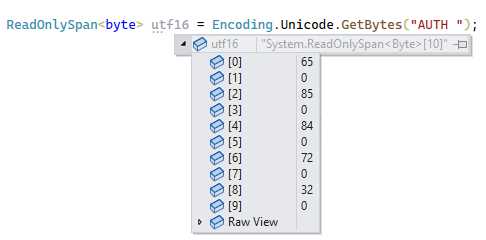
Figure 19: UTF-16 Encoding
As you can see when comparing Figure 19 and Figure 20, the utf16 variable contains 10 bytes, while the uft8 variable only contains 5 bytes.
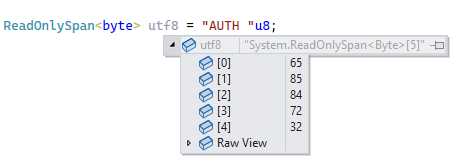
Figure 20: UTF-8 Encoding
This difference is due to the size difference between the different encodings.
Raw string literals
The next feature makes life much easier for developers when working with strings. Consider the XML Prologue in Figure 21.

Figure 21: The Literal String Unescaped
Because the string is not escaped, the double quotes are invalid, because in C#, you cannot have a double quote inside a string. We generally overcome this by escaping the double quotes illustrated in Code Listing 18.
Code Listing 18: Escaping the Double Quotes
var xmlPrologue = "<?xml version=\"1.0\" encoding=\"UTF-8\"?>"; |
You can also escape the double quotes by using a verbatim string, but you still need to escape the double quotes by doubling them up.
Code Listing 19: Another Way to Escape Double Quotes
var xmlPrologue = @"<?xml version=""1.0"" encoding=""UTF-8""?>"; |
In C# 11, however, you can escape the double quotes inside the string by providing three double quotes around the string, as illustrated in Code Listing 20.
Code Listing 20: Raw String Literals
var xmlPrologue = """<?xml version="1.0" encoding="UTF - 8"?>"""; |
Raw string literals certainly help make the string more readable. If you, by chance, happen to have three double quotes in a string, then you would escape those by adding four double quotes around the string, as illustrated in Code Listing 21.
Code Listing 21: Escaping Three Double Quotes
var myString = """"This is a """ string with three double quotes""""; |
This logic can continue indefinitely. In other words, if your string contains n double quotes, you have to start and end your string with n+1 double quotes.
Raw string literals also work well when dealing with JSON strings. Consider the escaped JSON string in Code Listing 22.
Code Listing 22: Escaping a JSON String
var jsonString = "{\n \"course\": \".NET 7 and C# 11 Succinctly\"\n}"; |
Running the program results in the JSON, as illustrated in Code Listing 23.
Code Listing 23: The JSON Output
{ "course": ".NET 7 and C# 11 Succinctly" } |
The code in Code Listing 22 does not read very nicely and becomes more complicated when the JSON string becomes more complicated.
Code Listing 24: Working with JSON
var jsonString = """ { "course": ".NET 7 and C# 11 Succinctly" } """; |
Using raw string literals, you can write a much better representation of your JSON string, as illustrated in Code Listing 24.
Using string interpolation
You might be wondering if string interpolation works with raw string literals.
Code Listing 25: Using String Interpolation
var foxColor = "brown"; var myString = $"""The quick {foxColor} fox"""; |
As illustrated in Code Listing 25, string interpolation works as expected. You need to do a little more work when working with strings that contain curly braces, such as in JSON.
Code Listing 26: String Interpolation with Strings Containing Curly Braces
var courseName = ".NET 7 and C# 11 Succinctly"; var jsonString = $$""" { "course": "{{courseName}}" } """; |
As illustrated in Code Listing 26, you must double up the $ sign, and because the JSON string contains curly braces, you need to double up the curly braces around the courseName variable.
Required members
With C# 11, we finally have a way to resolve a particular bugbear of mine. Consider the Person class illustrated in Code Listing 27.
Code Listing 27: The Person Class
public class Person { public string Firstname { get; init; } public string Lastname { get; init; } } |
In C# 9, the introduction of the init keyword gave me a way only to allow the property to be set on the initialization of the class, as seen in Figure 22.
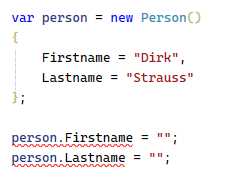
Figure 22: Using the init-Only Properties
Using init meant that if I wanted to change these properties later on, C# wouldn’t allow me to do this. While this worked as intended, C# was all too happy to allow me not to specify a value for my init properties on the initialization of the class.
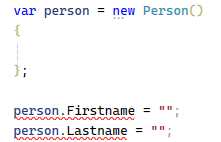
Figure 23: Not Providing Property Values on Initialization
You can see this behavior in Figure 23. While it tells me that I can only assign my init-only properties in an object initializer, it does not have a problem with the fact that I never assigned any values to begin with. If I wanted to enforce that these properties be set on initialization, I would have to demand it from the constructor, as illustrated in Code Listing 28.
Code Listing 28: Forcing Values to be Set
public class Person { public string Firstname { get; init; } public string Lastname { get; init; } public Person(string firstName, string lastName) { Firstname = firstName; Lastname = lastName; } } |
Required members in C# 11 provide a more elegant approach to this issue.
Code Listing 29: Using the Required Keyword
public class Person { public required string Firstname { get; init; } public required string Lastname { get; init; } } |
As illustrated in Code Listing 29, I can now tell C# that these properties must be assigned when initializing the class.

Figure 24: Compiler Error on Unset Required Properties
If I do not set the values on initialization, C# 11 complains and tells me that I need to provide values for these properties. It’s worth noting that the required keyword is not specific to the init keyword. It can easily be used with a getter and setter, as illustrated in Code Listing 30.
Code Listing 30: Extending the Person Class
public class Person { public required string Firstname { get; init; } public required string Lastname { get; init; } public required int Age { get; set; } } |
This means that, while I can only set Firstname and Lastname on object initialization, all three properties are required, allowing me to set a different value for the Age property after object initialization.
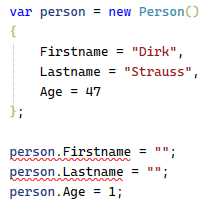
Figure 25: Setting Age after Initialization
Required members give me more control over the classes I create, allowing me to express my intent more clearly to consuming code.
Generic attributes
Let me start by defining what an attribute is. According to the Microsoft documentation:
Information provided by an attribute is also known as metadata. Metadata can be examined at run time by your application to control how your program processes data, or before run time by external tools to control how your application itself is processed or maintained.
I have created a filter for the boilerplate weather forecast API project in Visual Studio to demonstrate generic attributes. The filter allows me to do something before and after an endpoint call.
Code Listing 31: My Log Filter
public class LogFilter : IAsyncActionFilter { public ILogger<LogFilter> _logger; public LogFilter(ILogger<LogFilter> logger) => _logger = logger; public async Task OnActionExecutionAsync( ActionExecutingContext context, ActionExecutionDelegate next) { _logger.LogInformation("Action started"); await next(); _logger.LogInformation("Action ended"); } } |
This filter is illustrated in Code Listing 31. To use my filter, I need to add it to the service collection in the Program class by adding the code builder.Services.AddSingleton<LogFilter>();.
I can now apply this to a ServiceFilter attribute on the GET endpoint of my WeatherForecast API endpoint, as illustrated in Code Listing 32.
Code Listing 32: The GET Endpoint
[HttpGet(Name = "GetWeatherForecast")] [ServiceFilter(typeof(LogFilter))] public IEnumerable<WeatherForecast> Get() { Enumerable.Range(1, 5).Select(index => new WeatherForecast { Date = DateOnly.FromDateTime(DateTime.Now.AddDays(index)), TemperatureC = Random.Shared.Next(-20, 55), Summary = Summaries[Random.Shared.Next(Summaries.Length)] }) .ToArray(); } |
You can see the information log in the output window by running the API and calling the GetWeatherForecast endpoint from Swagger or Postman.
But here is the issue with the ServiceFilter attribute, in that it takes a type as a parameter in the constructor, which is passed as typeof(LogFilter). You can see this by looking at the ServiceFilterAttribute class illustrated in Code Listing 33.
Code Listing 33: The ServiceFilterAttribute Code
[AttributeUsage(AttributeTargets.Class | AttributeTargets.Method, AllowMultiple = true, Inherited = true)] [DebuggerDisplay("ServiceFilter: Type={ServiceType} Order={Order}")] public class ServiceFilterAttribute : Attribute, IFilterFactory, IOrderedFilter { public ServiceFilterAttribute(Type type) { ServiceType = type ?? throw new ArgumentNullException(nameof(type)); }
public int Order { get; set; } public Type ServiceType { get; } public bool IsReusable { get; set; }
public IFilterMetadata CreateInstance(IServiceProvider serviceProvider) { if (serviceProvider == null) { throw new ArgumentNullException(nameof(serviceProvider)); } var filter = (IFilterMetadata)serviceProvider.GetRequiredService(ServiceType); if (filter is IFilterFactory filterFactory) { // Unwrap filter factories. filter = filterFactory.CreateInstance(serviceProvider); } filter; } } |
Let’s create our own service filter attribute as a generic attribute.
Code Listing 34: Our Own ServiceFilterAttribute
[AttributeUsage(AttributeTargets.Class | AttributeTargets.Method, AllowMultiple = true, Inherited = true)] public class ServiceFilterGenericAttribute<T> : Attribute, IFilterFactory, IOrderedFilter { public int Order { get; set; } public bool IsReusable { get; set; } public IFilterMetadata CreateInstance(IServiceProvider serviceProvider) { if (serviceProvider == null) { throw new ArgumentNullException(nameof(serviceProvider)); } var filter = (IFilterMetadata)serviceProvider.GetRequiredService(typeof(T)); if (filter is IFilterFactory filterFactory) { // Unwrap filter factories. filter = filterFactory.CreateInstance(serviceProvider); } filter; } } |
Code Listing 34 illustrates that we no longer use the type passed in the constructor but instead use ServiceFilterGenericAttribute<T> and typeof(T) to set the filter.
I can modify my GetWeatherForecast endpoint as illustrated in Code Listing 35—not to use type parameters, but rather to use [ServiceFilterGeneric<LogFilter>]. Generic attributes, therefore, mean that my attribute class is generic.
Code Listing 35: The Modified GET Endpoint
[HttpGet(Name = "GetWeatherForecast")] [ServiceFilterGeneric<LogFilter>] public IEnumerable<WeatherForecast> Get() { Enumerable.Range(1, 5).Select(index => new WeatherForecast { Date = DateOnly.FromDateTime(DateTime.Now.AddDays(index)), TemperatureC = Random.Shared.Next(-20, 55), Summary = Summaries[Random.Shared.Next(Summaries.Length)] }) .ToArray(); } |
The functionality here has remained the same, but in terms of writing better code, using generic attributes has made a significant improvement.
List patterns
C# 11 allows developers to match an array or list against a sequence of patterns. It means that list patterns apply to anything that is countable or has a count property, for example, an array or list.
Code Listing 36: List Patterns on an Integer Array
|
Console.WriteLine(nums is [1, 2, 3]); // true Console.WriteLine(nums is [1, 7, 3]); // false Console.WriteLine(nums is [1, 2, 3, 4]); // false Console.WriteLine(nums is [0 or 5]); // false |
The application of this means that, considering the code illustrated in Code Listing 36, the matched list patterns return true, and if no match is found, false.
But we can go even further when we consider the code in Code Listing 37.
Code Listing 37: Matching String Arrays
var empty = Array.Empty<string>(); // outputMatch1 will output "The array is empty" var outputMatch1 = empty switch { [] => "The array is empty", [var fullCourse] => $"The course is {fullCourse}", [var netFx, var lang] => $"This is {lang} on {netFx}", _ => "No patterns matched" }; var course = new[] { ".NET 7 and C# 11 Succinctly" }; // outputMatch2 will output "The course is .NET 7 and C# 11 Succinctly" var outputMatch2 = course switch { [] => "The array is empty", [var fullCourse] => $"The course is {fullCourse}", [var netFx, var lang] => $"This is {lang} on {netFx}", _ => "No patterns matched" }; var dotNetAndCSharp = new[] { ".NET 7", "C# 11" }; // outputMatch3 will output "This is C# 11 on .NET 7" var outputMatch3 = dotNetAndCSharp switch { [] => "The array is empty", [var fullCourse] => $"The course is {fullCourse}", [var netFx, var lang] => $"This is {lang} on {netFx}", _ => "No patterns matched" }; Console.WriteLine(outputMatch1); Console.WriteLine(outputMatch2); Console.WriteLine(outputMatch3); |
Before each switch expression, we declare a string array and then pass it to the switch to be matched.
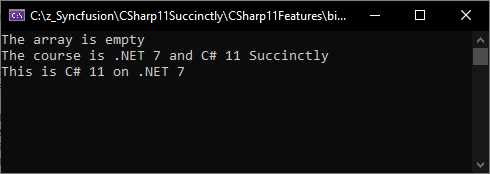
Figure 26: The Matched List Patterns
Running the application produces the result in Figure 26. I can’t say much else about list patterns other than they provide another flexible way to match things. The use cases might be limited, but they could come in handy somewhere down the line.
Pattern matching on spans
Pattern matching has allowed developers to test whether a string has a particular constant. This same pattern-matching logic now comes to Span<char> or ReadOnlySpan<char> variables.
Code Listing 38: Pattern Matching on a ReadOnlySpan<T>
ReadOnlySpan<char> value = ".NET 7 and C# 11 Succinctly"; if (value is ['.', ..]) { Console.WriteLine("The string starts with a dot"); } |
Consider the code in Code Listing 38. We have a variable of type ReadOnlySpan<char>, and we can now use pattern matching on this variable to test if the string starts with a period.
Auto-default struct
C# 11 now ensures that all fields of a struct type are initialized to their respective default values. This is automatically done by the compiler. This enhancement is best illustrated using SharpLab, which you can find at sharplab.io.
Consider the code in Code Listing 39.
Code Listing 39: The Point struct
public struct Point { public int X; public int Y; public Point(int x, int y) { X = x; //Y = y; } } |
The fields X and Y are initialized inside the constructor of the struct. In the previous version of C#, however, if you comment out the initialization of one of the fields (Y in this example), you receive an error stating that the field Y needs to be assigned.
In C# 11, this has changed, and you can see why when you look at what the compiler does.
Code Listing 40: The Compiler Auto-Defaults the struct
public struct Point { public int X; public Point(int x, int y) { Y = 0; X = x; } } |
Viewing the compiler-generated code in Code Listing 40, the field Y is automatically initialized to its default value.
In conclusion
.NET 7 and C# 11 introduce developers to many great new features. As we will see in the next chapter, ASP.NET Core 7 also brings many improvements and features that enhance developer productivity and the efficiency of their code.


- 1800+ high-performance UI components.
- Includes popular controls such as Grid, Chart, Scheduler, and more.
- 24x5 unlimited support by developers.