Try Our Live Demo
Why connectors and ports matter
A connection is more than a line between two shapes. How that line looks tells its own story. Some connections also need to represent more than “these two shapes relate to each other”: a specific field, pin, or terminal is often the real point of the relationship.
Precision in connections
A port ties a connection to one exact point, instead of leaving it to attach wherever is shortest.
A style for every flow
Straight, orthogonal, and curved connector types, plus independently configurable decorators, let a connection look the way the relationship calls for.
Control what can connect
A port can be restricted to incoming connections, outgoing connections, or a maximum number of links.
Connector type and appearance
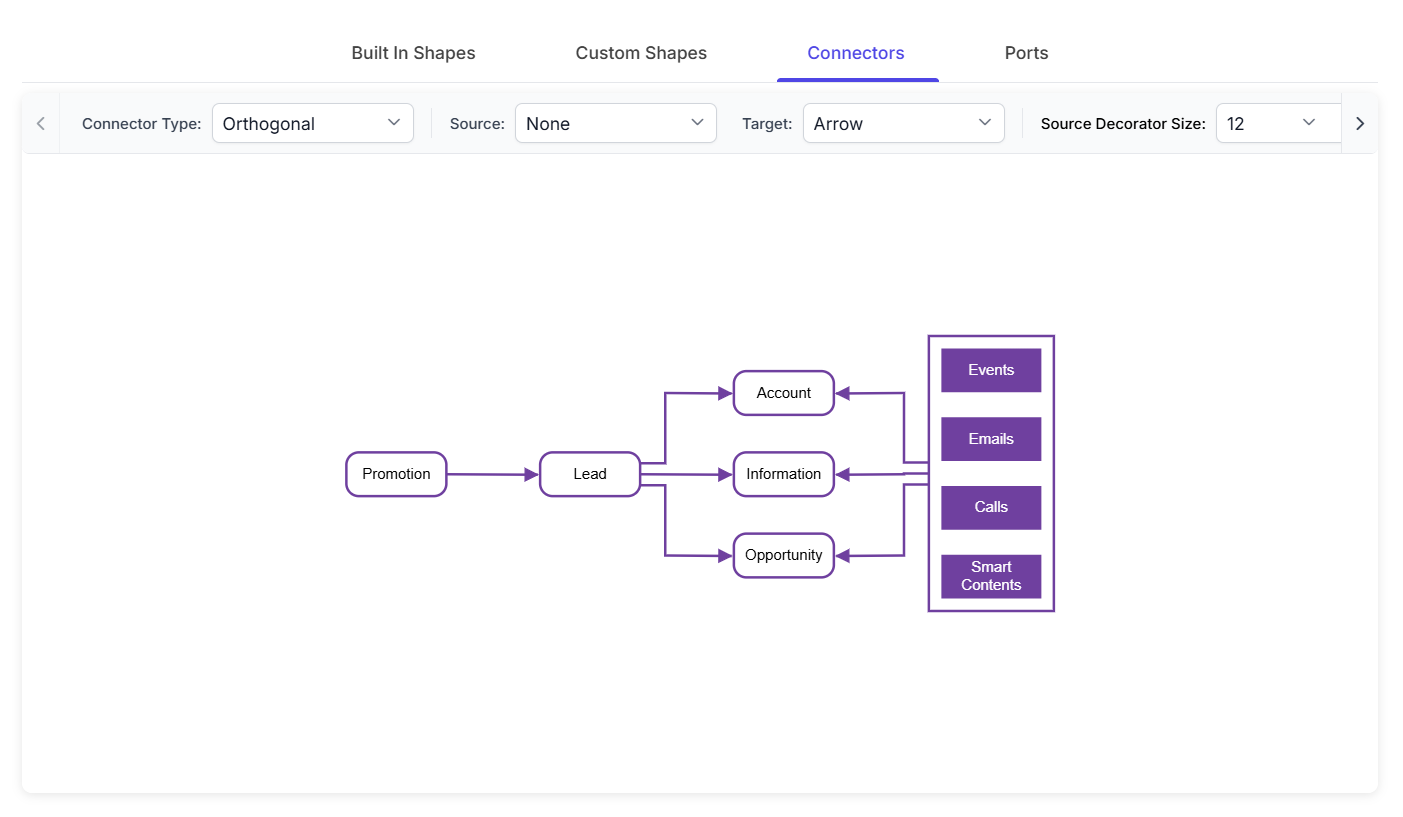
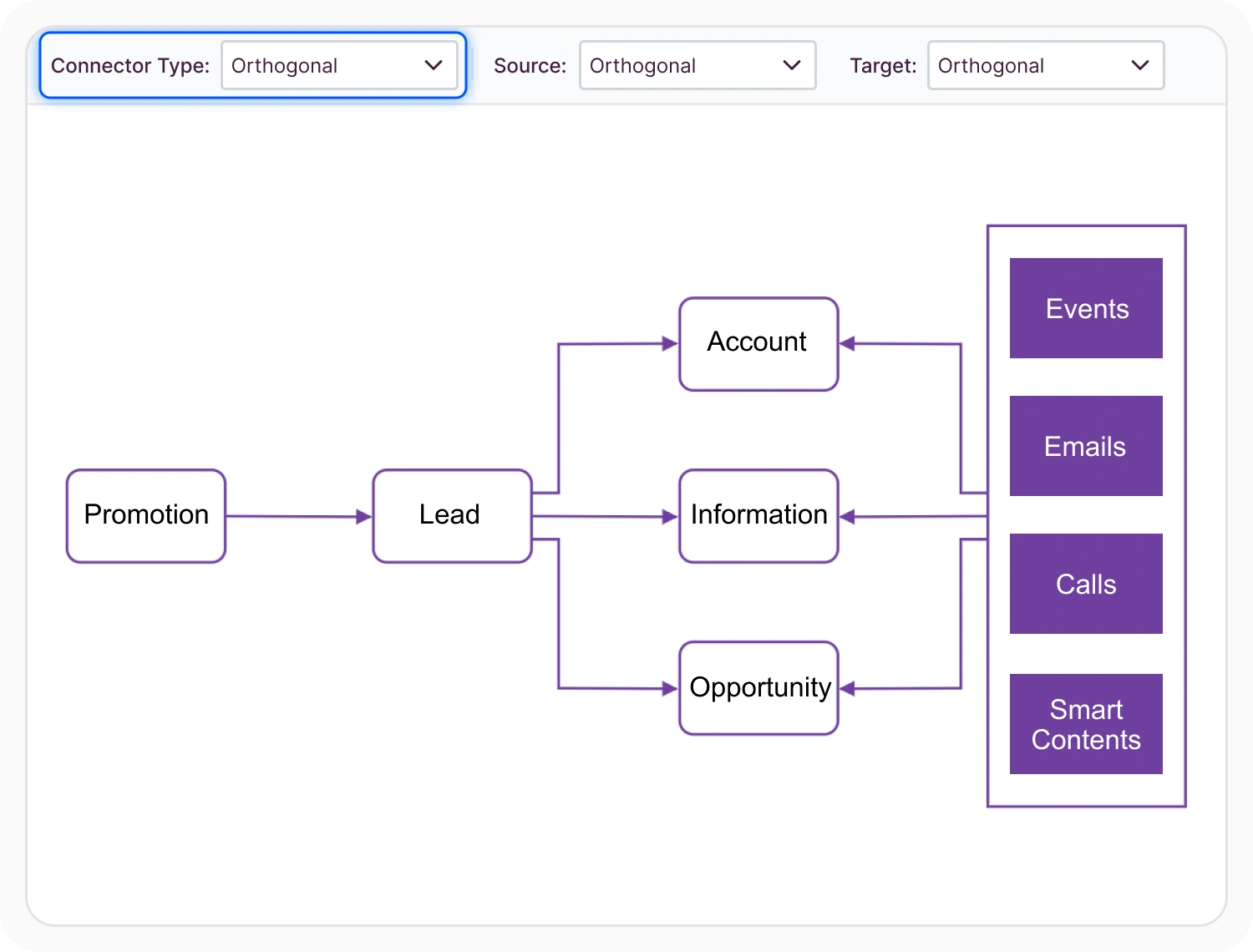
A connector’s type determines the path it takes between two points, and its decorators and line color determine how that path reads. Use connector type and appearance controls when a connection’s visual style needs to reflect the relationship it represents.
- Provide straight, orthogonal, and curved connector types, plus platform-specific types on some platforms
- Support source and target decorators, such as arrowheads, set and sized independently at each end
- Enable line color to be set per connector, separate from the shapes it connects
- Ensure connector types and decorators remain consistent across supported web and desktop platforms
Fixed points on a node
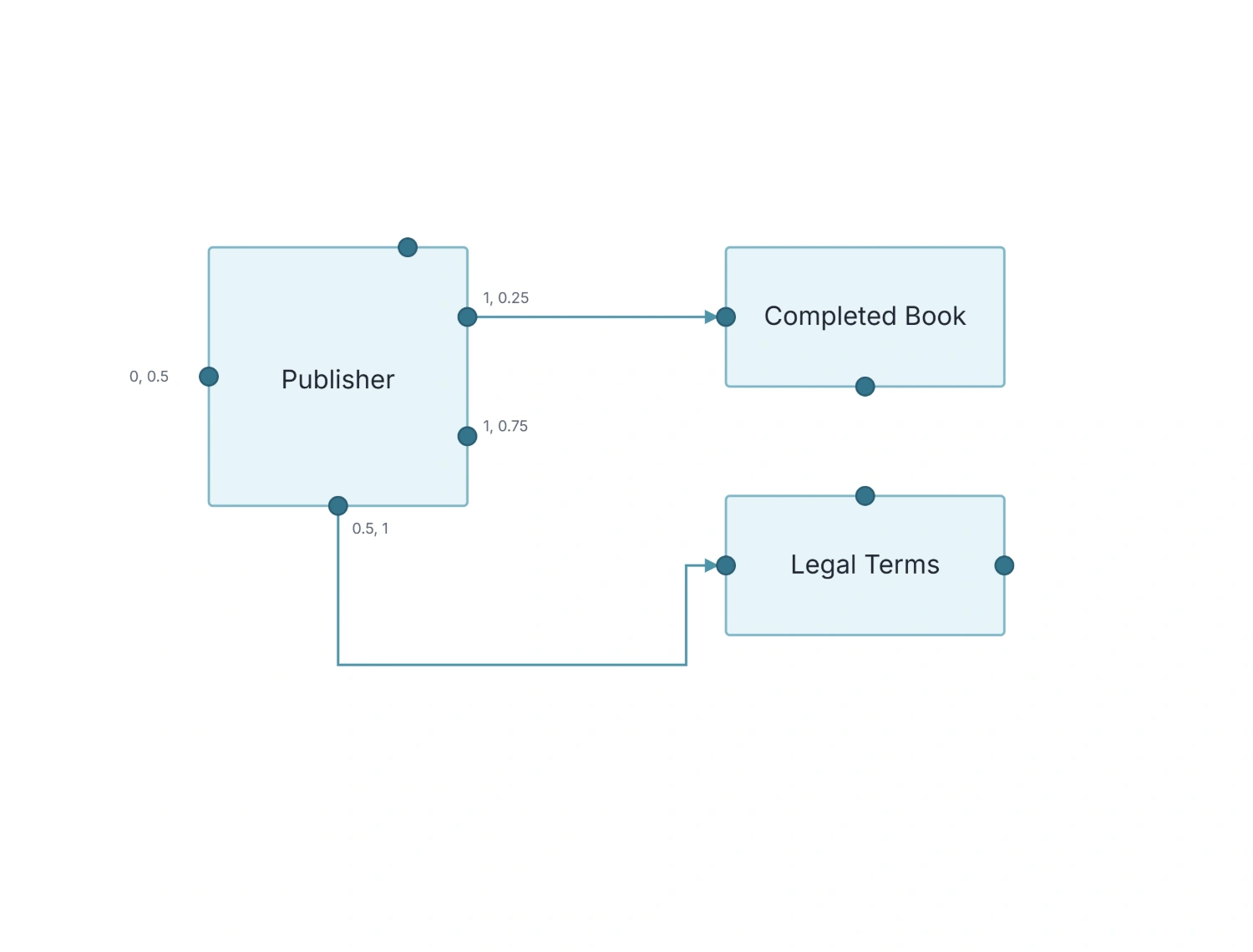
By default, a connector attaches to the boundary of a node and repositions itself along that boundary as the node moves, always taking the shortest path. A port changes that: once a connector is glued to a port, it stays attached to that exact point no matter how the node moves. Use ports when a connection needs to anchor to a specific point rather than the nearest boundary.
- Support any number of ports per node, each positioned as a fraction of the node’s width and height, so it stays proportionally in place even if the node is resized
- Enable a port’s shape and style to be customized independently of the node it belongs to
- Provide automatic port creation when the pointer hovers near a node, instead of defining each port individually in advance
- Ensure port positioning and styling remain consistent across supported platforms
Port-to-port connections and rules
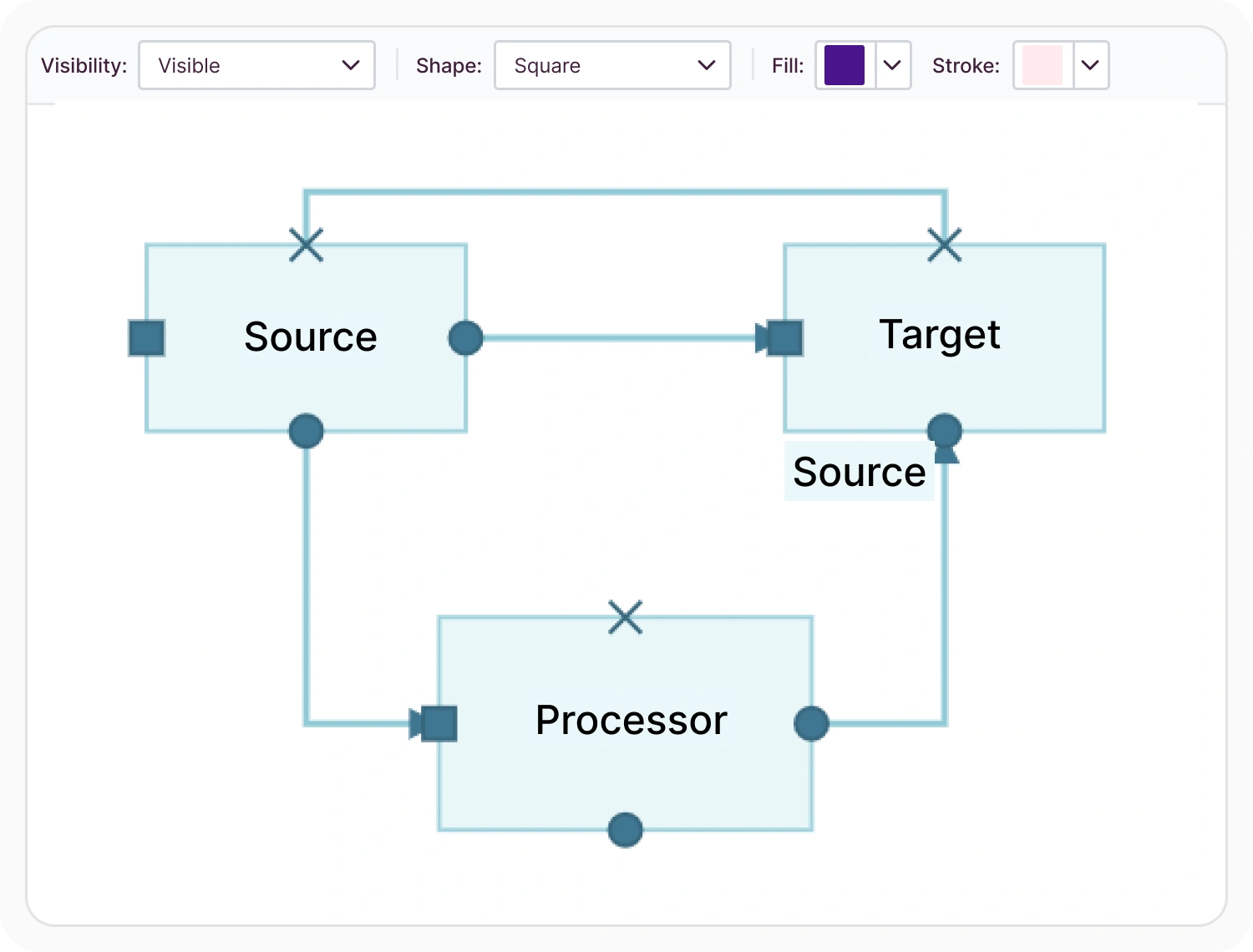
A connector can be tied to a specific port on its source and target nodes, rather than just the nodes themselves, and what a port allows is configurable. Use port-to-port connections when a relationship needs to be anchored to specific points on both ends with controlled connection rules.
- Support port-to-port connections defined up front or created interactively by dragging between two ports
- Provide port visibility options — visible at all times or appearing only while a connector is dragged nearby — and restrict ports to incoming, outgoing, or a maximum number of connections
- Enable a connector to carry its own ports, giving another connector a specific attachment point partway along its path; general connector routing is covered in Diagram Elements
- Ensure port-to-port connections and connection rules remain available across supported platforms
PLATFORM SUPPORT
Connector and port support by platform
Connector types, decorators, and ports are available on every Diagram SDK platform, but some finer capabilities are confirmed more consistently than others. JavaScript, Angular, React, Vue, ASP.NET Core, ASP.NET MVC, and Blazor share a common connector and port model, while WPF, UWP, and Windows Forms provide the same concepts through their own classes.
| Capability | JavaScript frameworks | ASP.NET Core and MVC | Blazor | WPF | UWP | Windows Forms |
|---|---|---|---|---|---|---|
| Connector types and decorators | ||||||
| Ports on nodes (position, connections, visibility) | ||||||
| Ports defined on connectors |
Frequently Asked Questions
What can be customized about a connector’s type and appearance?
Its type can be straight, orthogonal, curved, or a platform-specific type. Its source and target decorators, such as arrowheads, are set and sized independently at each end, and its line color can be set separately from the shapes it connects.
Can a node have more than one port?
Yes. A node can have any number of ports, each positioned, styled, and configured independently of the others.
Can a port be limited to only one connection?
Yes, on platforms where connection limits are supported. A maximum number of connections can be set on a port, useful when a point should only ever have a single link.
Can a connector itself have a port, not just a node?
Yes, on platforms with connector port support. A port can sit at a specific point along a connector’s length, giving another connector a place to branch off from partway along its path.
What’s the difference between a port connection and a regular boundary connection?
A boundary connection recalculates its attachment point automatically as a node moves, always taking the shortest path to the node’s edge. A port connection stays glued to one exact point on the node, regardless of how the node moves or resizes.
Can a connector attach to a specific port on both its source and target nodes?
Yes. Setting a source port and a target port on a connector creates a connection between those exact points, either defined up front or created interactively by dragging between two ports.
Does a port have to be visible all the time?
No. A port can stay visible permanently, or appear only while a connector is being dragged near it, depending on how its visibility is configured.
Is port support identical across every platform?
No. Basic fixed connection points are available everywhere, but connection limits, visibility rules, and ports defined on connectors are confirmed more consistently on some platforms than others, as shown in the table above.
Resources
Learn more about our Diagram SDK
Explore demos, documentation, and support resources to get the most out of the Syncfusion Diagram SDK.
Review shared concepts and supported platforms
Representative ports documentation
See fixed connection points in action
Ask, share, and connect with peers
Find solutions and best practices fast
Get expert help when needed
Feature requests and bug reports
Track issues and suggest improvements
Awards
Greatness—it’s one thing to say you have it, but it means more when others recognize it. Syncfusion® is proud to hold the following industry awards.