
 Sumathi Uthayakumar
TL;DR: CSV exports slow down modern web apps with version issues, stale data, and broken validation. In-browser spreadsheets offer a more efficient approach by enabling structured, real-time editing directly inside applications, improving data consistency, user experience, and workflow efficiency across dashboards, operations, and internal tools.
If your app still relies on “Export to CSV” for quick edits, you’ve probably seen this happen:
Someone downloads a file, opens it in Excel or Google Sheets, makes a few updates… and then things start getting messy.
- Which version is the latest?
- Why did the upload fail?
- Who changed this value?
At first, it feels like a simple workflow. But once teams depend on it daily, the cracks start to show.
A modern alternative is an in-browser spreadsheet: an Excel-like editor embedded directly in your web app. Users edit data in place with familiar spreadsheet interactions without leaving the product.
In this article, we’ll look at how to embed an in-browser spreadsheet in React using Syncfusion® React Spreadsheet Editor.
The hidden problem with CSV exports
CSV exports weren’t designed for continuous, in-app data editing. They were a workaround useful at a time when web apps couldn’t handle complex grids.
Today, that workaround creates more problems than it solves.
Here’s what typically goes wrong:
- Version confusion: Multiple files floating around, no clear “source of truth”.
- Stale data: The moment a file is exported, it starts drifting away from live data.
- Broken structure: No formulas, no formatting, no validation, just raw values.
- Extra engineering overhead: Imports fail, formats mismatch, edge cases pile up.
Individually, these are small issues. Together, they slow teams down and introduce unnecessary risk.
When the export breaks, productivity follows
What looks like a simple loop export, edit, and upload quietly adds friction at every step.
Now imagine a finance team updating quarterly forecasts.
They export a CSV, tweak some numbers, and re-upload it. But formulas are gone, number formats are inconsistent, and validation rules don’t exist anymore.
Someone spots an error. Another file is downloaded. Another version is created.
By the time data is “final,” nobody fully trusts it.
This isn’t a tooling issue; it’s a workflow problem.
So what’s changing?
Instead of pushing users out to Excel, many modern web apps are doing the opposite:
They’re bringing spreadsheet-like editing directly into the application.
This means:
- Edit data in place
- Keep everything connected to live data
- Apply validation before errors happen
- Maintain a single source of truth
No exports. No uploads. No guesswork.
CSV exports vs. in-browser Spreadsheets: What actually changes
Here’s the real difference, not in features, but in experience:
| CSV Workflow | In-Browser Spreadsheet |
| Download → Edit → Upload | Edit instantly inside the app. |
| Static snapshot of data | Always working with live data. |
| No built-in validation | Controlled, rule-based editing |
| Multiple file versions | One shared source of truth. |
| Error-prone updates | Guided, structured changes |
The shift isn’t just technical; it’s about removing unnecessary steps.
When CSV still makes sense
CSV exports still have their place.
They’re useful when:
- Data needs to be shared externally
- Offline access is required
- The task involves one-time exports
The problem arises when CSV becomes the default for everyday editing.
What makes an in-browser Spreadsheet enterprise-ready?
Embedding a spreadsheet into a production application requires more than just rendering a grid.
Key considerations include:
- Performance: Large datasets need efficient rendering (virtualization) and a careful recalculation strategy.
- Scalability: Define how edits sync to your backend (save-on-change vs save-on-submit, conflict handling).
- Maintainability: Prefer a component with stable APIs and documented configuration patterns.
- Security/permissions: Restrict editing by role, protecting sheets/ranges, and validating inputs at the cell level.
- Accessibility: Keyboard navigation and screen reader support matter for enterprise rollouts.
The modern approach: In-browser Spreadsheet Editor
An embedded spreadsheet component brings spreadsheet-style editing directly into your web app, without forcing users to switch tools.
Instead of exporting files and re-importing them later, users can work with data in a structured, interactive grid that stays connected to your application.
This approach allows your app to stay in control of:
- Data access and permissions
- Validation and business rules
- Real-time updates and consistency
Today, many teams use ready-made spreadsheet components to support this pattern, rather than building everything from scratch.
For example, in a React application, a component like the Syncfusion React Spreadsheet Editor can provide the core functionality needed to support in-app editing, including handling large datasets, applying validation, and maintaining a consistent data structure.
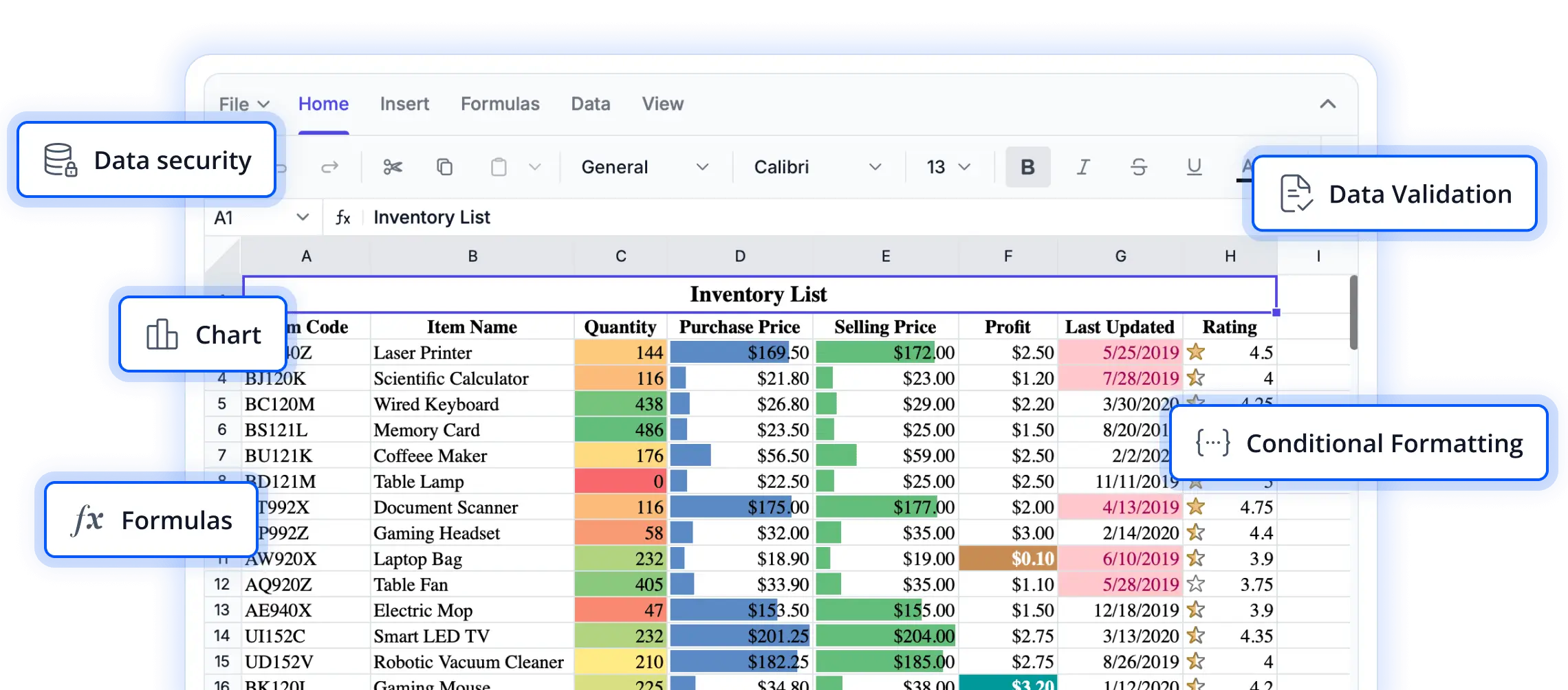
Embedding an In-Browser Spreadsheet in a React app
Instead of relying on exports, you can bring spreadsheet-style editing directly into your React application with a ready-to-use component.
At a high level, the integration is straightforward. Once the spreadsheet component is added to your project, it can render an interactive grid in your app, allowing users to start editing data immediately. From a user’s perspective, this feels very similar to working in Excel or Google Sheets, but without leaving the application.
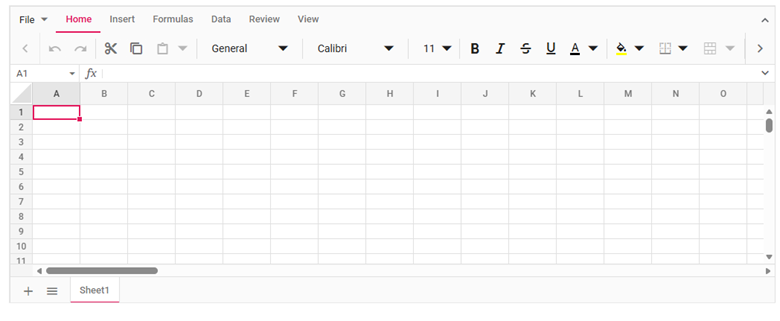
In a typical setup, you import the spreadsheet component into your React app and render it like any other UI element:
import * as React from 'react';
import { SpreadsheetComponent } from '@syncfusion/ej2-react-spreadsheet';
import './App.css';
export default function App() {
    return  (<SpreadsheetComponent/>);
}
From there, you can layer in additional capabilities based on your use case, whether that’s loading data, applying validation rules, or enabling formatting and formulas.
Rather than building complex grid logic from scratch, this approach lets you focus on how users interact with data in your product, while the spreadsheet component handles the heavy lifting behind the scenes.
If you want to go deeper into configuration and advanced capabilities, the official documentation covers everything from data binding to feature customization.
Real-world scenarios where it makes a difference
This approach becomes especially valuable in workflows where data changes frequently:
- Internal dashboards and admin tools: Teams can update operational data directly, without switching tools or managing multiple file versions.
- Finance and operations: Maintaining structured data helps reduce errors in calculations and reporting.
- HR and large datasets: Managing large volumes of structured data becomes more reliable and easier to navigate.
- Sales and pricing tools: Teams can quickly test scenarios and update values without interrupting their workflow.
- Data entry portals: Built-in validation ensures cleaner, more consistent data from the start.
These aren’t edge cases; they reflect how many teams already work today.
Frequently Asked Questions
Yes. You can open and export Excel (XLSX) and CSV files directly in the browser. Most formatting, formulas, and structure are preserved, so you don’t lose context when working with existing files.Will an in-browser spreadsheet work with existing Excel files?
Yes. CSV files can be opened, edited, and validated within the spreadsheet interface, and then exported again if needed.Can an in-browser spreadsheet edit CSV files directly?
It includes familiar capabilities like formulas, sorting, filtering, formatting, and data validation, similar to Excel, but built directly into your web app.What features does an in-browser spreadsheet provide?
Yes. You can restrict access using sheet protection, locked ranges, and validation rules, along with your application’s permission system.Can an in-browser spreadsheet control what users are allowed to edit?
Yes. It includes keyboard navigation, screen reader support (WAI-ARIA), RTL layouts, and localization for dates and formats, making it suitable for global applications.Does an in-browser spreadsheet support accessibility and localization?
Final thoughts
Many web apps still rely on CSV exports because “that’s how it’s always been done.”
But the reality is, teams are quietly moving away from it, especially in products where data changes frequently.
If your users are exporting files every day just to make edits, it’s worth asking: Is the process helping them, or slowing them down?
Because sometimes, the biggest improvement isn’t a new feature, it’s removing an unnecessary step.
For React teams, our React Spreadsheet Editor provides a practical path to deliver an Excel-like experience with import/export and performance features. If your users edit data every day, it’s worth evaluating an embedded spreadsheet approach and testing it against your current CSV workflow.
Still depending on CSV files for daily workflows? Switch to a modern in-browser spreadsheet and see the difference yourself with the live demo.
If you’re a Syncfusion user, you can download the setup from the license and downloads page. Otherwise, you can download a free 30-day trial.
You can also contact us via our support forums, support portal, or feedback portal for queries. We are always happy to assist you!




 No spam, just valuable updates.