
 Chinnu Muniyappan
TL;DR: Quickly implement PDF to Image Conversion in .NET MAUI to render PDF pages as high-quality PNG or JPEG images across mobile and desktop platforms. This guide covers multi-page conversion, password-protected files, custom sizing, and performance optimization using asynchronous processing, all with practical C# examples.
.NET MAUI provides a single codebase for Android, iOS, Windows, and macOS. However, PDF-to-image rendering is not unified across platforms. Each platform offers different native rendering APIs, which results in duplicated logic, platform-specific branches, and inconsistent output.
Syncfusion’s PdfToImageConverter solves this with a single cross-platform C# API. One implementation handles PDF-to-JPEG and PDF-to-PNG conversions across all MAUI targets, no conditional compilation, no platform-specific rendering code, no maintenance overhead.
In this guide, you’ll learn how to:
- Convert a single PDF page to a JPEG or PNG image
- Convert all pages of a PDF to JPEG or PNG images
- Apply custom scaling or fixed pixel dimensions to control image quality
- Perform async conversion for large PDFs without blocking your UI
- Convert password-protected PDFs across all MAUI platforms
Ready to eliminate the PDF-to-JPEG rendering workarounds? Let’s build the solution. Embed a fast, secure PDF viewer into your .NET MAUI apps with Syncfusion .NET MAUI PDF Viewer SDK. Display documents accurately, navigate pages, search text, annotate PDFs, fill forms, and handle large files with smooth performance.
Why PDF to image conversion matters in document-driven MAUI apps
PDF files cannot be displayed directly inside an Image control in .NET MAUI. Converting PDF pages into raster images, such as JPEG or PNG, unlocks several common app scenarios:
- File browsers with PDF page thumbnails
- Sharing workflows that export individual pages as images
- Email previews using first-page JPEGs
- Image-based document galleries with swipe navigation
- Annotation and markup workflows on rendered pages
- Print-preview pipelines using rendered page images
Once a PDF page is available as an image stream, these workflows become significantly easier to implement across all platforms.
PDF to image conversion in .NET MAUI using Syncfusion: A step-by-step guide
Syncfusion’s PdfToImageConverter is a cross-platform library that loads your PDF document, renders each page as a bitmap, and returns the image data as Stream objects. You can then save these streams as JPEG or PNG files, display them in your app’s UI, or use them in your workflows.
Let’s implement this step by step.
Prerequisites
Make sure you have the following set up:
- Latest .NET SDK with the .NET MAUI workload installed
- Visual Studio 2022 or Visual Studio Code configured for .NET MAUI development
Note: For a full environment setup walkthrough, refer to the official .NET MAUI documentation.
Step 1: Create a .NET MAUI app
Create a new .NET MAUI app by running the commands below via CLI.
dotnet new maui -n PdfToImageConversionSample
cd PdfToImageConversionSample
This creates a new .NET MAUI project with the necessary structure for cross-platform development.
Step 2: Installing Syncfusion PDF-to-image converter package
Install Syncfusion.Maui.PdfToImageConverter NuGet package to your project using the following command.
dotnet add package Syncfusion.Maui.PdfToImageConverterAlternatively, you can install it through Visual Studio’s NuGet Package Manager by searching for Syncfusion.Maui.PdfToImageConverter.
Once installed, add the namespace to your C# file (MainPage.xaml.cs) or to your ViewModel, and include your license key.
Syncfusion.Licensing.SyncfusionLicenseProvider.RegisterLicense("YOUR_LICENSE_KEY");Note: You can get a free 30-day trial license or a free community license from our website and refer to the user guide to register the license key in the .NET MAUI Application.
Step 3: Convert a single PDF page to an image stream
To convert a single page of PDF into an image stream, initialize PdfToImageConverter and call Load() to prepare the document, and use Convert(pageIndex) to render the desired page as a Stream.
Here’s how you can do it in code:
// Get the PDF file stream
Stream? pdfFile = typeof(MainPage)
    .GetTypeInfo()
    .Assembly
    .GetManifestResourceStream(
        "PdfToImageConversionSample.Resources.Pdf.input.pdf"
    );

// Initialize the PDF to Image converter
PdfToImageConverter converter = new PdfToImageConverter();

// Load the document
converter.Load(pdfFile!);

// Convert the first PDF page as an image (0 = first page)
Stream? imageStream = converter.Convert(0);
Step 4: Save/display the converted PDF images stream
Once you have the image stream, you can save it to device storage or render it directly in your app’s UI.
Save PDF to JPEG and PNG file using SaveService
Syncfusion provides a SaveService helper class for platform-specific file saving. Download the helper files and add them to your project to save your converted PDF image stream as PNG or JPEG image files.
// Saves the memory stream as a file using the SaveService instance.
 SaveService save = new SaveService();
save.SaveAndView(
    "output.png",
    "image/png",
    imageStream
);
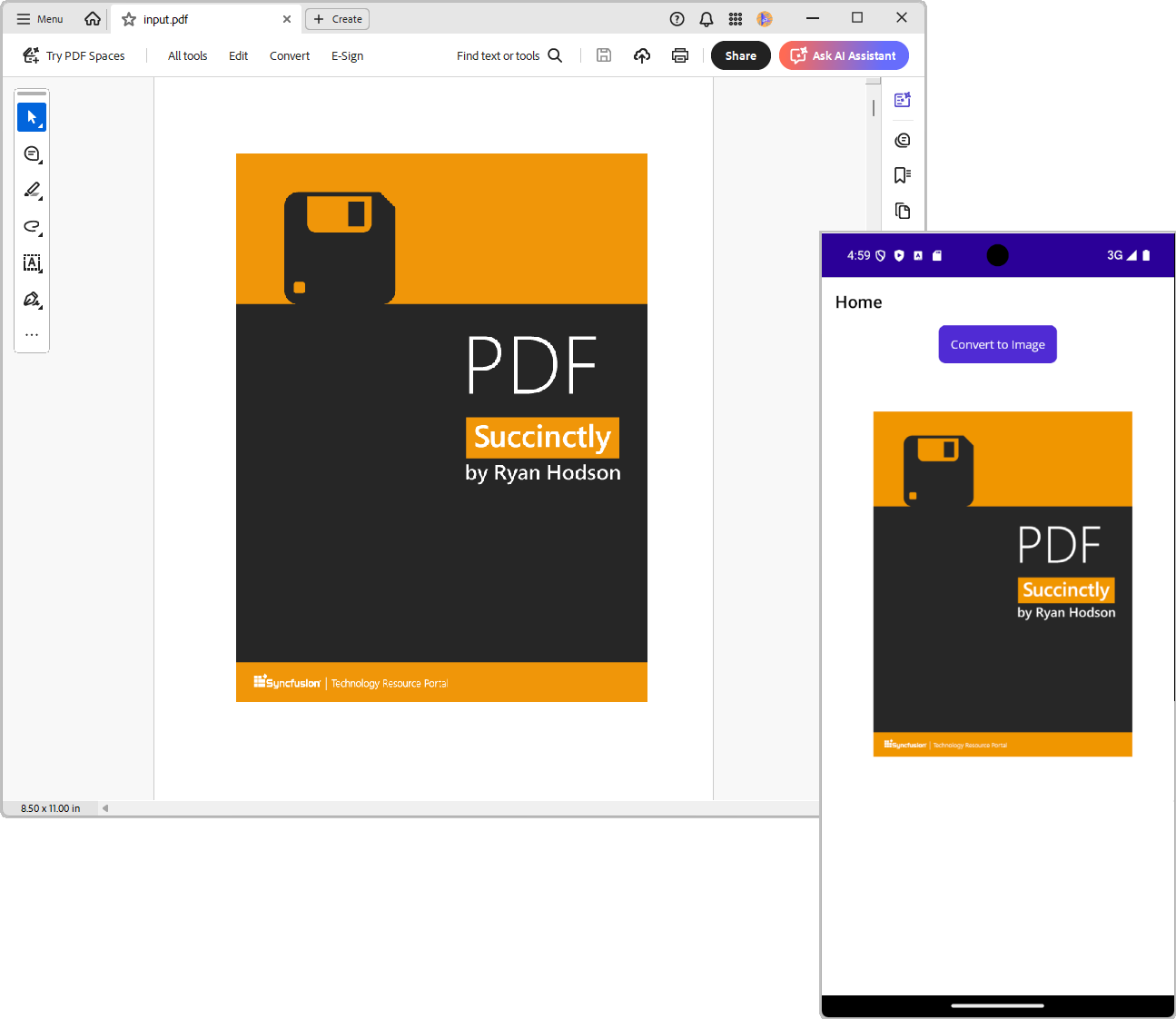
Display converted PDF image in UI
Here, define a layout container in your XAML to display the image stream converted from PDF, and then inject the image stream into your UI.
<ScrollView>
    <VerticalStackLayout x:Name="ImageContainer" Spacing="10">
    </VerticalStackLayout>
</ScrollView>// Add the image to the layout using the stream
ImageContainer.Children.Add(
new Image
{
Source = ImageSource.FromStream(() => imageStream)
}
);
Stop writing platform-specific PDF rendering code for every MAUI target your app ships to. Check out this complete PDF-to-image conversion sample on GitHub.
Convert all PDF pages to JPEG and PNG images
Let’s extend the functionality to convert all pages of a PDF into individual images at once by using the Convert() method without specifying a page index.
Code snippet to achieve this:
// Initialize the PDF to Image converter
PdfToImageConverter converter = new PdfToImageConverter();

// Load the document
converter.Load(pdfFile!);
// Convert all PDF pages into an array of image streams
Stream[]? images = converter.Convert();

if (images != null)
{
    // Clear previous content if needed
    this.ImageContainer.Clear();

    foreach (Stream imageStream in images)
    {
        ImageContainer.Children.Add(
            new Image
            {
                Source = ImageSource.FromStream(() => imageStream)
            }
        );
    }
}
// Dispose converter to free up resources
converter.Dispose();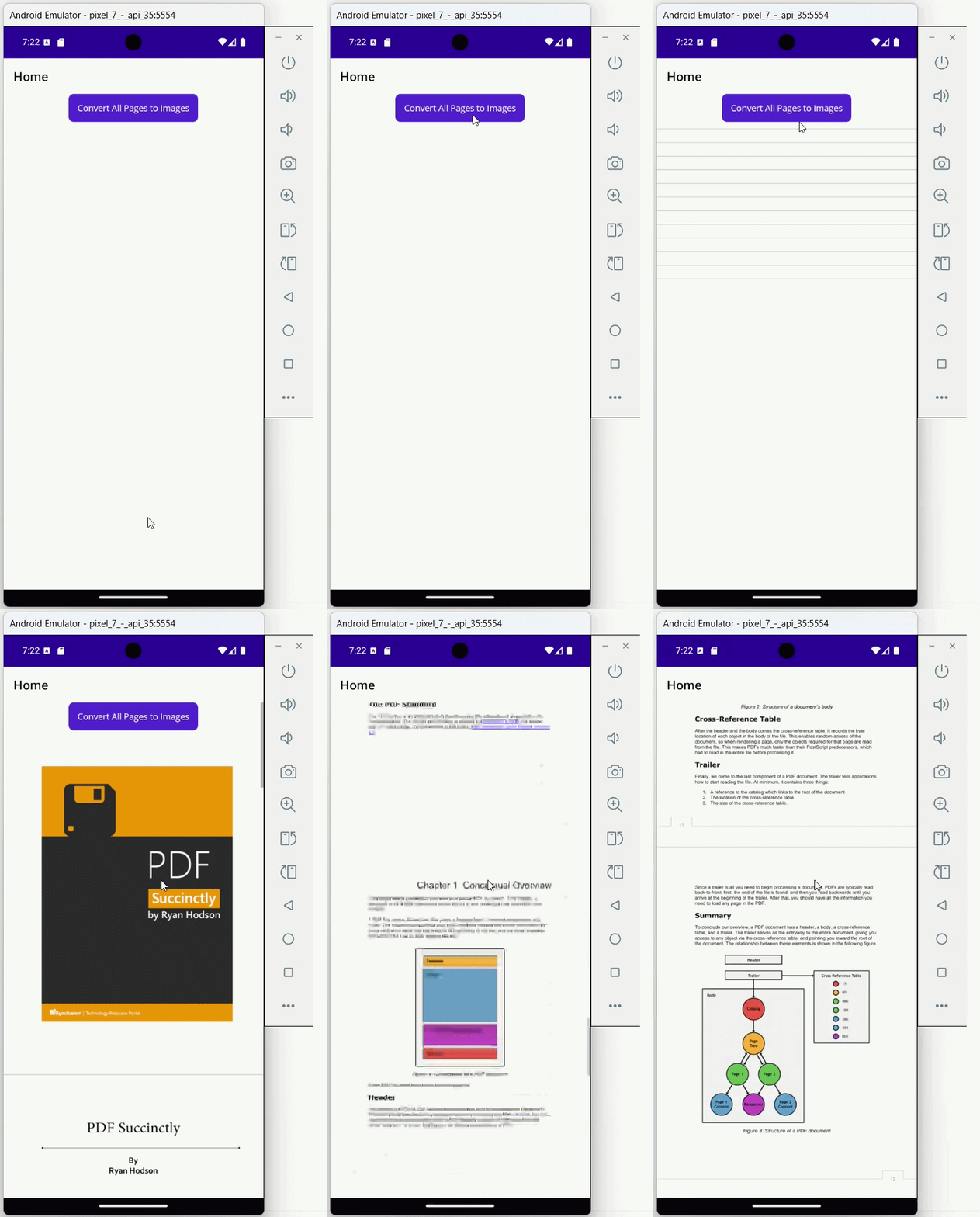
Unlock advanced PDF to Image conversion capabilities with Syncfusion
Basic single-page and multi-page conversion covers most scenarios. For production applications, our PdfToImageConverter goes further, giving you precise control over output quality, non-blocking async processing, and encrypted PDF support across all MAUI platforms.
Custom scaling and fixed pixel dimensions
You can control image quality and size using scaling factors or fixed pixel dimensions.
- Use scaling factors for proportional resizing:
0.5ffor thumbnails,2.0ffor high-resolution output. Lower scaling factors reduce file size and improve conversion speed for large documents. - Use fixed dimensions when you need consistent sizes for UI layouts or export pipelines.
Add this code example to your project:
// Initialize and load the PDF
PdfToImageConverter converter = new PdfToImageConverter();
converter.Load(pdfStream);

// Option 1: Convert with scaling factor (0.5 = 50% size for thumbnails)
Stream thumbnailStream = converter.Convert(0, 0.5f);

// Option 2: Convert with fixed pixel dimensions
Stream fixedSizeStream = converter.Convert(0, new SizeF(1200, 1800)); | 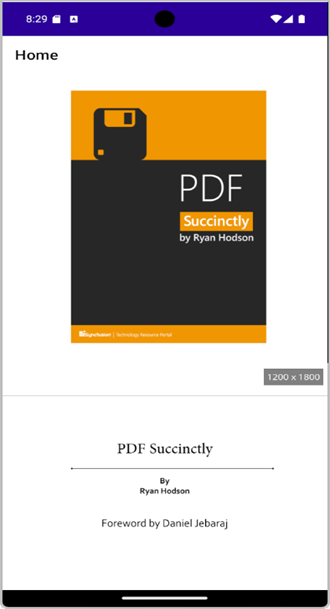 |
Do you need precise control over image dimensions, scaling, and quality for different scenarios? Explore sizing and scaling APIs.
Async PDF to Image conversion for responsive apps
Large or multi-page PDFs can block the UI thread during conversion. Use ConvertAsync() to process documents in the background while keeping your app responsive, preventing UI freezing for a smoother user experience.
Try this in your code:
// Initialize the PDF to Image converter
using (PdfToImageConverter converter = new PdfToImageConverter())
{
    // Load the document
    converter.Load(pdfFile!);

    // Convert the PDF pages as images asynchronously.
    Stream[]? images = await converter.ConvertAsync();
}
Convert password-protected PDFs to JPEG and PNG images
Syncfusion supports PDF-to-image conversion for encrypted PDFs by passing the password to the Load(stream, password) method.
Android note: Due to platform limitations, you must first remove the password using Syncfusion.Pdf.NET before converting the image. Password removal happens only in memory; the unprotected PDF is never written to disk unless you explicitly save it.
Here’s the complete code block:
// Initialize the PDF to Image converter
using (PdfToImageConverter converter = new PdfToImageConverter())
{
    #if ANDROID
    // Load the document with a password using Syncfusion.Pdf.NET
    PdfLoadedDocument document = new PdfLoadedDocument(pdfFile, "syncfusion");

    // Remove the password protection
    document.Security.UserPassword = string.Empty;
    document.Security.OwnerPassword = string.Empty;

    MemoryStream stream = new MemoryStream();
    document.Save(stream);
    stream.Position = 0;
    document.Close(true);

    converter.Load(stream);
    #else
    // Load the document with a password directly
    converter.Load(pdfFile!, "syncfusion");
    #endif

    // Convert the PDF pages as images asynchronously.
    Stream[]? images = await converter.ConvertAsync();

    ImageContainer.Children.Clear();

    if (images != null)
    {
        // Clear previous content if needed
        this.ImageContainer.Clear();

        foreach (Stream imageStream in images)
        {
            ImageContainer.Children.Add(
                new Image
                {
                    Source = ImageSource.FromStream(() => imageStream)
                }
            );

            // Add a light gray divider line
            ImageContainer.Children.Add(
                new BoxView
                {
                    HeightRequest = 1.5,
                    BackgroundColor = Colors.LightGray,
                    HorizontalOptions = LayoutOptions.Fill
                }
            );
        }
    }
}
GitHub reference
For complete implementation details covering all PDF-to-JPEG and PDF-to-PNG conversions, refer to the GitHub demo.
Frequently Asked Questions
No. All PDF-to-JPEG and PDF-to-PNG conversions happen entirely on-device. No data is sent to external servers, making it suitable for offline apps and enterprise environments with strict data privacy requirements.Does PdfToImageConverter require an active internet connection during conversion?
Process pages in batches rather than converting the entire document at once. Dispose of each Stream after saving or displaying it, and call the How should I handle memory efficiently when converting large PDFs with hundreds of pages?
converter.Dispose() once all conversions are complete to release native resources immediately.
Yes. Annotations, comments, stamps, and form field values visible in the PDF are rendered in the output image. The converter renders the full visual representation of each page, exactly as it appears in a PDF viewer.Does PdfToImageConverter render existing PDF annotations and form fields in the converted output images?
Yes. The converter doesn’t require a UI thread or active display context to perform conversion. You can run it in background services, scheduled tasks, or server-side pipelines.Can PdfToImageConverter be used in a background service or CI/CD pipelines environment?
The converter throws an exception during What happens when a corrupted or unsupported PDF is loaded into the converter?
Load(). Wrap your conversion logic in a try-catch block to handle corrupted files gracefully and provide fallback behavior in your app.

Conclusion
Thank you for reading! In this guide, you learned how to convert PDF to JPEG and PNG images in .NET MAUI using C#, from single-page and multi-page conversion to custom scaling, async processing, and encrypted PDF handling. These techniques enable file browsers, document galleries, annotation workflows, and sharing scenarios without relying on platform-specific PDF rendering code.
Syncfusion gives you a production-ready PDF to image conversion tool that works, no conditional compilation, no maintenance headaches, no surprises across platforms.
If you’re a Syncfusion user, you can download the setup from the license and downloads page. Otherwise, you can download a free 30-day trial.
You can also contact us through our support forum, support portal, or feedback portal for queries. We are always happy to assist you!


 No spam, just valuable updates.