
 Deepa Thiruppathy
TL;DR: Build a review-ready Angular PDF experience with an embedded annotation toolbar, enable highlights, sticky notes, stamps, and shapes to streamline document workflows, improve collaboration, and keep feedback within your application for faster, traceable approvals.
You’ve added a PDF viewer to your Angular app. Users can scroll, zoom, and search documents, a great start.
But the moment someone asks, “Can I highlight this section?” or “Can I leave a comment here?”, the experience breaks. The viewer works, but the review process doesn’t.
Most PDF viewers are built for reading, not reviewing. Real-world applications, contracts, approvals, and engineering plans require annotations, not just rendering.
This is where an embedded PDF annotation experience becomes essential.
In this blog, you’ll integrate a Syncfusion® Angular PDF Viewer and enable a fully functional annotation toolbar with support for highlights, sticky notes, stamps, and shapes.
Why PDF review workflows fail without in-app annotation tools
When annotation isn’t part of your application, users are forced into fragmented workflows:
- Context switching slows everything down
Open PDF → download → annotate in another tool → re-upload → send feedback → track manually. - No audit trail for compliance
Feedback scattered across emails or chat leaves no reliable record of who reviewed what and when. - User experience breaks
Users leave your product to complete tasks elsewhere and may not return. - Approval processes become messy
Version conflicts, manual tracking, and disconnected tools introduce delays and errors.
A viewer alone isn’t enough. The review process needs to stay within your application.
Syncfusion Angular PDF Viewer with built-in annotation toolbar
Instead of building annotation functionality from scratch, you can use our Angular PDF Viewer that already includes a configurable annotation toolbar.
No third-party overlay, no custom annotation engine required.
This enables you to turn a basic document viewer into a review-ready interface with minimal setup.
What you get out of the box
- Configurable annotation toolbar
- Multiple annotation types (text markup, notes, stamps, shapes, ink)
- Author tracking and comments panel
- Import/export support (JSON/XFDF)
- Works across desktop and responsive layouts
Quick setup
Let’s get the viewer running first: 5 steps, under 5 minutes.
Step 1: Install the package
Run the command below to install our Angular PDF Viewer package in your Angular application:
npm install @syncfusion/ej2-angular-pdfviewer --saveStep 2: Add required styles
Add the following Syncfusion Material theme CSS to your style.css file:
@import '../node_modules/@syncfusion/ej2-base/styles/material.css';
@import '../node_modules/@syncfusion/ej2-buttons/styles/material.css';
@import '../node_modules/@syncfusion/ej2-inputs/styles/material.css';
@import '../node_modules/@syncfusion/ej2-popups/styles/material.css';
@import '../node_modules/@syncfusion/ej2-lists/styles/material.css';
@import '../node_modules/@syncfusion/ej2-navigations/styles/material.css';
@import '../node_modules/@syncfusion/ej2-dropdowns/styles/material.css';
@import '../node_modules/@syncfusion/ej2-splitbuttons/styles/material.css';
@import '../node_modules/@syncfusion/ej2-notifications/styles/material.css';
@import "../node_modules/@syncfusion/ej2-angular-pdfviewer/styles/material.css";
Step 3: Register required services
Import PdfViewerModule and the required AnnotationService module in your app.module.ts:
import {
  PdfViewerModule,
  ToolbarService,
  AnnotationService,
  TextSearchService,
  MagnificationService
} from '@syncfusion/ej2-angular-pdfviewer';

@NgModule({
  imports: [PdfViewerModule],
  providers: [
    ToolbarService,
    AnnotationService,
    TextSearchService,
    MagnificationService
  ]
})
Step 4: Add the PDF Viewer component
Open your component template and add the <ejs-pdfviewer> tag to render the PDF Viewer component:
<ejs-pdfviewer
       id="pdfViewer"
       [documentPath]="'https://cdn.syncfusion.com/content/pdf/pdf-succinctly.pdf'"
       [resourceUrl]="'https://cdn.syncfusion.com/ej2/25.1.35/dist/ej2-pdfviewer-lib'"
       style="height:640px;display:block">
</ejs-pdfviewer>
Step 5: Run the app
Start the development server:
ng serve --open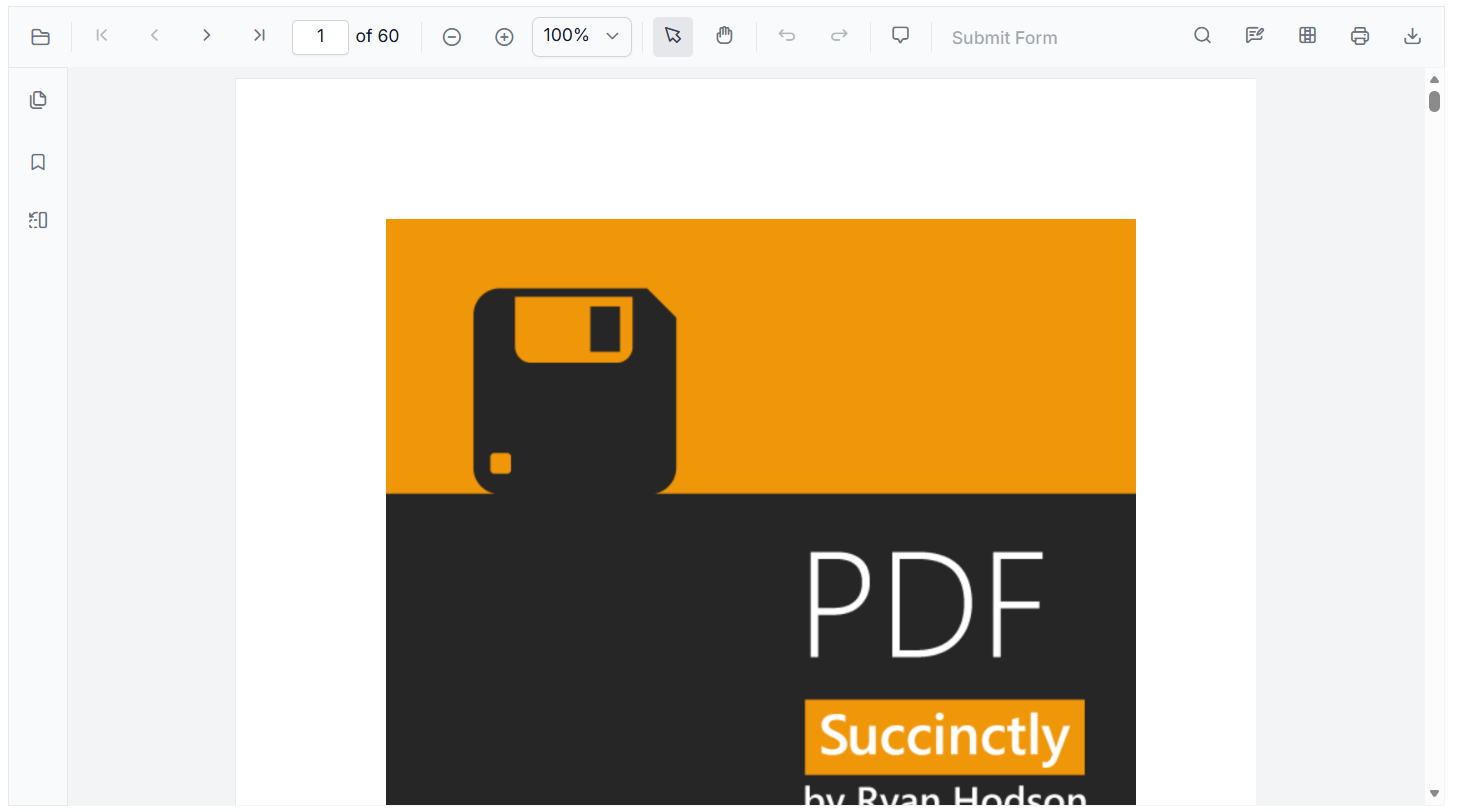
Explore the setup documentation and live demo to see PDF annotation tools like highlights, notes, and stamps in action.
Core PDF annotation features in Angular
Instead of spreading features across separate workflows, annotations bring everything into one place.
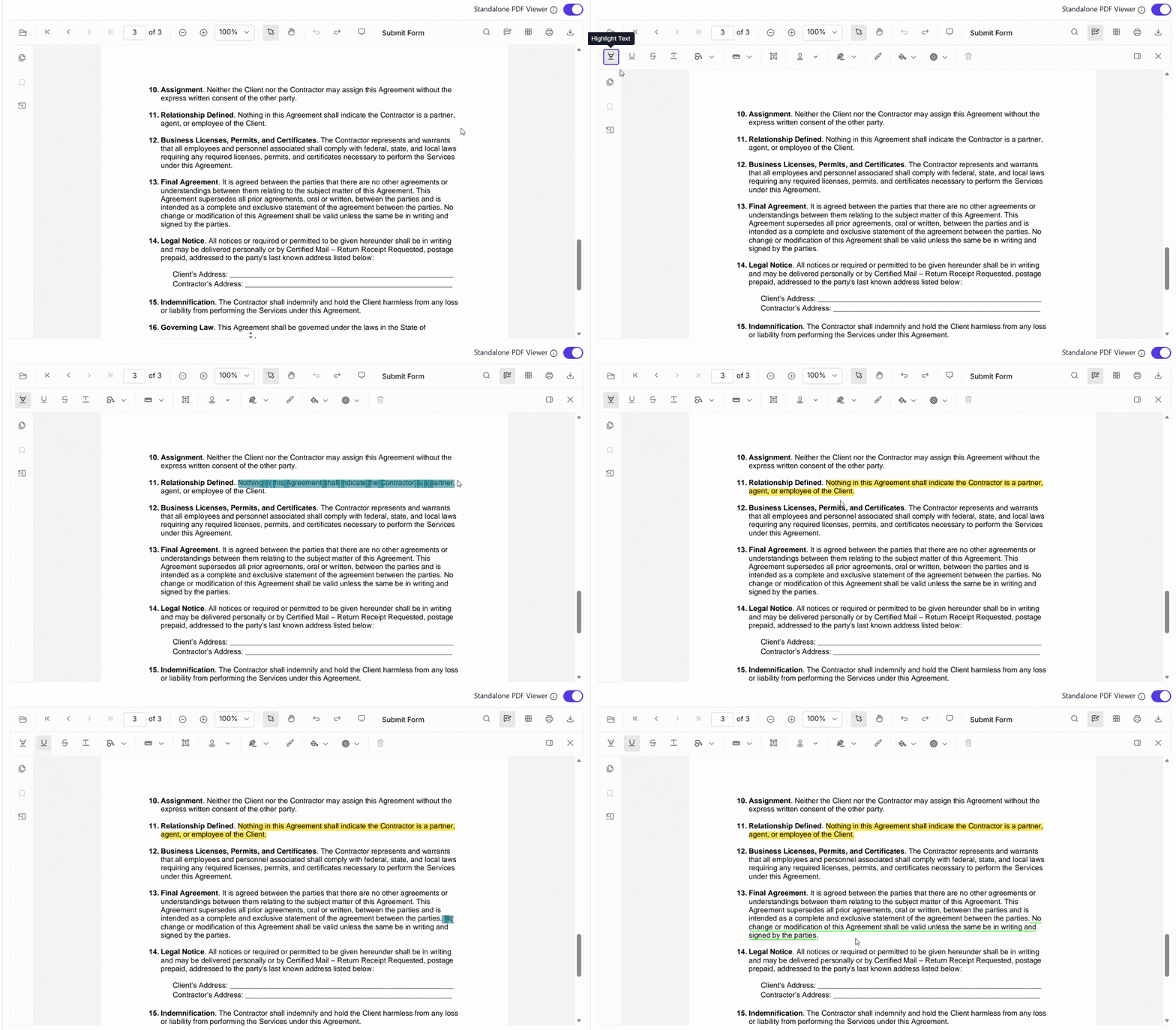
Text markup annotations (Highlights, Underline, Strikethrough)
Ideal for contract reviews and document validation:
- Highlight key clauses and obligations
- Underline sections for discussion
- Strike out outdated or invalid terms
This keeps the review context within the document without relying on external tools.
You can explore the text markup annotation documentation for more details.
Sticky notes (Contextual feedback)
Useful for collaborative review scenarios:
- Add comments tied to specific content
- Capture reviewer identity and timestamps
- Centralize feedback within the document
No more searching through email threads for decisions.
Syncfusion Angular PDF Viewer enables this with PDF sticky notes. Reviewers click on a paragraph, leave a comment, and it appears with their name and timestamp, right inside the PDF. This keeps discussions contextual, traceable, and easy to manage within your Angular application.
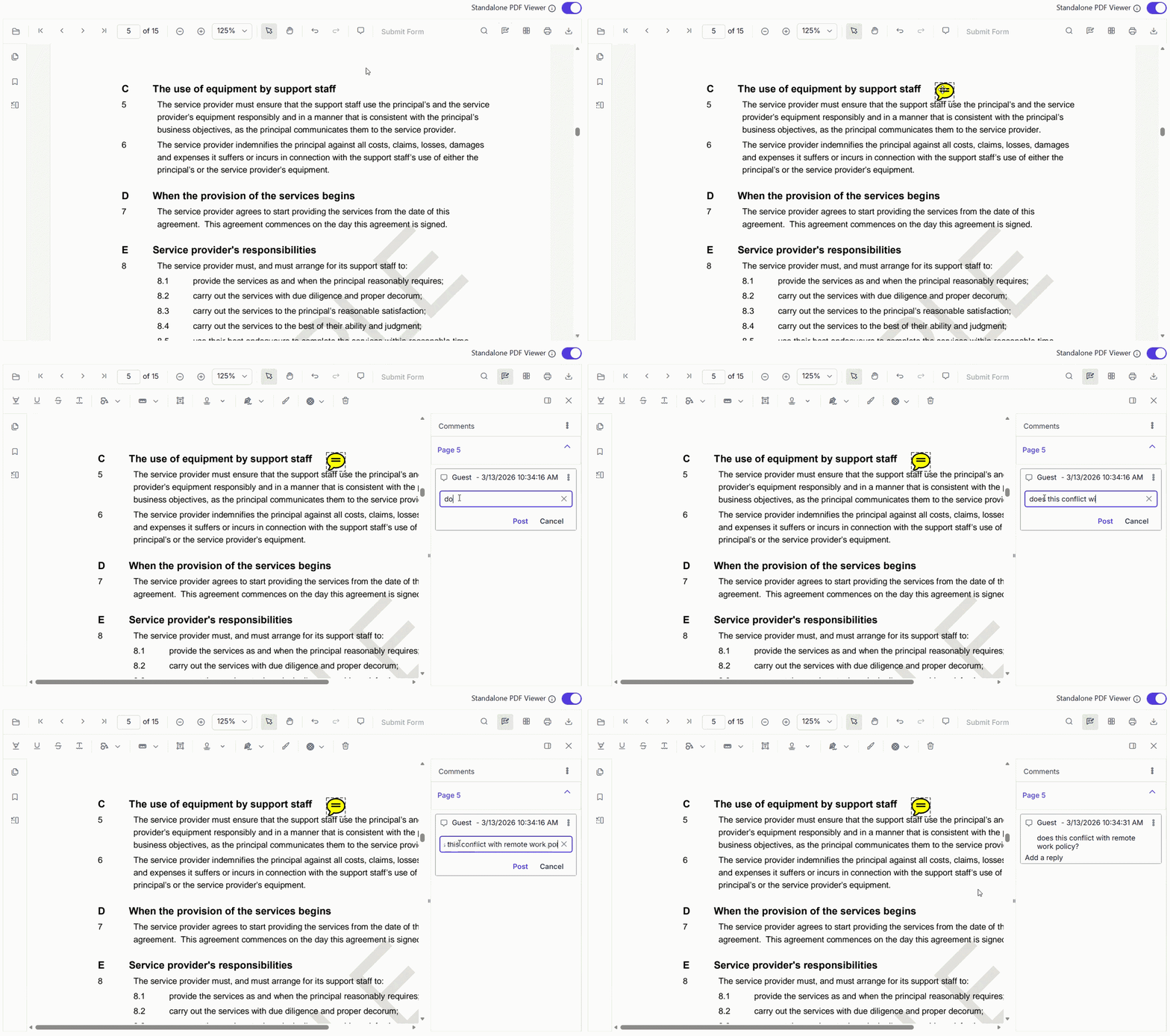
Want to know more about sticky notes? Explore the sticky note annotation documentation.
Stamp annotations (Approval workflows)
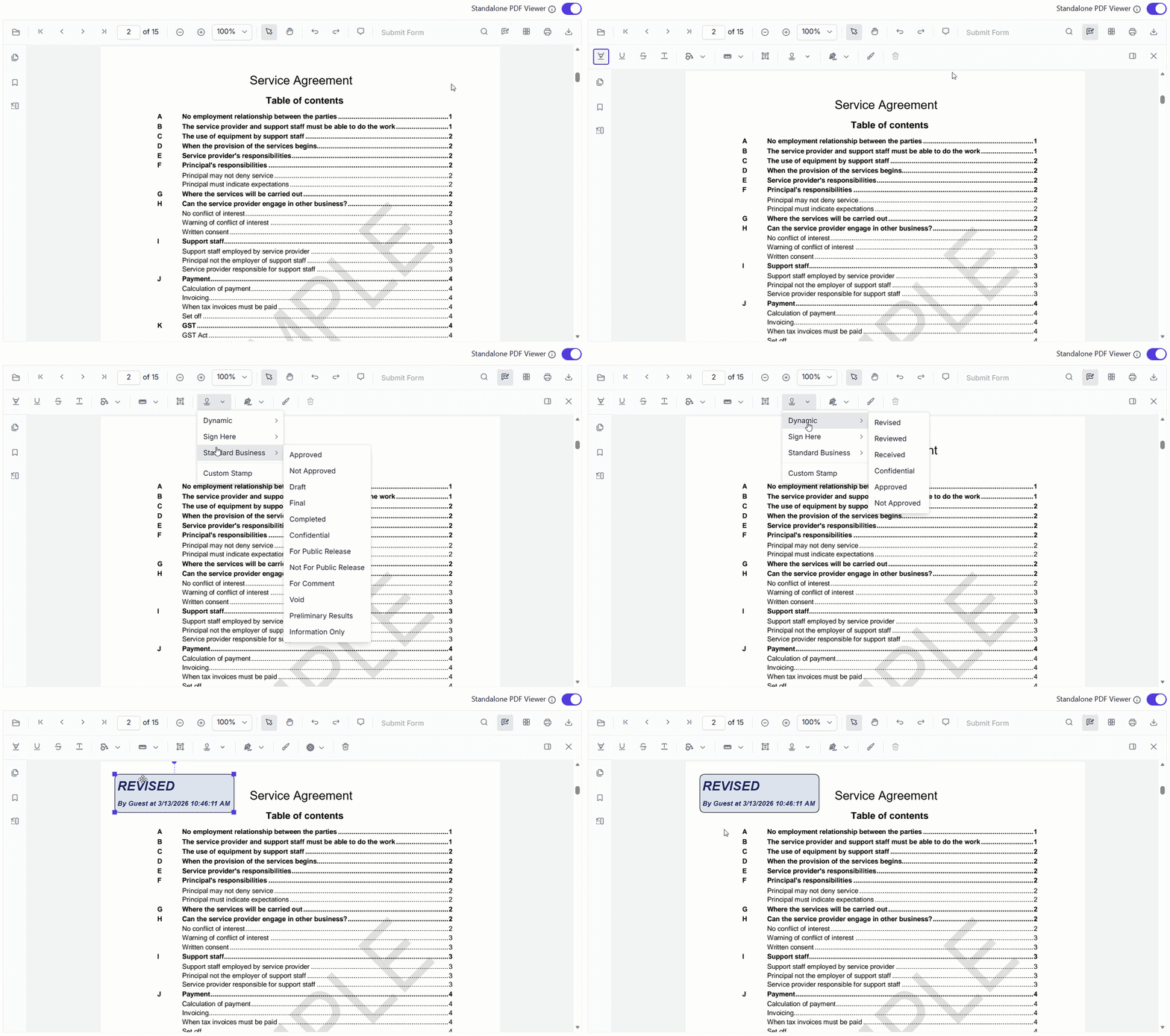
Without stamp annotations, multi-stage approvals lack clear audit visibility. Our Angular PDF Viewer addresses this with built-in stamp tools for structured approvals and compliance tracking:
- Mark documents as Approved, Draft, or Confidential
- Visually track approval stages
- Maintain audit-ready documentation
Each action is embedded directly into the PDF, ensuring traceable review workflows.
It includes:
- 12 standard business stamps
- 5 “Sign Here” stamps
- 7 dynamic stamps
- Custom stamp support for organization-specific workflows
Explore the stamp annotation documentation for more details.
Shapes and Ink annotations (Visual markups)
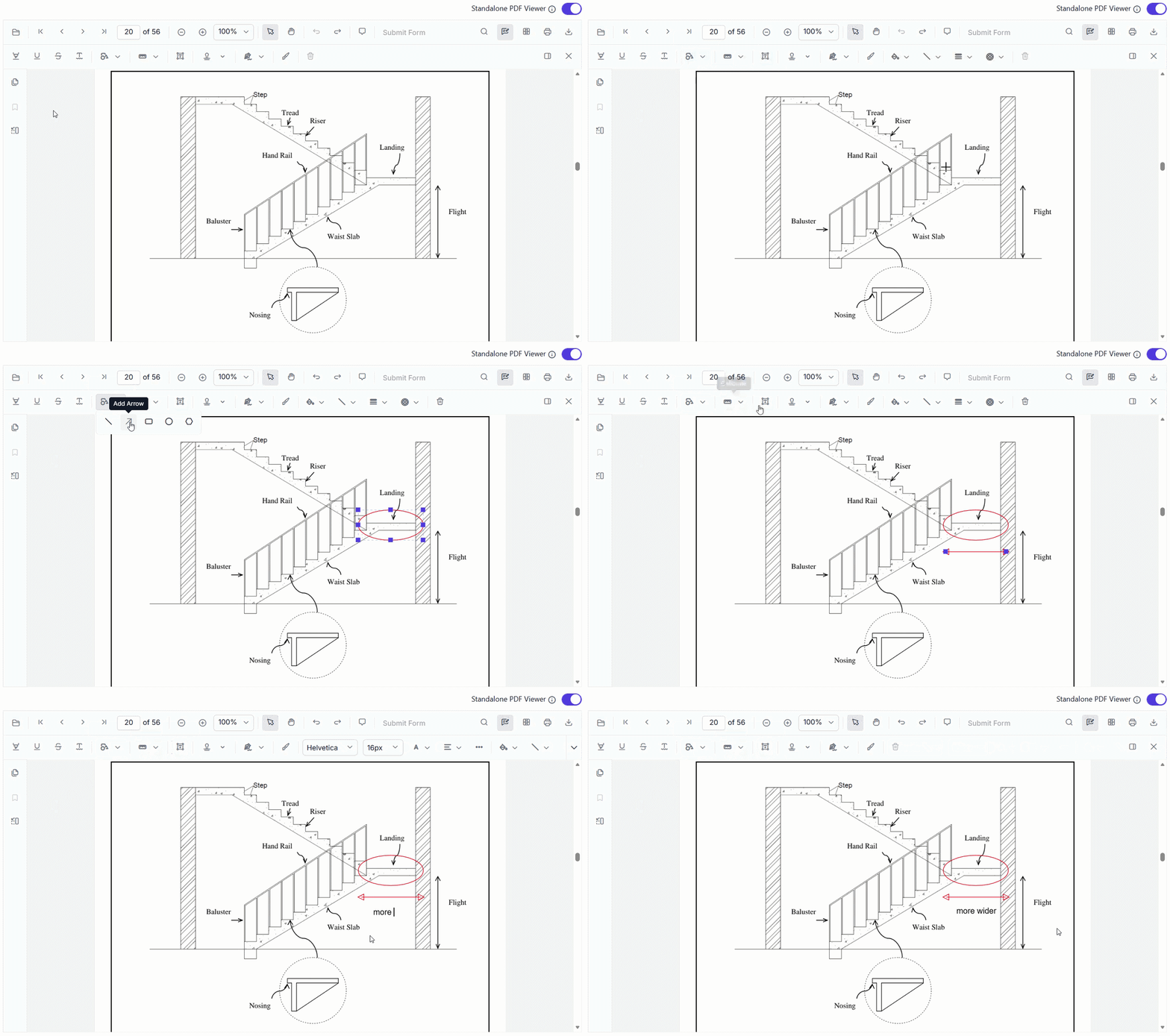
Engineering and design workflows require quick, precise markup without switching to CAD tools or external software.
The Syncfusion Angular PDF Viewer provides shapes and ink annotations for real-time visual feedback directly within your application.
Best suited for technical and design workflows:
- Highlight areas using rectangles and circles
- Use arrows for directional feedback
- Add freehand drawings or signatures
This is especially useful for blueprint reviews, allowing teams to annotate plans, identify issues, and communicate changes in context without leaving the PDF. It reduces dependency on specialized tools and speeds up review and approval cycles.
Need a detailed guide to add shapes and an ink review tool? Explore the shapes and ink annotation documentation.
Customize the annotation toolbar
Different teams have different needs:
- Legal teams need highlights and notes
- Compliance teams need stamps
- Engineers need shapes and drawings
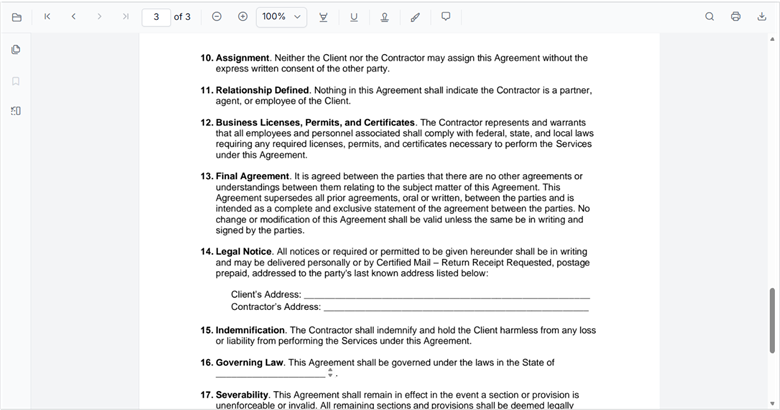
The Syncfusion Angular PDF annotation toolbar is fully customizable. Instead of exposing every tool, you can:
- Remove unnecessary tools
- Configure toolbar items per use case
- Deliver a focused, role-based experience
This simplifies the interface and improves usability
The example below showcases a review‑ready custom toolbar:
You can explore the toolbar customization documentation for more details.
GitHub reference
Explore the GitHub repository to see a complete, working Angular example that demonstrates how to integrate the Syncfusion Angular PDF Viewer with annotation features.
Frequently Asked Questions
Yes. Annotations can be selected directly within the PDF viewer, allowing users to move, resize, update properties like color or opacity, or remove them entirely. This makes it easy to refine feedback during the review process.Can users edit or delete annotations after adding them?
Yes. The viewer supports freehand ink annotations for drawing or adding handwritten signatures. Users can also upload signature images if needed, making it suitable for approval workflows.Can users add handwritten signatures in the PDF?
Yes. The annotation toolbar is fully customizable. You can choose which tools to display based on your use case, such as highlights for legal teams or shapes for engineering, while also applying themes or custom styles to match your application.Can I customize the PDF Viewer toolbar and UI?
Yes. A built-in comments panel provides a consolidated view of all annotations in the document, including highlights, notes, stamps, and shapes, along with author details and timestamps for easier tracking.Is there a way to view all annotations in one place?
Yes. You can configure annotation settings programmatically to display the appropriate author or reviewer name, which is useful in multi-user environments where tracking ownership is important.Can annotation author names be customized?

Build a review-ready Angular PDF experience
A PDF viewer is only the starting point. Real value comes from enabling users to interact with, comment on, and approve documents directly within your application.
By integrating an annotation toolbar in the Syncfusion Angular PDF Viewer, you:
- Eliminate context switching
- Improve review speed and accuracy
- Maintain a single source of truth
- Support scalable document workflows
From contract reviews to engineering markups, everything happens in one place inside your Angular app.
👉 Explore our Angular PDF Viewer live demo
👉 Explore our Angular PDF Annotations documentation
If you’re a Syncfusion user, you can download the setup from the license and downloads page. Otherwise, you can download a free 30-day trial.
You can also contact us through our support forum, support portal, or feedback portal for queries. We are always happy to assist you!


 No spam, just valuable updates.