
 Aarthi Manoharan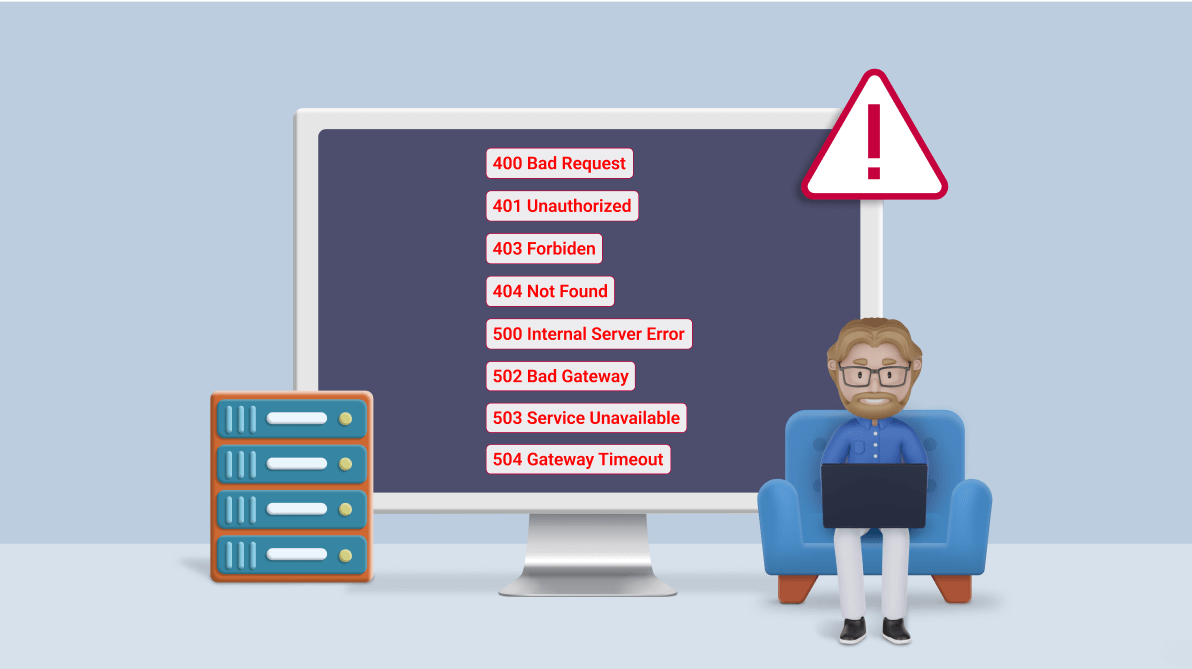
TL;DR: Tired of chasing the wrong issue when an HTTP request fails? Learn what eight common HTTP error codes really mean, what part of your application they point to, and how to troubleshoot them faster without wasting hours digging through logs.
It’s 10 minutes before release.
Your frontend looks fine, your API is running, and the deployment pipeline completed successfully. Then users start reporting problems.
- One request returns 401 Unauthorized.
- Another suddenly throws 502 Bad Gateway.
- A page that worked yesterday now responds with 404 Not Found, and your logs are filling up with 500 Internal Server Error
At this point, the error code itself isn’t the problem. The real challenge is figuring out where the request failed.
- Did the request reach the application?
- Did authentication fail?
- Is the gateway unable to reach an upstream service?
- Or is a completely unrelated infrastructure component causing the issue?
Most developers encounter these HTTP errors regularly, but understanding what each code is actually telling you can dramatically reduce debugging time.
Instead of treating every failed request as a mystery, you can use HTTP status codes as a roadmap that points you toward the most likely source of the problem.
In this guide, we’ll walk through eight of the most common HTTP error codes developers encounter, explain when they typically occur, and discuss practical troubleshooting steps that help identify the root cause faster.

Why these errors matter in modern applications
Modern web applications rarely consist of a single server responding to a single browser request.
A typical request might pass through a CDN, load balancer, API gateway, authentication provider, backend services, databases, caches, message queues, and third-party APIs before a response is returned.
That means a failed request can originate from many different layers.
For example:
- A malformed payload may trigger a 400 Bad Request.
- An expired access token could result in a 401 Unauthorized.
- Missing permissions often lead to 403 Forbidden.
- An incorrect route might cause a 404 Not Found.
- An unhandled exception may generate a 500 Internal Server Error.
- A failed backend dependency can produce a 502 Bad Gateway.
- Temporary overload often results in 503 Service Unavailable.
- Slow upstream services frequently end with 504 Gateway Timeout.
The sooner you can identify which layer is responsible, the faster you can move from investigation to resolution.
Understanding what the status code is trying to tell you
Hypertext Transfer Protocol (HTTP) is an application-level protocol that enables communication between clients, such as web browsers, mobile applications, and API clients, and servers. A client sends an HTTP request, and the server returns an HTTP response.
Every HTTP response includes a three-digit status code indicating how the request was handled. The response can also contain headers and, depending on the request and status, a response body.
HTTP status codes are grouped into five categories:
- 1xx: Informational responses
- 2xx: Successful responses
- 3xx: Redirection responses
- 4xx: Client-side error responses
- 5xx: Server-side error responses
In day-to-day troubleshooting, developers spend most of their time dealing with 4xx and 5xx responses.
Generally speaking:
- 4xx errors indicate problems related to the request, authentication, permissions, or requested resource.
- 5xx errors indicate problems that occurred while processing an otherwise valid request.
In this blog, we will explore eight common 4xx and 5xx HTTP error codes, their likely causes, and the most relevant troubleshooting steps.
Quick comparison: Eight common HTTP errors
| Code | Meaning | Likely problem area | First check |
| 400 | Bad Request | Request URL, headers, parameters, or payload | Inspect the request format |
| 401 | Unauthorized | Authentication credentials | Check credentials, session, or token |
| 403 | Forbidden | Authorization or access policy | Check permissions and access rules |
| 404 | Not Found | URL path, route, or resource | Verify the requested URL and route |
| 500 | Internal Server Error | Application or server | Review application and server logs |
| 502 | Bad Gateway | Gateway-to-upstream communication | Check upstream service health |
| 503 | Service Unavailable | Availability, maintenance, or capacity | Check service health and resource usage |
| 504 | Gateway Timeout | Upstream latency or availability | Identify the timed-out upstream request |
Start here before digging through logs
Before restarting services or rolling back deployments, spend a few minutes identifying what you’re actually dealing with.
One of the most common debugging mistakes is assuming every HTTP error requires the same troubleshooting approach.
For visitors:
- Confirm that the URL is correct.
- Reload the page once.
- Check whether other pages on the website work.
- Sign in again if the error involves authentication.
- Try again later if the service is temporarily unavailable.
- Contact the website owner if the issue continues.
For developers and site owners:
- Inspect the failed request in the browser’s Network panel or your HTTP client.
- Check the request method, URL, headers, authentication details, parameters, and payload.
- Review application, web server, reverse-proxy, gateway, and load-balancer logs.
- Determine which application or infrastructure component generated the response.
- Check recent deployments, configuration changes, service health, and upstream dependencies.
These simple checks often narrow the investigation significantly before deeper debugging begins.
1. 400 Bad Request
A 400 Bad Request response indicates that the server cannot process the request because its syntax, parameters, headers, or content are invalid or malformed.
This error commonly appears during frontend and API integration work.
For example, imagine a backend team adds a required field to an API request model. The frontend hasn’t been updated yet, and suddenly requests begin failing even though the application still compiles successfully.
Common causes include:
- An invalid or incorrectly encoded URL.
- Invalid query parameters.
- Malformed request syntax or payload.
- Incorrect or unsupported request headers.
- An invalid or oversized cookie.
- A request body, header, or uploaded file that exceeds the server’s configured limit.
For visitors:
- Check the URL for typing or encoding errors.
- If the error occurs during a file upload, try a smaller file.
- Clear the website’s cookies only when the issue appears to involve an invalid or expired session.
For developers and site owners:
- Validate the URL, query parameters, and request payload.
- Check URL encoding and the request’s Content-Type.
- Inspect request headers for invalid or oversized values.
- Review server limits for request bodies, headers, and uploaded files.
- Use the application or server logs to identify the exact request-validation failure.
Clearing the DNS cache is not normally a first-line fix for a 400 response because the request has already reached a server or intermediary capable of returning an HTTP response.
Once you’ve confirmed the request itself is valid, the next place to investigate is identity and access control.
This is where developers most frequently encounter 401 and 403 responses.
2. 401 Unauthorized
A 401 Unauthorized response indicates that valid authentication credentials are missing, invalid, expired, or unsupported.
A common real-world example is an expired JWT token. The user remains active in the application, but API requests suddenly start failing because the token is no longer valid.
Common causes include:
- An invalid username or password.
- A missing authentication header.
- An invalid or expired authentication token.
- An expired session or invalid cookie.
- An unsupported authentication method.
- Incorrectly configured authentication middleware.
For visitors:
- Verify your credentials and sign in again if the session has expired.
- Contact the website owner if valid credentials continue to be rejected.
For developers and site owners:
- Confirm that the client sends the expected authentication header or cookie.
- Validate the token’s signature, issuer, audience, scope, and expiration.
- Check the authentication middleware and identity-provider configuration.
- Inspect the server’s authentication challenge and related authentication logs.
- Confirm that the endpoint supports the authentication method used by the client.
3. 403 Forbidden
A 403 Forbidden response means the server understands the request but refuses to allow the action.
Unlike a 401 response, authentication may already have succeeded.
Think of an internal administration portal. A user can view reports successfully but receives a 403 error when attempting administrative actions because their role doesn’t grant sufficient permissions.
Common causes include:
- The user or application does not have permission to access the resource.
- The resource is private or restricted to specific roles.
- The IP address, region, network, or user agent is blocked.
- A web application firewall or CDN rule denies the request.
- File or directory permissions are configured incorrectly.
- The server does not permit directory listing.
- Access is restricted by an application or organizational policy.
For visitors:
- Confirm that you are using the correct account and that it has the required role, subscription, or permission.
- Contact the website owner if you believe access should be allowed.
For developers and site owners:
- Review role-based access and authorization policies.
- Check file and directory permissions.
- Inspect web application firewall, CDN, IP, and geographic access rules.
- Review authorization and security logs to identify the rule that rejected the request.
- Confirm that authentication succeeds before evaluating authorization.
Contacting an internet service provider is generally unnecessary for a 403 response unless there is specific evidence of network-level filtering.
After authentication and permissions have been ruled out, one of the most common causes of request failures is simply requesting the wrong resource.
4. 404 Not Found
A 404 Not Found response indicates that the requested resource cannot be found.
This often appears after deployments, route changes, content migrations, or API version updates.
A common scenario is renaming an endpoint without updating all frontend references. The application works in some places while others begin returning 404 responses.
Common causes include:
- The URL path is incorrect.
- The requested page, file, or API endpoint was removed.
- The resource was renamed or moved without an appropriate redirect.
- An internal or external link points to an outdated URL.
- The application route is missing or incorrectly configured.
- A deployment did not include the requested resource.
- The URL has a case-sensitivity mismatch on a case-sensitive server.
For visitors:
- Check the URL,
- Search for the required content from the website’s main page, or
- Move to the parent path to locate a related page.
For developers and site owners:
- Confirm that the resource or application route exists.
- Check route configuration, deployment paths, and filename capitalization.
- Update broken internal links.
- Restore the resource when it was removed accidentally.
- Add a permanent redirect when content has genuinely moved to a new URL.
- Inspect request logs to identify the unresolved path and its referring page.
A nonexistent domain normally causes a DNS resolution failure rather than an HTTP 404. Similarly, changing the DNS server does not normally fix a missing page or application route.
If the request is valid, authentication succeeds, permissions are correct, and the resource exists, the remaining suspects are usually inside the application or infrastructure itself.
That’s where 5xx errors enter the picture.
5. 500 Internal Server Error
A 500 Internal Server Error indicates that the server encountered an unexpected condition and couldn’t complete the request.
Few error codes create more frustration than a 500 response because it confirms something broke on the server while revealing almost nothing about where to start looking.
Many teams first encounter 500 errors immediately after deployments due to configuration issues, dependency changes, or environment-specific problems.
Common causes include:
- An unhandled application exception.
- Invalid application or server configuration.
- A failed database or external-service connection.
- Resource exhaustion, such as insufficient memory or worker capacity.
- Incorrect files, directory, or service permissions.
- A failed deployment or incompatible dependency.
- Invalid environment variables or missing configuration.
- A runtime or application initialization failure.
Platform-specific causes can also include PHP memory limits, incompatible runtime versions, invalid .htaccess rules, or faulty plugins and themes. However, these causes apply only to environments that use those technologies.
For visitors:
- Retry the request once.
- If the error continues, report the affected page or action to the website owner.
For developers and site owners:
- Inspect application exception traces and identify the failing operation.
- Check recent deployments, configuration changes, and dependency updates.
- Reproduce the request in a controlled environment.
- Verify database, cache, queue, storage, and external-service connections.
- Check memory, CPU, disk, worker, and connection-pool usage.
- Confirm that runtime and dependency versions are compatible and supported.
- Roll back a recent change if evidence identifies it as the source of the failure.
Do not update a runtime, regenerate configuration files, change permissions, or disable plugins without first identifying the likely cause. An unsupported or untested change can introduce additional problems.
6. 502 Bad Gateway
A 502 Bad Gateway response usually points to communication problems between services.
It indicates that a server acting as a gateway or proxy received an invalid or incomplete response from an upstream server.
The request may pass through a CDN, reverse proxy, load balancer, API gateway, or another intermediary before reaching the origin application. These layers can introduce additional points where origin communication may fail.
Real-world example
An API gateway forwards requests to an authentication service. The authentication service becomes unavailable or returns malformed responses. The gateway then returns a 502 error, even though the gateway itself is functioning correctly.
Common causes include:
- The upstream application is unavailable or unhealthy.
- The gateway cannot connect to the upstream server.
- The upstream server closes the connection unexpectedly.
- DNS resolves the upstream host incorrectly.
- A firewall or security rule blocks communication between services.
- TLS configuration between the gateway and upstream server is invalid.
- The upstream server returns a malformed or incomplete response.
- A deployment or server migration introduces an incorrect routing configuration.
For visitors: Retry the page once or check the service’s status page. A persistent 502 response normally requires action from the website or service owner.
For developers and site owners:
- Identify the gateway that returned the 502 response.
- Check the health and availability of the upstream application.
- Inspect gateway logs and the corresponding upstream application logs.
- Verify upstream DNS resolution, routing, ports, TLS settings, and firewall rules.
- Confirm that the upstream server returns a complete and valid HTTP response.
- Check whether a recent deployment or infrastructure change affected connectivity.
Clearing browser data, restarting a router, or changing the visitor’s DNS settings may help rule out an unusual local issue, but these actions rarely resolve a genuine gateway-to-upstream failure.

7. 503 Service Unavailable
A 503 Service Unavailable response indicates that the server is temporarily unable to process requests. This commonly occurs during maintenance, overload, resource exhaustion, or temporary service disruption.
The good news is that a 503 error is often temporary. The challenge is figuring out whether you’re dealing with maintenance, resource exhaustion, a traffic spike, or an unhealthy dependency.
A common example is a sudden traffic spike that overwhelms available infrastructure.
Common causes include:
- Planned maintenance.
- Traffic exceeding available service capacity.
- Insufficient workers, memory, CPU, or connections.
- An unhealthy application instance.
- A failed deployment or service startup.
- A required dependency being unavailable.
- Load-balancer health checks removing all available instances.
- Rate limiting or protective overload controls.
For visitors:
- Check the service’s status page and wait before trying again.
- Avoid repeatedly refreshing an overloaded service.
For developers and site owners:
- Check application and infrastructure health.
- Review CPU, memory, worker, connection, and request-queue usage.
- Inspect service-health, container, and load-balancer logs.
- Verify maintenance configuration and deployment status.
- Confirm that healthy instances are registered with the load balancer.
- Restore or scale unhealthy services when appropriate.
- Check whether an unavailable dependency is preventing the application from accepting requests.
- Return an appropriate Retry-After value when the expected recovery time is known and the response supports it.
Restarting a server should not be the default first step because it may interrupt other requests or remove useful diagnostic evidence. Similarly, disabling automatic updates is not a general solution for a 503 response.
8. 504 Gateway Timeout
A 504 Gateway Timeout response occurs when a gateway or proxy waits too long for an upstream service to respond.
The service may still be running, but it isn’t responding quickly enough.
Real-world example
An API request triggers a database query that normally completes in milliseconds. Following a deployment, the query begins scanning millions of records because an index is missing. Eventually the gateway times out and returns a 504 response.
The main difference between 502 and 504 is that a 502 response indicates an invalid upstream response, while a 504 response indicates that the gateway did not receive the required upstream response in time.
Common causes include:
- The upstream server is slow or unavailable.
- A database query or application operation takes too long.
- An external API or dependency does not respond within the expected time.
- Network connectivity between the gateway and upstream server is interrupted.
- DNS changes or incorrect upstream DNS records affect connectivity.
- A firewall blocks or delays the upstream connection.
- The application has insufficient capacity to process requests promptly.
- Gateway, proxy, application, or client timeout settings are inconsistent.
For visitors:
- Retry the request once or check the service’s status page.
- A persistent timeout must usually be investigated by the website or service owner.
For developers and site owners:
- Identify the upstream request that exceeded the gateway’s timeout.
- Inspect gateway timing data and the corresponding application, database, or dependency logs.
- Check upstream availability and response latency.
- Investigate slow database queries, blocked processes, and external-service delays.
- Verify DNS, routing, firewall, proxy, and load-balancer configuration.
- Compare timeout settings across the gateway, application, and upstream service.
- Optimize or move long-running operations to an asynchronous process when appropriate.
Increase a gateway timeout only after confirming that the operation is valid, safe, and expected to require additional time. Increasing the timeout without identifying the root cause can conceal an overloaded service, slow query, failed dependency, or network problem.
Frequently Asked Questions
Check whether the issue occurs in another browser, device, or network. The browser’s Network panel can also reveal the exact status code and response details. While some 4xx errors may be related to the request itself, most 5xx errors require investigation by the website owner.How can I tell whether an HTTP error is caused by my browser or the website?
A 401 response indicates an authentication problem such as missing or expired credentials. A 403 response indicates that authentication may have succeeded, but the user still lacks permission to perform the requested action.What's the difference between 401 Unauthorized and 403 Forbidden?
A 502 indicates that the gateway received an invalid response from an upstream server. A 504 indicates that the gateway didn’t receive the upstream response within the configured time limit.What's the difference between 502 Bad Gateway and 504 Gateway Timeout?
In most cases, no. The BCL, MAUI APIs, XAML, and application architecture remain largely unchanged. Most applications should be source-compatible with the CoreCLR transition.Do I need to change my code when migrating a .NET MAUI app from Mono to CoreCLR?
Sometimes. Temporary 502, 503, and 504 errors can often be retried. Use delay and backoff instead of immediate repeated retries. However, be careful with requests that create or modify data because retries can unintentionally repeat the operation.Is it safe to retry requests after a 5xx error?
Next Time an HTTP Error Appears, Start Here
HTTP status codes are easy to spot, but they’re only the beginning of the story.
A 401 often points to authentication issues, a 404 can reveal routing problems, and recurring 502 or 504 errors usually indicate unhealthy dependencies or infrastructure bottlenecks. The real skill isn’t memorizing status codes. It’s understanding what they reveal about where a request failed.
As you gain experience, you’ll start treating HTTP errors as diagnostic clues rather than frustrating roadblocks. The faster you connect a status code to the application layer that generated it, the faster you’ll find the root cause.
Bookmark this guide for the next time a request fails in production or your monitoring dashboard starts reporting errors. A single status code can often save hours of debugging when you know what it’s trying to tell you.
While troubleshooting happens behind the scenes, users still experience the result through your application’s interface. If you’re building JavaScript applications, Syncfusion JavaScript UI controls can help you create responsive experiences with robust validation, loading states, data handling, and error messaging that keep users informed when something doesn’t go as planned.
Have a debugging story involving a stubborn 401, 502, or 504 error? Share it in the comments. Other developers may have faced the same challenge.


 No spam, just valuable updates.