
 Piruthiviraj Malaimelraj
TL;DR: Learn how to implement custom filtering, sorting, grouping, and column visibility in a WPF DataGrid using the MVVM pattern. Using a school grade management application as an example, this guide demonstrates how to build a responsive, data-driven interface that helps users efficiently organize, analyze, and manage large datasets.
Modern desktop applications often need more than just displaying data. Users expect powerful capabilities such as filtering records, sorting information, grouping related data, and customizing column visibility to quickly analyze large datasets.
Rather than building these features from scratch, you can leverage the WPF DataGrid together with the MVVM pattern to create rich and interactive data-management experiences.
In this guide, we’ll use a school grade management system as a practical example to demonstrate how to implement sorting, filtering, and grouping in a Syncfusion® WPF DataGrid and a clean MVVM approach.
Let’s get started.
Step 1: Define data model
Start by creating a model that represents individual student records, as shown in the following code example.
public class Grade : INotifyPropertyChanged
{
    private int _id;
    private string _studentName;
    private string _subjectName;
    private double _assignmentScore;
    private double _quizScore;
    private double _examScore;
    private double _projectScore;
    private string _comments;

    public int ID
    {
        get
        {
            return _id;
        }
        set
        {
            _id = value;
            OnPropertyChanged(nameof(ID));
        }
    }

    …
    …

    public event PropertyChangedEventHandler? PropertyChanged;

    protected void OnPropertyChanged(string propertyName)
    {
        PropertyChanged?.Invoke(this, new PropertyChangedEventArgs(propertyName));
    }

    public double CalculateFinalGrade()
    {
        // Simple example calculation. Real-world grading systems often use weighted score calculations based on academic requirements.
        return (AssignmentScore + QuizScore + ExamScore + ProjectScore) / 4;
    }
}
Step 2: Create the ViewModel
The ViewModel ties everything together by storing data, defining grid columns, and handling user interactions. In this step, we’ll create the GradeSheetViewModel class to populate the Grades collection for ItemsSource binding, configure column definitions, and implement data manipulation logic.
public class GradeSheetViewModel : INotifyPropertyChanged
{
    private ObservableCollection<Grade> grades;

    public ObservableCollection<Grade> Grades
    {
        get
        {
            return grades;
        }
        set
        {
            grades = value;
            OnPropertyChanged(nameof(Grades));
        }
    }
}
To populate the grades collection with default student data, refer to the code example below.
private void PopulateCollection()
{
    Grades = new ObservableCollection<Grade>();
    //Add sample data here
}
Configure DataGrid columns
Instead of auto-generating columns, explicitly defining them gives you full control over how data is displayed.
private void InitializeColumns()
{
    columns = new Columns();
    var studentNameIdUnboundColumn = new GridUnBoundColumn
    {
        MappingName = "StudentID",
        HeaderText = "Student ID"
    };
    …
    …
    columns.Add(gradeColumn);
    var commentsColumn = new GridTextColumn
    {
        MappingName = "Comments",
        HeaderText = "Comments"
    };
    columns.Add(commentsColumn);
}
You can add columns to the Columns collection using specialized objects like GridTextColumn and GridNumericColumn, chosen based on your data type requirements.
Each column requires two key properties:
- MappingName: Specifies which data source property the column binds to.
- HeaderText: Defines the column’s display title.
Step 3: Design the UI
Bind the XAML UI to the ViewModel and use the Columns property to connect the DataGrid with column definitions, ensuring it updates dynamically.
<syncfusion:SfDataGrid ItemsSource="{Binding Grades}"
                       Columns="{Binding Columns}"
                       AutoGenerateColumnsMode="None"
                       AllowTriStateSorting="True"
                       AutoExpandGroups="True"
                       ColumnSizer="SizeToHeader">
    <behaviors:Interaction.Behaviors>
        <local:DataGridBehavior/>
    </behaviors:Interaction.Behaviors>
</syncfusion:SfDataGrid>
What’s happening here?
- ItemsSource binds your student data
- Columns ensure your custom column definitions are applied
- Sorting and grouping options are enabled out of the box
With just a few properties, the grid becomes highly interactive.
Step 4: Add data operations
A grading system isn’t complete without methods for analyzing and manipulating data. Let’s add support for filtering, sorting, grouping, and column visibility.
public class GradeSheetViewModel : INotifyPropertyChanged
{
    // Commands for opening a pop-up to handle columns and data manipulation.
    public ICommand HideColumns { get; set; }
    public ICommand HideAllColumns { get; set; }
    public ICommand ShowAllColumns { get; set; }
    public ICommand FilterColumns { get; set; }
    public ICommand ClearFilter { get; set; }
    public ICommand GroupColumns { get; set; }
    public ICommand ClearGroup { get; set; }
    public ICommand SortColumns { get; set; }
    public ICommand ClearSort { get; set; }

    private void InitializeCommands()
    {
        HideColumns = new RelayCommand(_=>ExecuteHideColumns());
        ShowAllColumns = new RelayCommand(_=>ExecuteShowAllColumns());
        HideAllColumns = new RelayCommand(_=>ExecuteHideAllColumns());
        FilterColumns = new RelayCommand(_=>ExecuteFilterColumns());
        ClearFilter = new RelayCommand(_=>ExecuteClearFilter());
        GroupColumns = new RelayCommand(_=>ExecuteGroupColumns());
        ClearGroup = new RelayCommand(_=>ExecuteClearGroups());
        SortColumns = new RelayCommand(_=>ExecuteSortColumns());
        ClearSort = new RelayCommand(_=>ExecuteClearSorts());
    }
}
In the above code example,
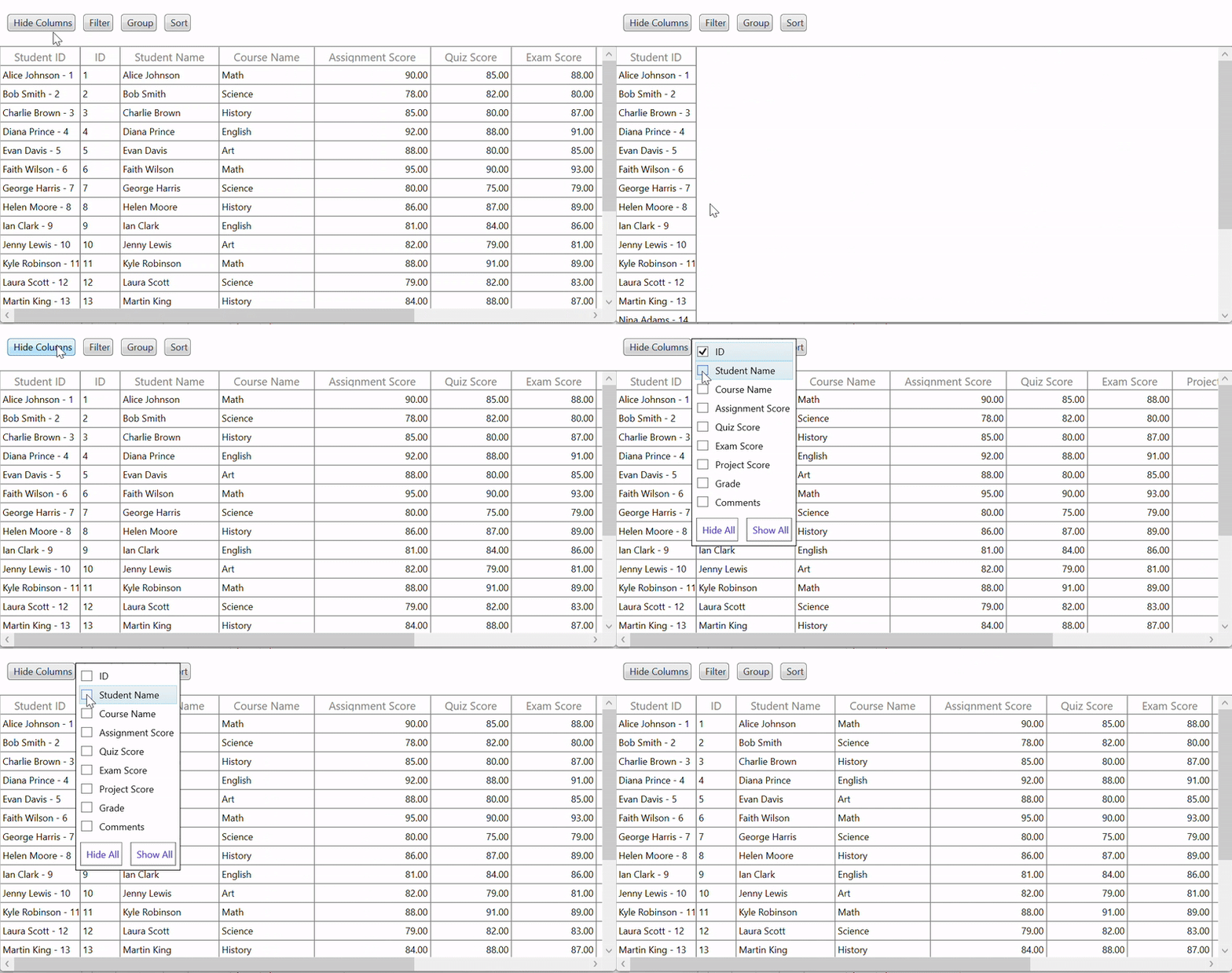
- The
HideColumns,ShowAllColumns, andHideAllColumnscommands manage column visibility in the DataGrid. HideColumnsandShowAllColumnsare linked to UI buttons or actions, toggling visibility.- The
ExecuteHideAllColumnsandExecuteShowAllColumnsmethods iterate through the column collection to set the IsHidden property.
Column visibility
You can easily toggle columns using the code example:
private void ExecuteHideColumns()
{
    IsOpenForHideColumns = true;
    //  which will open the show/hide all columns popup.
}

private void ExecuteHideAllColumns()
{
    foreach (var item in columns)
    {
        item.IsHidden = true;
    }
}

private void ExecuteShowAllColumns()
{
    foreach (var item in columns)
    {
        item.IsHidden = false;
    }
}
Sorting
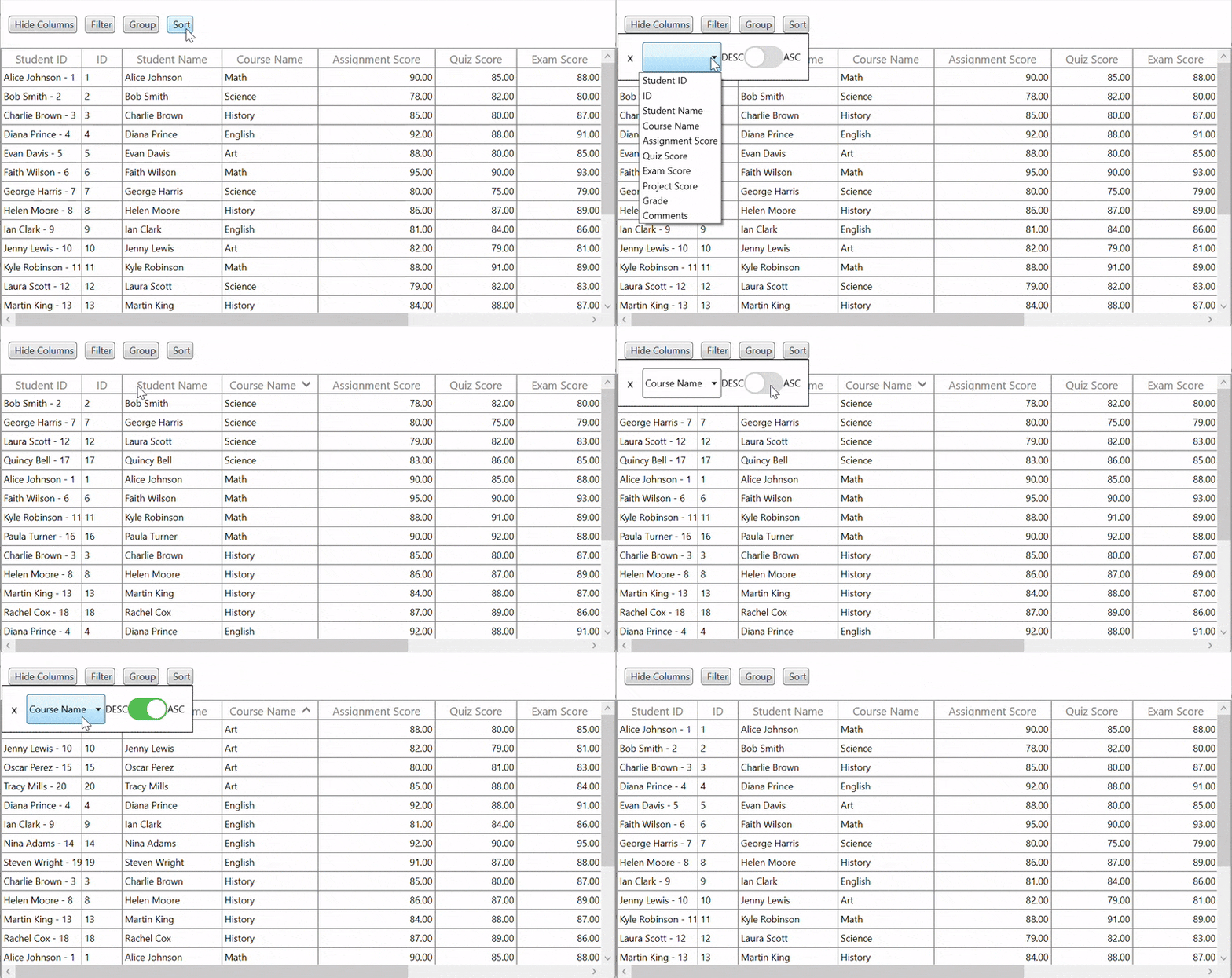
The SortColumns command manages the DataGrid’s sorting behavior through its associated ExecuteAddSorting method, which performs two key operations.
- Clears all existing sort descriptions
- Applies new sorting based on user input.
The SortColumnDescriptions collection property will be used from the ViewModel to handle this operation, as shown in the code example below:
private void ExecuteAddSorting()
{
    if (SelectedSortColumn != null)
    {
        SortColumnDescriptions.Clear();
        var sortColumnDescription = new SortColumnDescription()
        {
            ColumnName = this.SelectedSortColumn.Name,
            SortDirection = IsOnState
                ? ListSortDirection.Ascending
                : ListSortDirection.Descending
        };

        var tempCollection = new SortColumnDescriptions();
        tempCollection.Add(sortColumnDescription);
        SortColumnDescriptions = tempCollection;
    }
}
Grouping
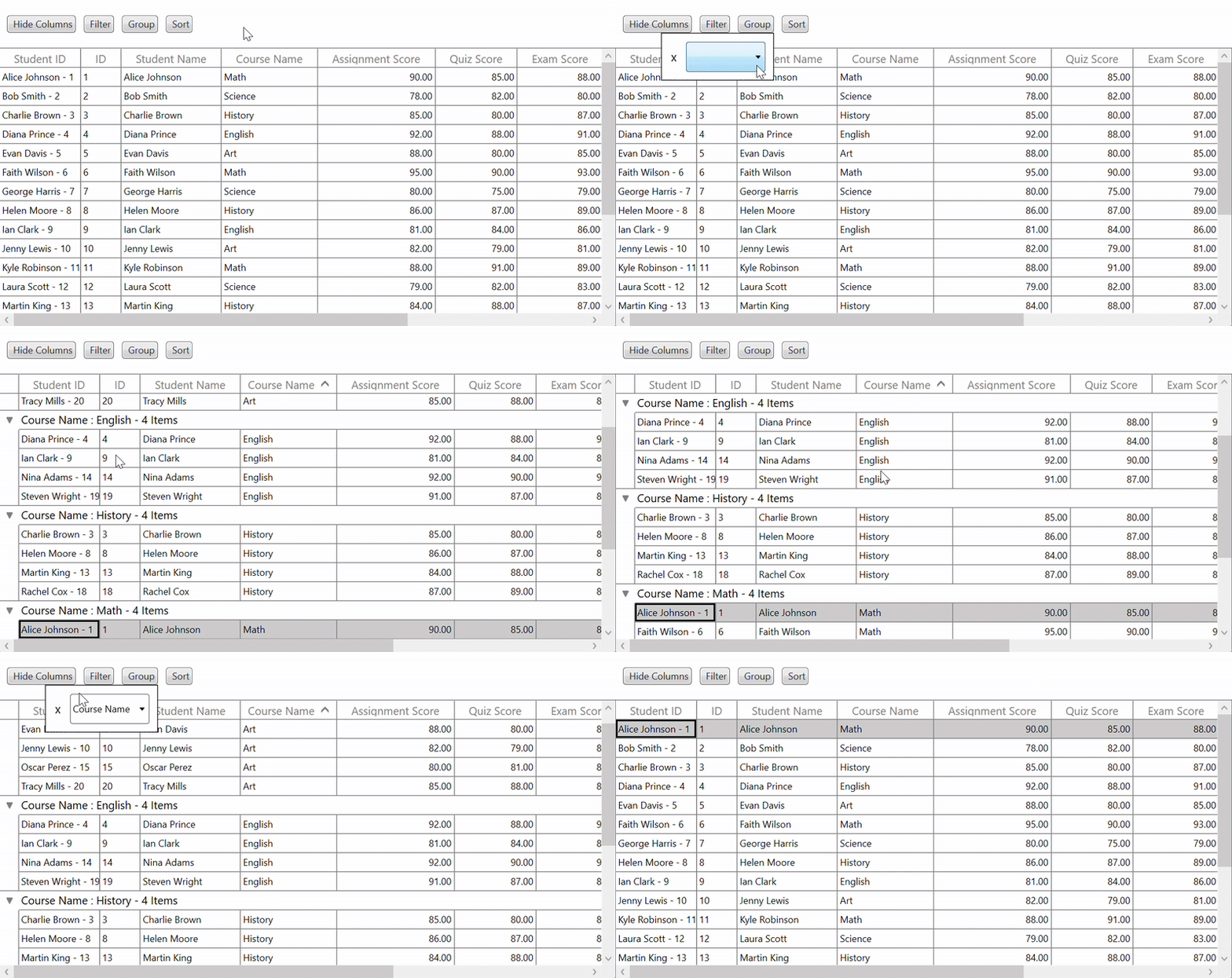
The GroupColumns command organizes data into logical categories. The ExecuteAddGrouping method clears previous grouping criteria and applies new ones, enhancing data analysis.
The GroupColumnDescriptions property is used here to handle this grouping operation, as shown in the code example below:
private void ExecuteAddGrouping()
{
    if (SelectedGroupColumn != null)
    {
        GroupColumnDescriptions.Clear();
        var groupColumnDescription = new GroupColumnDescription()
        {
            ColumnName = this.SelectedGroupColumn.Name
        };
        GroupColumnDescriptions.Add(groupColumnDescription);
    }
}
Filtering
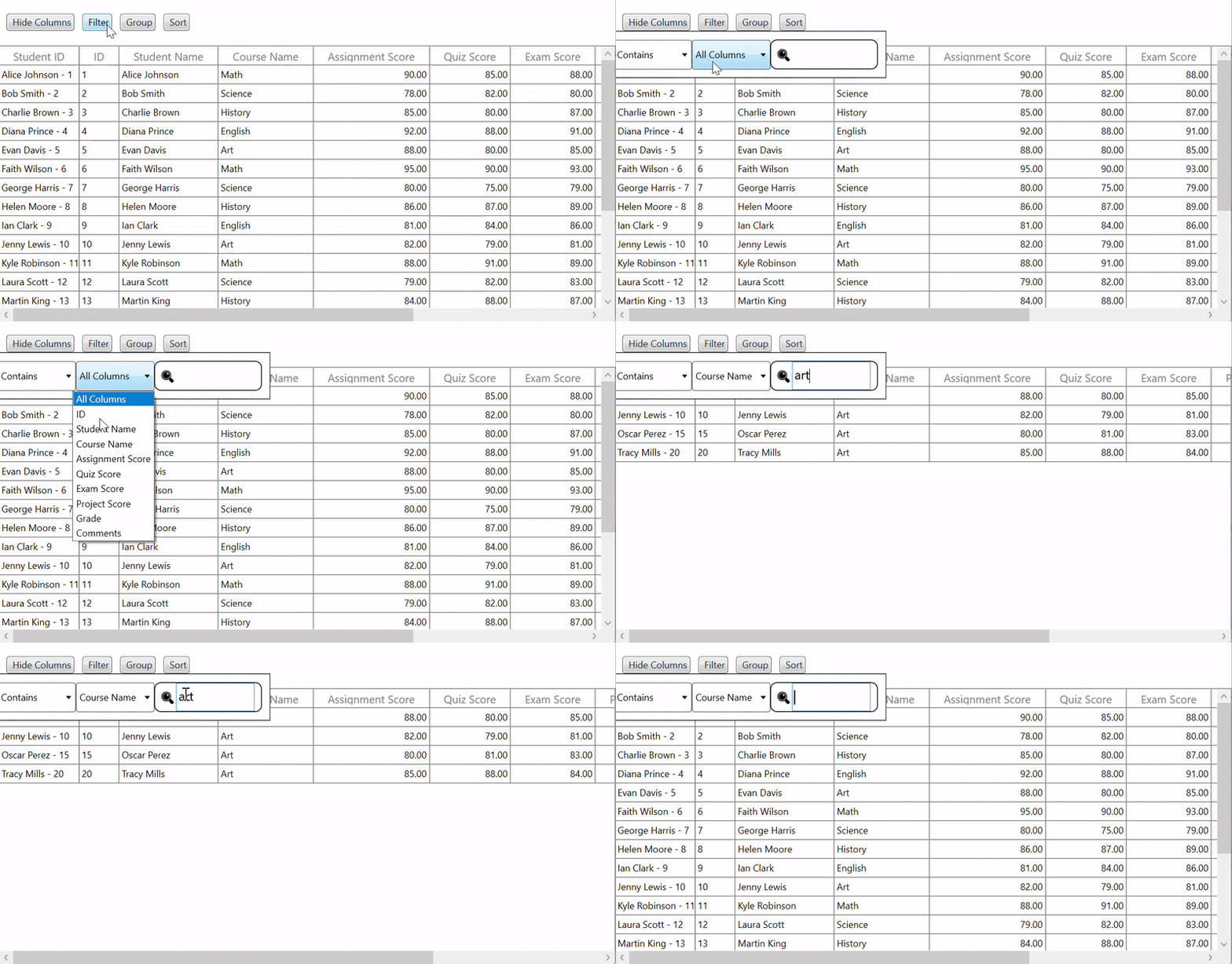
The FilterColumns command allows users to quickly narrow down results based on conditions.
The filtering logic uses helper methods such as MakeStringFilter() and MakeNumericFilter() to evaluate user-defined filter conditions.
public bool FilterRecords(object o)
{
    double res;
    bool checkNumeric = double.TryParse(this.FilterText, out res);
    var item = o as Grade;
    if (item != null && SelectedColumn != null)
    {
        if (checkNumeric
            && !this.SelectedColumn.Name!.Equals("All Columns")
            && !this.SelectedCondition!.Equals("Contains"))
        {
            bool result = this.MakeNumericFilter(
                item, this.SelectedColumn.Name,
                this.SelectedCondition
            );
            return result;
        }
        else if (this.SelectedColumn.Name!.Equals("All Columns"))
        {
            if (item.ID!.ToString().ToLower().Contains(this.FilterText!.ToLower())
                || item.StudentName!.ToString().ToLower().Contains(this.FilterText.ToLower())
                || item.SubjectName!.ToString().ToLower().Contains(this.FilterText.ToLower())
                || item.AssignmentScore!.ToString().ToLower().Contains(this.FilterText.ToLower())
                || item.QuizScore!.ToString().ToLower().Contains(this.FilterText.ToLower())
                || item.ExamScore!.ToString().ToLower().Contains(this.FilterText.ToLower())
                || item.ProjectScore!.ToString().ToLower().Contains(this.FilterText.ToLower())
                || item.Comments!.ToString().ToLower().Contains(this.FilterText.ToLower()))
            {
                return true;
            }
            return false;
        }
        else
        {
            bool result = this.MakeStringFilter(
                item,
                this.SelectedColumn.Name,
                this.SelectedCondition!
            );
            return result;
        }
    }
    return false;
}
GitHub reference
You can explore the full implementation of the School Gradesheet application on GitHub.
Frequently Asked Questions
How can I export the gradesheet to Excel or PDF?
You can enforce data validation in multiple ways: Implement Display validation errors in the UI to prevent invalid data entry and improve user experience.How do I validate grade scores (e.g., between 0–100)?
IDataErrorInfo or INotifyDataErrorInfo in your model, use ValidationRule in XAML bindings, and add a custom Validate() method before saving.
Yes, calculated values like GPA or letter grades can be added easily. Extend your model logic (e.g., For dynamic columns, use: This approach keeps calculations clean and separate from UI logic.Can I add calculated columns like GPA or letter grades?
CalculateFinalGrade()) and bind results to the grid.GridUnBoundColumn with QueryUnBoundColumnValue, and value converters in the ViewModel.
While the example uses in-memory collections, you can extend it to persist data using Entity Framework Core (database storage), and JSON or CSV (file-based storage). Add save/load methods in the ViewModel and ensure proper error handling and UI refresh after loading data.How can I persist grade data to a database or file?
Enable editing directly in the DataGrid by setting Bind save actions to commands in the ViewModel and update the How do I allow users to add or edit student records in the DataGrid?
AllowEditing="True", and AddNewRowPosition for inserting new rows.ObservableCollection. Add validation to ensure required fields are completed before saving.
Wrap Up
By combining a structured ViewModel with a flexible WPF DataGrid, you’ve built a complete grade management system that supports real-world needs like sorting, grouping, and filtering.
This approach keeps your code clean, scalable, and easy to extend, whether you’re adding analytics, exporting data, or integrating with other systems.
If you’re a Syncfusion user, you can download the setup from the license and downloads page. Otherwise, you can download a free 30-day trial.
You can also contact us via our support forums, support portal, or feedback portal for queries. We are always happy to assist you!





 No spam, just valuable updates.