
 Sumathi Uthayakumar
TL;DR: Your Excel file looks perfect, until charts disappear and images move after import. Learn why web spreadsheets struggle with Excel visuals, the architectural challenges behind these failures, and how modern spreadsheet applications preserve charts, images, and layouts across import/export workflows.
You create a polished Excel report with charts, images, and formatted data, all working perfectly. But the moment it’s opened in a web-based spreadsheet, things start falling apart. Charts don’t render, images shift out of place, and suddenly the file feels unreliable.
This isn’t just a rendering glitch. It’s a deeper compatibility issue between how Excel structures visual objects and how most web spreadsheet tools process them.
Let’s look at why this happens, what developers need to understand when handling Excel files in web applications, and how Syncfusion® React Spreadsheet Editor addresses these challenges with practical, ready-to-use code.
Why charts and images break during Excel import/export
Understanding the failure modes makes troubleshooting and solution selection much easier.
Charts are structured, data-driven objects, not static visuals
An Excel chart isn’t just an image. It’s a fully defined object that includes data ranges, chart type, series configuration, axis settings, and formatting rules.
When a spreadsheet is imported into a web app, many libraries focus mainly on cell data. If the chart definition isn’t fully parsed and reconstructed, the chart either disappears or loses its connection to the underlying data.
Sometimes the chart appears, but without valid data references. In those cases, what looks like a rendering issue is actually a broken data binding.
Image anchoring and layout rules are often ignored
Images in Excel are positioned using anchoring rules. They can move with cells, resize dynamically, or stay fixed depending on configuration.
When these rules aren’t preserved during import, images can:
- Shift unexpectedly
- Overlap with other content
- Lose alignment entirely
Even though the file looks correct in Excel, the layout breaks the moment it’s processed by a web-based editor.
Web spreadsheet engines prioritize cell data
Most web spreadsheet tools are designed with a primary focus on cell values and formulas. Handling charts and images requires additional processing, reconstructing object models, preserving relationships, and maintaining layout behavior.
Because of this complexity, some tools:
- Skip charts and images entirely
- Convert charts into static images
- Partially load visuals without interactivity
This creates inconsistencies, especially when files are exported back to Excel.
What reliable import/export requires
To properly handle Excel files with charts and images, a web spreadsheet solution needs to go beyond simple data parsing.
At a minimum, it should:
- Recreate chart objects with their full configuration
- Maintain live connections between charts and data ranges
- Preserve image positioning and anchoring rules
- Ensure exported files remain editable in Excel
This last point, consistency between import and export, is critical. If a file loses structure during the round trip, it impacts both usability and trust.
How Syncfusion React Spreadsheet preserves Excel charts and images
Our React Spreadsheet Editor is designed to handle Excel visuals as real spreadsheet objects. Charts and images are correctly processed throughout the full Excel import export cycle, not ignored, flattened, or converted into static content.
Handling Excel Charts in React Spreadsheets
When working with Excel import and export, charts must be handled as data-driven objects, not static visuals. The React Spreadsheet processes charts as structured models to ensure they render correctly during the full import-export cycle.
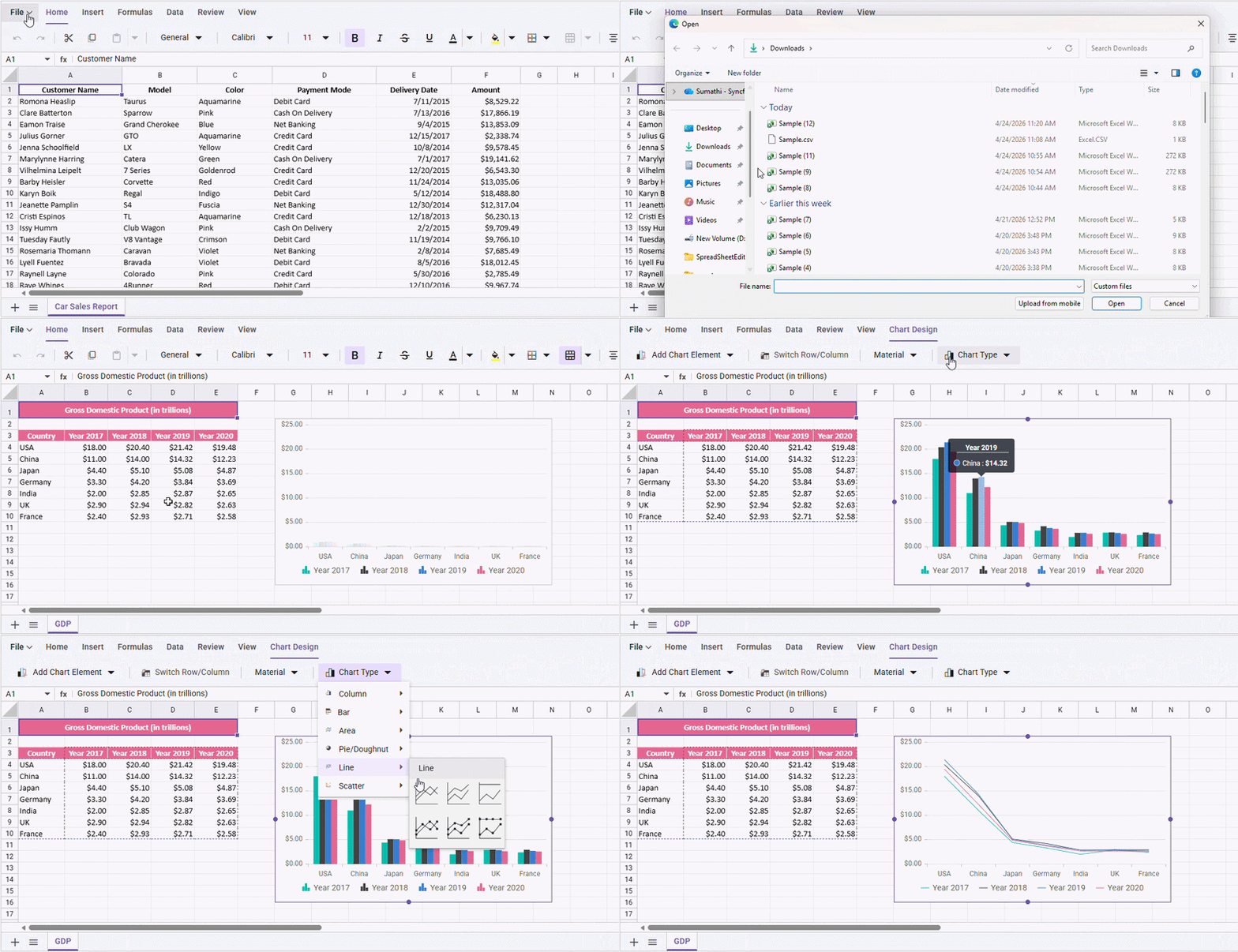
You can import and export Excel files, including charts and images, programmatically using the open() and save() methods, and the same operations are also available through Spreadsheet UI.
// Import Excel file
spreadsheet.open({
    file: 'Workbook.xlsx'
});
// Export Excel file
spreadsheet.save({
    url: 'https://document.syncfusion.com/web-services/spreadsheet-editor/api/spreadsheet/save',
    saveType: 'Xlsx',
    fileName: 'ExportedWorkbook’
});
For detailed information on Excel import and export features, refer to our React Spreadsheet user guide for Import and export.
Charts are imported as a collection using the ChartModel interface, allowing them to be rendered properly in the Spreadsheet. Unsupported chart types are either converted to a supported type or may not render fully, depending on compatibility. Set the allowChart property to false to disable chart rendering during import.
If your users are losing chart data every time a file moves through your web app, explore our React Spreadsheet Editor live chart demo.
Handling Excel images and layout
When working with Excel import and export, images must be handled as layout-aware visual elements, not static content. Our React Spreadsheet processes them as structured models to ensure they render correctly and maintain positioning during the full import-export cycle.
During import, images are parsed and stored as a collection using the ImageModel interface, with the source maintained as a string.
If image rendering is not required, you can disable it by setting the allowImage property to false.
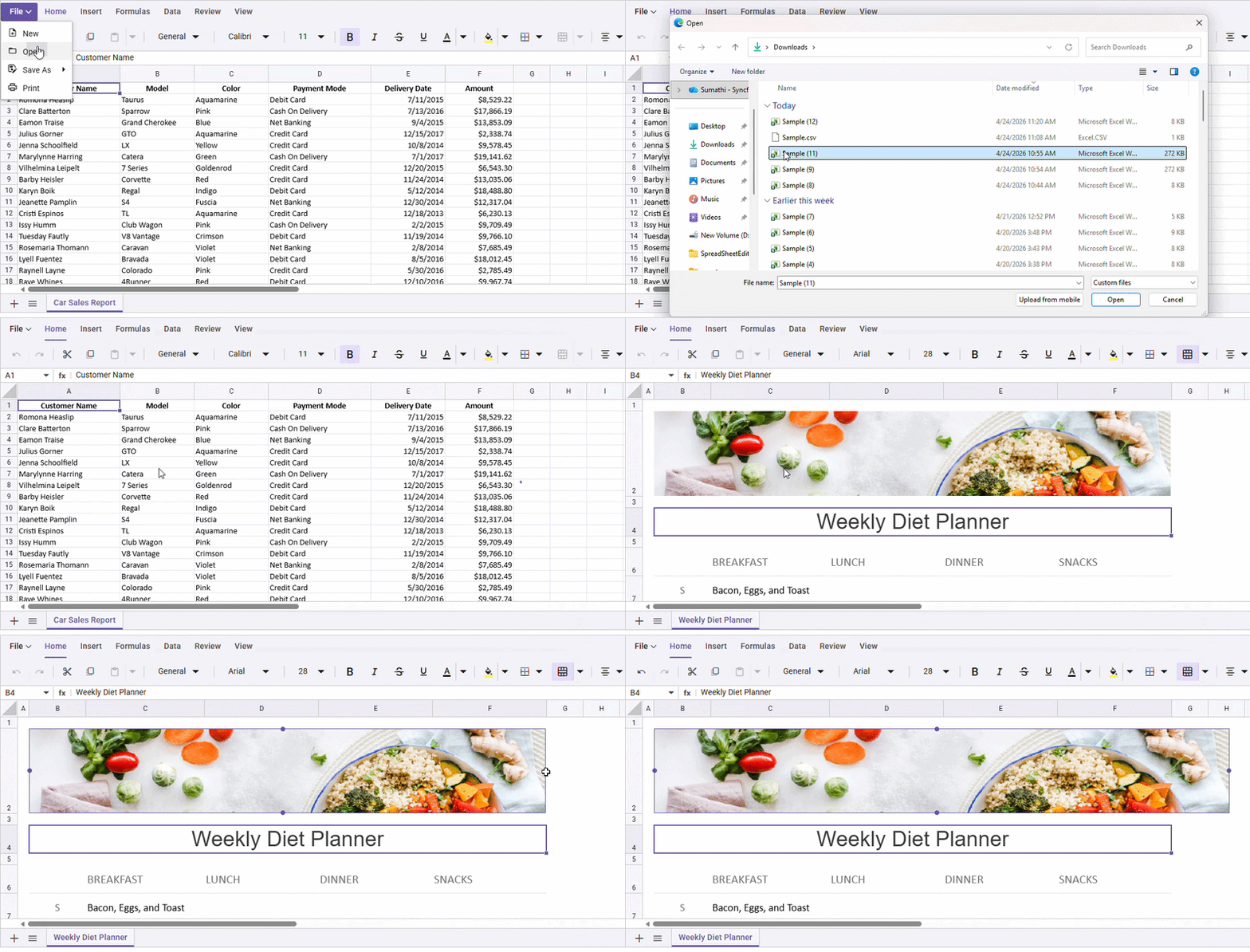
Stop losing image layout every time a file moves through your React Spreadsheet import workflow.
Troubleshooting: Missing charts and images
If charts or images are not appearing correctly after import, the issue usually comes down to a few predictable factors.
For charts
- Unsupported chart types
- Broken or invalid data references
- Complex Excel features (macros, add-ins) that aren’t supported
For images
- Unsupported formats or embedded objects
- Missing or inconsistent anchoring rules
- Positioning that relies on Excel-specific behaviors
General checks
- Ensure chart and image support is enabled in your spreadsheet configuration
- Validate that the import/export pipeline isn’t stripping visual objects
These checks often reveal whether the issue lies in the file itself or in the processing layer.
Still seeing Excel charts or images not showing after import? View the React Spreadsheet Editor Image live demo
Frequently Asked Questions
Yes. After importing an Excel file into Syncfusion React Spreadsheet, supported Excel charts can be resized and repositioned directly within the web spreadsheet. These layout changes are preserved when exporting the file back to Excel, as long as the chart remains a native chart object and is not converted into a static image.Can Excel charts be resized or repositioned after importing into Syncfusion React Spreadsheet?
Yes. Our React Spreadsheet preserves images as spreadsheet image objects during Excel import and export. This ensures that the original image resolution and format are retained during export, avoiding quality loss or flattening.Can images be exported without quality loss when using Syncfusion React Spreadsheet?
Yes. Our React Spreadsheet supports Excel charts across multiple worksheets, provided the chart’s referenced data ranges and dependencies are accessible and supported during import and export.Does Syncfusion React Spreadsheet support Excel charts across multiple worksheets?
What is the recommended way to test Excel import export accuracy before going to production?
Yes. After importing an Excel file, you can modify the chart type within Syncfusion React Spreadsheet. Charts remain interactive, allowing you to switch between supported chart types. This flexibility helps you refine data visualization without recreating charts from scratch.Can the chart type after importing an Excel file into Syncfusion React Spreadsheet?
Syncfusion React Spreadsheet requires a valid license for production use, while a free trial is available for evaluation.Is Syncfusion React Spreadsheet free to use for excel import export features?

Conclusion
Thank you for reading! Charts and images are essential to how users interpret Excel data. When they break during import or export, it’s not just a visual issue; it disrupts the entire workflow.
For developers building spreadsheet features into web applications, understanding these limitations is key. The goal isn’t just to display Excel data; it’s to preserve the full experience users expect when they move between Excel and the browser. Syncfusion React Spreadsheet Editor handles this by treating charts and images as first-class spreadsheet objects.
If you’re building a web spreadsheet workflow that needs to handle real-world Excel files reliably, this is worth evaluating.
👉Try Syncfusion React Spreadsheet Editor
👉View the Syncfusion React Spreadsheet Editor Image live demo
If you’re a Syncfusion user, you can download the setup from the license and downloads page. Otherwise, you can download a free 30-day trial.
You can also contact us through our support forum, support portal, or feedback portal for queries. We are always happy to assist you!




 No spam, just valuable updates.