Try Our Live Demo
Define workflow stages and keep work moving
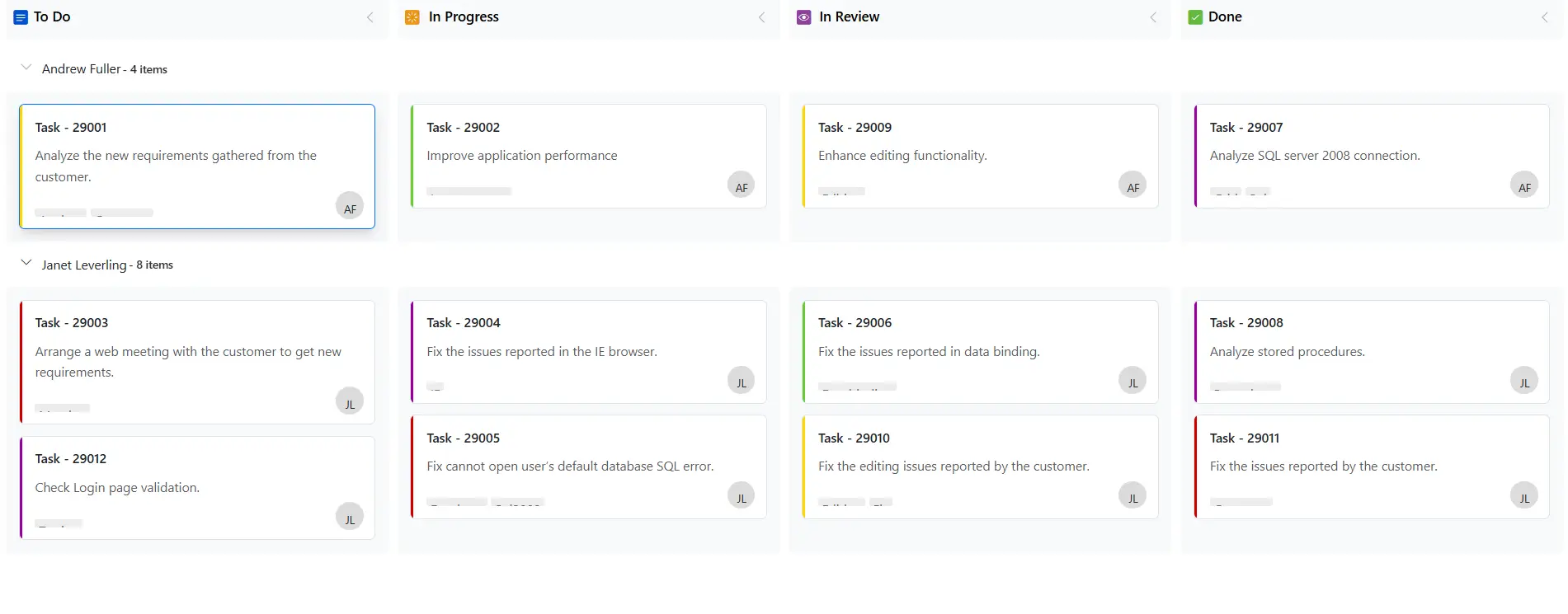
Workflow management organizes tasks through defined stages while maintaining data integrity. Column configuration enables flexible stage mapping, template customization presents information in business context, editing workflows support data management, and validation rules maintain balanced workload distribution across workflow stages.
Define workflow stages
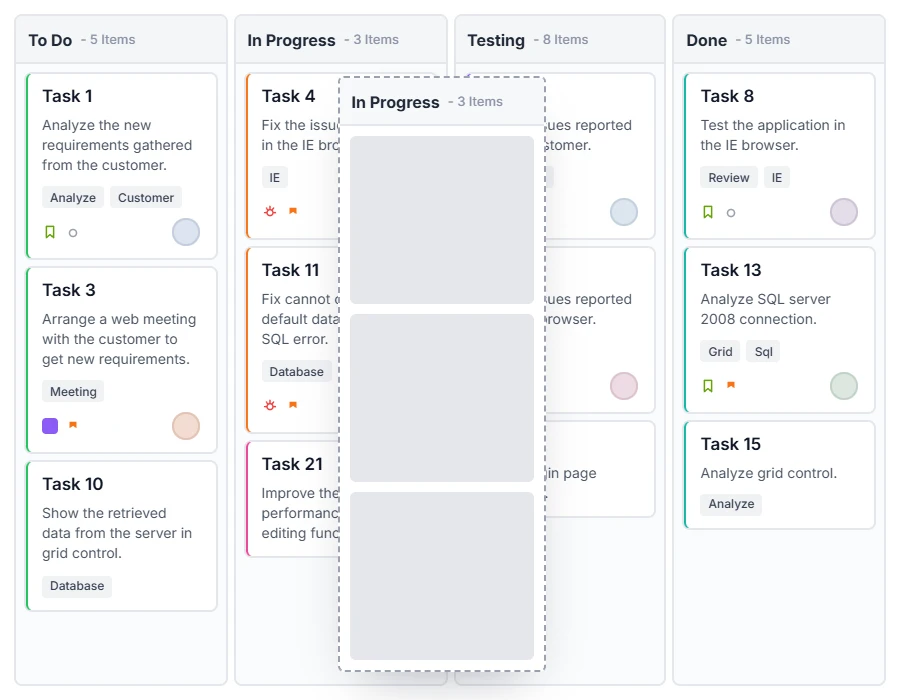
Columns represent each workflow stage. Map single or multiple status values per column, customize headers with templates, and toggle visibility to adapt the board layout for different stakeholders and project phases.
- Align board structure with business workflows to manage work according to organizational standards
- Reduce visual clutter by consolidating similar workflow stages into single columns
- Adapt board layout for different stakeholders without restructuring underlying data
- Reorganize columns as processes evolve without reprocessing existing cards
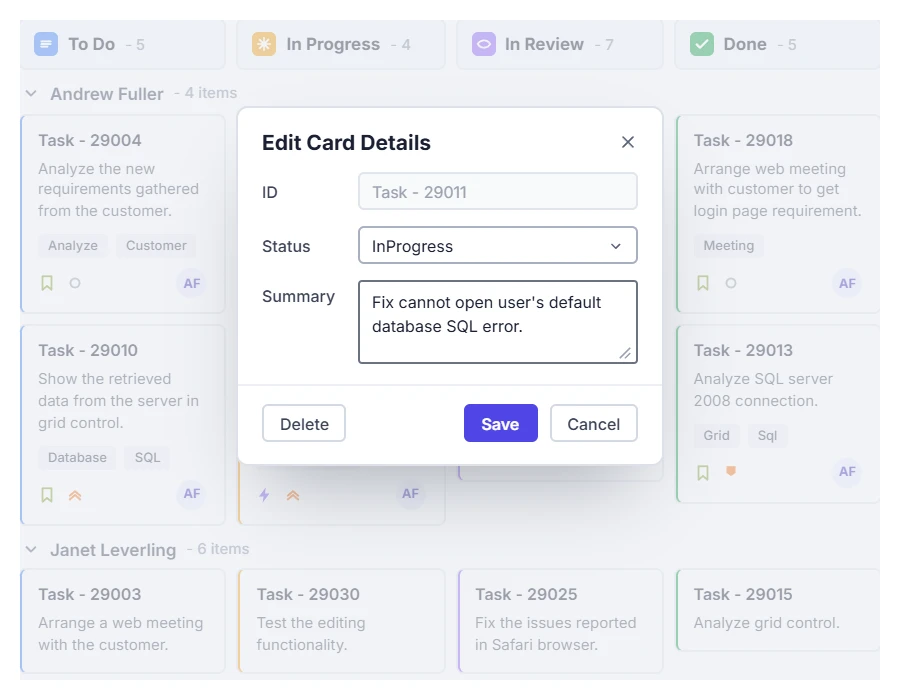
Edit card details
Built-in dialog enables adding, updating, and deleting cards without leaving the board. Default fields auto-map from your data structure, while custom configurations support text inputs, dropdowns, numeric fields, and text areas for business-specific requirements.
- Update card details with minimal interaction while maintaining information accuracy
- Enforce data quality through configurable validation rules
- Capture domain-specific context with custom fields beyond status
- Streamline task lifecycle management with built-in add and delete operations
Customize presentation
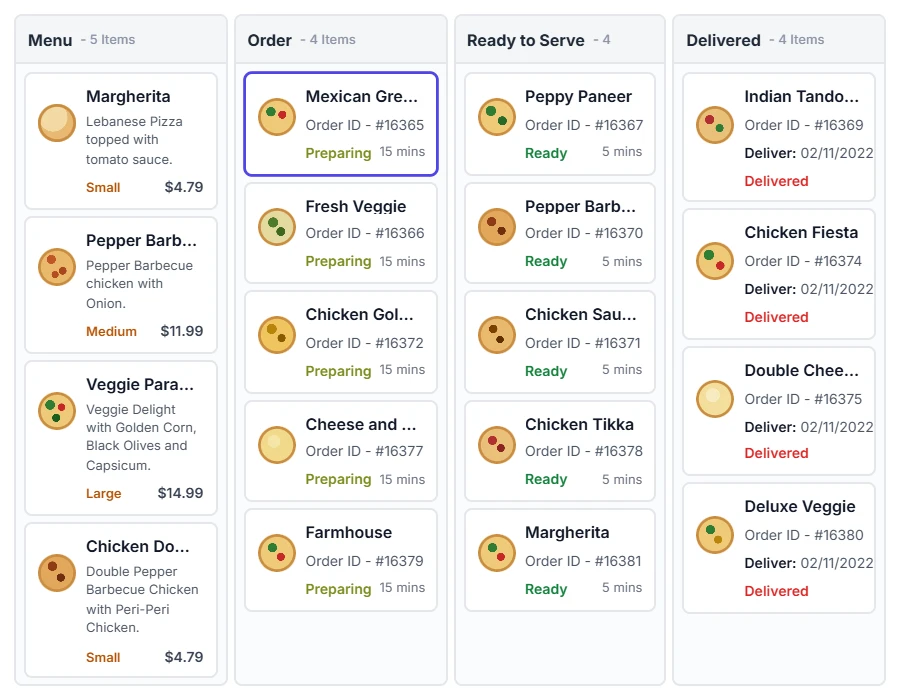
Templates define how cards and columns display information without modifying data. Customize card headers, content, column appearances, and apply conditional styling for visual hierarchy based on business context and reporting needs.
- Display task information with organization-specific terminology and visual hierarchy.
- Highlight important properties with conditional styling based on priority or risk.
- Present the same data in different formats for different stakeholder needs.
- Brand the board experience to match corporate identity without modifying data.
Apply work limits
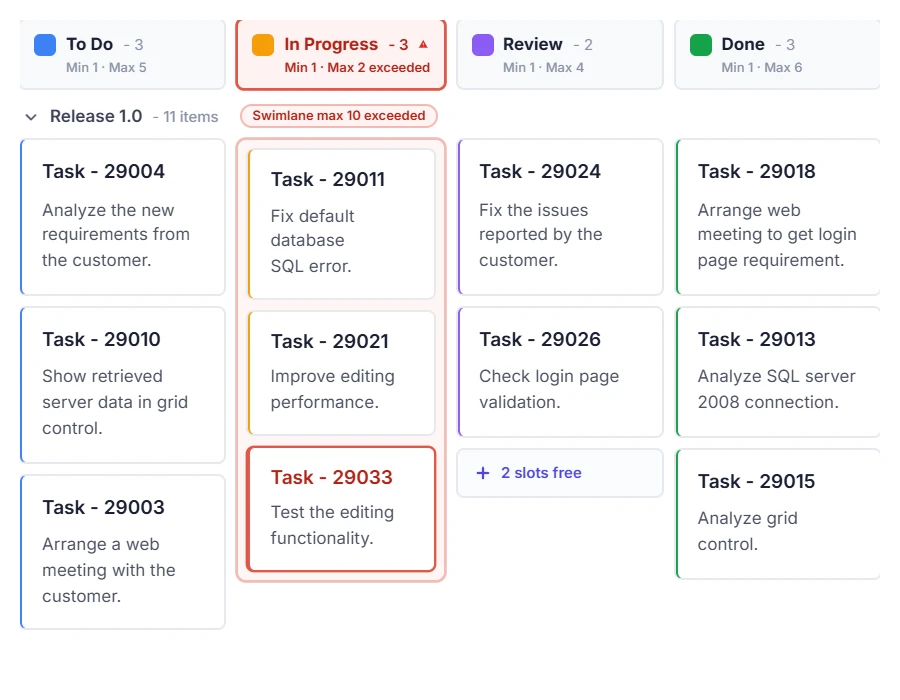
Work-in-progress validation enforces minimum and maximum card limits on columns and swimlanes. Visual indicators highlight constraint violations, helping teams identify overloaded stages and maintain balanced workload distribution across workflow process.
- Prevent stage starvation by ensuring sufficient work for consistent team processing.
- Protect team capacity by limiting concurrent work and surfacing overload situations.
- Validate work distribution across team members and resource types.
- Identify and resolve bottlenecks before they cascade through the workflow.
Virtual scrolling
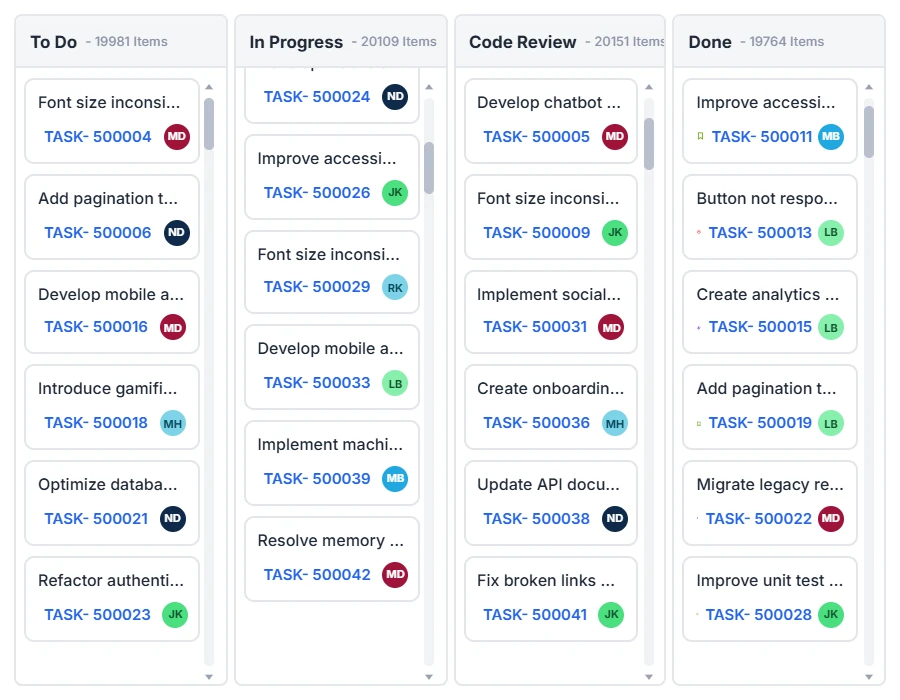
Virtual scrolling loads only visible cards in the viewport, enabling smooth interaction with large datasets. As users scroll, cards load dynamically on demand while invisible cards unload, preventing performance overhead when working with hundreds or thousands of cards.
- Scale boards to handle growing backlogs and large portfolios without performance degradation.
- Maintain responsiveness when managing hundreds or thousands of cards across workflow stages.
- Reduce resource consumption on individual browsers and devices for better collaboration.
- Grow project complexity without board restructuring or data archival strategies.
PLATFORM SUPPORT
Kanban Board workflow management across platforms
Column configuration, card editing, templates, WIP validation, and virtual scrolling are supported across web, desktop, and cross-platform implementations. All platforms provide comprehensive workflow management capabilities with .NET MAUI and WinUI support.
| Capability | JS, React, Angular & Vue | Blazor | ASP.NET Core & MVC | WPF | UWP | .NET MAUI | WinUI |
|---|---|---|---|---|---|---|---|
| Column Configuration | |||||||
| Card Editing | |||||||
| Card Templates | |||||||
| Column Templates | |||||||
| WIP Validation | |||||||
| Virtual Scrolling |
Frequently Asked Questions
How can I consolidate multiple status values into a single Kanban column?
Syncfusion Kanban supports multi-key column mapping, allowing you to combine related workflow statuses into one column without modifying your source data. For example, you can map “In Progress,” “In Review,” and “Testing” statuses to a single “Development” column, reducing visual clutter while maintaining data accuracy.
Can I customize both card content and column headers independently?
Yes, templates provide independent customization. Card templates control how individual task information appears within each card. Column templates customize the column header appearance and structure. Both template types accept HTML and CSS, allowing header styling separate from card presentation logic.
How can I edit Kanban cards directly from the board?
Users can add, edit, and delete cards using built-in editing dialogs. The editing interface supports custom fields, input validation, and configurable forms, making it easy to manage task information while maintaining data accuracy.
What are the benefits of setting WIP limits in Syncfusion Kanban?
Work-in-progress limits in Syncfusion Kanban enforce minimum and maximum card constraints at column or swimlane levels, preventing overloaded stages and identifying bottlenecks before they cascade. Visual indicators alert teams when limits are exceeded, promoting balanced workload distribution and maintaining sustainable team capacity.
How does virtual scrolling in Syncfusion Kanban improve performance with large datasets?
Syncfusion Kanban’s virtual scrolling renders only visible cards in the viewport, eliminating performance overhead regardless of dataset size. Whether you have 50 or 5,000 cards across your board, memory consumption stays proportional to viewport size, ensuring smooth interaction and responsiveness as your project backlog grows.
How does data binding work in the Kanban board?
The Kanban board supports binding to both local and remote data sources. Cards are automatically created from the mapped fields, and updates to the data source are reflected on the board, ensuring a consistent and up-to-date view of workflow data.
Documentation
Column configuration
Configure single-key and multi-key column mappings to organize workflow stages based on datasource status values.
Card templates and customization
Use templates to customize card headers, content, and column presentations without modifying underlying data.
WIP validation and constraints
Apply work-in-progress limits at column or swimlane level to maintain balanced workload distribution.
Resources
Learn more about our Kanban Board
Explore demos, KB articles, and documentation to get the most out of Kanban Board.
Explore guides, APIs, and quick-start tips
See live use cases in action
Ask, share, and connect with peers
Find solutions and best practices fast
Get expert help when needed
Feature requests and bug reports
Track issues and suggest improvements
Awards
Greatness—it’s one thing to say you have it, but it means more when others recognize it. Syncfusion® is proud to hold the following industry awards.