
 Rangarajan Ashokan
TL;DR: Facing broken or unreliable PDF text search in React PDF viewers? Discover what causes missed results, poor highlighting, and slow performance, and how modern PDF viewer capabilities like accurate text extraction, OCR for scanned documents, and advanced search navigation deliver faster, scalable, and user-friendly search experiences in document-heavy web apps.
PDFs are everywhere: contracts, reports, manuals, and more. But when users try to search within them in a web app, the experience isn’t always smooth. Missed matches, broken highlights, and sluggish performance are surprisingly common in many React-based PDF viewers.
If you’ve run into these issues while building document-heavy applications, you’re not alone. The problem isn’t just the viewer; it’s how PDFs themselves are structured and interpreted in the browser.
Let’s take a closer look at where things go wrong and how Syncfusion® React PDF Viewer addresses these challenges.
Why text search fails in React PDF Viewers
Searching inside a PDF might sound straightforward, but under the hood, it’s anything but. Several technical limitations make reliable text search difficult.
Font encoding issues
Some PDFs use custom fonts where characters don’t map cleanly to readable text. While everything looks fine visually, the underlying data may not correspond to actual letters. As a result, searches either fail or return incorrect matches.
Rendering-based text extraction
Instead of reading the document’s text layer, some viewers attempt to extract text after the page has rendered visually. This approach is unreliable, especially for complex layouts, and often leads to incomplete or inaccurate results.
Lack of OCR support
Scanned PDFs are essentially images. Without Optical Character Recognition (OCR), there’s no text to search at all. Many React viewers skip OCR entirely, leaving these documents unsearchable unless an external solution is added.
See it in action (or inaction!) — this Litera support article shows how even OCR-processed PDFs can fail to deliver searchable text, highlighting the importance of reliable OCR integration.
Poor match navigation
Even when search results are found, navigating between them can be frustrating. Missing highlights, inconsistent scrolling, or a lack of proper navigation controls make it harder for users to move through matches efficiently.
Missing text layers
Some PDFs don’t contain a proper text layer either because they’re flattened or built from images. In these cases, search functionality simply can’t work as expected.
Want to see how developers tackle this? Check out this Stack Overflow thread, where users demonstrate how to programmatically trigger search and navigate matches using the PDFFindController in PDF.js
How Syncfusion PDF Viewers solve these challenges
A well-designed PDF viewer doesn’t just display documents; it understands them. Advanced solutions tackle these issues at their root, delivering a much smoother search experience.
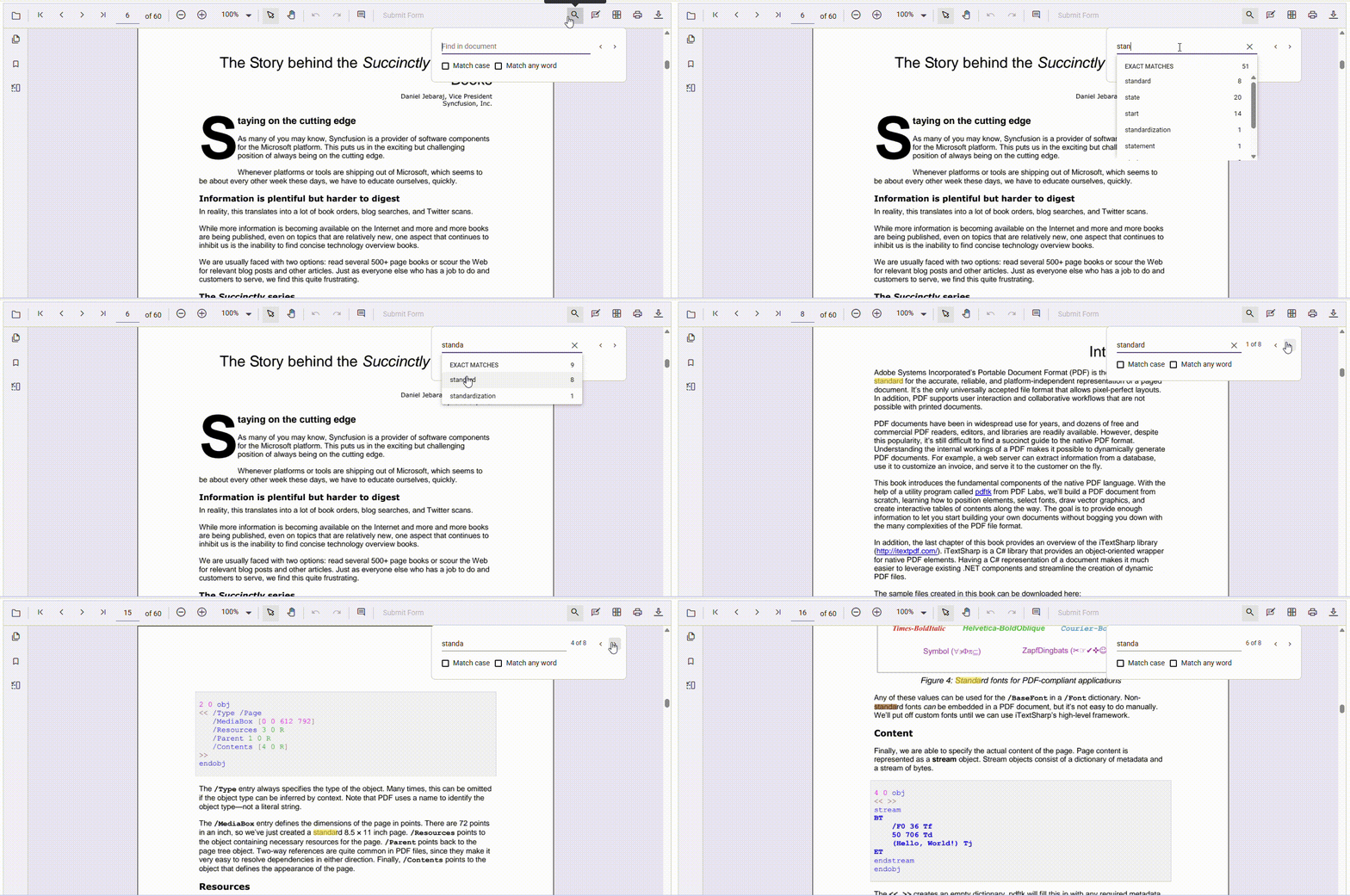
Here’s how Syncfusion transforms the PDF search experience:
Reliable text extraction
Modern engines decode complex fonts and extract text directly from the source, rather than relying on visual rendering. This ensures more accurate results, even for non-standard documents.
Support for complex documents
Irregular layouts, embedded fonts, and multilingual content are handled consistently. This makes search functionality dependable across a wide range of file types.
Built-in navigation tools
Instead of leaving users guessing, robust viewers include:
Search NextandSearch Previousmatch navigation- Keyboard shortcuts
- Clear highlights synced with scrolling
These features make moving through results fast and intuitive.
OCR for scanned documents
Integrated OCR capabilities convert image-based PDFs into searchable text. This significantly expands what users can work with, requiring no third-party tools.
You can explore the full range of search modes from basic to advanced in the Syncfusion PDF Viewer. Want to dive deeper? Check out the official documentation and live demo to see it in action.
Making PDF search faster and smarter
Beyond solving core issues, the best implementations also focus on improving usability and performance.
Let’s explore the best practices that make your PDF search smarter and more reliable:
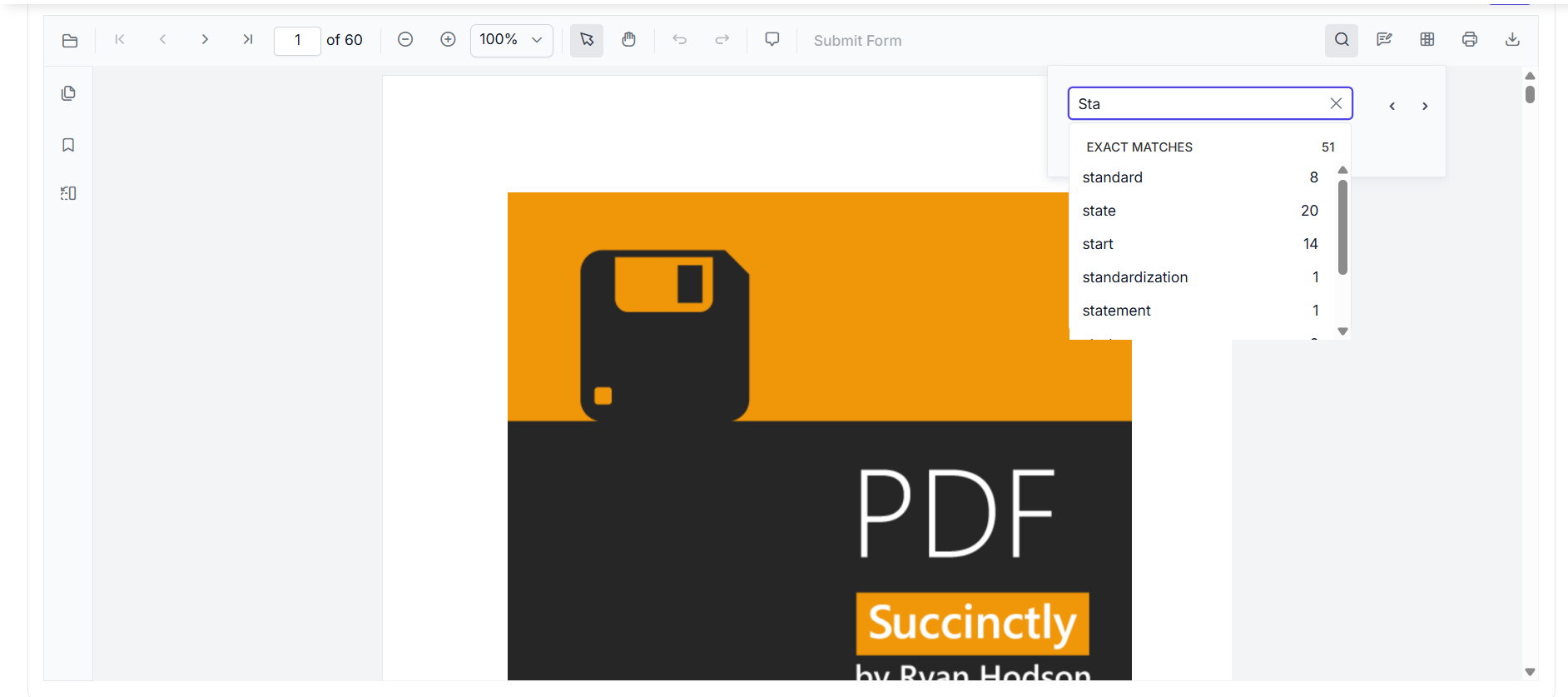
Smart search suggestions
As users type, real-time suggestions can guide them to relevant matches. This is especially helpful in large documents where manual scanning is impractical.
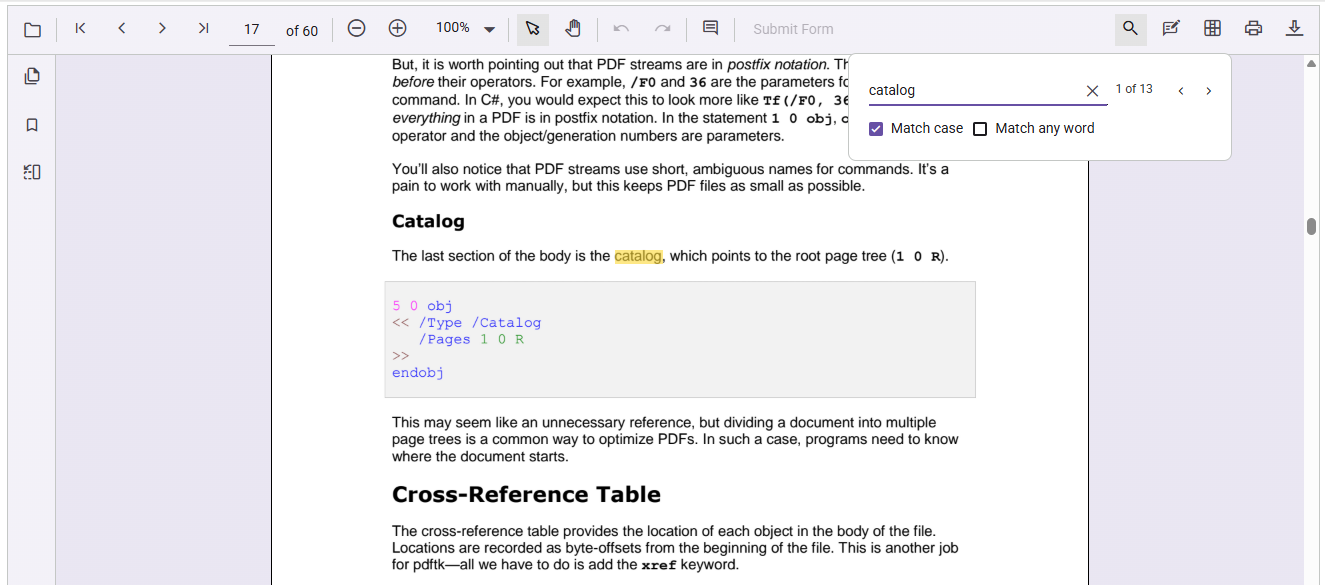
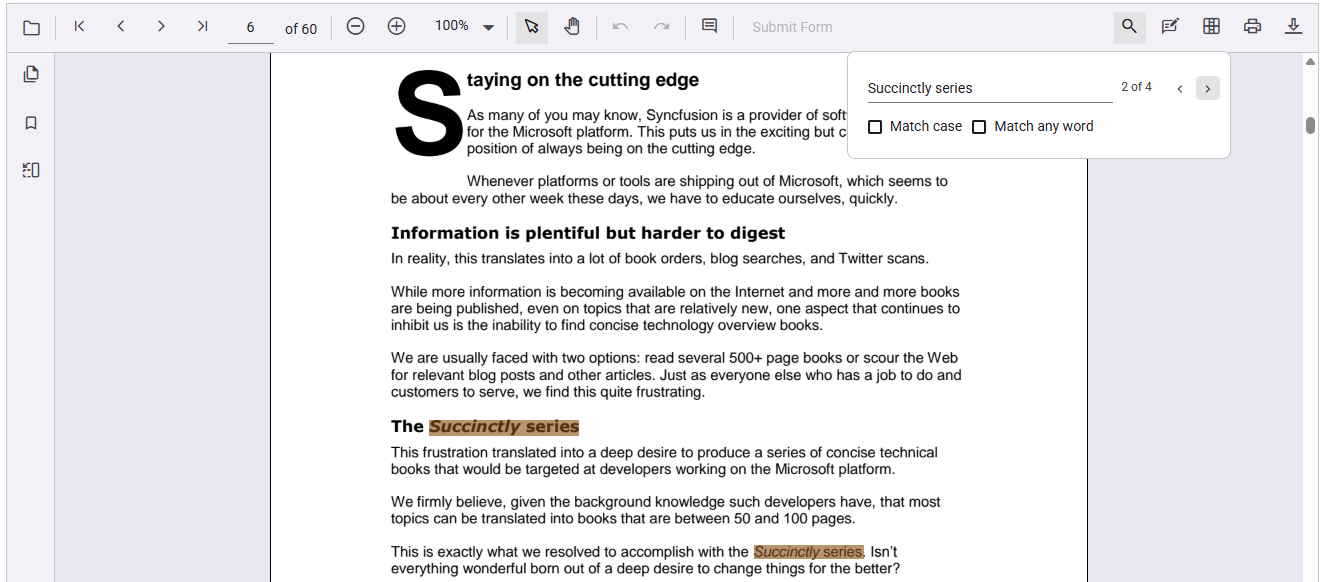
Match case for precision
- Enable case-sensitive search to ensure results only include text that matches the exact capitalization of the input.
- This is especially useful in technical, legal, or academic documents where case matters and false positives must be avoided.
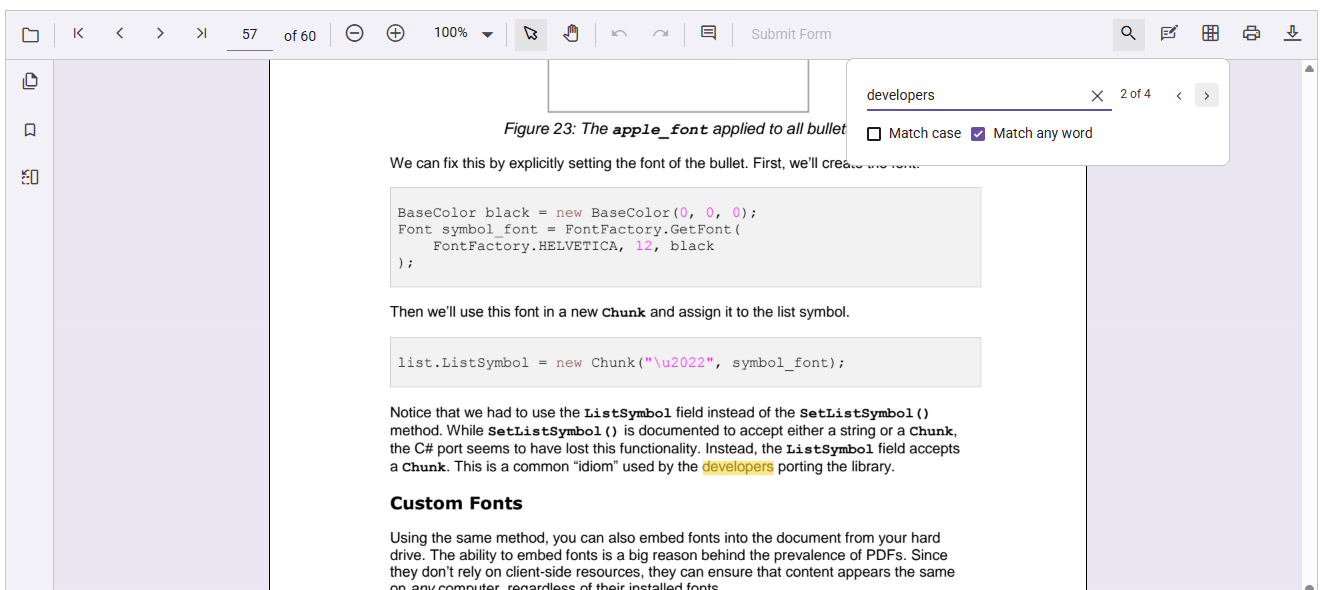
Match any word for broader discovery
- Break down the search input into individual words and search for each separately.
- This helps users find relevant content even if they don’t know the exact phrase, improving accessibility and reducing missed results during PDF text search.
Search multiple terms at once
As users type, real-time suggestions can guide them to relevant matches. This is especially helpful in large documents where manual scanning is impractical.
Optimized performance
Efficient indexing and memory handling keep searches fast, even in large or multi-page files. A responsive experience makes a big difference in day-to-day use.
Enable/disable text search
- Use the
enableTextSearchproperty to control search access. Tailor the viewer experience to your app’s needs. - Ideal for role-based access or optimizing performance in image-heavy PDFs where PDF text search can be optional.
Asynchronous search for smooth performance
Search operations can run in the background without freezing the UI. This keeps the interface smooth, even during complex queries.
Want to see these features in action? Check out the documentation for practical examples and tips on using asynchronous search effectively in your workflow.
Frequently Asked Questions
Visible text doesn’t always mean searchable text. Many PDFs lack an embedded text layer. Syncfusion React PDF Viewer relies on this layer, improving search accuracy over viewers that depend only on visual rendering.If a PDF looks readable, why does text search still fail in some viewers?
Not completely. OCR accuracy varies based on scan quality and font clarity. Syncfusion works well with OCR-processed PDFs, but search quality still depends on the accuracy of OCR output.Can OCR alone fix all search issues in scanned PDFs?
Yes, in most cases. Its advanced text extraction engine reduces common search issues. However, fully image-based or flattened PDFs remain challenging across all viewers.Will switching to Syncfusion React PDF Viewer resolve most search inaccuracies?
Yes. Large or complex PDFs can slow search. Syncfusion handles this with asynchronous processing and efficient parsing, keeping searches responsive even in large documents.Does document size or complexity affect PDF search performance?
It provides match highlighting and sequential navigation, allowing users to move through results while maintaining context, especially useful in long documents.How does Syncfusion React PDF Viewer handle navigation between multiple search matches?
Yes. Developers can control features like enabling/disabling search, case sensitivity, and match highlighting using built-in APIs.Can developers customize search behavior in Syncfusion React PDF Viewer?
Yes. Syncfusion APIs allow scoping searches to specific page ranges, making targeted searches faster and more efficient.Is it possible to limit text search to specific pages or sections?
Only minimally. Features like case-sensitive or whole-word matching are handled efficiently through asynchronous processing without impacting performance noticeably.Does enabling advanced search options affect performance?
Conclusion
Search is one of the most important features in any PDF viewer, but it’s also one of the hardest to get right. From font encoding quirks to scanned documents without text layers, there are many reasons why traditional approaches fall short.
Syncfusion React PDF Viewer solves these problems with better text extraction, built-in navigation, and integrated OCR. The result is a faster, more reliable search experience that works across a wide range of documents.
For developers, this means less time dealing with edge cases and more time building features that matter. And for users, it means finding the right information, quickly and without frustration.
Explore the full guide: React PDF Viewer
Try it live: React PDF Viewer Demo
If you’re a Syncfusion user, you can download the setup from the license and downloads page. Otherwise, you can download a free 30-day trial.
You can also contact us via our support forums, support portal, or feedback portal for queries. We are always happy to assist you!




 No spam, just valuable updates.