
 Arun Kumar Chandrakesan
TL;DR: Tired of chaotic review cycles? The Syncfusion DOCX Editor brings Word‑like Track Changes to the browser, no Microsoft Word or Office interop required. Turn on real‑time tracking, scan edits in a clean Revisions Pane, accept/reject via UI or API, and lock approvals with RevisionsOnly protection. Result: faster reviews, clean formatting, and programmable control that scales.
Ever tried managing edits from multiple reviewers and ended up drowning in conflicting changes, missing comments, or broken formatting? You’re not alone. Developers and teams struggle every day with messy document workflows, unclear authorship, inconsistent styling, and approval processes that feel more chaotic than collaborative.
That’s exactly where Syncfusion® DOCX Editor transforms the experience. With Word‑like track changes built directly into the browser, you get precise control over:
- Every insertion and deletion,
- A clean Revisions Pane for fast navigation,
- Author‑wise filtering,
- API‑driven automation, and
- Secure RevisionsOnly protection to prevent unauthorized approvals.
And best of all? It works without Microsoft Word or Office interop, making it perfect for scalable, cloud‑first, cross‑platform document review apps.
Let’s see how to integrate track changes, streamline real‑time collaboration, and build frictionless review workflows using Syncfusion’s developer‑friendly DOCX Editor.
What are track changes, and why do they matter?
Track changes records document modifications, including insertions and deletions, without altering the original content. Rather than replacing text, it marks edits so reviewers can see additions or removals before accepting or rejecting them. This ensures transparency and streamlines reviews.
Syncfusion DOCX Editor takes track changes beyond the basics, delivering a Word-like reviewing experience with advanced capabilities, including:
- Tracking text additions and deletions for complete editing history.
- Revision pane on the sidebar displaying all tracked changes for easy navigation.
- Accept and reject options for authors and reviewers to finalize edits.
- Author and timestamp tracking for accountability and clarity.
- Advanced filtering based on author and mode of changes for faster review.
Getting started with Syncfusion DOCX Editor
Syncfusion makes track changes integration effortless with its lightweight, browser-based DOCX Editor. In just a few steps, you can embed a fully functional editor into your web app without heavy dependencies or complex setups.
With a built-in UI for reviewing changes, programmatic APIs for dynamic control, and cross-platform compatibility, it makes it easy to build dynamic collaborative document review apps.
Let’s deep dive into the steps to set up the DOCX Editor and enable track changes so it integrates smoothly with your workflow.
Step 1: Create a project folder
Start by creating a folder for your application, for example, app. This folder will contain all your project files, including the HTML page that will host the Syncfusion JavaScript DOCX Editor component.
Step 2: Use the global script and style from CDN
Next, add the required Syncfusion DOCX Editor scripts and styles. Since Essential JS 2 components are hosted on a CDN, you don’t need to install packages.
<head>
    <title>Essential JS 2 PDF Viewer</title>
    <!-- Common Tailwind 3 Theme -->
    <link href="https://cdn.syncfusion.com/ej2/32.1.19/tailwind3.css" rel="stylesheet">
    <!-- Essential JS 2 Script -->
    <script src="https://cdn.syncfusion.com/ej2/32.1.19/dist/ej2.min.js"></script>
</head>
Step 3: Create HTML and initialize DOCX Editor
Inside your app folder, create a index.html file. Add a <div> element to host the DOCX Editor, then initialize the Syncfusion JavaScript Document Editor component using JavaScript.
Here’s the code you need:
<body>
    <!-- Element which is going to render as Document Editor -->
    <div id='DocumentEditor' style='height:620px'>
    </div>

    <script>
        // Initialize DocumentEditorContainer component.
        let documenteditorContainer = new ej.documenteditor.DocumentEditorContainer({
            enableToolbar: true,
            height: '590px'
        });
        ej.documenteditor.DocumentEditorContainer.Inject(ej.documenteditor.Toolbar);
        documenteditorContainer.serviceUrl = 'https://document.syncfusion.com/web-services/docx-editor/api/documenteditor/';
        // DocumentEditorContainer control rendering starts
        documenteditorContainer.appendTo('#DocumentEditor');
    </script>
</body>
</html>
Note: The Web API hosted link https://document.syncfusion.com/web-services/docx-editor/api/documenteditor/ utilized in the Document Editor’s serviceUrl property is intended solely for demonstration and evaluation purposes. For production deployment, please host your own web service with your required server configurations. You can refer to and reuse the GitHub Web Service example to host your own web service, using the serviceUrl property.
Step 4: Launch in browser
Finally, open your index.html file in any modern web browser such as Chrome, Edge, or Firefox. The Syncfusion Docx Editor component will load instantly.
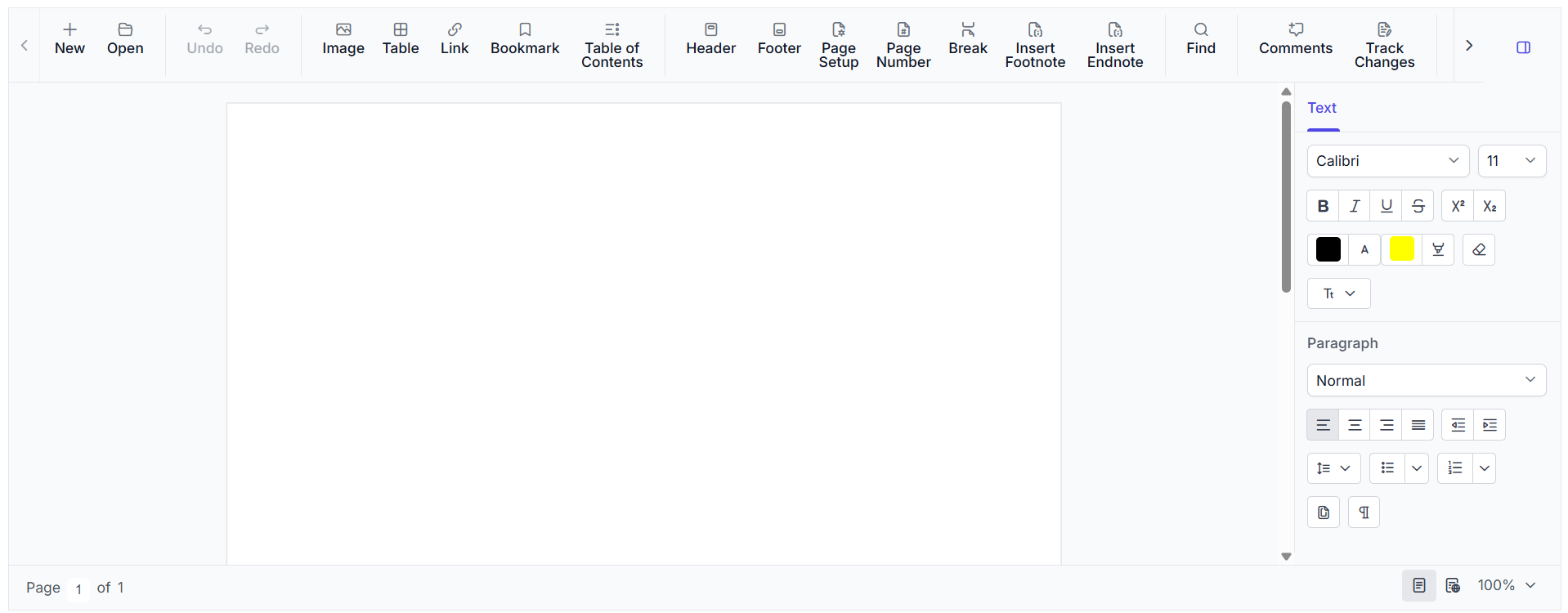
Note: For more detailed guidance for getting started with DOCX Editor, check out our official documentation.
Enable track changes for collaborative review
Tracked changes are the key to transparent and efficient document reviewing. Enabling this feature with our DOCX Editor is simple and flexible.
Enable track changes via UI
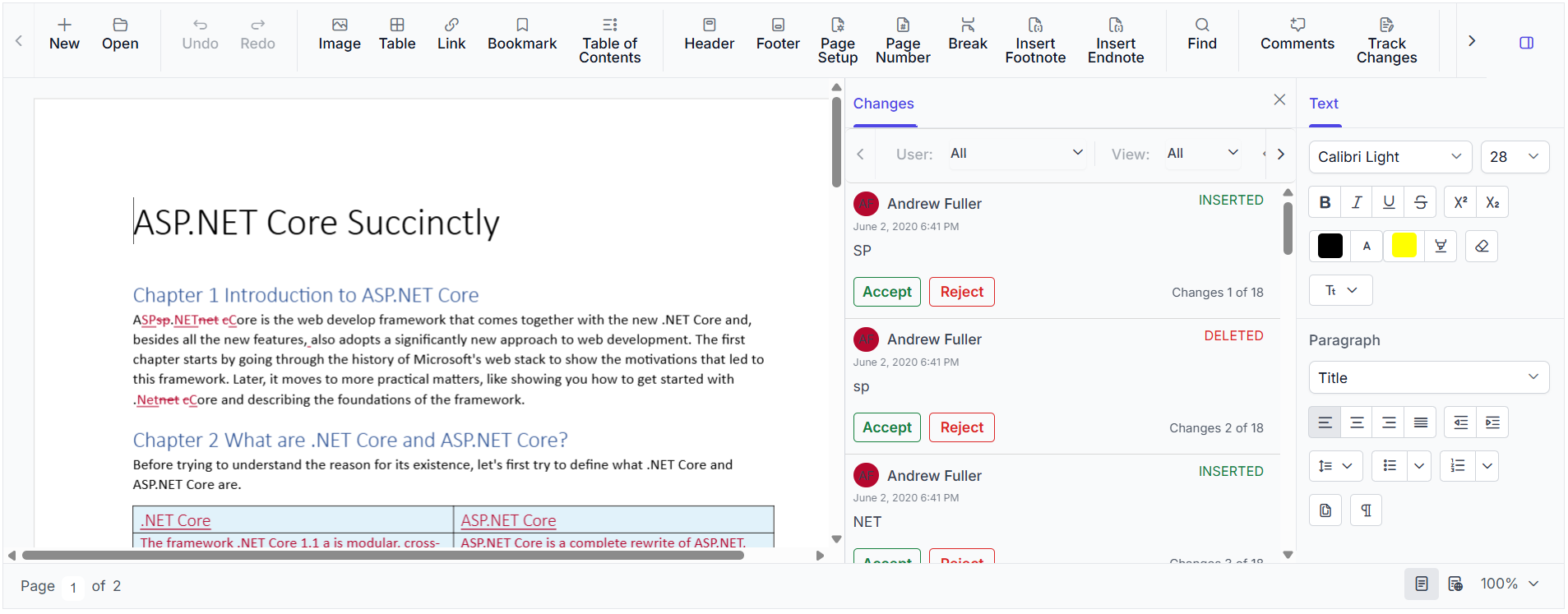
Users can enable this feature directly by clicking the Track Changes option in the built-in toolbar and start recording insertions and deletions instantly.
Refer to the following image.

Enable track changes programmatically
The DOCX Editor provides APIs for developers to programmatically enable track changes, providing control beyond built-in UI options.
You can programmatically enable track changes using the enableTrackChanges API while initializing the component or dynamically when the document changes with just a few lines of code:
let documenteditorContainer = new ej.documenteditor.DocumentEditorContainer({
    enableTrackChanges: true
});
Reviewing documents efficiently with accept and reject options
When the track changes feature is enabled in the DOCX Editor, every edit is visually marked for easy identification:
- Strikethrough for deleted text.
- Underline for inserted text.

These indicators help reviewers quickly spot changes and make it easy to track text throughout the document. The core functionality of reviewing lies in Accept/Reject actions, which decide which content should stay and which should be removed. Syncfusion DOCX Editor makes this process seamless with intuitive UI tools and powerful APIs, ensuring smooth approval workflows without compromising formatting.
Accept and reject changes using revision panes
Every document change is listed in the Revision Pane on the sidebar. It serves as a single place to view all tracked changes, displaying edits with clear indicators that let you accept or reject them instantly. Whether you’re preserving formatting or removing unnecessary edits, this feature ensures collaborative review is effortless, accurate, and transparent.
Accept and reject changes programmatically
Syncfusion DOCX Editor doesn’t just stop at UI-based review tools; it gives developers complete control through powerful APIs to automate your approval workflow. You can programmatically fetch the full revision collection, then accept/reject all changes at once or handle specific revisions individually with just a few lines of code, as shown below.
// Get revisions from the current document
let revisions = documenteditorContainer.documentEditor.revisions;

// Accept all tracked changes
revisions.acceptAll();

// Reject all tracked changes
revisions.rejectAll();

// Accept specific changes
revisions.get(0).accept();

// Reject specific changes
revisions.get(1).reject();
Note: For more details, refer to the track changes feature in the Docx Editor documentation.
Managing document protection in track changes mode
Collaborative reviewing is effective but requires control. Multiple reviewers can suggest changes, but only the author controls acceptance. Syncfusion’s DOCX Editor enforces this with track changes protection, ensuring transparent collaboration and preventing unauthorized approvals.
With protection enabled, all users can make suggestions, but accept/reject actions remain exclusive to the author, ensuring a secure approval process.
Enable track changes protection using restricted editing
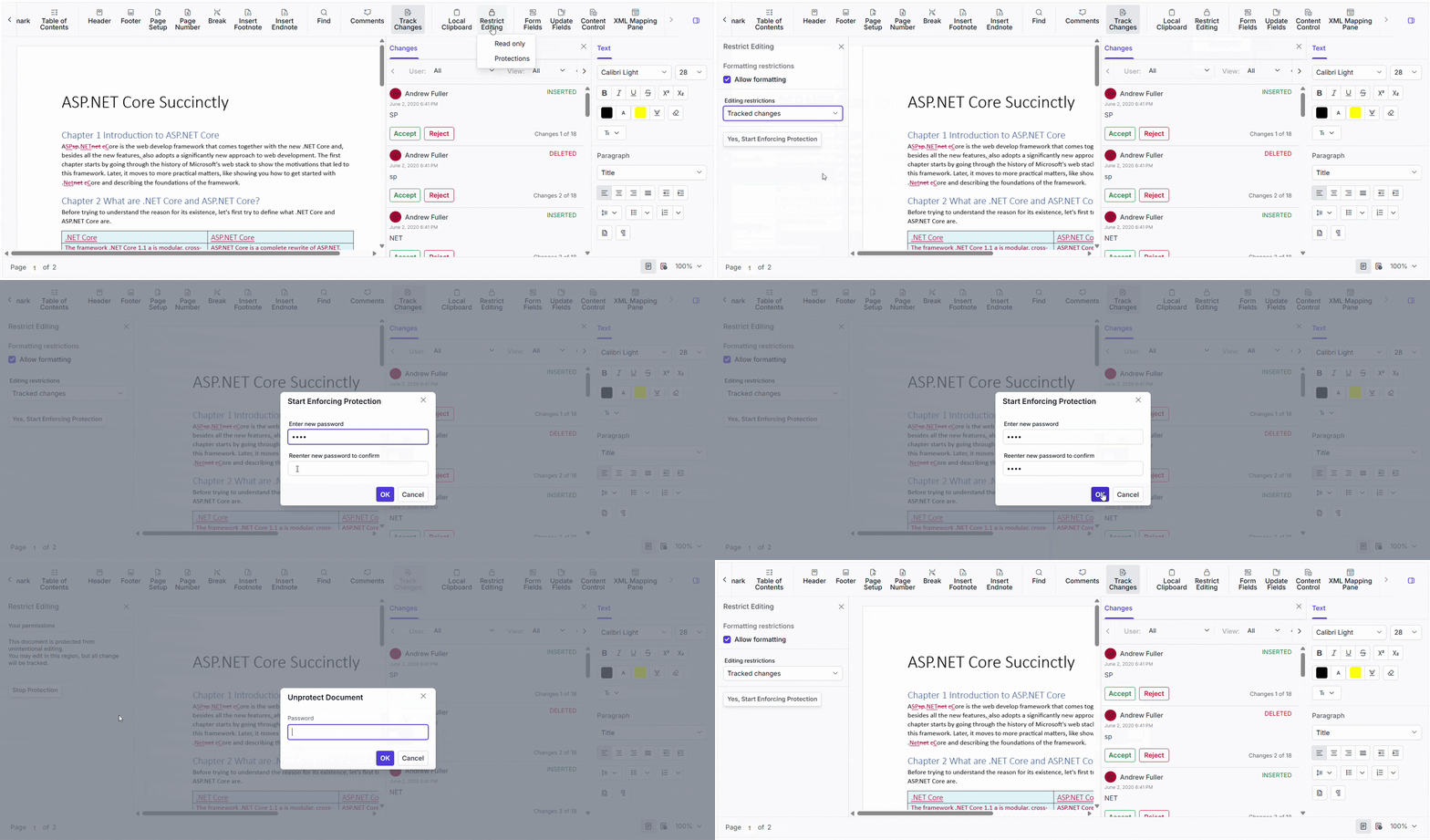
Our DOCX Editor simplifies document review by enabling you to secure the process directly from the UI. Using the Restrict Editing option, we can select Track Changes mode and apply password protection. In this protected state, collaborators can make edits that are recorded as tracked changes, but only the author can finalize them by accepting or rejecting changes after removing protection, ensuring a controlled and secure workflow.
Here’s a preview of the feature in action:
Programmatic protection of track changes
We can also programmatically protect track changes using the enforceProtection API. We can lock the document in RevisionsOnly mode and later remove protection with the stopProtection API when needed, all with just a few lines of code.
// Enforce protection
documenteditorContainer.documentEditor.editor.enforceProtection(
    '123',
    'RevisionsOnly'
);

// Stop the document protection
documenteditorContainer.documentEditor.editor.stopProtection(
    '123'
);
Advanced track changes features for faster review
Reviewing and tracking changes in a document shouldn’t feel like searching for a needle in a haystack. With the Docx Editor’s advanced track changes features, you can streamline the entire review process and focus on what matters most.
Our built-in Review Panel empowers you to:
- Filter changes by author or type for targeted review.
- Navigate edits effortlessly, jump any tracked change with a single click or programmatically through the API.
- Export the finalized document after review to multiple formats, such as SFDT, DOCX, DOTX, and plain text, for further use or archiving.
See the feature in action below:

Together, these capabilities make it easy to compare Word documents and track changes efficiently, delivering a fast, organized, and user-friendly experience, even for large-scale review processes.
GitHub reference
Also, check out the examples for track changes in Syncfusion Document Editor on this GitHub repository.
Frequently Asked Questions
Will accepting all changes alter the document’s original style?
No, the editor applies outcomes using the existing style map; only the chosen content and formatting persist.
Does track changes work in right‑to‑left scripts and mixed‑language documents?
Yes, revisions track runs of text, so RTL scripts and mixed locales are preserved, and review markers remain aligned.
Does Syncfusion support collaborative editing beyond track changes?
Yes, Syncfusion also supports collaborative editing commenting, section‑level protection, and workflow automation, allowing teams to collaborate more smoothly and manage reviews in a structured way.
Can I generate a finalized document that excludes all revision history?
Yes, once all tracked changes are accepted or rejected, you can export the document as a clean final version, ensuring no revision or change history remains in the output.
How does the editor resolve conflicting edits made to the same text segment?
The editor shows each conflicting edit as a separate change on the same part of the text. You can review them one by one in the revisions pane and choose which version you want to keep.
Will tracking changes work inside tables, headers, and footers?
Yes, revisions are recorded in structured regions such as tables, headers/footers, and lists, just like body text.
Can I run the DOCX backend services in Docker containers?
Yes, Syncfusion provides a ready‑to‑use Docker image called Word Processor Server that lets you easily host the DOCX Editor backend in Docker or Kubernetes
Start building smarter collaborative review workflows today
Thanks for reading! Collaborative document reviews don’t have to feel chaotic. With features like real‑time track changes, a clean revisions pane, author‑based filtering, and secure approval workflows, the Syncfusion DOCX Editor SDK gives you everything you need to build fast, transparent review experiences your users will love.
Whether you’re working on legal documents, technical specs, business proposals, or internal reports, you can deliver consistent formatting, reliable tracking, and a smooth end‑to‑end workflow, all directly inside your web app. Try it out today and discover what smoother, smarter document collaboration actually feels like.
If you’re a Syncfusion user, you can download the setup from the license and downloads page. Otherwise, you can download a free 30-day trial.
You can also contact us through our support forum, support portal, or feedback portal for queries. We are always happy to assist you!



 No spam, just valuable updates.