
 Karthick Mani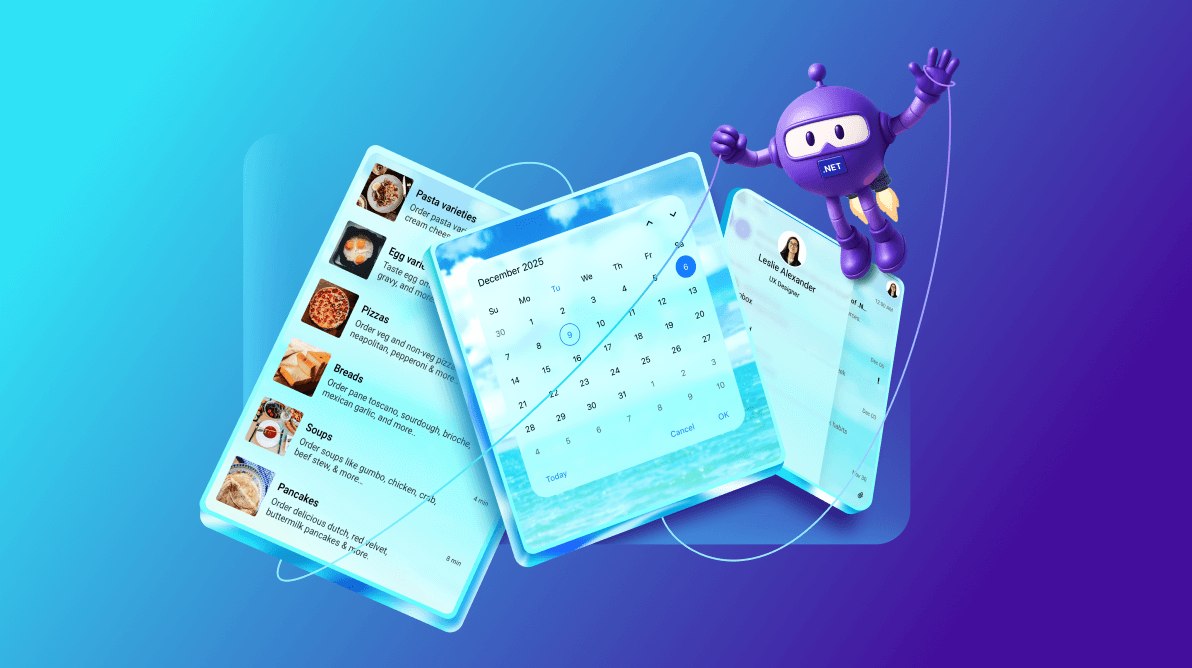
TL;DR: Flat UIs lack depth and modern appeal. .NET MAUI Liquid Glass UI introduces glassmorphism to .NET MAUI with blur, translucency, and adaptive tinting. Learn how to implement it step by step.
Looking to give your .NET MAUI apps a modern, premium look? Syncfusion® .NET MAUI Liquid Glass UI brings glassmorphism to cross-platform applications, helping you build sleek, immersive interfaces for iOS and Mac Catalyst. This feature has been introduced as part of the Syncfusion 2025 Volume 4 release, which brings exciting updates across the suite.
What is Liquid Glass UI?
Liquid Glass leverages Apple’s UIVisualEffectView to deliver high-performance blur effects on iOS and macOS. Syncfusion brings this capability to all .NET MAUI controls, offering:
- Blurred backgrounds for depth and elegance.
- Adaptive color tinting that blends with your app theme.
- Light refraction effects for a polished, modern appearance.
These features create a visually rich interface while maintaining readability and accessibility across platforms.
Why does it matter?
Today’s users expect apps that feel premium and intuitive. Glassmorphism, with its transparency, depth, and subtle shadows, meets that expectation. Syncfusion’s .NET MAUI Liquid Glass effect lets you design layered, elegant UIs for cross-platform apps without compromising performance.
Key benefits of Liquid Glass UI
- Native performance: Built on Apple’s
UIVisualEffectView. - Cross control support: Works with DataGrid, Charts, Editors, and more.
- Customizable: Adjust blur style, corner radius, and shadow effects.
- Modern design: Adds a sleek, glass-like finish.
- Accessibility friendly: Honors system theme settings.
Prerequisites
Before you begin, ensure that you have the following:
These requirements guarantee compatibility and optimal performance for your development environment.
How to apply the Liquid Glass effect in .NET MAUI?
Applying the .NET MAUI Liquid Glass effect is simple and requires minimal code changes. Here’s how to enable and configure it in the Image Editor control:
Step 1: Wrap the control
Start by using SfGlassEffectView from Syncfusion.Maui.Core to apply blur and translucency to your UI.
Step 2: Enable the Liquid Glass effect
Next, set the EnableLiquidGlassEffect property to true on the control to activate the effect.
Step 3: Customize the background
For a consistent look, make the control and toolbar backgrounds transparent.
Here are the key properties you can configure:
- EffectType: Choose Regular (blurred) or Clear.
- CornerRadius: Round the corners for a softer design.
- EnableShadowEffect: Add depth to the UI.
- BackgroundColor: Apply a tint for visual appeal.
Refer to the XML code example below.
<Grid>
    <core:SfGlassEffectView EffectType="Regular" CornerRadius="20" Background="#007AFF">
        <imageEditor:SfImageEditor x:Name="imageEditor"
                                   Background="Transparent"
                                   SelectionStroke="#007AFF"
                                   Source="editorimage.png"
                                   EnableLiquidGlassEffect="True">
            <imageEditor:SfImageEditor.ToolbarSettings>
                <imageEditor:ImageEditorToolbarSettings Background="Transparent"
                                                        Stroke="Transparent"/>
            </imageEditor:SfImageEditor.ToolbarSettings>
        </imageEditor:SfImageEditor>
    </core:SfGlassEffectView>
</Grid>
Note: Combine Liquid Glass effect with gradients and shadows for a modern UI. Experiment with EffectType and CornerRadius to create unique designs. For more details, check the official documentation.
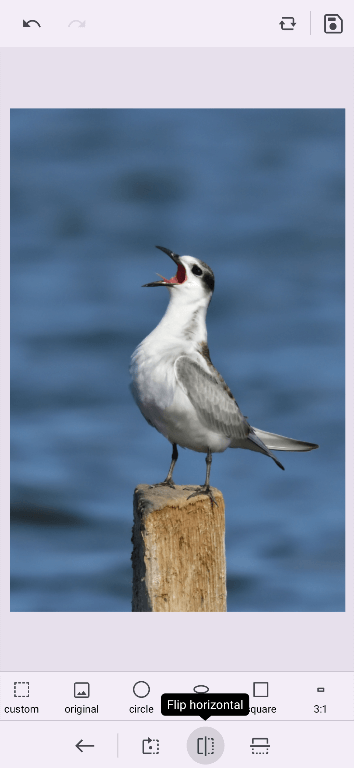
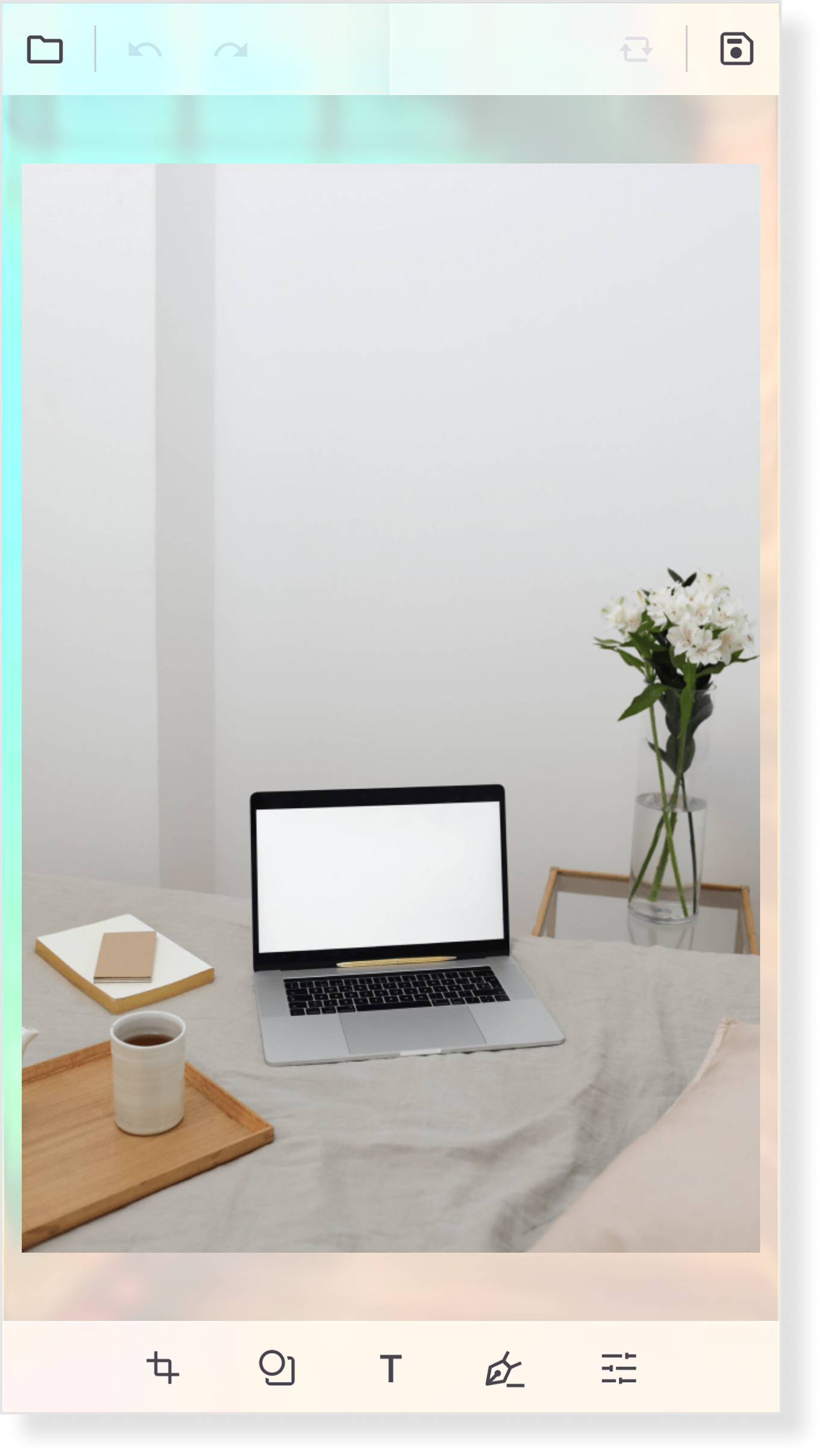
After executing the above code example, you’ll see the transformation: previously, the UI was flat and static, but with the Liquid Glass effect applied, it becomes an elegant, frosted glass design with depth, as shown in the following image.
GitHub reference
Explore demos on GitHub and start using the .NET MAUI Liquid Glass effect today.

Conclusion
Thanks for reading! In this blog, we’ve explored the new Liquid Glass UI effect in Syncfusion .NET MAUI controls introduced in the Essential Studio 2025 volume 4 release. Check out our Release Notes and What’s New pages to see the other updates in this release, and leave your feedback in the comments section below.
If you’re a Syncfusion user, you can download the latest setup from the license and downloads page. Otherwise, you can download a free 30-day trial.
You can contact us through our support forums, support portal, or feedback portal. We are always happy to assist you!





 No spam, just valuable updates.