
 Naveen Kesavaraj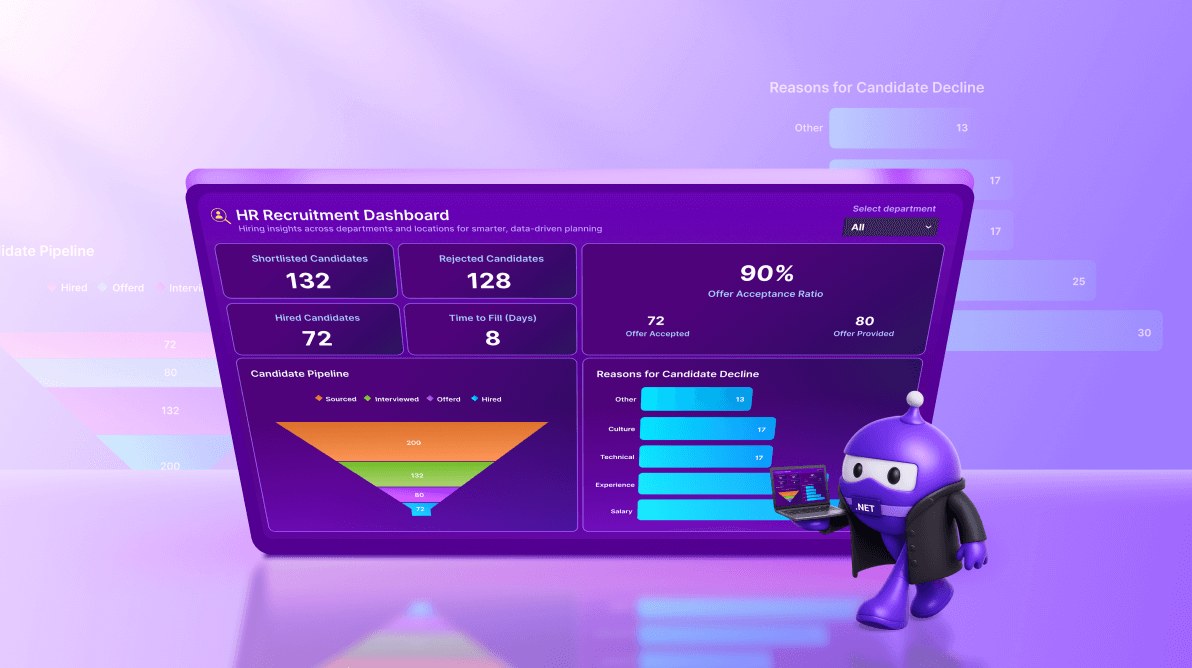
TL;DR: Want to streamline hiring insights? Learn how to build a responsive HR recruitment dashboard using .NET MAUI Toolkit Charts. Visualize KPIs like candidate pipeline, offer acceptance ratio, and decline reasons all in one interactive dashboard for smarter HR decisions
Welcome to our Chart of the Week series!
Charts are essential for transforming complex recruitment data into actionable insights. While basic charts convey information, modern HR teams need interactive, visually refined dashboards that provide quick comparisons and deliver a seamless cross-platform experience.
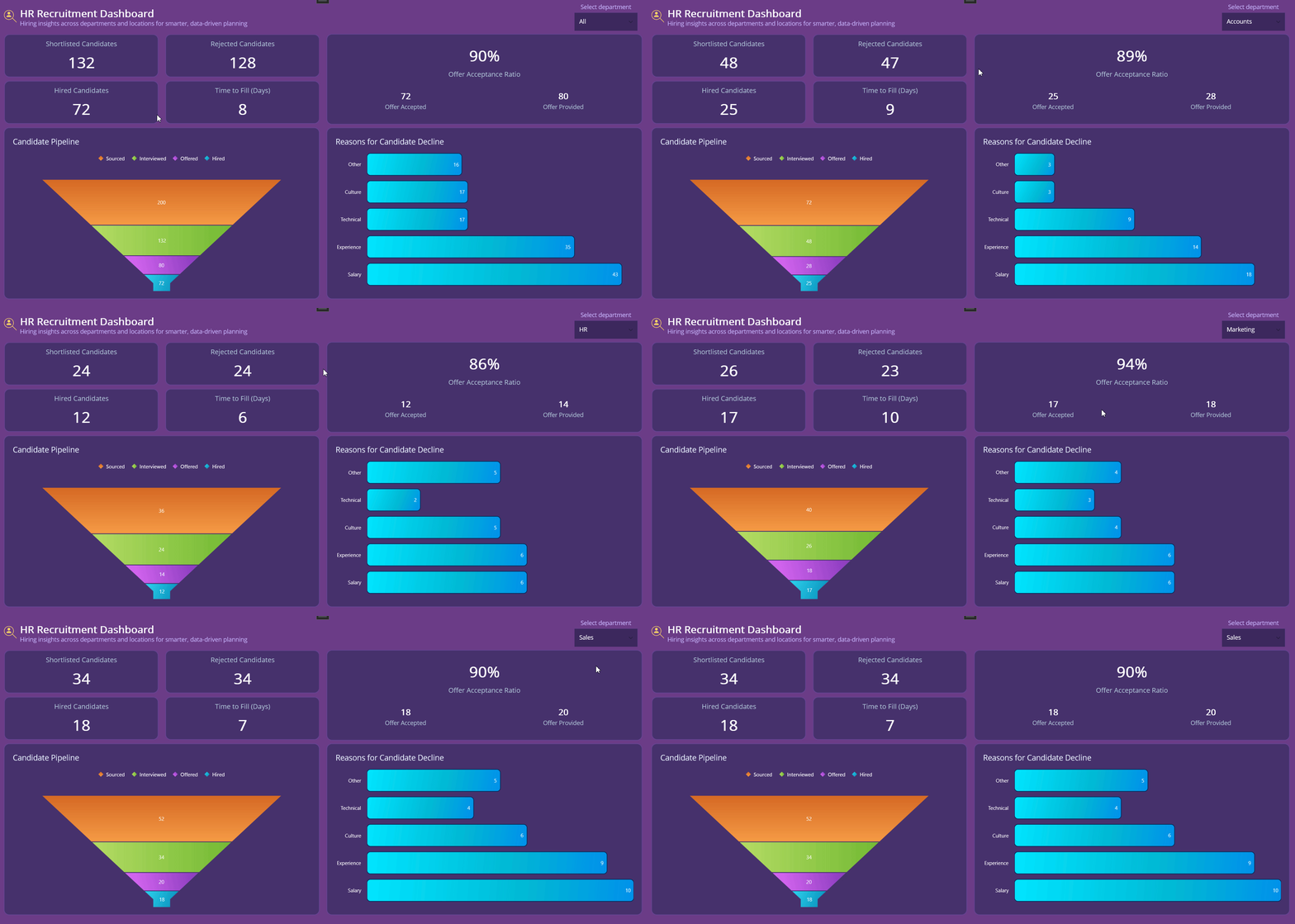
This blog demonstrates how to build a modern HR Recruitment Dashboard using Syncfusion® MAUI Toolkit Charts. The dashboard includes:
- A department filter for dynamic data segmentation.
- KPI cards for metrics like Shortlisted, Rejected, Hired, and Time-to-Fill metrics.
- An offer acceptance ratio summary.
- A candidate pipeline funnel chart for recruitment process tracking.
- A decline reasons bar chart for actionable insights.
- A responsive layout optimized for desktop and mobile.
HR dashboard highlights
- Enables quick insights into recruitment health.
- Identifies bottlenecks in the hiring process.
- Reveals patterns behind candidate declines.
- Supports data-driven decisions to improve hiring speed and offer conversions.
Here are the classes you need to build the dashboard, as shown in the code example below.
public class DeclineReason
{
   // Reason for candidate decline -> drives the horizontal bar chart
}
public class PipelineStage
{
   // Candidate pipeline stage -> drives the funnel chart
}

public class SummaryMetrics
{
   // Small card metrics at the top
}

public class OfferMetrics
{
    // Offer stats (with computed acceptance ratio)
    // % Offer Acceptance ratio shown in the oversized tile
}
Let’s walk through the steps to build an HR dashboard.
Step 1: Display title and department filter
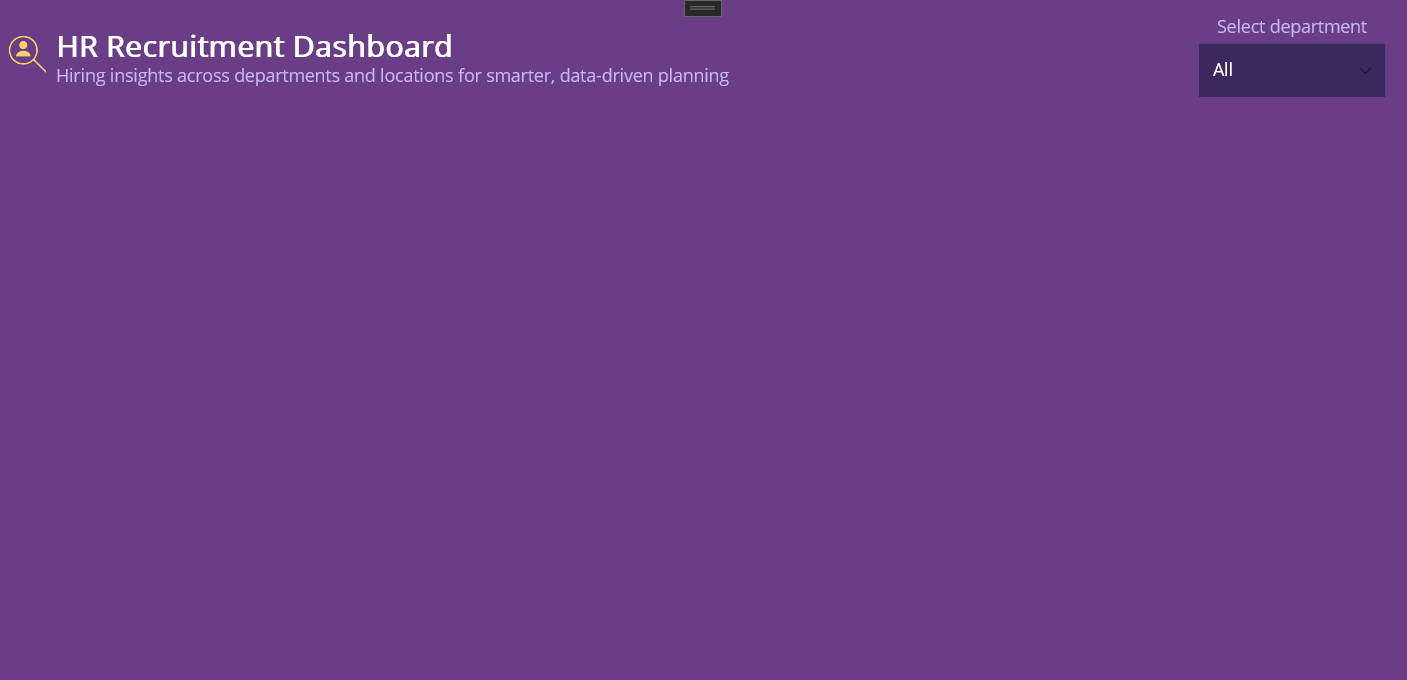
The header sets the tone for the dashboard with a clean, structured design. It features a bold title, a concise subtitle for context, and a department filter for quick segmentation. The filter combines a label and a picker control, ensuring intuitive interaction and a streamlined user experience.
<!-- Header with title + filter -->
<Grid x:Name="HeaderBar" Grid.Row="0" Grid.ColumnSpan="2" >

    <!-- Title with subtitle -->
    <HorizontalStackLayout Grid.Column="0" Spacing="8" VerticalOptions="Center">

        <Path Margin="0,10" Grid.Column="0" Grid.Row="0"
                              Data ="{Binding Data}"/>
        <VerticalStackLayout VerticalOptions="Center">
        </VerticalStackLayout>
                       …
    </HorizontalStackLayout>

    <!-- Department filter: desktop beside title; on Android/iOS moves to next row -->
    <Border x:Name="DesktopFilterContainer" Grid.Row="0" Grid.Column="1" IsVisible="{OnPlatform Android=False, iOS=False, MacCatalyst=True, WinUI=True}">

        <!-- Place label above picker for desktop-like mobile layout -->
        <VerticalStackLayout>
            <Picker
                ItemsSource="{Binding Departments}"
                ItemDisplayBinding="{Binding .}"/>
        </VerticalStackLayout>
    </Border>

    <!-- On Android and iOS, place the filter under the title to prevent overlap -->
    <Border Grid.Row="1" Grid.ColumnSpan="2" x:Name="MobileFilterContainer" IsVisible="{OnPlatform Android=True, iOS=True, MacCatalyst=False, WinUI=False}">
        <VerticalStackLayout>
            <Picker
                ItemsSource="{Binding Departments}">
        </VerticalStackLayout>
    </Border>
</Grid>
Here’s how the header looks after adding the title and department filter.
Step 2: Display Recruitment KPI tiles
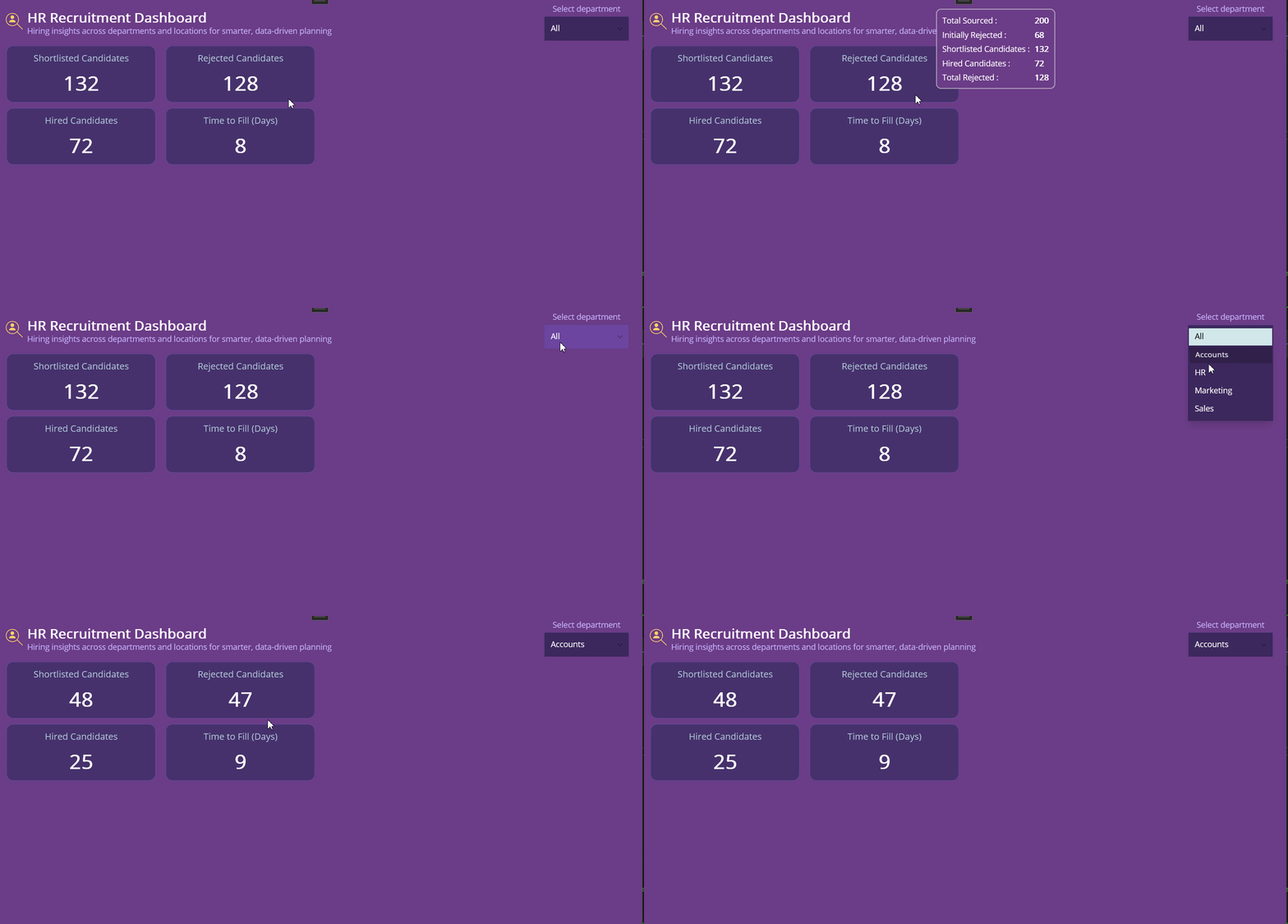
Display key hiring metrics in a glance-friendly format. Each KPI card features a bold title and a large value, styled for readability on a dark background. Bind each card to its respective property:
- Shortlisted Candidates: Represents the number of candidates who passed the initial screening.
- Rejected Candidates: Shows the total count of candidates rejected during the process. Includes optional hover tooltip for detailed info.
- Hired Candidates: Indicates the final number of candidates successfully hired.
- Time to Fill (Days): Displays the average number of days taken to fill a role, critical for tracking efficiency and identifying bottlenecks.
Refer to the code example below for displaying Recruitment KPI tiles.
<Border x:Name="KpiGroup" Grid.Row="1" Grid.Column="0" Stroke="Transparent">
    …
        <!-- Shortlisted -->
        <Border Grid.Row="0" Grid.Column="0">
            <VerticalStackLayout>
                …
            </VerticalStackLayout>
        </Border>

        <!-- Rejected -->
        <Border x:Name="RejectedCard" Grid.Row="0" Grid.Column="1" >
            <Grid>
                <Grid.GestureRecognizers>
                    <PointerGestureRecognizer PointerEntered="OnRejectedHoverEnter" PointerExited="OnRejectedHoverExit" />
                    <TapGestureRecognizer Tapped="OnRejectedTapped" />
                </Grid.GestureRecognizers>
                <VerticalStackLayout>
                    …
                </VerticalStackLayout>
            </Grid>
        </Border>

        <!-- Hired -->
        <Border Grid.Row="1" Grid.Column="0">
            <VerticalStackLayout>
                …
            </VerticalStackLayout>
        </Border>

        <!-- Time to Fill -->
        <Border Grid.Row="1" Grid.Column="1">
            <VerticalStackLayout>
                …
            </VerticalStackLayout>
        </Border>
    </Grid>
</Border>
These KPIs provide immediate insight into recruitment performance, as shown below.
Step 3: Display offer acceptance ratio
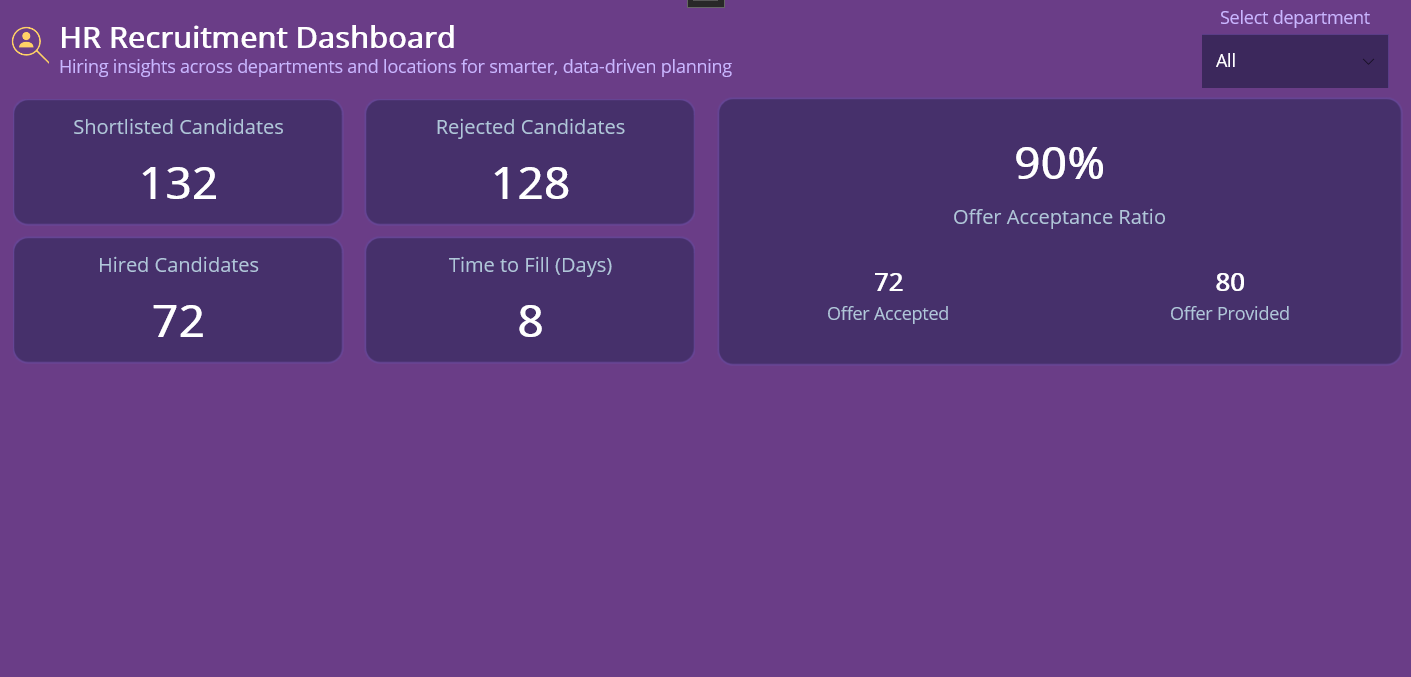
This metric highlights how effectively the organization converts job offers into hires. The main percentage is displayed prominently, supported by a breakdown of Offers Accepted and Offers Provided.
Use the following XAML code example to create the Offer Acceptance Ratio section.
<VerticalStackLayout
    <Grid ColumnDefinitions="*,*" >
        <VerticalStackLayout Grid.Column="0">
            <Label Text="{Binding OffersAccepted}" />
        </VerticalStackLayout>

        <VerticalStackLayout Grid.Column="1" >
            <Label Text="{Binding OffersProvided}" />
        </VerticalStackLayout>
    </Grid>
</VerticalStackLayout>
Here’s how the Offer Acceptance Ratio section looks in the dashboard.
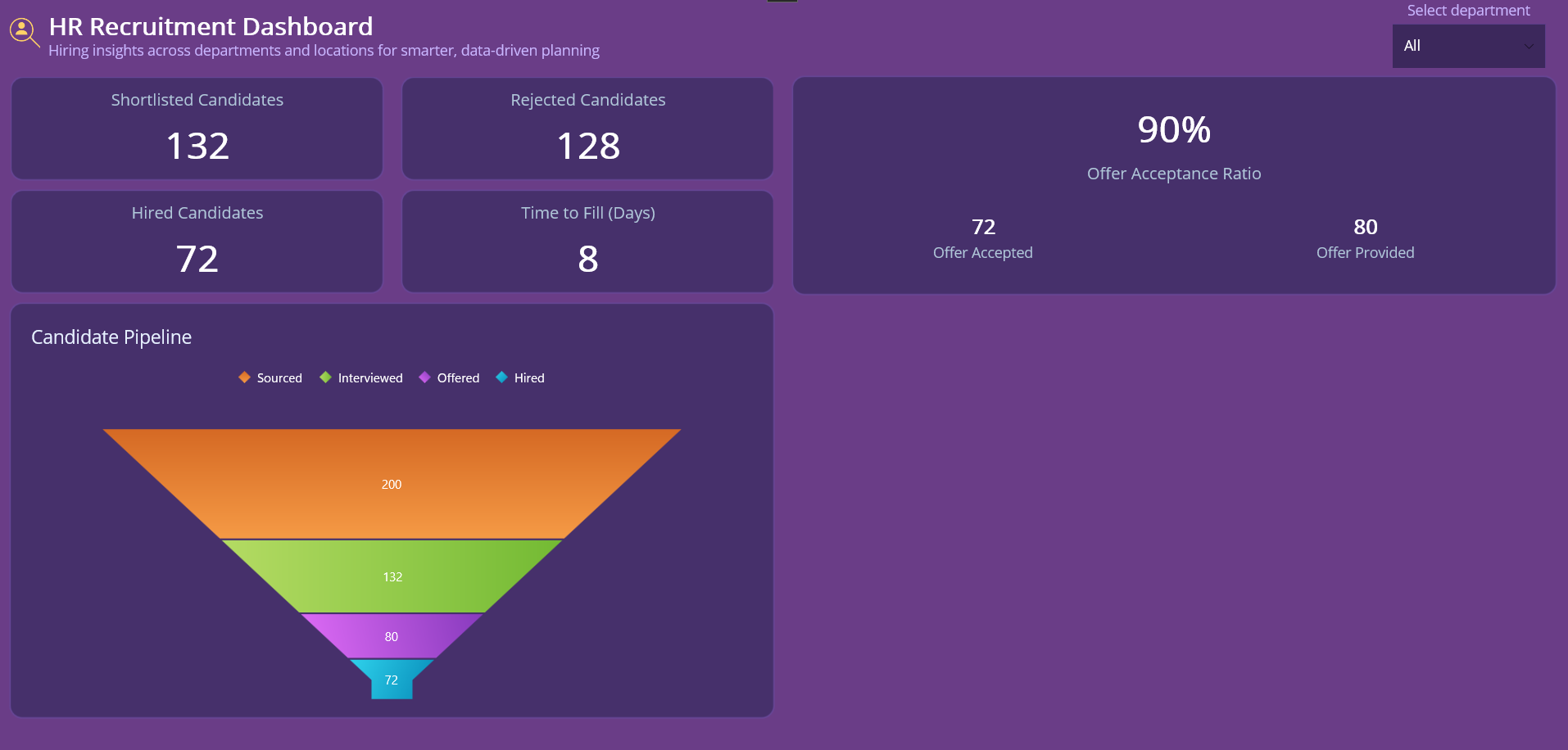
Step 4: Display candidate pipeline (Funnel chart)
Funnel charts visualize conversion rates across recruitment stages: Applied → Screened → Interviewed → Offered → Hired. This helps identify bottlenecks and leaks in the hiring process.
Enhancements for Better UI:
- GapRatio: Adds spacing between segments for better readability.
- Data Labels: Displays stage values directly on the chart for quick insights.
- Legend: A well-styled legend improves chart interpretation and aligns with the theme.
Use the following XAML code example to create a Funnel Chart.
<chart:SfFunnelChart ItemsSource="{Binding Pipeline}"
                     XBindingPath="Stage"
                     YBindingPath="Count"
</chart:SfFunnelChart>
<chart:SfFunnelChart.Title>
    <Label Text="Candidate Pipeline />
</chart:SfFunnelChart.Title>
<chart:SfFunnelChart x:Name="chart"
                     GapRatio="0.02"
                     ShowDataLabels="True">
</chart:SfFunnelChart>
Here’s how the Candidate Pipeline Funnel Chart looks in the dashboard.
Step 5: Visualizing candidates decline reasons
Analyzing why candidates decline Job offers to improve recruitment strategies. A bar chart is ideal for comparing multiple reasons side by side, such as Compensation, Location, and Role Fit.
Enhancements for Better UI:
- Enable data labels for quick readability
- Hide unnecessary gridlines for a clean look
- Apply custom palettes for visual appeal
Use the following XAML snippet to create a bar chart that visualizes candidate decline reasons.
<chart:SfCartesianChart >
    <chart:SfCartesianChart.Title>
    </chart:SfCartesianChart.Title>
    <chart:ColumnSeries ItemsSource="{Binding DeclineReasons}"
                        XBindingPath="Reason"
                        YBindingPath="Count"
                        ShowDataLabels="True">
</chart:SfCartesianChart>
Here’s how the Candidate Decline Reasons are displayed on the dashboard:
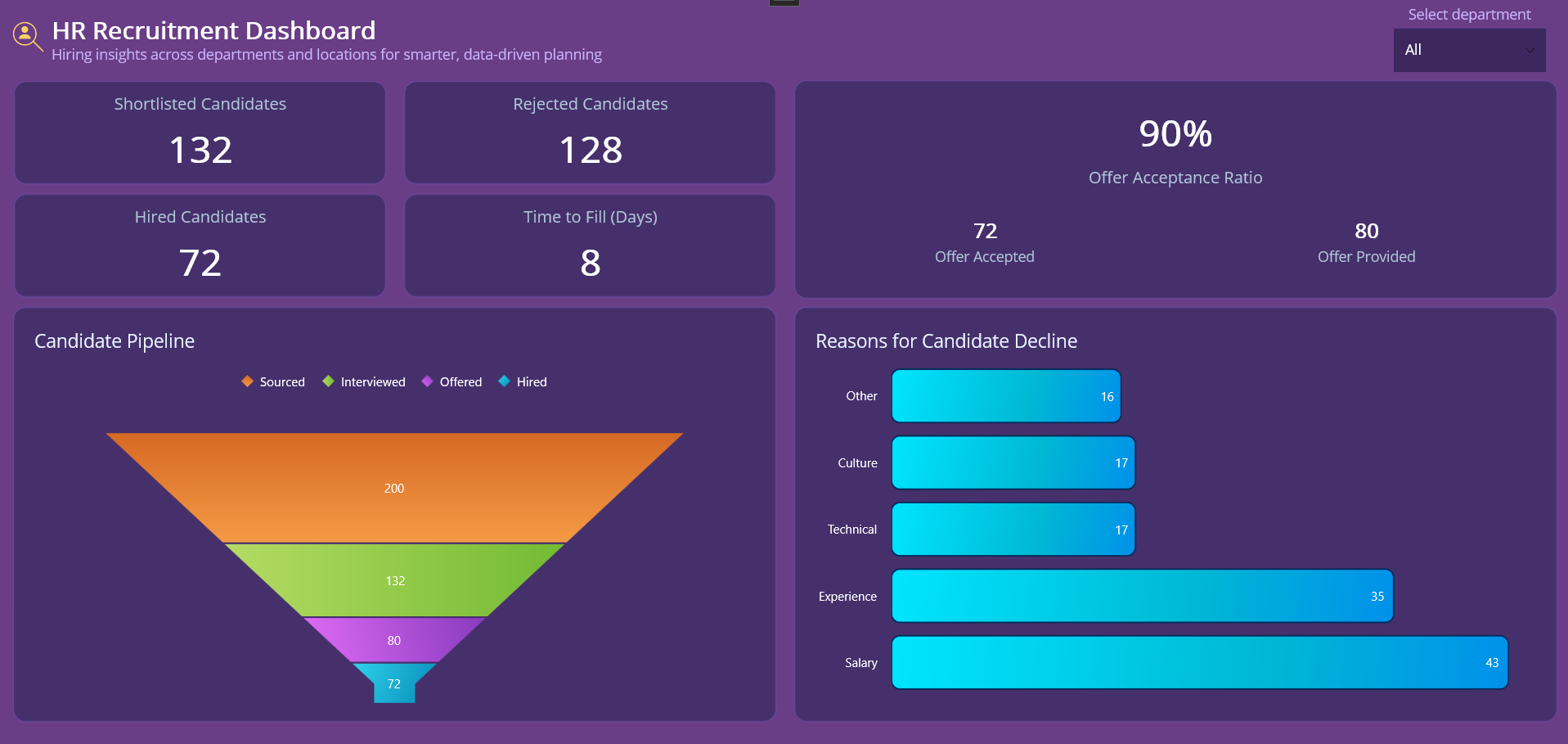
By completing these steps, you’ll have a complete HR dashboard in .NET MAUI, as shown below.
GitHub reference
For more details, refer to the building HR dashboards using Syncfusion MAUI Toolkit Charts GitHub demo.

Conclusion
Thank you for following this dashboard walkthrough! You’ve learned how to create a clean, real-time HR dashboard using .NET MAUI Toolkit Charts, empowering organizations to turn raw hiring data into actionable insights. With Syncfusion’s rich charting components, you can deliver interactive, visually compelling dashboards that work seamlessly across platforms. Start implementing these steps today to elevate your HR analytics and make data-driven decisions.
If you’re a Syncfusion user, you can download the setup from the license and downloads page. Otherwise, you can download a free 30-day trial.
You can also contact us through our support forum, support portal, or feedback portal for queries. We are always happy to assist you!






 No spam, just valuable updates.