
 Deepa Thiruppathy
TL;DR: PDFs with large images often suffer from scroll lag due to high memory consumption and inefficient page rendering in browser‑based viewers. The article examines how rendering scope, image processing behavior, and memory handling impact scrolling performance in large PDF documents.
Your application loads a 200‑page scanned product catalog. The user scrolls for a few seconds, and suddenly frames drop, pages go blank, memory spikes, and the browser tab crashes.
This is not a hardware issue. It is a rendering architecture failure.
In 2026, users expect desktop‑grade PDF performance in the browser. Scroll lag is not a minor inconvenience; it breaks trust. For applications where document viewing is a core workflow, every freeze and delay pushes users away.
Most web PDF viewers were designed for lightweight, text‑based documents. Feed them a 300‑page scanned catalog, medical record, or engineering drawing, and the cracks appear quickly: unresponsive scrolling, blank pages, runaway memory usage, and crashed tabs.
Syncfusion® JavaScript PDF Viewer is built to handle exactly these large, image-heavy PDFs that demand consistent, smooth scrolling performance in the browser.
This article explains:
- Why scrolling fails on image‑heavy PDFs
- What production‑ready smooth scrolling actually requires
- How modern PDF rendering techniques solve the problem at scale
Why scrolling fails on image-heavy PDFs
Image‑rich PDFs like product catalogs, scanned contracts, medical records, and engineering drawings are fundamentally different from text documents.
Each page contains high‑resolution images that must be:
- Decoded,
- Allocated in memory,
- Processed by the GPU,
- and rendered before anything appears on screen.
Most PDF viewers collapse under this load because they share three architectural flaws:
- Eager rendering: Pages are rendered all at once, including pages the user may never reach.
- Lack of viewport awareness: Page 1 and page 180 compete for resources simultaneously.
- Uncontrolled render queues: Fast scrolling floods the render pipeline, stalling the UI.
The result is predictable: memory exhaustion, dropped frames, and unstable scrolling.
The fix is not file compression or faster hardware. It requires a rendering architecture built for large, image‑heavy documents.
What smooth scrolling really requires
Smooth scrolling is not a single optimization; it is the result of multiple systems working together consistently.
Before evaluating any PDF viewer, developers need a clear definition of what production-ready scroll performance means. Four dimensions determine whether a viewer holds up under real document loads: Render speed, Scroll smoothness, Memory stability, and Responsiveness.
Meeting all four requires specific architectural decisions:
- On-demand rendering
Renders visible pages immediately while the rest loads in the background. - Tile-based rendering
Large image pages must be divided into smaller, independent tiles that load progressively as they enter the viewport. - Virtual scrolling
Keeps only current viewport pages in memory and immediately releases memory for pages the user has scrolled past. - Pre-fetch and scroll debouncing
A viewer pre-fetches pages just ahead of the scroll position so content is ready before the user reaches it. Scroll debouncing rate-limits render requests during fast scrolling, preventing the render queue from flooding.
If a viewer cannot satisfy all four, it is not ready for image-heavy documents at production scale.
How Syncfusion JavaScript PDF Viewer is built for smooth scrolling
Syncfusion JavaScript PDF Viewer is a purpose-built, enterprise-grade component designed specifically for large, complex document rendering in the browser, with smooth scrolling performance as a core architectural requirement.
Rendering engine foundation: PDFium via WebAssembly:
At the core of modern high‑performance PDF viewing is PDFium, Google’s native PDF rendering engine, compiled to WebAssembly and executed directly in the browser.
This approach delivers:
- Near‑native rendering speed
- Accurate image and font rendering
- Predictable memory allocation per page
- Consistent behavior across all major browsers
Because each page’s memory lifecycle is tightly controlled, memory is allocated only when needed and released immediately when pages leave the viewport, preventing cumulative memory growth on long documents.
Before we walk through each rendering technique, explore the full engine capability in the JavaScript PDF Viewer documentation.
Viewport-only rendering and progressive loading
Two issues destroy scroll performance before the user even interacts:
- Waiting for the entire PDF to load
- Holding every page in memory at once
A Syncfusion PDF Viewer solves both with:
- Progressive loading
Visible pages render immediately while the rest of the document loads in the background. - Viewport‑only rendering
Only pages currently visible on screen exist in memory. As the user scrolls, off‑screen pages are released instantly.
In practice, even a 500‑page scanned PDF typically keeps only 2–4 pages in memory at any moment.
Developers can further tune this behavior using APIs such as:
- Page request delay during fast scrolling (scrollSettings.delayPageRequestTimeOnScroll).
- Initial page render limits (initialRenderPages) for mobile or low‑memory devices.
Here’s how you can do it in code:
var pdfviewer = new ej.pdfviewer.PdfViewer({
    documentPath: 'https://cdn.syncfusion.com/content/pdf/pdf-succinctly.pdf',
    resourceUrl: 'https://cdn.syncfusion.com/ej2/32.2.3/dist/ej2-pdfviewer-lib',
    // Change the page request delay on scroll.
    scrollSettings: { delayPageRequestTimeOnScroll: 150 },
    // Specifies the maximum number of pages that should be rendered on document loading.
    initialRenderPages: 4,
});
Outcome: A 500‑page image‑heavy document scrolls with the same perceived responsiveness as a 10‑page file, as demonstrated in the GIF below.
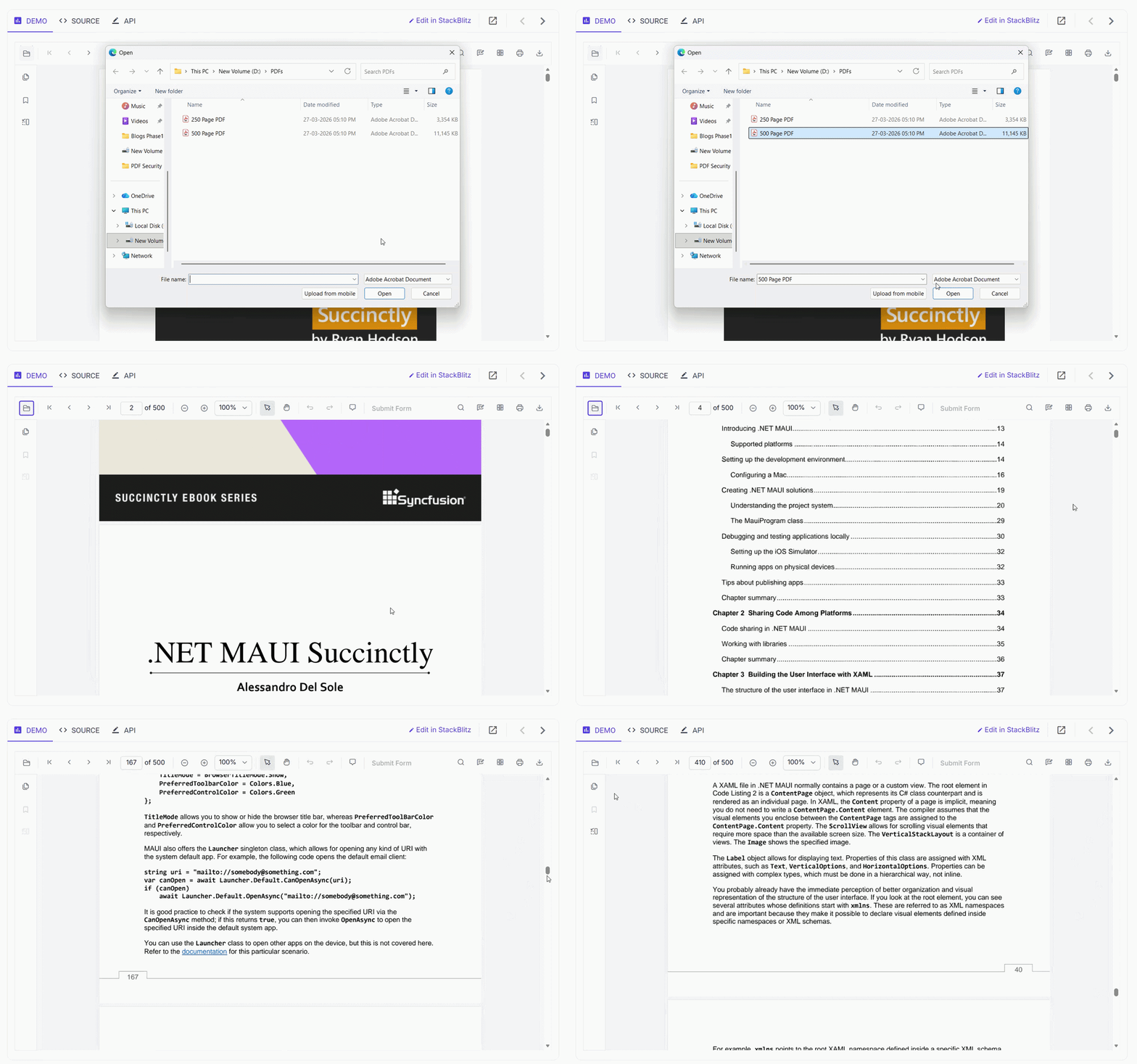
Want to see viewport-only rendering handle a 500-page image PDF live? Try the Syncfusion PDF Viewer Live demo.
Tile-based rendering for image pages
Viewport rendering controls which pages load. Tile‑based rendering controls how they render.
Instead of processing an entire page image at once, each page is divided into smaller tiles that render independently.
- Without tile rendering: Users see a blank white page until rendering completes.
- With tile rendering: Tiles appear progressively as they are ready.
This ensures:
- Faster perceived load time
- No full‑page white screens
- Stable rendering for large, high‑DPI pages
Zoom optimization
Tile rendering also makes zooming efficient.
When users zoom:
- Only tiles inside the zoomed viewport are rendered.
- Cached tiles are reused during transitions.
- Extreme zoom levels can be capped to avoid rendering instability.
The following APIs work together to keep Zoom fast and controlled:
- tileRenderingSettings: Gives developers control over tile grid dimensions.
- enableZoomOptimization: Keeps the UI responsive during zoom transitions by using cached tiles.
- minZoom/maxZoom: Define the minimum and maximum zoom boundaries the viewer will allow.
Here’s how you can do it in code:
var pdfviewer = new ej.pdfviewer.PdfViewer({
    documentPath: 'https://cdn.syncfusion.com/content/pdf/pdf-succinctly.pdf',
    resourceUrl: 'https://cdn.syncfusion.com/ej2/32.2.3/dist/ej2-pdfviewer-lib',
    tileRenderingSettings: {
        enableTileRendering: true,
        x: 3,  // tile columns
        y: 3   // tile rows
    },
    enableZoomOptimization: true,
    minZoom: 10,   // minimum zoom percentage
    maxZoom: 400   // maximum zoom percentage
});
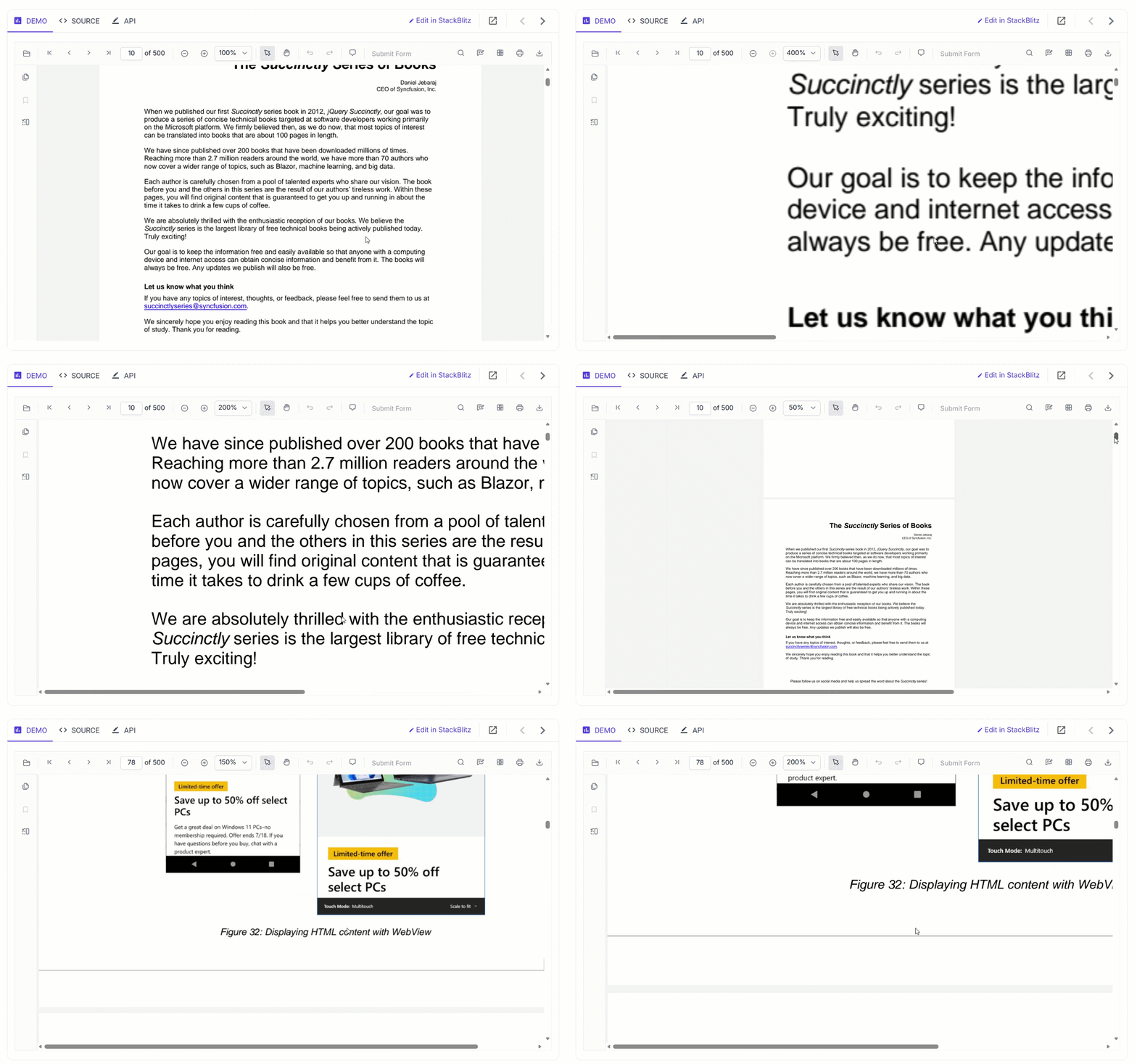
The result is smooth, responsive zooming even on dense image documents like engineering drawings and scanned blueprints.
Feature module injection: Load only what your app needs
Every PDF viewer feature has a cost: bundle size, memory usage, and initialization time. Syncfusion’s Inject() pattern removes that overhead entirely.
Instead of loading everything by default, modern viewers allow feature‑level injection:
- Only explicitly enabled modules are initialized
- Unused features consume zero memory and add no startup overhead
For example, a read‑only viewer can exclude annotations, forms, and printing entirely while enabling only text selection and search.
ej.pdfviewer.PdfViewer.Inject(
    ej.pdfviewer.TextSelection,
    ej.pdfviewer.TextSearch,
    ej.pdfviewer.Magnification
    // Annotation, FormFields, Print excluded — not needed for read-only viewer
);
The outcome: A leaner, faster-initializing viewer that carries zero overhead for features the application does not use.
Want to see the full injectable module list? View the Module Injection documentation.
Real-world impact: Where these techniques matter most
Great rendering architecture is invisible to users; they just know the document feels fast and reliable. Here is how each technique translates into real-world document workflows.
Product catalog applications
Hundreds of image‑heavy pages, non‑linear scrolling, and frequent zooming demand:
- Progressive page display
- Stable memory usage
- Fast jump navigation without intermediate page renders.
- API delivers smooth touch-based zoom

Medical imaging and healthcare document workflows
Clinical workflows require:
- Immediate partial visibility of large diagnostic images
- Smooth zooming into specific regions
- Stable interaction during search and review
Legal and compliance document review
Reviewers search, scroll, and navigate simultaneously.
- Async operations prevent UI freezes
- Viewport rendering keeps the large document review stable
- Feature injection simplifies read‑only enforcement
Want to see Syncfusion PDF Viewer running on real enterprise document types? Try the live demo on Your document type.
Frequently Asked Questions
You can call the goToPage(60) API of the Syncfusion PDF Viewer at the documentLoad event to initially render the PDF at page number 60. You can also navigate by entering 60 at the page number toolbar after the document is loaded into the viewer.How can I load a 100-page PDF starting at page 60 on initial render?
No. Because Syncfusion’s PDF Viewer uses PDFium compiled to WebAssembly, rendering executes at the engine level, independent of each browser’s native PDF handling. Image rendering quality, font accuracy, and scroll performance are consistent across browsers.Does rendering performance differ across Chrome, Firefox, Edge, and Safari?
Use the How do I support simultaneous search and scroll without freezing the reviewer's session in a Legal document?
async findText() method for all text search operations that run independently of the rendering pipeline. Reviewers can initiate a full-document search across a multiple-page scanned document while continuing to scroll, and the UI remains fully interactive throughout.
Yes. You can configure your application to open PDFs from various storage options, including AWS S3, Azure Blob, and DropBox Cloud storage, using the documentPath property.Can I load PDFs from storage services like AWS S3, Azure Blob, or cloud storage?

Conclusion
Thank you for reading! Scroll lag in image‑heavy PDFs is not a browser limitation or a file‑size issue. It is a rendering architecture problem, and it is entirely solvable.
Syncfusion JavaScript PDF Viewer achieves smooth scrolling by combining:
- Viewport‑only rendering
- Progressive loading
- Tile‑based page display
- Zoom optimization
- Controlled feature initialization
The result is faster documents, lower memory usage, higher user trust, and fewer support issues across every document‑heavy workflow.
If your application depends on large PDFs, smooth scrolling is not optional. It is the foundation of the entire document experience.
If you’re a Syncfusion user, you can download the setup from the license and downloads page. Otherwise, you can download a free 30-day trial.
You can also contact us through our support forum, support portal, or feedback portal for queries. We are always happy to assist you!




 No spam, just valuable updates.