
 Chinnu Muniyappan
TL;DR: Turn ordinary PDFs into interactive, scannable documents. This hands‑on guide shows how to create, customize, brand, and embed QR codes in PDFs using C# and Syncfusion, with production‑ready code for headers, footers, existing files, and enterprise workflows.
Why QR codes in PDFs actually matter
PDFs are everywhere, but most remain static, disconnected, and underutilized.
QR codes change that.
With a single scan, QR codes can turn a PDF invoice into a payment gateway, a product manual into a live support portal, or a ticket into a secure entry pass. They bridge the gap between printed documents and real‑time digital experiences, and that’s why they’re now a standard across enterprise workflows.
In this guide, you’ll learn how to create, customize, and embed QR codes into PDF documents using C# and the Syncfusion® .NET PDF Library. We’ll go beyond basic examples and cover production‑ready patterns, from branding and error correction to updating existing PDFs and exporting QR codes as images.
If you’re building document automation, invoicing systems, event workflows, or secure PDFs, this guide is designed for you.

Setting up a .NET Core application
First, we need to create a simple .NET Core console app to work with PDF files. To do so, please follow these steps:
- Initialize the project using the following command:
dotnet new console -n embed-qrcode-in-new-pdf-file cd embed-qrcode-in-new-pdf-file - Then, install the Syncfusion PDF NuGet package.
dotnet add package Syncfusion.Pdf.Net.Core - Import the following required namespaces in the Program.cs file:
using Syncfusion.Drawing; using Syncfusion.Pdf; using Syncfusion.Pdf.Barcode; using Syncfusion.Pdf.Graphics; - Next, we need to register the Syncfusion license. This step is crucial, as the library will add a watermark without a valid license. Open your Program.cs file and add the following line at the beginning of your app’s entry point.
using Syncfusion.Licensing;

// Replace "YOUR_LICENSE_KEY" with the key from your Syncfusion account
SyncfusionLicenseProvider.RegisterLicense("YOUR_LICENSE_KEY");
With the initial setup complete, let’s explore the different ways you can embed QR codes in PDF files using the Syncfusion .NET PDF Library and C#. Each method offers unique possibilities depending on your document processing needs.
Embedding a basic QR Code in PDF using C#
Use the following code to generate a QR code and insert it into a new PDF document:
// Create a new PDF document
using (PdfDocument document = new PdfDocument())
{
    // Add a new page
    PdfPage page = document.Pages.Add();

    // Create QR barcode instance
    PdfQRBarcode qrBarcode = new PdfQRBarcode();

    // Set QR code properties
    qrBarcode.Text = "https://syncfusion.com";

    // Set the QR size
    qrBarcode.Size = new SizeF(120, 120);

    // Draw the QR code
    qrBarcode.Draw(
        page.Graphics,
        new PointF(100, 10)
    );

    // Add text to the PDF document page
    page.Graphics.DrawString(
        "Scan QR Code to Visit Syncfusion",
        new PdfStandardFont(PdfFontFamily.Helvetica, 20),
        PdfBrushes.Black,
        new PointF(0, 150)
    );

    // Save the document
    document.Save("qrcode-in-pdf.pdf");
}
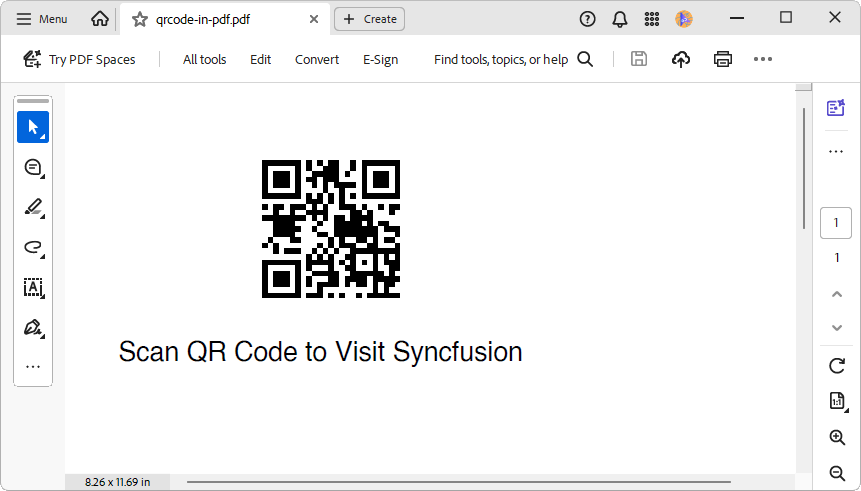
This creates a PDF containing a QR code linked to Syncfusion’s website.
Customizing QR code (Size, XDimension, Error correction, Quiet Zone)
Professional apps require precise control over QR code appearance and behavior. Syncfusion .NET PDF Library also provides various customization options, including :
- Size and XDimension
- Error correction levels
- Color and style adjustments
This ensures the generated QR codes meet the specific business requirements.
//Create a new PDF document
using (PdfDocument document = new PdfDocument())
{
    //Add a page to the document
    PdfPage page = document.Pages.Add();

    // Create and configure an advanced QR barcode
    PdfQRBarcode qrBarcode = new PdfQRBarcode()
    {
        Text = "https://www.syncfusion.com/document-sdk",

        // Size customizations
        Size = new SizeF(150, 150),

        //Set the dimension of the barcode.
        XDimension = 5,

        // Error correction configuration
        ErrorCorrectionLevel = PdfErrorCorrectionLevel.High,

        // Encoding mode optimization
        InputMode = InputMode.BinaryMode,

        // Version control (1-40 or Auto)
        Version = QRCodeVersion.Version10,

        // Foreground color for QR pattern
        ForeColor = Color.White,

        // Background color
        BackColor = new PdfColor(46,197, 190),

        //Set quiet zone (margin) around the QR code
        QuietZone = new PdfBarcodeQuietZones() { All = 5 }
    };

    // Draw a customized QR code
    qrBarcode.Draw(page.Graphics, new PointF(100, 10));

    //Draw text below the QR code
    var details = $"""
            QR Code Specifications:
            -> Text: {qrBarcode.Text}
            -> XDimension: {qrBarcode.XDimension}
            -> Error Correction: {qrBarcode.ErrorCorrectionLevel}
            -> Version: {qrBarcode.Version}
            -> Input Mode: {qrBarcode.InputMode}
            -> ForeColor: RGB({qrBarcode.ForeColor.R}, {qrBarcode.ForeColor.G}, {qrBarcode.ForeColor.B})
            -> BackColor: RGB({qrBarcode.BackColor.R}, {qrBarcode.BackColor.G}, {qrBarcode.BackColor.B})
            -> Quiet Zone: {qrBarcode.QuietZone.All}
            """;

    page.Graphics.DrawString(details, new PdfStandardFont(PdfFontFamily.Courier, 10), new PdfSolidBrush(new PdfColor(51, 51, 51)), new PointF(50, 200));

    //Save the document
    document.Save("qrcode-customization.pdf");
}
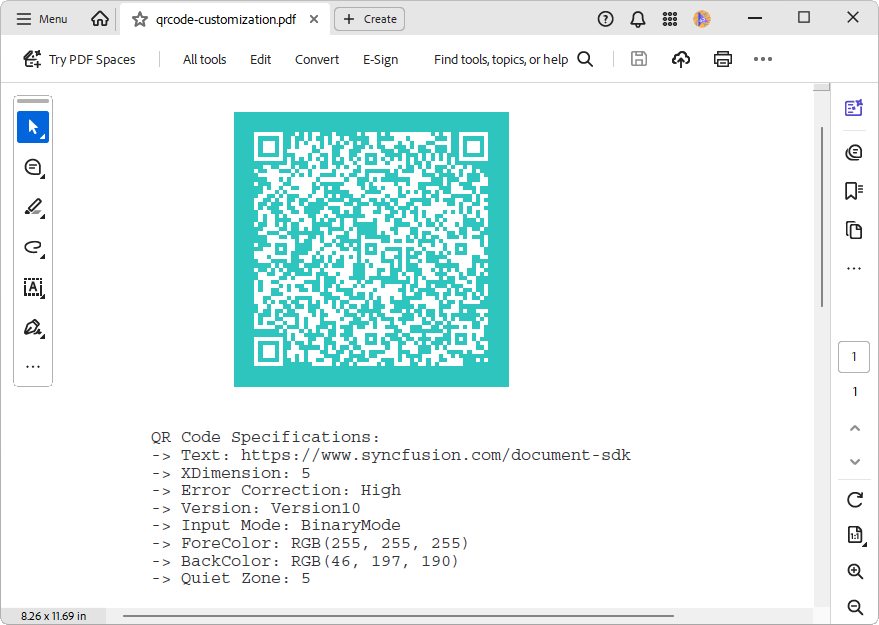
Running the code above produces a PDF containing the customized QR code, as shown below.
Points to remember:
- The XDimension controls the width of the smallest module. Larger values make codes easier to scan.
- Use high error correction when placing logos or expecting lower print quality.
- The QuietZone adds the required margin, allowing scanners to detect the boundary.
Adding QR Codes to the PDF headers and footers
Headers and footers containing QR codes create professional documents that provide quick access to additional resources, verification links, or contact information throughout multi-page documents.
Refer to the following code example to add QR codes in PDFs’ headers and footers.
// Create header template and return
PdfPageTemplateElement CreateHeaderTemplate(SizeF headerSize)
{
    // Create PdfPageTemplateElement
    PdfPageTemplateElement header =
        new PdfPageTemplateElement(
            new RectangleF(0, 0, headerSize.Width, headerSize.Height)
        );

    string headerText = "PDF Succinctly";

    // Font
    PdfStandardFont font =
        new PdfStandardFont(
            PdfFontFamily.Helvetica,
            16,
            PdfFontStyle.Regular
        );

    // Measure the text size
    SizeF textSize = font.MeasureString(headerText);

    // Draw the text with center alignment
    header.Graphics.DrawString(
        headerText,
        font,
        PdfBrushes.Black,
        new PointF(
            0,
            (headerSize.Height - font.Height) / 2
        )
    );

    // Create a QR code and draw
    PdfQRBarcode qrBarcode = new PdfQRBarcode()
    {
        Text = "https://www.syncfusion.com/succinctly-free-ebooks/pdf",
        Size = new SizeF(75, 75)
    };

    // Draw the QR code on the header
    qrBarcode.Draw(
        header.Graphics,
        new PointF(
            headerSize.Width - (qrBarcode.Size.Width + 40),
            (headerSize.Height - qrBarcode.Size.Height) / 2
        )
    );

    // Draw a line to separate the header
    header.Graphics.DrawLine(
        new PdfPen(PdfBrushes.LightGray, 0.5f),
        new PointF(0, headerSize.Height - 5),
        new PointF(headerSize.Width, headerSize.Height - 5)
    );

    return header;
}
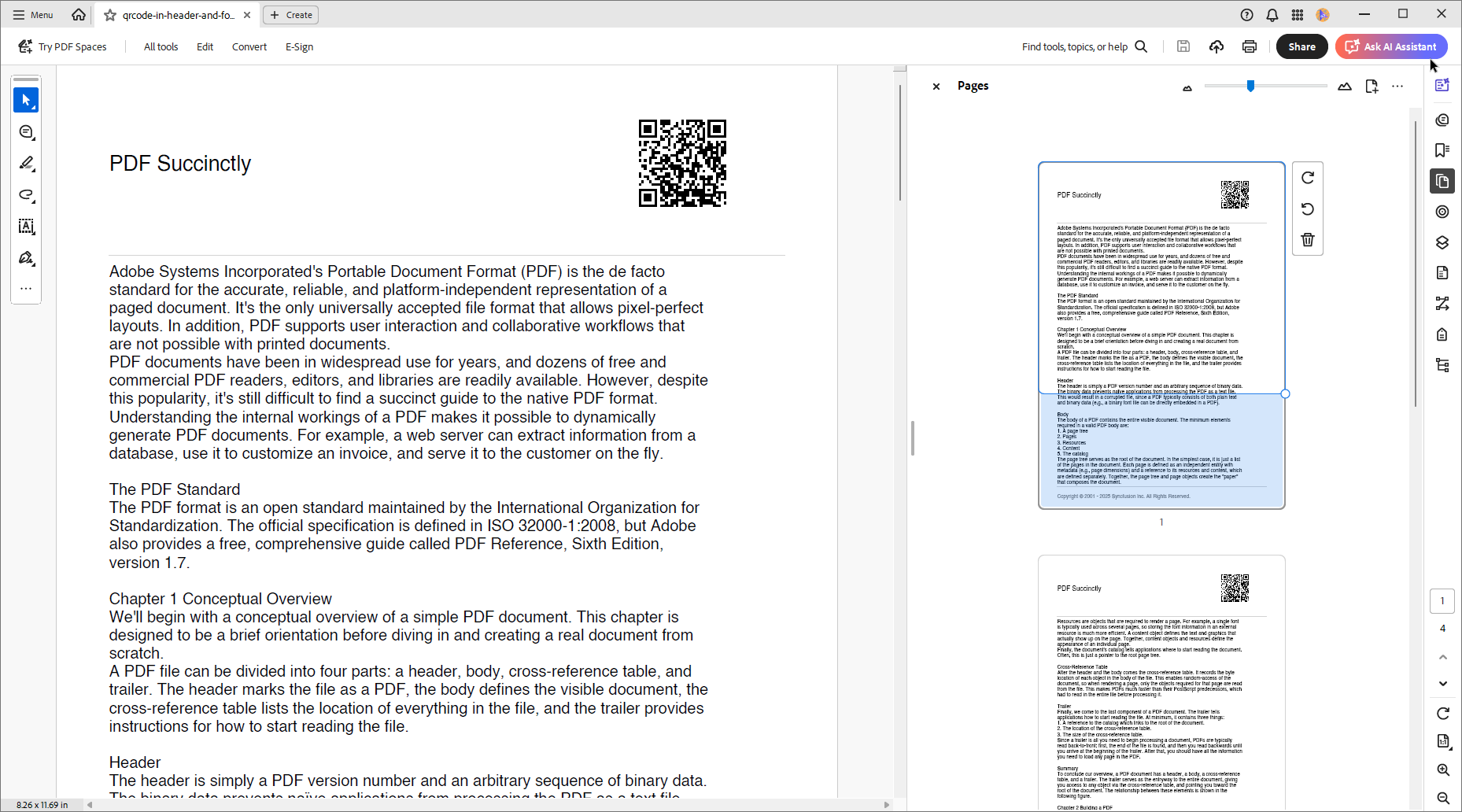
This ensures the QR code appears on every page.
Overlay a logo on a QR Code (Branding)
Branded QR codes that incorporate company logos enhance brand recognition while maintaining functionality. This section covers both simple logo placement and complex embedded logo generation.
// Create a new PDF document
using (PdfDocument document = new PdfDocument())
{
    // Add a new page
    PdfPage page = document.Pages.Add();

    string qrText = "Syncfusion";


    // Create QR barcode instance
    PdfQRBarcode qrBarcode = new PdfQRBarcode();

    // Set QR code properties
    qrBarcode.Text = qrText;

    //Set the QR size
    qrBarcode.Size = new SizeF(120, 120);

    //Create logo for QR code
    QRCodeLogo logo = new QRCodeLogo(PdfBitmap.FromStream(new FileStream("data/logo.png", FileMode.Open, FileAccess.Read)));

    //Set logo in QR code
    qrBarcode.Logo = logo;
        ;

    // Draw the QR code
    qrBarcode.Draw(page.Graphics, new PointF((page.GetClientSize().Width - qrBarcode.Size.Width) / 2, 10));

    //Draw the QR code text
    PdfStandardFont font = new PdfStandardFont(PdfFontFamily.Helvetica, 12);

    //Measure the text size
    SizeF textSize = font.MeasureString(qrText);

    //Calculate the center point
    float x = (page.GetClientSize().Width - textSize.Width) / 2;

    page.Graphics.DrawString(qrText, font, PdfBrushes.Black, new PointF(x, 130));

    // Save the document
    document.Save("qrcode-with-logo.pdf");
}
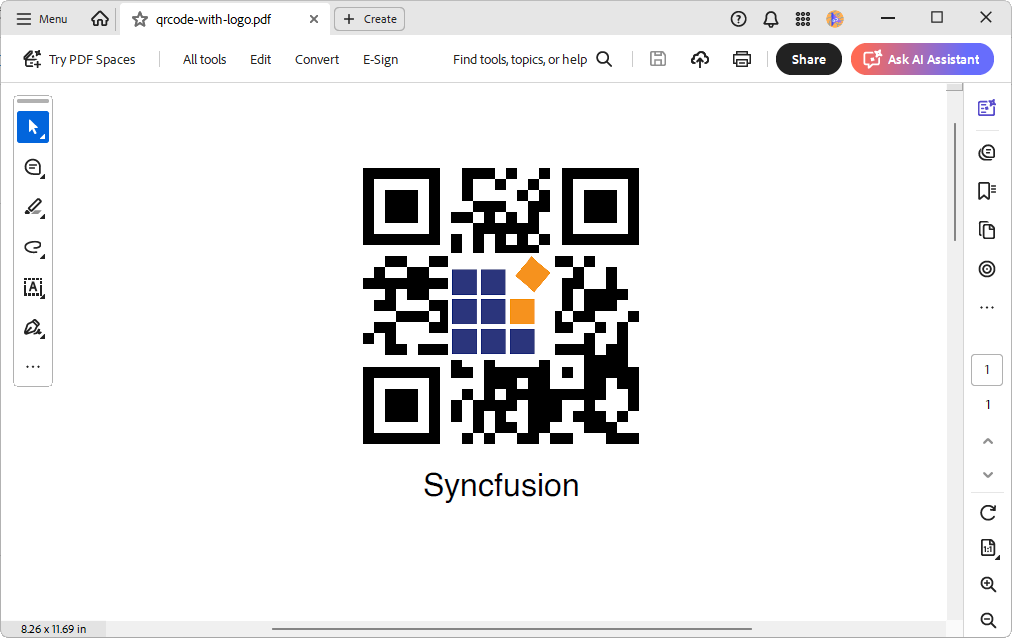
This is the resulting PDF document showcasing a QR code enhanced with a company logo.
Adding a QR Code to an existing PDF
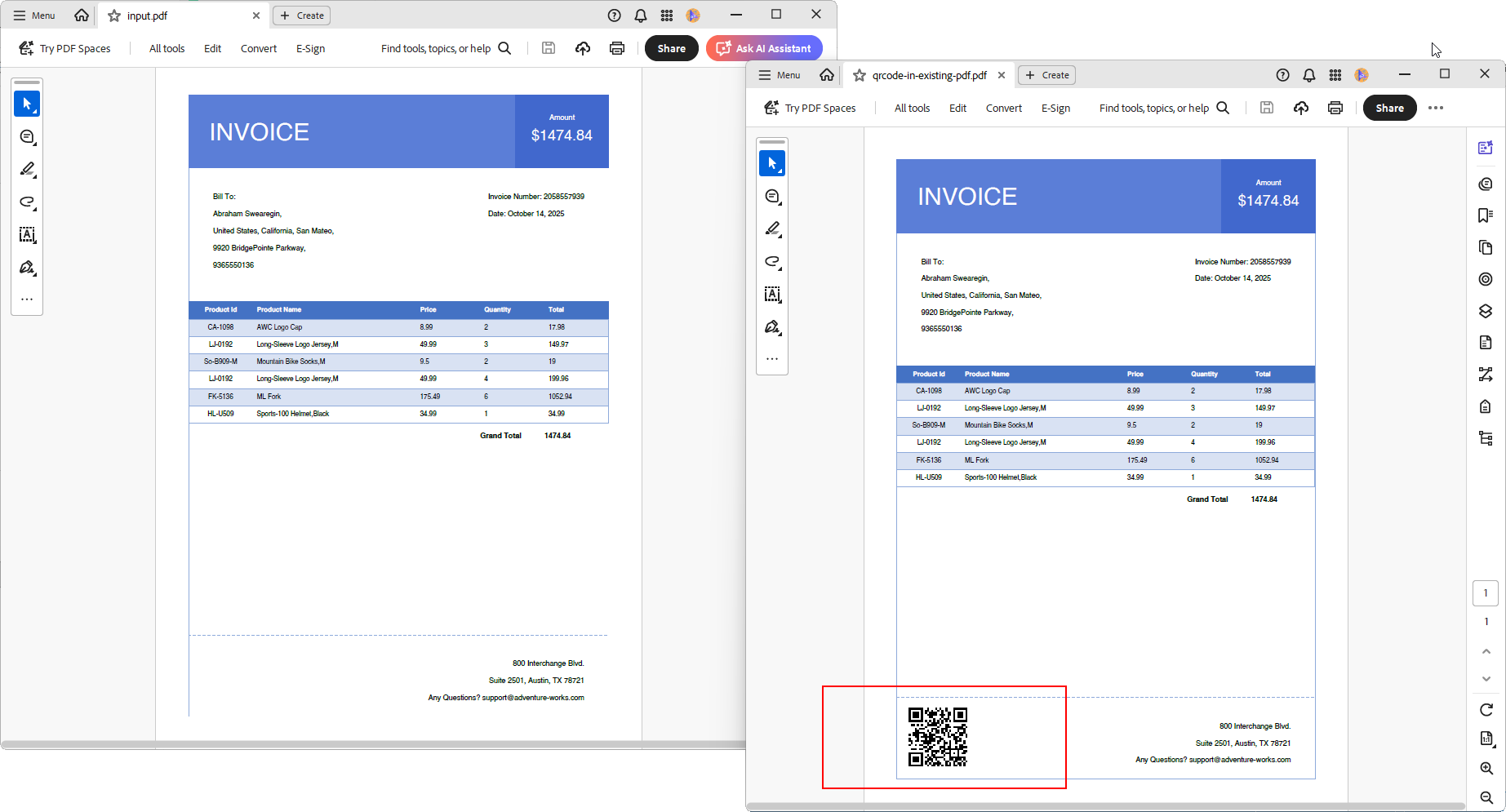
Adding QR codes to existing PDFs without disrupting the original content is crucial for document updates, compliance marking, and certification workflows.
Here’s the code snippet for implementation:
using Syncfusion.Pdf;
using Syncfusion.Pdf.Barcode;
using Syncfusion.Pdf.Parsing;

//Load the existing PDF file
using (PdfLoadedDocument loadedDocument = new PdfLoadedDocument("data/input.pdf"))
{

    //Create a QR code
    PdfQRBarcode qrBarcode = new PdfQRBarcode()
    {
        Text = "[email protected]",
        XDimension = 2.5f
    };

    //Get the first page of the PDF document
    PdfLoadedPage loadedPage = loadedDocument.Pages[0] as PdfLoadedPage;

    //Draw the QR code on that page.
    qrBarcode.Draw(loadedPage, new Syncfusion.Drawing.PointF(50, 710));

    //Save the document
    loadedDocument.Save("qrcode-in-existing-pdf.pdf");
}
The following image shows a QR code embedded in an existing PDF using Syncfusion’s parsing and barcode APIs.
Export a QR Code as an image
Beyond embedding QR codes directly in PDFs, there are scenarios where exporting the generated QR code as a standalone image (e.g., PNG or JPEG) is beneficial.
This allows for flexible use in web apps, print materials, or integration with other image processing workflows. Syncfusion’s .NET PDF Library facilitates this by allowing you to export the QR code as an image.
To export the barcode as an image on the .NET Core platform, we need to add the
Syncfusion.Pdf.Imaging.Net.Core NuGet package in the app.
Refer to the following code example.
using Syncfusion.Pdf.Barcode;
using Syncfusion.Pdf.Graphics;

// Create QR barcode instance
PdfQRBarcode qrBarcode = new PdfQRBarcode();

// Set QR code properties
qrBarcode.Text = "https://syncfusion.com";

qrBarcode.XDimension = 8;

//Export the QR code as an image
Stream qrCodeImage = qrBarcode.ToImage();

//Save the image stream to a file
using (FileStream fileStream = new FileStream("qrcode.png", FileMode.OpenOrCreate, FileAccess.ReadWrite))
{
    qrCodeImage.CopyTo(fileStream);
}
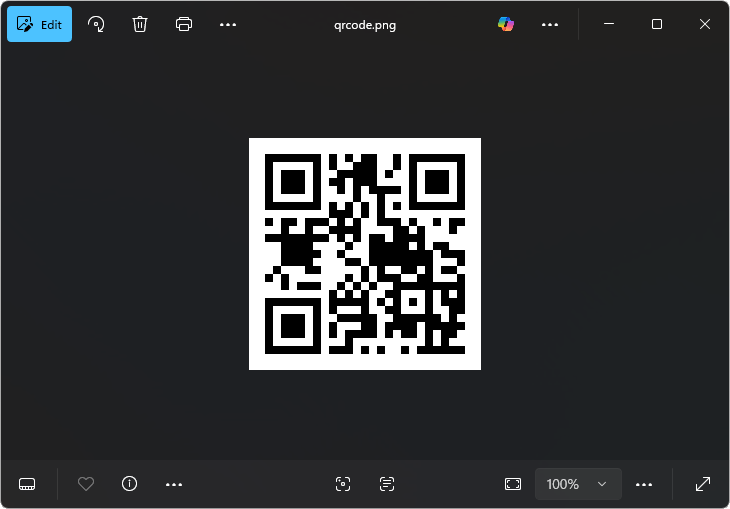
Export your QR code for broader use. Here’s how it looks as a standalone image.
Real-world use cases
QR codes in PDFs offer versatile use cases across sectors:
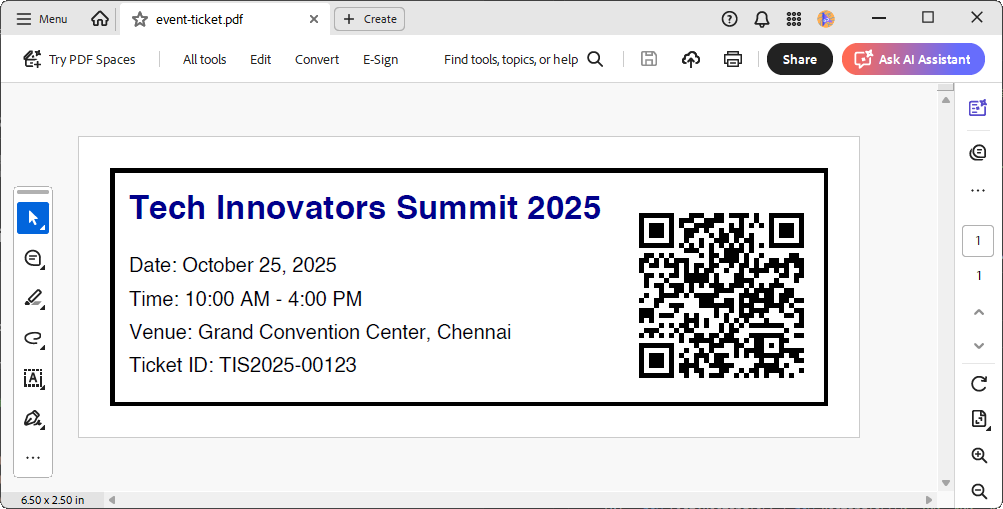
1. Event tickets & invitations
- Use case: PDFs for event tickets or invitations include QR codes for check-in, directions, or agenda downloads.
- Benefit: Attendees scan to confirm attendance, view schedules, or access venue maps in real time.
Refer to the GitHub demo to create the event ticket with QR codes.
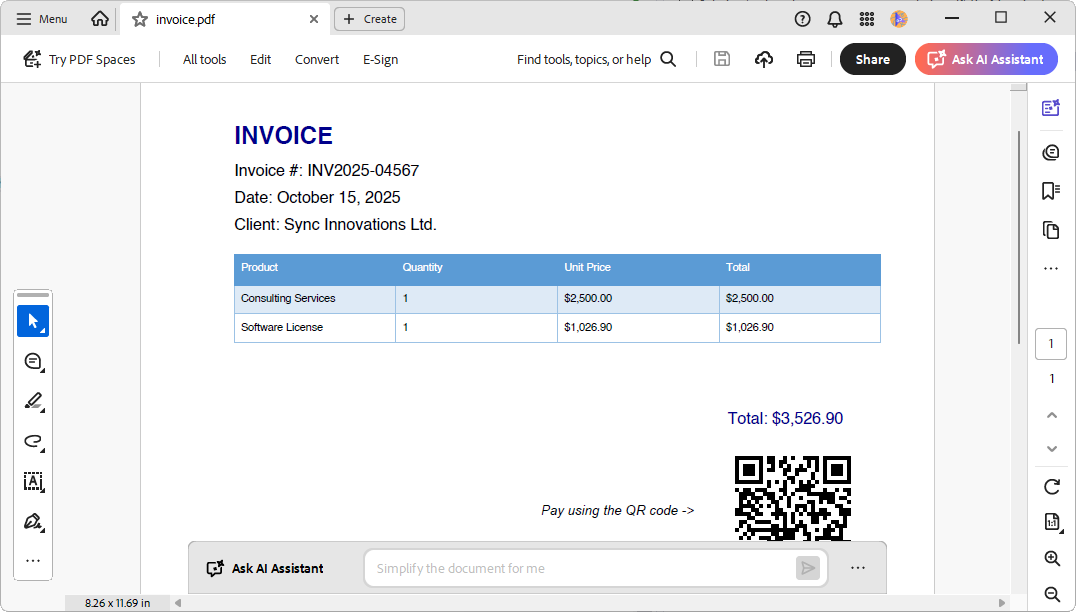
2. Invoices & receipts
- Use case: Businesses add QR codes to PDF invoices linking to payment portals or transaction history.
- Benefit: Clients can pay instantly or verify details without manually entering URLs.
Refer to the GitHub demo to create the invoice with QR codes.
3. Product packaging & manuals
- Use case: Brands embed QR codes in PDF product guides or warranty documents.
- Benefit: Customers scan the code on packaging to instantly access digital manuals, setup instructions, or troubleshooting guides, no need for bulky paper inserts.
4. Education & training materials
- Use case: Teachers and trainers embed QR codes in lesson plans or handouts.
- Benefit: Students scan to access supplementary videos, quizzes, or interactive content, ideal for hybrid learning environments.
5. Retail & restaurant menus
- Use case: Digital menus in PDF format include QR codes for ordering, nutritional info, or promotions.
- Benefit: Customers scan to place orders or view real-time updates without touching shared surfaces.
6. Business proposals & portfolios
- Use case: Freelancers and consultants embed QR codes in PDF proposals linking to case studies, testimonials, or booking pages.
- Benefit: Prospective clients can engage with rich media instantly or take action without leaving the page.
7. Healthcare & patient forms
- Use case: PDFs include QR codes for appointment scheduling, telehealth access, or medication instructions.
- Benefit: Patients scan to complete forms or access care resources securely and efficiently.
QR codes are no longer optional; they’re a core part of modern document workflows!
GitHub reference
Also, refer to the GitHub demo for creating and embedding QR codes in PDF using C# .

Frequently Asked Questions
When should I use a QR code in a PDF instead of a traditional hyperlink?
QR codes are ideal when PDFs are printed, shared offline, or viewed on devices where clicking links isn’t practical. They provide a seamless bridge between physical documents and live digital content without relying on clickable UI elements.
Does changing the XDimension affect scanning reliability?
Yes. XDimension directly determines the size of each QR module. Increasing it improves scan accuracy, especially for printed PDFs or low‑resolution displays, while smaller values are suitable for high‑quality digital documents viewed on screens.
Why is the Quiet Zone important, and can it be removed?
The Quiet Zone allows scanners to properly detect the QR code boundaries. Removing or reducing it can result in failed scans, especially in printed documents. It should be treated as a required design constraint, not optional spacing.
Will adding a QR code to an existing PDF modify the original content?
No. The QR code is added as an overlay, meaning the underlying content remains intact. This makes the approach suitable for compliance updates, certification marks, or document enhancements without recreating the PDF.
What types of barcodes are supported by the Syncfusion .NET PDF Library?
The Syncfusion .NET PDF Library includes built‑in barcode support that allows you to generate and work with QR codes and related barcode functionality while creating or modifying PDF documents in C#. Learn more about the supported barcode types.
Do QR codes work consistently across various PDF viewers?
Yes. QR codes generated using standard barcode specifications render as regular PDF graphics, ensuring consistent visibility and scannability across commonly used PDF viewers.
Turn static PDFs into smart, interactive, production‑ready documents with QR codes
Thanks for reading! With the Syncfusion .NET PDF Library, you can embed QR codes in new or existing PDFs, customize them for reliability and branding, add them to headers and footers, and export QR codes as images. The above-mentioned examples are minimal and ready for production, with guidance on error correction, quiet zones, and testing to ensure the ability to scan. You can refer to the Syncfusion documentation for comprehensive barcode support, including QR, Data Matrix, Code 39, PDF417, and more.
Whether you’re building invoices, tickets, manuals, healthcare forms, or enterprise documents, the patterns in this guide are ready for production.
Explore Syncfusion’s .NET PDF Library today! Existing Syncfusion users can download the newest version of Essential Studio from the license and download page, while new users can start a 30-day free trial to experience its full potential.
Our dedicated support team is also available via the support forum, support portal, or feedback portal for any questions or concerns and is committed to providing prompt and comprehensive assistance.

 No spam, just valuable updates.