
 Deepa Thiruppathy
TL;DR: Every time a PDF opens in Acrobat, something breaks, users leave your app, analytics lose visibility, and security controls stop at the hard drive. What if PDFs never had to leave your UI at all? Embed PDF documents directly inside your app using the Syncfusion React PDF Viewer, lock down printing and downloads, tailor tools by user role, and capture real interaction data for audits and analytics, so PDFs stay part of your workflow, not an escape route.
Stop downloading to view PDFs in your React app: There’s a better way
Every time a PDF downloads and opens outside your app, you lose more than you expect:
- User attention: The interface disappears.
- Workflow continuity: Navigation breaks and context are lost.
- Control over sensitive documents: Security rules stop applying.
Users click a document, the browser launches Acrobat or a native viewer, and your app is suddenly out of the picture. At that point, analytics go dark, and there’s no reliable way to know what the user did with the document.
For modern React applications, especially internal portals, SaaS dashboards, and enterprise tools, this experience no longer works. Users expect PDFs to load instantly, stay in line, and remain secure without forced downloads or context switches.
This guide shows how to embed a secure PDF Viewer in React using Syncfusion®, so documents render directly inside your app. You’ll learn how to:
- Disable printing and downloads.
- Configure role‑based toolbars.
- Track document interactions for audit and analytics purposes.
The result: PDFs become a controlled, first‑class part of your workflow, not something that pulls users out of it.
Why PDF downloads hurt your web app experience
Considering a scenario, you’ve built a polished internal web portal with quick navigation and smooth UX. Then a user clicks a use-case file, and Chrome hands the PDF to Adobe Acrobat.
Your app just lost the user.
Here’s why that single click silently damages your product metrics.
1. It instantly breaks the user flow
Switching from your app to a native desktop viewer is a hard context switch. The user is suddenly in Acrobat’s viewer UI, with different controls, and no clear path back.
For internal tools, HR portals, procurement systems, loan dashboards, and compliance apps, these broken flows don’t just frustrate users; they also undermine productivity. They create real operational drag.
2. “Just download it” isn’t actually simple
A “simple PDF download” is rarely simple:
Click -> download → wait → find file → open → read → return to app.
Each extra step reduces completion rates, especially in onboarding, review, and approval workflows.
3. Mobile users get hit the hardest
On mobile, PDF downloads often fail outright:
- No default PDF reader.
- Files buried in downloads.
- Storage permission pop‑ups.
- Broken navigation back to the app.
In a mobile‑first enterprise world, downloads become a dead end.
4. Analytics & visibility disappear
Once the PDF leaves your app, it disappears from your observability stack. You cannot reliably answer:
- Did they open it?
- Which pages did they read?
- Where did they stop?
- How long did the review take?
An embedded viewer keeps those interactions inside your product so you can instrument them.
The hidden security & compliance risks of PDF downloads
For enterprise teams, the problem with PDF downloads isn’t just bad UX; it’s a security and compliance liability waiting to happen.
1. Downloaded PDFs are beyond your control
Once a PDF is downloaded on a device:
- You can’t revoke access.
- You can’t prevent forwarding.
- You can’t audit distribution.
For organizations handling financial data, health records, legal contracts, or intellectual property, this isn’t a theoretical risk. It’s a compliance and security failure.
2. Sensitive data exposure risk increases
Download-by-default often conflicts with internal governance and regulated requirements, including SOC 2, GDPR, HIPAA, PCI, and ISO policies. Audits tend to focus on exactly this: where data goes and who can keep it.
3. No access revocation
Role changes, vendor offboarding, and account termination do not affect files that have already been downloaded. That is a permanent data leakage risk.
4. Vulnerable browser plugins
Not every enterprise user is running an updated machine. Many are still using outdated browser PDF plugins, which are a known attack vector for maliciously crafted PDFs.
What a fast, secure, inline PDF Viewer should include
Before you pick up a solution, here’s what a production-ready embedded PDF viewer needs to deliver.
- View-only mode with download/print disabled.
- Role-based tools with different toolbars for viewers, reviewers, and auditors.
- Responsive UX for desktops and mobile.
- Progressive rendering and smooth zoom/search on large PDFs.
- Event hooks for analytics and audit trails.
- Straightforward and easy, framework-friendly.
- Enterprise-ready controls with access enforcement, logging strategy, and maintainability.
Why choose Syncfusion PDF Viewer for your web apps
The Syncfusion React PDF Viewer checks every box on the checklist above, and here’s specifically how it delivers on each one:
1. Read-only mode: No-download, no-print
You can disable download/print using the following first-class properties (not CSS hacks). You can also lock down interaction with read-only mode and context menu settings:
- enableDownload: Enable/disable the download icon from the toolbar.
- enablePrint: Enable/disable the print icon from the toolbar.
- contextMenuOption: Specify the state of the
ContextMenu.
Refer to the following code example.
{/* Initialize the React PDF Viewer Component */}

<PdfViewerComponent
 enablePrint={false} //disable printing
 enableDownload={false} //disable downloading
 readOnly={true} //set read-only to true for block editing
 contextMenuOption="None" //disable context menu
>
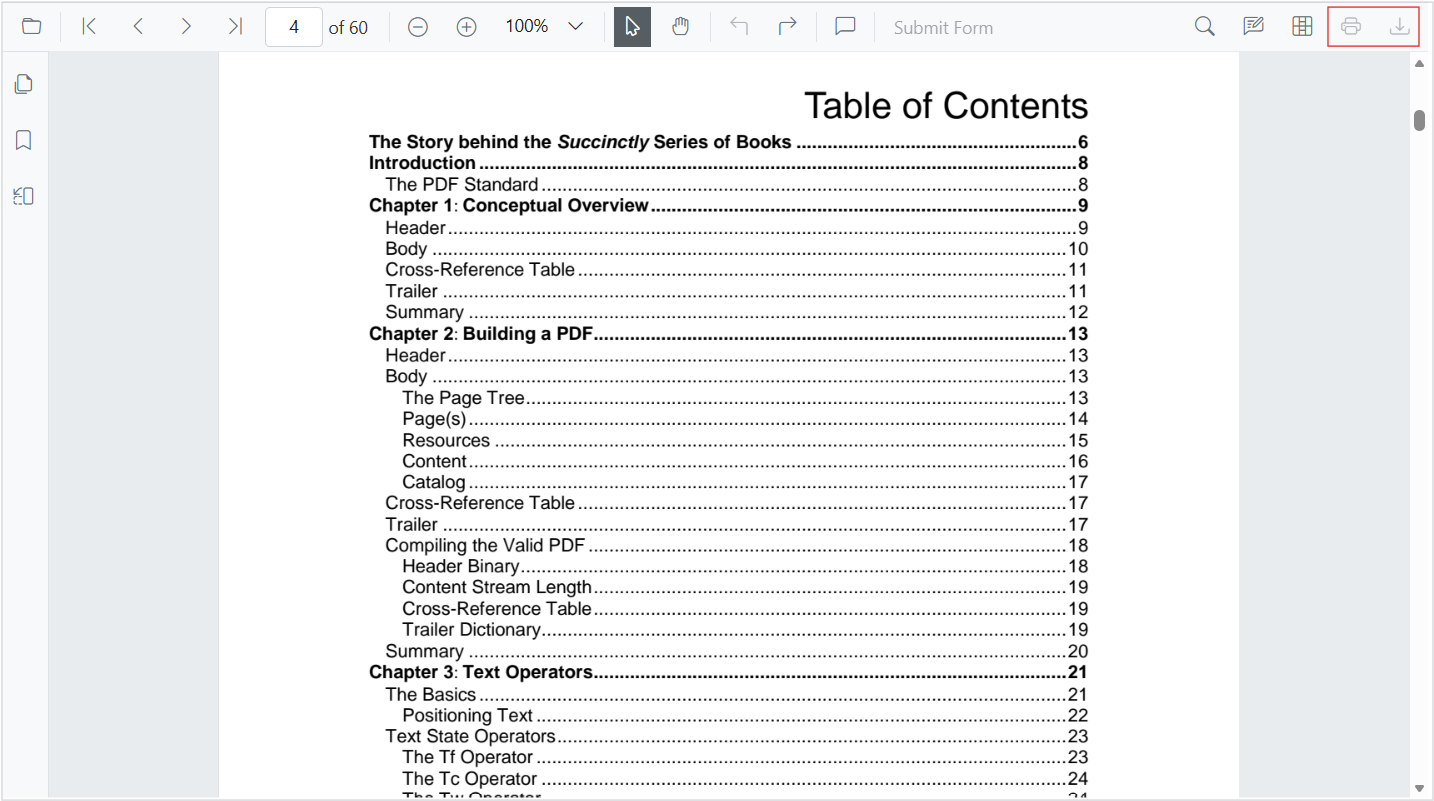
Result: It removes common “escape hatches” (toolbar actions and right-click options) so users stay in a view-only experience inside your app UI.
See the following image for visual clarity.
2. Role & permission controls with a configurable toolbar
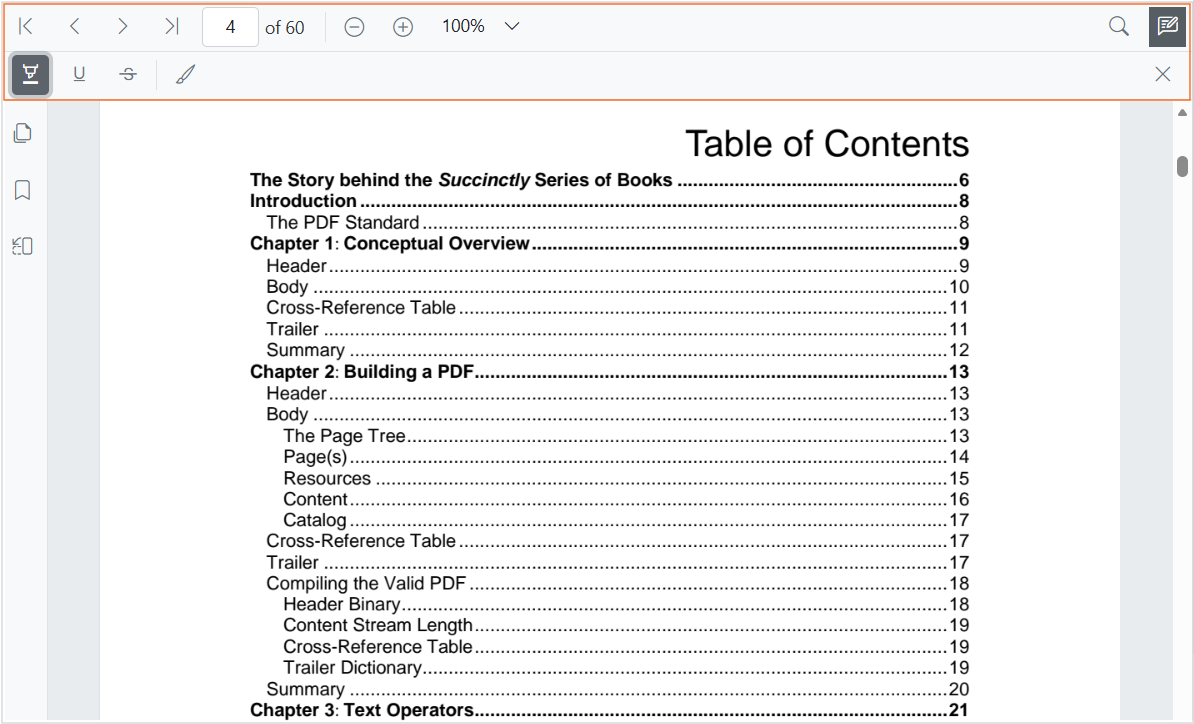
You can expose only the tools each role needs using the toolbarSettings API. For example, keep basic navigation/search tools for readers, and add annotation tools and form fields for reviewers.
Below is an example code snippet to achieve this.
<PdfViewerComponent
 //Change the toolbar settings.
 toolbarSettings=
 {{
  toolbarItems:
  [
   "PageNavigationTool",
   "MagnificationTool",
   "AnnotationEditTool",
   "SearchOption",
  ],
  annotationToolbarItems:
  [
   "HighlightTool",
   "UnderlineTool",
   "StrikethroughTool",
   "InkAnnotationTool",
  ],
 }}
>
How do I apply this in a real app?
Map your app roles (viewer/reviewer/auditor/admin) to a toolbar configuration. Keep document authorization on the server side, and use the toolbar to reflect allowed actions in the UI.
3. Responsive design for real-world devices
The Syncfusion React PDF Viewer adapts its mobile toolbar and interaction model based on screen size, delivering a consistent, usable experience from a 4-inch phone to a 32-inch workstation monitor.
Refer to the following properties:
- enablePinchZoom: Enables pinch-to-zoom gesture support on touch devices.
- enableDesktopMode: Allows the component to adapt naturally to the device screen size.
Here’s the code example for your reference.
<PdfViewerComponent
 enablePinchZoom={true} //Enable pinch-to-zoom on touch devices
 enableDesktopMode={false} //disable desktop mode and allow adaptive layout on mobile screen size
>
4. High-performance rendering for large PDFs
Load even large, complex PDFs quickly and smoothly with advanced performance optimizations, including:
- Tile‑based rendering
- Zoom optimization
- Progressive page loading
The TileRenderingSettings and enableZoomOptimization properties let you fine-tune performance for your specific document types.
5. Document analytics via event hooks
The React PDF Viewer exposes a rich set of events for advanced instrumentation. You can easily integrate events such as:
With these events directly added into your analytics platform, you gain insights into:
- Which pages users read most.
- Where users drop off.
- How long review sessions take.
- Which documents generate the most annotation activity.
6. Easy integration across frameworks
The Syncfusion PDF Viewer works seamlessly across your entire stack, with support for:
Getting started is simple:
- Install a single package.
- Import one component.
- Configure a small set of properties.
The PdfViewerComponent follows idiomatic React patterns with a clean, declarative API.
No custom build configuration, no complex initialization lifecycle.
How to embed Syncfusion React PDF Viewer (Quick guide)
Let’s get practical. Here’s how to go from “PDF downloads” to “PDFs to render securely inline” in your React application.
Step 1: Install the React PDF Viewer packages
Install the Syncfusion React PDF Viewer, the core package for embedding a fast, secure inline PDF viewer in your React app.
npm install @syncfusion/ej2-react-pdfviewerStep 2: Add the CSS styles
In your index.css file, add the Syncfusion theme imports before any other styles:
/* src/index.css */
@import '@syncfusion/ej2-base/styles/fluent2.css';
@import '@syncfusion/ej2-buttons/styles/fluent2.css';
@import '@syncfusion/ej2-inputs/styles/fluent2.css';
@import '@syncfusion/ej2-popups/styles/fluent2.css';
@import '@syncfusion/ej2-lists/styles/fluent2.css';
@import '@syncfusion/ej2-navigations/styles/fluent2.css';
@import '@syncfusion/ej2-dropdowns/styles/fluent2.css';
@import '@syncfusion/ej2-pdfviewer/styles/fluent2.css';
Step 3: Create the secure React PDF viewer component
Use the following PdfViewerComponent code snippet to embed a secure, non‑printable, non‑downloadable inline PDF Viewer in your React app:
<PdfViewerComponent
 id="container"
 documentPath="https://cdn.syncfusion.com/content/pdf/pdf-succinctly.pdf"
 resourceUrl="https://cdn.syncfusion.com/ej2/31.2.7/dist/ej2-pdfviewer-lib"
 style={{'height':'640px'}}
 enablePrint={false} //Disable printing
 enableDownload={false} //Disable downloading
>
After executing the above code, our output will look like the following image.
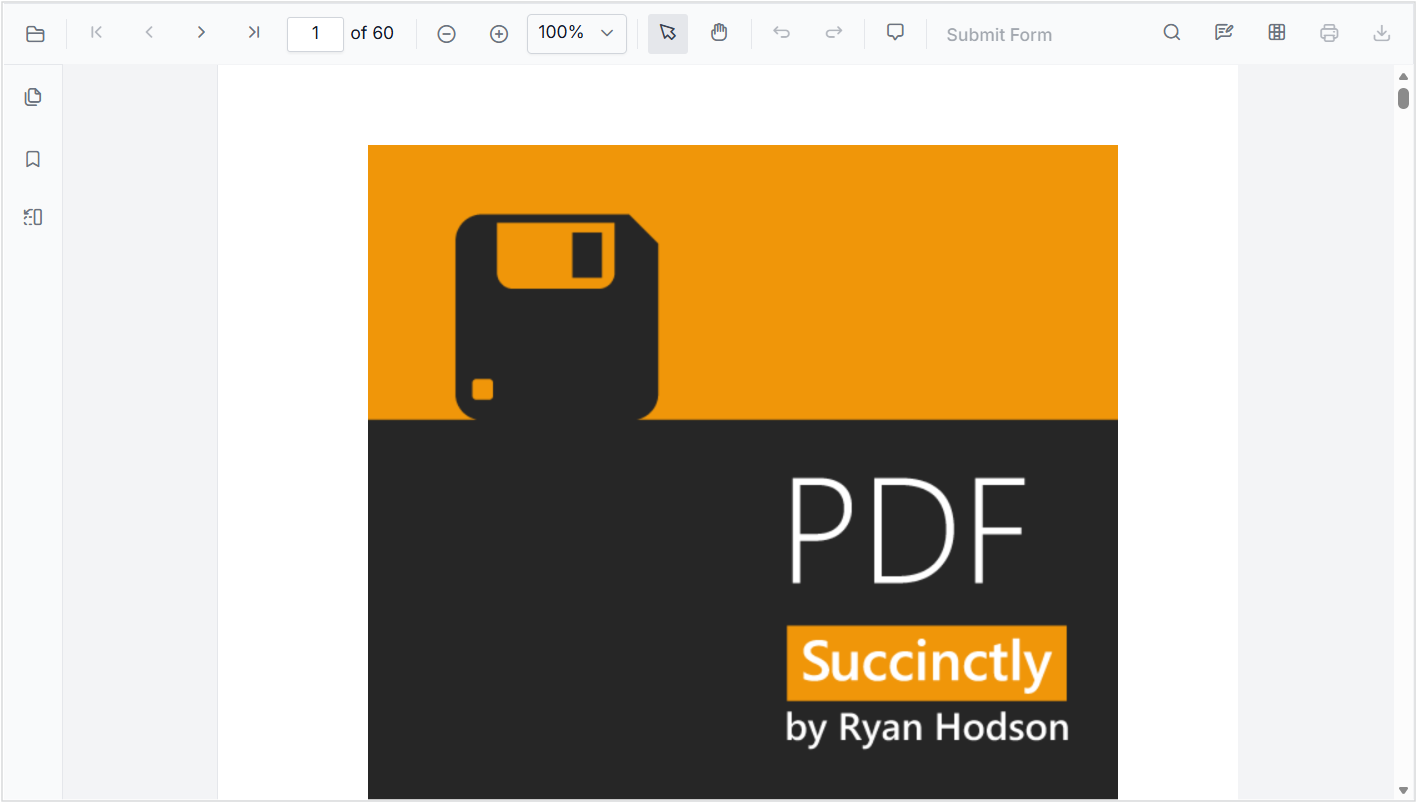
The PDF now loads inline, no download, no context switch.
Do you want detailed setup instructions for the above? See the getting started documentation and the GitHub demo.
The real impact of using Syncfusion React PDF Viewer: UX, security, and developer velocity
Embedding the Syncfusion React PDF Viewer into your web portal delivers measurable outcomes across engagement, security, and productivity.
1. Higher engagement, measurably
Keeping users inside your app to read documents boosts session duration, page views, and task‑completion rates.
With events such as, pageChange, documentLoad, and other event handlers tied to analytics, Syncfusion gives you real insight into how users read and where they drop off.
2. Enforced security, zero configuration drift
Security is built into the core of Syncfusion React PDF Viewer. With HIPAA, GDPR, and SOC 2–aligned protections plus integrated, built-in redaction and role‑based access, your documents stay secure without additional coding or middleware.
3. Saves development time significantly
Building a secure, consistent, role-based PDF viewer from scratch would take weeks. Syncfusion gives you all of that in a single, well-documented component. You can also integrate role-based annotations in a few hours using its pre-built components.
Frequently Asked Questions
Will embedding a PDF viewer increase my app’s bundle size?
No. The Syncfusion PDF Viewer loads most of its functionality through a CDN-hosted resourceUrl, not your main app bundle. This keeps your app’s initial bundle lean while still delivering full PDF features on demand.
Can I load PDFs directly from my backend API instead of a public URL?
Yes. You can serve PDFs from authenticated API endpoints and pass the secured URL to documentPath. Refer to the documentation on loading and opening PDF files from different sources in PDF viewer for more details.
What if my PDFs are dynamically generated (e.g., invoices or contracts)?
No problem. As long as your backend returns a valid PDF stream or URL, the viewer can load it. Developers commonly generate PDFs on the fly using Node.js, .NET, or Java, and then pass the generated URL or blob to the viewer component.
Can I add custom buttons or UI elements above or around the PDF viewer?
Absolutely. The viewer is a React component, so you can wrap it within any layout and add custom action buttons, progress indicators, approval workflows, or role-specific UI elements to support your app workflow.
Does the viewer support accessibility features like keyboard navigation or screen readers?
Yes. Syncfusion React PDF Viewer supports keyboard shortcuts and ARIA attributes, making it suitable for enterprise compliance and government apps.
Can I open password-protected PDFs inside the viewer?
Yes. Syncfusion supports opening encrypted PDFs by allowing you to provide the password through the viewer settings.
What if the PDF fails to load due to a network or permission error?
You can hook into viewer error events, such as documentLoadFailed, to display a custom error message or redirect the user, ensuring a safe, predictable user experience.
Stop letting PDFs escape your React app workflow
The Syncfusion React PDF Viewer enables full‑stack developers building internal tools and enterprise portals to replace basic download links with a secure, trackable, fully embedded document‑viewing experience, without sacrificing performance or control.
With the built‑in support for:
- Access management,
- Annotations and markup,
- Analytics and event tracking, and
- Seamless React app integration,
…everything you need is available today.
To see it in action, explore the Syncfusion React PDF Viewer live demo.
Are you already a Syncfusion user? You can download the product setup from our license and downloads page. If you’re not yet a Syncfusion user, you can download a 30-day trial.
If you have questions, contact us through our support forum, support portal, or feedback portal. We are always happy to assist you!



 No spam, just valuable updates.