
 Rangarajan Ashokan
TL;DR: Need secure PDF signing in Android apps with .NET MAUI? This hands-on guide walks through digitally signing new and existing PDFs using a PFX certificate, customizing visible signatures, adding timestamps, tracking revisions, and managing signature fields, all with production-ready, developer-friendly APIs.
Why digital signatures matter for Android PDFs
As mobile apps increasingly handle contracts, approvals, and sensitive documents, ensuring document integrity and authenticity is critical.
Digital signatures play a key role by providing:
- Integrity: Ensures the document hasn’t been altered.
- Authenticity: Verifies the signer’s identity.
- Non-repudiation: Prevents signers from denying their actions.
- Role in mobile workflows: They enable quick, secure approvals and document exchanges directly from Android devices, ensuring compliance and trust.
Unlike electronic signatures (simple images or consent marks), digital signatures rely on cryptographic certificates, making them suitable for compliance-driven and security-sensitive workflows.
However, developers often struggle with:
- Managing certificates securely
- Customizing signature appearance
- Implementing standards-compliant signing in mobile apps
This is where a .NET MAUI-based PDF solution significantly simplifies the process. The Syncfusion® .NET PDF Library supports digital signatures in Android through .NET MAUI, making it easy to add secure signatures to PDF documents. It offers APIs for certificate-based signing, appearance customization, timestamping, and validation, all within your application.
In this blog post, we’ll walk through using the Syncfusion .NET PDF Library with .NET MAUI to sign new and existing PDFs and implement advanced features such as timestamping, deferred signing, and revision tracking.
By the end, you’ll have a clear roadmap to integrate secure, professional digital signing into your Android MAUI apps.

Implement digital signatures in Android with Syncfusion .NET MAUI PDF Library
The Syncfusion .NET PDF Library simplifies implementing digital signatures in Android apps built with .NET MAUI.
Key features include:
- Easy-to-use APIs for adding, validating, and managing signatures.
- Support for visible signatures with custom images and metadata.
- Compliance with global standards like
PAdESandX.509.
With these capabilities, creating secure and professional signing experiences on mobile is effortless.
Set up a .NET MAUI project for Android
- Create a new .NET MAUI App in Visual Studio 2022 and ensure the latest .NET MAUI workload is installed.
- Install Syncfusion PDF Library
- In Solution Explorer, right-click your project and select Manage NuGet Packages.
- Search for Syncfusion.Pdf.Net and install it.
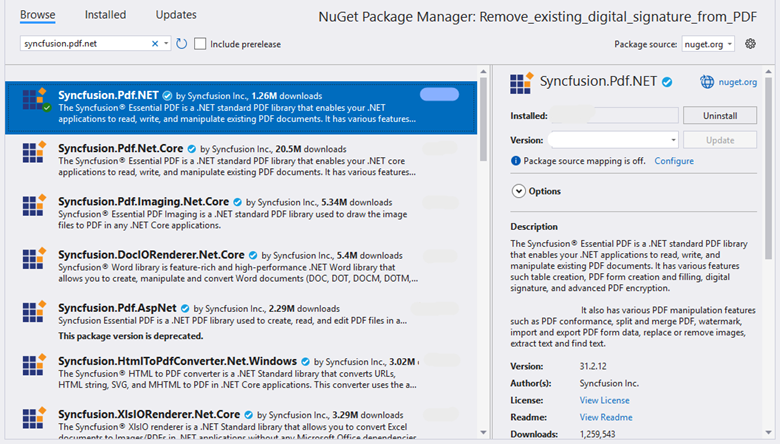
Note: Run the sample using an Android Emulator or connect a physical Android device for testing.
Curious about creating a .NET MAUI sample using Syncfusion PDF Library? Explore our official documentation for a complete walkthrough.
Add digital signatures to your PDFs in Android using .NET MAUI
Adding a digital signature to a PDF ensures the PDF’s authenticity and legal validity. The process involves creating or loading a document, applying a certificate-based signature, and saving the signed file.
If you’re wondering how to add a digital signature to a PDF on Android, this step-by-step guide will help you integrate it seamlessly.
Step 1: Create and sign a new PDF document
You can create a new PDF from scratch and sign it using a digital certificate. The signing process typically includes:
- Creating the PDF document
- Adding a page
- Loading a certificate (PFX)
- Applying a signature field
- Customizing signer metadata and appearance
Example code: Create and sign a new PDF
//Creates a new PDF document.
PdfDocument document = new PdfDocument();

//Adds a new page.
PdfPageBase page = document.Pages.Add();

//Create PDF graphics for the page.
PdfGraphics graphics = page.Graphics;

//Creates a certificate instance from a PFX file with a private key.
FileStream certificateStream = new FileStream("PDF.pfx", FileMode.Open, FileAccess.Read);
PdfCertificate pdfCert = new PdfCertificate(certificateStream, "password123");

//Creates a digital signature.
PdfSignature signature = new PdfSignature(document, page, pdfCert, "Signature");

//Sets an image for the signature field.
FileStream imageStream = new FileStream("signature.jpg", FileMode.Open, FileAccess.Read);

//Sets an image for the signature field.
PdfBitmap signatureImage = new PdfBitmap(imageStream);

//Sets signature information.
signature.Bounds = new RectangleF(new PointF(0, 0), signatureImage.PhysicalDimension);
signature.SignedName = "Syncfusion";
signature.ContactInfo = "[email protected]";
signature.LocationInfo = "Honolulu, Hawaii";
signature.Reason = "I am the author of this document.";

//Draws the signature image.
signature.Appearance.Normal.Graphics.DrawImage(signatureImage, 0, 0);

//Saves the PDF to the memory stream.
using MemoryStream ms = new();
document.Save(ms);

//Close the PDF document
document.Close(true);
ms.Position = 0;#

//Saves the memory stream as a file.
SaveService saveService = new();
saveService.SaveAndView("Result.pdf", "application/pdf", ms);Step 2: Sign an existing PDF document
To sign an existing PDF:
- Load the document
- Access the required page and signature field
- Apply a certificate-based signature
Syncfusion PDF Library makes this process smooth through APIs that handle field detection and signing.
Example Code: Sign an existing PDF
Assembly assembly = typeof(MainPage).GetTypeInfo().Assembly;
string basePath = "CreatePdfDemoSample.Resources.Data.";
Stream inputStream = assembly.GetManifestResourceStream(basePath + "PdfDocument.pdf");
Stream pfxStream = assembly.GetManifestResourceStream(basePath + "PDF.pfx");
Stream signStream = assembly.GetManifestResourceStream(basePath + "signature.png");

PdfLoadedDocument lDoc = new PdfLoadedDocument(inputStream);
PdfLoadedPage page = lDoc.Pages[0] as PdfLoadedPage;
PdfLoadedSignatureField signField = lDoc.Form.Fields[6] as PdfLoadedSignatureField;

//Creates a certificate instance from PFX file with private key.
PdfCertificate pdfCert = new PdfCertificate(pfxStream, "password123");

//Creates a digital signature.
PdfSignature signature = new PdfSignature(lDoc, page, pdfCert, "Signature", signField);

//Sets an image for the signature field.
PdfBitmap signatureImage = new PdfBitmap(signStream);

//Sets signature information.
signature.Bounds = signField.Bounds;
signature.SignedName = "Syncfusion";
signature.ContactInfo = "[email protected]";
signature.LocationInfo = "Honolulu, Hawaii";
signature.Reason = "I am the author of this document.";

//Create appearance for the digital signature.
signature.Appearance.Normal.Graphics.DrawImage(signatureImage, new RectangleF(0, 0, 60, 35));

//Saves the PDF to the memory stream.
using MemoryStream ms = new();
lDoc.Save(ms);

//Close the PDF document
lDoc.Close(true);
ms.Position = 0;

//Saves the memory stream as a file.
SaveService saveService = new();
saveService.SaveAndView("Result.pdf", "application/pdf", ms);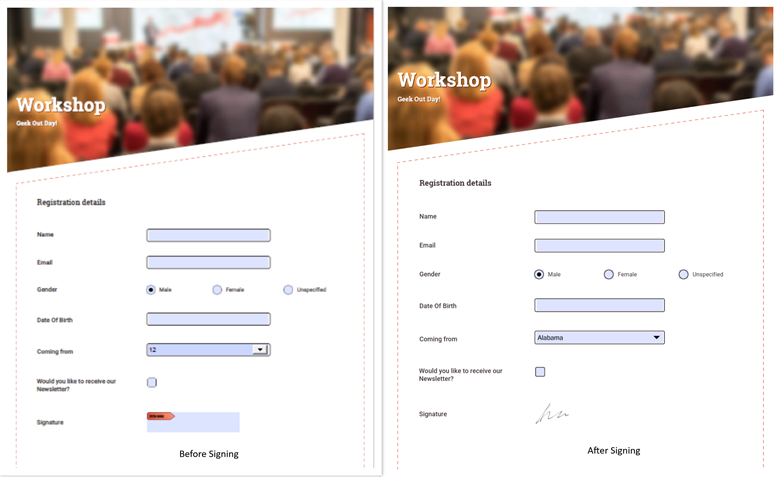
Did you know? Syncfusion also supports adding multiple signatures to a single PDF document, making collaborative signing effortless. Check out our documentation and explore the full sample on GitHub.
Remove digital signatures from PDFs in Android
Removing digital signatures is useful when documents need to be updated or re-signed. Syncfusion PDF Library provides simple APIs to identify and remove signed fields.
The following code demonstrates how to remove a single digital signature from a PDF:
Assembly assembly = typeof(MainPage).GetTypeInfo().Assembly;
string basePath = "CreatePdfDemoSample.Resources.Data.";
Stream inputStream = assembly.GetManifestResourceStream(basePath + "DrawSignInput.pdf");

//Load the PDF document using the path of the file
PdfLoadedDocument lDoc = new PdfLoadedDocument(inputStream);
PdfLoadedPage page = lDoc.Pages[0] as PdfLoadedPage;

//Access the signature field from the form field collection
PdfLoadedSignatureField signField = lDoc.Form.Fields[6] as PdfLoadedSignatureField;

//Remove signature field from form field collection.
lDoc.Form.Fields.Remove(signField);

//Saves the PDF to the memory stream.
using MemoryStream ms = new();
lDoc.Save(ms);

//Close the PDF document
lDoc.Close(true);
ms.Position = 0;

//Saves the memory stream as a file.
SaveService saveService = new();
saveService.SaveAndView("Result.pdf", "application/pdf", ms);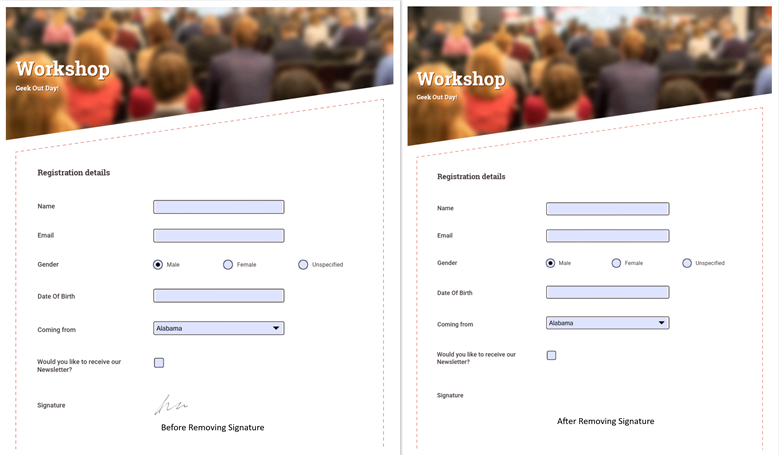
Remove multiple digital signatures
To remove multiple signatures, iterate through the form field collection and delete all signature fields.
Here’s how you can do it in code:
//Load the PDF document using the path of the file
PdfLoadedDocument lDoc = new PdfLoadedDocument(inputStream);
PdfLoadedPage page = lDoc.Pages[0] as PdfLoadedPage;

for (int i = lDoc.Form.Fields.Count - 1; i >= 0; i--)
{
    if (lDoc.Form.Fields[i] is PdfLoadedSignatureField)
    {
        lDoc.Form.Fields.RemoveAt(i);
    }
}

//Saves the PDF to the memory stream.
using MemoryStream ms = new();
lDoc.Save(ms);

//Close the PDF document
lDoc.Close(true);
ms.Position = 0;Advanced digital signature features for Android PDFs
Digital signing often requires more than basic authentication. Advanced capabilities help meet compliance and long-term validation requirements. These include:
- Timestamping for long-term validity
- Custom cryptographic standards and hash algorithms for compliance
- Deferred signing for external workflows
- Revision tracking to verify document integrity
Add timestamping to digital signatures
Timestamping records the exact signing time using a trusted authority, ensuring validity even if the certificate expires later.
Example code: Add timestamp
//Creates a new PDF document
PdfDocument document = new PdfDocument();

//Adds a new page
PdfPageBase page = document.Pages.Add();

//Create PDF graphics for the page
PdfGraphics graphics = page.Graphics;

//Creates a certificate instance from a PFX file with a private key
FileStream certificateStream = new FileStream("PDF.pfx", FileMode.Open, FileAccess.Read);
PdfCertificate pdfCert = new PdfCertificate(certificateStream, "password123");

//Creates a digital signature
PdfSignature signature = new PdfSignature(document, page, pdfCert, "Signature");

//Sets an image for the signature field
FileStream imageStream = new FileStream("syncfusion_logo.jpeg", FileMode.Open, FileAccess.Read);

//Sets an image for the signature field
PdfBitmap image = new PdfBitmap(imageStream);

//Adds time stamp by using the server URI and credentials
signature.TimeStampServer = new TimeStampServer(new Uri("http://syncfusion.digistamp.com"), "user", "123456");

//Sets signature info
signature.Bounds = new RectangleF(new PointF(0, 0), image.PhysicalDimension);
signature.SignedName = "Syncfusion";
signature.ContactInfo = "[email protected]";
signature.LocationInfo = "Honolulu, Hawaii";
signature.Reason = "I am the author of this document.";

//Draws the signature image
signature.Appearance.Normal.Graphics.DrawImage(image, 0, 0);

//Save the document
using MemoryStream ms = new();
loadedDocument.Save(ms);

//Close the document.
loadedDocument.Close(true);

//Saves the memory stream as a file.
SaveService saveService = new();
saveService.SaveAndView("Result.pdf", "application/pdf", ms);
Interested in the implementation details? Our documentation and GitHub sample have all the details and ready-to-use code.
Configuring cryptographic standards and hash algorithms
You can choose cryptographic standards (CMS or CAdES) and digest algorithms (SHA256) to meet security and compliance requirements.
Example codes:
Set a cryptographic standard
//Sets signature settings to customize the cryptographic standard specified
PdfSignatureSettings settings = signature.Settings;
settings.CryptographicStandard  = CryptographicStandard.CADES;
Set digest algorithm
//Sets signature settings to customize the digest algorithm specified
PdfSignatureSettings settings = signature.Settings;
settings.DigestAlgorithm = DigestAlgorithm.SHA256;
Implement deferred signing
Deferred signing allows a document to be prepared for signing while the actual signature is provided later, useful for external or server-based workflows.
Key APIs involved:
- IPdfExternalSigner
- AddExternalSigner
- ReplaceEmptySignature
Note: Use IPdfExternalSigner and AddExternalSigner to create an empty signature field, generate the document hash, and later replace it with the signed hash using ReplaceEmptySignature.
For advanced scenarios, you can perform deferred signing without using the standard PKCS#7 format for full control over the signature process.
Want to learn more and try it yourself? Check out the full workflow in our documentation and explore the complete sample on GitHub.
Retrieve certificate and revision information
Revision tracking helps determine whether a PDF was modified after signing by identifying the revision associated with each digital signature and the total number of document revisions.
Example code: Retrieve revision info
PdfLoadedDocument document = new PdfLoadedDocument(inputStream);

//Get the document revisions.
PdfRevision[] revisions = document.Revisions;

foreach (PdfRevision rev in revisions)
{
    //Get revision start position.
    long startPosition = rev.StartPosition;
}

//Load the existing signature field.
PdfLoadedSignatureField field = document.Form.Fields[6] as PdfLoadedSignatureField;

//Get the revision of the signature.
int revisionIndex = field.Revision;

//Close the document.
document.Close(true);
This version improves readability, developer engagement, and SEO consistency with previous sections.
Curious to dive deeper? If you’d like to see the complete sample for retrieving certificate details and signed revision information from a digital signature, check out the Syncfusion UG guide.
Frequently Asked Questions
Signatures created using Syncfusion .NET PDF Library and How reliable are Syncfusion digital signatures when PDFs are opened in different Android PDF viewers?
PAdES/CAdES standards remain valid across compliant viewers, but trust indicators depend on the viewer’s certificate trust store, not the signature itself.
No. Storing a PFX certificate using Is storing a PFX certificate inside a .NET MAUI Android app recommended for production use?
PdfCertificate is suitable only for development or demo purposes. Production apps should use deferred signing with IPdfExternalSigner or server-side signing to avoid exposing private keys on Android devices.
Yes. Syncfusion supports long-term validation by using TimeStampServer with PdfSignature, which preserves signature validity even after the signing certificate expires.Does Syncfusion support long-term validation (LTV) for signed PDFs?
Use CryptographicStandard.CADES when compliance-focused workflows need richer validation metadata; choose CMS for better compatibility across PDF viewers.When should developers prefer CAdES over CMS in Syncfusion digital signatures?
Yes. Deferred signing using IPdfExternalSigner, AddExternalSigner, and ReplaceEmptySignature improves security by enabling external key storage without exposing private keys on Android devices.Does deferred signing improve security in enterprise signing workflows?
Yes, signature validation can be implemented using Can Syncfusion validate digital signatures programmatically inside a MAUI app?
PdfLoadedSignatureField, certificate properties, and revision indexes without relying on external PDF viewers.
Conclusion
Thank you for reading! Syncfusion makes implementing PDF digital signatures on Android simple, secure, and efficient. With cross-platform support, customizable signature features, and compliance with global standards, it delivers everything developers and businesses need for professional workflows.
Ready to explore more? Check out the feature tour page and dive into the detailed documentation to start building secure, user-friendly signing experiences in your Android apps today.
If you’re a Syncfusion user, you can download the latest setup from the license and downloads page. Otherwise, you can download a free 30-day trial.
You can contact us through our support forum, support portal, or feedback portal for queries. We are always happy to assist you!




 No spam, just valuable updates.