
 Vikas S
TL;DR: Learn to implement digital signatures inside the Syncfusion WPF PDF Viewer using programmatic techniques. It covers adding a custom eSign button, capturing click positions, generating a signature image, and applying a certificate-based signature. It enables a smooth, secure in-app signing experience even though the viewer does not support signature creation through its UI.
Digital signatures are no longer optional
A digital signature is a cryptographic stamp applied to a document using a certificate containing a private key. It isn’t just about convenience; it’s about trust.
Digital signatures ensure:
- Document authenticity.
- Tamper protection.
- Verified signer identity.
For this reason, digital signatures are standard in legal, financial, and enterprise document workflows.
The smart workaround: In‑app digital signing in WPF PDF Viewer
While Syncfusion WPF PDF Viewer currently supports viewing digital signatures, it does not allow adding or modifying them directly through the UI.
But by combining the Syncfusion WPF PDF Viewer and .NET PDF Library, we can enable programmatic digital signing. We can customize the toolbar, capture user interactions, and embed a certificate-based signature with a dynamically generated image.
Instead of relying on external tools or complex user flows, this solution enables secure, fully integrated digital signing, right inside your WPF PDF Viewer.
Requirements
1. Set up the environment
Install the following prerequisites:
- Visual Studio 2022 or newer with the WPF workload enabled.
- The Sycfusion.PdfViewer.WPF NuGet package, which includes both the viewer control and the PDF processing library.
2. Certificate for signing
We need a valid .pfx certificate file that contains a private key. This certificate is used to securely sign the PDF and embed metadata such as the signer’s identity, location, and signing reason.
Add a digital signature using Syncfusion WPF PDF Viewer and .NET PDF Library
This digital signing workflow is built around the following four key steps:
Step 1: Add an eSign button to the toolbar
When the WPF PDF Viewer loads, you can inject a custom eSign button into the existing toolbar.
To keep the UI consistent, we will reuse the style and icon of an existing toolbar item, as shown in the following code.
private void PDFViewer_Loaded(object sender, RoutedEventArgs e)
{
    var toolbar = PDFViewer.Template.FindName("PART_Toolbar", PDFViewer) as DocumentToolbar;
    var stackPanel = toolbar.Template.FindName("PART_ToolbarStack", toolbar) as StackPanel;
    var defaultButton = (Button)((StackPanel)stackPanel.Children[^1]).Children[0];
    var eSignButton = GetButton((Path)defaultButton.Content, defaultButton);
    stackPanel.Children.Add(eSignButton);
}
The GetButton method is responsible for:
- Creating the new button,
- Applying the existing style, and
- Attaching the click event that activates the signing mode.
Step 2: Capture the exact spot where the user clicks
Once the eSign button is clicked, a flag is set to indicate that the next mouse click should trigger signature placement. This will convert the mouse-click coordinates to page-relative positions using the WPF PDF Viewer’s built-in method. So, the signature lands exactly where the user clicked.
This ensures:
- Pixel‑perfect placement.
- Support for multi‑page PDFs.
- A natural “click‑to‑sign” feel users already expect.
Refer to the following code example.
private void PDFViewer_PageClicked(object sender, PageClickedEventArgs args)
{
      if (addSignature)
      {
          var pageIndex = PDFViewer.CurrentPageIndex - 1;
          var pagePoint = PDFViewer.ConvertClientPointToPagePoint(args.Position, pageIndex + 1);
          ApplySignature(pageIndex, pagePoint);
          addSignature = false;
      }
}
Step 3: Dynamically generate a signature image
Instead of a generic stamp, this solution creates a meaningful visual signature. It:
- Generates a runtime image block containing:
- Signer name.
- Date and time.
- Combines it with a handwritten‑style name image.
- Produces a polished eSign graphic every time.
The visual result meets professional and regulatory requirements.
private void CreateCurrentDataImage()
{
     string text = $"Digitally signed by John\nDate: {DateTime.Now:yyyy.MM.dd\nHH:mm:ss zzz}";
     using var bitmap = new Bitmap(200, 100);
     using var graphics = Graphics.FromImage(bitmap);
     graphics.FillRectangle(Brushes.White, 0, 0, 200, 100);
     graphics.DrawString(text, new Font("Arial", 9), Brushes.Black, new RectangleF(10, 10, 180, 80));
     bitmap.Save(filePath + "DigitalSignatureBlock.png", ImageFormat.Png);
}private void CombineSignatureAndDataImage()
{
using var nameImage = Image.FromFile(filePath + "John.png");
using var signImage = Image.FromFile(filePath + "DigitalSignatureBlock.png");
using var combinedImage = new Bitmap(nameImage.Width + signImage.Width, Math.Max(nameImage.Height, signImage.Height));
using var g = Graphics.FromImage(combinedImage);
g.DrawImage(nameImage, 0, 0);
g.DrawImage(signImage, nameImage.Width, 0);
combinedImage.Save(filePath + "ESign.png", ImageFormat.Png);
}Step 4: Apply a certificate‑based digital signature
Here’s where security comes in. Using the .pfx certificate:
- A cryptographic digital signature is applied.
- Metadata is embedded (reason, location, contact information).
- The signature is rendered visually at the chosen location.
Then, the PDF is saved and reloaded, now officially signed. All of this happens programmatically and securely.
private void ApplySignature(int pageIndex, Point pagePoint)
{
      var page = PDFViewer.LoadedDocument.Pages[pageIndex] as PdfLoadedPage;
      var cert = new PdfCertificate(filePath + "PDF.pfx", "password123");
      var signature = new PdfSignature(PDFViewer.LoadedDocument, page, cert, "Signature");
      var image = new PdfBitmap(filePath + "ESign.png");
      signature.Bounds = new RectangleF((float)pagePoint.X, (float)pagePoint.Y, image.PhysicalDimension.Width, image.PhysicalDimension.Height);
      signature.ContactInfo = "[email protected]";
      signature.LocationInfo = "Honolulu, Hawaii";
      signature.Reason = "I am the author of this document.";
      signature.Appearance.Normal.Graphics.DrawImage(image, 0, 0);
      using var stream = new MemoryStream();
      PDFViewer.LoadedDocument.Save(stream);
      stream.Position = 0;
      PDFViewer.Load(stream);
}
Refer to the following image for visual clarity.
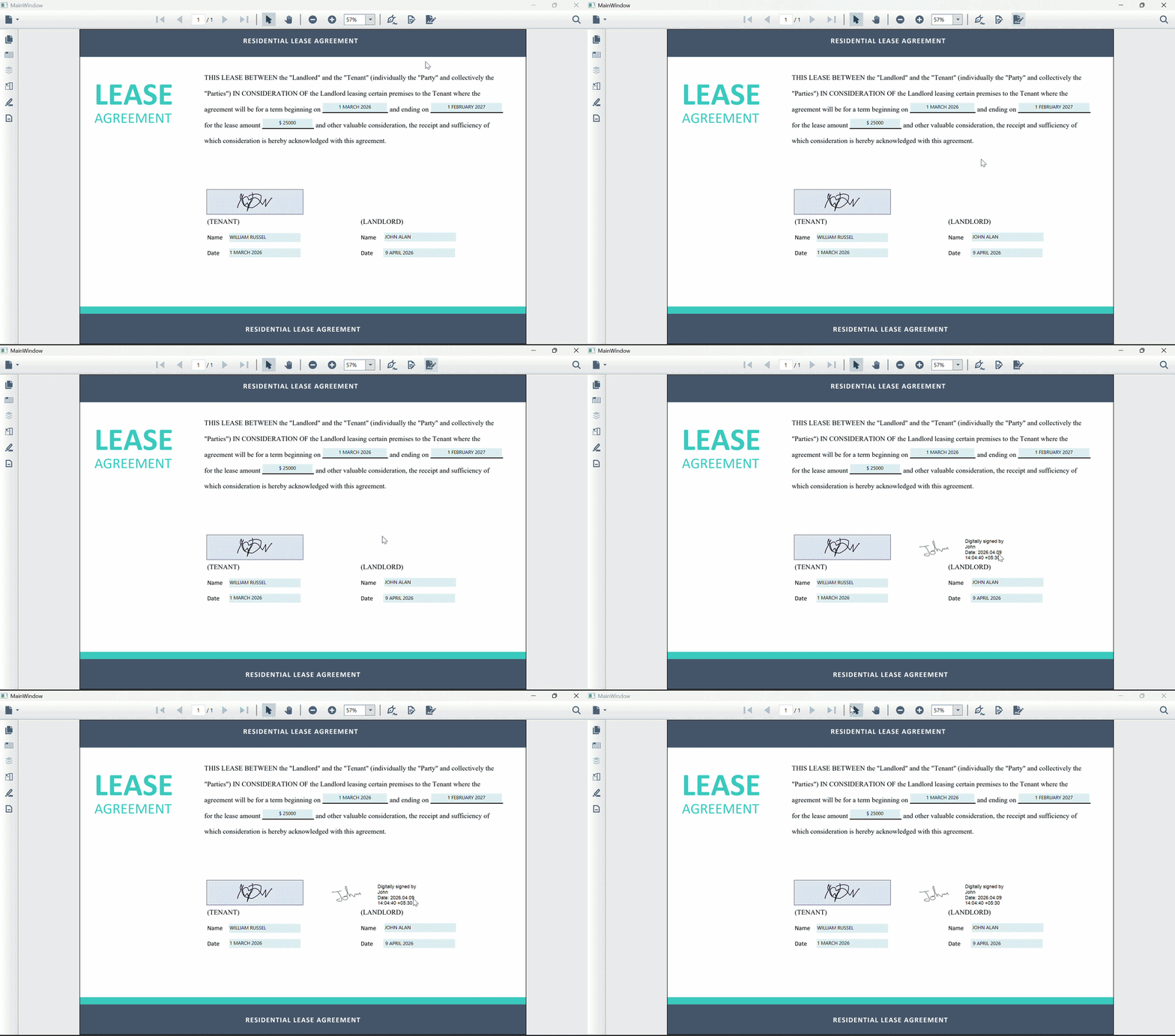
What the final result looks like
Users simply:
- Click the eSign button.
- Click where they want the signature.
- Instantly see a signed, verified PDF.
No pop‑ups. No exports. No external apps.
GitHub reference
Also, refer to the example for adding a digital signature using Syncfusion WPF PDF Viewer and .NET PDF Library on GitHub.
Frequently Asked Questions
Does the Syncfusion WPF PDF Viewer support adding digital signatures through its built-in UI?
No. The Syncfusion WPF PDF Viewer currently supports viewing existing digital signatures only. It does not provide a built-in UI option to add or modify signatures, which is why this blog demonstrates a programmatic workaround using toolbar customization and the Syncfusion PDF library.
What type of digital signature is implemented in this solution?
This implementation uses certificate-based digital signatures, which rely on a .pfx certificate containing a private key. These signatures ensure document integrity, signer identity verification, and tamper detection, making them suitable for legal and enterprise workflows.
How does the solution ensure accurate signature placement on the PDF page?
The PDF Viewer converts the mouse click’s client coordinates into page-relative coordinates using built-in conversion APIs. This guarantees precise placement regardless of zoom level, DPI, or scrolling position.
Start creating secure, in‑app WPF PDF signing experiences today
Thanks for reading! With this approach, you can enable smooth, certificate‑based PDF signing directly inside your WPF app, no external tools, no broken workflows. By extending Syncfusion WPF PDF Viewer with custom UI actions and the Syncfusion .NET PDF library, you gain full control over signature placement, appearance, and security.
Whether you’re building enterprise document workflows or everyday desktop utilities, this pattern makes in‑app PDF signing both practical and reliable.
If you’re already a Syncfusion customer, you can download the setup from your license and downloads page. New users can start with a free 30-day trial.
You can also contact us through our support forum, support portal, or feedback portal for queries. We are always happy to assist you!



 No spam, just valuable updates.